Learning how to deploy a React project with Docker containers is an essential skill for modern web development, offering streamlined deployment and efficient resource management. Containerizing React applications allows developers to create portable, scalable, and consistent environments that simplify the transition from development to production.
This guide covers the fundamental steps involved in preparing, building, testing, and deploying React applications within Docker containers. It also explores best practices for optimizing images, automating workflows, and ensuring security, providing a comprehensive overview for deploying React projects effectively across various platforms.
Overview of deploying React projects with Docker containers
Deploying React applications within Docker containers offers a streamlined and efficient approach to managing frontend services across various environments. Containerization encapsulates the entire application along with its dependencies, ensuring consistency, portability, and ease of deployment. This method simplifies the process of scaling React applications, facilitates smoother integration into CI/CD pipelines, and enhances overall reliability by isolating the application from host system variations.
Containerizing React projects involves packaging the built static files into a Docker image, which can then be deployed on any server running Docker. This approach eliminates environment-specific issues, making deployments predictable and manageable. It also opens avenues for automation and orchestration using tools like Docker Compose and Kubernetes, enabling scalable and resilient frontend service architectures.
Benefits of containerizing React applications
Containerization provides multiple advantages that are particularly beneficial for React applications in modern development workflows:
- Portability: Docker images can run uniformly across different environments—development, testing, staging, or production—without modifications.
- Consistency: Encapsulating dependencies ensures that the application behaves identically regardless of where it is deployed, reducing bugs caused by environment discrepancies.
- Scalability: Containers facilitate horizontal scaling, allowing multiple instances of the React app to handle increased traffic efficiently.
- Isolation: Each container runs independently, preventing conflicts between different applications or services on the same host.
- Automation and Integration: Containerization seamlessly integrates with CI/CD pipelines, enabling automated builds, tests, and deployments with minimal manual intervention.
Main steps involved in deploying React with Docker
The process of deploying a React application with Docker encompasses several structured steps, ensuring a smooth transition from development to production. These steps are designed to optimize build efficiency and deployment reliability:
- Build the React application: Generate static production files using the React build command, typically
npm run build, which outputs optimized files into abuilddirectory. - Create a Dockerfile: Write a Dockerfile that specifies the base image (such as
nodeornginx), copies the build artifacts, and configures the container to serve or run the application. - Build the Docker image: Execute
docker buildto create an image from the Dockerfile, tagging it appropriately for deployment. - Run or deploy the container: Use
docker runor container orchestration tools to deploy the image, exposing necessary ports and configuring environment variables as needed. - Automate deployment: Integrate the Docker build and run commands into CI/CD pipelines for continuous deployment and updates.
Typical architecture components used in containerized React deployment
Deploying React applications with Docker often involves a combination of architecture components that work together to deliver a robust frontend environment:
| Component | Description |
|---|---|
| React Application Source Code | The development files, including components, assets, and configuration files, which are compiled and optimized during the build process. |
| Build Environment | The environment (often a Docker container based on Node.js) used to run build commands like npm run build, producing static files. |
| Web Server or Static File Server | Typically Nginx or similar, configured within a Docker container to serve the static build files to the end users efficiently. |
| Container Orchestration Platform | Tools like Docker Compose or Kubernetes that manage container deployment, scaling, and health monitoring for production environments. |
| Reverse Proxy or Load Balancer | Optional components like Nginx or HAProxy that distribute traffic across multiple containers, ensuring high availability and performance. |
Implementing a layered architecture with build, serve, and orchestration components ensures scalable, maintainable, and resilient React deployments in Docker containers.
Preparing a React project for Docker deployment
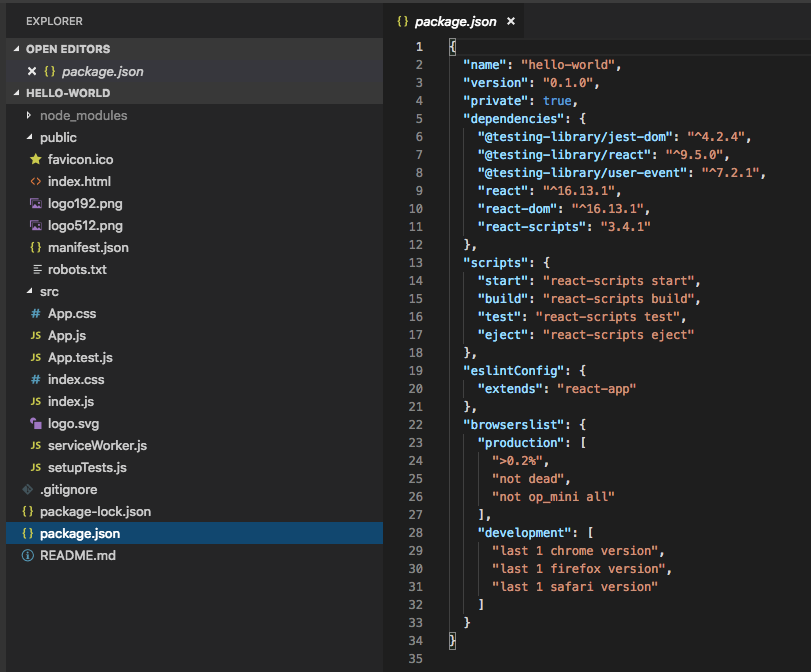
Optimizing a React application for deployment within Docker containers requires thoughtful preparation to ensure efficiency, security, and maintainability. Properly preparing your React project entails configuring build processes, managing environment variables, and structuring files to facilitate smooth containerization. This preparation not only streamlines the deployment workflow but also enhances the application’s performance and scalability within a containerized environment.
By focusing on key aspects such as build optimization, environment management, and configuration setup, developers can ensure that their React applications are production-ready and adaptable to various deployment scenarios involving Docker. This process involves specific steps to refine the build output, safeguard sensitive information, and establish flexible configurations that can be adjusted depending on the deployment environment.
Optimizing React Build for Containerization
Effective optimization of the React build process is essential to minimize the container size, improve loading times, and enhance runtime performance. React applications are typically built into static files, making them well-suited for container deployment, but careful optimization can significantly impact efficiency.
- Utilize the production build command: Running
npm run buildoryarn buildgenerates an optimized, minified, and cache-friendly version of the application. This command creates static assets in thebuilddirectory, ready for deployment. - Remove unused dependencies and code: Analyze the project to eliminate dead code, unnecessary libraries, or development-only dependencies. This reduces the build size, leading to faster load times within containers.
- Enable code splitting: Implement React’s
React.lazyandSuspensefeatures to split the bundle into smaller chunks, improving initial load performance especially relevant for containers with bandwidth constraints. - Configure environment-specific settings: Use environment variables to toggle features or API endpoints without altering the source code, facilitating adaptability across different environments.
Creating a Production-Ready React Build
Transforming a React project into a production-ready state involves generating an optimized set of static files that are ready to be served by a web server within a container. This step is crucial to ensure application stability, security, and performance in deployment scenarios.
- Set NODE_ENV to ‘production’: Ensure that environment variables are correctly set to enable React’s production mode, which disables development-specific warnings and optimizations.
- Generate the build artifacts: Execute the build command tailored to your package manager, such as
npm run buildoryarn build. This creates abuilddirectory containing static assets like HTML, CSS, JavaScript, and media files. - Implement caching strategies: Incorporate cache-busting techniques, such as hashed filenames, to ensure browsers and containers serve the latest assets while benefiting from caching efficiencies.
- Perform testing: Validate the build locally with a static server to check for broken links, missing assets, or runtime errors before deploying within Docker.
Incorporating Environment Variables and Configurations
Managing environment variables and configurations is vital for creating flexible and secure React applications that can adapt across different deployment environments. Proper handling of these variables ensures sensitive data remains protected and configuration values can be easily modified without modifying the source code.
“Environment variables should never be hardcoded into the application’s source code for security reasons; instead, they should be injected at build or runtime.” – Industry best practices
When preparing a React project for Docker deployment, consider the following points:
- Define environment variables in a
.envfile for development purposes, but ensure sensitive information is managed securely in production environments through Docker secrets or environment variables configured during container runtime. - Use tools like
dotenvor build configurations to inject environment variables during the build process, enabling the application to adapt to different API endpoints, feature toggles, or credentials. - Leverage React’s
process.envvariables to access environment-specific data within the application code, ensuring these variables are embedded correctly into the build output. - Maintain separate environment files or configurations for development, staging, and production to streamline transitions and maintain consistency across deployment stages.
By systematically optimizing the build, ensuring the React application is production-ready, and managing environment variables securely, developers can greatly enhance the deployment process within Docker containers, leading to more reliable and scalable web applications.
Creating Docker images for React applications
Building efficient and secure Docker images is a crucial step in deploying React applications. Properly crafted Docker images ensure consistency across environments, optimize resource usage, and enhance security. This section focuses on developing a tailored Dockerfile for React projects, emphasizing best practices for minimizing image size and maintaining security integrity.
Writing a Dockerfile for a React application involves specifying the correct environment setup, dependency management, and build steps. A well-structured Dockerfile not only facilitates smooth deployment but also adheres to best practices that keep the image lightweight and secure. This process encompasses selecting the appropriate base image, installing dependencies efficiently, and configuring the build process to generate optimized production assets.
Writing a tailored Dockerfile for React projects
Developing a Dockerfile for a React application requires a clear understanding of the build process and environment requirements. The goal is to create an image that contains only the necessary components for running the application, avoiding unnecessary layers and dependencies that inflate the size and impact security.
Below is a typical approach for constructing a Dockerfile tailored to React projects:
# Use an official Node.js runtime as the base image, selecting a slim version to reduce size
FROM node:18-slim AS build-stage

# Set working directory inside the container
WORKDIR /app

# Copy package.json and package-lock.json to leverage cached Docker layers
COPY package*.json ./

# Install dependencies efficiently
RUN npm install --production

# Copy the rest of the application code
COPY . .

# Build the React application for production
RUN npm run build

# Use a minimal web server image to serve static files
FROM nginx:stable-alpine as production-stage

# Copy built React app from the previous stage
COPY --from=build-stage /app/build /usr/share/nginx/html

# Copy custom nginx configuration if needed
# COPY nginx.conf /etc/nginx/conf.d/default.conf

# Expose port 80 for the web server
EXPOSE 80

# Command to run nginx in foreground
CMD ["nginx", "-g", "daemon off;"]
This Dockerfile utilizes a multi-stage build approach, which is a best practice for optimizing image size. The first stage involves setting up the Node environment, installing dependencies, and building the React app. The final stage uses a lightweight Nginx image to serve the static files, reducing overall image size and enhancing security by limiting the attack surface.
Best practices for minimizing image size and ensuring security
Efficient React Docker images depend on practices that reduce size and fortify security. Here are key strategies to achieve these objectives:
- Choose minimal base images: Use slim or Alpine variants of Node and Nginx images, which are stripped-down versions designed for smaller sizes.
- Leverage multi-stage builds: Separate the build environment from the production image to avoid including development dependencies and build tools in the final image.
- Cache dependencies effectively: Copy only
package.jsonandpackage-lock.jsonfiles before installing dependencies to leverage Docker’s caching and reduce build times. - Keep dependencies lean: Regularly audit dependencies to eliminate unnecessary packages, reducing attack vectors and image size.
- Implement security best practices: Run containers with non-root users where possible, and keep images updated with security patches.
- Minimize image layers: Combine commands where feasible, such as chaining
RUNcommands, to reduce the total number of layers.
For example, using
npm ciinstead ofnpm installcan ensure a clean, predictable installation of dependencies, which is especially beneficial in CI/CD pipelines.
Adopting these practices results in lightweight, secure Docker images that facilitate smoother deployment workflows, lower storage costs, and protect against potential vulnerabilities in production environments.
Building and testing Docker images locally
Creating and validating Docker images on your local machine is a critical step to ensure your React application’s containerization process functions correctly before deploying to production or sharing with others. This process involves constructing Docker images from your Dockerfile, running containers to simulate the production environment, and verifying that your React app performs as expected within the containerized setup.
Effectively building and testing Docker images locally can save significant time by catching potential issues early, such as misconfigurations, missing dependencies, or runtime errors. It also provides an opportunity to optimize Docker images for size and performance, ensuring a smooth deployment pipeline.
Building Docker Images from Dockerfile
To create a Docker image from your Dockerfile, use the docker build command. The syntax requires specifying the context directory, which contains your Dockerfile and application files, and tagging the resulting image for easier reference:
docker build -t my-react-app:latest .
This command instructs Docker to construct an image named my-react-app with the latest tag, using the current directory as the build context. It is essential to ensure your Dockerfile is correctly configured and all necessary application files are included in the context to avoid build failures.
Running and Verifying Containerized React Applications Locally
Once the image is built successfully, running a container allows you to test the React application’s behavior in an environment closely resembling production. Use the docker run command with appropriate options:
docker run -d -p 3000:80 --name react-test-container my-react-app:latest
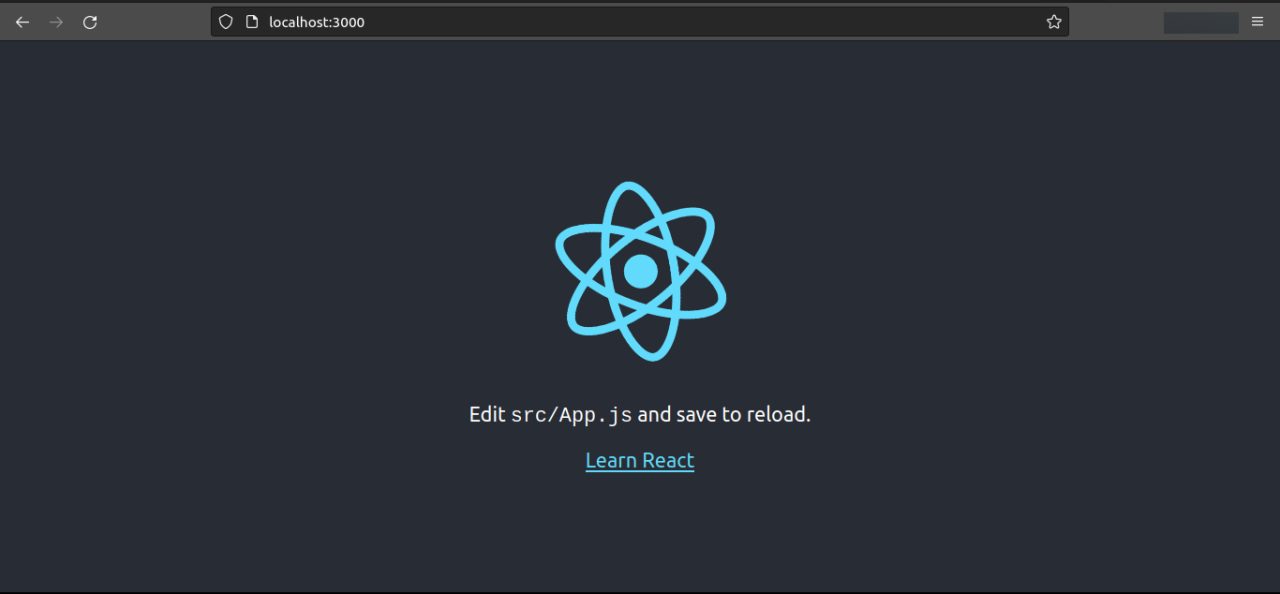
This command runs the container in detached mode ( -d), maps port 80 inside the container to port 3000 on your local machine, and assigns the container a name for easier management. After launching the container, access the React app by navigating to http://localhost:3000 in your browser, and verify that the application loads correctly and functions as intended.
To stop and remove the test container after verification, execute:
docker stop react-test-container && docker rm react-test-container
Techniques for Troubleshooting Common Build and Runtime Issues
Encountering issues during Docker image build or runtime is common, especially with complex React applications or misconfigured Dockerfiles. Addressing these issues requires systematic troubleshooting using Docker’s diagnostic tools and logs.
For build-related problems, examine the output of the docker build command carefully. Common errors include missing dependencies, incorrect copy paths, or network issues during package installation. Enhancing your Dockerfile with detailed steps and running build commands with verbose flags can help pinpoint failures.
Tip: Use
docker build --progress=plainfor more detailed build logs, facilitating easier identification of issues.
During runtime, if the container fails to start or the React app does not load properly, inspect the container logs using:
docker logs react-test-container
This command displays real-time logs from the container, revealing errors such as port conflicts, missing environment variables, or application crashes. In case of port conflicts on the host machine, consider changing the port mapping to an available port, like -p 3001:80.
Furthermore, verifying network connectivity, ensuring correct environment variable settings, and testing dependencies within the container can resolve many runtime issues. When persistent problems occur, rebuilding the image with a clean cache or updating dependencies can often resolve conflicts caused by outdated or corrupted layers.
Deploying React Docker containers to different platforms
Deploying React applications within Docker containers across various cloud platforms and orchestration tools is essential for achieving scalable, reliable, and maintainable deployment workflows. Understanding the available options and the specific procedures for each platform ensures that developers can select the most appropriate environment for their project’s needs. This section explores the primary deployment methods, compares popular orchestration tools, and provides step-by-step guidance for deploying on leading cloud services with an emphasis on secure environment variable and secret management.
Effective deployment of React Docker containers involves choosing the right platform and tools to meet scalability, security, and operational requirements. Whether deploying on local clusters, cloud providers, or orchestrating at scale, familiarity with Docker Compose, Docker Swarm, and Kubernetes enables flexible and efficient release cycles. Additionally, cloud services like AWS, Azure, and GCP provide robust environments for hosting containerized applications, each with distinct setup procedures and best practices for managing environment variables and secrets securely.
Comparison of Deployment Options: Docker Compose, Docker Swarm, Kubernetes
Choosing the right deployment orchestration method depends on the complexity of the application, scalability needs, and operational expertise. Each option offers distinct advantages and fits different scenarios:
| Feature | Docker Compose | Docker Swarm | Kubernetes |
|---|---|---|---|
| Complexity | Simple to set up; suitable for local development and small deployments | ||
| Orchestration Capabilities | Limited; primarily manages multi-container applications on a single host | ||
| Scalability | Manual scaling; limited to single-node or small clusters | ||
| High Availability & Load Balancing | Not inherently supported; requires external tools | ||
| Cluster Management | Not designed for multi-host clustering | ||
| Kubernetes | Advanced orchestration with extensive features for large-scale deployments | ||
| Scalability & Automation | Supports scaling but requires manual intervention or additional scripting | ||
| High Availability & Load Balancing | Built-in support with service discovery and load balancing | ||
| Learning Curve | Lower; suitable for small projects and beginners | ||
| Community & Ecosystem | Limited compared to Kubernetes; suitable for simpler use cases | ||
| Kubernetes | Highly scalable with automated deployment, scaling, and management | ||
| Complexity | Requires understanding of concepts like pods, services, and deployments | ||
| Community & Ecosystem | Large and active; extensive support and integrations |
In summary, Docker Compose is ideal for development and small-scale deployments, while Docker Swarm offers a lightweight orchestrator suitable for slightly larger setups. Kubernetes stands out for complex, large-scale deployments requiring sophisticated orchestration, automation, and resilience.
Deploying on Cloud Platforms: AWS, Azure, and GCP
Deploying React Docker containers on cloud platforms involves a series of structured steps to ensure smooth deployment, scalability, and security. These cloud providers offer managed container services that simplify orchestration and deployment workflows, including AWS Elastic Container Service (ECS/EKS), Azure Kubernetes Service (AKS), and Google Kubernetes Engine (GKE). The process typically includes container registry setup, environment configuration, deployment, and security considerations.
- Set Up Container Registry: Begin by creating a container registry, such as Amazon ECR, Azure Container Registry, or Google Container Registry, to securely store your Docker images.
- Build and Push Docker Image: Build your React application’s Docker image locally and push it to the cloud registry, ensuring image versioning and tagging for consistency.
- Configure Deployment Environment: Create a deployment configuration file suited for the platform, such as task definitions for ECS, deployment YAML files for GKE, or Helm charts for complex deployment scenarios.
- Deploy Containers: Use the cloud provider’s CLI tools or web consoles to deploy your container images, configuring auto-scaling, load balancing, and networking as needed.
- Manage Environment Variables and Secrets: Use dedicated services like AWS Secrets Manager, Azure Key Vault, or GCP Secret Manager to store sensitive data securely. Inject these secrets into your containers via environment variables or mounted files during deployment, avoiding hardcoded secrets in images or configs.
- Monitor and Maintain Deployment: Utilize cloud-native monitoring tools such as AWS CloudWatch, Azure Monitor, or Google Operations Suite to track application health, logs, and performance metrics.
Ensuring the security of environment variables and secrets is paramount; always prefer dedicated secret management services over plain text storage or hardcoded values. Automate secret rotation and access controls to enhance security posture.
Following these detailed steps and leveraging cloud-native tools ensures a resilient, scalable, and secure deployment environment for your React applications packaged in Docker containers across different cloud platforms.
Automating Deployment Workflows
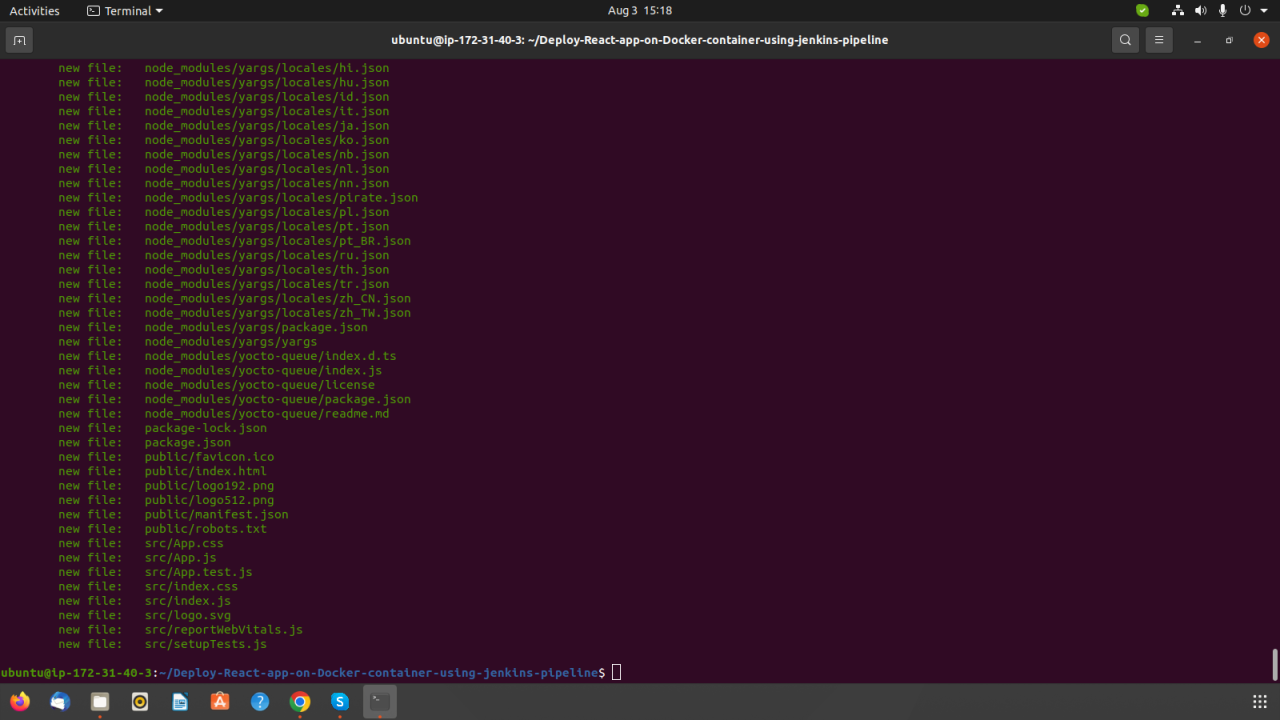
Integrating Docker deployment processes into CI/CD (Continuous Integration and Continuous Deployment) pipelines significantly enhances development efficiency, reduces manual errors, and accelerates the delivery cycle of React applications. Automation ensures that every code change undergoes consistent building, testing, and deployment procedures, fostering a robust and reliable production environment. Leveraging automation tools and scripting strategies streamlines these workflows, making deployment predictable and manageable even with frequent updates.
Effective automation involves orchestrating various stages such as code compilation, container image creation, testing, and deployment across multiple platforms. By embedding these steps into CI/CD pipelines, development teams can maintain high-quality standards and rapid iteration. Below are key strategies, example scripts, and best practices for automating React project deployments with Docker containers.
Integrating Docker Deployment into CI/CD Pipelines
Embedding Docker deployment into CI/CD pipelines requires configuring pipeline scripts to automatically build, test, and deploy container images upon code commits. Popular CI/CD tools like Jenkins, GitHub Actions, GitLab CI, or CircleCI can be utilized to define these workflows through configuration files. This integration ensures that each change is validated in a containerized environment, aligned with production settings, and deployed seamlessly to target platforms.
To effectively integrate Docker into CI/CD, the pipeline should include stages for:
- Checking out the latest code from version control
- Building the React application and container images
- Running automated tests within containers to validate functionality
- Tagging images with meaningful version identifiers
- Pushing images to container registries such as Docker Hub or private repositories
- Deploying the containerized application to staging or production environments
Using environment variables and secrets management enhances security and flexibility, allowing the pipeline to adapt to various deployment environments without manual intervention.
Example Scripts for Automating Build, Test, and Deployment
Below is an illustrative example of a GitHub Actions workflow configured to automate React application deployment with Docker:
name: React Docker CI/CD

on:
  push:
    branches:

-main

jobs:
  build-and-deploy:
    runs-on: ubuntu-latest
    steps:

-name: Checkout code
        uses: actions/checkout@v3


-name: Set up Node.js
        uses: actions/setup-node@v3
        with:
          node-version: '14'


-name: Install dependencies and build React app
        run: |
          npm install
          npm run build


-name: Log in to Docker Hub
        uses: docker/login-action@v2
        with:
          username: $ secrets.DOCKER_USERNAME
          password: $ secrets.DOCKER_PASSWORD


-name: Build Docker image
        run: |
          docker build -t my-react-app:$ github.sha  .


-name: Push Docker image
        run: |
          docker push my-react-app:$ github.sha


-name: Deploy to server
        run: |
          ssh user@server 'docker pull my-react-app:$ github.sha  && docker stop react-container || true && docker rm react-container || true && docker run -d --name react-container -p 80:80 my-react-app:$ github.sha '
This script automates the process from code checkout through building, testing, tagging, and deploying Docker images, ensuring a consistent deployment process each time code is updated.
Version Control Practices for Container Images and Tags
Proper version control of container images is critical to maintain consistency, traceability, and rollback capabilities. Adopting systematic tagging conventions allows teams to identify specific application states and facilitates smooth rollbacks if necessary.
Best practices include:
- Using semantic versioning (e.g., v1.0.0, v1.0.1) for major, minor, and patch updates to clearly communicate changes.
- Incorporating commit hashes or build numbers into image tags for traceability, such as my-react-app:build-1234 or my-react-app:commit-abcdef.
- Maintaining a ‘latest’ tag that points to the most recent stable build, while avoiding overuse to prevent ambiguity.
- Automating tag creation within CI/CD pipelines to ensure consistency and reduce manual errors.
Storing images with appropriate tags in trusted container registries allows for efficient deployment, auditing, and rollback processes. Regularly cleaning up outdated or unused images helps manage storage and maintain a clean registry environment.
Best practices for maintaining and updating React containers
Maintaining and updating React containers in a Dockerized environment is crucial to ensure the application’s stability, security, and performance over time. Proper strategies help streamline deployment workflows, reduce downtime, and facilitate seamless user experiences. Adhering to best practices can also simplify rollback procedures and enable proactive health monitoring, which are vital components of a resilient deployment pipeline. Effective management of React containers involves systematic updating of container images with new React builds, implementing reliable rollback mechanisms, and establishing robust health checks and monitoring strategies.
These practices are essential for minimizing risks associated with updates and ensuring that containerized React applications perform optimally across different environments and platforms.
Methods for updating containers with new React builds
Updating React containers with the latest builds is fundamental to delivering new features, fixing bugs, and maintaining security standards. Several approaches can be adopted to achieve this efficiently:
Automated Image Rebuilding and Deployment
Integrate CI/CD pipelines to automatically rebuild Docker images whenever new React code is pushed to the repository. This ensures that the Docker images are always up-to-date and ready for deployment without manual intervention.
Layer Caching for Efficient Builds
Optimize Dockerfile configurations to cache layers that do not change frequently, such as dependencies, allowing faster rebuilds and deployments. This reduces downtime and accelerates update cycles.
Version Tagging and Immutable Images
Tag Docker images with explicit version numbers or build identifiers to track specific releases. When deploying updates, replace the old container with a new one based on the latest image, avoiding inconsistencies or accidental rollbacks.
Zero-Downtime Deployment Strategies
Employ techniques like blue-green deployments or rolling updates to replace containers with minimal or zero service interruption. This approach is particularly effective for production environments where uptime is critical.
Container Orchestration Integration
Use orchestration tools such as Kubernetes to automate rolling updates, ensuring that new React builds are deployed smoothly across multiple containers with health checks in place.
Strategies for rolling back deployments
Despite thorough testing, there may be situations where deployed React containers need to be rolled back to a previous stable version. Implementing effective rollback strategies enhances application reliability and user trust. The following methods are recommended:
Versioned Images and Tagging
Maintain multiple versions of Docker images with clear tags. During deployment, retain access to previous stable images, enabling quick replacement if issues arise.
Automated Rollback Mechanisms
Configure orchestration tools like Kubernetes or Docker Swarm to monitor container health and automatically revert to a prior version if the new deployment exhibits instability or errors.
Incremental Rollbacks
Use staged rollbacks that gradually replace containers, allowing identification of potential issues early in the process and reducing the impact on users.
Snapshot and Backup Policies
Regularly back up application data and configuration states, facilitating restoration to a previous environment if necessary.
Documentation and Version Control
Keep detailed records of deployment versions and associated changes, simplifying troubleshooting and rollback procedures.
Container health checks and monitoring approaches
Proactive health checks and continuous monitoring are vital to maintaining React container performance and reliability. Proper practices ensure quick detection of issues and facilitate timely interventions:
Implementing Health Checks
Configure Docker health check commands within Dockerfiles or orchestration tools. These checks can verify the container’s responsiveness by calling specific endpoints of the React application, such as the homepage or API health endpoint. Example: A simple curl command to check if the React app responds correctly: “`bash CMD curl -f http://localhost:3000/health || exit 1 “`
Monitoring Application Metrics
Utilize monitoring tools like Prometheus, Grafana, or Datadog to track metrics such as CPU usage, memory consumption, response times, and error rates. These metrics help identify performance bottlenecks or abnormal behavior.
Log Aggregation
Centralize logs using tools like Elasticsearch, Logstash, and Kibana (ELK Stack) or Fluentd, to analyze application logs for errors, warnings, or suspicious activity.
Alerting Systems
Set up alerts based on predefined thresholds or anomalies detected in metrics and logs. Immediate notifications enable swift response to potential problems.
End-User Experience Monitoring
Incorporate real user monitoring (RUM) to gather insights from actual user interactions, ensuring that React containers deliver optimal experiences under various conditions and loads.
Security considerations in deploying React with Docker
Deploying React applications using Docker containers introduces specific security challenges and opportunities. Ensuring that the deployment process is secure not only protects the application itself but also safeguards the underlying infrastructure and sensitive data. This section Artikels essential security steps, the significance of vulnerability scanning, and best practices for managing secrets within Dockerized environments.
Implementing robust security measures in the deployment phase is critical to prevent potential exploits and to maintain the integrity of the application. It involves securing Docker images, containers, and the data they handle, along with establishing protocols for secret management. Adopting these practices helps organizations minimize attack surfaces and comply with security standards.
Securing Docker images and containers
To safeguard Docker environments, it is imperative to follow a comprehensive approach that includes building hardened images, controlling access, and applying updates diligently. By securing images and containers, organizations can prevent malicious code execution, unauthorized access, and data breaches.
- Use minimal base images: Start with lightweight, minimal images such as Alpine Linux to reduce the attack surface, minimizing unnecessary packages and vulnerabilities.
- Regularly update images: Keep images up-to-date with the latest security patches and updates, ensuring known vulnerabilities are patched promptly.
- Apply security patches: Incorporate security patches during the build process to address vulnerabilities before deploying containers.
- Implement image signing: Use Docker Content Trust (DCT) to sign images, verifying their authenticity and integrity before deployment.
- Run containers with least privilege: Configure containers to run with the minimal required permissions, avoiding the use of root user unless absolutely necessary.
- Limit network exposure: Use network segmentation and firewall rules to restrict container communication to only necessary services.
- Enable resource constraints: Set limits on CPU, memory, and other resources to prevent denial-of-service (DoS) attacks caused by resource exhaustion.
Importance of vulnerability scanning for images
Vulnerability scanning plays a vital role in proactively identifying security flaws within Docker images before deployment. Regular scans ensure that known vulnerabilities are detected and addressed, reducing the risk of exploits in production environments.
By integrating automated scanning tools into the CI/CD pipeline, teams can maintain a continuous security posture. These tools analyze image layers for outdated software, known CVEs (Common Vulnerabilities and Exposures), and insecure configurations. Addressing issues found during scans helps prevent attackers from exploiting weaknesses in the containerized application.
- Use trusted scanning tools: Tools like Clair, Trivy, or Docker Security Scanning provide comprehensive vulnerability reports to inform remediation efforts.
- Automate scans during CI/CD: Incorporate vulnerability scans into the build process, ensuring new images are checked before deployment.
- Prioritize critical vulnerabilities: Focus on fixing high-severity issues that could lead to remote code execution or data breaches.
- Maintain an updated vulnerability database: Ensure scanning tools are configured with current CVE databases for accurate detection.
Guidelines for managing secrets and sensitive data within containers
Managing secrets securely within Docker containers is crucial to prevent sensitive data exposure, such as API keys, database credentials, and encryption keys. Proper secret management reduces the risk of data leaks and unauthorized access.
- Use environment variables cautiously: Avoid hardcoding secrets within Dockerfiles or code. Instead, pass secrets at runtime via environment variables or secret management tools.
- Leverage secret management tools: Integrate solutions like Docker Secrets, HashiCorp Vault, or AWS Secrets Manager to securely store and inject secrets into containers.
- Implement encrypted storage: Store secrets in encrypted formats and ensure that decryption occurs only within trusted environments.
- Limit secret access: Adopt the principle of least privilege by restricting access to secrets only to necessary containers and processes.
- Rotate secrets regularly: Establish policies for periodic secret rotation to reduce the window of opportunity for potential compromise.
- Avoid logging secrets: Ensure that sensitive data is not written to logs or exposed in error messages, maintaining confidentiality at all stages.
Secure deployment of React applications in Docker containers requires a multi-layered approach that addresses image integrity, vulnerability management, and secret handling. Implementing these best practices enhances the overall security posture and resilience of your deployment pipeline.
Final Summary
In conclusion, deploying React projects with Docker containers enhances both deployment efficiency and application scalability. By following these best practices and leveraging automation tools, developers can ensure their applications remain secure, maintainable, and ready for growth. Embracing containerization paves the way for a more robust and flexible deployment strategy in modern web development.