Learning how to debug nodejs application using nodemon is an essential step in streamlining the development process and ensuring application stability. This guide explores effective methods to identify and resolve issues efficiently, making your coding experience smoother and more productive.
By leveraging nodemon alongside built-in Node.js debugging tools, developers can set up a robust environment for real-time error detection, seamless code modifications, and insightful runtime analysis. This comprehensive approach facilitates a deeper understanding of application behavior and accelerates troubleshooting.
Understanding the Basics of Node.js Debugging
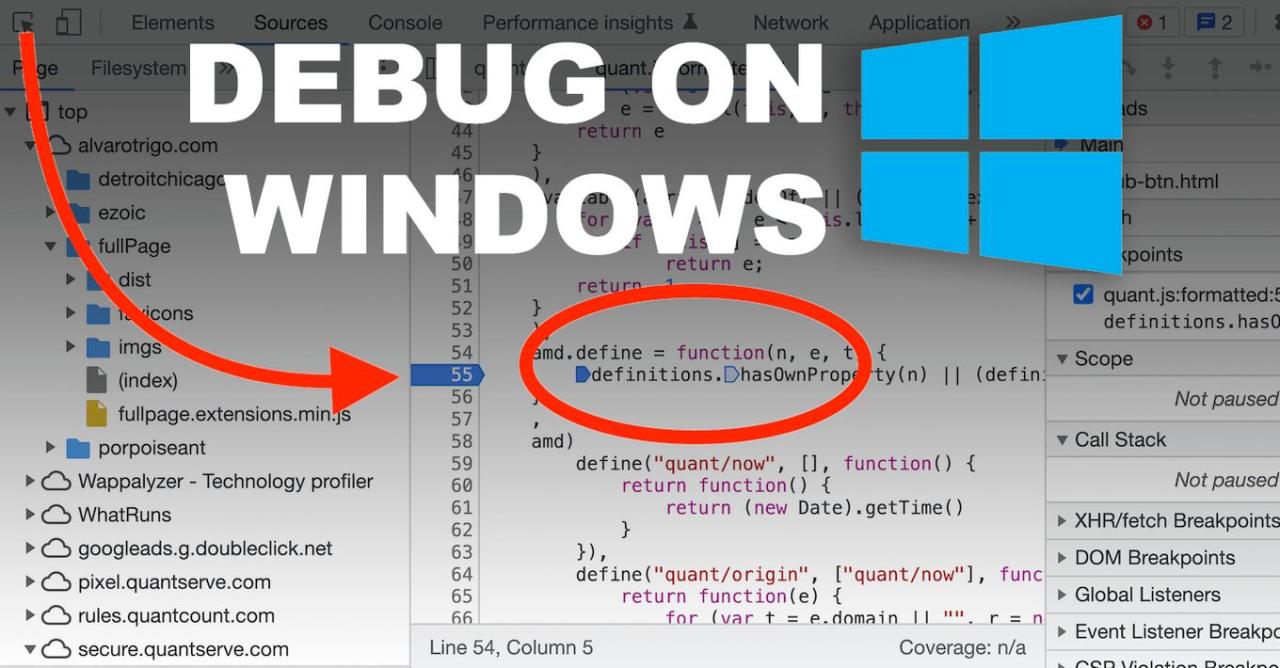
Debugging is a critical component of developing robust and efficient Node.js applications. It involves systematically identifying, analyzing, and resolving issues or bugs within the code to ensure smooth application performance. Mastering debugging techniques not only facilitates quicker problem resolution but also enhances the overall quality and reliability of the software, ultimately leading to better user experiences and streamlined development cycles.
In Node.js projects, debugging can sometimes present unique challenges due to asynchronous operations, complex module dependencies, and the dynamic nature of JavaScript execution. Developers often encounter difficulties tracing errors that originate from callback functions, promises, or external APIs, making it essential to adopt effective debugging strategies. Tools like nodemon simplify this process by automatically restarting the server upon code changes, allowing developers to see the impact of fixes immediately.
This automation reduces manual intervention, speeds up the debugging cycle, and fosters a more efficient development workflow.
Importance of Debugging in Node.js Applications
Debugging ensures that Node.js applications operate as intended by systematically locating and fixing issues that could cause crashes, data corruption, or unexpected behavior. As Node.js is often used in server-side applications managing multiple concurrent users, even minor bugs can escalate into significant problems affecting uptime and data integrity. Effective debugging helps improve code quality, optimize performance, and enhance security by enabling developers to identify vulnerabilities early in the development process.
Common Challenges Faced During Debugging Node.js Projects
Developers encounter several challenges when debugging Node.js applications, especially due to the asynchronous programming model and complex call stacks. Common difficulties include:
- Tracing errors across asynchronous callbacks, promises, and event-driven architectures, which obscure the flow of execution.
- Identifying memory leaks or performance bottlenecks that may not produce explicit errors but degrade application responsiveness over time.
- Handling environment-specific bugs that only manifest under specific configurations or input data, complicating reproduction and diagnosis.
- Managing large codebases with numerous dependencies, where pinpointing the source of an issue requires thorough understanding of module interactions.
Overcoming these challenges necessitates familiarity with debugging tools, proper logging strategies, and disciplined code organization. Tools like nodemon play a vital role in this context by automating server restarts during development, enabling rapid testing of fixes and reducing the likelihood of missing errors due to manual restart delays.
The Role of Nodemon in Simplifying Development Workflows
Nodemon is a utility that monitors changes in the source code of Node.js applications and automatically restarts the server whenever modifications are detected. This feature significantly streamlines the debugging process by eliminating the need for manual restarts, thereby providing immediate feedback on code changes. Developers can implement debugging sessions more efficiently, quickly testing fixes and observing application behavior in real-time.
Moreover, nodemon integrates seamlessly with popular debugging tools like the Node.js inspector, Chrome DevTools, and Visual Studio Code, creating an integrated environment conducive to effective troubleshooting. By reducing downtime between code edits and execution, nodemon encourages a rapid development cycle, fosters iterative problem-solving, and helps maintain focus on resolving issues rather than managing environment setups. Its simplicity and utility have made it an indispensable tool in the Node.js developer’s toolkit, particularly during intensive debugging and development phases.
Setting Up a Node.js Application for Debugging with Nodemon
Efficient debugging is essential for developing robust Node.js applications. Setting up your project to utilize Nodemon simplifies this process by enabling automatic server restarts upon code changes, thereby streamlining the debugging workflow. This section provides a detailed guide on initializing a Node.js project, installing and configuring Nodemon, and creating a simple sample application to facilitate effective debugging sessions.
Proper setup ensures that developers can quickly identify and resolve issues within their Node.js applications without manual server restarts, enhancing overall productivity and reducing downtime during development.
Initializing a Node.js Project
Beginning with a well-structured project foundation is crucial for seamless debugging. The process involves creating a dedicated directory, initializing the project with npm, and defining necessary scripts for development and debugging purposes.
- Create a new directory for your project and navigate into it:
- Initialize the project with npm to generate a package.json file:
- Verify the package.json file includes essential information such as name, version, and main entry point, typically index.js or app.js.
mkdir my-node-debug-app
cd my-node-debug-app
npm init -y
This setup provides a clean environment where dependencies can be managed effectively, and scripts for debugging can be defined.
Installing and Configuring Nodemon
Nodemon is a development utility that observes your project’s files and automatically restarts the server when modifications are detected. Installing and configuring Nodemon is straightforward but vital for an efficient debugging environment.
- Install Nodemon as a development dependency using npm:
- Once installed, update the scripts section of your package.json to include a start script that utilizes Nodemon:
- Ensure your main application file, such as index.js, exists in the root directory of your project. This file will serve as the entry point for debugging sessions.
npm install –save-dev nodemon
“scripts”: “start”: “nodemon index.js”
The configuration above allows you to start your application with the command npm start, which invokes Nodemon to monitor your files and restart the server automatically upon changes.
Creating a Sample Application for Debugging
To test the debugging setup, develop a simple Node.js application that includes basic server logic, such as an HTTP server that responds with a greeting message. This sample application enables practical debugging exercises and demonstrates how changes reflect instantly during runtime.
- Create a new file named
index.jsin the project directory:
const http = require('http');

const server = http.createServer((req, res) =>
  if (req.url === '/')
    res.writeHead(200,  'Content-Type': 'text/plain' );
    res.end('Hello, Debugging with Nodemon!');
   else
    res.writeHead(404);
    res.end('Page not found');

);

const PORT = process.env.PORT || 3000;
server.listen(PORT, () =>
  console.log(`Server running on port $PORT`);
);
- Start the application using the predefined npm script:
- Open your browser and navigate to
http://localhost:3000to verify that the server responds with the greeting message. - Modify the response message within
index.js(e.g., change the greeting text), save the file, and observe that Nodemon automatically restarts the server. Refresh the browser to see the updated response instantly.
npm start
This simple setup provides a practical environment for debugging, allowing you to set breakpoints, examine variables, and step through code efficiently. As your project grows, you can extend this foundation to include more complex debugging configurations and tools.
Configuring Nodemon for Effective Debugging
Optimizing your debugging workflow with Nodemon involves setting up custom configurations that enhance visibility and control during development. Proper configuration not only streamlines the process but also helps in quickly identifying and resolving issues within your Node.js applications. By tailoring Nodemon’s settings, developers can achieve a more efficient and insightful debugging experience.
Implementing specific configurations allows for granular control over how Nodemon monitors, logs, and interacts with your application. This includes defining custom watch behaviors, output verbosity, and integrating debugging flags directly into the Nodemon process, ensuring that debugging sessions are both comprehensive and manageable.
Setting Up Custom Nodemon Configuration Files for Debugging
Creating a dedicated configuration file for Nodemon facilitates consistent debugging settings across development environments. The most common approach involves using a nodemon.json file placed at the root of your project. This file specifies parameters such as script paths, file watch patterns, environment variables, and debugging options.
Here is an example of a typical nodemon.json configuration tailored for debugging:
  "watch": ["src", "config"],
  "ext": "js,json",
  "execMap":
    "js": "node --inspect"
  ,
  "verbose": true,
  "restartable": "rs",
  "ignore": ["node_modules"]
In this configuration:
- watch: Specifies directories or files Nodemon monitors for changes, ensuring that only relevant parts of the project trigger restarts.
- ext: Defines the file extensions to watch, typically JavaScript and JSON files for Node.js debugging.
- execMap: Overrides the default execution command, adding debugging flags such as
--inspectfor enabling the Node.js debugger. - verbose: Ensures detailed output, making debugging more transparent.
- restartable: Sets a custom command or key to manually restart the process, useful during intensive debugging sessions.
- ignore: Excludes directories like
node_modulesto improve performance and prevent unnecessary restarts.
By customizing the nodemon.json file, developers can streamline debugging workflows, ensuring that the application restarts and logs are configured precisely to their needs.
Enabling Verbose Output and Logging Options in Nodemon
Enhanced output visibility is crucial during debugging to quickly identify issues and understand application behavior. Nodemon offers command-line flags and configuration options to increase verbosity and logging detail, which can be combined with custom configuration files for optimal results.
To activate verbose output, developers can pass the --verbose flag directly in the command line or include it within the configuration file. Verifying logs enables tracking of file changes, process restarts, and errors with greater clarity.
Example command with verbose flag:
nodemon --inspect --verbose app.js
In a nodemon.json configuration, this can be set as:
  "verbose": true,
  "exec": "node --inspect"
Logging options extend further by configuring environment variables or integrating external logging libraries into your application. Using Node.js built-in modules or third-party tools like winston or morgan allows for persistent, detailed logs that can be reviewed after debugging sessions, providing insights into runtime behaviors and errors.
For example, you might configure Winston to output logs to a file with timestamps, error levels, and message details, helping to diagnose issues over multiple sessions without losing historical data. Combining these logging strategies with Nodemon’s verbose output creates a comprehensive debugging environment that is both informative and manageable.
Using Built-in Node.js Debugging Tools
Node.js offers powerful built-in debugging capabilities that enable developers to diagnose and resolve issues efficiently during application development. Utilizing these tools can significantly streamline the debugging process, especially when combined with modern browsers and IDEs. Understanding how to initiate Node.js in debug mode and attach debugging interfaces allows for deeper inspection of runtime behavior, variable states, and call stacks, ultimately leading to more robust and reliable applications.
In this section, we explore how to leverage Node.js’s native debugging features, including starting applications with the --inspect flag, attaching Chrome DevTools or Visual Studio Code, and using runtime options to inspect variables and call stacks effectively.
Starting a Node.js Application in Debug Mode Using –inspect
Running a Node.js application in debug mode is a foundational step that exposes a debugging interface accessible through external tools like Chrome DevTools or IDE debuggers. The key to enabling this is the --inspect flag, which starts the Node.js process with debugging capabilities enabled, allowing connections for inspection over a WebSocket connection.
To initiate a Node.js application in debug mode, use the command line as follows:
node --inspect=localhost:9229 your_app.js
This command starts the application and makes it available for debugging via the specified port (default is 9229). If no port is specified, Node.js defaults to 9229. Developers can also use --inspect-brk to pause execution immediately upon startup, providing an opportunity to set breakpoints before the code runs.
Attaching Chrome DevTools or Visual Studio Code Debugger
Once Node.js is running in debug mode, attaching Chrome DevTools or the Visual Studio Code debugger allows developers to interactively inspect and control application execution. These tools enable setting breakpoints, stepping through code, and monitoring runtime variables, facilitating an in-depth understanding of application flow and state.
To attach Chrome DevTools:
- Open Google Chrome and navigate to
chrome://inspect. - Click on “Configure” to ensure the target port (e.g., 9229) is included.
- Click “Open dedicated DevTools for Node” or select the target process from the list.
- The DevTools will connect to the running Node.js process, allowing for real-time debugging.
To attach Visual Studio Code:
- Launch Visual Studio Code and open your project folder.
- Navigate to the Debug panel and click on “create a launch.json” if not already configured.
- Select “Node.js” as the environment, then update the configuration with:
  "type": "node",
  "request": "attach",
  "name": "Attach to Process",
  "port": 9229,
  "restart": true,
  "skipFiles": ["/"]
Inspecting Runtime Variables and Call Stacks with Line Options
Node.js’s built-in debugger provides command-line options to inspect variables and call stacks at runtime, which is invaluable for diagnosing complex issues. When running in debug mode, the --inspect flag opens a WebSocket interface that debug clients can connect to for real-time inspection.
Within the debugging tools, you can leverage specific commands and features:
- Setting breakpoints: Pause execution at specific lines to examine the current state.
- Inspecting variables: Use the debugger interface to view variable values in the current scope.
- Viewing call stacks: Access the sequence of function calls leading to the current point of execution.
In Chrome DevTools or VS Code, the call stack panel displays the current stack trace, allowing navigation through different frames. Additionally, you can evaluate expressions inline or in the console window to examine runtime variables and perform dynamic inspections.
Example: To view local variables at a breakpoint, open the “Scope” section in DevTools or the “Variables” pane in VS Code. To examine specific expressions, type them into the console or the debugger’s watch window, such as
userDataorcontext.state.
These built-in debugging tools empower developers to troubleshoot issues more accurately by providing immediate insight into application state during execution, making debugging a more interactive and efficient process.
Combining Nodemon with Debugging Techniques
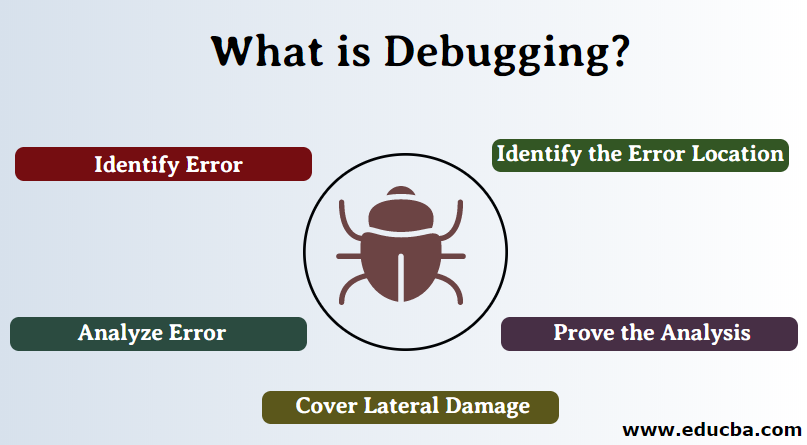
Integrating Nodemon with advanced debugging techniques significantly enhances the development workflow for Node.js applications. This combination allows developers to observe real-time changes, set precise breakpoints, and monitor variables seamlessly as the application responds instantly to code modifications. Mastering these techniques ensures a more efficient, iterative debugging process, reducing downtime and improving code quality.
By leveraging Nodemon alongside debugging tools and IDE features, developers can achieve a dynamic development environment where code changes are immediately reflected, and debugging sessions are more insightful. This approach streamlines troubleshooting, accelerates development cycles, and fosters a deeper understanding of application behavior during runtime.
Running Nodemon with Debugging Flags for Automatic Restart on Code Changes
To maximize debugging efficiency, it is essential to configure Nodemon to automatically restart the application when code changes are detected, especially when debugging. This setup involves passing specific flags to enable debugging modes in Node.js and instructing Nodemon to monitor your source files diligently.
- Install Nodemon globally or within your project using npm:
npm install -g nodemon
- Start your application with debugging flags enabled by using the
--inspector--inspect-brkflags. For example:
nodemon –inspect=9229 index.js
- To enable automatic restarts upon code modifications, ensure your
nodemon.jsonconfiguration (if used) or command line includes watch options:
nodemon –inspect=9229 –watch src
Using --inspect allows Node.js to listen for debugging clients, facilitating connection from IDEs or browser-based debuggers. The --inspect-brk flag pauses execution until a debugger attaches, ideal for initial debugging sessions.
Setting Breakpoints Using IDEs or Debugging Tools
Effective debugging requires precise control over execution flow, which is achieved through breakpoints. Most modern IDEs—such as Visual Studio Code, WebStorm, or Sublime Text—provide integrated debugging interfaces that simplify breakpoint management.
Here’s how to set breakpoints efficiently:
- Configure Debugging in Your IDE: Connect your IDE to the Node.js process initiated with the
--inspectflag. For example, in Visual Studio Code, use the Debug panel to create a launch configuration that attaches to the running process. - Set Breakpoints: Click in the gutter next to the line number where you want execution to pause. Breakpoints can be conditional, based on variable values or specific code conditions.
- Start Debugging: Launch your application with Nodemon and attach your IDE debugger, or start your debugger with the
Attach to Processoption, specifying the process ID or port. - Manage Breakpoints During Debugging: Enable, disable, or remove breakpoints as needed to target specific issues or focus on particular code sections.
Using IDEs streamlines breakpoint setting, allows real-time inspection of code execution, and supports step-by-step debugging, variable inspection, and call stack analysis, providing a comprehensive debugging experience.
Monitoring Real-Time Logs and Variable States During Execution
Real-time monitoring is crucial for understanding how your application behaves as code changes and during debugging sessions. This involves observing console logs, variable states, and application metrics dynamically.
- Utilize Console Logging: Insert
console.log()statements strategically throughout your code to output variable values, function entries, or error messages. Consider using structured logs or logging libraries like Winston for more detailed output. - Leverage Debugger Variables Inspection: When connected to an IDE debugger, inspect variable states directly through the debugging interface. Watch variables, call stacks, and memory usage in real time.
- Use Built-in Node.js Debugging Tools: Node.js offers commands like
replmode when paused at a breakpoint, allowing interactive inspection and modification of variable states. - Monitor Application Logs: Implement log monitoring tools or terminal multiplexers to observe logs across multiple processes or services simultaneously, enabling comprehensive debugging insights.
Combining these approaches provides a detailed view of application behavior, helps identify issues rapidly, and facilitates more accurate troubleshooting. By integrating real-time logs with debugger variable inspection, developers can pinpoint bugs more effectively and optimize their code iteratively.
Advanced Debugging Strategies
Mastering debugging in Node.js extends beyond basic techniques, especially when dealing with complex issues such as performance bottlenecks, memory leaks, or asynchronous code behavior. Leveraging advanced debugging strategies enables developers to identify and resolve intricate problems more efficiently, ensuring robust and optimized applications.
These strategies often involve more sophisticated tools and methodologies, such as remote debugging, attaching to live processes, and diagnosing issues within asynchronous workflows. Understanding how to implement these techniques can significantly improve debugging effectiveness, particularly in production-like environments or complex server setups.
Remote Debugging and Attaching to Running Processes
Remote debugging allows developers to connect their development environment to a Node.js process running on a different machine or server. This is especially useful for debugging production issues or applications deployed in cloud environments where direct access to the runtime environment is limited.
Attaching to a running process involves connecting a debugger to an active Node.js process, enabling real-time inspection without restarting the application. This approach is invaluable for troubleshooting issues that manifest only after the application has been running for some time, such as memory leaks or performance degradation.
- Start the Node.js process with debugging enabled, using flags like
--inspector--inspect-brk. For example: - Configure your IDE or debugging tool to connect remotely by specifying the host and port (e.g., 9229).
- Establish a connection, and set breakpoints or inspect variables as if debugging locally.
node –inspect=0.0.0.0:9229 app.js
For attaching to existing processes, the pid can be used with tools like Chrome DevTools or Visual Studio Code. The process ID (PID) can be identified using system commands, and then the debugger attaches accordingly.
Debugging Asynchronous Code and Callbacks
Asynchronous programming is fundamental in Node.js, but it introduces complexities such as callback hell and difficult-to-trace error propagation. Effective debugging of asynchronous code requires specialized techniques to follow the flow of execution and identify issues.
Understanding how to trace callbacks and promises is crucial for diagnosing timing-related bugs and unexpected behaviors. The following strategies assist developers in managing this complexity:
- Use of the
async_hooksmodule to track asynchronous resources and understand their lifecycle. This built-in module can help identify unresolved promises, dangling callbacks, or unexpected event loops. - Implementing detailed logging within callback functions to capture the sequence of events, especially in scenarios involving multiple nested callbacks or chained promises.
- Utilizing debugging tools like Chrome DevTools or VS Code debugger with support for async stack traces, which provide a clearer picture of asynchronous call stacks, making it easier to pinpoint the origin of errors.
“Async stack traces are instrumental in understanding the flow of asynchronous operations, especially when errors occur deep within nested callbacks or promise chains.”
When troubleshooting, consider refactoring complex callback chains into async/await syntax for more straightforward, linear debugging experiences that resemble synchronous code flow.
Troubleshooting Common Issues: Memory Leaks and Performance Bottlenecks
Identifying and resolving memory leaks or performance issues require systematic analysis and profiling. These problems often manifest as increased memory consumption, degraded response times, or application crashes, particularly in long-running Node.js processes.
Techniques and tools for addressing these issues include:
| Method | Description | Application |
|---|---|---|
| Heap Snapshots | Capture memory allocations to analyze object retention and identify leaks. | Using Chrome DevTools or Visual Studio Code with the Node.js inspector protocol. |
| Profiling | Monitor CPU usage and function call frequency to locate performance bottlenecks. | Using tools like Clinic.js, Node.js built-in profiler, or Autocannon for load testing. |
| Leak Detection | Run stress tests and analyze memory growth over time, focusing on uncollected objects or retained references. | Employing memory leak detection modules such as memwatch-next or node-memwatch. |
| Code Optimization | Identify inefficient algorithms, excessive I/O operations, or synchronous code that hampers performance. | Refactoring code to utilize asynchronous patterns effectively and caching strategies. |
“Regular profiling and memory analysis are essential for maintaining optimal performance and preventing subtle memory leaks in production environments.”
Incorporating these advanced debugging techniques into routine development workflows enhances the ability to maintain high-quality Node.js applications, especially under demanding operational conditions.
Visualizing Debugging Data in HTML Tables
Effective debugging in Node.js often requires organizing and presenting runtime data in a clear, accessible manner. Utilizing HTML tables to visualize logs, variable states, and error details provides a structured approach that enhances analysis and troubleshooting. This method allows developers to quickly interpret complex data sets, identify patterns, and pinpoint issues during application execution.
By embedding debugging reports within web interfaces using HTML tables, developers can create dynamic dashboards that facilitate real-time monitoring and retrospective analysis. The following discussion covers techniques to generate, organize, and display debugging information efficiently, empowering developers to streamline their debugging workflow and improve overall application stability.
Organizing Runtime Metrics and Logs in HTML Tables
When debugging Node.js applications, capturing multiple data points such as variable states, error messages, timestamps, and stack traces in an organized manner is crucial. HTML tables provide a simple yet powerful format to present this information in an easily scanable layout, especially when dealing with numerous logs and metrics.
Designing a table with up to four columns allows for concise yet comprehensive representation of debugging data. Typical columns might include:
- Timestamp: When the log or event occurred.
- Variable/Function Name: The specific variable or function involved.
- Value/State: The current value or status of the variable.
- Error Details: Any associated error messages or stack traces.
This structure helps in quickly correlating events and identifying problematic code segments or data anomalies.
Generating Dynamic Tables for Debugging Data
Creating dynamic HTML tables can be achieved through server-side scripting or client-side JavaScript, depending on the debugging context. The following code snippet demonstrates how to generate a table that displays variable states and error details dynamically during runtime, using JavaScript:
// Sample data array containing debugging information
const debugData = [

    timestamp: '2024-04-27 10:15:30',
    variable: 'userCount',
    value: 42,
    error: ''
  ,

    timestamp: '2024-04-27 10:16:05',
    variable: 'fetchData',
    value: 'undefined',
    error: 'TypeError: fetchData is not a function'
  ,

    timestamp: '2024-04-27 10:17:20',
    variable: 'responseStatus',
    value: '200 OK',
    error: ''

];

// Function to generate HTML table from data array
function generateDebugTable(data)
  const table = document.createElement('table');
  table.border = '1';
  const header = table.insertRow();

  // Define table headers
  ['Timestamp', 'Variable/Function', 'Value/State', 'Error Details'].forEach(headerText =>
    const th = document.createElement('th');
    th.innerText = headerText;
    header.appendChild(th);
  );

  // Populate table rows
  data.forEach(item =>
    const row = table.insertRow();
    Object.values(item).forEach(text =>
      const cell = row.insertCell();
      cell.innerText = text;
    );
  );

  // Append table to container
  document.getElementById('debugContainer').appendChild(table);


// Call function with debug data
generateDebugTable(debugData);
This script dynamically constructs an HTML table reflecting the current debugging data, facilitating real-time insights during application execution. Developers can adapt this method to include additional columns or customize data formatting as needed.
Embedding Debugging Reports within Web Interfaces
Integrating debugging tables directly into web interfaces enhances accessibility and collaborative analysis. By embedding dynamically generated tables within custom dashboards or admin panels, teams can monitor application health, review logs, and troubleshoot issues without relying solely on console logs or external log files.
To embed debugging reports effectively:
- Design a dedicated container element within the web page (e.g., a
<div>with an ID likedebugContainer). - Use JavaScript to generate and update tables within this container based on live or stored debugging data.
- Implement periodic refresh mechanisms or event-driven updates to keep the reports current, leveraging techniques such as AJAX or WebSocket communication for real-time data.
This approach ensures that debugging information is readily accessible, visually organized, and actionable, significantly simplifying the troubleshooting process in complex applications or environments with multiple developers involved.
Documenting Debugging Sessions and Best Practices
Effective documentation of debugging sessions is critical for maintaining clarity, ensuring reproducibility, and facilitating collaboration within development teams. Proper records of debugging steps and findings help in tracking issues over time, understanding recurring problems, and refining debugging strategies. Additionally, adhering to best practices for debugging workflows enhances efficiency, reduces errors, and accelerates the resolution process. Integrating version control systems further ensures that configurations, scripts, and documentation are synchronized, preserved, and easily accessible for future reference or audits.
Comprehensive documentation not only aids individual developers but also contributes to team knowledge bases and project histories. It enables developers to revisit complex issues with context, understand the rationale behind specific fixes, and avoid redundant troubleshooting. When paired with disciplined workflows and version control, debugging becomes a structured and manageable process that supports ongoing code quality and project stability.
Templates for Recording Debugging Steps and Findings
Using structured templates streamlines the process of capturing relevant debugging information systematically. The following template serves as a practical starting point for documenting each debugging session:
| Debugging Session Record |
|---|
| Date & Time: [Insert date and time of the session] Developer: [Name of the person performing debugging] Issue Description: [Briefly describe the problem encountered] Initial Observations: [Notes on error messages, logs, or behavior] Steps to Reproduce:
Tools & Configurations Used: [List of debugging tools, scripts, environment variables, etc.]
Findings & Insights: [Summary of discoveries, error points, or code anomalies]
Future Recommendations: [Suggestions to prevent similar issues or improve debugging process] |
Tips for Maintaining Clean and Efficient Debugging Workflows
Maintaining a disciplined approach to debugging workflows enhances productivity and reduces frustration. Below are several best practices to follow:
- Consistent Logging: Implement detailed and consistent logging throughout your application to facilitate easier tracking of issues. Use structured log formats and include contextual data such as timestamps, user actions, and system states.
- Versioned Debugging Configurations: Store debugging scripts, configurations, and environment setups in version control systems like Git. This practice ensures changes are tracked, reversible, and synchronized across team members.
- Segregate Debugging Environment: Use dedicated branches or environments for debugging purposes. Isolating debugging setups prevents accidental deployment of debugging code into production and maintains a clean codebase.
- Regular Documentation: Update debugging records promptly and consistently. Clear documentation minimizes redundant efforts and assists team members to understand past troubleshooting steps.
- Automate Repetitive Tasks: Script common debugging procedures, such as environment setup or log collection, to save time and reduce human error.
- Collaborative Review: Conduct periodic reviews of debugging practices and records within the team to identify improvements and share insights.
Version Control Integration for Debugging Scripts and Configurations
Integrating version control systems like Git into debugging workflows ensures that all debugging scripts, configuration files, and related documentation are maintained with proper history and change tracking. This integration offers several advantages:
- Traceability: Every modification to debugging tools or configuration files is recorded, enabling easy rollback to previous states if an update introduces issues.
- Collaboration: Multiple team members can contribute, review, and improve debugging resources collaboratively, fostering shared knowledge and consistency.
- Consistency Across Environments: Version-controlled configurations can be synchronized across development, staging, and production environments, minimizing environment-specific discrepancies.
- Change Audits: Audit logs of modifications provide accountability and facilitate understanding of how debugging strategies evolve over time.
- Branching Strategies: Use branches to test new debugging approaches or configurations without disrupting the main codebase. Once validated, these changes can be merged back seamlessly.
Implementing a structured Git workflow—such as feature branches for debugging scripts, pull requests for code reviews, and tags for release points—ensures that debugging resources are well-organized, transparent, and reliable. Coupling this with clear commit messages and documentation fosters an efficient debugging ecosystem that supports ongoing development and maintenance.
Last Recap
Mastering how to debug nodejs application using nodemon empowers developers to maintain high-quality code with greater confidence. Incorporating these techniques into your workflow ensures quicker issue resolution and enhances overall application performance, paving the way for more reliable and maintainable software solutions.