Understanding how to debug PHP errors on shared hosting environments is essential for maintaining the stability and performance of your website. While shared hosting offers a cost-effective solution, it often presents limitations in error troubleshooting compared to dedicated servers. This guide provides clear strategies and practical steps to identify, interpret, and resolve PHP errors effectively, even with minimal server access.
Understanding PHP errors on shared hosting environments
PHP errors are common occurrences that web developers and site administrators encounter when running PHP scripts on shared hosting platforms. These errors can manifest in various forms, often indicating issues within the code, server configuration, or resource limitations. Recognizing and interpreting these errors is crucial for maintaining a functional and secure website.
In shared hosting environments, understanding the nature of PHP errors becomes even more essential due to the inherent limitations in debugging tools and server access. Unlike dedicated or VPS hosting, shared hosting typically restricts direct access to server configurations and error logs, requiring users to adopt specific strategies for troubleshooting and resolving PHP issues effectively.
Common Types of PHP Errors Encountered on Shared Hosting
PHP errors generally fall into several categories, each indicating different types of problems within scripts or server settings. Being familiar with these types helps in diagnosing and addressing issues efficiently.
Common PHP errors include:
- Parse Errors: Indicate syntax mistakes in PHP code, such as missing semicolons, brackets, or incorrect syntax. These are often the easiest to identify since they usually specify the exact line where the error occurred.
- Fatal Errors: Occur when PHP encounters a critical problem, such as calling an undefined function or class. These errors halt script execution and often prevent the page from loading.
- Warning Errors: Less severe, warnings notify about issues like deprecated functions or missing optional files. They do not stop script execution but can indicate potential problems.
- Notice Errors: The least severe, notices alert about minor issues, such as using undefined variables. While they don’t break functionality, they can clutter error logs and obscure more pressing problems.
These errors are typically displayed directly on the website if error display is enabled or logged in error logs, making their recognition vital for troubleshooting.
Limitations of Shared Hosting in Error Debugging
Shared hosting environments impose specific constraints that impact the debugging process of PHP errors. These limitations necessitate a strategic approach to error resolution.
Some of the key restrictions include:
- Restricted Access to Server Files: Users generally cannot access core server files or configuration settings, limiting the ability to enable detailed error logging or modify server-wide PHP settings.
- Limited Error Reporting Control: Many shared hosts disable detailed error display by default to enhance security. As a result, users often only see generic error messages, making it harder to pinpoint issues.
- Absence of Command Line Access: Debugging tools like Xdebug or direct PHP CLI access are usually unavailable, restricting debugging to server logs or code modifications.
- Constrained Error Log Visibility: Error logs are often stored in inaccessible directories or require specific commands to access, which may be beyond the user’s permissions or knowledge.
Due to these limitations, users must rely on available PHP error logs, configuration adjustments within PHP.ini or htaccess files, and thoughtful coding practices to identify and resolve errors effectively.
PHP Error Reporting and Logging Mechanisms
Understanding the fundamental concepts of PHP error reporting and logging is essential for effective debugging on shared hosting. These mechanisms provide critical insights into script issues without direct server access.
PHP offers configurable options to control error display and logging, which can be set via the php.ini file, .htaccess, or at runtime within scripts:
- Error Reporting Level: Determines which types of errors are reported. For example, setting
error_reporting(E_ALL);
ensures all errors, warnings, and notices are captured, aiding comprehensive debugging.
- Display Errors: Controls whether errors are shown directly on the webpage. Setting
ini_set(‘display_errors’, 1);
enables visible error messages, useful during development but discouraged in production for security reasons.
- Error Logging: Directs PHP to log errors to specific files, preserving detailed information for later analysis. Configurations include
ini_set(‘log_errors’, 1);
and defining the log file path with
ini_set(‘error_log’, ‘/path/to/error.log’);
.
In shared hosting, since direct access to php.ini might be limited, error reporting settings are often adjusted within the .htaccess file or via php directives at the top of scripts. Regularly reviewing error logs generated by PHP is a best practice to identify recurring issues and resolve them systematically.
Accessing and enabling PHP error logs
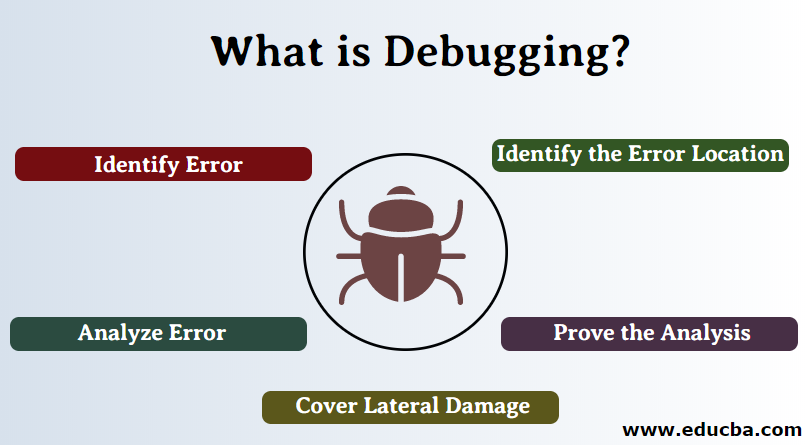
Effective debugging of PHP errors on shared hosting requires proper access to error logs and the ability to enable error reporting temporarily. These logs serve as vital tools, capturing runtime issues, warnings, and fatal errors that can hinder website functionality. Understanding how to locate and configure these logs empowers developers and site administrators to diagnose problems efficiently without extensive server expertise.
Shared hosting environments vary in their configuration, but generally offer multiple methods to access PHP error logs. These methods include direct server log access, configuration file modifications, and in-browser error display settings. Properly enabling error logs and display during development or troubleshooting sessions ensures that errors are promptly visible, facilitating swift problem resolution.
Locating PHP error logs on shared hosting
Locating PHP error logs depends on the hosting provider’s configuration and control panel. The following systematic approach assists in identifying where logs are stored:
- Check hosting control panel documentation: Many shared hosts use cPanel, Plesk, or similar interfaces, each offering dedicated sections for error logs.
- Access Error Logs via cPanel: Log into cPanel, navigate to the “Metrics” or “Errors” section. Here, you will find recent entries of server errors and PHP warnings.
- Look for a dedicated error_log file: Some hosts automatically generate an error_log file within your website’s root directory (public_html). Use the File Manager or FTP to locate and open this file.
- Consult hosting support or documentation: If uncertain, contact your hosting provider’s support team or review their documentation for specific log locations.
In environments where logs are not readily accessible, enabling PHP error logging via configuration files becomes essential.
Activating error display temporarily for debugging
During debugging, displaying errors directly on the webpage can significantly speed up the troubleshooting process. However, this should only be enabled temporarily on development environments, as it can expose sensitive information in production. To activate error display temporarily, consider the following methods:
- Using ini_set() within PHP scripts: Insert the following code at the beginning of your PHP script to enable error reporting during script execution:
- Modifying php.ini settings: If your hosting environment allows editing php.ini, locate or create the php.ini file in your root directory, then add or modify these lines:
- Using .htaccess directives: For hosts using Apache, add the following lines to your .htaccess file in the root directory:
<?phpini_set(‘display_errors’, 1);error_reporting(E_ALL);?>
display_errors = Onerror_reporting = E_ALL
php_value display_errors 1php_value error_reporting E_ALL
Remember to disable error display after debugging by reverting these changes to prevent exposing sensitive information in a live environment.
Configuring php.ini or .htaccess files to enable error logging
Persistent error logging setup involves configuring PHP’s core settings via php.ini or .htaccess. Proper configuration ensures that errors are logged systematically, even when display_errors is turned off for security reasons. Here are the steps for each method:
- Configuring php.ini:
- Locate your php.ini file. If your host allows, create or edit this file in the root directory or through the hosting control panel’s PHP configuration interface.
- Set the following directives to enable comprehensive error logging:
-
log_errors = On
error_log = /path/to/your/error_log.log
error_reporting = E_ALL - Replace “/path/to/your/error_log.log” with an absolute path. Ensure that the web server has write permissions to this file.
- Configuring .htaccess:
- Add directives to your .htaccess file in the root directory to override PHP settings:
-
php_flag log_errors On
php_value error_log /path/to/your/error_log.log
php_value error_reporting E_ALL - Verify that your hosting provider supports these directives, as some may restrict their use for security reasons.
These configurations help maintain a persistent log of PHP errors, which can be reviewed periodically to identify recurring issues or patterns that require attention.
Comparison of Methods for Accessing PHP Error Logs
| Method | Access Procedure | Pros | Cons |
|---|---|---|---|
| Hosting Control Panel (cPanel, Plesk, etc.) | Log into control panel > locate “Error Log” or “Metrics” section > view logs directly | Easy to access without file editing, real-time error view | Limited historical data, may not include detailed logs |
| FTP/File Manager | Connect via FTP or File Manager > navigate to error_log file or logs directory > download and review | Access detailed logs, customizable location | Requires familiarity with file management, logs may be rotated or limited |
| Server logs via SSH (if available) | Connect via SSH > locate log files in /var/log or custom paths > open logs with command-line tools | Complete access, detailed insights, suitable for advanced users | Not typically available on shared hosting plans, requires SSH access |
| PHP code (ini_set, error_log directives) | Modify PHP scripts or configuration files to enable error display or logging | Flexible, immediate feedback during development | Not suitable for production environments, temporary solution |
Using PHP Error Reporting Functions Effectively
Proper utilization of PHP’s error reporting functions is essential for effective debugging, especially within shared hosting environments where direct server access might be limited. By leveraging built-in functions such as error_reporting() and ini_set(), developers can control the visibility of errors during script execution, enabling a more streamlined troubleshooting process. These functions allow precise configuration of error display and logging, ensuring that critical issues are identified promptly without exposing sensitive information in a live environment.
Understanding how to implement and customize PHP error reporting within scripts enhances your ability to diagnose issues efficiently. It also provides the flexibility to temporarily increase error visibility during development or debugging sessions without permanently altering server configurations. This approach is particularly useful in shared hosting contexts where access to the main php.ini file may be limited or restricted.
Configuring Error Reporting with error_reporting() and ini_set()
The error_reporting() function sets the level of errors to be reported during script execution. It accepts predefined constants representing different error levels, allowing developers to specify the severity of errors to display or log. The ini_set() function can dynamically modify PHP configuration directives at runtime, such as enabling error display or error logging, providing additional flexibility for debugging.
To maximize error visibility during a debugging session, combine these functions to set appropriate error levels and display options. For instance, enabling all errors and warnings can help identify issues that might otherwise go unnoticed, especially in complex scripts or when dealing with deprecated functions.
Error Levels and Their Usage During Debugging
Understanding error levels and selecting the appropriate ones during debugging is crucial for effective troubleshooting. Here is a list of common PHP error levels that should be enabled during development or debugging sessions:
| Error Level Constant | Description | Typical Use Case |
|---|---|---|
E_ALL |
Reports all errors, warnings, and notices. Ideal for comprehensive debugging. | |
E_ERROR | E_WARNING | E_PARSE | E_NOTICE |
Includes fatal errors, warnings, parse errors, and notices. Suitable for most debugging needs. | |
E_DEPRECATED | E_STRICT |
Detects usage of deprecated functions and strict standards, useful for modernizing code. |
To set these error levels within a script, combine constants using the bitwise OR operator ( |) to tailor error reporting to the debugging context. For example,
error_reporting(E_ALL | E_STRICT | E_DEPRECATED);
enables comprehensive error reporting, including strict standards and deprecated notices.
Implementing Custom Error Handling and Display
Creating custom error handlers allows for more controlled management of errors, including logging errors to specific files or displaying user-friendly messages. PHP provides the set_error_handler() function to register custom error handling functions, which can be tailored to suit the debugging or production needs.
Below is an example of a custom error handler that logs errors to a file and displays a formatted message during development:
<?php
function myErrorHandler($errno, $errstr, $errfile, $errline)
    $logMessage = date("Y-m-d H:i:s") . " | Error: [$errno] $errstr in $errfile on line $errline\n";
    error_log($logMessage, 3, "/path/to/error_log.txt");
    if (error_reporting() & $errno)
        echo "<h3>An error occurred:</h3><p>$errstr in $errfile on line $errline</p>";

    // Return true to prevent PHP's default error handler
    return true;


// Set the custom error handler
set_error_handler("myErrorHandler");

// Enable reporting of all errors
error_reporting(E_ALL | E_STRICT);
ini_set('display_errors', '1'); // Show errors during debugging
?>
In this implementation, errors are logged to a specified file for review, while the error message is displayed on the webpage, aiding in real-time debugging. Adjust the error display settings based on whether the environment is development or production to avoid revealing sensitive information.
Debugging PHP errors with minimal server access
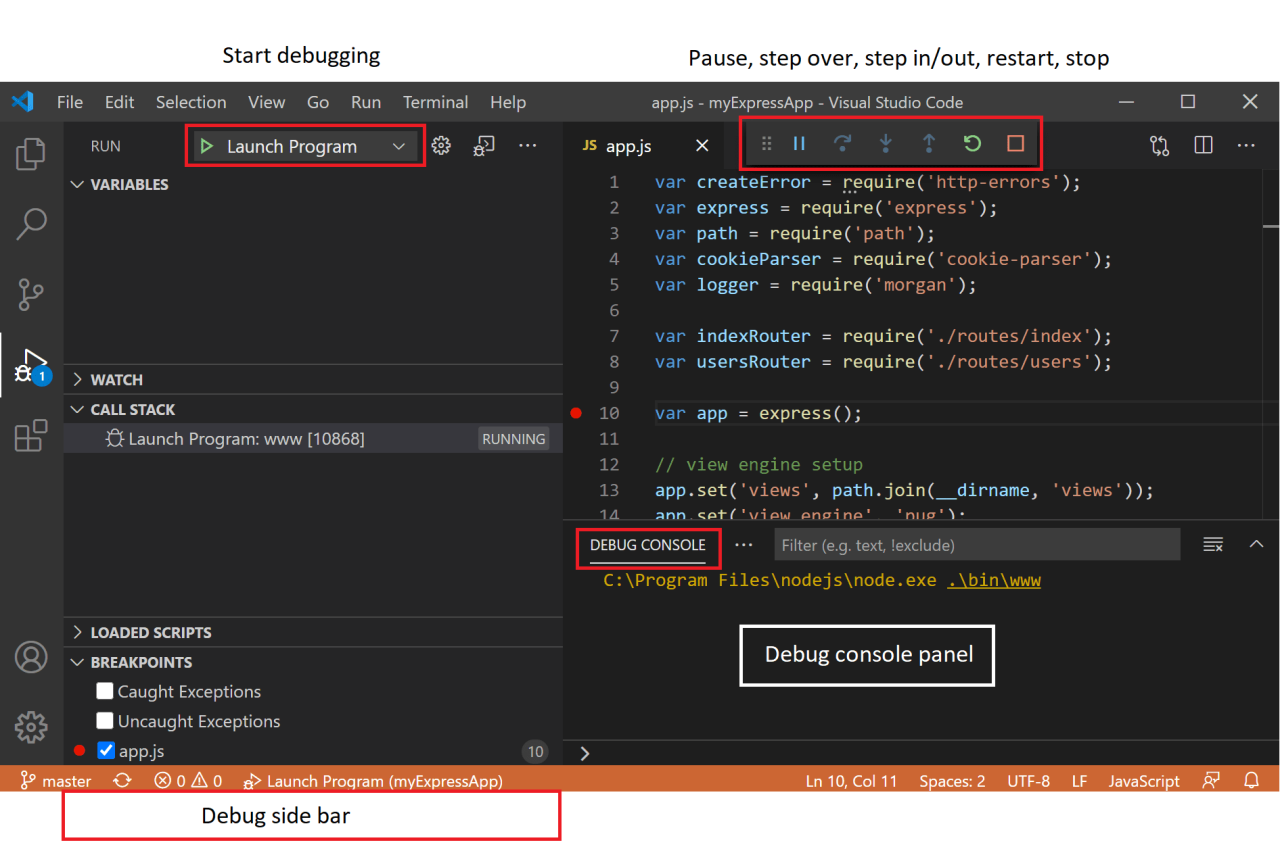
When working within shared hosting environments, access to server configurations and logs can be limited. Despite these restrictions, effective debugging of PHP errors remains achievable through strategic techniques. Understanding how to interpret error messages, utilize temporary display settings, and isolate issues in code can significantly enhance troubleshooting efficiency without extensive server privileges.
This section explores practical methods for debugging PHP errors under minimal server access conditions, emphasizing techniques to enable error visibility, interpret diagnostic information accurately, and systematically identify problematic code or configurations.
Using Temporary Error Display Settings
Modifying PHP’s error display settings temporarily on shared hosting enables developers to view error messages directly in the browser, facilitating prompt diagnosis without requiring persistent server configuration changes. This approach is particularly valuable when server error logs are inaccessible or when quick troubleshooting is necessary.
- Adjust PHP error display directives by creating or editing a local
php.inior using a.htaccessfile, if permitted. For example:
php_value display_errors 1php_value display_startup_errors 1php_value error_reporting E_ALL - Alternatively, set error reporting at the script level by inserting the following lines at the beginning of the PHP file:
<?php
ini_set('display_errors', 1);
error_reporting(E_ALL);
?> - Remember to disable or revert these settings after finishing debugging to prevent exposing sensitive information or impacting site performance.
Enabling error display temporarily exposes detailed error information, including error types, file locations, line numbers, and sometimes stack traces, which are crucial for effective troubleshooting in environments with limited server access.
Interpreting Error Messages and Stack Traces
Understanding error messages and associated stack traces is fundamental for diagnosing PHP issues. Error messages specify the nature of the problem, while stack traces provide a breadcrumb trail of function calls leading to the error, helping pinpoint the exact source of failure.
| Component | Description |
|---|---|
| Error Type | Indicates the nature of the issue, such as Parse Error, Fatal Error, Warning, or Notice, each requiring different handling approaches. |
| Error Message | Provides specific details, for example, “Unexpected T_VARIABLE” signifies a syntax error, while “Call to undefined function” indicates missing or misnamed functions. |
| File and Line Number | Pinpoints the location in the code where the error occurred, facilitating quick access for review and correction. |
| Stack Trace | A sequence of function calls leading to the error, revealing the execution path and helping identify whether the issue stems from a specific function or included file. |
For example, a fatal error such as Fatal error: Uncaught Error: Call to undefined function foo() in /path/to/file.php on line 42 indicates that the function foo() is called but not defined or included, prompting verification of function existence or inclusion.
Procedures to Isolate Issues in Code Snippets or Configurations
Isolating errors involves systematically narrowing down problematic code snippets or configuration settings. This process reduces complexity and identifies root causes efficiently, even without extensive server access.
- Comment out sections of code or disable certain features to observe if errors persist. This can be done quickly by wrapping code blocks with
//or/*in PHP, or by temporarily removing includes or database connections.
/
- Replace dynamic content with static values or simplified test cases to determine if specific inputs or external dependencies trigger errors.
- Use binary search methodology: gradually re-enable code segments or configurations until errors reappear, thereby pinpointing the specific line or setting responsible.
- Check for common misconfigurations such as incorrect file paths, missing dependencies, or incompatible PHP versions by testing different scenarios in isolation.
- Leverage error messages and line numbers provided in the error output to focus your debugging efforts on the exact code segments involved.
This structured approach minimizes the need for server-level access and promotes efficient identification of issues within code or configuration files.
Common Error Messages with Detailed Explanations
Familiarity with typical PHP error messages enables quicker diagnosis and resolution. Here are some of the most frequent errors encountered in shared hosting environments:
- Parse error: syntax error, unexpected T_VARIABLE: This indicates a syntax mistake, such as missing semicolons, brackets, or incorrect variable declarations.
- Fatal error: Uncaught Error: Call to undefined function: The function being called has not been declared or included, often due to missing files or spelling errors.
- Warning: include() failed to open stream: The specified file could not be found or accessed, suggesting incorrect path or permission issues.
- Notice: Undefined variable: A variable is used before assignment or initialization, which might lead to unexpected behavior.
- Deprecated function: Usage of functions that are outdated in the current PHP version, indicating the need for code updates.
“Interpreting error messages accurately and understanding the context provided by line numbers and file paths is essential for efficient debugging in environments with limited server access.”
Common Troubleshooting Procedures for PHP Errors
Effectively diagnosing PHP errors on shared hosting requires a systematic approach to identify the root causes efficiently. This section Artikels essential procedures that help developers and site administrators systematically troubleshoot common issues, from syntax errors to server limitations. A structured troubleshooting process not only saves time but also enhances the accuracy of problem resolution, ensuring the website remains functional and secure.
Implementing these procedures involves checking various aspects of the server environment, code integrity, and configuration settings. By following the step-by-step guides and verification methods described herein, users can confidently isolate and fix issues that might otherwise lead to prolonged downtime or security vulnerabilities.
Identifying Syntax Errors and Runtime Warnings
Syntax errors and runtime warnings are among the most frequent PHP issues encountered on shared hosting. They typically stem from typos, missing semicolons, mismatched brackets, or deprecated functions. Detecting these errors early requires a methodical review of error logs and the use of debugging tools.
Start by enabling error reporting in your PHP configuration or script to display errors directly on the page or in logs. Use the following steps:
- Review the PHP error logs, often accessible via the hosting control panel or manually located in server directories.
- Identify the error message, which typically includes the file name, line number, and description of the syntax mistake.
- Open the specified file and navigate to the indicated line to examine for common syntax mistakes such as missing semicolons, unmatched parentheses, or quotation marks.
- Utilize PHP’s built-in syntax check by running
php -l filename.php
from a command line interface, if available, to detect syntax errors without executing the script.
- Correct syntax issues and re-test until errors are resolved. Remember to disable error display on live environments after fixing to prevent exposing sensitive information.
Checking File Permissions and Server Resource Limits
File permissions and server resource limitations can cause PHP errors, especially when scripts are unable to read, write, or execute files properly. Insufficient permissions or exhausted server resources often manifest as runtime errors or internal server errors.
To troubleshoot these issues:
- Verify file and directory permissions using a file manager or FTP client. Typical settings should be
644for files and755for directories, ensuring the web server has appropriate access. - Inspect error logs for messages related to permission denied errors, which indicate the need to adjust permissions.
- Check the hosting provider’s resource usage reports or cPanel metrics to identify if CPU, memory, or entry processes are exhausted.
- Review PHP configuration settings such as
memory_limitandmax_execution_timein php.ini or via the hosting control panel, increasing values if necessary and supported. - Consult hosting support if resource limits are consistently reached, as it may require upgrading hosting plans or optimizing code to reduce resource consumption.
Verifying PHP Version Compatibility and Extension Availability
PHP version mismatches and missing extensions are common causes of errors, particularly after server updates or code migrations. Ensuring compatibility between your codebase and the PHP environment is crucial for stable operation.
Follow these steps to verify and resolve version and extension issues:
- Check the current PHP version through the hosting control panel or by creating a PHP info page (a PHP file containing
<?php phpinfo(); ?>), which displays detailed environment information. - Compare the PHP version against the requirements specified in your application’s documentation or dependencies.
- Identify necessary PHP extensions (e.g., PDO, cURL, GD) required by your application by reviewing error logs or application documentation.
- Ensure extensions are enabled in the PHP configuration. This can be done via the hosting control panel or by editing the php.ini file, adding or uncommenting lines such as
extension=curl. - Use the PHP info page to confirm that extensions are loaded and available. If not, contact your hosting provider to enable them or switch to a compatible PHP version.
Common Issues and Resolutions
Understanding typical PHP error scenarios assists in quick diagnosis and resolution. The following list highlights frequent issues encountered on shared hosting platforms along with their standard solutions:
| Issue | Description | Resolution |
|---|---|---|
| Parse error due to syntax mistake | Errors like unexpected tokens or missing semicolons. | Review error logs, fix syntax mistakes in code, and re-test. |
| Memory exhausted errors | Scripts exceed allocated memory limits. | Increase memory_limit in php.ini or optimize code for better memory management. |
| Internal server errors (500) | General server errors often caused by permission issues or faulty scripts. | Check error logs, review permissions, and disable recent changes to identify the problematic code. |
| Missing PHP extensions | Application fails due to unavailable required extensions. | Enable extensions via php.ini or contact hosting support for assistance. |
| Outdated PHP version | Compatibility issues with newer code or libraries. | Upgrade PHP to a supported version through the hosting control panel, ensuring compatibility of your codebase. |
Best practices for error prevention and management
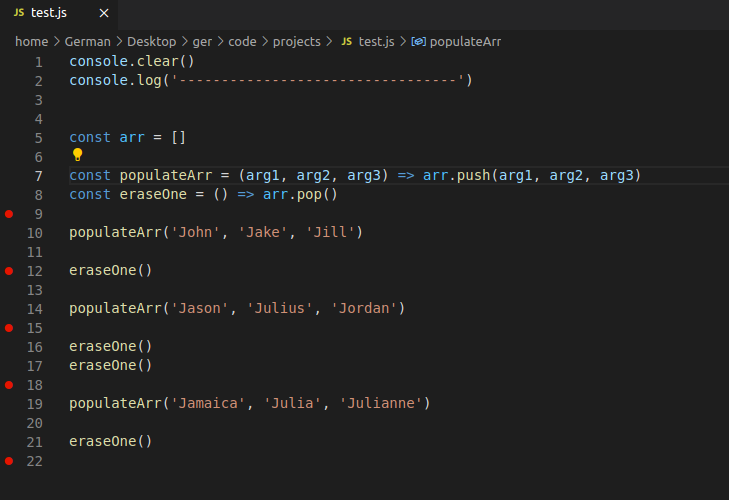
Implementing effective strategies for error prevention and management is crucial to maintaining a robust PHP environment on shared hosting. Proactively addressing potential issues helps minimize disruptions, improve code quality, and streamline troubleshooting processes. This section provides proven approaches to write resilient PHP code, establish reliable logging systems, and manage error logs efficiently to ensure optimal website performance and stability.
Adopting these best practices allows developers to anticipate common pitfalls, systematically record error details for analysis, and maintain a clean, manageable logging environment. This proactive approach not only reduces downtime but also enhances the overall maintainability of PHP applications on shared hosting platforms.
Strategies for writing error-resilient PHP code
Creating PHP code that can gracefully handle errors is fundamental to preventing unexpected failures and ensuring smooth user experiences. The foundation of resilient PHP code involves adhering to coding standards, validating inputs, and implementing error handling mechanisms that anticipate potential issues before they occur.
- Input validation: Always validate user inputs and data interactions with databases or external APIs to prevent errors caused by invalid or malicious data. Use PHP functions like
filter_var()and custom validation routines. - Use of try-catch blocks: Wrap risky operations such as file handling, database queries, or external API calls within try-catch structures to catch exceptions and handle them appropriately.
- Consistent error handling: Define centralized error handling functions to manage warnings, notices, and fatal errors uniformly, reducing debugging complexity.
- Employ error suppression cautiously: Avoid using the error suppression operator (
@) excessively, as it can mask underlying issues. Instead, handle errors explicitly where appropriate. - Follow coding standards: Adhere to PSR standards and best practices to produce predictable, readable, and maintainable code, decreasing the likelihood of bugs.
Implementing persistent logging systems for error details
Establishing a robust logging system is essential for tracking, analyzing, and resolving PHP errors systematically. Persistent logs serve as invaluable resources during troubleshooting and help identify recurring issues or patterns that require attention.
- Choosing a logging mechanism: Use PHP’s built-in
error_log()function or integrate third-party logging libraries such as Monolog for more advanced features, including log rotation and multiple handlers. - Configuring log storage: Store logs in secure, accessible directories outside public web roots. Ensure proper permissions to prevent unauthorized access.
- Including detailed information: Log comprehensive error details, including timestamps, error levels, file and line numbers, user IDs, and contextual data, to facilitate effective troubleshooting.
- Automating log analysis: Employ scripts or tools to parse and analyze logs periodically, highlighting critical errors or anomalies for prompt response.
Maintaining persistent logs enhances visibility into application health and accelerates troubleshooting efforts, especially when server access is limited or logging configurations are restricted on shared hosting environments.
Organizing procedures for regular maintenance of error logs
Regular maintenance of error logs prevents log files from becoming excessively large, which can impact server performance and complicate error analysis. Establishing routine procedures ensures logs remain manageable, relevant, and useful.
- Log rotation and archival: Implement log rotation strategies to archive old logs and create new log files periodically. Scripts can automate this process, compressing old logs to save space.
- Scheduled log review: Set up periodic reviews of logs to identify new issues, track recurring errors, and determine if certain errors are resolved or require intervention.
- Automated cleanup: Remove or archive logs older than a specified period, such as 30 or 60 days, based on project requirements and storage capacity.
- Monitoring and alerts: Configure monitoring tools to alert administrators of critical errors or log thresholds being exceeded, enabling proactive responses.
Consistent log maintenance ensures that error data remains current and manageable, facilitating quicker diagnosis and reducing the risk of missing vital error information due to log overload.
Recommended error handling patterns
Adopting standardized error handling patterns enhances code consistency, simplifies debugging, and improves overall error management. Below is a table illustrating common error handling patterns suitable for PHP development in shared hosting environments:
| Pattern | Description | Use Case |
|---|---|---|
| Try-Catch Exception Handling | Encapsulates potentially risky code within try-catch blocks to catch exceptions and handle errors gracefully. | Database operations, external API calls, file handling where exceptions may be thrown. |
| Custom Error Handler | Defines a custom function to handle PHP errors, warnings, and notices, allowing tailored logging or user notifications. | Centralized error management, logging errors uniformly across the application. |
| Using Error Reporting Levels | Sets specific error reporting levels using error_reporting() to control which errors are displayed or logged. |
Suppressing non-critical notices in production, logging only warnings and errors. |
| Graceful Degradation | Designs application workflow to continue operating with reduced functionality when non-critical errors occur. | Fallback procedures when optional services or components are unavailable. |
| Fail-Safe Defaults | Sets default configurations and code paths that handle unexpected states safely, avoiding crashes or data corruption. | Critical system components where failure could lead to significant issues. |
Additional tools and resources for debugging on shared hosting
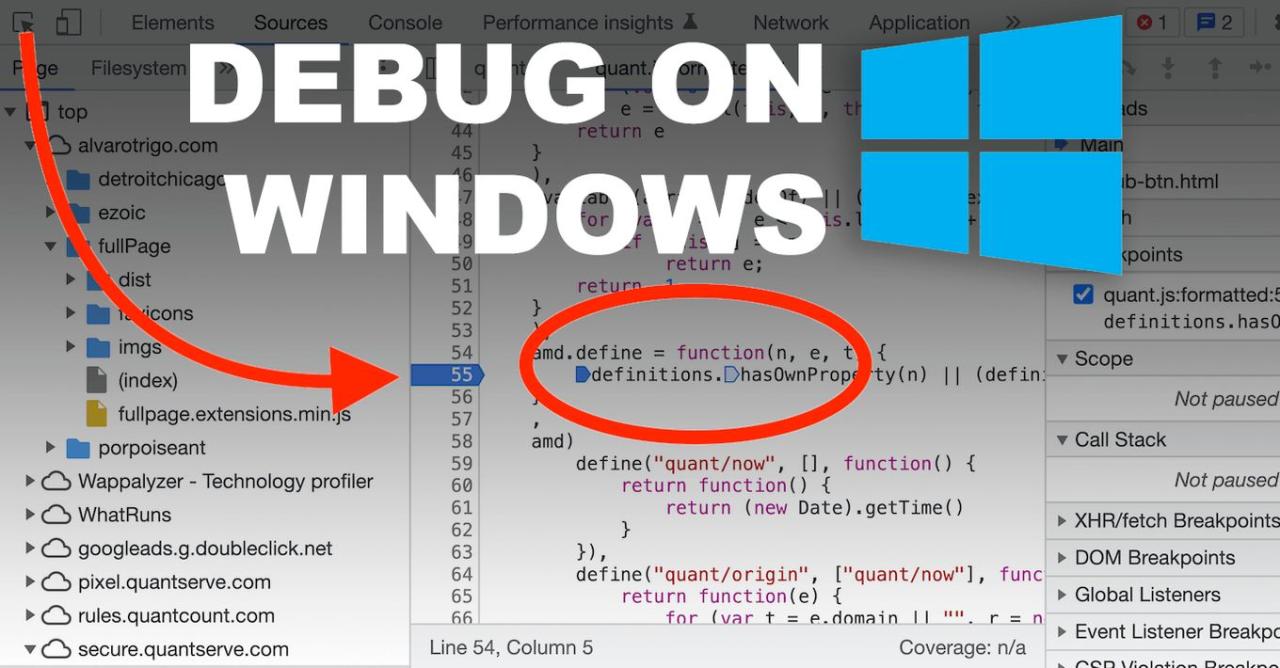
Effective PHP debugging often requires leveraging external tools and resources beyond basic server logs. On shared hosting environments, where server access and configurations are limited, utilizing external utilities and online resources becomes essential for efficient troubleshooting. These tools can provide deeper insights, streamline problem identification, and facilitate collaboration with community support channels.External debugging tools and services compatible with shared hosting environments include a variety of online validators, testing platforms, and utility suites designed to work without extensive server configurations.
Many of these tools operate via web interfaces, eliminating the need for server-side installation or access modifications. Additionally, community forums, official documentation, and online repositories serve as invaluable resources for troubleshooting guidance, offering solutions to common PHP errors, configuration issues, and best practice recommendations.
Use of line tools and external debugging services
While direct server-side debugging may be constrained on shared hosting, several line tools and online services can assist in identifying PHP issues effectively. These tools often work through uploading code snippets, running tests, or analyzing error outputs remotely.
- Online PHP Debuggers and Validators: Platforms like PHP Tester, PHP Fiddle, or PHPSandbox allow developers to input PHP code and execute it in a controlled environment. These services help isolate errors, test snippets, and verify logic without affecting the live server. They are especially useful for debugging complex code segments and understanding error outputs in a sandboxed environment.
- Remote Debugging Extensions: Tools like PHP Debug Bar or Xdebug (when configured externally) can sometimes be integrated with local development setups, enabling step-by-step debugging and variable inspection before deploying to shared hosting. Although directly installing extensions on shared hosting might be limited, pairing local debugging with remote testing can be highly effective.
- Monitoring and Error Tracking Services: External services such as Sentry, Bugsnag, or Raygun provide real-time error tracking with detailed reports on PHP errors occurring in production. These services typically integrate via SDKs or APIs and require minimal server modifications, offering invaluable insights into errors and performance issues.
Leveraging online PHP validators and testers
Online validators and testers are critical resources for verifying PHP syntax, compatibility, and code quality without requiring server access or command-line tools on shared hosting.
- PHP Code Snippet Validators: These tools check PHP code for syntax errors, deprecated functions, and compatibility issues. Examples include PHP Code Checker and PHP Compatibility Checker. They provide immediate feedback on code correctness, ensuring that syntax issues are resolved before deployment.
- PHP Testing Environments: Platforms like PHP Fiddle or 3v4l.org allow running PHP code snippets across multiple PHP versions, helping developers ensure compatibility and identify version-specific issues. These online environments also offer detailed error messages and execution results, aiding rapid troubleshooting.
- Static Code Analysis Tools: Static analyzers such as PHPStan or Psalm identify potential bugs, security vulnerabilities, and coding standard violations. These tools can be used locally before uploading code or via integrations with online IDEs and code review services, reducing runtime errors on shared hosting.
Community forums and documentation for troubleshooting guidance
Community-driven forums and official documentation are invaluable for resolving PHP errors on shared hosting. These resources provide practical solutions, clarifications, and best practices based on real-world experiences.
- PHP Official Documentation: The PHP manual offers comprehensive descriptions of functions, error codes, and configuration directives, serving as the first point of reference for understanding and resolving errors.
- Community Forums: Platforms such as Stack Overflow, PHP-specific forums, and hosting provider support communities enable you to seek advice, share error logs, and receive troubleshooting strategies from experienced developers. When posting issues, providing detailed error messages, code snippets, and hosting environment details facilitates targeted assistance.
- Resource Repositories and Blogs: Websites like SitePoint, PHPClasses, and Medium host tutorials, troubleshooting guides, and case studies relevant to common shared hosting PHP errors. These resources often include step-by-step solutions and best practice recommendations for error prevention and management.
Recommended debugging utilities: features and limitations
Several utilities stand out in assisting PHP debugging within shared hosting constraints. Understanding their features and limitations helps select the appropriate tools aligned with specific troubleshooting needs.
| Tool | Features | Limitations |
|---|---|---|
| PHP Fiddle | Run PHP code online, test compatibility, debug code snippets, supports multiple PHP versions. | Limited to small scripts; cannot simulate full server environment or configurations. |
| Sentry.io | Real-time error tracking, detailed reports, integrates with PHP via SDK, supports production debugging. | Requires initial setup, subscription costs for advanced features, dependent on internet connectivity. |
| PHPStan / Psalm | Static code analysis, early detection of bugs, security issues, and code standard violations. | Requires local setup; cannot run directly on shared hosting; relies on proper configuration. |
| PHP Code Checker | Syntax validation, quick error detection, web interface, no installation needed. | No runtime error diagnostics; limited scope to syntax errors only. |
| Xdebug (local setup) | Step-by-step debugging, variable inspection, profiling capabilities. | Not directly installable on shared hosting; requires local development environment or compatible host. |
Summary
Mastering how to debug PHP errors on shared hosting empowers you to maintain a healthy website by quickly diagnosing issues and implementing solutions. By leveraging error logs, reporting functions, and best practices, you can reduce downtime and improve your site’s resilience. Consistent error management ultimately leads to a more reliable and efficient web presence.