Learning how to host a website on Netlify and connect a domain offers an efficient and user-friendly pathway to publish your online presence. By leveraging Netlify’s powerful features and straightforward domain management, you can ensure your website is accessible, secure, and professional-looking. This guide walks you through the essential steps to deploy your site effectively and establish a custom domain connection with confidence.
Overview of Hosting a Website on Netlify and Connecting a Custom Domain
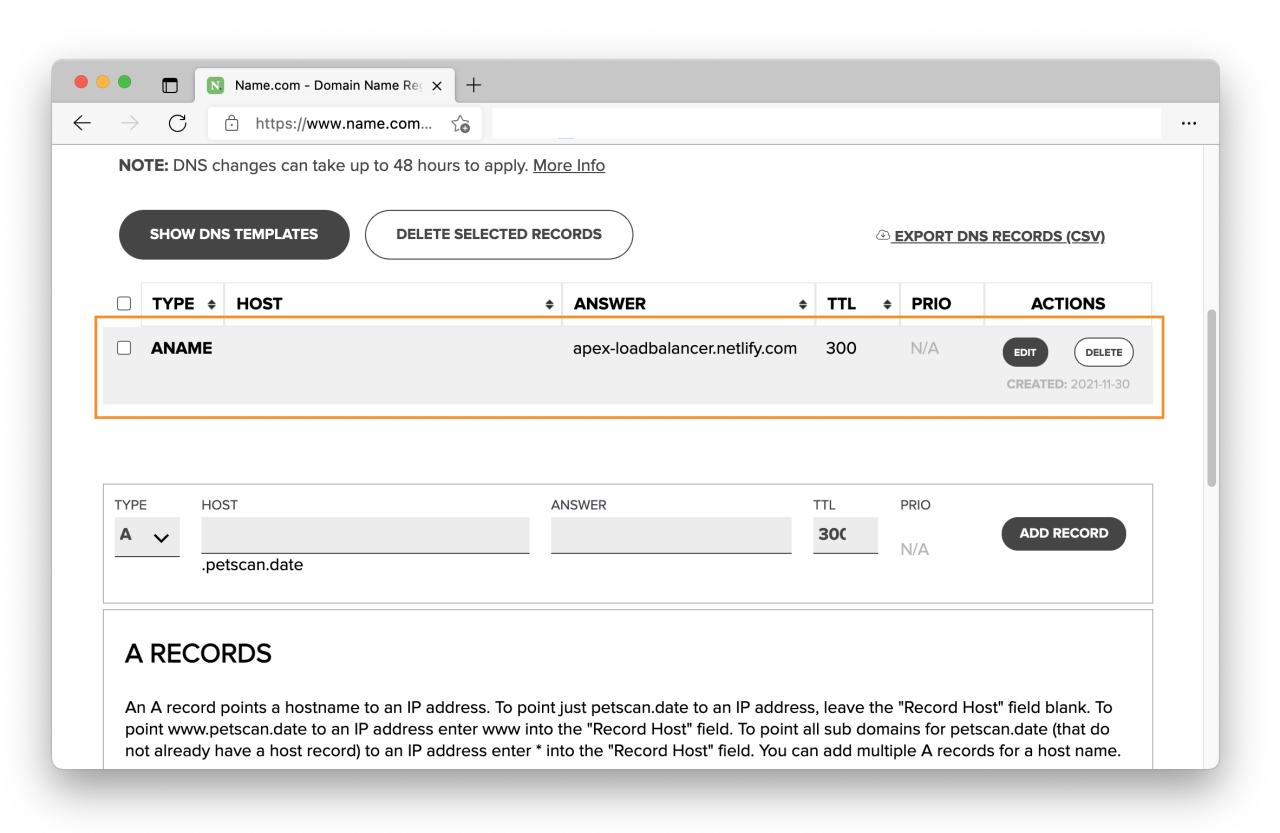
Hosting a website on Netlify combined with connecting a personal or custom domain offers a seamless and efficient way to deploy your web projects. This approach not only simplifies the deployment process but also provides enhanced features like continuous deployment, automatic HTTPS, and easy domain management. For developers and businesses alike, leveraging Netlify’s platform ensures reliable performance, scalability, and a professional appearance through custom branding.
Implementing this setup involves a series of straightforward steps: initializing your project, linking it to Netlify via a repository or manual upload, configuring build settings if necessary, and then associating your custom domain through DNS management. This systematic process ensures your website is live, accessible, and branded with your chosen domain name, making it ideal for personal portfolios, business sites, or project showcases.
Benefits of Hosting on Netlify and Linking a Personal Domain
Hosting on Netlify offers numerous advantages that appeal to both newcomers and experienced developers. Its free tier provides generous limits suitable for small to medium projects, including continuous deployment from Git repositories, built-in CDN, and automatic HTTPS. These features significantly reduce the complexity and cost associated with traditional hosting providers.
Linking a custom domain enhances your website’s credibility and brand recognition. It allows you to present a professional image, improve search engine rankings, and establish a memorable online presence. The process of connecting your domain to Netlify is highly user-friendly, involving straightforward DNS configuration. Once linked, your website benefits from secure, fast, and reliable access worldwide.
Typical Steps Involved in Publishing a Website on Netlify and Connecting a Custom Domain
Publishing your website on Netlify and establishing a custom domain involves a sequence of clear, methodical steps:
- Prepare your website files by ensuring all assets, HTML, CSS, and JavaScript files are organized and ready for deployment.
- Connect your project to a Git repository such as GitHub, GitLab, or Bitbucket, if you prefer continuous deployment, or upload your site manually through the Netlify dashboard.
- Configure the build settings if your project requires compilation or build steps, such as static site generators or frameworks like React, Vue, or Hugo.
- Deploy the site by clicking the deploy button or setting up automated deployment triggers from your repository.
- Access your live website via the default Netlify URL to verify the deployment.
- Navigate to the domain management section in Netlify, where you can add your custom domain, or update DNS records at your domain registrar to point to Netlify’s servers.
- Confirm the SSL certificate provisioning to enable HTTPS, ensuring secure connections for your visitors.
Throughout this process, Netlify’s intuitive interface and comprehensive documentation simplify every step, making web deployment accessible even for those new to web hosting.
Comparison of Hosting Platforms with Emphasis on Netlify Features and Domain Setup Options
Choosing the right hosting platform depends on various factors, including ease of use, features, scalability, and domain management capabilities. Below is a comparison table highlighting key aspects of popular hosting services with a focus on Netlify:
| Feature / Platform | Netlify | Vercel | GitHub Pages | Traditional Hosting (e.g., Bluehost, HostGator) |
|---|---|---|---|---|
| Deployment Method | Git Integration, Drag-and-Drop, CLI | Git Integration, CLI, Dashboard | GitHub Repository, Manual Upload | FTP, cPanel, Manual Upload |
| Continuous Deployment | Supported via GitHub, GitLab, Bitbucket | Supported via Git repositories | Supported via GitHub | Not typically supported |
| SSL/TLS (HTTPS) | Automatic, Free | Automatic, Free | Manual, Free with custom domain | Varies, often paid |
| Domain Management | Supports custom domains, DNS configuration in dashboard | Supports custom domains, DNS setup via provider | Supports custom domains, DNS setup required | Supports custom domains, DNS setup via registrar |
| Built-in CDN | Yes | Yes | No (depends on hosting) | No, typically relies on external CDN |
| Pricing | Free tier available; paid plans for advanced features | Free tier; paid plans for scaling | Free for static sites | Typically paid, based on bandwidth and storage |
Netlify distinguishes itself with its seamless deployment pipeline, automatic HTTPS, integrated CDN, and user-friendly domain setup options. Its cloud-native approach makes it especially attractive for modern web projects seeking straightforward, reliable hosting with minimal configuration.
Preparing Your Website Files for Deployment
Before deploying your website on Netlify, it is essential to organize and optimize your files to ensure a smooth deployment process and optimal website performance. Proper preparation involves understanding the necessary files, structuring your directories effectively, and applying best practices to enhance site load times and maintainability.
Properly prepared website files not only facilitate seamless deployment on Netlify but also contribute to a better user experience by ensuring quick load times, responsiveness, and ease of updates. It is crucial to follow systematic procedures when creating or updating your static website to achieve these objectives efficiently.
Necessary Files and Directory Structure for Deployment
Netlify primarily hosts static websites composed of HTML, CSS, JavaScript, and asset files like images and fonts. Establishing a clear and consistent directory structure simplifies deployment and future updates. The fundamental files and folders typically include:
- index.html: The main entry point of your website, often located at the root directory. It defines the primary webpage users see when accessing your site.
- CSS files: Stylesheets (e.g., style.css) stored in a dedicated folder such as
css/orstyles/for organized styling management. - JavaScript files: Scripts (e.g., script.js) placed within a folder like
js/to handle dynamic functionalities. - Assets: Images, fonts, icons, and other media stored in an
assets/folder, often with subfolders for organization. - Additional pages: Additional HTML pages (e.g., about.html, contact.html) stored alongside index.html, forming a cohesive site structure.
Here’s an example of a simple directory layout:
/my-website
│
├── index.html
├── about.html
├── contact.html
│
├── css
│   └── style.css
│
├── js
│   └── script.js
│
└── assets
    ├── images
    │   ├── logo.png
    │   └── background.jpg
    └── fonts
        └── custom-font.ttf
Procedures for Creating or Updating a Static Website
Developing or updating a static website involves creating well-structured HTML files and accompanying CSS and JavaScript.
The process ensures that your website remains organized, accessible, and easy to maintain. The key steps include:
- Design and layout planning: Sketch the website structure and ensure a logical flow of content.
- HTML development: Write semantic HTML markup for each page, ensuring accessibility and best practices.
- Styling with CSS: Create stylesheets to define visual aesthetics, layout, and responsiveness. Use external CSS files for maintainability.
- Adding interactivity with JavaScript: Incorporate scripts for dynamic features like form validation, menus, or animations.
- Testing and validation: Preview the website locally and validate HTML/CSS for errors. Use tools like W3C validators to ensure code quality.
- Updating existing files: When making edits, ensure consistency and avoid broken links. Version control systems like Git can facilitate smooth updates.
Best Practices for Optimizing Site Files Before Deployment
Optimizing your website files enhances performance, reduces load times, and improves user experience. Implementing these best practices is crucial before deploying your site on Netlify:
- Minify CSS and JavaScript files: Remove unnecessary whitespace, comments, and line breaks to reduce file sizes, which accelerates loading times.
- Optimize images: Compress images without significant quality loss using tools like TinyPNG or ImageOptim. Use appropriate formats like WebP for modern browsers.
- Use relative paths: Ensure links to CSS, JS, and asset files are relative to the current file to prevent issues across different environments.
- Implement cache-busting techniques: Append version parameters or hash strings to filenames to control browser caching and ensure users see the latest updates.
- Organize files logically: Maintain a clear directory structure for assets and code, simplifying updates and troubleshooting.
- Validate your code: Use tools like W3C Validator to check for HTML/CSS errors that could impact rendering or accessibility.
- Ensure responsiveness: Test your website on various devices and screen sizes, implementing responsive design principles to improve usability across platforms.
- Leverage CDN capabilities: Utilize Netlify’s CDN features by ensuring static assets are optimized for quick delivery globally.
Consistently maintaining clean, optimized, and well-structured files ensures a reliable deployment process and provides visitors with a fast, accessible website experience.
Creating a Netlify Account and Setting Up Your Project
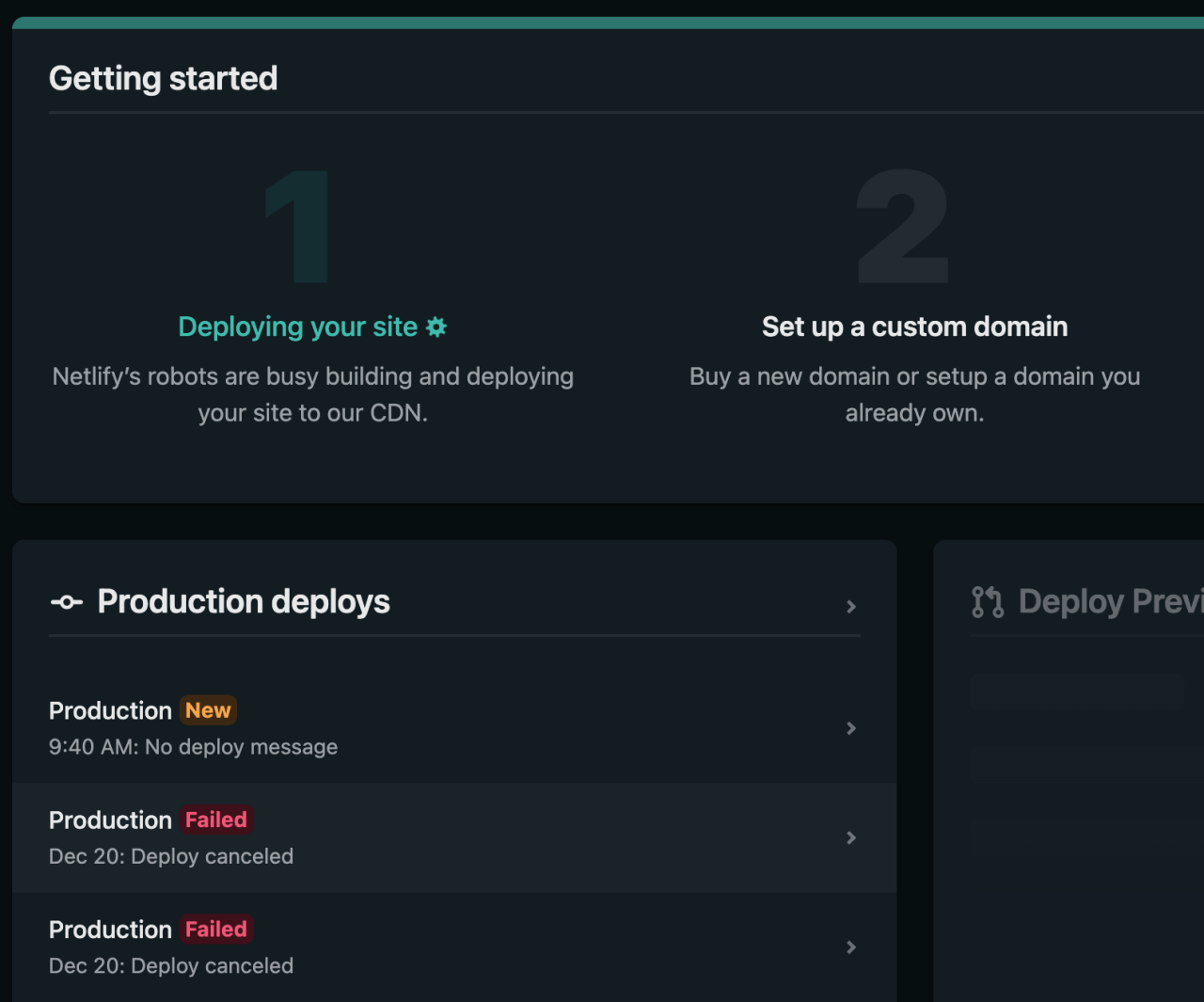
Establishing a Netlify account and configuring your project are essential steps in deploying a website efficiently. This process ensures that your website is accessible online and that you can leverage Netlify’s powerful deployment features. Proper setup also simplifies future updates and domain integrations, providing a seamless experience from development to live deployment.
Netlify offers multiple ways to connect your website files, whether through integration with version control repositories, direct uploads, or command-line tools. Selecting the appropriate deployment method depends on your workflow, team collaboration needs, and project complexity. Below, you will find a comprehensive guide to kick-start your journey with Netlify, including sign-up procedures, project setup, and deployment options.
Sign Up on Netlify
Creating an account on Netlify is straightforward and can be completed in a few simple steps. This account serves as your gateway to deploying and managing multiple websites from a single dashboard. The process involves providing basic information, verifying your email, and choosing the appropriate plan based on your project requirements.
- Navigate to the Netlify homepage in your web browser.
- Click on the “Sign up” button located at the top right corner of the page.
- Register using your email address or opt for quick sign-up via GitHub, GitLab, or Bitbucket accounts, which facilitates easy repository integration.
- Fill in the necessary personal details and create a secure password.
- Verify your email address through the confirmation email sent by Netlify.
- Log in to your new account to access the Netlify dashboard.
Connecting a Local Repository or Uploading Files
Once your account is set up, deploying your website involves connecting your project either through a version control repository or by uploading files directly. Each method caters to different development workflows and project stages.
Connecting a repository simplifies continuous deployment, making updates seamless as you push changes to your version control system. Alternatively, manual upload allows for quick deployment of static files without repository management, suitable for small or temporary projects.
Connecting a Git Repository
Netlify integrates smoothly with repositories hosted on GitHub, GitLab, or Bitbucket. By linking your repository, Netlify can automatically deploy updates whenever changes are committed. This method promotes collaboration and streamlines the deployment process.
- From the Netlify dashboard, click “New site from Git”.
- Select your preferred Git provider (GitHub, GitLab, or Bitbucket).
- Authorize Netlify to access your repositories if prompted.
- Choose the repository containing your website’s source code.
- Configure build settings if necessary, specifying build commands and publish directories.
- Click “Deploy site” to initiate the deployment process.
Uploading Files Directly (Drag-and-Drop)
This option is suitable for static sites or quick deployments without version control integration. It involves manually uploading your prepared website files through the Netlify interface.
- In your Netlify dashboard, select “Sites” and then click “Add new site”.
- Choose “Deploy manually” or “Upload your site”.
- Drag and drop your website files, including HTML, CSS, JavaScript, and media assets, into the upload area.
- Once uploaded, Netlify will assign a default URL, allowing you to access your site immediately.
Deployment Options Comparison Table
Understanding the available deployment methods helps you choose the most suitable approach for your project. The table below summarizes the key features, advantages, and typical use cases for each deployment option on Netlify:
| Deployment Method | Description | Advantages | Typical Use Case |
|---|---|---|---|
| Git Integration | Link your repository for automated deployment on commits. | Automated updates, version control, collaboration, CI/CD pipelines. | Development teams maintaining active code repositories. |
| Drag-and-Drop Upload | Manually upload static files via the Netlify interface. | Simplicity, quick deployment, no need for version control setup. | Small projects, temporary sites, or quick testing. |
| CLI Deployment | Use Netlify CLI commands to deploy from command line. | Scriptable deployment, integration into CI/CD pipelines, advanced control. | Developers automating deployment processes or managing multiple sites programmatically. |
Choosing the right deployment method aligns with your project workflow, whether it’s automated continuous deployment via Git, quick manual uploads, or scripted CLI operations for more control.
Deploying Your Website on Netlify
After preparing your website files and setting up your project on Netlify, the next essential step is deployment. This process involves publishing your website so it becomes accessible on the internet. Netlify offers multiple deployment methods tailored to different user preferences and project complexities, ensuring flexibility and ease of use for developers at all levels.
Choosing the appropriate deployment approach depends on your workflow, project structure, and familiarity with version control systems. Whether you prefer automated deployment via version control integrations or manual uploads, Netlify provides streamlined options to facilitate a smooth publishing experience.
Deploying via GitHub, GitLab, or Bitbucket
Utilizing Git-based deployment allows for continuous integration and automatic updates whenever changes are pushed to your repository. This method is highly recommended for projects that involve collaborative development or frequent updates, as it ensures your live site remains synchronized with your source code.
- Log in to your Netlify account or create a new one. Navigate to the ‘New site from Git’ button on your dashboard.
- Connect your GitHub, GitLab, or Bitbucket account by authorizing Netlify to access your repositories. Select the repository containing your website files.
- Configure build settings if your project requires a build process. Specify the branch to deploy from, the build command (e.g., ‘npm run build’), and the publish directory (e.g., ‘dist’ or ‘build’).
- Click ‘Deploy site’ to initiate the deployment process. Netlify will fetch the latest code, run the build commands if specified, and publish the site automatically.
- Once completed, your website will be accessible via a generated Netlify URL. You can customize your custom domain later in the site settings.
This method ensures that every push to your repository automatically updates your website, making it ideal for ongoing projects or collaborative teams.
Manual Deployment Using Drag-and-Drop
For users seeking a straightforward, code-free method or deploying static sites without version control integration, Netlify’s drag-and-drop feature offers an efficient solution. It is particularly useful for quick testing or one-off deployments.
- Log into your Netlify account and select the option to create a new site.
- Choose the ‘Deploy manually’ or similar option, often labeled as ‘Deploy without connecting to Git’.
- Drag your website’s build output folder or compressed archive (such as a ZIP file) into the designated upload area on the Netlify interface.
- Netlify will upload and extract your files, then publish your site instantly. You will receive a unique URL where your site is accessible.
- Optionally, configure custom domain settings through the Netlify dashboard for branding and professionalism.
This method is ideal for static websites or quick demos, providing an immediate deployment without any setup complexity.
Advanced Deployment with Build Commands and Continuous Deployment
For developers working with more complex projects or seeking automated workflows, deploying via command line interfaces (CLI) allows for greater control and integration into build pipelines. This method supports build scripts, environment variables, and more sophisticated deployment strategies.
- Install the Netlify CLI globally on your local machine using the command:
npm install -g netlify-cli
.
- Authenticate with your Netlify account through the CLI by running:
netlify login
.
- Initialize your project folder with:
netlify init
. Follow prompts to link your project to an existing site or create a new one.
- Configure your build commands and publish directory in your project settings or via CLI flags. For example, to deploy a React project, set your build command to
npm run buildand the publish directory tobuild. - Run the deployment command:
netlify deploy –prod
. This will build your project if necessary and publish the latest version to your live site.
- For automated deployment, integrate the CLI commands into your CI/CD pipeline, ensuring that every commit or merge triggers a fresh deployment seamlessly.
Using the CLI approach provides advanced users with flexibility, automation, and integration capabilities, making it suitable for professional development workflows and larger projects.
Connecting a Custom Domain to Your Netlify Site
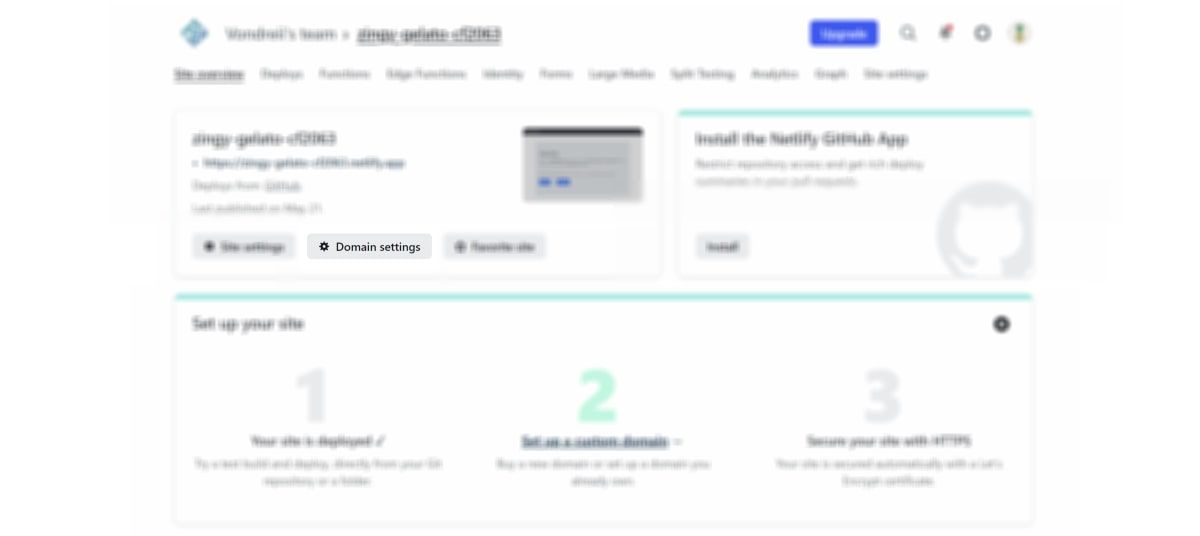
Linking a custom domain to your Netlify-hosted website enhances its professionalism and branding, providing visitors with a memorable web address. Properly configuring your domain ensures seamless access and optimal website performance across different devices and locations.
This process involves adding your domain within Netlify’s domain management settings and configuring DNS records at your domain registrar. Accurate setup guarantees that visitors are directed correctly to your website and that your SSL certificates are properly issued for secure connections.
Accessing Domain Management Settings in Netlify
Managing your custom domain begins with navigating to the correct settings within your Netlify dashboard. Under your site’s overview, locate the “Domain management” or “Domains” section. This area provides options to add new custom domains, view existing ones, and configure SSL/TLS certificates.
Once inside the domain management panel, you can input your custom domain URL, such as
www.yourdomain.com
, and initiate the verification process. Netlify automatically detects the domain and guides you through the verification steps, which typically involve DNS record adjustments at your domain registrar.
Adding a Custom Domain and Verifying Ownership
To associate your custom domain with your Netlify site, follow these steps:
- Navigate to the “Domain management” section in your Netlify dashboard.
- Click on the option to “Add custom domain” or “Add domain.”
- Enter your full domain name, for example,
www.example.com
.
- Netlify will prompt you to verify domain ownership, often by adding specific DNS records at your domain registrar.
- Follow the on-screen instructions, which typically involve creating TXT records or CNAME records to prove your ownership.
- After updating the DNS records at your registrar, return to Netlify and click “Verify” to confirm the domain ownership.
It may take some time—up to 48 hours—for DNS changes to propagate fully. Once verified, your custom domain is linked to your Netlify site, ready for further configuration and SSL setup.
Managing DNS Settings at the Domain Registrar
Configuring DNS records at your domain registrar is crucial for pointing your domain to Netlify’s servers. Access your domain registrar’s DNS management panel, where you will add or modify DNS records based on Netlify’s requirements.
Common DNS records include:
| Record Type | Host/Name | Value | Purpose |
|---|---|---|---|
| A | @ | 75.2.60.5 | Points root domain to Netlify’s IP address |
| CNAME | www | your-site.netlify.app | Routes www subdomain to Netlify’s hosting |
| TXT | @ | Netlify verification token | Verifies domain ownership |
For best results, ensure that the A records are correctly pointing to Netlify’s IP addresses, and CNAME records are set for subdomains like www. Adjust other records as needed for email services or security features.
Always double-check the specific instructions provided by Netlify and your domain registrar, as DNS record formats and procedures may vary slightly.
Common DNS Record Configurations for Domain Connection
Proper DNS configuration is vital for ensuring your custom domain correctly directs visitors to your website hosted on Netlify. The following table summarizes typical DNS settings for connecting a custom domain:
| Record Type | Host/Name | Value | Purpose |
|---|---|---|---|
| A | @ | 75.2.60.5 | Redirects root domain to Netlify servers |
| CNAME | www | your-site.netlify.app | Routes www subdomain to hosting service |
| TXT | @ | Verification token provided by Netlify | Verifies domain ownership |
| CAA | @ | 0 issue “letsencrypt.org” | Enables SSL certificate issuance |
Adherence to these configurations promotes a secure, reliable connection between your domain and Netlify hosting, providing visitors with a trustworthy browsing experience.
Configuring DNS Settings for Domain Connection
Properly configuring DNS settings is a critical step in linking your custom domain to your Netlify-hosted website. Accurate DNS records ensure that your domain correctly points to your site’s hosting environment, providing visitors with seamless access without errors or delays. Understanding how to update these records across various domain registrars and recognizing the importance of DNS propagation time is essential for a smooth setup process.
DNS propagation refers to the period it takes for DNS changes to be updated across all internet servers worldwide. This process can vary from a few minutes to up to 48 hours, depending on the registrar and DNS caching mechanisms. Verifying successful setup involves checking if your domain correctly resolves to your Netlify site, which can be done using online DNS checker tools or command-line utilities.
Being aware of propagation delays helps manage expectations and troubleshoot potential issues effectively.
Updating DNS Records at Popular Domain Registrars
Each domain registrar has a slightly different interface for managing DNS settings, but the core process remains similar. Below are detailed instructions and sample configurations for common registrars, emphasizing the critical DNS records you need to update—namely, A records, CNAME records, or DNS host records as specified by Netlify.
| Registrar | Typical DNS Records to Update | Sample Configuration |
|---|---|---|
| GoDaddy | Update A Records and CNAME Record |
|
| Namecheap | Modify DNS Records to point to Netlify |
|
| Google Domains | Manage Custom Resource Records |
|
Note: Always verify the specific DNS record requirements provided by Netlify for your custom domain setup, as some configurations may vary based on domain provider or updates in Netlify’s instructions.
Monitoring DNS Propagation and Verifying Setup
Once DNS records are updated, it is vital to monitor the propagation process and confirm that your domain is correctly resolving to your Netlify site. Typical tools for this include online DNS lookup services such as DNSChecker.org or MXToolbox, and command-line utilities like ‘nslookup’ or ‘dig’.
For example, using the command-line utility ‘dig’ to verify the A record:
dig yourdomain.com A
If the returned IP address matches the IP provided by Netlify (e.g., 104.198.14.52), the DNS update has propagated successfully. Similarly, checking the CNAME record for ‘www’ should reflect your Netlify URL.
dig www.yourdomain.com CNAME
Patience is essential during DNS propagation. It is common for changes to take several hours to fully propagate across global DNS servers. If issues persist beyond 48 hours, revisiting your DNS records to confirm correctness or contacting your domain registrar’s support can resolve lingering problems.
Troubleshooting Common Domain Connection Issues
Encountering difficulties in connecting your domain to Netlify can stem from various factors. Common troubleshooting steps include:
- Verifying that DNS records are correctly configured according to Netlify’s specifications.
- Checking for duplicate or conflicting DNS entries that may interfere with proper resolution.
- Confirming the absence of DNS caching issues by clearing local DNS cache or trying from different networks or devices.
- Ensuring that the DNS records have been saved properly at your domain registrar and that no pending updates are awaiting propagation.
- Using online tools to trace DNS resolution paths and identify any misconfigurations or delays.
If issues persist, contacting your domain registrar’s support and providing detailed DNS records and troubleshooting steps can facilitate quicker resolution. Additionally, reviewing Netlify’s troubleshooting guides can offer specific advice tailored to common problems encountered during domain setup.
Securing Your Website with HTTPS on Netlify
Ensuring the security of your website is vital for protecting user data and establishing trust with your visitors. Implementing HTTPS through SSL certificates is an essential step in this process. Netlify simplifies this by offering free SSL certificates, enabling secure connections with minimal configuration efforts. Properly configuring and maintaining your SSL setup ensures ongoing security and compliance with best practices.
Enabling Free SSL Certificates via Netlify
Netlify provides free automatic SSL certificates through Let’s Encrypt, a reputable Certificate Authority that offers free, automated, and open certificates. Once your custom domain is connected to your Netlify site, SSL provisioning generally begins automatically. The process involves verifying domain ownership and issuing the certificate, which is then deployed seamlessly without manual intervention.To enable SSL on Netlify:
- Navigate to your site dashboard on Netlify.
- Go to the “Domain management” section where your custom domain is listed.
- Check that your domain is properly connected and verified.
- Netlify will automatically initiate the SSL certificate provisioning process.
- Within minutes, the SSL certificate will be issued and applied to your site, enabling HTTPS access.
This automation significantly reduces the complexity involved in securing your website, making it accessible via a secure protocol effortlessly.
Forcing HTTPS and Configuring SSL Settings
For optimal security, it is recommended to enforce HTTPS connections, ensuring all traffic to your website is encrypted and secure. Netlify provides straightforward options to enable this feature:
To force HTTPS:
- Access your site’s “Domain settings” in the Netlify dashboard.
- Locate the “SSL/TLS” settings section.
- Enable the “Force HTTPS” option, which redirects all HTTP requests to HTTPS automatically.
- Save the changes; Netlify will handle redirection seamlessly, preventing users from accessing the unencrypted version.
For detailed SSL configurations:
- Netlify allows you to specify custom SSL options, including selecting the preferred security protocols and cipher suites.
- Ensure that the SSL certificate is set to automatically renew before expiration to prevent security lapses, which Netlify manages internally through Let’s Encrypt.
Configuring your SSL settings correctly guarantees that your site maintains a high standard of security and user trust.
Best Practices for Maintaining Secure Connections and SSL Renewal
Maintaining a secure website involves proactive management of your SSL certificates and security protocols. Key practices include:
“Regularly monitoring SSL certificate status and ensuring automatic renewal helps prevent unexpected security lapses and downtime.”
- Rely on Netlify’s automatic renewal system for Let’s Encrypt certificates, which typically renews certificates 30 days before expiration.
- Periodically verify your domain’s SSL status through the Netlify dashboard or external tools to confirm proper configuration.
- Keep your DNS records and domain verification status up to date to avoid disruptions in SSL deployment.
- Implement HTTP Strict Transport Security (HSTS) headers on your website to instruct browsers to only connect via HTTPS, further enhancing security.
- Stay informed about emerging security best practices and update your SSL/TLS configurations accordingly, utilizing tools such as SSL Labs’ SSL Server Test for comprehensive analysis.
Adhering to these practices ensures your website remains secure over time, resisting vulnerabilities and maintaining user confidence in your online presence.
Testing and Verifying Your Hosted Website and Domain Connection
Ensuring that your website functions correctly and that your custom domain is properly connected is a crucial step in the deployment process. This phase confirms that visitors will experience a secure, responsive, and well-functioning website, and that your domain redirects and SSL certificates are correctly configured. Proper testing minimizes potential issues after launch and provides confidence in your deployment setup.Understanding the different methods and verification steps is essential to guarantee that your website is accessible, secure, and optimized for all users.
This involves checking both the local preview of your site before deployment and the live site after deployment, as well as examining your domain’s DNS settings and SSL certificate status to confirm everything is correctly configured.
Testing Local and Live Website Accessibility
Before opening your website to the world, it is advisable to preview your site locally to identify and fix any issues. Most static sites can be previewed using local development servers, which simulate the production environment. Once deployed, testing the live site ensures that the deployment process was successful and that the website appears and functions as intended across different devices and browsers.To test locally, run your development server using commands such as `npm run start` or `python -m http.server`, depending on your project setup.
This allows you to navigate your site locally and verify layout, links, and functionality. For live testing, access your deployed URL through a web browser, and perform thorough checks on page load speed, responsiveness, and interactive elements.
Verifying Domain DNS Configuration and SSL Certificate Status
Proper DNS configuration is vital for your domain to resolve accurately to your Netlify-hosted site. Use online DNS lookup tools to verify that your domain’s DNS records, such as A or CNAME records, point correctly to Netlify’s servers. Confirm that the DNS changes have propagated, which can take up to 48 hours but often occurs within a few hours.Check the SSL certificate status by visiting your website through a browser using HTTPS.
Look for the padlock icon in the address bar, indicating a secure connection. Additionally, use SSL verification tools to confirm that your SSL certificate is valid, properly installed, and free from errors. These steps ensure that your visitors’ data is protected and that your site adheres to security best practices.
Checklist for Confirming Domain Redirects, SSL Security, and Responsiveness
A comprehensive checklist ensures all aspects of your website and domain are correctly configured and functioning:
- Domain Redirects: Verify that your domain redirects to your primary site URL without unwanted redirects or broken links.
- SSL Security: Confirm that HTTPS is active across all pages, and that there are no mixed content warnings, which occur when secure and non-secure resources are loaded together.
- Site Responsiveness: Test your website on various devices (smartphones, tablets, desktops) and browsers (Chrome, Firefox, Safari, Edge) to ensure consistent appearance and functionality.
- Page Load Speed: Use tools like Google PageSpeed Insights or GTmetrix to analyze load times and optimize performance where necessary.
- Error Monitoring: Check for 404 errors, broken links, or missing images that could impact user experience.
- DNS Propagation: Use DNS checker tools to confirm DNS records have propagated globally and point correctly to Netlify servers.
Proper verification of DNS and SSL configurations is fundamental to establishing a secure and accessible web presence, thereby building trust with your visitors and ensuring a seamless user experience.
Troubleshooting Common Issues During Hosting and Domain Connection
Deploying a website on Netlify and connecting a custom domain can sometimes present challenges, especially for users new to web hosting and DNS management. Understanding common problems and their solutions is essential to ensure a smooth deployment process and reliable website performance. This guide provides insights into typical issues encountered during hosting and domain setup, along with detailed procedures for effective resolution.
Most issues stem from misconfigured DNS records, SSL certificate problems, or deployment errors, which can disrupt website accessibility and security. Recognizing error messages and understanding their root causes enable swift troubleshooting, minimizing downtime and improving the overall user experience. The following sections Artikel common problems, their solutions, and a helpful reference table of error codes with recommended actions.
Common Problems Encountered During Hosting and Domain Connection
Website developers and administrators frequently face issues such as DNS propagation delays, SSL certificate errors, deployment failures, and incorrect DNS record configurations. These problems can stem from improper DNS setup, delays in DNS record updates, expired or misconfigured SSL certificates, or code errors during deployment. Addressing these issues requires systematic diagnosis and adherence to best practices for DNS and SSL management.
Resolving DNS Errors
DNS errors typically manifest as website accessibility issues, such as “DNS_PROBE_FINISHED_NXDOMAIN” or “Server DNS address could not be found.” These errors often indicate incorrect DNS record settings, propagation delays, or cache problems.
- Verify DNS Records: Log into your domain registrar’s dashboard and confirm that A records point to Netlify’s IP addresses, and CNAME records correctly point to your Netlify subdomain (e.g., yoursite.netlify.app). Use DNS lookup tools like MXToolbox or DNSChecker to confirm propagation status.
- Allow Propagation Time: DNS changes can take up to 48 hours to fully propagate worldwide. During this period, your site may be intermittently accessible, or errors may occur.
- Clear DNS Cache: Clear local DNS cache and browser cache to ensure outdated records are not causing access issues. On Windows, use the command
ipconfig /flushdns
.
Addressing SSL Certificate Issues
SSL certificate problems can prevent secure HTTPS connections, resulting in warnings or inaccessible sites. Common SSL issues include expired certificates, mismatch errors, or failure to generate certificates.
- Check SSL Certificate Status: Use tools like SSL Labs SSL Server Test to verify your domain’s SSL certificate and identify issues like expiration or misconfiguration.
- Reissue or Renew Certificates: If the certificate has expired, renew it through Netlify’s dashboard or your certificate authority. Netlify manages free SSL certificates automatically but ensure DNS records are correctly set for validation.
- Configure Custom Domains Correctly: Ensure CNAME or A records are properly configured before SSL issuance, as incorrect DNS setup often causes SSL errors.
Handling Deployment Failures
Deployment issues on Netlify may arise due to build errors, incorrect build commands, or missing dependencies. These failures prevent the website from being published or updated.
- Review Build Logs: Check the build logs in Netlify’s dashboard for specific error messages. Common problems include syntax errors, missing environment variables, or incompatible dependencies.
- Verify Build Settings: Confirm that build commands and publish directories are correctly set in your project configuration.
- Test Locally: Run your build commands locally to ensure they complete without errors before deploying to Netlify.
- Update Dependencies: Make sure all dependencies are properly installed and compatible with your build environment.
Error Codes, Descriptions, and Recommended Solutions
Below is a table summarizing common error codes encountered during hosting and domain connection, along with their descriptions and advised troubleshooting steps:
| Error Code | Description | Recommended Solution |
|---|---|---|
| DNS_PROBE_FINISHED_NXDOMAIN | The domain name does not resolve to an IP address, indicating DNS misconfiguration or propagation delay. | Check DNS records for correctness, use DNS lookup tools to confirm propagation, and wait if recent changes were made. |
| SSL_ERROR_BAD_CERT_DOMAIN | The SSL certificate does not match the domain, often due to misconfigured DNS or incomplete certificate issuance. | Ensure DNS records are correct, reissue SSL certificates, and confirm that DNS changes have propagated before testing again. |
| 503 Service Unavailable | Deployment or server-side issue preventing website from loading properly. | Review deployment logs, fix build errors, and ensure your site’s dependencies and configuration are correct. |
| ERR_SSL_PROTOCOL_ERROR | SSL/TLS handshake failure, preventing secure connection. | Check SSL certificate validity, verify DNS records, and clear browser cache. Renew SSL if expired. |
| Error 520 | Origin server refused connection, indicating server-side error or misconfiguration. | Inspect server logs, confirm server is running correctly, and verify DNS settings. |
Ultimate Conclusion
In conclusion, mastering how to host your website on Netlify and connect a custom domain empowers you to manage your online content with ease and security. With a clear understanding of deployment procedures, DNS configurations, and SSL setup, you can achieve a seamless and reliable web presence. Whether you are a beginner or looking to optimize your current setup, these steps will help you ensure your website is accessible, secure, and properly connected to your domain.