Embark on a journey to master the art of deploying WordPress on an AWS EC2 instance, a powerful combination that unlocks the potential for a robust and scalable website. This guide will walk you through the entire process, from setting up your AWS environment to optimizing your WordPress site for peak performance, ensuring a smooth and successful deployment experience.
We’ll explore the fundamental concepts of cloud computing and the advantages of using EC2 for hosting WordPress, covering everything from selecting the right instance type to configuring security and performance enhancements. Whether you’re a seasoned developer or a newcomer to web hosting, this guide offers clear, concise instructions to help you bring your WordPress website to life on the AWS cloud.
Introduction: Understanding the Deployment Process
Deploying a website involves making it accessible on the internet. This process requires several steps, from acquiring a domain name to configuring servers and databases. This section provides a foundational understanding of website deployment, AWS, EC2, and the benefits and challenges of hosting WordPress on an EC2 instance.
Fundamental Concepts of Deploying a Website
The process of deploying a website can be broken down into several key stages. Each stage is critical for the website to function correctly and be accessible to users worldwide.
- Domain Name Registration: This is the website’s address on the internet (e.g., example.com). You register a domain name through a registrar, which links the name to your server’s IP address.
- Web Hosting: This involves storing your website’s files (HTML, CSS, JavaScript, images, etc.) on a server. The server provides the resources needed for the website to be served to users. There are several types of hosting, including shared hosting, VPS (Virtual Private Server) hosting, and dedicated server hosting.
- Server Configuration: The server must be configured to run the necessary software, such as a web server (e.g., Apache or Nginx), a database server (e.g., MySQL or MariaDB), and a scripting language interpreter (e.g., PHP). This setup allows the server to process user requests and serve the website’s content.
- File Transfer: Website files need to be uploaded to the server. This is typically done using FTP (File Transfer Protocol) or an SFTP (Secure File Transfer Protocol) client.
- Database Setup (if applicable): Many websites, especially those using content management systems (CMS) like WordPress, require a database to store content and user information. The database needs to be created and configured to work with the website.
- DNS Configuration: DNS (Domain Name System) translates the domain name into the server’s IP address. DNS records (e.g., A records, CNAME records) must be configured correctly for the website to resolve to the correct server.
- Website Testing: After deployment, it’s crucial to test the website thoroughly to ensure it functions correctly and displays content as intended.
Overview of AWS and EC2
Amazon Web Services (AWS) is a comprehensive cloud computing platform offering a wide range of services. It provides on-demand computing, storage, databases, and content delivery services to help businesses scale and grow. AWS offers various services, including compute, storage, databases, networking, and more.
- Compute Services: These services provide the infrastructure to run applications.
- Storage Services: AWS offers various storage options, from object storage to block storage and archival storage.
- Database Services: AWS provides various database services, including relational databases, NoSQL databases, and data warehousing solutions.
- Networking Services: These services allow you to connect your resources and manage your network infrastructure.
Amazon Elastic Compute Cloud (EC2) is a core service within AWS that provides virtual servers (instances) in the cloud. You can choose from different instance types, each with varying CPU, memory, storage, and networking capabilities. This allows you to select the instance that best suits your application’s needs. EC2 instances are highly customizable and scalable.
Benefits of Hosting WordPress on an EC2 Instance
Hosting WordPress on an EC2 instance offers several advantages, including flexibility, scalability, and control. This setup provides greater control over the server environment compared to shared hosting options.
- Customization: You have complete control over the server configuration, allowing you to optimize it for WordPress. You can install any necessary software, configure security settings, and tailor the server to your specific needs.
- Scalability: EC2 instances can be easily scaled up or down to meet changing traffic demands. You can increase the instance size (more CPU, memory) or use features like Auto Scaling to automatically adjust the number of instances based on traffic. This ensures your website remains responsive even during traffic spikes.
- Performance: EC2 instances can offer better performance than shared hosting, especially with the right configuration. You can choose instance types optimized for performance, utilize caching mechanisms, and optimize the WordPress configuration.
- Security: You have more control over security settings, allowing you to implement robust security measures. You can configure firewalls, intrusion detection systems, and regular security audits to protect your website.
- Cost Efficiency: AWS offers various pricing models, including pay-as-you-go, reserved instances, and spot instances. You can choose the pricing model that best fits your budget and usage patterns.
Common Challenges Encountered During WordPress Deployment on EC2
Deploying WordPress on an EC2 instance presents some challenges. Addressing these challenges effectively is crucial for a successful deployment.
- Technical Expertise: Managing an EC2 instance requires technical knowledge of server administration, including Linux, web servers, databases, and networking. You’ll need to be comfortable with the command line and server configuration.
- Configuration Complexity: Configuring the server, web server, database, and WordPress can be complex. It involves setting up the correct software, configuring security settings, and optimizing performance.
- Security Management: Securing an EC2 instance requires vigilance. You need to configure firewalls, regularly update software, and implement security best practices to protect your website from attacks.
- Performance Optimization: Optimizing WordPress for performance on EC2 requires careful attention to detail. You’ll need to optimize the server configuration, use caching mechanisms, and optimize the WordPress configuration.
- Cost Management: While AWS offers cost-effective options, it’s essential to monitor your usage and optimize your resources to avoid unnecessary costs. Selecting the right instance type and utilizing cost-saving features like reserved instances can help.
Prerequisites
To successfully deploy WordPress on an AWS EC2 instance, setting up your environment correctly is crucial. This involves several preliminary steps, from configuring your AWS account to securing your server. Proper preparation ensures a smooth deployment process and a secure, functional WordPress website.
AWS Account Setup
Establishing an AWS account is the first step. This involves signing up for an account and configuring the necessary Identity and Access Management (IAM) roles to manage your resources securely.To begin, follow these steps:
- Sign Up for an AWS Account: Visit the AWS website and create an account. You will need to provide an email address, payment information, and contact details. Be aware of the AWS Free Tier, which provides limited free usage of certain services for the first 12 months.
- Create an IAM User: It’s highly recommended to avoid using the root account for everyday tasks. Instead, create an IAM user with the necessary permissions. Navigate to the IAM service in the AWS Management Console.
- Define IAM Roles: IAM roles define the permissions that users or services have within your AWS account. Create a role for your EC2 instance, granting it permissions to access services like S3 (for storing backups) or CloudWatch (for monitoring). The role should only have the minimum permissions required for its intended use, adhering to the principle of least privilege.
- Attach Policies to the IAM User/Role: Attach the appropriate policies to the IAM user or role you created. Common policies include:
AmazonEC2FullAccess(for development and testing, but not recommended for production)AmazonS3ReadOnlyAccess(if your WordPress site will read from S3 buckets)- Custom policies with specific permissions (recommended for production, to limit access)
EC2 Instance Type Selection
Choosing the right EC2 instance type is crucial for performance and cost-efficiency. The selection depends on your website’s expected traffic, the complexity of your WordPress installation, and the plugins you plan to use. Consider the following factors:
- CPU: The number of vCPUs determines the processing power available to your instance. For a basic WordPress site, a single vCPU instance might suffice. However, higher-traffic sites or those using resource-intensive plugins will require more vCPUs.
- Memory (RAM): WordPress and its plugins require memory to operate. Insufficient memory can lead to slow performance or website crashes. Start with at least 1GB of RAM for a small site and scale up as needed. For example, an instance like the t2.medium (2 vCPUs, 4 GB RAM) often provides a good balance for many WordPress sites.
- Storage: The storage type and size affect the speed and capacity of your website. Consider using SSD-backed storage (EBS General Purpose SSD (gp2) or Provisioned IOPS SSD (io1)) for faster performance. Determine the storage size based on your expected content, media files, and database size.
- Network Performance: The network performance of an instance affects how quickly your website loads for visitors. Choose an instance type that provides sufficient network bandwidth.
- Instance Family: AWS offers various instance families optimized for different workloads. Consider the following:
- General Purpose (e.g., M5, M6g): Suitable for a wide range of workloads, including web servers.
- Compute Optimized (e.g., C5, C6g): Designed for compute-intensive applications.
- Memory Optimized (e.g., R5, R6g): Ideal for memory-intensive applications.
Operating System Selection
The operating system (OS) forms the foundation of your EC2 instance. The choice of OS affects compatibility, security, and ease of management.Consider the following options:
- Amazon Linux 2: Amazon Linux 2 is a Linux distribution provided by AWS, optimized for use on EC2. It offers security updates, pre-configured packages, and integration with AWS services. It is a good choice for beginners due to its ease of use and tight integration with AWS.
- Ubuntu: Ubuntu is a popular, user-friendly Linux distribution known for its large community support and extensive software repositories. It’s a versatile option, suitable for various applications, including web servers.
- Other Linux Distributions: Other options include CentOS, Debian, and Fedora, each with its strengths and weaknesses.
- Windows Server: While less common for WordPress, you can also deploy WordPress on a Windows Server instance. This option may be preferred if you require compatibility with Windows-specific applications or .NET frameworks.
Security Group Configuration
A security group acts as a virtual firewall for your EC2 instance, controlling inbound and outbound traffic. Properly configuring the security group is essential for securing your WordPress site.Here are the steps to configure a security group:
- Create a Security Group: In the EC2 console, create a new security group. Give it a descriptive name and description.
- Define Inbound Rules: Add inbound rules to allow specific traffic:
- HTTP (Port 80): Allow traffic from the internet to serve your website.
- HTTPS (Port 443): Allow traffic for secure connections (recommended for all websites).
- SSH (Port 22): Allow SSH access for secure server administration (restrict the source IP to your IP address for security).
- MySQL/MariaDB (Port 3306): If your database is hosted on the same instance, allow traffic from the instance itself (or from your IP address during setup).
- Define Outbound Rules: Outbound rules allow your instance to send traffic. By default, a security group allows all outbound traffic. You can restrict this if necessary.
- Associate the Security Group with Your EC2 Instance: When launching or modifying your EC2 instance, associate the security group with it.
SSH Key Generation and Management
Secure Shell (SSH) keys provide secure access to your EC2 instance. Properly managing these keys is critical for security.Here’s how to generate and manage SSH keys:
- Generate an SSH Key Pair: When launching your EC2 instance, you will be prompted to select an existing key pair or create a new one. Choose “Create a new key pair.” Enter a name for the key pair and download the private key file (a .pem file). This file is your only copy of the private key, so store it securely.
- Secure the Private Key: The private key file grants access to your instance. Protect it with the utmost care. Change the file permissions to restrict access to only the owner (e.g.,
chmod 400 your-key-pair.pem). - Connect to Your Instance Using SSH: Use an SSH client (like PuTTY on Windows or the `ssh` command on Linux/macOS) to connect to your instance:
ssh -i "your-key-pair.pem" ec2-user@your-instance-public-ip- Replace
your-key-pair.pemwith the path to your private key file. - Replace
ec2-userwith the appropriate username for your OS (e.g.,ubuntufor Ubuntu,ec2-userfor Amazon Linux). - Replace
your-instance-public-ipwith the public IP address or DNS of your EC2 instance.
- Replace
- Manage Key Pairs in the AWS Console: You can view, download, and manage your key pairs in the EC2 console.
Launching an EC2 Instance
Launching an EC2 instance is the cornerstone of deploying WordPress on AWS. This section guides you through the process, from the AWS Management Console to the initial configuration, ensuring you have a solid foundation for your WordPress site. Properly configuring your EC2 instance is crucial for performance, security, and cost-effectiveness.
Launching an EC2 Instance: Step-by-Step Guide
The process of launching an EC2 instance involves several key steps within the AWS Management Console. Each step is critical for ensuring your instance is correctly configured and ready for WordPress deployment.
- Access the AWS Management Console: Log in to your AWS account and navigate to the EC2 service. This is typically found under “Compute.”
- Initiate Instance Launch: Click the “Launch Instance” button. This will start the instance launch wizard.
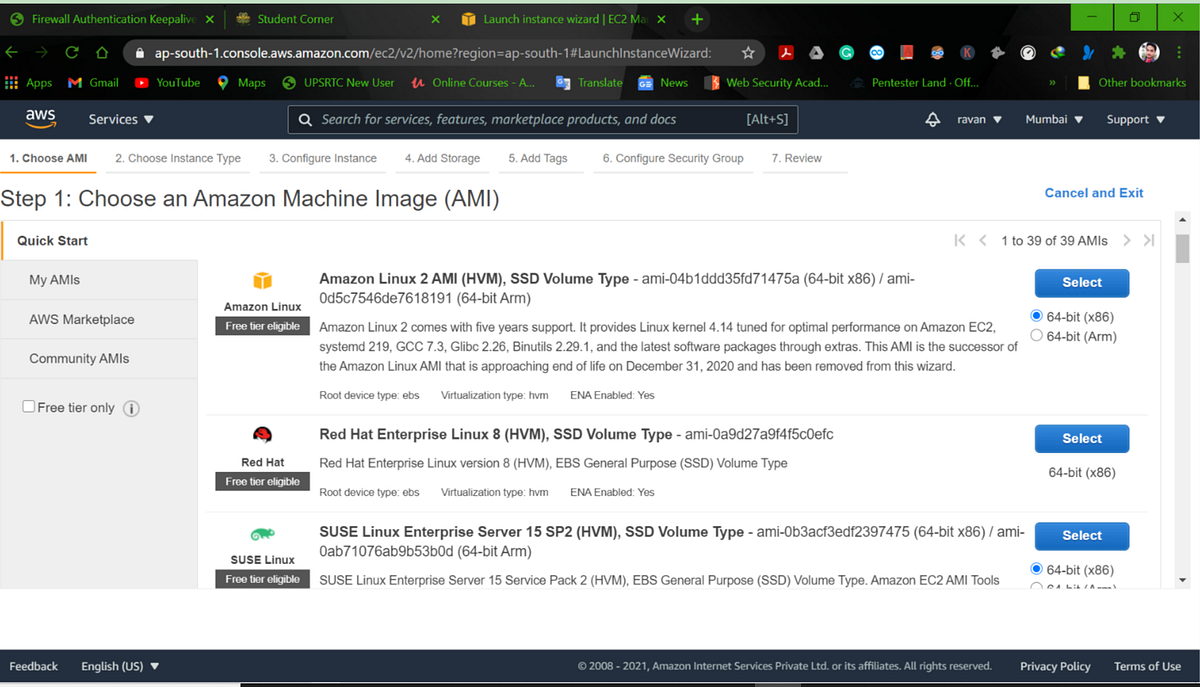
- Choose an Amazon Machine Image (AMI): Select an AMI. An AMI serves as a template for the instance, containing the operating system and pre-configured software. For WordPress, you can choose an AMI with a pre-installed operating system (e.g., Amazon Linux 2, Ubuntu Server) or a pre-configured WordPress AMI. The choice of AMI impacts the initial setup steps. For instance, if you choose an AMI without WordPress pre-installed, you will need to install it later.
- Select Instance Type: Choose an instance type based on your anticipated traffic and resource needs. Instance types offer different combinations of CPU, memory, storage, and networking capabilities. We’ll explore instance types in more detail below.
- Configure Instance Details: This step involves several settings:
- Network: Select the VPC (Virtual Private Cloud) and subnet where you want to launch the instance. If you don’t have a VPC, you can use the default VPC.
- Auto-assign Public IP: Enable this if you want the instance to have a public IP address. This is necessary for accessing your WordPress site directly from the internet, but it’s generally not recommended for production environments due to security concerns. Using an Elastic IP is a more secure approach.
- IAM Role: If your WordPress site needs to interact with other AWS services (e.g., S3 for media storage), assign an IAM role with the necessary permissions.
- Add Storage: Configure the storage for your instance using Elastic Block Storage (EBS) volumes. This is where your WordPress files, database, and other data will be stored.
- Add Tags: Add tags to your instance for organization and cost tracking. Tags are key-value pairs that can be used to categorize your AWS resources.
- Configure Security Group: Configure a security group to control inbound and outbound traffic to your instance. This is crucial for security. For WordPress, you’ll typically need to allow:
- HTTP (port 80): For standard web traffic.
- HTTPS (port 443): For secure web traffic (requires an SSL certificate).
- SSH (port 22): For secure remote access to the instance (for administrative tasks). Consider restricting SSH access to specific IP addresses for added security.
- Review and Launch: Review your configuration and click “Launch.”
- Choose a Key Pair: Select an existing key pair or create a new one. The key pair is used to securely connect to your instance via SSH. Download the private key (.pem file) and store it securely.
- Monitor Instance Status: After launching, monitor the instance status in the EC2 console. It will take a few minutes for the instance to initialize.
Instance Configuration Settings
Several settings are crucial during instance launch, directly impacting the performance, security, and accessibility of your WordPress site. Careful consideration of these settings is essential.
- Amazon Machine Image (AMI): The AMI acts as the blueprint for your EC2 instance. Choosing the right AMI is a fundamental decision. You can opt for an AMI with a pre-installed operating system (e.g., Amazon Linux 2, Ubuntu Server) and then manually install WordPress and its dependencies. Alternatively, you can use a pre-configured WordPress AMI, which simplifies the setup process but may limit customization options.
The choice depends on your technical expertise and desired level of control. For example, Bitnami offers pre-configured WordPress AMIs that include everything you need, simplifying deployment.
- Instance Type: The instance type determines the hardware resources allocated to your instance (CPU, memory, storage, networking). Selecting the right instance type is vital for performance and cost optimization. The choice should be based on the expected traffic volume, the complexity of your WordPress site, and the performance requirements.
- Key Pair: A key pair is used to securely connect to your instance via SSH. It consists of a public key that is stored on the instance and a private key that you keep. When you connect to the instance, you use the private key to authenticate. Protecting your private key is critical; if someone gains access to it, they can access your instance.
Storage Options and Their Impact on Performance
Storage configuration is a critical factor influencing the performance and reliability of your WordPress site. AWS offers various storage options for EC2 instances, each with different performance characteristics and cost implications.
Elastic Block Storage (EBS) Volumes:
EBS volumes are persistent block storage devices that can be attached to your EC2 instances. They provide a flexible and scalable storage solution. Several EBS volume types are available, each optimized for different workloads:
- General Purpose SSD (gp3): Offers a balance of performance and cost, suitable for a wide range of workloads, including WordPress.
- Provisioned IOPS SSD (io2/io1): Provides high performance and consistent IOPS, ideal for database-intensive applications.
- Throughput Optimized HDD (st1): Designed for frequently accessed, throughput-intensive workloads, such as data warehousing and log processing.
- Cold HDD (sc1): Offers the lowest cost per GB, suitable for infrequently accessed data.
The choice of EBS volume type significantly impacts performance. For example, using a gp3 volume will provide better performance for your WordPress site compared to st1 or sc1 volumes. Consider the following:
- IOPS (Input/Output Operations Per Second): This measures the number of read/write operations per second. Higher IOPS translate to faster performance.
- Throughput: This measures the amount of data transferred per second. Higher throughput is beneficial for workloads that involve large data transfers.
- Volume Size: The size of your EBS volume impacts storage capacity and, in some cases, performance. Larger volumes can often provide better performance.
Consider a scenario where your WordPress site experiences slow loading times. This might indicate that the EBS volume is a bottleneck. Switching to a higher-performance EBS volume type (e.g., from gp2 to gp3 or io2) can significantly improve performance.
Assigning a Public IP Address or Using Elastic IP
Providing access to your WordPress site requires a public IP address or a more robust solution like an Elastic IP.
Public IP Address:
When launching an EC2 instance, you can choose to assign it a public IP address. This allows you to access your WordPress site directly from the internet using the public IP address. However, public IP addresses are dynamic; they change every time you stop and start the instance. This means you would need to update the DNS records for your domain every time the IP address changes, which is inconvenient and can cause downtime.
It is generally not recommended for production environments.
Elastic IP Address:
An Elastic IP address is a static public IP address that you can associate with your EC2 instance. It remains constant, even if you stop and start the instance. This is the recommended approach for production WordPress sites. With an Elastic IP, you can update your DNS records once, and your WordPress site will always be accessible at the same IP address.
It also allows you to easily remap the IP address to a different instance in case of failure, minimizing downtime. You allocate an Elastic IP from the EC2 console and then associate it with your instance.
Instance Types and Their Use Cases
Choosing the right instance type is crucial for optimizing performance and cost. The following table Artikels different instance types and their typical use cases.
| Instance Type | Description | Use Cases | Considerations |
|---|---|---|---|
| t2/t3 (Burstable) | General-purpose instances with a baseline performance and the ability to burst above the baseline when needed. | Development and testing, low-traffic websites, small blogs. | Performance can fluctuate. Monitor CPU utilization. |
| m5/m6g (General Purpose) | Balanced instances with a good mix of CPU, memory, and networking. | Web servers, application servers, medium-traffic websites. | Suitable for a wide range of workloads. Consider the vCPU and memory requirements of your WordPress site. |
| c5/c6g (Compute Optimized) | Designed for compute-intensive workloads. | High-traffic websites, video encoding, scientific computing. | Offers high CPU performance. Less memory than general-purpose instances. |
| r5/r6g (Memory Optimized) | Instances with a high memory-to-vCPU ratio. | Database servers, in-memory caches, high-performance computing. | Ideal for workloads that require a large amount of memory. May be overkill for smaller WordPress sites. |
Connecting to Your EC2 Instance

Now that your EC2 instance is running, the next crucial step is connecting to it. This allows you to access the server, configure it, and deploy your WordPress website. Secure Shell (SSH) is the primary method for remote server administration, providing a secure and encrypted connection.
Methods for Connecting via SSH
SSH utilizes a client-server model. You, as the client, initiate a connection to the EC2 instance, which acts as the server. This connection is established using a secure channel, ensuring that all data transmitted is encrypted.
- SSH Clients: You will need an SSH client installed on your local machine. Popular choices include:
- Windows: PuTTY (a free and widely used SSH client) or the built-in OpenSSH client available from Windows 10 onwards.
- macOS and Linux: The OpenSSH client is typically pre-installed.
- SSH Keys: Securely connecting to your instance using SSH keys is highly recommended. SSH keys provide a more secure authentication method than passwords. The key pair consists of a private key (kept secret on your local machine) and a public key (uploaded to the EC2 instance).
- IP Address or DNS Name: You will need the public IP address or DNS name of your EC2 instance to connect. You can find this in the AWS Management Console under the “Instances” section of the EC2 service.
- Username: The default username for Amazon Linux instances is “ec2-user”. For Ubuntu, it’s typically “ubuntu”. For other Linux distributions, consult the instance’s documentation.
Connecting from Different Operating Systems
The steps to connect to your EC2 instance vary slightly depending on your operating system. Below are detailed instructions for Windows, macOS, and Linux.
- Windows:
- Using PuTTY:
- Download and install PuTTY from the official website.
- Launch PuTTY.
- In the “Host Name (or IP address)” field, enter the public IP address or DNS name of your EC2 instance.
- Under “Connection” -> “SSH” -> “Auth”, browse and select your private key file (.ppk file if you converted your .pem key to .ppk).
- In the “Open” field, enter the username for your instance (e.g., “ec2-user” or “ubuntu”).
- Click “Open” to connect. You may be prompted to accept the host key.
- Using OpenSSH (Windows 10 and later):
- Open a Command Prompt or PowerShell window.
- Navigate to the directory where your private key (.pem file) is stored.
- Use the following command, replacing “your_key.pem” with the name of your private key file, “ec2-user” with your username, and “your_instance_public_ip” with your instance’s public IP address:
ssh -i “your_key.pem” ec2-user@your_instance_public_ip
- If prompted, confirm the connection by typing “yes”.
- Using PuTTY:
- macOS and Linux:
- Open a terminal.
- Navigate to the directory where your private key (.pem file) is stored.
- Use the following command, replacing “your_key.pem” with the name of your private key file, “ec2-user” with your username, and “your_instance_public_ip” with your instance’s public IP address:
ssh -i “your_key.pem” ec2-user@your_instance_public_ip
- If prompted, confirm the connection by typing “yes”.
Verifying Connectivity and Troubleshooting
After attempting to connect, verifying the connection and troubleshooting any issues are crucial. This ensures you can successfully access your server.
- Verifying SSH Connectivity:
- After successfully connecting, you should see a command prompt on your EC2 instance, indicating a successful SSH connection.
- To verify basic functionality, try running a simple command like “ls” (list files) or “whoami” (shows your username).
- Troubleshooting Common Connection Issues:
- Connection Refused: This often indicates that the SSH service is not running on the EC2 instance or that the security group is not configured to allow SSH traffic (port 22). Check the security group settings in the AWS Management Console and ensure that inbound traffic on port 22 (SSH) is allowed from your IP address or a wider range (e.g., 0.0.0.0/0 for all IPs, but this is less secure).
Also, verify that the SSH service (sshd) is running on the instance.
- Connection Timed Out: This might mean that the EC2 instance is not reachable, the instance is not running, or a network issue exists between your machine and the instance. Check if the instance is running in the EC2 console and verify your network connection.
- Permission Denied (publickey): This typically means there is an issue with the SSH key. Double-check that you are using the correct private key file, that the key permissions are correct (usually 600 or -rw——- for the private key file), and that the public key is correctly associated with the EC2 instance. Ensure that the key is not corrupted.
- Incorrect Username: Ensure that you are using the correct username for your instance’s operating system (e.g., “ec2-user” for Amazon Linux, “ubuntu” for Ubuntu).
- Connection Refused: This often indicates that the SSH service is not running on the EC2 instance or that the security group is not configured to allow SSH traffic (port 22). Check the security group settings in the AWS Management Console and ensure that inbound traffic on port 22 (SSH) is allowed from your IP address or a wider range (e.g., 0.0.0.0/0 for all IPs, but this is less secure).
Visual Guide to Securely Connecting with SSH Keys
This visual guide illustrates the process of securely connecting to your EC2 instance using SSH keys.
Step 1: Key Pair Generation and Download
The image shows the AWS Management Console, specifically the EC2 service dashboard. A section highlights the “Key Pairs” option in the left navigation pane. A user selects “Create key pair.” In the subsequent dialog box, the user provides a key pair name and selects the key pair type, typically RSA. The user then downloads the private key file (a .pem file).
Step 2: Uploading the Public Key (Implicitly Done by AWS)
This step is handled automatically by AWS. When you create a key pair in the AWS console, the public key is stored securely within AWS. You, as the user, are provided with the private key. No manual upload of the public key is required.
Step 3: Configuring the SSH Client (PuTTY Example)
The image shows the PuTTY configuration window. The user enters the EC2 instance’s public IP address or DNS name in the “Host Name (or IP address)” field. Under “Connection” -> “SSH” -> “Auth,” the user browses and selects the private key file (a .ppk file, which is the .pem file converted using PuTTYgen). The user specifies the username (e.g., “ec2-user”) in the “Open” field.
The image emphasizes the importance of securely storing the private key.
Step 4: Connecting to the EC2 Instance
The image shows a terminal window connected to the EC2 instance via SSH. The command prompt of the EC2 instance is visible, confirming a successful connection. This indicates that the user can now execute commands on the server.
Installing a Web Server: Setting Up the Foundation
Now that your EC2 instance is up and running, the next crucial step is to install a web server. This software is responsible for handling client requests and serving the WordPress website. We will explore the installation and configuration of Apache and Nginx, two of the most popular web servers.
Installing and Configuring Apache (or Nginx)
The choice between Apache and Nginx often depends on specific project requirements and preferences. Both web servers are powerful and widely used, but they have different strengths. Let’s look at the steps for installing and configuring each.
Installing Apache
To install Apache on your EC2 instance, follow these steps:
- Update the Package Manager: Before installing any new software, it’s always a good practice to update the package manager. Use the following command in your terminal:
sudo apt update - Install Apache: Use the apt package manager to install Apache. The command is:
sudo apt install apache2 - Verify Installation: After the installation is complete, verify that Apache is running. Use the following command:
sudo systemctl status apache2
This command will show you the status of the Apache service. If it’s running, you should see “active (running)” in the output.
Installing Nginx
The installation process for Nginx is similar:
- Update the Package Manager: Similar to Apache, start by updating the package manager:
sudo apt update - Install Nginx: Install Nginx using the apt package manager:
sudo apt install nginx - Verify Installation: Check the status of the Nginx service using:
sudo systemctl status nginx
The output should indicate that Nginx is active and running.
Configuring the Web Server for WordPress
Once the web server is installed, you need to configure it to serve your WordPress website. This involves setting up the document root and other necessary configurations.
Configuring Apache for WordPress
The standard document root for Apache on Ubuntu is /var/www/html. To serve WordPress, you need to:
- Move WordPress Files: After you have uploaded your WordPress files (as discussed in the previous section), move them to the document root. For example, if you extracted your WordPress files into a directory named “wordpress” in your home directory, you would use:
sudo cp -r /home/ubuntu/wordpress/* /var/www/html/ - Set File Permissions: Adjust the file permissions to ensure Apache can read the WordPress files. You’ll typically use the following commands:
sudo chown -R www-data:www-data /var/www/html/
sudo chmod -R 755 /var/www/html/ - Configure Apache Virtual Host (Optional, but recommended): For better organization and security, create a virtual host configuration file. Create a file (e.g.,
/etc/apache2/sites-available/wordpress.conf) and add the following content, adjusting the ServerName to your domain or public IP address:
<VirtualHost -:80> ServerAdmin [email protected] ServerName your_domain_or_ip DocumentRoot /var/www/html <Directory /var/www/html> AllowOverride All Require all granted </Directory> ErrorLog $APACHE_LOG_DIR/error.log CustomLog $APACHE_LOG_DIR/access.log combined </VirtualHost> - Enable the Virtual Host: Enable the virtual host and disable the default one:
sudo a2ensite wordpress.confsudo a2dissite 000-default.conf - Restart Apache: Restart Apache to apply the changes:
sudo systemctl restart apache2
Configuring Nginx for WordPress
The configuration for Nginx involves similar steps, but with Nginx-specific commands and configuration files. The standard document root is also /var/www/html.
- Move WordPress Files: As with Apache, move your WordPress files to the document root:
sudo cp -r /home/ubuntu/wordpress/* /var/www/html/ - Set File Permissions: Adjust the file permissions for Nginx:
sudo chown -R www-data:www-data /var/www/html/sudo chmod -R 755 /var/www/html/ - Configure Nginx Server Block (Similar to Apache Virtual Host): Nginx uses server blocks for virtual host configuration. Create a configuration file (e.g.,
/etc/nginx/sites-available/wordpress) and add the following configuration, modifyingserver_nameto your domain or public IP address:server listen 80; listen [::]:80; root /var/www/html; index index.php index.html index.htm; server_name your_domain_or_ip; location / try_files $uri $uri/ /index.php?$args; location ~ \.php$ include snippets/fastcgi-php.conf; fastcgi_pass unix:/run/php/php7.4-fpm.sock; # Adjust the php version if necessary fastcgi_param SCRIPT_FILENAME $document_root$fastcgi_script_name; location ~ /\.ht deny all; - Create a Symbolic Link and Enable the Configuration: Create a symbolic link to the sites-enabled directory and test the configuration:
sudo ln -s /etc/nginx/sites-available/wordpress /etc/nginx/sites-enabled/sudo nginx -t - Restart Nginx: If the configuration test is successful, restart Nginx to apply the changes:
sudo systemctl restart nginx
Testing the Web Server Installation
After installing and configuring the web server, it’s important to verify that it’s working correctly. This involves accessing the website through your web browser.
Testing Apache
To test Apache, you can:
- Access the Default Page: Open your web browser and go to your EC2 instance’s public IP address (e.g.,
http://your_ec2_public_ip). You should see the default Apache welcome page if the server is running correctly. - Access Your WordPress Site: After configuring WordPress, try accessing your WordPress site by navigating to the same IP address. If everything is set up correctly, you should see your WordPress site’s homepage. If you see a “Forbidden” error, review your file permissions and virtual host configuration.
Testing Nginx
To test Nginx, the process is similar:
- Access the Default Page: Open your web browser and go to your EC2 instance’s public IP address. You should see the default Nginx welcome page.
- Access Your WordPress Site: After configuring WordPress, navigate to your EC2 instance’s public IP address in your web browser. You should see your WordPress site’s homepage if the installation was successful. If you encounter issues, double-check your server block configuration and file permissions.
Apache vs. Nginx: Pros and Cons
Choosing between Apache and Nginx depends on the specific needs of your WordPress website. Here’s a comparison of their pros and cons:
- Apache:
- Pros:
- Mature and Well-Documented: Apache has been around for a long time, and there’s a vast amount of documentation and community support available.
- .htaccess Support: Apache uses .htaccess files for per-directory configuration, which can be convenient for some users.
- Module Availability: Apache has a wide range of modules available, offering extensive functionality.
- Cons:
- Resource Intensive: Apache can consume more server resources (RAM and CPU) than Nginx, especially under heavy traffic.
- Performance: Apache’s performance can be slower than Nginx, particularly when handling static content.
- Pros:
- Nginx:
- Pros:
- High Performance: Nginx is known for its high performance and efficiency, especially when serving static content.
- Low Resource Consumption: Nginx generally uses fewer server resources than Apache.
- Configuration Simplicity: Nginx’s configuration files are often considered simpler and more concise than Apache’s.
- Cons:
- .htaccess Support: Nginx does not natively support .htaccess files. You need to translate .htaccess rules into Nginx configuration.
- Module Availability: While Nginx has a good selection of modules, the range isn’t as extensive as Apache’s.
- Configuration Complexity (For Some): While often simpler, some users find Nginx configuration more complex initially.
- Pros:
Installing a Database
To successfully host a WordPress website, a robust database is essential for storing and managing all website content, including posts, pages, comments, user information, and theme/plugin settings. This section guides you through the process of installing and configuring a database server, specifically MySQL (or its alternative, MariaDB), on your Amazon EC2 instance. The steps detailed here ensure the database is secure and optimized for WordPress functionality.
Installing and Configuring MySQL/MariaDB
Installing a database server is the first step. Choose either MySQL or MariaDB; both are open-source relational database management systems (RDBMS) that are widely used and compatible with WordPress. The following instructions provide the general steps for installation. The specific commands might vary slightly depending on your chosen Linux distribution (e.g., Amazon Linux, Ubuntu, etc.).
- Update Package Repositories: Before installing any software, it’s crucial to update your system’s package repositories. This ensures you’re installing the latest versions and security patches.
- Install MySQL/MariaDB: Use the appropriate package manager for your distribution to install the database server. For example, on Amazon Linux, you might use `sudo yum install mariadb-server`. On Ubuntu, you would use `sudo apt update && sudo apt install mariadb-server`.
- Start the Database Service: Once installed, start the database service. This typically involves using a command like `sudo systemctl start mariadb` (MariaDB) or `sudo systemctl start mysql` (MySQL).
- Enable the Database Service on Boot: To ensure the database starts automatically when the EC2 instance reboots, enable the service. Use commands like `sudo systemctl enable mariadb` or `sudo systemctl enable mysql`.
- Verify the Installation: Check the status of the database service to confirm it’s running correctly. For instance, `sudo systemctl status mariadb` or `sudo systemctl status mysql` will display the service’s current status.
Securing the Database and Creating a WordPress Database
Securing your database and creating a dedicated database for WordPress are critical steps to protect your website from unauthorized access and data breaches. Following the steps below helps you secure your installation.
- Secure MySQL/MariaDB Installation: Run the security script provided with your database server installation. This script typically guides you through setting a root password, removing anonymous users, disallowing remote root login, and removing the test database. For example, use `sudo mysql_secure_installation`. Follow the prompts carefully.
- Connect to the Database Server: Log in to the database server using the root user and the password you set during the security setup. Use the command `mysql -u root -p`.
- Create a WordPress Database: Create a new database specifically for your WordPress installation. Use a descriptive name like `wordpress`. Execute the following SQL command:
CREATE DATABASE wordpress;
- Flush Privileges: After creating the database, reload the grant tables to ensure the changes take effect. Use the command:
FLUSH PRIVILEGES;
- Exit the MySQL Shell: Type `exit` or `quit` to exit the MySQL shell.
Configuring Database Users and Granting Privileges
Granting the correct privileges to a dedicated database user is crucial for WordPress to interact with the database. The following steps describe how to create a user and assign the necessary permissions.
- Connect to the Database Server: Log in to the MySQL server as the root user, as described in the previous section.
- Create a Database User: Create a dedicated user for WordPress to use. Choose a strong username and password. Replace `wordpress_user` and `your_strong_password` with your preferred credentials:
CREATE USER ‘wordpress_user’@’localhost’ IDENTIFIED BY ‘your_strong_password’;
- Grant Privileges to the User: Grant the necessary privileges to the WordPress user on the `wordpress` database. This includes SELECT, INSERT, UPDATE, DELETE, CREATE, and DROP permissions. Execute the following SQL command:
GRANT ALL PRIVILEGES ON wordpress.* TO ‘wordpress_user’@’localhost’;
- Flush Privileges: Reload the grant tables to apply the new user and permissions. Use the command:
FLUSH PRIVILEGES;
- Exit the MySQL Shell: Type `exit` or `quit` to exit the MySQL shell.
Database Configuration Steps Summary
The following table summarizes the essential steps for configuring your database for WordPress. This overview helps in quickly referencing and understanding the configuration process.
| Step | Action | Command (Example) | Purpose |
|---|---|---|---|
| 1 | Update Package Repositories | sudo apt update (Ubuntu) / sudo yum update (Amazon Linux) |
Ensures the system has the latest package information. |
| 2 | Install Database Server | sudo apt install mariadb-server (Ubuntu) / sudo yum install mariadb-server (Amazon Linux) |
Installs the MariaDB (or MySQL) database server. |
| 3 | Secure Database Installation | sudo mysql_secure_installation |
Sets the root password and removes insecure default settings. |
| 4 | Create WordPress Database | CREATE DATABASE wordpress; |
Creates a dedicated database for WordPress. |
| 5 | Create Database User | CREATE USER 'wordpress_user'@'localhost' IDENTIFIED BY 'your_strong_password'; |
Creates a user specifically for WordPress with a strong password. |
| 6 | Grant User Privileges | GRANT ALL PRIVILEGES ON wordpress.* TO 'wordpress_user'@'localhost'; |
Grants necessary permissions to the WordPress user. |
Installing PHP
PHP is essential for WordPress, as it’s the language in which WordPress is written. Installing PHP, along with necessary extensions, allows the web server to interpret and execute PHP code, enabling dynamic content generation and overall WordPress functionality. This section will guide you through the process of installing and configuring PHP on your EC2 instance.
Installing PHP and Necessary Extensions
To successfully run WordPress, you need to install PHP and several crucial extensions. These extensions provide functionality like database connectivity, image manipulation, and session management, all vital for WordPress. The exact commands may vary slightly depending on your Linux distribution (e.g., Amazon Linux, Ubuntu, etc.). The following examples are for Amazon Linux 2, a common choice for EC2 instances. Adapt them as needed for your specific OS.
Before you start, update your system’s package lists to ensure you’re installing the latest versions of the software:
sudo yum update -y
Then, install PHP and the essential extensions:
- PHP Core: The base PHP installation.
- php-fpm: PHP-FPM (FastCGI Process Manager) is a PHP FastCGI implementation that provides improved performance and resource management.
- php-mysqlnd: Provides native MySQL database support, offering performance benefits.
- php-gd: Enables image manipulation functionalities, used by WordPress for features like image resizing and thumbnail generation.
- php-mbstring: Supports multi-byte string functions, crucial for handling character encoding and internationalization, which WordPress relies on.
- php-xml: Provides XML support, used by WordPress for importing and exporting content, as well as handling various data formats.
- php-json: Enables JSON support, important for data exchange and API interactions.
- php-zip: Provides support for ZIP archive handling, often used for installing themes and plugins.
- php-curl: Allows for making HTTP requests and interacting with external APIs, useful for WordPress features like theme updates and plugin integrations.
Here’s the command for Amazon Linux 2:
sudo yum install -y php php-fpm php-mysqlnd php-gd php-mbstring php-xml php-json php-zip php-curl
After the installation, enable and start the PHP-FPM service:
sudo systemctl enable php-fpm
sudo systemctl start php-fpm
Configuring PHP to Work with Your Web Server and Database
After installing PHP, configuration is necessary to ensure it integrates seamlessly with your web server (Apache in this example) and the database (MySQL). This involves adjusting settings to match your environment and WordPress’s requirements.
Apache Configuration:
Ensure Apache is configured to process PHP files. This usually involves the following:
- PHP-FPM Integration: Configure Apache to pass PHP requests to PHP-FPM. This is typically done by modifying the Apache configuration files.
- File Extension Handling: Apache needs to know to handle .php files.
Example Apache configuration (using a virtual host):
This is a simplified example, and the exact location and content of the configuration file may vary depending on your web server setup. Usually, it is located in /etc/httpd/conf.d/ or similar. In this configuration, the web server listens on port 80 for HTTP traffic.
<VirtualHost

-:80>
ServerName your_domain.com
DocumentRoot /var/www/html
<Directory /var/www/html>
Options Indexes FollowSymLinks
AllowOverride All
Require all granted
</Directory>
<FilesMatch \.php$>
SetHandler "proxy:unix:/run/php-fpm/php-fpm.sock|fcgi://localhost"
</FilesMatch>
ErrorLog /var/log/httpd/your_domain.com_error.log
CustomLog /var/log/httpd/your_domain.com_access.log combined
</VirtualHost>
Database Configuration:
WordPress uses a database (MySQL in this case) to store its content and settings. PHP needs to be configured to connect to this database.
- Database Credentials: Provide WordPress with the correct database host, username, password, and database name during the installation process.
- MySQL Extension: Ensure the PHP MySQL extension (php-mysqlnd) is installed and enabled to allow PHP to communicate with the MySQL database.
After making changes to the Apache configuration, restart the Apache service to apply them:
sudo systemctl restart httpd
Verifying PHP Installation and Testing Your PHP Configuration
After installation and configuration, it’s important to verify that PHP is working correctly. This involves creating a simple PHP file and accessing it through your web browser.
Create a PHP Info File:
Create a file named info.php in your web server’s document root (e.g., /var/www/html/). This file will display PHP configuration information.
sudo nano /var/www/html/info.php
Add the following code to the file:
<?php
phpinfo();
?>
Save the file and exit the editor.
Access the PHP Info Page:
Open your web browser and navigate to http://your_server_ip_or_domain/info.php. Replace your_server_ip_or_domain with your EC2 instance’s public IP address or domain name. You should see a page displaying detailed information about your PHP installation, including the version, loaded extensions, and configuration settings.
Troubleshooting:
- 404 Not Found: If you get a 404 error, check the file path and make sure the
info.phpfile is in the correct location (document root) and that your web server is configured to serve PHP files. - Blank Page: A blank page usually indicates a PHP error. Check your web server’s error logs (e.g.,
/var/log/httpd/error_log) for error messages. - Missing Extensions: Verify that the necessary PHP extensions (like php-mysqlnd, php-gd, etc.) are listed in the PHP info page. If any are missing, install them and restart your web server.
Importance of Specific PHP Extensions for WordPress Functionality
Specific PHP extensions are critical for WordPress to function correctly. These extensions provide the necessary features and capabilities that WordPress relies on for its core functionality and features.
- php-mysqlnd: Enables WordPress to connect to and interact with the MySQL database. Without this, WordPress cannot store or retrieve data, making the site non-functional.
- php-gd: Essential for image manipulation. WordPress uses GD to resize, crop, and otherwise modify images that are uploaded to the site. Without GD, images may not display correctly or at all.
- php-mbstring: Required for handling multi-byte strings, which is crucial for supporting different character encodings, especially for multilingual websites. Without mbstring, text might not display correctly.
- php-xml: Used for importing and exporting content, as well as for various WordPress features that use XML feeds and data.
- php-json: Important for data exchange and API interactions. Many plugins and themes use JSON for communication.
- php-zip: Needed for installing themes and plugins packaged as ZIP files. Without this, you won’t be able to easily extend your WordPress site.
- php-curl: Allows WordPress to make HTTP requests, which is essential for features like theme and plugin updates, interacting with external APIs, and displaying content from other sources.
Without these extensions, WordPress will either fail to install, have limited functionality, or display errors. The specific impact depends on which extensions are missing, but the overall user experience will be severely affected.
Downloading and Configuring WordPress: Setting Up the CMS
Now that the foundational components are in place, the next crucial step is to download and configure WordPress, the content management system (CMS) that will power your website. This involves obtaining the latest version of WordPress, extracting its files, and configuring it to interact with your database. Successfully completing these steps is essential for the proper functioning of your WordPress site.
Downloading the Latest Version of WordPress
To begin, you need to download the most recent version of WordPress from the official WordPress website. This ensures you have access to the latest features, security updates, and bug fixes.To download WordPress, follow these steps:
- Navigate to the official WordPress download page.
- Locate the “Download WordPress” button.
- Click the button to initiate the download. This will typically download a compressed file (e.g., a .zip or .tar.gz file) containing the WordPress installation files.
Extracting WordPress Files and Placing Them in the Web Server’s Document Root
Once the WordPress archive has been downloaded, the next step is to extract the files and place them in the appropriate directory on your EC2 instance, specifically within the web server’s document root. This directory is where the web server looks for files to serve to visitors.Here’s how to extract and place the WordPress files:
- Connect to your EC2 instance via SSH.
- Navigate to the document root directory. The default location for Apache is often `/var/www/html/`. Use the `cd` command to change directories. For example: `cd /var/www/html/`.
- Use a command-line tool like `unzip` or `tar` to extract the downloaded WordPress archive. For example, if the file is named `wordpress-6.4.3.zip` (replace with the actual version), you would use: `unzip wordpress-6.4.3.zip`. This will create a directory named `wordpress` (or similar, depending on the archive’s contents) within the document root.
- Move the contents of the `wordpress` directory (or the extracted directory) directly into the document root. This ensures that the WordPress files are served from the root of your website. You can use the `mv` command for this. For example, to move all files and folders inside the extracted `wordpress` directory to the current directory: `mv wordpress/* .` and then remove the now empty `wordpress` directory: `rm -r wordpress`.
Configuring the `wp-config.php` File with Database Credentials
The `wp-config.php` file is a critical configuration file for WordPress. It contains essential settings, including the database credentials that allow WordPress to connect to your database. Correctly configuring this file is vital for WordPress to function correctly.To configure `wp-config.php`, follow these steps:
- Using a text editor (like `nano` or `vim`), open the `wp-config-sample.php` file located in the document root.
- Make a copy of this file named `wp-config.php`.
- Edit `wp-config.php` to include your database credentials. This includes the database name, database username, database password, and database host.
- Save the `wp-config.php` file.
Here’s a sample `wp-config.php` file, highlighting the key configuration parameters. Replace the placeholder values with your actual database credentials.
<?php / * The base configuration for WordPress * * The wp-config.php creation script uses this file during the * installation. You don't have to use the web site, you can * copy this file to "wp-config.php" and fill in the values. * * This file contains the following configurations: * * - MySQL settings * - Secret keys * - Database table prefix * - ABSPATH * * @link https://wordpress.org/support/article/editing-wp-config-php/ * * @package WordPress */ // MySQL settings - You can get this info from your web host // / The name of the database for WordPress -/ define( 'DB_NAME', 'your_database_name' ); / MySQL database username -/ define( 'DB_USER', 'your_database_username' ); / MySQL database password -/ define( 'DB_PASSWORD', 'your_database_password' ); / MySQL hostname -/ define( 'DB_HOST', 'localhost' ); / Database Charset to use in creating database tables. -/ define( 'DB_CHARSET', 'utf8' ); / The Database Collate type. Don't change this if in doubt. -/ define( 'DB_COLLATE', '' ); /#@+ * Authentication Unique Keys and Salts. * * Change these to different unique phrases! * You can generate these using the @link https://api.wordpress.org/secret-key/1.1/salt/ WordPress.org secret-key service * You can change these at any point in time to invalidate all existing cookies.This will force all users to have to log in again. * * @since 2.6.0 */ define( 'AUTH_KEY', 'put your unique phrase here' ); define( 'SECURE_AUTH_KEY', 'put your unique phrase here' ); define( 'LOGGED_IN_KEY', 'put your unique phrase here' ); define( 'NONCE_KEY', 'put your unique phrase here' ); define( 'AUTH_SALT', 'put your unique phrase here' ); define( 'SECURE_AUTH_SALT', 'put your unique phrase here' ); define( 'LOGGED_IN_SALT', 'put your unique phrase here' ); define( 'NONCE_SALT', 'put your unique phrase here' ); /#@/ / * WordPress database table prefix.
* * You can have multiple installations in one database if you give each * a unique prefix. Only numbers, letters, and underscores please! */ $table_prefix = 'wp_'; / * For developers: WordPress debugging mode. * * Change this to true to enable the display of notices during development. * It is strongly recommended that plugin and theme developers use WP_DEBUG * in their development environments.
* * @link https://wordpress.org/support/article/debugging-in-wordpress/ */ define( 'WP_DEBUG', false ); /* That's all, stop editing! Happy publishing. -/ / Absolute path to the WordPress directory. -/ if ( ! defined( 'ABSPATH' ) ) define( 'ABSPATH', __DIR__ . '/' ); / Sets up WordPress vars and included files. -/ require_once ABSPATH . 'wp-settings.php';
Securing Your WordPress Instance
Securing your WordPress instance is crucial to protect your website from various threats, including malware, hacking attempts, and data breaches.
Implementing robust security measures ensures the integrity, availability, and confidentiality of your website and its data. This section details the steps to harden your WordPress installation and protect it against common vulnerabilities.
Securing Your WordPress Admin Area
Securing the WordPress admin area is paramount, as it’s the primary entry point for attackers. This involves implementing several key measures to prevent unauthorized access and mitigate potential risks.
- Strong Passwords: Employ strong, unique passwords for all user accounts, especially the administrator account. Passwords should be at least 12 characters long and include a combination of uppercase and lowercase letters, numbers, and symbols. Regularly change passwords. Consider using a password manager to generate and store complex passwords securely.
- Two-Factor Authentication (2FA): Enable two-factor authentication for all user accounts. This adds an extra layer of security by requiring a verification code from a mobile device or authenticator app in addition to the password. This significantly reduces the risk of unauthorized access even if a password is compromised.
- Limit Login Attempts: Implement a plugin or use server-level configurations to limit the number of login attempts. This helps prevent brute-force attacks, where attackers try to guess passwords by systematically trying different combinations.
- Rename the Admin Login URL: By default, the WordPress admin login URL is `wp-admin` or `wp-login.php`. Change this to a custom URL to make it harder for attackers to find the login page. Many security plugins offer this functionality.
- User Roles and Permissions: Assign users the appropriate roles and permissions. Avoid giving users unnecessary administrative privileges. Limit the number of users with administrator access.
- Regularly Update WordPress, Themes, and Plugins: Keep WordPress core, themes, and plugins updated to the latest versions. Updates often include security patches that fix known vulnerabilities.
- Disable File Editing: Disable file editing from within the WordPress admin area. This prevents attackers from directly modifying your website’s code through the admin interface. Add the following line to your `wp-config.php` file:
define( 'DISALLOW_FILE_EDIT', true ); - Use a Web Application Firewall (WAF): A WAF acts as a shield for your website, filtering malicious traffic and preventing common attacks like SQL injection and cross-site scripting (XSS). Many security plugins include WAF capabilities.
Configuring SSL/TLS Certificates for HTTPS Encryption
Implementing SSL/TLS certificates is essential to encrypt the communication between your website and visitors’ browsers. This protects sensitive data, such as login credentials and payment information, from being intercepted.
To configure SSL/TLS certificates for HTTPS encryption, follow these steps:
- Obtain an SSL/TLS Certificate: Acquire a certificate from a trusted Certificate Authority (CA), such as Let’s Encrypt (free), DigiCert, or Sectigo.
- Install the Certificate on Your EC2 Instance: The installation process varies depending on your web server (e.g., Apache, Nginx). Generally, you’ll need to upload the certificate files (certificate, private key, and CA bundle) to your server and configure your web server to use them.
- Configure Your Web Server:
- Apache: Modify your Apache configuration files (e.g., `httpd.conf` or virtual host files) to enable SSL/TLS. Specify the paths to your certificate files.
- Nginx: Configure your Nginx server block to listen on port 443 and specify the paths to your certificate files.
- Redirect HTTP Traffic to HTTPS: Redirect all HTTP traffic to HTTPS to ensure that all visitors use the secure connection. You can typically do this by adding a redirect rule to your `.htaccess` file (Apache) or your Nginx configuration. For example, in `.htaccess`:
RewriteEngine On
  RewriteCond %HTTPS off
RewriteRule ^(.*)$ https://%HTTP_HOST%REQUEST_URI [L,R=301] - Update WordPress Site URL: Update your WordPress site URL and home URL in the WordPress settings to use HTTPS. You can do this from the WordPress admin dashboard under Settings > General.
- Test Your Implementation: Use online tools like SSL Labs to test your SSL/TLS configuration and ensure it’s properly set up and secure.
Comparing and Contrasting Security Plugins
Security plugins enhance the security of your WordPress website by providing a range of features, including malware scanning, firewall protection, and login security. Different plugins offer varying functionalities and levels of protection.
- Wordfence Security: Wordfence is a popular and comprehensive security plugin.
- Features: Web application firewall, malware scanner, login security (two-factor authentication), live traffic monitoring, and country blocking.
- Pros: User-friendly interface, robust features, real-time threat detection, and free version available.
- Cons: The free version has limited features compared to the premium version.
- Sucuri Security: Sucuri offers a combination of a plugin and a cloud-based web application firewall.
- Features: Malware scanning, security audits, website firewall, and blacklist monitoring.
- Pros: Excellent reputation for security, robust website firewall, and fast malware cleanup.
- Cons: Premium features require a paid subscription.
- iThemes Security: iThemes Security is another well-regarded security plugin.
- Features: Security hardening, brute-force protection, malware scanning, file change detection, and two-factor authentication.
- Pros: Offers a wide range of security features and a user-friendly interface.
- Cons: Some advanced features are only available in the paid version.
- All In One WP Security & Firewall: This plugin offers a free and comprehensive security solution.
- Features: Firewall, brute-force login protection, user account security, database security, and file system security.
- Pros: Free, easy to use, and provides a good level of security.
- Cons: The interface may be less intuitive compared to some other plugins.
- Jetpack Security: While primarily known for its other features, Jetpack also includes security functionalities.
- Features: Malware scanning, brute-force protection, and downtime monitoring.
- Pros: Integrated with other Jetpack features and offers a basic level of security.
- Cons: Security features are less extensive compared to dedicated security plugins.
Optimizing Your WordPress Instance
Optimizing your WordPress instance is crucial for providing a fast, responsive, and user-friendly experience. A well-optimized website not only enhances user satisfaction but also improves search engine rankings. This section Artikels the key steps and techniques to boost your WordPress site’s performance.
Configuring Caching Mechanisms
Implementing caching is a fundamental aspect of WordPress optimization. Caching stores static versions of your web pages, reducing the server load and enabling faster page loading times for returning visitors. This is achieved by serving pre-generated HTML files instead of dynamically generating them with each request. Several plugins are available to facilitate caching, and the most popular ones are WP Super Cache and W3 Total Cache.To configure caching using WP Super Cache:
- Install and activate the WP Super Cache plugin through the WordPress admin dashboard.
- Navigate to “Settings” > “WP Super Cache”.
- Choose the “Easy” tab for basic configuration, or the “Advanced” tab for more detailed settings. The “Easy” tab often provides sufficient performance gains for most users.
- Select a caching method, such as “Simple” or “Expert”. “Expert” mode offers more advanced options.
- Enable caching by selecting the “Caching is ON” option.
- Review and adjust other settings, such as cache timeout, and click “Save Changes”.
To configure caching using W3 Total Cache:
- Install and activate the W3 Total Cache plugin.
- Navigate to “Performance” in the WordPress admin menu.
- Configure various caching options, including page cache, browser cache, object cache, and database cache.
- For page caching, select a method like “Disk: Enhanced” or “Redis”. Redis is a memory cache that can be very performant.
- Enable browser caching to leverage browser-side caching.
- Configure the database cache to reduce the load on the database server.
- Test your website after configuring caching to ensure proper functionality and performance improvements.
Consider the use of a Content Delivery Network (CDN) alongside caching plugins. A CDN distributes your website’s content across multiple servers geographically closer to your users, reducing latency and improving loading times.
Optimizing Images and Other Media Files
Images and other media files often constitute a significant portion of a webpage’s size. Optimizing these files is critical for improving loading times.To optimize images:
- Use optimized image formats: Use JPEG for photographs (with appropriate compression levels) and PNG for images with transparency. WebP format offers superior compression and quality, where supported by browsers.
- Compress images: Compress images using tools like TinyPNG or ShortPixel to reduce file sizes without significant quality loss.
- Resize images: Resize images to the dimensions needed for your website. Avoid uploading large images and then scaling them down in the HTML.
- Use lazy loading: Implement lazy loading, where images load only when they are visible in the user’s viewport. This improves the initial page load time.
- Use image optimization plugins: WordPress plugins like Smush or Imagify can automate image optimization.
Optimizing other media files, such as videos and audio files, is also important. Use appropriate codecs and compression settings to reduce file sizes. Consider using a video hosting service like YouTube or Vimeo for video files, which can offload the server load.
Optimization Techniques
Several optimization techniques can significantly improve your WordPress website’s performance.
| Technique | Description | Benefits | Tools/Plugins |
|---|---|---|---|
| Caching | Stores static versions of your website’s content. | Reduces server load, improves page load times for returning visitors. | WP Super Cache, W3 Total Cache, Redis |
| Image Optimization | Compresses and resizes images. | Reduces file sizes, improves page load times. | TinyPNG, ShortPixel, Smush, Imagify |
| Database Optimization | Optimizes the WordPress database by removing unnecessary data. | Improves database query performance, reduces server load. | WP-Optimize, Advanced Database Cleaner |
| Code Minification | Removes unnecessary characters from HTML, CSS, and JavaScript files. | Reduces file sizes, improves page load times. | Autoptimize, W3 Total Cache |
Maintaining Your WordPress Instance: Ongoing Management
Maintaining a WordPress instance on an EC2 instance is not a one-time task. It requires ongoing effort to ensure the website remains secure, performs optimally, and is up-to-date. Regular maintenance protects against vulnerabilities, enhances user experience, and prevents potential downtime. This section Artikels essential maintenance procedures to keep your WordPress site running smoothly.
Backing Up Your WordPress Installation and Database
Regular backups are critical for data protection and disaster recovery. They allow you to restore your site to a previous state in case of data loss, security breaches, or other issues. A robust backup strategy involves backing up both the WordPress files and the database.
- Backing Up WordPress Files: The WordPress files include the core WordPress installation, themes, plugins, and uploads. These files can be backed up using several methods:
- Manual Backup: Connect to your EC2 instance via SSH. Navigate to the directory where your WordPress files are located (usually `/var/www/html/` or a similar location, depending on your web server configuration). Use a command-line tool like `tar` to create an archive of the files.
For example:
`tar -czvf wordpress_backup.tar.gz /var/www/html/`
This command creates a gzipped tar archive named `wordpress_backup.tar.gz` containing all files and directories within the `/var/www/html/` directory. You can then download this archive to your local machine using an SFTP client like FileZilla.
- Using a Plugin: Many WordPress backup plugins, such as UpdraftPlus, Duplicator, and BackupBuddy, automate the backup process. These plugins allow you to schedule backups, store them on cloud storage services (like Amazon S3, Google Drive, or Dropbox), and restore your site with ease. These plugins generally offer more user-friendly interfaces and options.
- Manual Backup: Connect to your EC2 instance via SSH. Navigate to the directory where your WordPress files are located (usually `/var/www/html/` or a similar location, depending on your web server configuration). Use a command-line tool like `tar` to create an archive of the files.
- Backing Up the WordPress Database: The database stores your content, settings, and user data. Backing up the database is as important as backing up the files. The recommended method involves:
- Using `mysqldump`: `mysqldump` is a command-line utility provided with MySQL (or MariaDB) that creates a logical backup of your database. Connect to your EC2 instance via SSH and use the following command, replacing `your_database_name`, `your_database_user`, and `your_database_password` with your actual database credentials:
`mysqldump -u your_database_user -p your_database_password your_database_name > wordpress_database_backup.sql`
This command creates a SQL file containing the database backup. You can then download this file to your local machine.
- Using a Plugin: WordPress backup plugins often include database backup functionality. This integrates database backups with file backups, simplifying the process. The plugins can also provide options to schedule database backups.
- Using `mysqldump`: `mysqldump` is a command-line utility provided with MySQL (or MariaDB) that creates a logical backup of your database. Connect to your EC2 instance via SSH and use the following command, replacing `your_database_name`, `your_database_user`, and `your_database_password` with your actual database credentials:
- Backup Frequency and Storage:
- Frequency: The frequency of backups depends on how often your site content changes. For frequently updated sites, daily backups are recommended. For less dynamic sites, weekly or even monthly backups might suffice.
- Storage: Store backups in multiple locations. This could include local storage, cloud storage services, or a separate server. This redundancy protects against data loss due to hardware failures or other unforeseen circumstances. Consider Amazon S3 for cost-effective and reliable storage.
Updating WordPress, Themes, and Plugins
Keeping WordPress, themes, and plugins up-to-date is crucial for security and functionality. Updates often include security patches, bug fixes, and new features. Neglecting updates can leave your site vulnerable to attacks and can lead to compatibility issues.
- Updating WordPress Core:
- Within the WordPress Dashboard: Log in to your WordPress admin dashboard. If an update is available, a notification will appear at the top of the page. Navigate to the “Dashboard” -> “Updates” section. Click the “Update Now” button. WordPress will handle the update process.
It is generally recommended to back up your site before any core update.
- Manual Update (if necessary): In rare cases, if automatic updates fail, a manual update may be needed. This involves downloading the latest version of WordPress from wordpress.org, uploading the files via SFTP, and overwriting the existing files. This method requires caution, so it is best to back up your site beforehand.
- Within the WordPress Dashboard: Log in to your WordPress admin dashboard. If an update is available, a notification will appear at the top of the page. Navigate to the “Dashboard” -> “Updates” section. Click the “Update Now” button. WordPress will handle the update process.
- Updating Themes and Plugins:
- Within the WordPress Dashboard: In the “Dashboard” -> “Updates” section, you’ll see a list of available theme and plugin updates. Select the themes and plugins you want to update and click the “Update Plugins” or “Update Themes” button.
- Checking for Compatibility: Before updating a theme or plugin, review the update notes and ensure it is compatible with your version of WordPress. Check the plugin or theme’s compatibility information on the WordPress plugin repository or theme provider’s website.
- Testing Updates: Before updating plugins or themes on a live site, consider testing them on a staging environment. This allows you to identify and resolve any compatibility issues without affecting your live site. Many hosting providers offer staging environments.
- Importance of Regular Updates: Ignoring updates can lead to security vulnerabilities. For example, a vulnerability in a popular plugin can be exploited by attackers. Regularly updating your site helps to mitigate these risks. According to Sucuri, a website security company, a significant percentage of website hacks are due to outdated software.
Monitoring Your Server’s Performance and Troubleshooting Issues
Monitoring your server’s performance is essential for identifying and resolving issues that could impact your website’s speed, availability, and user experience. Regularly monitoring resource usage and other metrics allows you to proactively address problems before they affect your visitors.
- Monitoring Tools:
- Server-Side Monitoring: Use server monitoring tools like CloudWatch (provided by AWS), or third-party tools like New Relic or Datadog. These tools provide insights into CPU usage, memory usage, disk I/O, network traffic, and other critical metrics.
- Website Monitoring: Use website monitoring services like Pingdom or UptimeRobot to monitor your website’s uptime, response time, and page load speed. These services send alerts if your website goes down or experiences performance issues.
- WordPress-Specific Plugins: Use WordPress plugins like Query Monitor or P3 (Plugin Performance Profiler) to identify performance bottlenecks within your WordPress site. These plugins can help you identify slow-loading plugins, inefficient database queries, and other issues.
- Key Metrics to Monitor:
- CPU Usage: High CPU usage can indicate that your server is overloaded. Check for processes consuming excessive CPU resources.
- Memory Usage: Insufficient memory can lead to slow performance or website crashes. Monitor memory usage and consider increasing the server’s RAM if necessary.
- Disk I/O: High disk I/O can slow down database queries and file access. Identify processes that are causing excessive disk I/O.
- Network Traffic: Monitor network traffic to identify bandwidth usage and potential denial-of-service attacks.
- Website Response Time: Monitor the time it takes for your website to respond to requests. Slow response times can indicate server performance issues or inefficient code.
- Error Logs: Regularly check your server’s error logs (e.g., Apache error logs, PHP error logs, WordPress debug logs) for any errors or warnings. These logs can provide valuable clues for troubleshooting issues.
- Troubleshooting Common Issues:
- Slow Website Speed:
- Check for slow-loading plugins: Deactivate plugins one by one to identify the culprit.
- Optimize images: Compress images to reduce file sizes.
- Enable caching: Use a caching plugin like WP Super Cache or W3 Total Cache.
- Optimize your database: Optimize database tables and remove unnecessary data.
- Website Downtime:
- Check server logs: Review server logs for errors.
- Check server resources: Ensure the server has enough resources (CPU, memory, disk space).
- Check for security issues: Scan your website for malware and vulnerabilities.
- Database Connection Errors:
- Verify database credentials: Ensure the database credentials in your `wp-config.php` file are correct.
- Check database server: Make sure the database server is running.
- Check database size: Ensure the database hasn’t reached its storage limit.
- Slow Website Speed:
Routine Maintenance Checklist
A routine maintenance checklist helps ensure that you consistently perform the necessary tasks to keep your WordPress site running smoothly. Create a schedule and follow it regularly.
- Weekly Tasks:
- Backup WordPress files and database.
- Review and apply WordPress core updates (if available).
- Review and apply theme and plugin updates (if available).
- Check website uptime and response time using a monitoring service.
- Review server logs for errors.
- Monthly Tasks:
- Review server performance metrics (CPU usage, memory usage, disk I/O, network traffic).
- Optimize the WordPress database (using a plugin or manually).
- Review and remove unnecessary plugins.
- Check for and remove spam comments.
- Check and update WordPress user roles and permissions.
- Quarterly Tasks:
- Review website security (scan for malware, update security plugins).
- Review and update website content (check for broken links, update outdated information).
- Review and update website design and branding.
- Review and update website settings.
- Annual Tasks:
- Review and update website hosting plan (ensure it meets your needs).
- Review and update domain registration.
- Review and update SSL certificate.
End of Discussion
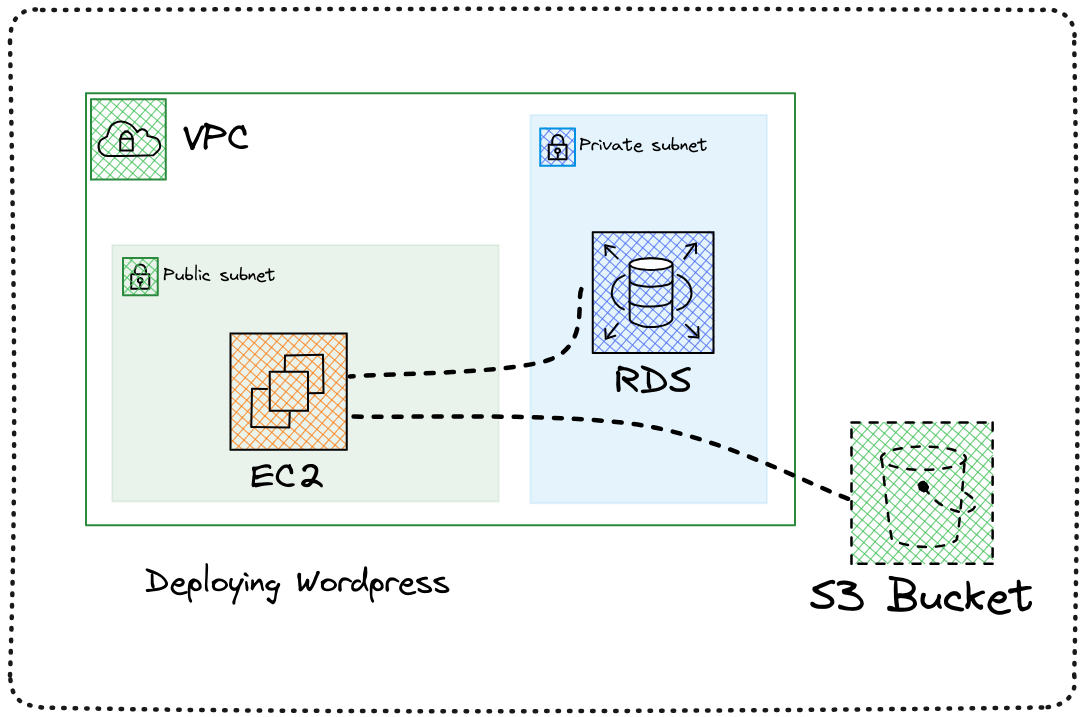
In conclusion, deploying WordPress on an AWS EC2 instance opens up a world of possibilities, providing scalability, reliability, and control over your website’s infrastructure. By following this comprehensive guide, you’ve gained the knowledge and skills to launch, secure, and optimize your WordPress site, empowering you to create a thriving online presence. Embrace the power of the cloud and build a website that can grow with your ambitions.