Learning how to deploy a React project to Heroku step by step opens the door to seamlessly launching your web applications to a global audience. This comprehensive guide walks you through the essential processes, from preparing your project to managing deployment and updates, ensuring a smooth transition from development to production.
By following this structured approach, you’ll understand how to optimize your React app for deployment, set up the Heroku environment, and handle the deployment process efficiently. Whether you’re a beginner or looking to refine your deployment skills, this step-by-step tutorial provides clear instructions to successfully host your React application on Heroku.
Preparing a React Project for Deployment
Optimizing a React project before deployment ensures that the application runs efficiently, loads quickly, and provides a seamless user experience in production. Proper preparation involves configuring build scripts, managing environment variables, and implementing strategies for code optimization. These steps help to minimize the application’s size, improve performance, and ensure security and stability in the live environment.
By meticulously preparing your React project, you can avoid common deployment pitfalls such as bloated bundle sizes, unoptimized assets, and exposure of unnecessary development dependencies. This process guarantees that your application is production-ready, scalable, and maintainable, paving the way for a successful deployment on platforms like Heroku.
Configuring Build Scripts and Environment Variables
Setting up the correct build scripts in your project’s package.json file is essential for generating an optimized production build. The standard script command npm run build invokes React’s build process, which creates a static bundle in the build directory. This command utilizes Webpack to minify JavaScript and CSS files, perform code splitting, and generate optimized assets.
Environment variables play a vital role in tailoring your application for production. React uses variables prefixed with REACT_APP_ to embed environment-specific data. Define these variables in a separate .env file or set them directly in your deployment environment. For example, API endpoints, feature toggles, or third-party service keys should be configured securely, avoiding hard-coded sensitive data in the source code.
Example: In your
.envfile, includeREACT_APP_API_URL=https://api.yourservice.com
and access it within your React app usingprocess.env.REACT_APP_API_URL.
Ensuring Production Readiness: Minification, Code Splitting, and Dependency Management
Achieving a production-ready React application involves several optimization techniques to enhance performance and security. Minification reduces the size of JavaScript and CSS files by removing whitespace, comments, and unnecessary characters, thereby decreasing load times. Code splitting splits the bundle into smaller chunks, enabling the application to load only the necessary code for each route or component, which improves initial load performance and resource utilization.
Removing development dependencies and debugging tools ensures that the production build is lean and secure. Tools like React Developer Tools or testing libraries used during development should not be included in the production bundle. Additionally, enabling production mode by setting the environment variable NODE_ENV=production during build triggers React’s internal optimizations, such as skipping prop type checks and extra warnings.
To facilitate these optimizations, review your webpack.config.js or rely on React’s default build setup, which already performs minification and code splitting when running npm run build. Always test the production build locally, verifying performance metrics and correctness before deploying to Heroku.
Common Files Needed for Deployment
Deployment requires organizing specific files to ensure that the application runs smoothly on the hosting environment. Below is a table outlining the essential files, their purposes, and recommended modifications for deploying a React project to Heroku.
| Filename | Purpose | Modifications |
|---|---|---|
package.json |
Defines project dependencies, scripts, and metadata. Used by Heroku to install dependencies and run build commands. | Ensure scripts include build command, and dependencies are accurate. Remove any devDependencies not needed in production or ensure they are included in production dependencies. |
.env |
Stores environment variables specific to production, such as API URLs or secret keys. | Configure variables like REACT_APP_API_URL. Do not commit sensitive data to version control; use Heroku config vars instead. |
public/index.html |
The main HTML file that mounts the React application. Needs to include proper meta tags and links. | Ensure it does not contain development-specific scripts or comments. Confirm that the root div has the correct ID (root) for React mounting. |
build/ (generated folder) |
Contains the production-ready static assets after running npm run build. Should be served by the hosting server. |
Automatically generated; verify the build completes successfully and contains minified, optimized files. |
Procfile |
Specifies the command to start the server on Heroku. | Commonly contains web: npm start or a custom server command if serving static files with Express or similar. |
Setting up a Heroku account and environment

Establishing a proper Heroku environment is a crucial step in deploying a React application successfully. It involves creating a Heroku account, installing the necessary Command Line Interface (CLI), and verifying that the setup is correctly configured to facilitate smooth deployment processes. This setup ensures that your development and deployment workflows are integrated and ready for continuous updates and scaling.
Heroku provides a cloud platform that simplifies deployment, offering tools to manage applications effortlessly. Proper configuration of your account and environment not only accelerates deployment but also minimizes potential errors during the process, making it an essential foundation for any React project deployment to Heroku.
Creating a Heroku account and installing the Heroku CLI on different operating systems
To begin deploying React projects on Heroku, the first step involves creating a Heroku account and installing the Heroku CLI, which enables interaction with Heroku services directly from your terminal or command prompt. The installation process varies slightly depending on the operating system, but the overall steps remain consistent.
- Creating a Heroku account
- Navigate to the official Heroku website at https://www.heroku.com/ .
- Click on the “Sign Up” button located at the top right corner of the webpage.
- Fill in the registration form with your personal details, including your name, email address, and password.
- Agree to the terms of service and complete the CAPTCHA verification if prompted.
- Verify your email address by clicking on the confirmation link sent to your registered email.
- Installing the Heroku CLI on Windows
- Download the Windows installer from Heroku’s official documentation or directly via Heroku CLI for Windows .
- Run the installer and follow the on-screen instructions to complete the installation process.
- Once installed, open Command Prompt or PowerShell to verify installation by typing
heroku –version
. A version number confirms successful setup.
- Installing the Heroku CLI on macOS
- Open the Terminal application.
- If you have Homebrew installed, run the command:
brew tap heroku/brew && brew install heroku
.
- Alternatively, download the installer script directly from Heroku’s official site and follow the instructions provided.
- Verify the installation by typing
heroku –version
in the terminal, which should display the installed version.
- Installing the Heroku CLI on Linux
- Use your distribution’s package manager. For Ubuntu/Debian, run:
- For other distributions, refer to Heroku’s official documentation for specific commands.
- Confirm the CLI is correctly installed by executing:
heroku –version
.
curl https://cli-assets.heroku.com/install.sh | shLogging into Heroku and verifying environment setup
Accessing your Heroku account via the command line is vital for deploying applications, managing resources, and configuring settings. Proper login ensures authenticated interactions with Heroku services and allows you to create and manage apps seamlessly.
- Logging in through the terminal or command prompt
- Open your terminal or command prompt.
- Type the command:
heroku login
.
- The CLI will prompt you to enter your Heroku credentials—email and password.
- After successful login, the CLI displays a confirmation message indicating you are authenticated.
- Verifying Heroku environment setup
- Run the command:
heroku whoami
.
- This command returns your Heroku account email, confirming that the CLI is correctly authenticated and connected.
- To ensure the CLI recognizes your available apps and resources, list existing apps with:
heroku apps
. An empty list indicates no current apps, which is normal before initial deployment.
- Additionally, check the version of the Heroku CLI to ensure it is up-to-date by executing:
heroku –version
. Updating the CLI periodically ensures compatibility with the latest features and security patches.
Summary table for account setup, login, and initial app creation
| Step | Description | Command / Action |
|---|---|---|
| 1 | Create a Heroku account | Visit https://www.heroku.com/ and complete the Sign-Up form |
| 2 | Install Heroku CLI based on OS | Download and run installer or use terminal commands (see above) |
| 3 | Log in to Heroku via terminal | Command: heroku login |
| 4 | Verify login and environment | Commands: heroku whoami, heroku apps, heroku –version |
| 5 | Create a new Heroku application | Command: heroku create [app-name] |
Creating a Git repository for the React project
Establishing a Git repository is a fundamental step in managing and deploying a React application efficiently. It enables tracking changes, collaborating with team members, and integrating deployment workflows seamlessly. Proper repository setup also ensures that only relevant files are included, reducing clutter and potential deployment issues.
In this section, we explore the methods to initialize a Git repository, organize project files, and connect your local setup to a remote repository. Additionally, implementing a strategic .gitignore file helps exclude unnecessary or sensitive files from version control, streamlining the deployment process.
Initializing a Git repository and connecting to a remote repository
To begin managing your React project with Git, start by initializing a local repository within your project directory. This creates a hidden .git folder that tracks all version control data. After initialization, it is essential to stage and commit your project files, capturing a snapshot of your current work. Connecting to a remote repository, such as GitHub, allows for cloud-based storage and collaboration tools.
- Initialize the repository: Open your terminal or command prompt, navigate to your React project directory, and run:
- Stage project files: Add all relevant files for initial commit using:
- Commit files: Save the staged files with a descriptive message:
- Connect to remote repository: Create a new repository on GitHub or other hosting service, then link it locally:
- Push local commits to remote: Upload your commit history to the remote repository:
git init
git add .
git commit -m "Initial commit of React project"
git remote add origin https://github.com/username/repository-name.git
git push -u origin master
Organizing project files and using a .gitignore file
Proper organization within your React project ensures clarity and simplifies the deployment process. Conversely, some files and directories are unnecessary or potentially problematic to include in version control, such as build artifacts, dependency directories, environment variables, and IDE-specific files. A well-crafted .gitignore file automates exclusion, maintaining a clean repository.
Typical entries to include in a .gitignore file for React projects are:
- Node modules: Since dependencies are managed via package.json, the node_modules directory can be excluded:
- Build output: Files generated by build commands, such as the build folder, should be ignored:
- Environment files: Sensitive configuration files, like .env, should not be committed:
- IDE and editor files: Folders and files created by IDEs, such as .vscode or .idea, can clutter the repository:
- Log files and OS-specific files: Such as
-.log, Thumbs.db, or .DS_Store.
node_modules/
build/
.env
.vscode/
.idea/
Example table of Git commands and expected outcomes
| Command | Description | Expected Output |
|---|---|---|
git init |
Initializes a new Git repository in the current directory. | Repository initialized with a .git folder; message confirming initialization appears. |
git add . |
Stages all current files and changes for the next commit. | No output if successful; use git status to verify staged files. |
git commit -m "Initial commit" |
Saves the staged files with a descriptive message in the local repository. | Commit hash displayed alongside the message, indicating successful commit. |
git remote add origin [URL] |
Links the local repository to a remote hosting service like GitHub. | No output; verifies setup with git remote -v. |
git push -u origin master |
Uploads local commits to the remote repository and sets upstream branch. | Progress information displayed, followed by confirmation of push success. |
Configuring the React app for deployment
Proper configuration of your React application is essential to ensure smooth deployment and optimal performance in a production environment. This process involves setting up build scripts, managing environment variables, and verifying the production build locally before deploying to Heroku. By implementing these configurations effectively, you can prevent common issues such as incorrect environment settings, unoptimized code, or runtime errors upon deployment.
Careful configuration not only facilitates a seamless deployment process but also enhances the application’s stability, security, and efficiency. It allows you to simulate the production environment locally, identify potential issues early, and make necessary adjustments to deliver a reliable user experience after deployment.
Setting up build scripts in package.json
In a React project, the build process is managed through scripts defined in the package.json file. The build script is crucial for generating an optimized production bundle of your application. This script typically runs the command react-scripts build, which compiles and minifies the source code, resulting in static assets ready for deployment.
Ensure that your
package.jsonincludes the following script:
"scripts":
  "start": "react-scripts start",
  "build": "react-scripts build",
  "test": "react-scripts test",
  "eject": "react-scripts eject"
With this setup, executing npm run build will produce a build directory containing static files such as index.html, JavaScript bundles, and CSS styles, optimized for production.
Managing environment variables for production
Environment variables enable configuration flexibility across different environments. For production, sensitive data like API keys or backend URLs should be managed securely using environment variables rather than hard-coded values within the codebase. React supports environment variables through a .env file or environment settings in Heroku.
- Create a
.envfile in the root of your project with variables prefixed byREACT_APP_, for example:
REACT_APP_API_URL=https://api.yourdomain.com
REACT_APP_FEATURE_FLAG=true
- Access these variables within your React code using
process.env.REACT_APP_API_URLand similar expressions. - For Heroku deployment, set environment variables via the Heroku dashboard or CLI to override or add to existing ones. This ensures your app dynamically uses production-specific configurations without code changes.
Using environment variables enhances security and simplifies the process of managing different settings for development, staging, and production environments.
Testing the production build locally
Before deploying your React application to Heroku, it is vital to test the production build locally to catch potential issues and verify performance. This process involves serving the static build files on a local server to simulate the production environment as closely as possible.
- Generate the production build by running
npm run buildin your project directory. - Install a static server globally if not already installed, such as
serve, using:
npm install -g serve
- Serve the build directory locally with the command:
serve -s build
This command will start a local server, typically accessible at http://localhost:5000. Access this URL in your browser to evaluate the application’s performance, check for broken links, verify environment variable usage, and identify any issues that may not appear during development mode.
Performing this step ensures that your React application is correctly configured for production, reducing surprises after deployment on Heroku or other hosting platforms.
Deploying React project to Heroku step by step
Once your React application has been configured and is ready for deployment, the next crucial stage involves deploying it to the Heroku platform. This process ensures your application is accessible online, scalable, and manageable through Heroku’s cloud services. The deployment process leverages Git for version control and deployment management, making it straightforward to push updates and monitor your application’s performance.
In this section, we will walk through the essential steps: creating a Heroku app via command-line interface (CLI), linking your local Git repository to Heroku, deploying your code by pushing to the remote repository, and monitoring the deployment logs for successful execution and troubleshooting.
Creating a new Heroku app via CLI
Heroku provides a command-line interface that simplifies app management. To create a new application, ensure you are logged into your Heroku account through the CLI using heroku login. Then, execute the following command:
heroku create
This command generates a new Heroku app with a unique name, or you can specify a custom name by adding it after the command, e.g., heroku create my-react-app.
Expected output: Heroku assigns a random app name if not specified and provides the URL where the app will be hosted.
This process creates a new app environment on Heroku, configuring the necessary backend infrastructure to host your React application.
Adding a remote Git repository pointing to Heroku
Linking your local Git repository to the Heroku app is essential for deployment. After creating the Heroku app, the CLI outputs a Git remote URL, which you can add as a remote in your local repository:
git remote add heroku https://git.heroku.com/
.git
Replace <your-app-name> with the actual name of your Heroku app. This command connects your local codebase with the Heroku remote repository, enabling seamless deployment.
Confirm the successful addition by executing:
git remote -v
Expected output: Lists remotes, including ‘heroku’ pointing to the Heroku Git URL.
Deploying the React project to Heroku and monitoring logs
With the remote configured, deploying your React project involves pushing your code to the Heroku remote. Use the following command:
git push heroku main
If your default branch is ‘master’, replace ‘main’ accordingly. This command initiates the deployment process, transferring your code to Heroku’s servers.
During the push, Heroku runs build scripts, installs dependencies, and starts your application. To monitor the deployment process and diagnose issues, observe the logs with:
heroku logs –tail
This command streams real-time logs from your application, providing insights into build status, errors, and runtime behavior. It is especially useful for troubleshooting deployment issues or verifying successful startup.
Once the deployment completes successfully, Heroku will host your React application, accessible via the URL provided during app creation or through your Heroku dashboard.
Configuring Build and Start Scripts on Heroku

Properly configuring build and start scripts is essential for deploying React applications seamlessly on Heroku. Heroku relies on recognizing specific scripts in your project’s package.json file to automate the build process and initiate the server once deployment is complete. Ensuring these scripts are correctly defined guarantees your React app functions optimally in the deployment environment, providing users with a smooth experience.
Heroku detects and runs build scripts based on the scripts section in your package.json. When deploying a React project, Heroku typically executes the heroku-postbuild script if available, or defaults to the build script during the deployment process. The start script is used by Heroku to launch your application’s server after the build completes. Custom configurations may be necessary when using specialized buildpacks or unique project structures to ensure Heroku interprets your scripts correctly and executes the build and start processes without errors.
Detecting and Running Build Scripts
Heroku automatically detects Node.js applications by the presence of a package.json file in the root directory. During deployment, it looks for specific script commands within this file, particularly the build and start scripts. If a heroku-postbuild script is specified, Heroku executes it automatically after installing dependencies. This script is ideal for React projects, as it can be used to run the npm run build command, resulting in the production-ready static files in the build directory.
For React applications, a common setup involves defining the following scripts in package.json:
  "scripts":
    "start": "serve -s build",
    "build": "react-scripts build",
    "heroku-postbuild": "npm run build"
This configuration ensures Heroku first runs npm run heroku-postbuild, which in turn runs react-scripts build to create the optimized production bundle. The start script utilizes the serve package to serve the static files from the build directory, allowing Heroku to serve the React app correctly.
Custom Buildpacks and Configuration Adjustments
While Heroku’s default Node.js buildpack handles most React deployments, certain scenarios may require custom buildpacks or adjustments. For example, if your React project is part of a monorepo or includes server-side components, you might need to specify additional buildpacks or modify environment variables for proper functioning.
To customize build behaviors, you can set environment variables such as NODE_ENV to ensure production mode during build and runtime. Additionally, if your project relies on specific tools or versions of Node.js, specify these in the engines field within package.json:
  "engines":
    "node": "14.x",
    "npm": "6.x"
In cases where the default buildpack does not suffice, you may add a custom buildpack using the Heroku CLI, such as a specific version of Node.js or other pre- or post-build steps required for your application. Adjusting configuration files like Procfile can further customize how Heroku runs your application, specifying commands that align with your build and deployment needs.
Build Scripts, Environment Setup, and Troubleshooting Tips
Below is a table summarizing common build scripts, environment setup considerations, and troubleshooting strategies for deploying React applications on Heroku:
| Aspect | Description |
|---|---|
| Build Scripts |
|
| Environment Setup |
|
| Troubleshooting Tips |
|
Managing Environment Variables and Secrets

Efficient management of environment variables and secrets is crucial for maintaining security and flexibility in deploying a React application to Heroku. Proper handling ensures that sensitive data such as API keys, database credentials, and other secrets are not exposed in the codebase, reducing potential security vulnerabilities. By leveraging Heroku’s environment management features, developers can securely store and manage these variables, facilitating smoother deployment workflows and safer application operation.Effective management of environment variables not only safeguards sensitive information but also enhances the application’s portability and configurability across different environments such as development, staging, and production.
This process involves using Heroku’s dashboard or CLI tools to set, update, and verify environment variables, making the deployment process both secure and streamlined.
Procedures for Managing Environment Variables Securely
In this section, we Artikel the step-by-step procedures to securely set and manage environment variables within Heroku, emphasizing best practices to handle API keys and sensitive data.
Understanding how to properly set environment variables is essential for maintaining application security and operational integrity. Heroku provides flexible options through its dashboard and command-line interface (CLI) to configure these variables, ensuring they are securely stored and accessible only within the application environment.
- Access Heroku Dashboard or CLI
- Set Environment Variables through Heroku Dashboard
- Set Environment Variables using Heroku CLI
- Verify Environment Variables are Correctly Set
- Update or Remove Environment Variables as Needed
Begin by logging into your Heroku account. You can access environment variables either through the Heroku Dashboard under your application’s settings or via the Heroku CLI, which provides more automation and scripting capabilities.
Navigate to your application’s dashboard, click on the “Settings” tab, and then locate the “Config Vars” section. Here, you can add new variables by entering the key (e.g., API_KEY) and its corresponding sensitive value. Ensure that the values are entered correctly, and do not include any extraneous spaces or characters.
Open your terminal or command prompt, and authenticate if necessary. Use the command:
heroku config:set KEY_NAME=’your_value’ –app your-app-name
Replace KEY_NAME with your variable’s key and your_value with the corresponding secret data. Repeat this step for each environment variable needed.
After setting the variables, verify their presence and correctness using the Heroku CLI command:
heroku config –app your-app-name
This command displays all configured environment variables, allowing you to confirm that your secrets are properly stored.
To update a variable, simply re-run the config:set command with the new value. To remove a variable, use:
heroku config:unset KEY_NAME –app your-app-name
Regularly review environment variables to maintain security and ensure only necessary secrets are stored.
Best Practices for Handling API Keys and Sensitive Data
Managing secrets responsibly is vital to prevent unauthorized access and potential data breaches. Implementing best practices minimizes risk and promotes secure deployment habits.
Always treat API keys and sensitive data as confidential information. Avoid hardcoding secrets within your application’s source code or committing them to version control systems such as Git. Instead, utilize Heroku’s environment variables for secure storage. When handling API keys, limit their permissions to only what is necessary for the application’s operation, following the principle of least privilege. Rotate secrets periodically and monitor their usage for suspicious activity.
“Never expose sensitive credentials in publicly accessible repositories or logs. Use environment variables and secure storage solutions for secret management.”
Additionally, consider implementing features like secret rotation policies, access controls, and audit logs within Heroku or your cloud provider to enhance security. Automating environment variable management through scripts or CI/CD pipelines can further reduce human error and streamline secure deployment workflows.
Verifying Deployment Success and Troubleshooting
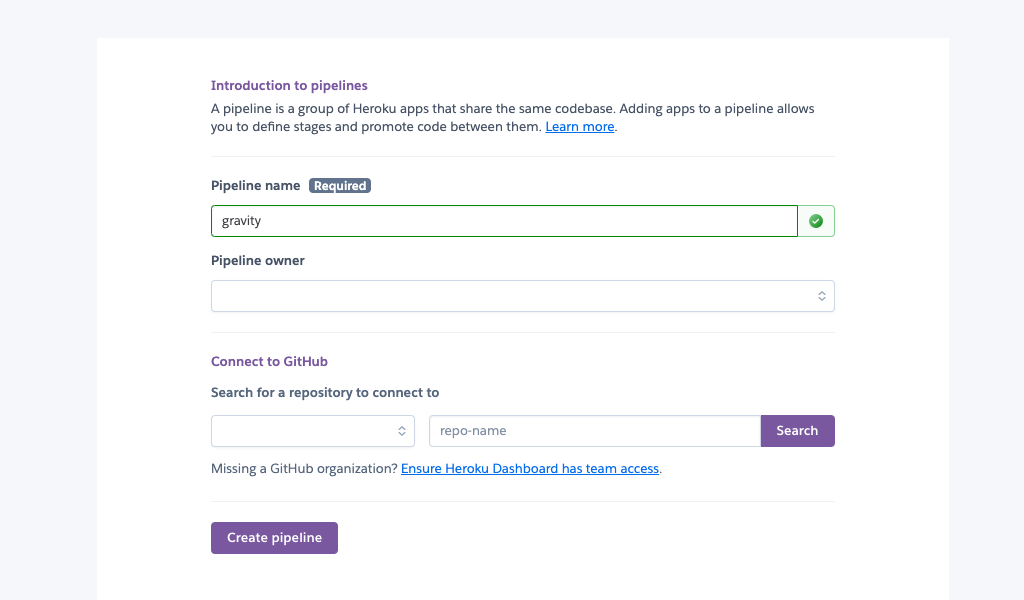
Once the deployment process to Heroku is complete, it is essential to verify that the React application is functioning correctly in the live environment. This step ensures that users accessing the app will experience the intended functionality without issues. Additionally, troubleshooting common deployment problems helps maintain a smooth deployment workflow and minimizes downtime or user frustration. Accurate verification and diagnosis of potential issues are key to successful deployment management.Performing thorough checks involves accessing the deployed application through its Heroku URL and testing core functionalities such as navigation, API integrations, and responsiveness across devices.
Monitoring the app’s behavior in the browser, inspecting console logs, and utilizing browser developer tools provide valuable insights into the app’s runtime performance. Furthermore, leveraging Heroku’s logs allows for detailed analysis of server-side events, errors, and warnings that may impact the app’s stability or features.
Accessing the Deployed React App and Conducting Functionality Checks
To confirm that your React application has been deployed successfully, open a web browser and navigate to the Heroku app’s URL, which typically follows the pattern `https://your-app-name.herokuapp.com`. Verify that the homepage loads without errors, and test critical features such as buttons, forms, navigation links, and any dynamic content. Use browser developer tools to examine console logs for JavaScript errors, warnings, or network issues that could affect user experience.In addition to visual inspection, perform responsiveness tests by resizing the browser window or using device emulation tools to ensure the app renders correctly across different screen sizes.
For applications with API calls or backend integrations, verify that data loads properly and interactivity functions as intended. If your React app uses client-side routing, check whether direct URL access to nested routes loads correctly, indicating proper configuration of the routing setup.
Common Deployment Issues and Their Solutions
During deployment verification, encountering issues such as build failures, routing errors, or broken functionalities is common. Recognizing and resolving these problems promptly helps maintain application reliability. Typical issues include:
- Build Failures: Errors during Heroku build logs often stem from missing dependencies, incorrect build scripts, or environment mismatches. Ensure that your `package.json` has appropriate scripts like `”build”: “react-scripts build”` and that all dependencies are correctly specified.
- Routing Errors (404 Pages): Single-page applications like React rely on client-side routing. When deploying on Heroku, server configuration must redirect all routes to `index.html`. Use a static buildpack or add a `static.json` configuration file with appropriate redirect rules.
- Assets Not Loading: Incorrect build paths or missing static assets can cause broken images or styles. Confirm that assets are correctly referenced and that the build process includes them.
- Environment Variable Issues: Missing or misconfigured environment variables may cause runtime errors. Double-check Heroku config vars and ensure they are correctly referenced in the React app.
Logs to Examine for Troubleshooting
Heroku provides access to logs that capture application runtime information, errors, and deployment events. Consulting these logs is crucial when issues arise. The most common logs to review include:
Heroku logs can be retrieved using the command:
heroku logs --tail
- Build Logs: Available during deployment, indicating errors related to dependencies, script execution, or environment setup.
- Runtime Logs: Show errors, warnings, or informational messages while the app runs. Look for stack traces, failed API calls, or routing issues.
- Routing and Status Codes: HTTP status codes like 404, 500, or 503 in the logs can point to specific problems related to routing or server errors.
- Application Errors: Errors thrown by JavaScript or server-side components; reviewing the stack trace helps pinpoint the source.
In practice, regular monitoring of these logs during and after deployment can help quickly identify and resolve issues, ensuring a stable and reliable live React application on Heroku.
Epilogue
In conclusion, deploying a React project to Heroku involves systematic preparation, environment configuration, and diligent management of deployment workflows. Mastering these steps not only ensures your application runs flawlessly in production but also equips you with the skills to maintain and update your app confidently. With this knowledge, you are well-prepared to deploy React applications smoothly and reliably on Heroku.