Deploying a React application on GitHub Pages can significantly enhance your project’s visibility and accessibility. This step-by-step guide walks you through the entire process, from preparing your app to verifying its deployment, ensuring a smooth and efficient publishing experience. Whether you’re a beginner or looking to refine your deployment skills, understanding this process is essential for showcasing your React projects effectively.
By following this structured approach, you’ll learn how to configure your React app, set up a GitHub repository, build the production files, and deploy them seamlessly onto GitHub Pages. Additionally, tips for updating your app and best practices for managing larger projects will help you maintain a professional and optimized deployment pipeline.
Introduction to deploying React apps on GitHub Pages
Hosting React applications on GitHub Pages provides a straightforward and cost-effective way to showcase projects, portfolios, or static websites directly from a GitHub repository. This method leverages GitHub’s free hosting infrastructure, allowing developers to deploy their React apps quickly without the need for complex server configurations. It is particularly beneficial for open-source projects, personal portfolios, or small-scale applications that do not require backend integration.
The deployment process involves preparing the React project, configuring the repository, building the production-ready files, and pushing the content to a specific branch on GitHub. Once deployed, the React application becomes accessible via a GitHub Pages URL, ensuring fast load times and reliable uptime, backed by GitHub’s infrastructure. This approach streamlines the deployment workflow, making it accessible even for developers with minimal experience in hosting static sites.
Overview of the Deployment Process
| Step Number | Description |
|---|---|
| 1 | Prepare the React application by updating configuration files and ensuring all dependencies are installed. |
| 2 | Configure the project to support GitHub Pages deployment, including setting the correct homepage URL. |
| 3 | Build the React project to generate static files optimized for production. |
| 4 | Create or select a dedicated branch (commonly ‘gh-pages’) in the GitHub repository for hosting the static files. |
| 5 | Push the built files to the designated branch, ensuring they are correctly structured for GitHub Pages. |
| 6 | Configure repository settings to enable GitHub Pages on the chosen branch or folder. |
| 7 | Access the deployed React application via the provided GitHub Pages URL and verify its functionality. |
Preparing your React app for deployment

Effective deployment of a React application requires thorough preparation to ensure optimal performance and smooth operation in a production environment. This process involves building the app with suitable configurations and optimizing it for end-users, addressing aspects such as code minification, environment variables, and asset management. Proper preparation not only enhances the user experience but also simplifies troubleshooting and future updates.
By following structured steps to prepare your React app, you can guarantee that the deployment process proceeds seamlessly. This includes creating an optimized build, configuring environment variables for production, and implementing best practices to prevent common issues such as large bundle sizes or performance bottlenecks.
Building the React app for production
Generating an optimized production build is a critical step before deployment. React applications typically use the build script provided by Create React App or a similar tool, which compiles source code into static assets suitable for deployment. This process includes minifying JavaScript and CSS files, optimizing images, and setting up cache busting mechanisms to ensure browsers load the latest versions of assets.
Running the command
npm run buildcreates a dedicated build folder containing all the production-ready files. These files are optimized for fast loading and performance, making them ideal for deployment on static hosting platforms such as GitHub Pages.
Configuring environment variables for production
Environment variables are essential for controlling application behavior in different environments. For production deployment, it is necessary to set environment variables that disable debugging tools, enable production-specific features, and connect to live data sources. React supports environment variables through files named .env, where variables prefixed with REACT_APP_ are accessible within the application code.
Ensure that sensitive information such as API keys and secrets are stored securely and not hardcoded into the source code. During the build process, React replaces the environment variable placeholders with actual values, which are then embedded into the static files served to users.
Optimizing the application for production
Application optimization enhances performance, reduces load times, and improves user experience. Several strategies can be employed to achieve this, including code minification, tree shaking, code splitting, and image optimization. These techniques collectively reduce the size of the assets served and improve rendering speed.
- Minification: Remove unnecessary whitespace, comments, and redundant code from JavaScript and CSS files to decrease file sizes.
- Tree Shaking: Eliminate unused code during the bundling process, ensuring only the necessary parts of libraries are included.
- Code splitting: Split large bundles into smaller chunks that load on demand, reducing initial load time and improving performance on slower connections.
- Image optimization: Compress images using tools like ImageOptim, TinyPNG, or WebP formats to decrease load times without sacrificing quality.
- Setting up environment variables: Use environment-specific variables to control features and API endpoints, ensuring the app behaves correctly in production.
Best practices for deploying React apps
Implementing best practices ensures a reliable and maintainable deployment process. These practices include proper version control management, testing, and documentation to prevent common pitfalls.
- Version control: Use Git or other version control systems to track changes and facilitate rollbacks if necessary.
- Consistent environment setup: Maintain identical build environments across development and deployment to reduce discrepancies.
- Regular testing: Test the production build locally or on staging environments to identify and resolve issues before going live.
- Automate deployment: Use Continuous Integration/Continuous Deployment (CI/CD) pipelines to streamline deployment and reduce manual errors.
- Documentation: Keep comprehensive documentation of build and deployment procedures for team consistency and onboarding.
- Monitoring: Post-deployment, monitor the app using analytics and error tracking tools to quickly identify and address potential issues.
Setting up GitHub repository for the React project
Establishing a dedicated GitHub repository for your React application is a crucial step in version control and seamless deployment. Creating a remote repository enables collaboration, code management, and integration with deployment workflows such as GitHub Pages. Properly linking your local project to this repository ensures that your codebase is synchronized, tracking changes effectively, and prepared for deployment.
This section guides you through the process of creating a new GitHub repository, initializing it with your React project, and establishing a connection between your local development environment and the remote repository using Git commands.
Creating a new repository on GitHub and initializing it with the project
Begin by navigating to GitHub and creating a new repository tailored for your React application. Choose a descriptive name that reflects your project, add an optional description, and decide whether it should be public or private. Do not initialize the repository with a README, .gitignore, or license if you already have a local project setup, as this can cause conflicts.
Instead, initialize the repository empty to maintain control from your local environment.
- Open your React project’s
package.jsonfile in a code editor. - Add or update the
"homepage"property with your GitHub Pages URL in the following format: - For example, if your GitHub username is
johnDoeand your repository isreact-deploy, the entry should look like: - Save the changes to
package.json. This setting will be used during the build process to correctly reference static assets. - Initialize the
gh-pagesbranch by deploying the built project, which will automatically create or update this branch with the latest static files. - Configure your GitHub repository settings to enable GitHub Pages, selecting the
gh-pagesbranch as the source for hosting. - Keep your main branch clean and maintain a separate branch for development, allowing you to deploy stable production builds to
gh-pages. - Install the
gh-pagespackage as a development dependency by running: - Update your
package.jsonscripts to include deployment commands. Add the following scripts within thescriptssection: - To deploy your app, execute the following command in your terminal:
- Ensure your React app is built for production by running
npm run build. This generates an optimized build folder containing all static files. - If using the gh-pages package:
- Install the package globally or as a dev dependency with
npm install --save-dev gh-pages. - In your
package.json, add thehomepagefield with your GitHub repository URL, e.g.,"https://username.github.io/repository-name". - Add deployment scripts:
"scripts":
  "predeploy": "npm run build",
  "deploy": "gh-pages -d build"
- Execute
npm run deploy. This command builds your app and pushes the contents of thebuildfolder to thegh-pagesbranch, creating it if necessary.
- Install the package globally or as a dev dependency with
- If deploying manually via Git:
- Initialize or update your local repository and switch to a new branch
gh-pages. - Copy all files from the
buildfolder into this branch. - Commit the changes and push the branch to your remote repository with:
git add .
git commit -m "Deploy React app to GitHub Pages"
git push origin gh-pages
- Ensure GitHub Pages is configured to serve from the
gh-pagesbranch in your repository settings.
- Initialize or update your local repository and switch to a new branch
- Navigate to the deployed URL and verify that the homepage loads without errors or broken elements.
- Test core functionalities, such as navigation links, forms, interactive components, and API integrations, to ensure they work as expected.
- Use different devices and browsers to check for responsiveness, layout consistency, and compatibility issues.
- Inspect the browser console for any runtime errors or warnings that might affect user experience.
- Validate that assets like images, stylesheets, and scripts are loaded correctly without 404 errors or missing references.
- If available, utilize tools like Google Lighthouse to analyze performance, accessibility, best practices, and aspects.
- Implement Code Changes: Begin by editing or adding features to your React source code. Use your preferred development environment and ensure that new code adheres to your project’s coding standards.
- Test Locally: Run the React app locally using
npm startto verify that updates work as intended and do not introduce bugs. - Build the Production Version: Execute
npm run buildto generate an optimized production build. This step ensures that all updates are compiled and minified appropriately. - Commit Changes: Use version control (e.g., Git) to stage and commit your code changes. Write clear commit messages to document your updates effectively.
- Push to GitHub Repository: Push your commits to the remote repository to keep your source code synchronized.
- Redeploy on GitHub Pages: After pushing, trigger the deployment process by updating the
gh-pagesbranch or executing deployment scripts, depending on your setup. - Verify the Deployment: Once deployed, review your live site to confirm that updates are reflected accurately and functioning as expected.
- Use Version Control Effectively: Regularly commit your changes with descriptive messages, enabling easy rollback if needed and maintaining a clear history of updates.
- Automate Deployment: Incorporate scripts or CI/CD pipelines to automate the build and deployment process, reducing manual intervention and human error.
- Maintain Consistent Branching Strategies: Use feature branches for developing new features or fixes, then merge into main or master branches prior to deployment for better version management.
- Test Thoroughly Before Deployment: Conduct comprehensive testing locally and, if possible, in staging environments to catch issues before they reach your live site.
- Document Deployment Procedures: Keep clear documentation of your deployment process to ensure team members follow the same steps, facilitating smoother updates over time.
- Monitor the Live Site: Use analytics and monitoring tools to observe the performance of your deployed app and quickly identify any post-deployment issues.
- Backup Your Data and Configuration: Before making significant updates, back up relevant configurations and data to prevent accidental loss.
| Action | /Details |
|---|---|
| Create a new repository on GitHub | Log into your GitHub account, click on the “+” icon at the top right corner, and select “New repository”. Enter a repository name, description (optional), and choose visibility. Do not select “Initialize this repository with a README” if you already have local files. |
| Clone or initialize your local React project | If your React app is already created locally, navigate to the project folder in your terminal. If not, create one using ‘npx create-react-app your-app-name’. |
| Link local project to GitHub repository | Use Git commands to connect your local directory with the remote repository. This involves adding a remote origin and pushing your code to GitHub. |
Linking the local React project to the GitHub repository via Git
Establishing a connection between your local project and the remote GitHub repository allows you to push your code changes efficiently. This connection is achieved through setting a remote URL, which serves as the link to your GitHub repository. Proper configuration ensures that subsequent commits and pushes are directed to the correct remote destination, facilitating smooth version control and deployment processes.
| Action | /Details |
|---|---|
| Initialize Git in your local project (if not already initialized) | Run the command
inside your project directory. This sets up the local Git repository to track changes. |
| Add all project files to Git staging area | Execute
to include all files in your project, preparing them for the initial commit. |
| Commit the files with a descriptive message | Run
to save the current state of your project locally. |
| Add the remote repository URL | Use
replacing the URL with your actual GitHub repository link. |
| Push your local commits to GitHub | Execute
(or main, depending on your branch name). This uploads your code to the remote repository and sets the upstream branch for future pushes. |
Following these steps ensures your React project’s codebase is effectively stored on GitHub, ready for deployment via GitHub Pages or further collaborative development. Proper setup at this stage lays a solid foundation for managing your application’s version history and streamlining the deployment process.
Configuring the React app for deployment on GitHub Pages
Proper configuration of your React application is essential to ensure a smooth deployment process on GitHub Pages. This involves modifying project files and setting up the deployment environment to correctly serve your application from the GitHub Pages hosting platform. Attention to these details helps prevent common errors such as incorrect URL paths or broken links after deployment.
By correctly configuring your React app, you enable it to be accessible via the GitHub Pages URL, which typically follows the format https://. This process requires updating the project’s configuration files and preparing your repository for the deployment branch. Ensuring these steps are accurately followed will facilitate an efficient deployment workflow and a seamless user experience.
Editing the ‘package.json’ file to include the ‘homepage’ field
The ‘homepage’ field in the package.json file informs React about the base URL where the app will be hosted. This setting is crucial for generating correct relative paths for static assets, such as JavaScript and CSS files, ensuring they load properly regardless of the deployment environment.
“https://
.github.io/ “
"homepage": "https://johnDoe.github.io/react-deploy"Understanding the ‘gh-pages’ branch and preparing for deployment
The gh-pages branch serves as the designated location on GitHub where the built static files of your React app are stored for hosting via GitHub Pages. This branch is automatically created or updated during deployment, holding the production-ready files that render your app publicly.
To prepare your repository for deploying on GitHub Pages, ensure the following steps are undertaken:
Installing and configuring the ‘gh-pages’ package
The gh-pages package simplifies the process of publishing your React app’s build directory to the gh-pages branch. It automates the deployment steps, reducing the likelihood of errors and streamlining updates.
npm install --save-dev gh-pages"scripts":
"predeploy": "npm run build",
"deploy": "gh-pages -d build"
Here, predeploy ensures that the project is built before deployment, and deploy pushes the contents of the build directory to the gh-pages branch.
npm run deployThis command will generate the static files, create or update the gh-pages branch, and publish your React app to GitHub Pages.
Building the React App for Production
Once your React application has been developed and configured for deployment, the next crucial step is to generate an optimized production build. This build process compiles your project into static files that are ready to be deployed on hosting services such as GitHub Pages. Creating a production build ensures that your app performs efficiently, with minimized file sizes and optimized loading times, providing a better user experience.
Executing the build command transforms your development environment into a production-ready bundle. This process involves bundling, minification, code splitting, and other optimizations that reduce the overall size of your application and improve its performance in a live environment.
Running the Build Command
To generate the production build, you can run either of the following commands in your terminal, depending on your package manager:
npm run build
yarn build
These commands initiate the build script defined in your package.json file. Typically, this script executes a tool like Webpack or the React Scripts package, which compiles and optimizes your project files for production.
Files Generated and Their Significance
After running the build command, a new directory named build (or similar, depending on your configuration) is created at the root of your project. This directory contains the files necessary for deploying your React application. Understanding these files helps ensure proper deployment and troubleshooting.
| Outcome | Expected Output |
|---|---|
| index.html | This is the main HTML file that acts as the entry point for your application. It includes the root div where React mounts the app, along with links to bundled CSS and JavaScript files. |
| static/css/* | Contains minified and optimized CSS files responsible for styling your application. These styles are extracted during the build process to improve load times and caching. |
| static/js/* | Contains the JavaScript bundles, including your React components and application logic, minified for faster execution in the browser. |
| asset-manifest.json | Provides a mapping between the original source files and the optimized files generated during the build, facilitating cache busting and resource management. |
| precache-manifest.*.js | Supports service workers by listing files to cache, enabling offline capabilities and faster load times in subsequent visits. |
| others | Additional files such as source maps, manifest files for Progressive Web Apps, and configuration files for deployment. |
Collectively, these files constitute a self-contained bundle that can be hosted on static hosting platforms. Proper understanding and management of these files ensure smooth deployment and optimal application performance.
Deploying the React app to GitHub Pages

After successfully building your React application, the next crucial step is deploying it to GitHub Pages. This process involves transferring your production-ready files to a dedicated branch in your repository, which GitHub Pages serves as the live website. Proper deployment ensures your application is accessible to users via a public URL and reflects the latest updates made during development.
There are several methods to deploy your React app to GitHub Pages, ranging from using specialized deployment packages to manual Git operations. Choosing the appropriate method depends on your familiarity with command-line tools, project complexity, and automation preferences. In this section, we will detail how to push your build contents to a ‘gh-pages’ branch using both the ‘gh-pages’ package and manual Git commands, providing step-by-step guidance for a smooth deployment process.
Deploying the React app to GitHub Pages
The deployment process involves creating a dedicated branch, typically named ‘gh-pages’, and pushing your application’s production files to this branch. GitHub Pages then recognizes this branch and hosts your site accordingly. Properly managing this process ensures that your live site updates seamlessly with your latest changes.
Step-by-step deployment procedures:
| Explanation | Description |
|---|---|
| Using the ‘gh-pages’ package | This method automates building and deploying your React app by leveraging the ‘gh-pages’ package, simplifying the process for continuous deployment. |
| Manual Git deployment | Involves manually copying build files into the ‘gh-pages’ branch and pushing changes, providing more control over the deployment process. |
| Configuring GitHub Pages | Ensure your repository settings are set to serve from the ‘gh-pages’ branch, enabling GitHub to host your static site correctly. |
Verifying the Deployment
![Deploy the React.js app to Github pages [2023 GUIDE] | Reactgo](https://teknocode.web.id/wp-content/uploads/2025/09/deploy-react-app-github-pages.png "Deploy the React.js app to Github pages [2023 GUIDE] | Reactgo")
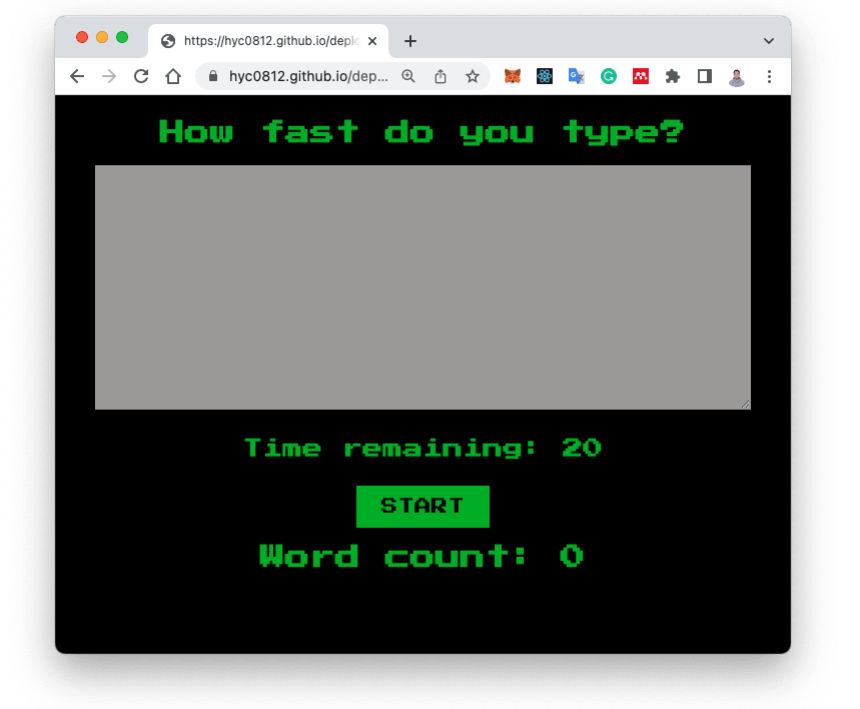
After successfully deploying your React application to GitHub Pages, it is essential to verify that the deployment has been completed correctly and that your app is accessible and functioning as intended. Proper verification ensures that users will experience the application without issues and helps identify any potential problems early.
In this section, we will explore how to access your live React app via its GitHub Pages URL, troubleshoot common deployment issues effectively, and confirm that your application is running smoothly and correctly.
Accessing the React App via GitHub Pages URL
Once deployment is complete, your React app is hosted on GitHub Pages at a specific URL associated with your repository. Typically, this URL follows the pattern :
https://
.github.io/ /
To verify deployment, open a web browser and enter this URL. Ensure that the URL is correctly formatted, especially if you have customized your username or repository name. If the app loads without errors, displays the expected UI, and functions as designed, the deployment has been successful. It is worth noting that GitHub Pages may take a few moments to update after deployment, so patience might be required if the site does not appear immediately.
Troubleshooting Common Deployment Issues
Deployment issues can sometimes occur due to misconfigurations, caching problems, or build errors. Familiarity with common issues and their solutions helps ensure a smooth troubleshooting process. Below are typical problems and recommended actions:
| Issue | Possible Cause | Solution |
|---|---|---|
| The app displays a 404 error or a GitHub Pages default page | Incorrect repository settings, or the ‘homepage’ property in package.json not set properly | Verify the ‘homepage’ in package.json matches your repository URL, then rebuild and redeploy. Ensure the branch hosting GitHub Pages is correctly configured in repository settings. |
| Changes are not visible after deployment | Browser caching or not clearing previous build files | Clear browser cache or perform a hard reload (Ctrl+F5 or Cmd+Shift+R). Also, verify that the deployment process completed successfully and that the latest build was pushed. |
| Broken links or missing assets | Incorrect base URL configuration or routing issues | Ensure that the ‘homepage’ property is set correctly in package.json, and configure React Router with basename if used. Also, review asset paths to be relative. |
Consult the browser’s developer console for detailed error messages, which can be instrumental in diagnosing issues. Additionally, reviewing the deployment logs on GitHub Actions or your CI/CD pipeline can reveal build or deployment failures.
Confirming the App Is Live and Functioning Correctly
To ensure your React application is live and operating properly, perform comprehensive checks across different aspects:
Regularly monitoring the deployed app and gathering user feedback can help identify unforeseen issues, ensuring your React application remains robust, accessible, and user-friendly after deployment.
Updating the React App after Deployment
Maintaining an up-to-date React application on GitHub Pages is essential to ensure users have access to the latest features, fixes, and improvements. The process involves making changes to your source code, rebuilding the project, and deploying the updated version seamlessly to your GitHub Pages site. Properly managing this workflow helps preserve stability and ensures that your deployment remains synchronized with ongoing development efforts.
Updating your deployed React app requires a structured approach to rebuild and push changes efficiently. This process not only saves time but also minimizes the risk of deployment errors. Adhering to best practices is crucial for smooth updates, especially when multiple team members contribute to the project or when deploying frequently.
Procedures for Updating and Redeploying the React App
To keep your React application current on GitHub Pages, follow these essential steps, emphasizing consistency and version control:
Adopting these procedures ensures a reliable update cycle and maintains the integrity of your live application. Automating parts of this workflow with continuous deployment tools can further streamline updates and reduce manual errors.
Best Practices for Managing React App Updates
Effective management of updates involves following established best practices to simplify the process and enhance stability:
“Consistent, well-documented update procedures combined with automation are key to maintaining a reliable, up-to-date React app on GitHub Pages.”
Additional tips and best practices
Deploying React applications on GitHub Pages can be straightforward, but managing larger projects efficiently, optimizing for search engines, and ensuring smooth workflows require additional strategies. Implementing these best practices helps ensure your deployment process is robust, scalable, and performance-oriented, providing a better user experience and easing maintenance efforts.Effective management of large React apps on GitHub Pages involves careful organization of your codebase and deployment process.
Since GitHub Pages primarily serves static content, optimizing your React app’s structure and build process is crucial for scalability and speed. Additionally, considering and performance improvements ensures your app is discoverable and responsive. Leveraging tools and extensions can significantly streamline your deployment workflows, making updates more efficient and less error-prone.
Strategies for Managing Large React Apps on GitHub Pages
Managing extensive React projects often involves optimizing build sizes, organizing code into modular components, and maintaining clear version control. Break down the application into smaller, reusable components to facilitate easier updates and debugging. Use code-splitting techniques such as React’s lazy loading or dynamic imports to reduce initial load times, enhancing performance. Regularly run build optimizations like minification and compression to ensure deployment packages are lightweight.Implement a systematic folder structure that separates components, assets, and utilities to improve maintainability.
For version control, adopt branching strategies like GitFlow to manage features, bugs, and releases efficiently. Automate deployment workflows with scripts to handle build, test, and deployment steps, reducing manual effort and errors.
Considerations and Performance Optimization
Since GitHub Pages serves static files, it is essential to optimize your React app for search engine visibility and speed. Use server-side rendered (SSR) frameworks like Next.js if is a priority; otherwise, implement pre-rendering techniques to generate static HTML snapshots of key pages. Include meaningful meta tags, descriptive titles, and semantic HTML elements to improve crawlability and accessibility.Optimize performance by implementing lazy loading for images and components, reducing the initial payload size.
Enable Gzip or Brotli compression on your server (via GitHub Pages configurations or CDN settings) to decrease load times. Use a Content Delivery Network (CDN) to serve static assets globally, minimizing latency for users worldwide.
Tools and Extensions to Streamline Deployment Workflows
Utilize various tools and extensions to automate and simplify your React deployment process. Continuous Integration (CI) services like GitHub Actions or CircleCI can automatically build and deploy your app upon code changes, ensuring consistency and reducing manual effort. Pre-configured workflows can run tests, build production versions, and deploy to GitHub Pages seamlessly.Use deployment-specific tools such as the `gh-pages` npm package, which automates publishing your build directory to the `gh-pages` branch.
Integrate linters like ESLint and code formatters like Prettier into your workflow to maintain code quality. Additionally, monitor deployment status and performance with tools like Google Lighthouse or WebPageTest to identify and address bottlenecks.
For large React apps, combining automated workflows with optimized code structure ensures scalable, maintainable, and high-performing deployments on GitHub Pages.
Final Summary

Successfully deploying your React app on GitHub Pages opens up new opportunities for sharing your work with a wider audience. With the knowledge gained from this guide, you can confidently manage future updates and ensure your project remains accessible and performant. Keep exploring optimization techniques and deployment strategies to continually improve your workflow and project presentation.