In the digital realm, where data reigns supreme, safeguarding your MySQL database is paramount. This guide explores the critical process of backing up and restoring your database, a fundamental practice that can be the difference between smooth operations and catastrophic data loss. Understanding these processes is not merely a technical exercise; it’s a strategic imperative for any individual or organization reliant on MySQL for their data storage needs.
We will delve into various backup methods, including `mysqldump`, `mysqlpump`, and Percona XtraBackup, each offering unique advantages and suited for different scenarios. Furthermore, we’ll explore backup strategies, best practices, and troubleshooting tips to ensure your data remains secure and recoverable. From small personal projects to large-scale enterprise deployments, this guide equips you with the knowledge to protect your valuable data and maintain business continuity.
Introduction to MySQL Backup and Restore

Backing up and restoring a MySQL database is a fundamental aspect of database administration, ensuring data integrity and business continuity. It protects against data loss due to various unforeseen circumstances, from hardware failures and software bugs to human error and malicious attacks. Implementing a robust backup and restore strategy is not merely a best practice; it’s a necessity for any organization relying on MySQL for its data management needs.Data loss in a MySQL database environment can have severe repercussions.
It can lead to financial losses due to downtime and lost transactions, damage the organization’s reputation, and even result in legal liabilities if sensitive data is compromised. The extent of the damage depends on the criticality of the data and the organization’s reliance on the database. For example, a complete loss of customer data for an e-commerce platform could cripple the business, while the loss of historical sales data might impact future business decisions.
Backup Concepts
Understanding the different types of backups is crucial for designing an effective backup strategy. Each type offers varying levels of data protection and recovery speed. The choice of backup type depends on factors such as the Recovery Point Objective (RPO) and the Recovery Time Objective (RTO).
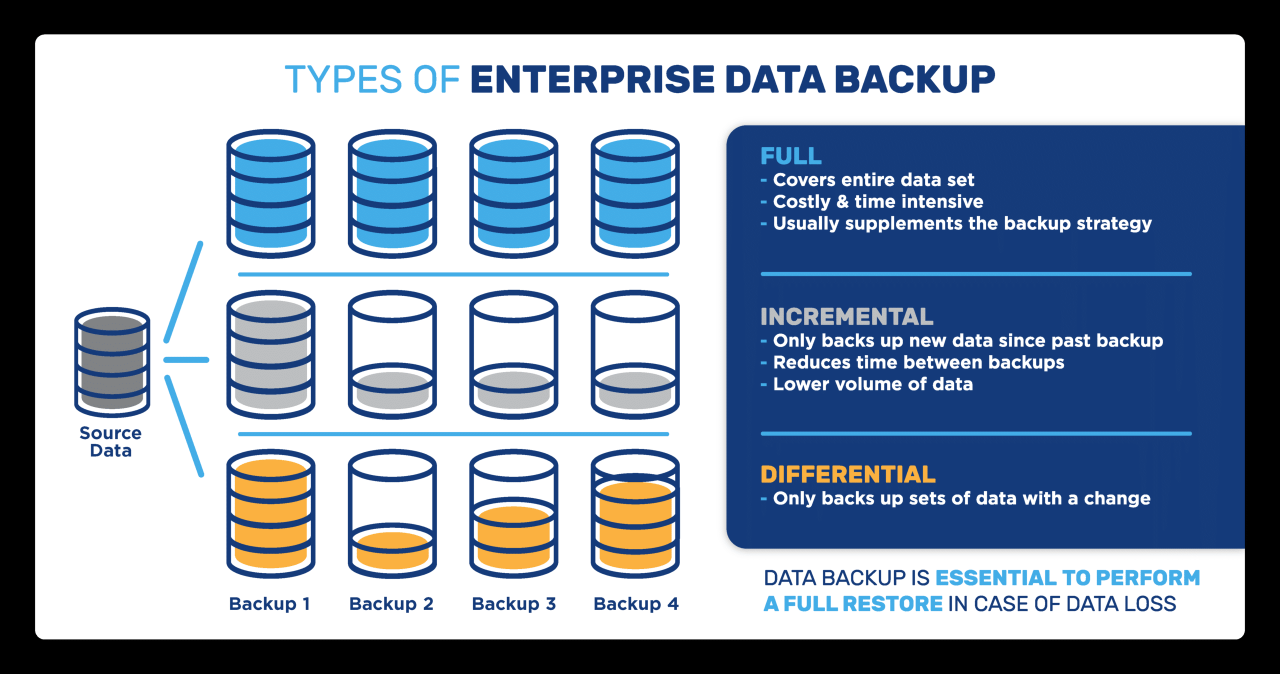
- Full Backup: A full backup is a complete copy of the entire database, including all tables, indexes, and data. It represents a snapshot of the database at a specific point in time. Restoring from a full backup is the simplest method, as it involves only copying the backup file to the database server. However, full backups can take a significant amount of time and storage space, especially for large databases.
- Incremental Backup: An incremental backup only copies the data that has changed since the last backup, whether it was a full backup or an incremental backup. This results in faster backup times and smaller backup files. Restoring from an incremental backup requires restoring the full backup first, followed by all subsequent incremental backups in the order they were created.
- Differential Backup: A differential backup copies all the data that has changed since the last full backup. It is similar to an incremental backup, but it only considers the last full backup. Restoring from a differential backup requires restoring the full backup and the latest differential backup. Differential backups are generally faster to restore than incremental backups but can take longer to create as they grow in size over time.
The importance of a well-defined backup strategy cannot be overstated. A backup strategy Artikels the procedures, tools, and schedules for creating and managing backups. It should consider the frequency of backups, the retention policy, the backup storage location, and the procedures for testing and verifying backups. A robust backup strategy ensures data can be recovered quickly and efficiently in the event of a data loss incident, minimizing downtime and protecting the organization’s valuable data assets.
It should be regularly reviewed and updated to reflect changes in the database environment and business requirements.
Backup Methods

Backing up your MySQL database is crucial for data protection and business continuity. Several methods exist, each with its own strengths and weaknesses. Understanding these methods allows you to choose the most appropriate strategy for your specific needs, considering factors like database size, downtime tolerance, and recovery time objectives. Choosing the right method ensures you can restore your data effectively in case of data loss or corruption.There are various approaches to backing up a MySQL database.
These methods range from simple logical backups to more complex physical backups, each offering different trade-offs in terms of speed, resource consumption, and recovery capabilities.
Backup Methods Overview
The choice of backup method depends heavily on your specific requirements. Consider the table below, which provides a comparative overview of common MySQL backup techniques:
| Method | Description | Advantages | Disadvantages |
|---|---|---|---|
mysqldump (Logical) |
Creates a logical backup by generating a set of SQL statements (CREATE TABLE, INSERT statements) that can be executed to reconstruct the database. | Simple to use; Creates human-readable SQL files; Compatible across different MySQL versions and architectures. | Slower for large databases; Can require significant disk space; Recovery time can be longer due to the need to execute SQL statements; Doesn’t preserve binary log position, which can impact replication setup. |
mysqlpump (Logical) |
Similar to mysqldump, but offers improved performance and features like parallel processing and support for exporting data in JSON format. |
Faster than mysqldump, especially for large databases; Supports parallel processing; Offers more flexible output options (JSON, CSV); Supports dumping of multiple schemas. |
Can still be slower than physical backups; Recovery time can still be longer; May require more resources during backup. |
| Percona XtraBackup (Physical) | Creates a physical, consistent backup by directly copying the data files. This is a hot backup solution, meaning it can back up the database while it is running. | Very fast backups and restores; Minimal downtime; Supports incremental backups; Efficient for large databases. | Requires more disk space than logical backups; Not as portable across different MySQL versions; Requires specific setup and configuration. |
| File System Snapshots (Physical) | Uses the underlying file system’s snapshot capabilities (e.g., LVM, ZFS) to create a point-in-time copy of the database files. | Very fast backup creation (snapshot is almost instantaneous); Efficient for large databases; Can minimize downtime. | Requires file system support; Requires careful planning to ensure data consistency; Recovery can be more complex than other methods. |
Logical vs. Physical Backups
Understanding the fundamental difference between logical and physical backups is crucial for selecting the appropriate backup strategy.Logical backups, such as those created by mysqldump and mysqlpump, extract the database schema and data into a format that can be used to recreate the database. This format typically consists of SQL statements. This approach is portable, meaning the backup can be restored on a different server or even a different architecture.
However, logical backups can be slower, especially for large databases, as they involve reading and processing data, and the restoration process involves executing SQL statements, which can take time.Physical backups, on the other hand, involve copying the raw data files that make up the database. Tools like Percona XtraBackup and file system snapshots create these backups. Physical backups are generally faster than logical backups, particularly for large databases, because they bypass the need to parse and interpret the data.
Restoration is also typically faster because the data files are simply copied back to the server. However, physical backups are often less portable and may require the same or a compatible version of MySQL and operating system for restoration. They also require more storage space because they are a direct copy of the data files.
Tools: mysqldump, mysqlpump, and Percona XtraBackup
Several tools are available to facilitate the backup and restoration process. Each tool has its strengths and is best suited for specific scenarios.* mysqldump: This is a widely used command-line utility that comes bundled with MySQL. It creates logical backups by generating SQL statements. It is simple to use and ideal for smaller databases or when portability is a priority.
Example: mysqldump -u username -p database_name > backup.sql.* mysqlpump: An improved version of mysqldump, mysqlpump offers enhanced performance and features. It supports parallel processing, allowing it to back up large databases much faster. It also provides flexibility in output formats, including JSON. Example: mysqlpump -u username -p --parallel-schemas=4 database_name > backup.sql. The --parallel-schemas option specifies the number of threads to use for parallel processing.* Percona XtraBackup: This is a powerful open-source tool designed for creating physical backups.
It is specifically optimized for high performance and supports features like incremental backups and hot backups (backing up while the database is running). Example: xtrabackup --backup --user=username --password=password --target-dir=/path/to/backup.
Best Method Selection
The optimal backup method varies depending on the size and characteristics of your database.For a small database, mysqldump is often a suitable choice. It’s simple to use, readily available, and the backup and restore processes are generally quick enough. The portability of mysqldump makes it easy to move the database to different environments.For a large database, Percona XtraBackup is often the preferred option.
Its speed, support for incremental backups, and ability to perform hot backups make it the most efficient solution. The reduced downtime during backup and restore is particularly important for databases that require high availability. Consider the case of a large e-commerce platform with a database exceeding several terabytes. Using mysqldump could result in hours of downtime for both backup and restore, whereas Percona XtraBackup could complete the backup in a fraction of the time, significantly reducing the impact on the business.
Using `mysqldump` for Backups
The `mysqldump` utility is a versatile and widely used tool for creating backups of MySQL databases. It provides a flexible and efficient way to export database structures and data, enabling you to safeguard your valuable information. Understanding and utilizing `mysqldump` is crucial for any database administrator or developer responsible for data integrity and disaster recovery.
The `mysqldump` Utility: Purpose and Functionality
`mysqldump` is a command-line utility included with the MySQL server installation. Its primary function is to generate logical backups of MySQL databases. These backups contain SQL statements that, when executed, will recreate the database structure and populate it with the data from the original database. This makes `mysqldump` an essential tool for data migration, database replication, and disaster recovery. The utility achieves this by querying the MySQL server and retrieving the data and schema information, then formatting it into SQL statements.
Basic Syntax for Creating a Full Backup
The basic syntax for creating a full backup using `mysqldump` is as follows:
mysqldump -u [username] -p[password] --all-databases > [backup_file.sql]
* `-u [username]`: Specifies the MySQL username to connect with. Replace `[username]` with your actual username.
`-p[password]`
Specifies the password for the MySQL user. Replace `[password]` with your actual password. Note that the password should immediately follow the `-p` without a space. Alternatively, you can be prompted for the password.
`–all-databases`
This option instructs `mysqldump` to back up all databases on the server.
`> [backup_file.sql]`
This redirects the output of the `mysqldump` command to a file named `[backup_file.sql]`. This file will contain the SQL statements representing your backup. Replace `[backup_file.sql]` with your desired filename.For example:
mysqldump -u root -p --all-databases > all_databases_backup.sql
This command will prompt for the root password and create a backup of all databases.
Creating a Backup of a Single Database
To create a backup of a single database, you can use the following syntax:
mysqldump -u [username] -p[password] [database_name] > [backup_file.sql]
* `-u [username]`: Specifies the MySQL username.
`-p[password]`
Specifies the password for the MySQL user.
`[database_name]`
Specifies the name of the database to back up.
`> [backup_file.sql]`
Redirects the output to a file.For example:
mysqldump -u root -p mydatabase > mydatabase_backup.sql
This command will create a backup of the database named “mydatabase”.
Creating a Backup of Specific Tables
You can selectively back up specific tables within a database using the following syntax:
mysqldump -u [username] -p[password] [database_name] [table1] [table2] ... > [backup_file.sql]
* `-u [username]`: Specifies the MySQL username.
`-p[password]`
Specifies the password for the MySQL user.
`[database_name]`
Specifies the name of the database containing the tables.
`[table1] [table2] …`
Specifies the names of the tables to back up, separated by spaces.
`> [backup_file.sql]`
Redirects the output to a file.For example:
mysqldump -u root -p mydatabase table1 table2 > mydatabase_table_backup.sql
This command will create a backup of only `table1` and `table2` within the `mydatabase` database.
Options for Compressing the Backup File
Compressing the backup file can significantly reduce its size, saving storage space and potentially speeding up the backup process, especially for large databases. `mysqldump` allows for several compression options. Here are some of them:* Using `gzip`: This is a common and widely supported compression method. You can pipe the output of `mysqldump` to the `gzip` command:
mysqldump -u [username] -p[password] --all-databases | gzip > [backup_file.sql.gz]
This command creates a gzipped backup file with the `.sql.gz` extension.
Using `bzip2`
`bzip2` provides a higher compression ratio than `gzip`, but it is typically slower.
mysqldump -u [username] -p[password] --all-databases | bzip2 > [backup_file.sql.bz2]
This command creates a bzip2 compressed backup with the `.sql.bz2` extension.
Using `xz`
`xz` offers even better compression than `bzip2`, but at the cost of more processing time.
mysqldump -u [username] -p[password] --all-databases | xz > [backup_file.sql.xz]
This command creates an xz compressed backup file.The choice of compression method depends on the balance between compression ratio, speed, and available resources. `gzip` is often a good starting point, offering a reasonable balance.
Code Example: Backing Up All Databases on a Server
Here’s a complete example demonstrating how to back up all databases on a server, including the use of `gzip` for compression:
mysqldump -u root -p --all-databases | gzip > all_databases_backup.sql.gz
This command will:
- Connect to the MySQL server as the `root` user (you’ll be prompted for the password).
- Use the `–all-databases` option to back up all databases.
- Pipe the output of `mysqldump` to the `gzip` command.
- Compress the output using `gzip`.
- Redirect the compressed output to a file named `all_databases_backup.sql.gz`.
Using `mysqlpump` for Backups

The `mysqlpump` utility offers a more efficient and parallelized approach to backing up MySQL databases compared to the older `mysqldump` tool. It is particularly beneficial for large databases and complex schemas, providing faster backup and restore times. This section will explore the functionalities of `mysqlpump`, its differences from `mysqldump`, and provide practical examples for various backup scenarios.
Functionality of `mysqlpump` and Differences from `mysqldump`
`mysqlpump` is a utility provided by MySQL for creating logical backups of databases. It functions by reading data and schema information from a MySQL server and writing it to an output file, typically a SQL script or a compressed archive. The primary advantage of `mysqlpump` lies in its ability to perform backups in parallel, utilizing multiple threads to dump data concurrently.
This parallel processing significantly reduces the backup time, especially for large databases.Here’s a comparison of `mysqlpump` and `mysqldump`:
- Parallelism: `mysqlpump` supports parallel processing, allowing it to dump multiple tables simultaneously, leading to faster backups. `mysqldump` typically operates serially, processing tables one at a time.
- Performance: `mysqlpump` generally offers better performance, especially for large databases, due to its parallel processing capabilities. `mysqldump` can be slower, particularly when dealing with complex schemas or large datasets.
- Output Format: Both utilities primarily output SQL scripts. However, `mysqlpump` can also produce output in a more optimized format, which can improve restore times.
- Dependencies: `mysqlpump` is a more modern utility and might require a newer version of MySQL server compared to `mysqldump`.
- Transaction Support: `mysqlpump` supports transactional backups, ensuring data consistency during the backup process.
Basic Syntax for Creating a Full Backup Using `mysqlpump`
The basic syntax for creating a full backup using `mysqlpump` is straightforward. It involves specifying the connection details to the MySQL server and the output file where the backup will be stored.
mysqlpump -u [username] -p[password] --host=[hostname] --port=[port] --result-file=[backup_file.sql] --databases [database_name]
Where:
-u [username]: Specifies the MySQL username.-p[password]: Specifies the password for the MySQL user. (Note: avoid spaces between -p and the password).--host=[hostname]: Specifies the hostname or IP address of the MySQL server.--port=[port]: Specifies the port number for the MySQL server (default is 3306).--result-file=[backup_file.sql]: Specifies the path and filename for the backup file.--databases [database_name]: Specifies the database(s) to back up. If omitted, all databases are backed up.
Creating a Backup of a Single Database Using `mysqlpump`
To back up a single database using `mysqlpump`, specify the database name using the `–databases` option.For example, to back up a database named “mydatabase” to a file named “mydatabase_backup.sql”:
mysqlpump -u myuser -pmypassword --host=localhost --databases mydatabase --result-file=mydatabase_backup.sql
This command connects to the MySQL server, authenticates with the provided credentials, and backs up the schema and data of the “mydatabase” database to the specified SQL file.
Creating a Backup of Specific Tables Within a Database Using `mysqlpump`
`mysqlpump` allows backing up specific tables within a database. This can be achieved using the `–tables` option.For example, to back up only the “users” and “products” tables from the “mydatabase” database:
mysqlpump -u myuser -pmypassword --host=localhost --databases mydatabase --tables users products --result-file=mydatabase_users_products_backup.sql
This command backs up only the specified tables, reducing the backup size and time compared to a full database backup.
Options for Parallel Processing with `mysqlpump`
`mysqlpump` offers several options to control parallel processing, enabling faster backups.
--default-parallelism=[number]: Sets the default number of threads to use for parallel processing. The default value is typically based on the number of CPU cores available. Increasing this value can often speed up backups, but it also increases resource consumption.--max-allowed-packet=[size]: Sets the maximum packet size for communication with the server. Increasing this value might be necessary for backing up tables with large BLOB or TEXT columns.
For instance, to use 4 threads for parallel processing:
mysqlpump -u myuser -pmypassword --host=localhost --databases mydatabase --default-parallelism=4 --result-file=mydatabase_parallel_backup.sql
Code Example Using `mysqlpump` to Backup a Specific Database
Here is a complete example of using `mysqlpump` to back up the “employees” database:“`bash#!/bin/bash# Define variablesUSERNAME=”backup_user” # Replace with your MySQL usernamePASSWORD=”backup_password” # Replace with your MySQL passwordHOST=”localhost”DATABASE=”employees”BACKUP_FILE=”employees_backup.sql”# Build the mysqlpump commandmysqlpump_command=”mysqlpump -u \”$USERNAME\” -p\”$PASSWORD\” –host=\”$HOST\” –databases \”$DATABASE\” –result-file=\”$BACKUP_FILE\””# Execute the backupecho “Starting backup of database ‘$DATABASE’…”$mysqlpump_command# Check the return codeif [ $? -eq 0 ]; then echo “Backup completed successfully.
Backup file: $BACKUP_FILE”else echo “Backup failed.” exit 1fi“`This script demonstrates a complete process, including setting variables for database credentials and backup location. It then executes the `mysqlpump` command, providing feedback on the backup’s progress and success.
Using Percona XtraBackup for Backups
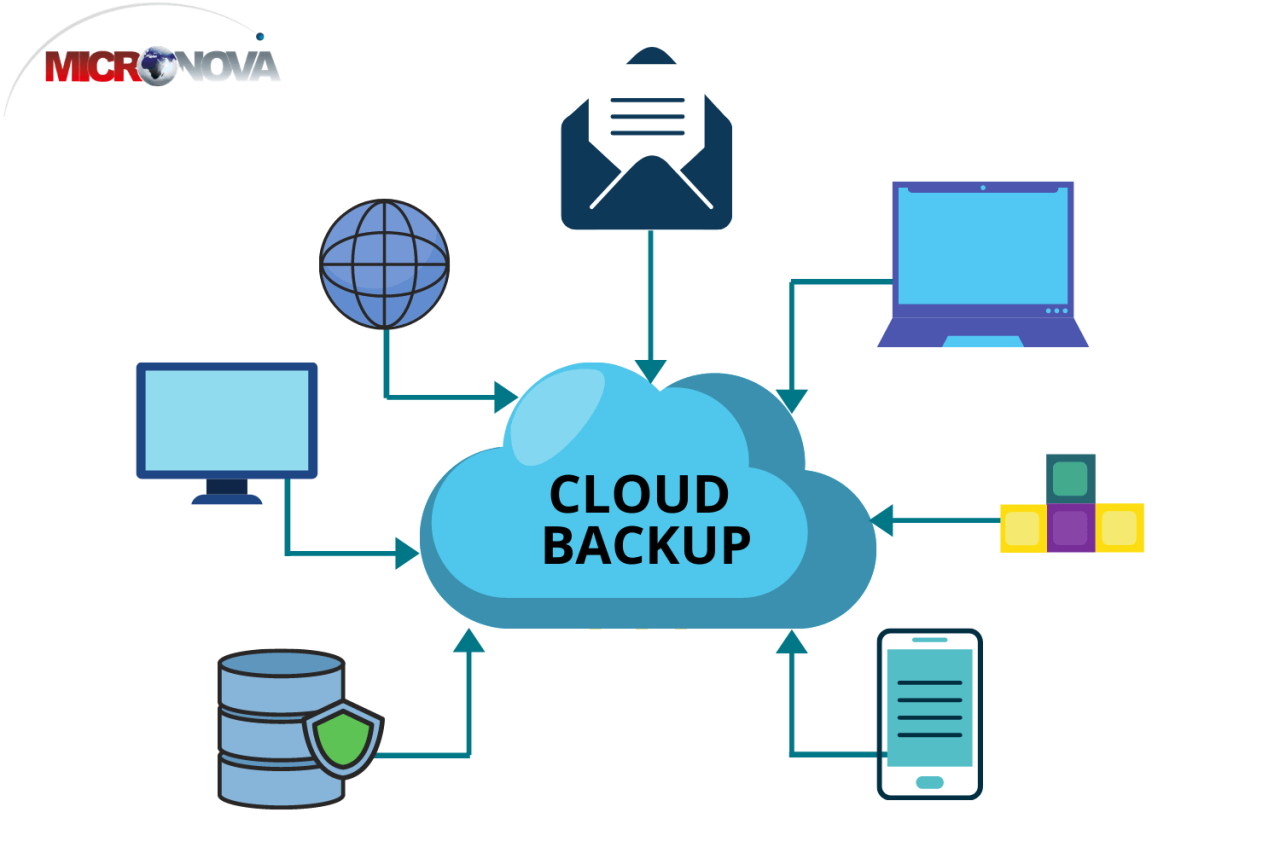
Percona XtraBackup is a free, open-source, hot backup utility for MySQL and its derivatives. It allows for online, non-blocking backups, meaning you can back up your database without taking it offline. This is crucial for production environments where downtime is unacceptable. This section delves into the specifics of using Percona XtraBackup, covering its advantages, use cases, and practical implementation.
Percona XtraBackup Overview
Percona XtraBackup provides a robust and efficient method for backing up and restoring MySQL databases. Its key advantage is the ability to perform backups without locking the database, minimizing disruption to ongoing operations. It supports full, incremental, and partial backups, providing flexibility in your backup strategy. Percona XtraBackup is particularly well-suited for large databases where traditional backup methods might take a significant amount of time and cause considerable downtime.
It is also suitable for environments requiring frequent backups or where data consistency is paramount.
Creating a Full Backup with Percona XtraBackup
Creating a full backup using Percona XtraBackup involves a straightforward command-line operation. The process captures a complete snapshot of your database. This full backup serves as the foundation for subsequent incremental backups.To create a full backup, the basic syntax is:“`bashxtrabackup –backup –target-dir=/path/to/backup/directory“`* `xtrabackup`: This is the command-line utility provided by Percona XtraBackup.
`–backup`
Specifies that you want to perform a backup.
`–target-dir`
This option specifies the directory where the backup files will be stored. Replace `/path/to/backup/directory` with the actual path on your system.For example, to back up to the `/data/backups/full_backup` directory, the command would be:“`bashxtrabackup –backup –target-dir=/data/backups/full_backup“`The output will show the progress of the backup, including the time taken and the files being backed up. After the backup completes, you’ll have a directory containing the backup files.
This backup is not immediately ready for restoration; it requires preparation, as described later.
Creating an Incremental Backup with Percona XtraBackup
Incremental backups are a powerful feature that significantly reduces backup time and storage space by only backing up the changes made since the last backup. This is particularly beneficial for large databases where full backups can be time-consuming. Incremental backups rely on a full backup as a base.To create an incremental backup, the following syntax is used:“`bashxtrabackup –backup –target-dir=/path/to/incremental/backup –incremental-basedir=/path/to/full/backup“`* `–incremental-basedir`: This option specifies the directory containing the base backup (full backup).
`/path/to/incremental/backup`
The target directory for the incremental backup.
`/path/to/full/backup`
The directory where the full backup resides.For example, assuming the full backup is in `/data/backups/full_backup`, and you want to store the incremental backup in `/data/backups/incremental_backup`, the command would be:“`bashxtrabackup –backup –target-dir=/data/backups/incremental_backup –incremental-basedir=/data/backups/full_backup“`This command will create an incremental backup based on the changes since the full backup. You can chain incremental backups, where each incremental backup is based on the previous one.
Restoring a Backup Created with Percona XtraBackup
Restoring a backup with Percona XtraBackup is a multi-step process that involves preparing the backup and then restoring it to your MySQL server. The restoration process depends on whether you are restoring a full backup or a combination of full and incremental backups.To restore a full backup, you must first prepare it, as detailed in the next section, and then restore the prepared data files.To restore a combination of full and incremental backups, you need to prepare the full backup first, and then apply the incremental backups in chronological order.
Preparing a Backup for Restoration
Before restoring a backup created with Percona XtraBackup, you must prepare it. This process involves applying the transaction logs to ensure data consistency. The preparation step varies slightly depending on whether you are dealing with a full backup or a combination of full and incremental backups.For a full backup, the preparation command is:“`bashxtrabackup –prepare –target-dir=/path/to/backup/directory“`* `–prepare`: This option tells Percona XtraBackup to prepare the backup.
`/path/to/backup/directory`
The directory containing the backup files.For example, to prepare the full backup in `/data/backups/full_backup`, the command would be:“`bashxtrabackup –prepare –target-dir=/data/backups/full_backup“`For a full backup combined with incremental backups, the preparation process is a bit more involved. You must prepare the full backup first, and then apply the incremental backups in the correct order.First, prepare the full backup:“`bashxtrabackup –prepare –target-dir=/path/to/full/backup“`Then, apply each incremental backup in sequence.
For the first incremental backup, the command would be:“`bashxtrabackup –prepare –target-dir=/path/to/full/backup –incremental-dir=/path/to/incremental/backup1“`Where `/path/to/incremental/backup1` is the directory containing the first incremental backup. If there are subsequent incremental backups, they must be applied in the correct order, using the prepared backup as the base.“`bashxtrabackup –prepare –target-dir=/path/to/full/backup –incremental-dir=/path/to/incremental/backup2“`Repeat this process for each incremental backup. After preparing the backup, you can then restore the data files to your MySQL server.
The most common steps to backup a database with Percona XtraBackup are:
- Full Backup: `xtrabackup –backup –target-dir=/path/to/backup/directory`
- Incremental Backup: `xtrabackup –backup –target-dir=/path/to/incremental/backup –incremental-basedir=/path/to/full/backup`
- Prepare Full Backup: `xtrabackup –prepare –target-dir=/path/to/backup/directory`
- Prepare Incremental Backup (after full backup is prepared): `xtrabackup –prepare –target-dir=/path/to/full/backup –incremental-dir=/path/to/incremental/backup`
Restoring MySQL Databases
Restoring a MySQL database is a crucial process for recovering data after failures, accidental deletions, or other data loss events. The restoration process effectively reverses the backup procedure, bringing the database back to a known state. Understanding the correct steps for restoration is paramount to ensure data integrity and minimize downtime.The process of restoring a MySQL database involves retrieving the backup file and importing its contents back into the MySQL server.
The specific steps vary depending on the backup method used. This section Artikels the restoration procedures for backups created with `mysqldump`, `mysqlpump`, and Percona XtraBackup, along with important considerations like restoring to a different server and the importance of testing.
General Process of Restoring a MySQL Database
The general process of restoring a MySQL database involves several key steps. These steps are applicable across different backup methods, although the specific commands and options may vary.
- Verify the Backup: Before initiating the restore, verify the integrity of the backup file. This can involve checking the file size, timestamp, and potentially running checksums if available. This step ensures the backup is not corrupted.
- Stop MySQL Server (Optional): For some restoration scenarios, especially those involving potential data conflicts, it may be necessary to stop the MySQL server. This prevents any writes during the restore process. This step is often recommended when restoring to the same server.
- Prepare the Target Database: If restoring to an existing database, ensure the database is ready to receive the data. This might involve dropping the existing database and recreating it (if restoring a full backup), or preparing the tables if restoring specific data. If restoring to a new database, create the database.
- Initiate the Restore: Execute the appropriate command to restore the data from the backup file. This typically involves using a MySQL client tool like the `mysql` command-line client.
- Monitor the Restore: Observe the restoration process. The time required for restoration depends on the size of the backup and the server’s resources.
- Verify the Restore: After the restore is complete, verify that the data has been successfully restored. This can involve checking the table counts, data samples, and running queries to confirm data integrity.
- Restart MySQL Server (If Stopped): If the MySQL server was stopped, restart it.
Restoring a Backup Created with `mysqldump`
Restoring a database backed up using `mysqldump` is a straightforward process. `mysqldump` creates a logical backup, essentially a set of SQL statements. The restoration process involves executing these SQL statements against the MySQL server.
- Using the `mysql` Command-Line Client: The most common method is to pipe the `mysqldump` output directly to the `mysql` client. This is often the fastest way to restore the data.
mysql -u [username] -p [database_name] < [backup_file.sql]Replace
[username]with the MySQL username,[database_name]with the target database name, and[backup_file.sql]with the path to the `mysqldump` backup file. You will be prompted for the password. - Restoring to a Specific Database: If you need to restore to a specific database, ensure that the database exists or create it before running the restore command. You can specify the database name in the `mysql` command.
- Handling Large Backups: For very large backups, consider using the `–max_allowed_packet` option in the `mysql` client or breaking the backup file into smaller chunks to prevent errors. Also, increasing the `max_allowed_packet` size in the MySQL configuration file (`my.cnf` or `my.ini`) might be necessary.
- Restoring Specific Tables: If the `mysqldump` backup contains only specific tables (using the `–tables` option during the backup), you can restore them to the target database without affecting other tables. Ensure the target database already exists.
Restoring a Backup Created with `mysqlpump`
Restoring a database backed up using `mysqlpump` is similar to `mysqldump`, but `mysqlpump` often provides improved performance and features. The restoration process also involves executing the SQL statements generated by `mysqlpump`.
- Using the `mysql` Command-Line Client: Similar to `mysqldump`, you can pipe the output of `mysqlpump` to the `mysql` client.
mysql -u [username] -p [database_name] < [backup_file.sql]Replace
[username]with the MySQL username,[database_name]with the target database name, and[backup_file.sql]with the path to the `mysqlpump` backup file. You will be prompted for the password. - Handling Errors: `mysqlpump` is designed to handle errors more gracefully than `mysqldump`. However, it’s still essential to monitor the restoration process and address any errors that may arise. Check the MySQL error logs for more details.
- Parallel Restoration: `mysqlpump` backups can sometimes be restored in parallel, potentially speeding up the process. While `mysqlpump` itself does not directly provide parallel restore functionality, you could, in theory, split the backup file into multiple parts and restore them concurrently using separate `mysql` client instances, but this requires careful planning and consideration of dependencies.
Restoring a Database to a Different Server
Restoring a database to a different server is a common requirement, especially for disaster recovery, testing, or migrating data. The process involves transferring the backup file to the new server and then restoring the data using the appropriate method.
- Transfer the Backup File: Securely transfer the backup file to the new server. This can be done using tools like `scp`, `rsync`, or `sftp`. Ensure the transfer is completed successfully.
- Ensure MySQL is Running: Verify that the MySQL server is running on the target server. If it is not, start it.
- Create the Database (If Necessary): If the database does not already exist on the target server, create it before restoring. Use the `CREATE DATABASE` statement.
- Restore the Backup: Use the appropriate restoration command (e.g., `mysql -u [username] -p [database_name] < [backup_file.sql]`) to restore the backup on the new server. Replace placeholders with the correct credentials and database name.
- Update Connection Details (If Needed): After the restore, update any application connection details to point to the new server if the IP address or hostname has changed.
Importance of Testing Backups
Testing backups is a critical practice that ensures data can be successfully restored when needed. Regular testing validates the backup process and identifies any potential issues before a real data loss event occurs.
- Simulate a Restore: Regularly perform a test restore to a separate environment (e.g., a staging server) to verify the backup’s integrity and the restoration process.
- Verify Data Integrity: After the test restore, verify the data by checking table counts, sample data, and running queries to ensure the data is complete and accurate.
- Document the Process: Maintain clear documentation of the backup and restore procedures, including the commands used, any specific configurations, and troubleshooting steps.
- Automate Testing (If Possible): Automate the backup testing process to ensure it is performed regularly and consistently. This can involve scripting the restore process and validating the data.
- Frequency of Testing: The frequency of backup testing depends on the criticality of the data and the frequency of backups. For critical systems, test backups at least monthly, or even weekly.
Restoring a Backup Using Percona XtraBackup
Percona XtraBackup provides a robust and efficient method for backing up and restoring MySQL databases, particularly for large datasets. Restoring a backup created with Percona XtraBackup involves several steps.
- Prepare the Backup: After the backup, the backup files need to be prepared for use. This involves applying the transaction logs to the backup to bring it to a consistent state.
innobackupex --apply-log [backup_directory]Replace
[backup_directory]with the directory where the XtraBackup files are stored. - Stop MySQL Server (If Running): Stop the MySQL server on the target server. This is usually necessary before restoring the data.
- Remove Existing Data (If Necessary): Remove or move the existing MySQL data directory. The default location is typically `/var/lib/mysql`. Make a backup of the existing data directory if you need to keep it.
- Restore the Backup: Restore the prepared backup files to the MySQL data directory.
innobackupex --copy-back [backup_directory]This command copies the data files from the backup directory to the MySQL data directory.
- Change File Ownership (If Necessary): Change the ownership of the restored files to the MySQL user (usually `mysql`).
chown -R mysql:mysql /var/lib/mysql - Start MySQL Server: Start the MySQL server.
- Verify the Restore: Verify that the database has been restored by checking table counts, sample data, and running queries.
Backup Strategies and Best Practices
Implementing a robust backup strategy is crucial for protecting your MySQL database from data loss. This section Artikels essential considerations and best practices to ensure your data’s integrity and availability. A well-defined strategy not only safeguards against disasters but also minimizes downtime and facilitates efficient recovery.
Importance of a Well-Defined Backup Strategy
A comprehensive backup strategy is the cornerstone of data protection. It’s not merely about creating backups; it’s about planning, execution, and continuous improvement.
- Data Loss Prevention: A well-defined strategy mitigates the risk of data loss due to hardware failures, software bugs, human error, or malicious attacks.
- Business Continuity: It ensures business operations can resume quickly after a data loss incident, minimizing downtime and potential financial losses.
- Compliance: Many industries have regulations requiring data backup and recovery plans, and a solid strategy helps organizations meet these requirements.
- Data Integrity: Regular backups help maintain data integrity by allowing for the restoration of a clean and consistent database state.
- Disaster Recovery: It provides a roadmap for restoring data in the event of a major disaster, ensuring business survival.
Considerations for Determining Backup Frequency
Choosing the right backup frequency is a balance between data loss tolerance and resource consumption. The optimal frequency depends on the rate of data change and the acceptable downtime.
- Recovery Point Objective (RPO): This defines the maximum acceptable data loss window. If an RPO of 1 hour is required, backups must be performed at least hourly.
- Recovery Time Objective (RTO): This defines the maximum acceptable downtime. Frequent backups generally lead to faster recovery times.
- Data Change Rate: Databases with high transaction volumes require more frequent backups than those with infrequent updates.
- Business Requirements: Consider the criticality of the data and the potential impact of data loss on business operations.
- Resource Constraints: Backup frequency is also influenced by storage capacity, network bandwidth, and backup processing time. Consider the impact of backups on database performance.
Best Practices for Storing Backup Files Securely
Secure storage is as important as the backup itself. Protecting backup files from unauthorized access and potential data breaches is paramount.
- Offsite Storage: Store backups in a geographically separate location to protect against site-specific disasters like fires or floods. This can be cloud storage or a remote server.
- Encryption: Encrypt backup files to protect data confidentiality, especially when storing them offsite or in the cloud. Tools like `mysqldump` and `mysqlpump` support encryption during the backup process.
- Access Control: Implement strict access controls to limit who can access and modify backup files. Use strong passwords and multi-factor authentication.
- Regular Auditing: Regularly audit access logs to detect and respond to any unauthorized access attempts.
- Data Retention Policies: Define and enforce data retention policies to manage the lifecycle of backup files. This includes determining how long backups are stored and when they are purged.
- Storage Media Security: If using physical media (e.g., tapes), ensure physical security, including secure storage facilities and controlled access.
Importance of Testing Backups Regularly
Regularly testing backups is essential to ensure their recoverability. A backup is useless if it cannot be restored successfully.
- Verify Data Integrity: Testing confirms that backups are complete and that data can be restored without corruption.
- Validate Recovery Procedures: Testing validates the effectiveness of the recovery process and identifies any potential issues.
- Optimize Recovery Time: Testing allows for the optimization of the recovery process, reducing downtime during a real disaster.
- Identify Issues: Testing can reveal problems with the backup process, storage, or recovery procedures before a data loss event occurs.
- Documentation: Testing provides an opportunity to update and refine the backup and recovery documentation.
- Frequency: Test backups at regular intervals, such as monthly or quarterly, depending on the criticality of the data and the frequency of backups.
Simple Backup Schedule for a Small Business
Here’s a basic backup schedule suitable for a small business with moderate data change rates. The schedule balances data protection with resource considerations.
| Backup Type | Frequency | Storage Location | Retention Period |
|---|---|---|---|
| Full Backup | Weekly (e.g., Sunday night) | Local server and cloud storage (e.g., AWS S3, Google Cloud Storage) | 4 weeks |
| Differential Backup | Daily (e.g., weeknights) | Local server | Retained until the next full backup |
| Transaction Log Backup (if applicable, e.g., with binary logging enabled) | Hourly | Local server and cloud storage | 24 hours |
Note:
- Full Backup: A complete copy of the entire database.
- Differential Backup: Backups only the changes since the last full backup.
- Transaction Log Backup: Backups the database transaction logs.
How to Handle Large Database Backups
Backing up large databases presents unique challenges. Efficient strategies and tools are necessary to manage the process effectively.
- Optimize Backup Tools: Use tools like `mysqlpump` or Percona XtraBackup, which are designed for performance and efficiency with large datasets.
- Incremental Backups: Utilize incremental backups to reduce the backup window. Only changed data is backed up, significantly speeding up the process. Percona XtraBackup excels at this.
- Compression: Compress backup files to reduce storage space and network bandwidth usage. Consider using tools like `gzip` or `xz` with `mysqldump` or `mysqlpump`.
- Parallel Processing: Leverage parallel processing to speed up the backup process. `mysqlpump` supports parallel dumping of tables.
- Staging Servers: Create backups on a staging server, which can then be moved to a storage location. This minimizes the impact on the production server.
- Database Partitioning: Consider partitioning the database into smaller, more manageable chunks. This can simplify backup and restore operations.
- Network Considerations: Ensure sufficient network bandwidth when transferring backups to offsite storage. Schedule backups during off-peak hours to avoid network congestion.
- Storage Capacity Planning: Ensure adequate storage capacity is available for both the backup files and the restored database. Factor in data growth and retention policies.
- Testing Restores: Regularly test restores of large databases to validate the recovery process and ensure it functions as expected.
Troubleshooting Common Backup and Restore Issues
Backup and restore operations, while crucial for data protection, can sometimes encounter issues. These problems can range from simple configuration errors to more complex database corruption scenarios. Understanding these potential pitfalls and having strategies to address them is vital for ensuring data integrity and minimizing downtime. This section will explore common errors, provide solutions, and offer best practices for troubleshooting backup and restore processes.
Common Errors in Backup and Restore Operations
Several common errors can arise during backup and restore operations, often stemming from incorrect configurations, insufficient resources, or permission problems. Recognizing these issues early is key to a successful recovery.
- Insufficient Disk Space: This is a prevalent issue, preventing backups from completing or causing restore failures.
- Permission Denied Errors: Incorrect user privileges can block access to database files or directories, leading to backup or restore failures.
- Network Connectivity Issues: Problems with network connections can disrupt backups, especially those involving remote servers.
- Database Corruption: Corrupted databases can prevent successful backups or lead to restore failures.
- Incorrect Configuration Settings: Misconfigured backup tools, such as `mysqldump` or `mysqlpump`, can lead to incomplete or unusable backups.
- Version Incompatibilities: Using backup files created with older versions of MySQL with newer versions, or vice versa, can cause issues.
Solutions for Common `mysqldump` Errors
`mysqldump` is a widely used tool for creating logical backups. Various errors can occur during its execution.
- Error: “Access denied for user…” This indicates insufficient privileges for the MySQL user.
- Solution: Ensure the user has the necessary permissions (SELECT, SHOW VIEW, LOCK TABLES, etc.) granted to the database(s) being backed up. Use the `GRANT` statement to provide the necessary privileges. For example:
GRANT SELECT, SHOW VIEW, LOCK TABLES ON
.* TO ‘backup_user’@’localhost’;
- Error: “mysqldump: Got error: 1044: Access denied for user…” Similar to the above, but often related to accessing specific databases.
- Solution: Verify the user has permissions to access the specific databases. Use `GRANT` to grant the required permissions to the backup user. For example:
GRANT SELECT, SHOW VIEW, LOCK TABLES ON database_name.* TO ‘backup_user’@’localhost’;
- Error: “Lost connection to MySQL server during query” This can be caused by various factors, including network issues, long-running queries, or insufficient resources.
- Solution: Increase the timeout values in `mysqldump` using the `–net_read_timeout` and `–net_write_timeout` options. For example:
mysqldump –net_read_timeout=3600 –net_write_timeout=3600 -u backup_user -p database_name > backup.sql
- Also, ensure the network connection is stable and that the MySQL server has sufficient resources.
- Error: “mysqldump: Error 1064: You have an error in your SQL syntax…” This indicates an issue with the SQL syntax, often in the database structure or data.
- Solution: Review the error message carefully. Check for syntax errors in the database schema or data. It may be necessary to repair the database or identify and correct any problematic data entries before attempting the backup.
- Error: “Out of memory” This error indicates that the server ran out of memory during the backup process.
- Solution: Reduce the number of concurrent threads, increase the server’s memory allocation, or use the `–single-transaction` option to perform a consistent backup. For very large databases, consider using `mysqlpump` or Percona XtraBackup, which are often more memory-efficient.
Troubleshooting `mysqlpump` Errors
`mysqlpump` is a parallel backup utility. Although it is generally more efficient than `mysqldump`, it can also encounter errors.
- Error: “Access denied for user…” This signifies insufficient privileges for the user.
- Solution: Ensure the user has appropriate permissions to the databases and tables. Use `GRANT` statements to assign the necessary privileges.
- Error: “Error: 1227: Access denied; you need (at least one of) the SUPER privilege(s) for this operation” This typically occurs when `mysqlpump` attempts to perform operations requiring the SUPER privilege.
- Solution: Grant the SUPER privilege to the backup user. However, be cautious, as this grants significant control over the server. Alternatively, use the `–skip-definer` option to avoid backing up definers.
GRANT SUPER ON
.* TO ‘backup_user’@’localhost’;
- Error: “Error: 1049: Unknown database…” This means the database specified in the backup command does not exist or the user does not have access.
- Solution: Verify the database name and ensure the user has SELECT privileges for the database.
- Error: “Lost connection to MySQL server during query” Similar to `mysqldump`, this can be due to network issues, long-running queries, or insufficient resources.
- Solution: Increase timeout values using the `–net_read_timeout` and `–net_write_timeout` options. Check network connectivity and server resources.
- Error: “Out of memory” This error is related to memory constraints.
- Solution: Reduce the number of threads using the `–threads` option, increase the server’s memory, or split the backup into smaller chunks.
Troubleshooting Percona XtraBackup Errors
Percona XtraBackup is a powerful tool for creating physical backups. Errors here can be more complex.
- Error: “ERROR 1045 (28000): Access denied for user…” This means the user does not have sufficient permissions to access the database.
- Solution: Ensure the user has the correct privileges, including SELECT, RELOAD, LOCK TABLES, and REPLICATION CLIENT. Verify the user credentials provided to XtraBackup are correct.
xtrabackup –backup –user=backup_user –password=your_password –target-dir=/path/to/backup
- Error: “xtrabackup: Error: Could not find a valid MySQL server version” This usually indicates a compatibility issue.
- Solution: Ensure the XtraBackup version is compatible with the MySQL server version. Check the Percona XtraBackup documentation for supported versions.
- Error: “xtrabackup: Error: Failed to open file…” This indicates a problem accessing data files.
- Solution: Verify the user running XtraBackup has read access to the MySQL data directory. Ensure the data directory path is correctly specified.
- Error: “ERROR 1290 (HY000): The MySQL server is running with the –read-only option so it cannot execute this statement” This error indicates that the MySQL server is in read-only mode.
- Solution: Ensure the MySQL server is not in read-only mode during the backup. Temporarily disable read-only mode if necessary.
- Error: “ERROR 2003 (HY000): Can’t connect to MySQL server on…” This means XtraBackup cannot connect to the MySQL server.
- Solution: Verify the MySQL server is running and accessible from the machine running XtraBackup. Check the server address, port, and credentials. Ensure there are no firewall restrictions.
Importance of Checking Disk Space Before Backups
Checking disk space is a crucial step before initiating any backup operation. Insufficient disk space can lead to backup failures, data loss, and potentially database corruption.
- Preventing Backup Failures: A full disk will cause the backup process to fail, resulting in incomplete or unusable backups.
- Data Integrity: Interrupted backups can lead to inconsistent data and potential corruption.
- Minimizing Downtime: Identifying and addressing disk space issues proactively minimizes the time required to resolve backup failures and resume normal operations.
- Calculating Backup Size: Estimate the size of the backup by checking the size of the database files. Consider factors like data growth and the chosen backup method (full, incremental).
- Monitoring Disk Space: Implement monitoring tools to track disk space usage and receive alerts when space is running low.
Common Permission Issues and How to Solve Them
Permission issues are frequent causes of backup and restore failures. Correctly configured permissions are critical for ensuring that backup and restore operations can access the necessary files and resources.
- File System Permissions:
- Issue: The user running the backup tool lacks read access to the MySQL data directory.
- Solution: Grant the user read permissions to the data directory and all its subdirectories and files. Ensure the user has permissions to write to the backup destination directory.
- Issue: Incorrect permissions on the backup destination directory.
- Solution: Ensure the user running the backup tool has write permissions to the backup destination directory.
- Issue: The user running the backup tool lacks read access to the MySQL data directory.
- MySQL User Permissions:
- Issue: The MySQL user used for the backup lacks the necessary privileges.
- Solution: Grant the user appropriate permissions, such as SELECT, SHOW VIEW, LOCK TABLES, RELOAD (for some backup tools), and REPLICATION CLIENT (for XtraBackup). Use the `GRANT` statement to assign these privileges.
- Issue: The MySQL user used for the backup lacks the necessary privileges.
- Operating System User Permissions:
- Issue: The operating system user running the backup tool does not have the necessary permissions.
- Solution: Ensure the user has read access to the MySQL data directory and write access to the backup destination. Consider running the backup as the `mysql` user (or the user running the MySQL server process) if appropriate, but be mindful of security implications.
- Issue: The operating system user running the backup tool does not have the necessary permissions.
- Example:
- To grant a user the necessary permissions, execute the following commands in the MySQL shell:
GRANT SELECT, SHOW VIEW, LOCK TABLES, RELOAD, REPLICATION CLIENT ON
.* TO ‘backup_user’@’localhost’;
FLUSH PRIVILEGES;
Security Considerations for Backups
Securing MySQL backups is crucial for maintaining data integrity and protecting against unauthorized access or data breaches. Implementing robust security measures ensures that backup files are protected both in transit and at rest, safeguarding sensitive information and minimizing potential risks. This section Artikels essential security considerations, encompassing encryption, storage security, credential protection, handling sensitive data, and audit practices.
Encrypting Backup Files
Encrypting backup files protects the data from unauthorized access, even if the backup storage is compromised. Encryption transforms the data into an unreadable format, requiring a decryption key to restore it.
- Importance of Encryption: Encryption prevents data breaches by rendering the backup data useless to attackers who might gain access to the backup files. It adds an extra layer of security, especially important for backups stored offsite or in the cloud.
- Methods for Encryption: Encryption can be implemented using various tools and methods, including:
- File-Level Encryption: Tools like GnuPG (GPG) can encrypt individual backup files.
- Filesystem Encryption: Encrypting the entire filesystem where the backups are stored (e.g., using LUKS on Linux or BitLocker on Windows) protects all data on that volume.
- Backup Software Encryption: Some backup software provides built-in encryption features.
Securing Backup Storage Locations
The physical and logical security of backup storage locations is paramount. Protecting the storage prevents unauthorized access, modification, or deletion of backup files.
- Physical Security: Physical security measures are vital if backups are stored on-site. These measures include:
- Restricting physical access to the backup storage devices.
- Implementing access control mechanisms, such as key cards or biometric scanners.
- Monitoring the storage area with surveillance cameras.
- Logical Security: Logical security measures protect the backup storage from unauthorized access over the network or through system vulnerabilities.
- Employing strong access controls, such as requiring strong passwords and multi-factor authentication (MFA).
- Regularly updating the operating system and backup software to patch security vulnerabilities.
- Implementing network segmentation to isolate the backup storage from the production environment.
- Using firewalls to restrict network access to the backup storage.
- Offsite Storage Considerations: If using offsite storage (cloud or tape), ensure:
- The storage provider has robust security certifications (e.g., SOC 2, ISO 27001).
- Data is encrypted in transit and at rest.
- Access to the storage is controlled and audited.
Protecting Backup Credentials
Protecting the credentials used to create and manage backups is crucial to prevent unauthorized access to the database and the backup process. Compromised credentials can lead to data breaches and malicious modifications.
- Best Practices for Credential Management: Implementing secure credential management practices helps protect the credentials.
- Strong Passwords: Use strong, unique passwords for all accounts involved in the backup process. Passwords should be at least 12 characters long and include a mix of uppercase and lowercase letters, numbers, and symbols.
- Principle of Least Privilege: Grant users only the minimum necessary privileges to perform their tasks. Avoid using the `root` or `SUPER` privileges for backup operations whenever possible.
- Credential Rotation: Regularly rotate the credentials used for backups, ideally every 90 days or less.
- Secure Storage: Store credentials securely, using a password manager, a dedicated secrets management system (e.g., HashiCorp Vault), or encrypted configuration files. Never hardcode credentials in scripts or configuration files.
- Multi-Factor Authentication (MFA): Enable MFA for all accounts with access to the database and backup systems.
Handling Sensitive Data During Backups
When backing up databases containing sensitive data (e.g., personally identifiable information (PII), financial data), special considerations are needed to ensure data privacy and compliance with regulations like GDPR and HIPAA.
- Data Masking: Masking or anonymizing sensitive data before the backup process reduces the risk of exposing sensitive information. Masking techniques include:
- Data Obfuscation: Replacing sensitive data with similar, but not real, values.
- Data Redaction: Removing or blacking out sensitive data.
- Data Encryption: Encrypting specific columns containing sensitive data.
- Data Retention Policies: Implement and enforce data retention policies to minimize the storage of sensitive data. Only retain backups for the minimum period required for business and compliance needs.
- Compliance with Regulations: Ensure that backup and restore processes comply with relevant data privacy regulations.
Auditing Backup and Restore Activities
Auditing backup and restore activities helps track and monitor all backup and restore operations. Auditing is crucial for security, compliance, and troubleshooting.
- Methods for Auditing: Implementing auditing methods provides insights into backup and restore activities.
- Enable Database Auditing: Enable MySQL’s audit plugin or use a third-party auditing tool to log database activity, including backup and restore operations.
- Log Backup and Restore Commands: Log all backup and restore commands executed, including the user, timestamp, and the command used.
- Monitor Backup Storage Access: Monitor access to the backup storage locations and log all access attempts.
- Review Audit Logs Regularly: Regularly review the audit logs to identify any suspicious activity or potential security breaches.
- Alerting: Set up alerts to notify administrators of any unusual backup or restore activity, such as failed backups, unauthorized access attempts, or unusually large restore operations.
- Reporting: Generate regular reports on backup and restore activities to demonstrate compliance and identify areas for improvement.
Encrypting a Backup File Using GPG
Encrypting a MySQL backup file using GPG (GNU Privacy Guard) provides a straightforward method for securing the backup data. GPG uses public-key cryptography to encrypt and decrypt files, ensuring that only authorized individuals with the private key can access the backup data.To encrypt a backup file named `mysql_backup.sql` using GPG, you would typically follow these steps:
1. Install GPG
Ensure GPG is installed on your system. On most Linux distributions, you can install it using the package manager (e.g., `sudo apt-get install gnupg` on Debian/Ubuntu, or `sudo yum install gnupg` on CentOS/RHEL).
2. Generate or Import a GPG Key
If you don’t have a GPG key, generate one using the command `gpg –gen-key`. If you already have a key, you can use it.
3. Encrypt the Backup File
Use the `gpg` command to encrypt the backup file. For example:
`gpg -c mysql_backup.sql`
This command will prompt you for a passphrase. The `-c` option specifies symmetric encryption, which means the same passphrase is used for both encryption and decryption. The encrypted file will be created with the `.gpg` extension (e.g., `mysql_backup.sql.gpg`).
4. Securely Store the Encrypted Backup
Store the `mysql_backup.sql.gpg` file in a secure location, ensuring that only authorized personnel have access to it.
5. Decrypt the Backup File (when needed)
To decrypt the backup file, use the following command:
`gpg mysql_backup.sql.gpg`
You will be prompted for the passphrase used during encryption. The decrypted file (`mysql_backup.sql`) will be created in the same directory.The encryption process transforms the readable `mysql_backup.sql` file into an unreadable format. An illustration of this transformation could be visualized as a clear document containing the SQL backup commands being fed into a cryptographic machine, resulting in an encrypted document with an unreadable sequence of characters.
The user who is allowed to decrypt the file should have the private key and the passphrase.
Last Word
In conclusion, mastering the art of backing up and restoring your MySQL database is essential for data protection and business resilience. By understanding the various methods, implementing robust backup strategies, and regularly testing your backups, you can safeguard against data loss and ensure the availability of your critical information. This guide serves as a valuable resource for navigating the complexities of MySQL backups, empowering you to confidently manage and protect your valuable data assets.