Mastering how to debug CSS layout problems step by step is essential for creating visually consistent and responsive websites. This process transforms complex layout issues into manageable tasks, empowering developers to identify and resolve issues efficiently. Whether you’re dealing with overlapping elements, unexpected spacing, or misalignments, understanding the systematic approach to debugging ensures smoother workflows and more polished designs.
This guide provides a comprehensive overview of common CSS layout challenges, effective assessment techniques, and practical debugging strategies. By following these structured steps, you will enhance your ability to troubleshoot and optimize your layouts across various browsers and devices, ultimately elevating your web development skills.
Understanding CSS Layout Problems
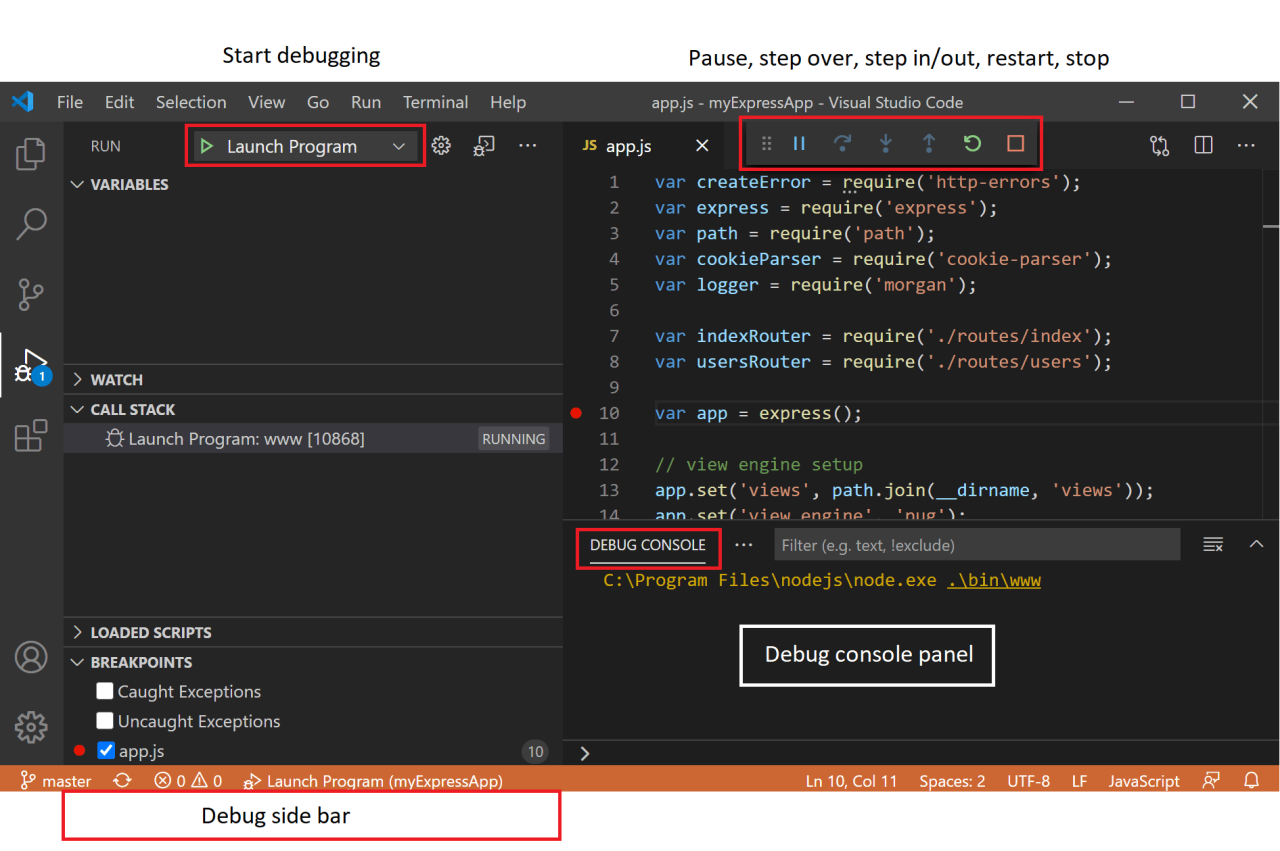
CSS layout issues are common challenges faced by developers when designing responsive and visually appealing web pages. Recognizing and diagnosing these problems accurately is essential to ensure a seamless user experience. Common layout problems can manifest as overlapping elements, unexpected spacing, or misaligned items, which disrupt the visual harmony of a website.
Most layout issues stem from underlying causes related to CSS properties and techniques. These include errors in the box model calculations, float clearing problems, or misconfigurations within Flexbox and Grid layouts. Understanding the typical patterns and visual symptoms of each problem enables developers to pinpoint the root causes efficiently and implement effective fixes.
Common CSS Layout Issues and Their Visual Symptoms
Below is an illustrative table detailing frequent CSS layout bugs, their visual symptoms, and typical causes. Recognizing these patterns can significantly streamline the debugging process.
| Layout Bug | Visual Symptoms | Likely Causes |
|---|---|---|
| Overlapping Elements | Multiple elements occupy the same space, causing visual clutter and readability issues. | Incorrect positioning, negative margins, or float clearing issues; also, absolute positioning without proper offsets. |
| Unexpected Spacing | Extra gaps or inconsistent margins appear between elements, disrupting the intended flow. | Margin collapsing, padding inconsistencies, or box-sizing errors. |
| Misaligned Items | Elements that should align horizontally or vertically appear shifted or uneven. | Flexbox or grid misconfigurations, improper use of align-items or justify-content, or floating elements not being cleared. |
| Collapsed Container Heights | containers appear shorter than their content, causing overflow or hidden content. | Floating children without clear fixes, or height not being explicitly set when needed. |
| Horizontal Scrollbars Appearing Unexpectedly | Page width exceeds viewport, causing horizontal scrollbars even when unnecessary. | Wide fixed widths, overflowing images, or margin/padding issues causing container overflow. |
| Grid or Flexbox Items Not Spacing Correctly | Items lack proper spacing or alignment within a layout grid or flex container. | Incorrect use of gap properties, or flex-grow, flex-shrink, and flex-basis settings not properly configured. |
Understanding these common issues and their typical visual manifestations is crucial in the step-by-step debugging process. By systematically analyzing the symptoms and correlating them with potential causes, developers can efficiently resolve layout problems, leading to more consistent and professional web designs.
Initial Assessment of the Layout Issue

Effectively diagnosing a CSS layout problem begins with a careful initial assessment. This step involves observing the specific visual or structural anomalies, accurately describing them, and gathering detailed information that will guide further troubleshooting efforts. A systematic approach ensures that the issue is understood clearly before diving into technical solutions, saving time and reducing guesswork.
During the initial assessment, focus on identifying the nature of the problem—whether it involves overlapping elements, unexpected spacing, misaligned components, or broken responsiveness. A precise description of what is wrong helps in formulating targeted questions and checking relevant CSS properties. Additionally, employing browser developer tools allows for a hands-on inspection of affected elements, revealing the underlying CSS rules and their interactions that may contribute to the problem.
Observing and Describing the Layout Problem
Clear observation involves noting the exact elements impacted, their position relative to other components, and any visual anomalies such as gaps, overlaps, or distortions. Describing these issues with specific details—like the affected element’s size, alignment, margin, padding, or flexbox/grid behavior—creates a comprehensive picture that guides troubleshooting.
- Document the visual symptoms, including how the layout deviates from the expected design. For example, “The sidebar overlaps the main content on mobile view” or “The header text is misaligned vertically.”
- Note whether the issue appears consistently across browsers or is browser-specific, which can indicate compatibility or rendering quirks.
- Identify if the problem occurs at specific viewport sizes, suggesting responsive design issues.
Inspecting Elements with Browser Developer Tools
Browser developer tools are essential for an in-depth technical examination. They allow inspecting the HTML structure, CSS rules applied, computed styles, and layout metrics. This process reveals conflicts or overrides in styles that may cause layout problems, enabling precise adjustments or fixes.
- Right-click on the affected element in the webpage and select “Inspect” or “Inspect Element” to open the developer tools panel.
- Use the element inspector to highlight the DOM node corresponding to the problematic layout. Verify the hierarchy and surrounding elements to understand contextual influences.
- Examine the Styles tab to review all CSS rules applied to the element. Check for conflicting rules, specificity issues, or overridden properties.
- Look at the Computed tab to see the final computed styles, including width, height, margin, padding, display, position, and flex or grid properties. This helps to understand how the browser is rendering the element based on the applied styles.
- Utilize the Layout or Box Model view in the developer tools to visualize margins, borders, padding, and content dimensions. This graphical representation aids in diagnosing spacing and sizing issues.
Capturing Evidence and Documenting CSS Properties
Gathering concrete evidence supports systematic troubleshooting and facilitates communication when seeking assistance. A well-organized approach involves capturing screenshots and noting relevant CSS properties that influence layout behavior.
Begin by taking high-resolution screenshots of the affected layout in different states or viewport sizes. Focus on visual anomalies, element positions, and how the layout responds to resizing. These images serve as visual references and can highlight persistent issues that might be overlooked in code.
Alongside screenshots, document CSS properties impacting layout, such as:
| CSS Property | Impact on Layout | Example Values |
|---|---|---|
| display | Controls element box type and layout context (block, inline, flex, grid) | display: flex; display: grid; display: block; |
| position | Defines element positioning strategy (static, relative, absolute, fixed) | position: relative; position: absolute; |
| margin | Controls external spacing around elements | margin: 10px; margin: auto; |
| padding | Manages internal spacing within elements | padding: 15px; |
| width / height | Sets element dimensions, affecting layout flow | width: 100%; height: auto; |
| flex properties (flex-grow, flex-shrink, flex-basis) | Dictate how flex items grow or shrink within a flex container | flex: 1 1 auto; |
| grid-template-columns / grid-template-rows | Defines grid structure for grid containers | grid-template-columns: 1fr 2fr; |
Accurate documentation of CSS rules and visual evidence is critical for pinpointing layout issues and effective troubleshooting.
Isolating the Problem Area
Effectively troubleshooting CSS layout issues requires a systematic approach to pinpoint the source of the problem. Isolating the problematic section of code helps to identify whether the layout discrepancy originates from specific styles, container elements, or interactions between nested components. This process minimizes guesswork and accelerates the debugging workflow, ensuring that changes are targeted and efficient.
By methodically reducing or disabling parts of the CSS and HTML, developers can observe how each modification impacts the layout. This step-by-step isolation enables a clearer understanding of the relationship between styles and structure, making it easier to locate conflicts or unintended inheritance that cause layout problems.
Procedure for Isolating the Problematic CSS
- Start by creating a simplified version of the page: Remove or comment out large blocks of CSS and HTML segments unrelated to the problematic area. Focus on the section where the layout issue is most apparent.
- Disable or comment out CSS rules progressively: Begin with broad selectors such as universal or container styles, then narrow down to specific classes or IDs. Observe how each change affects the layout.
- Use browser developer tools: Utilize the ‘Elements’ panel to disable individual styles or toggle classes to see their effects immediately. This interactive approach helps to quickly identify styles that influence layout behavior.
- Apply incremental code reduction: Gradually strip away or block parts of the code, checking layout after each change. If the layout stabilizes, the last disabled section likely contains the source of the problem.
- Test in different browsers: Since layout rendering can vary, verify the behavior across multiple browsers to determine if the issue is browser-specific or related to the code.
Determining the Source of the Layout Issue
Understanding whether the problem stems from parent containers, child elements, or external styles is crucial for targeted fixes. A structured approach involves examining the hierarchy and styles applied at each level, along with visualizing their interactions.
Gather information by inspecting the affected element in developer tools. Review computed styles, inherited properties, and the cascade order. This insight clarifies which rules are overriding others and where conflicts may exist.
In some cases, the issue originates from parent containers with restrictive properties such as overflow, flex, or grid settings that influence child elements. Alternatively, child elements may have conflicting margins, paddings, or positioning rules. External stylesheets or third-party libraries can also introduce unexpected styles that interfere with layout.
To systematically determine the source:
- Check the hierarchy of elements: Start from the outermost container inward, inspecting each element’s styles and layout behaviors.
- Disable external stylesheets temporarily: Confirm whether external or third-party styles cause the layout issues, especially when internal styles appear correct.
- Create a test HTML snippet: Isolate the problematic section in a minimal environment, gradually adding styles and elements until the issue reappears.
Impact Analysis Using HTML Code Segments
Organizing affected code into segments and analyzing their individual impact helps to isolate conflicting styles systematically. The following table exemplifies how different parts of code influence layout behavior:
| Code Segment | Description | Impact on Layout |
|---|---|---|
| <div class=”container”> … </div> | Parent container element that sets the overall layout context. | Controls overall width, alignment, and overflow behavior. Issues here can cascade to child elements. |
| <div class=”child”> … </div> | Child element within the container, often styled with margins, paddings, or positioning. | Directly affects positioning, spacing, and size. Conflicting styles here can cause overlaps or gaps. |
| <style> .specific-class … </style> | External or internal CSS rules targeting specific classes or IDs. | Overriding or conflicting rules can lead to unexpected layout behaviors, especially with specificity issues. |
| Inline styles | Direct style attributes within HTML tags. | High specificity; can override external styles, making them critical in layout troubleshooting. |
| External stylesheet links | Additional CSS files linked to the HTML document. | May contain global styles or resets affecting multiple elements, sometimes causing unintended layout shifts. |
Careful analysis of each segment’s styles and their cascade order is essential for pinpointing conflicts in complex layouts.
Inspecting CSS Styles and Computed Properties

After isolating the affected layout area, a crucial step in debugging CSS issues is examining the applied styles and their computed values. Browser developer tools provide a detailed view of how styles influence each element, enabling precise identification of conflicts, inheritance, and overrides that may cause layout anomalies.
Understanding how to access and interpret computed styles helps in diagnosing whether specific properties are contributing to the problem and whether there are unexpected styles overriding or inheriting values incorrectly. This process provides clarity about the final styling rendering within the browser, guiding targeted fixes.
Accessing and Interpreting Computed Styles
In most modern browsers, such as Chrome, Firefox, or Edge, developer tools can be opened using the F12 key or right-clicking an element and selecting “Inspect.” Within the inspector panel, selecting the element of interest reveals multiple tabs, including “Styles,” “Computed,” and “Layout.” The “Computed” tab displays the final calculated styles for the selected element, showing exactly what CSS properties the browser applies after considering all rules, inheritance, and overrides.
When examining computed styles, focus on key layout-related properties like width, height, margin, padding, border, display, position, top, left, right, bottom, flex properties, and box-sizing. The computed tab often presents values in pixels or other units, providing a clear understanding of how space is allocated and how elements are positioned.
Identifying Inherited Styles, Conflicting Rules, and Overridden Properties
In the inspector, styles are often listed with crossed-out rules indicating they have been overridden by more specific rules or later declarations. Recognizing these helps determine which styles are actively influencing the layout versus those that are ignored. Additionally, inherited styles from parent elements can unexpectedly affect child elements, sometimes leading to layout issues if not accounted for.
To distinguish these, review the cascade order and specificity of CSS rules. Styles from inline declarations, ID selectors, or !important rules take precedence over class or element selectors. The inspector visually indicates when a property is overridden, often by striking through the original rule or displaying which rule is active.
Common CSS properties to check for layout issues include:
- width
- height
- max-width, max-height
- min-width, min-height
- margin
- padding
- border
- display
- position
- top, right, bottom, left
- float
- clear
- flex-direction, justify-content, align-items
- box-sizing
- overflow
By systematically reviewing these properties within the computed styles, you can identify discrepancies or conflicts that lead to layout problems. Correcting or overriding problematic styles ensures the layout aligns with the intended design, providing a consistent and predictable appearance across different browsers and devices.
Debugging Layout with CSS Techniques
Effective CSS debugging involves applying targeted techniques to visually identify and isolate layout issues. By systematically experimenting with styles such as borders, backgrounds, and temporary overrides, developers can gain insights into how elements are rendered and how CSS rules interact. This process enhances the ability to pinpoint the root causes of layout problems and develop precise solutions.
Organizing debugging procedures through incremental CSS property changes allows for a clearer understanding of layout behavior. By methodically adjusting styles and observing the effects, developers can trace the influence of specific rules and identify conflicts or unintended overrides that may be causing layout inconsistencies.
Applying CSS Debugging Techniques
One of the most straightforward approaches to debugging layout issues is to add visual cues to elements, such as borders and background colors. These modifications make it easier to see element boundaries, stacking contexts, and overflow areas. Additionally, temporary style changes can be employed to test hypotheses about layout behavior without permanently altering the stylesheet.
- Adding Borders: Applying borders to elements helps delineate their exact size and position. For instance, setting
border: 1px solid red;on suspected containers or boxes highlights their edges, revealing overlaps or misalignments. - Using Background Colors: Assigning distinct background colors to elements makes it easier to distinguish nested components. For example, setting
background-color: rgba(255, 0, 0, 0.2);can be useful for overlaying translucent colors that do not obscure content while still revealing layout boundaries. - Temporary Style Overrides: Implementing inline styles or using browser developer tools to apply styles directly allows quick testing. For example, changing
display,position, orfloatproperties temporarily can reveal how layout shifts with different configurations.
Organizing Debugging Procedures with CSS Property Changes
Structured debugging involves methodically altering CSS properties and documenting their effects to identify the problematic rule or combination. Begin with minimal changes to isolate the issue, then progressively modify related styles to observe their influence on layout behavior. This organized approach reduces guesswork and accelerates troubleshooting.
Start with the most probable cause, such as float clearing or flex container settings, and test variations systematically. Keep track of each change and its impact to identify the precise source of the problem effectively.
For example, if an element is not aligning as expected, toggling properties like float, clear, flex, or grid-template-columns can reveal whether the issue stems from layout context or conflicting styles. Using browser dev tools to disable and re-enable styles helps visualize the effects instantly, providing invaluable insights.
Comparative Table of CSS Layout Methods
Different CSS layout techniques serve varying needs and come with unique advantages and limitations. Comparing float, flexbox, and grid helps determine the most appropriate approach for organizing complex or simple layouts.
| CSS Method | Control and Flexibility | Use Cases | Advantages | Limitations |
|---|---|---|---|---|
| Float | Basic, often requires clearfix for containment | Wrapping text around images, simple horizontal layouts | Widely supported, simple for basic tasks | Can cause collapsing parent containers, difficult vertical alignment, requires additional clearing techniques |
| Flexbox | High, offers flexible alignment and distribution | One-dimensional layouts: rows or columns, navigation bars, card layouts | Easy centering, space distribution, order control, responsive adjustments | Less suitable for complex grid-like structures, browser inconsistencies in older versions |
| Grid | Very high, ideal for two-dimensional layouts | Complex page layouts, dashboards, magazine-style designs | Precise placement, grid areas, overlapping items, responsive grid templates | Steeper learning curve, more verbose markup for intricate grids |
Correcting Common Layout Problems
Effectively resolving layout issues requires a systematic approach to identify and rectify common CSS problems that disrupt the visual structure of a webpage. Addressing these issues promptly ensures a consistent, professional appearance and enhances user experience. In this section, we focus on practical procedures for fixing typical layout problems such as clearing floats, adjusting flexbox alignments, and fixing grid gaps, along with best practices to prevent recurring issues.
Implementing corrective measures involves understanding the underlying CSS behaviors and applying targeted solutions. Below are key techniques and best practices that help maintain robust and predictable layouts across different browsers and devices.
Clearing Floats
Floats are frequently used for creating horizontal layouts, but they can cause parent containers to collapse if not properly cleared. Clearing floats is essential to ensure that containers correctly expand to encompass floated children, preserving the overall layout integrity.
- Use the Clearfix Hack: Apply a CSS class that uses the
::afterpseudo-element withcontent: "",display: table, andclear: both. This method creates a self-contained way to clear floats without adding extra markup. - Apply Overflow Property: Set
overflow: autooroverflow: hiddenon the container element. This approach triggers Block Formatting Context (BFC), which automatically clears floats inside. - Use the Clear Property: Add
clear: bothto an element immediately following floated elements to clear floats and prevent overlap.
Note: The clearfix method is preferred as it is cleaner and more maintainable, especially in complex layouts.
Adjusting Flexbox Alignments
Flexbox is powerful for creating flexible and responsive layouts; however, misalignments can occur if properties are not correctly applied. Fine-tuning alignments ensures that items within a flex container are positioned as intended.
- Align Items and Justify Content: Use
align-itemsto vertically align flex items andjustify-contentto control horizontal distribution. Values such ascenter,flex-start,flex-end,space-between, andspace-aroundhelp achieve precise alignment. - Handling Individual Item Alignment: Employ
align-selfon specific flex items to override container settings for targeted adjustments. - Managing Wrapping and Spacing: Use
flex-wrapto prevent overflow and control how items wrap, and add margins or gaps for spacing consistency.
Tip: Use the browser’s developer tools to visually inspect and tweak flex properties in real-time, facilitating quicker adjustments.
Fixing Grid Gaps
The CSS Grid layout provides precise control over row and column gaps, but improper gap settings can lead to unwanted spacing or overlaps. Correcting grid gaps involves adjusting the relevant CSS rules to achieve the desired spacing between grid items.
- Modify the
grid-gaporgapProperty: Set explicit values for row and column gaps to create uniform spacing. For example,gap: 20px 10px;specifies 20 pixels between rows and 10 pixels between columns. - Use
grid-template-rowsandgrid-template-columns: Define specific track sizes that accommodate content and spacing, preventing overlaps or excessive gaps. - Check for Overlapping Items: Ensure grid areas are correctly assigned and that items do not unintentionally span multiple tracks unless intended.
Note: Combining grid gap adjustments with flexible sizing units such as
frcan provide a more adaptable layout that adjusts to different screen sizes.
Best Practices for Managing Layout Issues
Preventing and resolving layout problems efficiently requires following established best practices. These guidelines promote cleaner code, easier maintenance, and consistent rendering across browsers.
- Use a Consistent Box Model: Apply
box-sizing: border-box;universally to simplify sizing calculations and prevent unexpected overflow or spacing issues. - Implement Responsive Design Principles: Utilize relative units like
%, vw, vh, rem, eminstead of fixed pixels to ensure layouts adapt to various screen sizes. - Leverage CSS Reset or Normalize: Use reset stylesheets to eliminate default browser inconsistencies that can cause layout discrepancies.
- Prefer Modern Layout Techniques: Use Flexbox and Grid over floats for more predictable and flexible layouts, reducing the likelihood of clearing issues.
- Maintain Clear Hierarchies and Modular CSS: Organize CSS rules logically and avoid overly specific selectors that can complicate debugging.
Common Problems and CSS Solutions Summary
| Common Layout Issue | Typical Cause | CSS Solution |
|---|---|---|
| Parent container collapsing when children are floated | Floats are not cleared | Apply clearfix method or overflow: auto; |
| Flex items not aligning properly vertically | Incorrect align-items or align-self properties |
Adjust align-items to center or appropriate value |
| Unequal or excessive gaps in CSS Grid | Improper gap or track sizing |
Set specific gap values and define track sizes explicitly |
| Overflowing content causing layout breakage | Fixed widths or inadequate container sizing | Use flexible units and box-sizing: border-box; |
Validating and Testing the Fixes
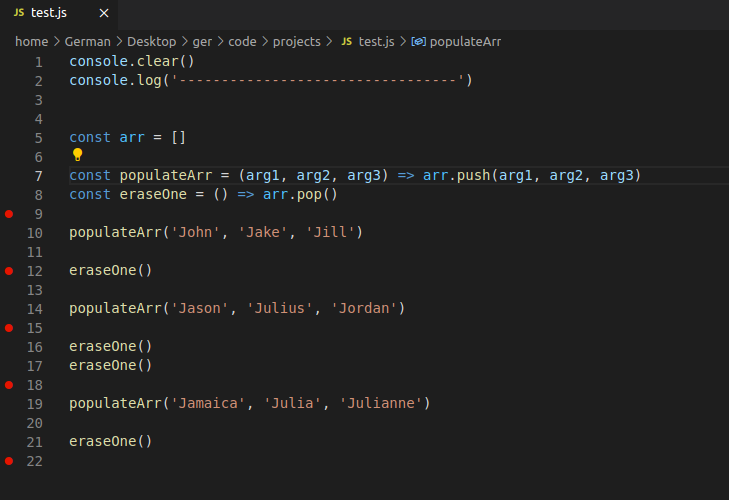
Ensuring that your CSS layout adjustments have resolved the issues is a critical step in the debugging process. Accurate validation across different environments guarantees a consistent user experience and maintains the integrity of your design. This phase involves systematic testing to confirm that the fixes hold true across various browsers, devices, and screen sizes, providing confidence in your solutions.Understanding how layout changes perform in different contexts helps identify unforeseen problems and ensures accessibility, responsiveness, and compatibility.
Proper validation minimizes the risk of layout breakage in future updates or when deploying to diverse user environments. Employing structured testing scenarios and documenting outcomes aids in maintaining quality standards and streamlining future troubleshooting efforts.
Cross-Browser and Cross-Device Testing Methodology
A comprehensive validation process requires testing across multiple browsers and devices. This approach reveals inconsistencies in CSS rendering and uncovers browser-specific quirks that may affect your layout. The testing process should include popular browsers such as Chrome, Firefox, Safari, Edge, and any legacy versions deemed necessary. Devices of different screen sizes—desktops, tablets, smartphones—must also be included to evaluate responsiveness. Emulators and real devices should both be used for thorough testing, with emulators providing quick preliminary insights, and real devices offering more accurate results.
Documenting any discrepancies helps prioritize fixes and adjust CSS rules accordingly.
Testing Responsiveness and Compatibility
Responsive testing verifies that layout elements adapt seamlessly to various screen dimensions, resolutions, and orientations. Compatibility testing ensures that CSS styles render correctly regardless of the browser or device used. In this context, employing a multi-column HTML table provides a clear overview of different test scenarios and their outcomes. This method enables a structured comparison and quick identification of issues.
For each test case, record the device or browser, screen resolution, viewport orientation, and the observed layout behavior. Additionally, note any anomalies such as overlapping elements, misalignments, or overflow issues.
| Test Scenario | Device / Browser | Screen Size / Resolution | Outcome | Remarks |
|---|---|---|---|---|
| Desktop Viewing | Google Chrome | 1920×1080 | Layout Correct | All elements aligned as intended, no overflow or wrapping issues |
| Tablet in Portrait | Safari on iPad | 768×1024 | Responsive Adjustment Valid | Navigation menu collapses appropriately, images resize correctly |
| Mobile Phone in Landscape | Chrome on Android | 1280×720 | Minor Overlap Detected | Some text overlaps due to fixed widths; requires media query adjustments |
| Legacy Browser Testing | Internet Explorer 11 | 1366×768 | Layout Breakage | Flexbox not supported fully; fallback styles needed |
| Small Screen Device | Firefox on Smartphone | 375×667 | Scrollbars Appear | Content extends beyond viewport; requires overflow control and media queries |
Effective validation involves methodical testing, detailed documentation, and iterative adjustments to ensure CSS fixes are robust across all target environments. Employing these practices enhances layout stability and user experience across a diverse array of devices and browsers.
Final Optimization and Documentation
Effective CSS debugging not only resolves current layout issues but also sets the stage for smoother future development. Ensuring your CSS code is optimized and well-documented enhances maintainability, collaboration, and efficiency when tackling similar problems down the line. This section explores strategies for optimizing CSS for future debugging and the importance of thorough documentation during the troubleshooting process.Optimizing CSS for future debugging involves structuring your stylesheets in a clear, logical manner.
Organized, modular CSS makes it easier to locate and modify specific rules, reducing the time spent hunting for problematic code. Additionally, minimizing redundant or conflicting styles prevents unexpected behaviors, streamlining the debugging process. Employing best practices such as commenting critical sections and using meaningful class names further simplifies future troubleshooting efforts.Thorough documentation during debugging provides a valuable record of changes made, reasoning behind adjustments, and results observed.
This documentation facilitates team collaboration by offering clarity and context in shared projects, preventing duplicate efforts and miscommunication. It also serves as a reference for similar issues in future projects, enabling faster resolution and knowledge transfer.
Optimizing CSS for Better Future Debugging
To optimize CSS for easier debugging in subsequent projects, consider adopting the following practices:
- Maintain a consistent and logical file structure that segments styles by components or layout sections.
- Use descriptive, semantic class and ID names that clearly convey their purpose, reducing guesswork when inspecting elements.
- Implement comments that explain complex or non-obvious style rules, especially those related to layout calculations or overrides.
- Employ CSS methodologies such as BEM (Block Element Modifier) or SMACSS (Scalable and Modular Architecture for CSS) to create predictable, reusable, and maintainable stylesheets.
- Utilize CSS variables (custom properties) for theme or layout constants, enabling quick updates and reducing errors.
- Regularly audit your CSS for unused or overly broad selectors that could cause unintended layout issues.
- Use CSS preprocessors like SASS or LESS to modularize and organize styles, making debugging more straightforward with nested and scoped rules.
A structured, well-commented, and modular CSS codebase minimizes confusion and expedites the debugging process, especially in larger projects.
Documenting Debugging Changes and Collaborating Effectively
Documentation during debugging should clearly capture the specific issues encountered, the steps taken to diagnose them, the changes implemented, and the outcomes. This practice creates a transparent history that benefits current and future team members by providing context and rationale, reducing redundant efforts.Key elements to include in debugging documentation:
- Issue Description: Summarize the layout problem, including affected elements and visual symptoms.
- Initial Assessment: Note your observations and potential causes identified during inspection.
- Steps Taken: Record each method used to isolate and analyze the problem, such as inspecting computed styles, disabling CSS rules, or testing responsive states.
- Applied Fixes: Detail the specific CSS adjustments made, including code snippets or references to style rules.
- Result Evaluation: Describe the visual and functional improvements, accompanied by screenshots or notes on residual issues.
- Lessons Learned: Highlight insights gained that could prevent similar issues or streamline future debugging.
Maintaining a change log or debugging report enhances team communication and ensures that valuable troubleshooting knowledge is preserved.
Sample HTML Table for Tracking Layout Issues
To systematically document and monitor layout problems and their resolutions, a structured table can be invaluable. Below is an example of a simple HTML table designed for tracking issues, applied fixes, and outcomes:
| Issue ID | Layout Issue Description | Initial Observation | Debugging Steps | Fix Applied | Result | Remarks |
|---|---|---|---|---|---|---|
| 001 | Header overlapping navigation menu on mobile view | Navigation items shift beneath the header | Inspected media queries, checked flex container properties | Added `flex-wrap: wrap` to navigation container in mobile breakpoint | Navigation items now flow correctly; overlap resolved | Ensured responsive behavior for all breakpoints |
| 002 | Sidebar not aligned with main content | Sidebar appears shifted to the right on desktop | Reviewed container widths, checked float and margin rules | Adjusted `margin` and `width` properties, set `box-sizing: border-box` globally | Alignment corrected; layout stable across browsers | Consistent box-sizing improved overall layout control |
This table provides a clear, organized way to track ongoing or recurring issues and ensures that solutions are documented for future reference, facilitating team collaboration and continuous improvement.
Final Thoughts
In conclusion, mastering how to debug CSS layout problems step by step equips you with the skills to troubleshoot effectively and achieve flawless designs. As you apply these techniques consistently, you’ll notice a significant improvement in your debugging efficiency and website quality. Remember, a systematic approach not only resolves issues faster but also deepens your understanding of CSS intricacies, leading to more robust and responsive layouts in all your projects.