Embarking on website updates or experimenting with new features can be a thrilling, yet sometimes daunting, endeavor. The prospect of potentially disrupting your live website can be a source of anxiety. Fortunately, the concept of a staging site provides a safe haven for testing and implementing changes without jeopardizing your online presence. This guide delves into the process of setting up a WordPress staging site within cPanel, a powerful control panel used by many web hosting providers.
We’ll explore the numerous advantages of using a staging environment, from plugin updates and theme modifications to content additions, all before they go live. You’ll learn how to navigate cPanel, create backups, and utilize the staging features to create a replica of your website. This allows you to test your changes, ensuring a smooth transition and minimizing the risk of errors.
We will also cover alternative methods if the cPanel feature isn’t available, along with important considerations and best practices.
Introduction to WordPress Staging Sites
A WordPress staging site is a critical tool for website owners and developers. It provides a safe and isolated environment to test changes, updates, and new features before they are deployed to the live website. This prevents potential errors, downtime, and data loss that can occur when making changes directly on a production site.
Benefits of Using a WordPress Staging Site
Using a staging site offers several advantages for maintaining and improving a WordPress website. These benefits significantly contribute to a smoother workflow and reduced risk.
- Risk Mitigation: A staging site allows for testing changes without affecting the live website’s functionality. This minimizes the risk of breaking the live site and ensures a consistent user experience.
- Error Prevention: Testing in a staging environment helps identify and resolve errors before they impact the live website. This can prevent customer complaints, loss of sales, and damage to the website’s reputation.
- Workflow Efficiency: Staging sites streamline the development process. Developers can work on new features and updates without disrupting the live site, allowing for continuous improvement and faster iteration cycles.
- Safe Testing of Plugins and Themes: Before installing a new plugin or theme, a staging site allows you to verify its compatibility and performance without risking the live website’s functionality.
- Collaboration: Staging sites facilitate collaboration among developers and content creators. They can work on different aspects of the website simultaneously in a controlled environment.
Tasks Best Performed on a Staging Site Before Going Live
A staging site is ideal for various tasks that involve changes to the website’s content, design, and functionality. Performing these tasks in a staging environment ensures a smooth transition to the live site.
- Plugin and Theme Updates: Testing updates for plugins and themes is crucial to ensure compatibility and prevent conflicts with the current website setup. A staging site allows you to perform these updates and check for any issues before deploying them to the live site.
- New Plugin Installation: Before installing a new plugin, test it on the staging site to verify its functionality, compatibility, and performance. This can help avoid potential issues that might arise on the live site.
- Theme Customization: Implementing design changes, such as customizing the theme’s appearance or modifying the website’s layout, should be done on a staging site. This allows you to experiment with different design elements without affecting the live website’s appearance.
- Content Updates: Before publishing new content, such as blog posts or product descriptions, test it on the staging site to ensure it displays correctly and is formatted properly. This helps avoid errors and ensures the content is ready for the live site.
- Code Modifications: Any custom code changes, such as adding new features or modifying existing functionality, should be tested on a staging site. This helps ensure the code works as intended and doesn’t cause any issues on the live site.
Potential Risks of Making Changes Directly on a Live Website
Making changes directly on a live WordPress website can expose the site to several risks, potentially leading to significant problems. Understanding these risks underscores the importance of using a staging site.
- Website Downtime: Incorrect code changes or plugin conflicts can cause the website to crash or become inaccessible to visitors. This results in lost revenue, damage to the website’s reputation, and a poor user experience.
- Data Loss: Errors during updates or modifications can lead to data loss, including content, user information, and website settings. This can be a significant setback, requiring time-consuming data recovery efforts.
- Security Vulnerabilities: Making changes directly on the live site can introduce security vulnerabilities if not handled carefully. This could lead to hacking, malware infections, and data breaches.
- User Experience Disruption: Changes that are not thoroughly tested can result in broken links, display errors, and other issues that disrupt the user experience. This can frustrate visitors and drive them away from the website.
- Impact: Website errors or downtime can negatively affect search engine rankings. This can lead to a decrease in organic traffic and a loss of visibility in search results.
Accessing cPanel and Preparing for Staging
To effectively create a WordPress staging site, the initial steps involve gaining access to your cPanel and preparing your existing website for the staging process. This preparation ensures a safe and efficient transition of your website’s data to a testing environment.
Logging into cPanel
Accessing your cPanel account is the first step in managing your website’s hosting environment. This is typically achieved through a web browser using specific credentials provided by your hosting provider.
The general steps to log in are as follows:
- Access the cPanel Login URL: Your hosting provider will provide a specific URL to access your cPanel. This URL typically includes your domain name followed by “/cpanel” (e.g.,
yourdomain.com/cpanel), or a subdomain likecpanel.yourdomain.com. Alternatively, you might receive a direct link in your welcome email from the hosting provider. - Enter Your Credentials: On the cPanel login page, you’ll be prompted to enter your username and password. These credentials are provided by your hosting provider during the account setup process.
- Authenticate and Access: After entering your credentials, click the “Login” button. If the credentials are correct, you will be redirected to your cPanel dashboard.
- Troubleshooting Login Issues: If you are unable to log in, verify that you are using the correct credentials. Contact your hosting provider’s support team for assistance if you have forgotten your password or have any other login-related issues.
Locating the File Manager
The File Manager is a crucial tool within cPanel, providing access to your website’s files and directories. It is used for tasks such as creating backups, uploading files, and managing website content.
The location of the File Manager within cPanel is typically straightforward:
- Access cPanel: Log in to your cPanel account using the steps described previously.
- Locate the “Files” Section: The cPanel dashboard is organized into sections, often represented by icons. Look for a section labeled “Files”.
- Click on “File Manager”: Within the “Files” section, you will find the “File Manager” icon. Click this icon to open the File Manager interface.
- Navigating the File Manager: Once inside the File Manager, you’ll see a directory structure representing your website’s file system. The “public_html” directory is typically where your main website files are stored.
Creating a Backup of Your WordPress Website
Creating a backup of your WordPress website is a critical step before setting up a staging site. This backup serves as a safety net, allowing you to restore your website to its original state if any issues arise during the staging process.
Backing up your website through cPanel involves the following steps:
- Access cPanel: Log in to your cPanel account.
- Navigate to the “Files” Section: Locate the “Files” section in your cPanel dashboard.
- Open the File Manager: Click on the “File Manager” icon within the “Files” section.
- Locate Your WordPress Files: In the File Manager, navigate to the directory where your WordPress files are stored. This is usually the “public_html” directory, or a subdirectory if your WordPress installation is in a subfolder.
- Select Your Files: Select all the files and folders related to your WordPress website. This can be done by clicking on the “Select All” option or manually selecting the files and folders.
- Compress the Files: Click on the “Compress” option from the top menu.
- Choose the Compression Type: In the compression dialog, choose a compression type, such as “Zip Archive”.
- Specify the Backup Location and Name: Specify a name and location for the backup file. It’s recommended to save the backup file in a separate directory outside of your website’s main directory for security reasons. For example, you could create a directory called “backups” in your home directory.
- Create the Backup: Click the “Compress Files” button to create the backup archive.
- Download the Backup: Once the backup is created, download the compressed file to your local computer. This ensures you have a local copy of your website’s files.
- Backup Your Database: Additionally, you need to back up your WordPress database. Navigate to the “Databases” section in your cPanel and select “phpMyAdmin”. Choose your WordPress database and export it. Ensure to save the SQL file locally.
Creating a Staging Site using cPanel’s Site Software
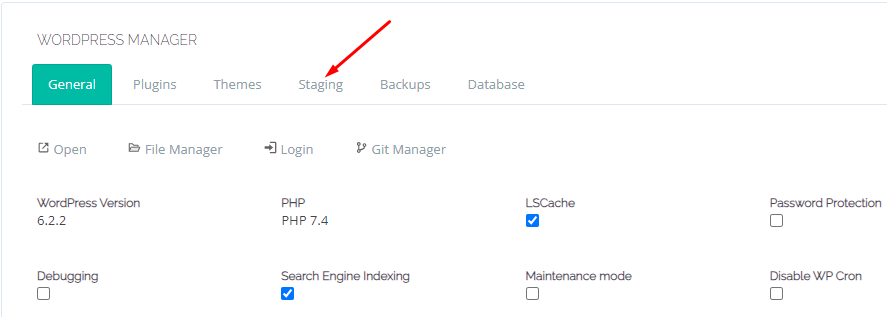
Now that you understand the purpose and benefits of a WordPress staging site and have accessed your cPanel, it’s time to create one. This section guides you through the process of using cPanel’s built-in staging feature. This feature simplifies the creation and management of staging environments directly from your hosting control panel.
Locating the “Staging” Feature within cPanel
Finding the staging feature in cPanel is straightforward. The location can vary slightly depending on your cPanel theme, but the core functionality remains the same.To locate the staging feature:
- Log in to your cPanel account using the credentials provided by your web hosting provider.
- Once logged in, look for a section labeled “Software” or a similar title. This section typically houses tools related to website management, including software installations and staging environments.
- Within the “Software” section, search for an icon or link labeled “WordPress Staging,” “Staging,” or something similar. The icon might depict a website with a ‘copy’ or ‘clone’ symbol.
- If you can’t find it immediately, use the cPanel search bar, usually located at the top of the page. Type “staging” into the search bar, and cPanel will highlight the relevant feature.
Demonstrating How to Select the WordPress Installation to Stage
After locating the staging feature, the next step is selecting the WordPress installation you wish to clone. cPanel’s staging tool typically presents a list of all WordPress installations detected on your account.To select a WordPress installation for staging:
- Click on the “WordPress Staging” or equivalent icon to launch the staging tool.
- The tool will display a list of your existing WordPress installations. This list usually includes the domain name, the installation path, and sometimes the version number.
- Identify the WordPress installation you want to create a staging site for.
- Click on the “Create Staging” or similar button associated with that specific WordPress installation. This action initiates the staging process, prompting you to configure the staging environment.
Creating a Step-by-Step Guide on Setting Up the Staging Environment
Setting up the staging environment involves configuring settings such as the staging site’s location and database. The exact steps may vary slightly depending on your cPanel’s specific implementation, but the general process remains consistent.Here’s a step-by-step guide:
- Choose a Staging Site Location: The tool will usually suggest a default location for your staging site, such as a subdomain (e.g., staging.yourdomain.com) or a directory within your main website’s root directory (e.g., yourdomain.com/staging). You can typically customize this location. It is advisable to use a subdomain for better organization and to prevent accidental changes to your live site files.
- Database Configuration (Optional): Some staging tools allow you to configure a separate database for the staging site. This is recommended to isolate the staging environment from your live site’s database. If prompted, you can usually accept the default settings or create a new database.
- Staging Site Name: The staging tool often asks for a name or label for your staging site. This name is for your internal use and helps you identify the staging environment in the cPanel interface.
- Initiate the Staging Process: After configuring the settings, click the “Create Staging” or similar button to start the cloning process. The tool will then copy your WordPress files and database to the designated staging location.
- Verification: Once the staging site is created, the tool will provide a link to access it. Click this link to verify that the staging site has been successfully created and that you can access the WordPress dashboard.
- Access the Staging Site Dashboard: The staging site will have its own WordPress dashboard. Log in using the same credentials as your live site. However, keep in mind that any changes made on the staging site will not affect your live site until you push them.
Configuring the Staging Site
After creating your WordPress staging site, the next crucial step involves configuration. This process allows you to tailor the staging environment to your specific needs, ensuring it accurately reflects the production site while providing a safe space for experimentation. Proper configuration is essential for avoiding conflicts and ensuring the integrity of your live website.
Choosing a Subdomain or Directory for Your Staging Site
The location of your staging site impacts its accessibility and how it interacts with your live website. cPanel offers the flexibility to place your staging site in either a subdomain or a subdirectory.Choosing a subdomain, such as `staging.yourdomain.com`, offers the benefit of isolating the staging site completely. This means it functions as a separate website, making it less likely to interfere with your live site’s settings or content.
This approach is often preferred for larger projects or when significant changes are planned.Choosing a subdirectory, such as `yourdomain.com/staging`, keeps the staging site within the same domain as your live site. This can be convenient for smaller projects or when testing changes that need to be immediately accessible within the existing domain structure. However, it’s important to be mindful of potential conflicts, particularly with permalinks and other site settings.
- Subdomain Advantages:
- Complete isolation from the live site.
- Easier to manage DNS settings separately.
- Ideal for significant testing and development.
- Subdirectory Advantages:
- Simpler setup, as it reuses the existing domain.
- Good for quick tests and minor adjustments.
- Easy access for testing changes within the existing site structure.
Modifying the Database Prefix for the Staging Site
One of the most critical configuration steps is modifying the database prefix. This setting is vital to prevent data conflicts between your staging and live sites. WordPress uses a database to store all of its content, settings, and user information. The database prefix identifies the tables that belong to your WordPress installation.By default, both your live and staging sites will likely have the same database prefix, usually `wp_`.
If you were to make changes in the staging site without changing the prefix, those changes could potentially overwrite data in your live site’s database when you push the staging site live.To avoid this, cPanel’s staging tool typically allows you to automatically generate a new database prefix, such as `wp_staging_`. This ensures that the staging site’s database tables are distinct from those of the live site.
This prevents accidental data loss or corruption during development and testing. You can usually find this setting during the staging site creation process within cPanel. The database prefix can also be modified manually, but this is more complex and prone to errors.
Implications of Changing the Staging Site’s URL
The URL of your staging site is a fundamental aspect of its configuration. The URL dictates how users and search engines will access your staging site. Changing the staging site’s URL has important implications, and it should be handled with care.When you create a staging site, the tool typically copies your live site’s URL. If you intend to use a subdomain or a subdirectory, you’ll need to adjust the staging site’s URL to reflect this change.
For example, if your live site is `yourdomain.com` and you are using a subdomain for staging, you would set the staging site’s URL to `staging.yourdomain.com`.Updating the URL is not simply a matter of changing the address in your browser. It also involves updating the WordPress database to reflect the new URL. WordPress stores the site’s URL in the database. If you don’t update this setting, your site might not function correctly, and images and links may break.
cPanel’s staging tool usually handles this automatically during the creation process. If you manually adjust the URL, you’ll need to update the `siteurl` and `home` options in the `wp_options` table of your staging site’s database.
Accessing and Managing the Staging Site
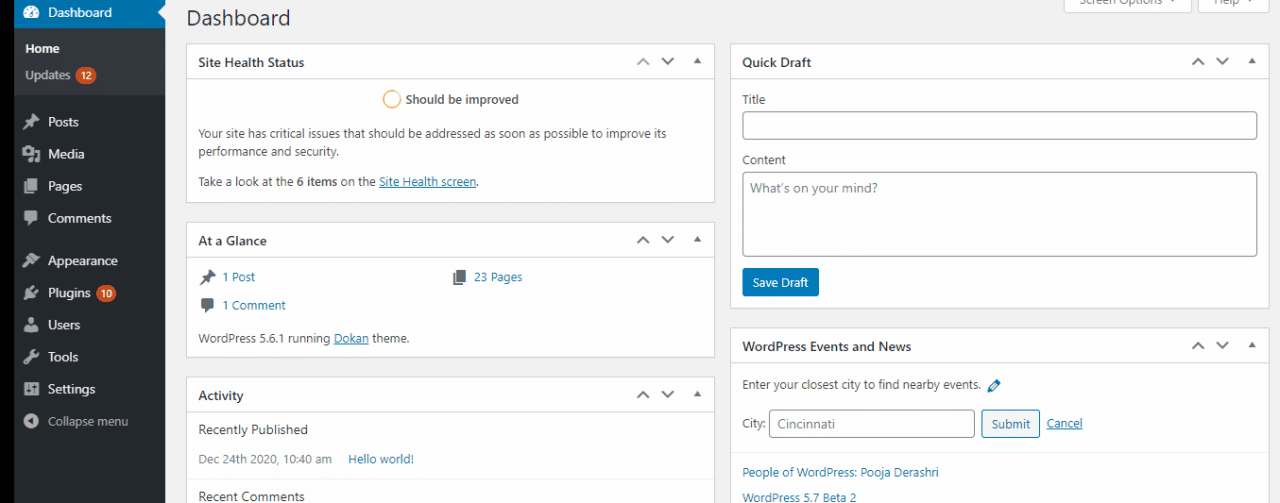
Now that your staging site is created and configured, the next crucial step is accessing and managing it effectively. This involves knowing how to reach the WordPress admin dashboard, distinguishing the staging site from the live site, and conducting thorough testing to ensure everything functions as expected before pushing changes live. This section will guide you through these essential management tasks.
Accessing the WordPress Admin Dashboard of the Staging Site
Accessing the WordPress admin dashboard of your staging site is similar to accessing the dashboard of your live site, but with a different URL. The staging site URL is typically a subdomain or subdirectory of your main domain, depending on how you set it up during the staging process.To access the admin dashboard:
- Navigate to the staging site’s URL in your web browser. This URL will be provided by cPanel or defined by you during the staging site creation process. For example, it might look like `staging.yourdomain.com` or `yourdomain.com/staging`.
- Append `/wp-admin` to the staging site’s URL. So, if your staging site URL is `staging.yourdomain.com`, the admin dashboard URL would be `staging.yourdomain.com/wp-admin`.
- Enter your WordPress administrator username and password. These are the same credentials you use for your live site, unless you changed them during the staging setup. If you did change them, use the new credentials.
- Log in to access the WordPress admin dashboard for your staging site.
Once logged in, you can begin making changes, installing plugins, updating themes, and testing your modifications within the staging environment. Remember that any changes made in the staging site do not affect your live site until you choose to deploy them.
Differentiating the Staging Site from the Live Site Visually
It is crucial to visually differentiate your staging site from your live site to avoid accidental changes to the live environment. Several methods can be employed to make this distinction clear and prevent potential errors.Here are some effective strategies:
- Using a Visual Indicator: Add a visual indicator, such as a prominent banner, a colored background, or a custom logo, to the staging site. This visual cue should be easily noticeable on every page. For instance, you could add a banner at the top or bottom of the site that says “STAGING SITE” in a bright color.
- Customizing the Admin Bar: Modify the WordPress admin bar to include a clear label identifying the site as a staging environment. This will be visible when you’re logged into the staging site’s admin dashboard. You can change the color of the admin bar or add a custom text to it.
- Altering the Favicon: Change the favicon (the small icon that appears in the browser tab) for the staging site. Use a different image or color to distinguish it from the live site’s favicon.
- Adding a Comment to the Footer: Include a comment in the footer of your staging site’s theme. This comment could state “This is a staging site – do not edit live site content here.” This provides a subtle reminder on every page.
By implementing these visual cues, you significantly reduce the risk of accidentally making changes to the live site while working on the staging environment. This can save you from potential errors and downtime.
Sharing Tips for Testing the Staging Site Thoroughly
Thorough testing is vital to ensure the changes made in the staging environment function correctly and do not introduce any issues when deployed to the live site. A well-defined testing strategy is essential.Here are key tips for comprehensive testing:
- Test Core Functionality: Verify that all core functionalities of your website, such as contact forms, user registration, e-commerce checkout processes, and search functionality, are working correctly.
- Check Responsiveness: Ensure that your website is responsive and displays correctly on different devices (desktops, tablets, and smartphones) and screen sizes. Use browser developer tools or online testing tools to simulate various devices.
- Review Plugin and Theme Compatibility: Check for compatibility issues between your new plugins and themes and the existing ones. Activate all plugins and themes on the staging site and thoroughly test their functionality. Pay close attention to any errors or conflicts.
- Examine Content Accuracy: Review all content, including text, images, and videos, to ensure it displays correctly and is free of errors. Check for broken links, typos, and formatting issues.
- Test Performance: Use tools like Google PageSpeed Insights or GTmetrix to test the performance of your staging site. Identify any performance bottlenecks and optimize your website for speed. Compare the staging site’s performance with your live site’s performance to identify areas for improvement.
- Simulate Real-World Scenarios: Test your website under different scenarios, such as high traffic, slow internet connections, and various browser types. This can help you identify potential issues that might arise in a real-world environment.
- Get Feedback: Ask colleagues, friends, or clients to review the staging site and provide feedback. Their fresh perspective can help you identify issues you might have missed.
- Document Testing Results: Keep a detailed record of your testing process, including the tests performed, the results, and any issues encountered. This documentation will be valuable for future reference and troubleshooting.
By following these testing tips, you can significantly increase the likelihood of a smooth deployment and minimize the risk of issues on your live website.
Making Changes on the Staging Site
The staging site serves as a safe environment for testing and implementing changes to your WordPress website before they go live. This allows you to experiment without risking the functionality or appearance of your live site. By making changes in a controlled environment, you can identify and resolve any issues before they impact your visitors.
Types of Changes
The staging site supports a wide range of modifications, mirroring the capabilities of your live WordPress installation. These changes can encompass various aspects of your website, from content updates to structural alterations.
- Plugin Updates: This involves updating existing plugins to the latest versions. New versions often include bug fixes, security patches, and new features.
- Theme Changes: This encompasses modifications to your current theme or switching to a completely new theme. Theme changes can dramatically alter your site’s visual appearance and functionality.
- Content Updates: This includes adding, editing, or deleting content such as posts, pages, images, and videos. Content updates are crucial for keeping your site fresh and engaging.
- Code Modifications: This involves making changes to the website’s code, including the theme’s `functions.php` file, custom CSS, or other code snippets. Code modifications can introduce new features, customize existing ones, or fix bugs.
- Database Changes: While less common directly on the staging site, database changes can sometimes be necessary, such as optimizing database tables or migrating data.
Common Tasks
A staging site is frequently used for several common tasks, allowing for safe and controlled experimentation.
- Plugin Updates and Testing: Updating plugins is a critical part of maintaining a secure and functional website. Before updating on the live site, you can update and test plugins on the staging site. This helps ensure compatibility with your theme and other plugins. For example, if a popular e-commerce plugin releases a new version, you would first update it on the staging site to ensure that the checkout process, product displays, and other related functionalities work as expected.
- Theme Customization and Design Changes: The staging site provides a perfect environment for making visual changes. You can customize your existing theme or preview a new one without affecting your live website’s appearance. For instance, you might want to experiment with different color schemes, layout adjustments, or font choices. If you are planning a complete redesign, you can build the new design on the staging site, test it thoroughly, and then deploy it to your live site when you are satisfied.
- Content Creation and Editing: You can create and edit content on the staging site, such as new blog posts, product descriptions, or landing pages. This allows you to prepare and proofread your content before publishing it on your live site. This is particularly useful for large content updates or when collaborating with a team of writers or editors.
- Testing New Features: If you’re planning to add new features to your website, such as a contact form, a membership system, or a new integration, you can test them on the staging site. This helps ensure that the new features function correctly and do not conflict with existing elements of your website.
Troubleshooting Potential Issues
Even in a staging environment, issues can arise. Troubleshooting on the staging site allows you to identify and resolve problems before they impact the live site.
- Check Error Logs: WordPress and your hosting provider typically maintain error logs that record any errors that occur on your website. Reviewing these logs can provide valuable clues about the cause of any issues. Look for error messages related to plugins, themes, or custom code.
- Deactivate Plugins: If you suspect a plugin is causing a problem, try deactivating it. If the issue disappears after deactivating a plugin, then that plugin is the likely cause.
- Switch to a Default Theme: Sometimes, the theme can cause issues. Switching to a default WordPress theme (such as Twenty Twenty-Three) can help determine if the problem is theme-related.
- Review Code Modifications: If you have made any code modifications, review them carefully for errors. Use a code editor with syntax highlighting to help identify potential issues. Consider commenting out sections of code to isolate the problem.
- Consult Documentation and Support: When troubleshooting, consult the documentation for the plugins, themes, or code you are using. Also, seek support from the developers or the WordPress community forums.
- Rollback Changes: If you are unable to resolve an issue, consider rolling back to a previous version of your website. You can restore your website from a backup.
Pushing Changes from Staging to Live
After meticulously testing and refining your WordPress website on the staging environment, the next crucial step is to push those changes to your live site. This process, often referred to as deploying or publishing, updates your live website with the modifications you’ve made in the staging area. It’s essential to perform this step with care to avoid data loss or site downtime.
Understanding the “Push to Live” Process
The “Push to Live” functionality within cPanel’s Site Software (or the specific staging tool used) facilitates the transfer of files and database changes from your staging site to your live site. This process generally involves copying the files, updating the database, and potentially clearing caches to ensure the live site reflects the staging environment accurately. The specifics of this process can vary slightly depending on the cPanel version and the particular staging tool employed.
Detailed Steps for Using “Push to Live” in cPanel
The “Push to Live” process typically involves the following steps, which should be executed with precision:
- Accessing the Staging Management Interface: Within cPanel, navigate to the Site Software section (or the specific staging tool). Locate the staging site you wish to push to live and find the relevant management options. This interface will often provide buttons or links related to pushing changes.
- Initiating the “Push to Live” Process: Click the “Push to Live” button (or a similar option). The system will likely prompt you with a confirmation message to verify that you understand the implications of this action. Read this message carefully.
- Selecting Files and Database Options: The tool may offer options to select which files and database tables to push. In most cases, you’ll want to push all files and database changes. Be cautious about excluding anything unless you have a specific reason. Review these options thoroughly before proceeding.
- Confirmation and Execution: After selecting your options, confirm your choices and initiate the push. The system will then begin copying files and updating the database. This process may take some time, depending on the size of your website and the number of changes.
- Verification: Once the process is complete, the system will typically provide a confirmation message. It is crucial to visit your live website and verify that the changes from the staging site have been successfully implemented. Check the functionality of your site, including all pages, forms, and features.
Addressing Potential Conflicts During the Push
Conflicts can arise when pushing changes from the staging site to the live site. These conflicts typically occur when changes have been made to the live site independently of the staging site. Understanding and resolving these conflicts is critical for a smooth deployment.
Potential conflict scenarios include:
- File Overwrites: If files have been modified on the live site since the staging site was created, pushing changes from staging will overwrite those modifications.
- Database Differences: Similarly, if the live database has been updated, pushing the staging database will overwrite the live database, potentially losing data.
- Plugin or Theme Updates: If plugins or themes have been updated on the live site, pushing from staging could revert them to older versions.
Resolving these conflicts often involves the following strategies:
- Backups: Always create a backup of your live site’s files and database before pushing changes from staging. This allows you to revert to the previous state if something goes wrong.
- Reviewing Changes: Before pushing, carefully review the changes made on both the staging and live sites. Identify any potential conflicts.
- Merging Changes: In some cases, you might need to manually merge changes. This could involve comparing files and databases and selectively copying or integrating modifications.
- Database Synchronization Tools: For more complex scenarios, consider using specialized database synchronization tools to merge changes from both databases.
- Maintenance Mode: Consider putting your live site into maintenance mode during the push process to prevent users from accessing an incomplete or inconsistent version of the site.
It’s important to note that the specific methods for resolving conflicts depend on the nature of the changes and the tools available. In some cases, it may be necessary to manually update the live site to reflect the changes made on the staging site.
Careful planning, thorough testing, and regular backups are essential for a successful “Push to Live” process and to minimize the risk of conflicts and downtime.
Alternative Methods: Manual Staging (If cPanel Feature Unavailable)
While cPanel’s built-in staging feature simplifies the process, it’s not always available. In such cases, creating a WordPress staging site manually is a viable alternative. This method provides full control over the staging environment, albeit with a slightly more involved setup process.
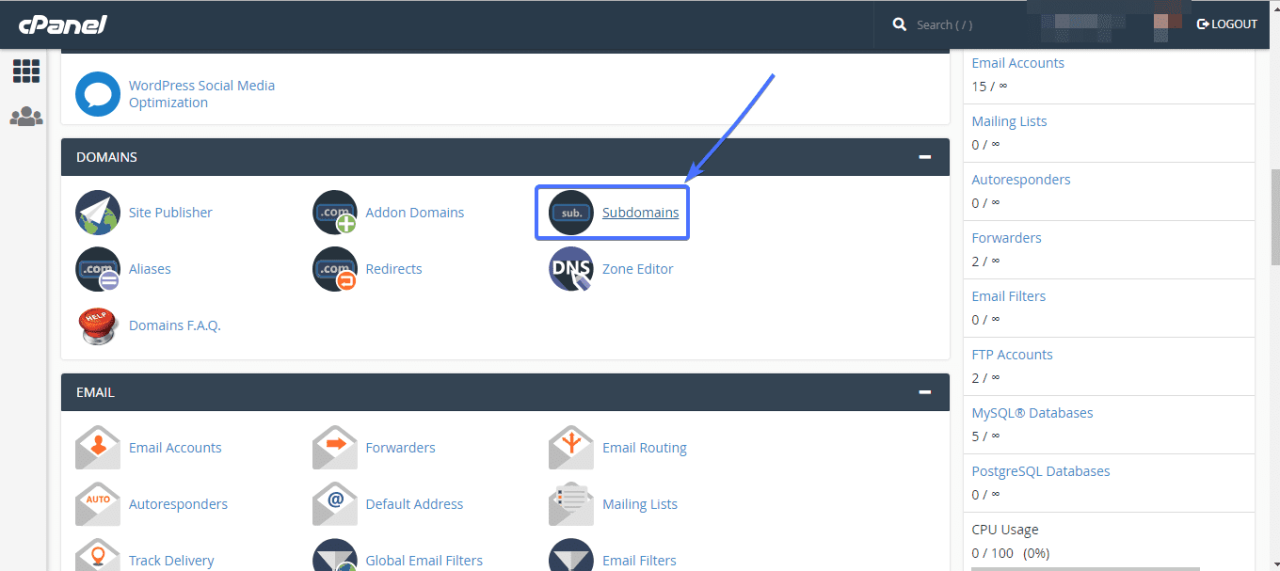
If the cPanel staging tool is unavailable, manual staging becomes necessary. This approach leverages file management and database tools to replicate the live site.
Duplicating WordPress Files
Replicating the WordPress files is the initial step in creating a manual staging site. This involves copying all the core WordPress files, themes, plugins, and uploads to a new location.
The following steps Artikel the process:
- Access cPanel File Manager: Log in to your cPanel account and navigate to the File Manager. This tool allows you to manage files and directories on your web server.
- Locate the WordPress Installation: Within the File Manager, find the directory where your WordPress site is installed. This is typically the `public_html` directory or a subdirectory within it.
- Create a New Directory for the Staging Site: Create a new directory within the same location as your WordPress installation. Name this directory something descriptive, such as `staging`, `test`, or `development`. This will be the location of your staging site files.
- Copy WordPress Files: Select all the files and folders within your WordPress installation directory (e.g., `public_html`). Then, copy them to the newly created staging directory (e.g., `public_html/staging`). This can usually be done by right-clicking and selecting “Copy” or using the “Copy” button in the File Manager.
- Edit the `wp-config.php` File: Within the staging directory, locate the `wp-config.php` file. Open this file in the File Manager’s code editor or download it, edit it locally, and then upload it back. Modify the following settings to differentiate the staging site from the live site:
- Database Credentials: Change the database name, database user, and database password to point to a new, separate database for the staging site.
This prevents any changes on the staging site from affecting your live site’s data. You will need to create a new database for this purpose.
- Site URL and Home URL: Change the `WP_SITEURL` and `WP_HOME` constants to reflect the staging site’s URL. For example, if your live site is `www.example.com`, and your staging site will be located at `www.example.com/staging`, these constants should be set accordingly.
- Define WP_DEBUG: Consider setting `WP_DEBUG` to `true` in the `wp-config.php` file for the staging site. This enables debugging mode, which can help identify and resolve issues during development.
- Database Credentials: Change the database name, database user, and database password to point to a new, separate database for the staging site.
By following these steps, the WordPress files are successfully duplicated, creating a foundation for the staging environment.
Duplicating the WordPress Database
Along with the files, the WordPress database must also be duplicated to ensure the staging site contains the same content and settings as the live site. This process involves exporting the live site’s database and importing it into a new database created for the staging site.
The following process Artikels the steps involved in duplicating the database:
- Access cPanel’s phpMyAdmin: In your cPanel, locate and open phpMyAdmin. This tool allows you to manage your databases.
- Select the Live Site’s Database: In phpMyAdmin, select the database associated with your live WordPress site. This is the database you identified in your `wp-config.php` file.
- Export the Database: Click the “Export” tab. Choose the “Custom” export method for more control. Select all tables. Under the “Format” section, choose “SQL”. In the “Output” section, select “Save output to a file”.
Click “Go” to start the export process. This will generate an SQL file containing all the data and structure of your live site’s database.
- Create a New Database for the Staging Site: In cPanel, create a new MySQL database. Note the database name, username, and password, as these will be needed in the next step.
- Import the Database into the New Database: In phpMyAdmin, select the new database you just created for the staging site. Click the “Import” tab. Click the “Choose File” button and select the SQL file you exported in step 3. Click “Go” to import the data into the new database. This will populate the new database with the data from your live site.
- Update Database Credentials in `wp-config.php`: As mentioned in the previous section, ensure the `wp-config.php` file in your staging site’s directory points to the new database you created in step 4. This step is crucial to connect the staging site to the correct database.
By successfully completing these steps, the database for the staging site is created and populated with the same data as the live site, which is vital for creating a functional staging environment.
Using Plugins for Staging
Creating a staging site manually or using cPanel can sometimes be complex, especially for those less familiar with server configurations. WordPress plugins offer a user-friendly alternative, simplifying the staging process and providing additional features. These plugins streamline the workflow, allowing users to create, manage, and deploy staging sites directly from their WordPress dashboard.
Using dedicated plugins for staging simplifies the process significantly, offering an intuitive interface and often automating many of the steps involved in creating and managing a staging environment. This approach reduces the risk of errors and provides a more accessible experience for all users.
Popular WordPress Plugins for Staging Sites
Several WordPress plugins specialize in creating staging environments. These plugins vary in features, pricing, and ease of use. Some of the most popular include:
- WP Staging: A widely used plugin known for its speed and ease of use. It allows users to clone their entire website or specific parts.
- Duplicator: Primarily a migration and backup plugin, Duplicator also offers staging capabilities, enabling users to create a copy of their site for testing.
- All-in-One WP Migration: Another popular migration plugin that includes staging features, making it easy to move your site to a staging environment.
Comparing Features of Staging Plugins
Choosing the right staging plugin depends on individual needs and preferences. The following table compares key features of WP Staging, Duplicator, and All-in-One WP Migration to help you make an informed decision.
| Feature | WP Staging | Duplicator | All-in-One WP Migration |
|---|---|---|---|
| Staging Site Creation | Creates a complete clone of the site in a staging area. | Creates a package of the entire site, which can be used to create a staging site. | Creates a complete clone of the site in a staging area. |
| Database Cloning | Clones the entire database. | Clones the entire database. | Clones the entire database. |
| File Cloning | Clones all website files. | Creates a package of all website files. | Clones all website files. |
| Pushing Changes to Live | Allows pushing of specific changes or the entire site. | Requires manual transfer of files and database changes. | Allows pushing of the entire site. |
| Exclusion Options | Allows excluding specific files or database tables. | Allows excluding specific files or database tables. | Allows excluding specific files or database tables. |
| Ease of Use | Generally considered very user-friendly. | Requires some technical knowledge for full functionality. | User-friendly with a straightforward interface. |
| Pricing | Offers a free version with limited features; premium versions available. | Offers a free version with limited features; premium versions available. | Offers a free version with limited features; premium versions available. |
Important Considerations and Best Practices
Working with WordPress staging sites is a powerful way to safely test changes before deploying them to your live website. However, it’s crucial to approach this process with care and attention to detail. This section Artikels important considerations and best practices to ensure a smooth and successful staging experience.
Backing Up Live and Staging Sites
Backups are the cornerstone of any website management strategy. Regular backups of both your live and staging sites are essential to protect your data and minimize potential downtime.
The following points highlight the importance of backing up both live and staging sites:
- Live Site Backups: Your live site contains the current version of your website, including all content, themes, plugins, and database information. Backing up your live site allows you to restore your website to its previous state in case of any issues, such as a hacking attempt, plugin conflict, or accidental data loss. Consider automated backup solutions that run daily or weekly, depending on how frequently you update your site.
- Staging Site Backups: While the staging site is a testing environment, it’s equally important to back it up. Before making significant changes or testing new plugins, create a backup of your staging site. This allows you to revert to a known good state if something goes wrong during testing. Backups also serve as a safety net if you accidentally corrupt the staging site.
- Backup Strategies: Implement a comprehensive backup strategy that includes both full and incremental backups. Full backups create a complete copy of your website, while incremental backups only save changes since the last backup. Store your backups in a secure, offsite location to protect against data loss due to server failures or other unforeseen events. Consider using a dedicated backup plugin or service.
- Testing Backups: Regularly test your backups to ensure they are working correctly. Restore a backup to a separate environment (e.g., a local development environment) to verify that you can successfully recover your website. This will help you identify and address any issues with your backup process before a real disaster occurs.
Optimizing the Staging Site for Performance
A slow staging site can hinder your testing process and lead to inaccurate results. Optimizing your staging site for performance ensures that you can efficiently test changes and identify any performance bottlenecks.
Here are some tips for optimizing your staging site for performance:
- Choose a Hosting Environment: The hosting environment for your staging site should closely mirror your live site’s hosting. If possible, use the same server configuration and resources. This ensures that the performance of your staging site accurately reflects the performance of your live site.
- Database Optimization: Optimize your database by removing unnecessary data, such as old revisions, spam comments, and transient options. Use a database optimization plugin to automate this process. This reduces the database size and improves query performance.
- Caching: Implement caching on your staging site to improve page load times. Use a caching plugin like WP Rocket or W3 Total Cache. Configure the caching settings to match your live site’s configuration. Caching stores static versions of your pages, reducing the load on your server.
- Image Optimization: Optimize images on your staging site to reduce file sizes and improve page load times. Use an image optimization plugin to compress images and convert them to web-friendly formats. Consider using a content delivery network (CDN) to serve images from a geographically distributed network of servers.
- Disable Non-Essential Plugins: Temporarily disable any non-essential plugins on your staging site that are not directly related to the changes you are testing. This reduces the load on your server and helps isolate any performance issues.
- Monitor Performance: Use performance monitoring tools, such as Google PageSpeed Insights or GTmetrix, to measure the performance of your staging site. Regularly monitor page load times, server response times, and other performance metrics. This will help you identify any performance bottlenecks and track the impact of your optimizations.
Common Mistakes to Avoid When Working with Staging Sites
Avoiding common mistakes can save you time, frustration, and potential website issues.
The following list presents some common pitfalls to avoid when working with staging sites:
- Not Backing Up: Failing to back up both your live and staging sites is a critical mistake. Backups are your safety net, allowing you to recover from errors and data loss. Always back up before making changes and regularly.
- Testing on Live Site: Never make changes directly to your live site without testing them on a staging site first. This can lead to broken functionality, data loss, and a negative user experience. The staging site is your sandbox for experimentation.
- Ignoring Security: Staging sites can be vulnerable if not properly secured. Secure your staging site by using strong passwords, keeping your WordPress core, themes, and plugins updated, and using a security plugin. Ensure the staging site is not accessible to search engines to prevent duplicate content issues.
- Pushing Without Testing: Always thoroughly test changes on the staging site before pushing them to your live site. Test all functionality, including forms, e-commerce features, and user logins. Verify that all content and design elements display correctly.
- Overlooking Database Considerations: When pushing changes from staging to live, ensure you handle the database correctly. Consider whether you need to merge, replace, or selectively update database tables. Be cautious about overwriting the live database with the staging database, especially if there are user-generated content or recent orders.
- Forgetting to Disable Plugins/Features: Some plugins or features that are enabled on your staging site might not be intended for your live site (e.g., debugging tools, development plugins). Remember to disable or remove these before pushing changes.
- Not Using a Version Control System: For complex projects, consider using a version control system (e.g., Git) to track changes and manage your staging and live environments. This allows you to easily revert to previous versions and collaborate with other developers.
- Insufficient Testing: Rushing the testing process is a common mistake. Thoroughly test all aspects of your website on the staging site before deploying changes to live. This includes testing on different devices and browsers.
- Not Addressing Redirects: If you make changes to URLs or permalinks on your staging site, ensure you set up appropriate redirects when pushing changes to live. This prevents broken links and ensures users are directed to the correct pages.
- Neglecting Performance: Ignoring performance on your staging site can lead to inaccurate testing results. Optimize your staging site for performance to ensure that you accurately measure the impact of your changes.
Troubleshooting Common Issues
Setting up a WordPress staging site, while generally straightforward, can sometimes present challenges. Understanding common errors and how to resolve them is crucial for a smooth staging process and a successful transition of changes to your live site. This section addresses some of the most frequent issues encountered and provides practical solutions.
Resolving Database Connection Errors
Database connection errors are a frequent hurdle during staging site setup. These errors prevent your staging site from accessing the database, leading to a non-functional website.
The primary causes of database connection errors include:
- Incorrect database credentials (username, password, database name).
- Incorrect database host.
- Database server downtime or issues.
- Firewall restrictions blocking access to the database server.
To resolve database connection errors:
- Verify Database Credentials: Double-check the database username, password, and database name used in your staging site’s
wp-config.phpfile. These credentials must match the database created for the staging site. Incorrect credentials are the most common source of these errors. - Check Database Host: Ensure the database host specified in
wp-config.phpis correct. This is often “localhost,” but it might be different depending on your hosting provider. If unsure, consult your hosting provider’s documentation or support. - Confirm Database Server Availability: Check with your hosting provider to ensure the database server is operational. Server downtime or issues can temporarily disrupt database connections.
- Review Firewall Rules: Review your server’s firewall rules (if applicable) to ensure they aren’t blocking access to the database server from your staging site. Your hosting provider can assist with this.
- Repair Database Tables: Sometimes, database tables can become corrupted. You can attempt to repair them by adding the following line to your
wp-config.phpfile:
define(‘WP_ALLOW_REPAIR’, true);
Then, access the database repair tool at
http://yourstagingdomain.com/wp-admin/maint/repair.php(replace `yourstagingdomain.com` with your actual staging site domain). Remember to remove this line fromwp-config.phpafter the repair.
Troubleshooting Permalinks and URL Conflicts
Permalinks and URL conflicts can arise when setting up a staging site, potentially leading to broken links, incorrect content display, and issues. These problems usually stem from the staging site inheriting the live site’s URL settings.
Common issues and solutions include:
- Incorrect Site URL and Home URL: WordPress stores the site URL and home URL in the database. These URLs should be updated to reflect the staging site’s domain (e.g., `staging.yourdomain.com`) to avoid conflicts with the live site.
- .htaccess File Conflicts: The `.htaccess` file, which controls permalink structure, might need adjustment to match the staging site’s configuration.
To troubleshoot permalinks and URL conflicts:
- Update WordPress URLs: Log in to your staging site’s WordPress admin dashboard. Go to
Settings > Generaland ensure the “WordPress Address (URL)” and “Site Address (URL)” fields are set to your staging site’s domain (e.g., `http://staging.yourdomain.com`). - Regenerate Permalinks: In the WordPress admin dashboard, go to
Settings > Permalinks. Without making any changes, simply click the “Save Changes” button. This action regenerates the `.htaccess` file and ensures permalink structure is correctly applied. This is essential after changing the site URL. - Verify .htaccess File: Access your staging site’s `.htaccess` file (usually located in the root directory of your staging site). Verify that it contains the correct WordPress permalink rules. These rules typically start with “RewriteEngine On” and define how URLs are rewritten. Ensure these rules are appropriate for your staging site’s domain and permalink structure.
- Database Search and Replace: If you’ve copied the entire database from your live site, you might need to perform a search and replace operation to update all instances of your live site’s URL to your staging site’s URL within the database. This ensures all internal links, image paths, and other references are correctly updated. Use a plugin like “Better Search Replace” or a database management tool like phpMyAdmin to perform this task carefully.
Incorrect execution of this process can lead to site malfunction. Before performing a search and replace, always back up your staging site’s database.
Security Considerations for Staging Sites
Securing your WordPress staging site is paramount. A compromised staging environment can lead to significant risks, including data breaches, penalties, and reputational damage. Because the staging site often mirrors the live site’s configuration, including sensitive information like database credentials and plugin configurations, any vulnerability can be exploited to access or manipulate the live site. This section provides crucial recommendations for protecting your staging site.
Password Protection and Access Control
Implementing robust password protection and access control mechanisms is essential for securing your staging site. This limits unauthorized access and potential malicious activities.
- Password Protection: Employ strong, unique passwords for both the cPanel account and the WordPress admin panel. Consider using a password manager to generate and securely store these credentials. A strong password should be at least 12 characters long and include a mix of uppercase and lowercase letters, numbers, and symbols.
- Directory Protection: Utilize cPanel’s directory privacy feature to password-protect the entire staging site directory. This adds an extra layer of security, requiring users to enter a username and password before accessing any files or content.
- IP Address Restrictions: If you have a static IP address, restrict access to the staging site to only your IP address. This significantly reduces the attack surface by preventing access from unknown sources. This can be done in cPanel’s “IP Deny Manager” or through `.htaccess` file configuration.
- User Role Management: Within the WordPress admin panel, carefully manage user roles and permissions. Only grant necessary access levels to each user. For example, assign the “Editor” role to content creators and the “Administrator” role only to trusted individuals who require full control.
Preventing Indexing by Search Engines
Preventing search engines from indexing your staging site is crucial to avoid duplicate content issues and potential penalties. Indexing the staging site can dilute the live site’s search engine rankings.
- Robots.txt File: Create a `robots.txt` file in the root directory of your staging site. This file instructs search engine crawlers on which parts of your site to index. Add the following directives to prevent indexing:
User-agent:
–
Disallow: /This directive tells all web crawlers not to index any content on your staging site.
- Meta Robots Tag: Add a ` ` tag to the `` section of your staging site’s `index.php` or `header.php` file. This tag explicitly instructs search engines not to index the page and not to follow any links on the page.
- .htaccess File (Apache Servers): If you are using an Apache web server, you can also use the `.htaccess` file to prevent indexing. Add the following code snippet to your `.htaccess` file in the staging site’s root directory:
Header set X-Robots-Tag “noindex, nofollow”
- WordPress Settings: Within the WordPress admin panel, navigate to “Settings” -> “Reading.” Ensure that the “Search Engine Visibility” option is checked. This option discourages search engines from indexing your site.
Post-Push Actions and Verification
After successfully pushing changes from your WordPress staging site to your live site, it’s crucial to verify that the process was successful and that your website is functioning as expected. This involves several steps to ensure a smooth transition and minimize any potential disruptions.
Verifying Successful Push
It’s essential to confirm that the changes made on your staging site have been correctly transferred to your live site. This process involves checking both the front-end and back-end of your website.
- Front-End Verification: The front-end refers to what your website visitors see.
- Homepage Check: Visit your live website’s homepage and confirm that the changes you made, such as new content, design updates, or structural modifications, are visible.
- Navigation Testing: Click through the main navigation menu to ensure all pages and links are working correctly.
- Content Validation: Check key pages, such as your “About Us,” “Contact,” and blog posts, to verify that the updated content has been correctly published.
- Responsive Design Test: Use different devices (desktop, tablet, and mobile) or browser resizing to test responsiveness and ensure the website displays correctly across various screen sizes.
- Back-End Verification: The back-end refers to the WordPress admin dashboard.
- Login Check: Log into your WordPress admin dashboard using your credentials.
- Plugin and Theme Verification: Check that all plugins and themes are activated and functioning as expected. Verify that any plugin settings or configurations have been retained.
- Database Check: Confirm that any database changes, such as new posts, updated user roles, or other database modifications, have been successfully pushed to the live site. You can often view these in the WordPress admin area or through tools like phpMyAdmin.
- Media Library Review: Verify that all new images, videos, and other media files uploaded on the staging site are now present in the live site’s media library.
Clearing Cache After Pushing Changes
Caching can significantly speed up website loading times, but it can also cause issues after pushing changes from staging to live. Cached versions of your website may display old content, even after the updates have been made. Clearing the cache ensures that visitors see the latest version of your site.
- WordPress Caching Plugins: If you use a caching plugin (e.g., WP Rocket, W3 Total Cache, or LiteSpeed Cache), clear the plugin’s cache from the plugin’s settings within the WordPress admin dashboard. The exact method varies depending on the plugin.
- Server-Side Caching: If your web host offers server-side caching (e.g., Varnish or Memcached), clear the cache from your hosting control panel (cPanel or similar). Consult your hosting provider’s documentation for specific instructions.
- Browser Cache: Instruct your website visitors to clear their browser cache to ensure they see the latest version of the site. You can provide instructions on your website or in a post-push announcement. Browser cache clearing instructions vary by browser; for example, in Chrome, you can clear the cache by going to “More tools” -> “Clear browsing data”.
- CDN Cache (if applicable): If you use a Content Delivery Network (CDN) like Cloudflare or Sucuri, clear the CDN cache from your CDN provider’s dashboard. CDN caches store copies of your website’s content on servers around the world, so clearing the cache ensures that the updated content is served to visitors globally.
Reverting to a Previous Version
Despite careful planning and testing, problems can sometimes arise after pushing changes to your live site. In such cases, it’s crucial to have a plan to revert to a previous, stable version of your website to minimize downtime and disruption.
- Using Backups: The most reliable way to revert is by restoring a backup of your live site from before the push.
- Regular Backups: Ensure you have regular backups of your website. Most web hosting providers offer automated backup solutions, and you can also use WordPress backup plugins (e.g., UpdraftPlus, BackupBuddy).
- Backup Location: Keep your backups in a secure location, preferably off-site, to protect against data loss.
- Restoration Process: Use your backup plugin or hosting control panel to restore the backup. The restoration process typically involves uploading the backup files and following the plugin’s or host’s instructions.
- Database Rollback (If applicable): If the issue stems from database changes, some database management tools allow you to roll back to a previous database state. However, this requires careful planning and expertise. This option depends on the database tools available and the extent of the changes.
- Manual Reversion (If backups are unavailable or insufficient): If backups are unavailable or insufficient, you might have to manually revert changes by:
- Identifying the problematic changes: Carefully analyze the changes made on the staging site to pinpoint the source of the issue.
- Undoing the changes: Revert the changes through the WordPress admin dashboard or by editing files via FTP or your hosting’s file manager.
Illustrative Examples
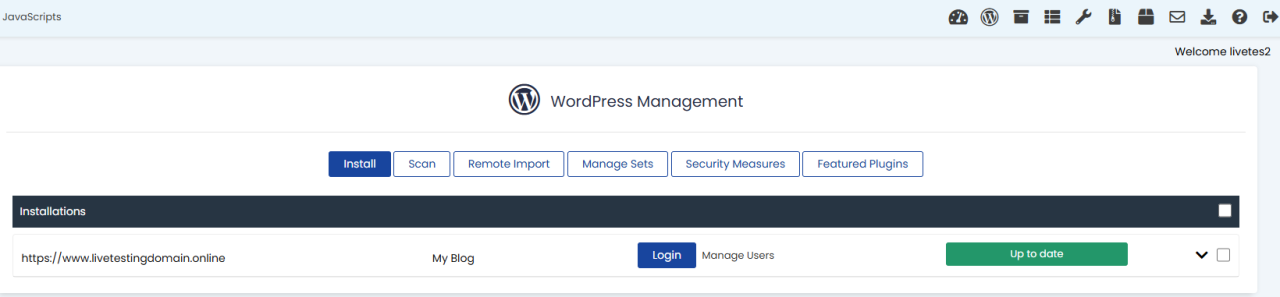
Staging sites are invaluable for testing changes without affecting the live website. The following examples demonstrate practical applications of staging sites, covering plugin updates, theme modifications, and new content creation, along with the process of pushing these changes to the live site.
Understanding these examples is crucial for effectively utilizing a staging environment and minimizing the risk of website disruptions. Each scenario Artikels the steps involved and highlights best practices for a smooth transition from staging to live.
Updating a Plugin on a Staging Site and Pushing Changes to Live
Updating plugins is a common task, and a staging site provides a safe environment to test compatibility and functionality. Here’s a step-by-step guide:
Before updating plugins on a staging site, it’s important to have a backup of both the staging and live sites. This ensures data recovery in case of unexpected issues.
- Access the Staging Site: Log in to your WordPress staging site’s admin dashboard.
- Identify Plugins for Update: Navigate to the “Plugins” section in the WordPress dashboard. Identify plugins that have updates available.
- Update the Plugin: Click the “Update Now” link next to the plugin you wish to update. WordPress will automatically download and install the latest version of the plugin.
- Test the Plugin: After updating, thoroughly test the plugin’s functionality. Check for any broken features, compatibility issues, or error messages. Review the plugin’s settings and ensure they are configured correctly.
- Review Website Functionality: Browse the entire website, paying close attention to areas where the updated plugin is used. Check the website’s performance and ensure it loads correctly.
- Push Changes to Live (if everything is working correctly): In cPanel, access the staging site management area. Select the option to “Push Staging to Live.” Follow the prompts, usually involving selecting which files/database elements to push.
- Verify Changes on Live: Once the push is complete, log in to your live website’s admin dashboard and verify that the plugin has been updated successfully. Check the plugin’s settings and functionality on the live site. Review the live website for any errors or unexpected behavior.
- Clear Cache: After pushing changes, clear the cache on both the staging and live sites. This ensures that the latest version of the plugin is loaded and that any outdated cached files do not interfere with the functionality.
Modifying a Theme on a Staging Site and Publishing it
Theme modifications can significantly alter a website’s appearance. A staging site allows you to preview these changes before they go live.
This process involves making the desired changes in the staging environment and then pushing the modified theme to the live site. It’s critical to back up the staging and live sites before starting.
- Access the Staging Site: Log in to the WordPress staging site’s admin dashboard.
- Access the Theme Editor: Navigate to “Appearance” -> “Theme Editor” in the WordPress dashboard.
- Choose the Theme: Select the theme you want to modify from the dropdown menu.
- Make the Modifications: Edit the theme’s files (e.g., `style.css`, `functions.php`, template files) to make the desired changes. Be careful when editing code, as incorrect code can break the site.
- Preview the Changes: Use the “Preview” feature (if available in the theme editor) or view the staging site to see the changes.
- Test Responsiveness: Check how the modified theme appears on different devices (desktops, tablets, and smartphones) to ensure responsiveness.
- Test Theme Functionality: Check if all the theme’s features are working as expected.
- Push Changes to Live: Once the changes are satisfactory, use the cPanel staging site management area to push the modified theme to the live site. Select the option to “Push Staging to Live,” and make sure to include the theme files and the database.
- Verify the Changes: After the push is complete, log in to the live site’s admin dashboard and verify that the theme has been updated successfully.
- Clear Cache: Clear the cache on both the staging and live sites to ensure the latest version of the theme is loaded.
Adding New Content (e.g., a Blog Post) on the Staging Site and Migrating it
Adding new content is a common practice, and staging allows you to prepare content before publishing it.
This process involves creating the content on the staging site and then migrating it to the live site.
- Access the Staging Site: Log in to the WordPress staging site’s admin dashboard.
- Create New Content: Create a new blog post (or page, product, etc.) in the WordPress dashboard.
- Format and Optimize the Content: Write the content, add images, format the text, and optimize the post for .
- Preview the Content: Preview the content to ensure it looks and functions correctly.
- Publish the Content (on Staging): Publish the content on the staging site. It’s important to remember that it will not be visible on the live site yet.
- Push Changes to Live (Database Migration): In cPanel, access the staging site management area and select the option to “Push Staging to Live.” Choose to push the database. Ensure that the correct database tables related to the new content (e.g., `wp_posts`, `wp_postmeta`) are included in the push. This ensures that the new content, along with its associated data (such as categories, tags, and custom fields), is transferred to the live site.
- Verify the Content: Log in to your live website’s admin dashboard and verify that the new content has been successfully migrated. Check that all elements (text, images, formatting, etc.) appear correctly.
- Check Links and Navigation: Test all internal and external links within the content to make sure they function properly.
- Clear Cache: Clear the cache on both the staging and live sites to ensure the new content is displayed correctly.
Final Thoughts
In conclusion, mastering the art of setting up a WordPress staging site in cPanel is an invaluable skill for any website owner or developer. By following the steps Artikeld in this guide, you’ll gain the confidence to safely experiment with new features, update plugins, and modify your website’s design without fear of breaking anything. From backing up your site to pushing changes live, this process empowers you to maintain a polished and functional website, ensuring a positive experience for your visitors.
Embrace the staging site, and watch your website thrive!