Integrating Git with Visual Studio Code enhances your development workflow by streamlining version control management directly within your editor. This combination empowers developers to efficiently track changes, collaborate seamlessly, and maintain code integrity without switching between multiple tools. Understanding how to set up and utilize Git in VSCode can significantly improve productivity and project organization.
This guide offers a comprehensive overview of installing, configuring, and effectively managing Git repositories within VSCode. From initial setup to advanced branching and collaboration techniques, you’ll gain valuable insights into maximizing your development environment for optimal results.
Introduction to using Git with Visual Studio Code for development
Integrating Git within Visual Studio Code (VSCode) significantly streamlines the development workflow by providing a seamless environment for version control management. This integration allows developers to efficiently track changes, collaborate with team members, and maintain a detailed history of their projects without leaving the editor. As one of the most popular code editors, VSCode’s built-in Git features enhance productivity by reducing context switching and offering intuitive visual tools for repository management.
Setting up Git in VSCode involves a straightforward process that empowers developers to connect their local repositories or clone existing ones directly from the editor. This setup encourages best practices in version control, making it easier to implement features like branching, merging, and resolving conflicts quickly. Common scenarios benefiting from this integration include collaborative projects, open-source contributions, and continuous deployment workflows, where rapid iteration and transparent change tracking are critical.
Benefits of integrating Git into Visual Studio Code
Embedding Git within VSCode offers numerous advantages, including real-time change monitoring, inline diff viewing, and simplified commit management. These features foster a more efficient coding environment, allowing developers to visualize modifications instantly and understand changes at a glance. Additionally, VSCode’s Git extension supports staging specific files or even partial changes within files, providing granular control over commits.
Another key benefit is streamlined collaboration. Developers can quickly review pull requests, resolve merge conflicts, and synchronize their repositories—all within the same interface. This tight integration minimizes the need for external tools, ultimately saving time and reducing errors in the development process.
Setting up Git in Visual Studio Code
To utilize Git in VSCode, initial setup involves installing Git on your system if it is not already present. Once installed, VSCode automatically detects Git installations and activates its source control features. The next step is configuring your Git identity by setting your username and email, which are essential for tracking contributions accurately.
Users can initialize a new repository directly within VSCode by opening the command palette and selecting the ‘Initialize Repository’ option. Alternatively, cloning an existing repository can be accomplished through the source control menu by providing the repository URL. After setup, developers can perform all primary Git operations—staging, committing, pushing, pulling, and branching—using the integrated interface, which visually reflects repository status and change history.
Common use cases and project scenarios benefiting from Git integration
Many development workflows rely heavily on Git integration within VSCode to enhance collaboration and version management. For instance, open-source projects often involve multiple contributors who submit pull requests and review code changes directly through the editor, facilitating a smoother review process.
In a professional setting, teams working on complex applications leverage Git for feature branching, bug fixes, and release management, all within VSCode. This setup allows for quick context switching between different tasks without disrupting the development flow. Additionally, individual developers benefit from local version control, enabling them to experiment with new features or refactor code confidently, knowing they can revert changes if necessary.
Overall, integrating Git with VSCode is a powerful enhancement that supports agile development, continuous integration, and collaborative workflows, making it a vital tool for modern software development practices.
Installing and configuring Git for VSCode
Integrating Git with Visual Studio Code enhances the development workflow by providing seamless version control capabilities directly within the editor. Proper installation and configuration of Git are essential steps to ensure smooth operation and effective collaboration on projects. This guide walks through the process of installing Git across various operating systems and setting up the necessary configurations for optimal use within VSCode.
Adjusting Git settings such as user identity and default editors helps personalize the environment, ensuring that commits are correctly attributed and workflows remain efficient. The following sections detail the steps involved in installing Git, verifying its installation, and organizing key configuration tasks.
Installing Git on Various Operating Systems
Git installation procedures differ slightly depending on the operating system being used. Ensuring the latest version is installed guarantees access to recent features and security updates.
- Windows: Download the Git installer from the official website ( https://git-scm.com/download/win ). Run the installer and follow the prompts, selecting options that suit your development environment. During setup, choose to include Git in the system PATH for easy command-line access and opt for the default editor or select your preferred one.
- macOS: Install Git using Homebrew with the command
brew install git. If Homebrew is not installed, follow instructions on the Homebrew website ( https://brew.sh/ ) to set it up. Alternatively, install Git through the Xcode Command Line Tools by executingxcode-select --install, which prompts a dialog to install the necessary components. - Linux: Use the package manager specific to your distribution. For Debian or Ubuntu-based systems, execute
sudo apt-get install git. For Fedora, usesudo dnf install git. Arch Linux users can runsudo pacman -S git. Always update your package list before installation to ensure the latest version is fetched.
Checking Git Installation and Verifying Version
After installing Git, it is crucial to verify the installation and check the installed version to ensure correctness and compatibility with VSCode. This process involves using command-line instructions that confirm Git’s operational status.
- Open your terminal or command prompt corresponding to your operating system.
- Type the command
git --versionand press Enter.
- The terminal should output the installed Git version, such as
git version 2.42.0. This confirms that Git is correctly installed and accessible from the command line. - Optionally, execute
git config --listto review current configuration settings, which can help diagnose any potential issues.
If the command is unrecognized or produces errors, verify the installation path is added to your system’s environment variables or PATH. Reinstalling Git or adjusting system settings may be necessary in such cases.
Organizing Git Configuration Tasks
Configuring Git correctly ensures that all version control actions are properly attributed and that the tool functions according to your preferences. Key configuration tasks include setting your user name, email, and default editor.
| Configuration Item | Command | Description |
|---|---|---|
| User Name | git config --global user.name "Your Full Name" |
Sets the name displayed in commits, associating your identity with project changes. |
| User Email | git config --global user.email "[email protected]" |
Links your email address to your commits, used for identification in repositories. |
| Default Text Editor | git config --global core.editor "code --wait" |
Sets VSCode as the default editor for commit messages and other text inputs. Using --wait ensures Git waits for the editor to close before proceeding. |
| Check Configurations | git config --list |
Displays all current configuration settings, allowing verification of your setup. |
Adjusting these settings ensures your Git environment is tailored to your development style and project requirements, promoting consistency and clarity across collaborative efforts.
Setting up a Git repository within VSCode
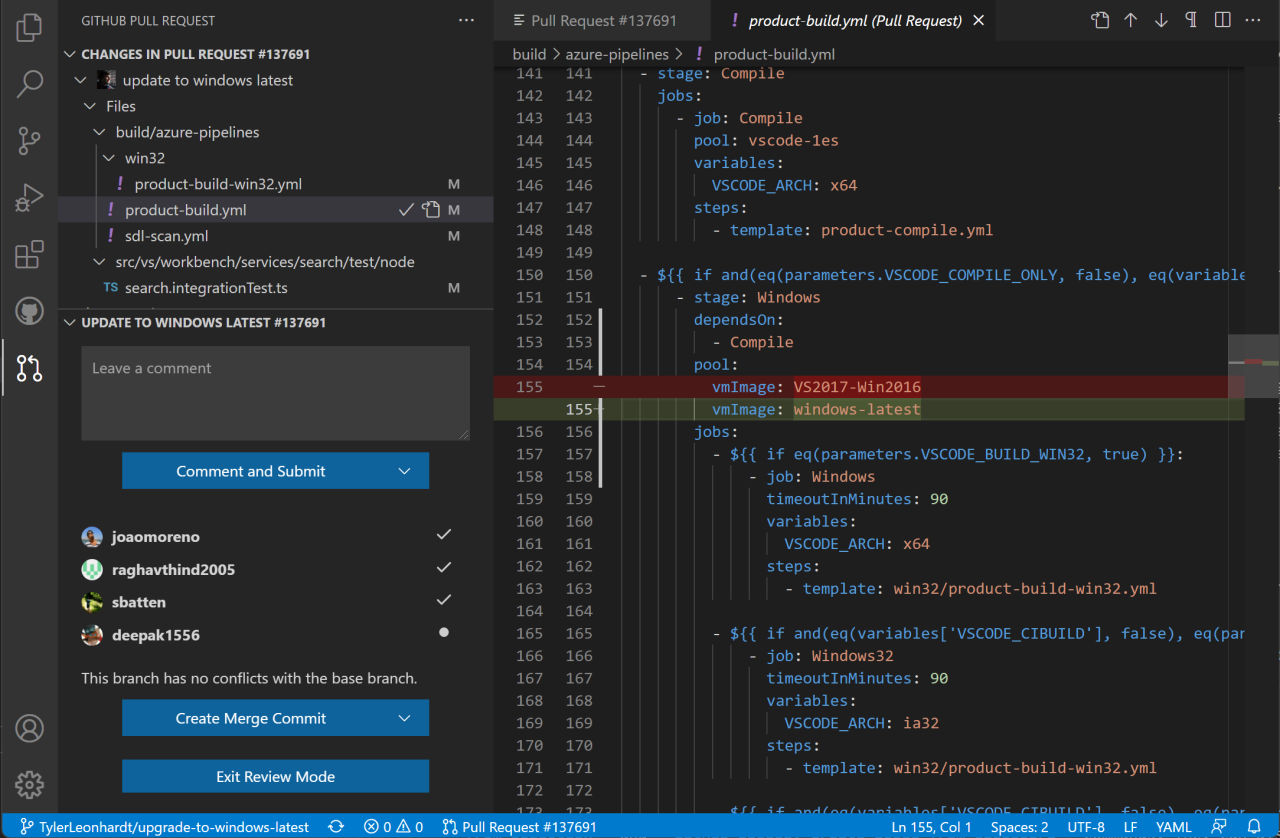
Establishing a Git repository is a fundamental step in version control for your development projects. Visual Studio Code (VSCode) offers streamlined tools and interfaces to facilitate this process, whether starting from scratch or connecting to existing repositories. Mastering the setup within VSCode enhances productivity and simplifies collaboration with teams and remote hosting services.
In this section, we explore how to initialize new Git repositories directly through the VSCode graphical user interface as well as via command-line instructions within the integrated terminal. Additionally, we compare the methods of creating repositories with ‘git init’ and cloning existing repositories, emphasizing their appropriate contexts. Finally, we Artikel how to connect local repositories with remote hosting platforms such as GitHub and GitLab, enabling seamless collaboration and version management across distributed teams.
Initializing a new Git repository using VSCode GUI and CLI
Creating a new Git repository within VSCode can be efficiently achieved via two primary methods: using the graphical interface or executing terminal commands. Both approaches serve the purpose of establishing a version control foundation for your project, with the GUI offering a user-friendly experience and the CLI providing more control and flexibility.
- Using VSCode GUI:
- Open your project folder in VSCode.
- Navigate to the Source Control icon on the Activity Bar on the side of the window, represented by a branch icon.
- Click on this icon to open the Source Control panel. If the folder is not yet a Git repository, you’ll see an option labeled “Initialize Repository.”
- Click on “Initialize Repository.” VSCode will create a new Git repository in your project’s root directory and display the current status under the Source Control panel.
- Using Command-Line Interface (CLI):
- Open the integrated terminal within VSCode by selecting View > Terminal.
- Navigate to your project directory if not already there using
cd /path/to/your/project. - Execute the command
git init. This initializes a new Git repository in the current directory. - Back in the Source Control panel, VSCode will recognize the repository and display the current git status.
Both methods effectively set up a local repository. The GUI approach is intuitive for beginners and visual learners, while the CLI provides more detailed control, such as initializing repositories with specific configurations or scripts for automation.
Comparison between ‘git init’ and cloning existing repositories
Understanding the distinctions between creating a new Git repository with ‘git init’ and cloning pre-existing repositories is essential for choosing the appropriate workflow in different development scenarios.
| Aspect | ‘git init’ | Cloning Existing Repository |
|---|---|---|
| Purpose | Creates a new, empty Git repository in the current directory. | |
| Use-case | Starting a project from scratch or adding version control to an existing project without a repository. | |
| Command | git init |
|
| Cloning | Copies a remote repository to your local machine, including all history and branches. | |
| Use-case | Working on an existing project hosted remotely, or collaborating with others who have already set up a repository. | |
| Command | git clone <repository_url> |
Utilizing git init is ideal when initiating a new project that is not yet hosted remotely. In contrast, cloning is suitable for working on existing projects, allowing you to retrieve all files, history, and branches from the remote repository to your local environment.
Connecting local repositories with remote hosting services
Integrating local Git repositories with remote hosting platforms like GitHub or GitLab is crucial for enabling collaboration, code sharing, and backup. There are several methods to establish this connection effectively.
- Creating a new remote repository:
- Navigate to the hosting service (GitHub, GitLab) and create a new repository. You may choose to initialize it with a README, license, or .gitignore, depending on your needs.
- Copy the repository URL provided, which can be HTTPS or SSH based on your setup.
- Connecting your local repository to the remote:
- Open the integrated terminal within VSCode.
- Ensure you are in your project directory that contains the local Git repository.
- Use the command
git remote add origin <repository_url>to associate your local repository with the remote. - Verify the remote connection with
git remote -v, which should list the remote URLs.
- Push local commits to the remote repository:
- After making changes and committing locally, execute
git push -u origin master(or main, depending on your branch name). - This uploads your local commits to the remote repository, making your project accessible to collaborators.
- After making changes and committing locally, execute
For existing repositories, the process involves cloning the remote repository directly into VSCode, which automatically sets up the remote connection. For new projects, establishing the remote link after initialization ensures smooth synchronization and version control management across environments.
Managing Version Control in VSCode

Effective management of version control within Visual Studio Code empowers developers to track, review, and refine their codebase seamlessly. Utilizing VSCode’s integrated Git features streamlines workflows, enhances collaboration, and ensures code integrity throughout the development lifecycle. This section provides comprehensive guidance on handling version control activities directly within the editor environment, emphasizing practical procedures and visual tools that facilitate efficient project management.
Managing version control in VSCode involves performing core Git operations such as staging changes, committing updates, and pushing modifications to remote repositories. These tasks are executed through intuitive graphical interfaces, eliminating the need for command-line interactions and making version control accessible even for those new to Git. Additionally, understanding how to visualize change histories and compare file versions within VSCode is vital for maintaining code quality and understanding development progress over time.
The following subsections detail these processes with step-by-step instructions and illustrative examples to aid in mastering version control management.
Staging, Committing, and Pushing Changes
Managing code updates efficiently requires a clear understanding of the sequence: staging changes, creating meaningful commits, and pushing updates to remote repositories. Visual tools within VSCode simplify these steps, allowing developers to perform each action through user-friendly interfaces.
- Staging Changes: Begin by opening the Source Control panel in VSCode, accessible via the icon resembling a branch or through the shortcut Ctrl+Shift+G. The panel displays modified, added, or deleted files. To stage individual files, hover over the file name and click the plus icon ( +) next to it. To stage all changes at once, click the “Stage All Changes” button (represented by a plus icon with a line beneath it) at the top of the panel.
- Committing Changes: After staging, enter a descriptive commit message in the input box provided at the top of the Source Control panel. Ensure the message clearly summarizes the modifications for future reference. Once written, click the checkmark icon ( ✔️) or press Ctrl+Enter to finalize the commit within the local repository.
- Pushing Changes to Remote: To upload local commits to a remote repository, click the ellipsis icon ( …) in the Source Control panel and select “Push,” or use the command palette ( Ctrl+Shift+P) and type “Git: Push”. This operation synchronizes your local changes with the remote server, ensuring collaboration and backup. Successful pushes are confirmed in the Output panel, and any conflicts or errors are displayed for resolution.
This visual method of managing version control promotes a more intuitive workflow, making it easier to track and share code updates efficiently within a development team.
Git Commands for Common Tasks
Understanding the typical Git commands used for routine tasks is essential for effective version control management. The following table illustrates essential commands aligned with their respective operations, providing a quick reference for developers working within VSCode or the terminal as needed.
| Task | Git Command | Description |
|---|---|---|
| Initialize repository | git init |
Creates a new Git repository in the current directory. |
| Clone repository | git clone <repository_url> |
Copies an existing remote repository to your local machine. |
| Stage changes | git add <file> OR git add . |
Prepares files for commit; git add . stages all modifications. |
| Commit changes | git commit -m "Your message" |
Saves staged changes with a descriptive message. |
| Push to remote | git push |
Uploads local commits to the remote repository. |
| Pull latest updates | git pull |
Fetches and merges changes from the remote repository. |
| View status | git status |
Displays the current state of the working directory and staging area. |
| View commit history | git log |
Shows a list of previous commits with details. |
| Compare file versions | Use VSCode’s built-in diff viewer by clicking on the file in the Source Control panel and selecting “Open Changes.” |
These commands form the backbone of version control workflows and are often complemented by visual tools within VSCode for ease of use, especially during collaborative development.
Viewing Change Histories and Comparing File Versions
Tracking development progress and reviewing modifications are crucial for maintaining high-quality code. VSCode offers powerful visual tools to view the history of changes and compare different file versions, enhancing understanding and facilitating debugging.
To view the history of a file:
- Right-click the file within the Explorer or Source Control panel.
- Select the option “Show History” or “View File History” (depending on installed extensions, such as Git History).
- A panel or tab will display a list of commits affecting that file, including timestamps and commit messages, allowing you to trace modifications over time.
To compare current file versions with previous commits:
- Open the file you wish to compare.
- In the Source Control panel, locate the file under the list of changed files.
- Right-click the file and choose “Open Changes” or “Compare with Previous Version.”
- VSCode will split the editor window, showing the current file on one side and the selected previous version or commit on the other. Differences are highlighted, enabling detailed review of modifications.
Using visual diff tools within VSCode simplifies the process of identifying code changes, especially in complex projects with multiple contributors. These features support better code reviews and facilitate timely correction of errors or conflicts.
Using Git branching and merging in VSCode
Branching and merging are fundamental aspects of version control that enable efficient collaboration and parallel development workflows. Visual Studio Code offers a user-friendly interface to manage branches seamlessly, allowing developers to create, switch, and delete branches directly within the editor. Furthermore, handling merge conflicts efficiently is crucial to maintaining code integrity during integration. This section explores the procedures for managing branches and resolving conflicts within VSCode, empowering developers to leverage Git’s full capabilities in a visual environment.
Creating, switching, and deleting branches through VSCode interface
Managing branches within VSCode is straightforward thanks to its integrated source control features. Effective branch management allows developers to isolate features, fix bugs, or experiment without disrupting the main codebase. The following steps detail how to perform key branch operations within VSCode:
- Creating a new branch: Open the Source Control panel by clicking the Git icon in the Activity Bar or using the shortcut
Ctrl+Shift+G. In the branch indicator at the bottom-left corner, click the current branch name. From the dropdown menu, select Create Branch. Enter the desired branch name, for example,feature/login, and press Enter. VSCode will automatically switch to this new branch. - Switching between branches: Click the branch indicator in the bottom-left corner. A list of existing branches appears; select the target branch to switch to it. Alternatively, access the command palette with
Ctrl+Shift+P and type Git: Checkout to, then choose the desired branch from the list. This process updates your working directory to reflect the selected branch's state. - Deleting a branch: To remove a branch, open the command palette (
Ctrl+Shift+P) and run the command Git: Delete Branch. A list of local branches will appear; select the branch you wish to delete. Note that deleting a branch cannot be undone, so ensure that it has been merged or is no longer needed.
Resolving merge conflicts within the editor
Merge conflicts occur when changes from different branches overlap and cannot be automatically reconciled by Git. Resolving conflicts efficiently within VSCode involves visually identifying conflicts and making informed decisions to merge code correctly. The following procedure guides developers through conflict resolution:
- Identifying conflicts: During a merge operation, VSCode highlights files with conflicts in the Source Control panel. Opening a conflicted file displays conflict markers indicating conflicting sections.
- Understanding conflict markers: Within the file, conflict blocks are delineated by the following markers:
<<< HEAD
Your changes here
<<< <branch name>
Incoming changes here
<<< END>These markers help distinguish between your current branch's code ( HEAD) and the incoming branch's changes.
- Resolving conflicts: VSCode provides inline controls for conflict resolution. For each conflict block, options such as Accept Current Change, Accept Incoming Change, Accept Both Changes, or Compare Changes are available. Select the appropriate option based on the desired merge outcome. You can also manually edit the code to combine changes or resolve conflicts more precisely.
- Finalizing the merge: After resolving all conflicts, remove the conflict markers if they were not replaced automatically. Save the file. Then, stage the resolved files in the Source Control panel by clicking the plus icon or using
git add <file>. Complete the merge with a commit, providing a descriptive message such as Merged feature branch into main.
Organizing procedures for merging branches and handling conflicts
Effective branch merging requires a clear understanding of the sequence of operations and conflict management. Below are structured steps to ensure smooth integration:
- Prepare for merge: Ensure your current branch is up-to-date and clean. Pull the latest changes and resolve any outstanding conflicts before merging.
- Initiate the merge: Use the command palette (
Ctrl+Shift+P) and select Git: Merge Branch. Choose the branch you intend to merge into your current branch, such asdevelopintomain. - Resolve conflicts if they arise: Follow the conflict resolution procedures as Artikeld previously. Carefully review each conflict to preserve intended changes.
- Complete the merge: After resolving conflicts, stage all changes and commit the merge with an appropriate message. This consolidates the branches and integrates their histories.
- Verify the merge: Run tests or review code to ensure that the integration is successful and that no conflicts or issues remain.
By systematically managing branches and conflicts within VSCode, developers can maintain a clean and efficient workflow, reducing errors and streamlining collaboration across teams.
Collaborating with others using Git in VSCode
Effective collaboration is fundamental to modern software development. Using Git within Visual Studio Code streamlines the process of working with team members, enabling seamless sharing of code, tracking changes, and resolving conflicts. By mastering collaborative workflows, developers can contribute efficiently to shared projects, maintain code integrity, and accelerate development cycles.
This section covers the essential steps involved in collaborating remotely with others through Git in VSCode, including pulling updates, resolving conflicts, pushing changes, managing pull requests, and configuring secure access. Adopting best practices in these areas ensures a smooth and productive collaborative environment.
Pulling updates and resolving conflicts collaboratively
When working with a team, frequently synchronizing your local repository with the remote repository is critical to stay up-to-date and avoid integration issues. Pulling updates fetches recent changes made by others, merging them into your local branch. Conflicts may arise if concurrent modifications affect the same lines of code, requiring careful resolution to preserve both sets of changes.
In VSCode, pulling updates can be performed through the Source Control panel by clicking the "Sync Changes" button or using the command palette with commands like
Git: Pull
. If conflicts occur, VSCode highlights conflicting files and sections within files, providing an intuitive interface to compare and resolve discrepancies. Developers should review each conflict, choose the appropriate code, and mark conflicts as resolved before committing the final merge.
For collaborative effectiveness, it is advisable to:
- Pull frequently to minimize conflicts.
- Communicate with team members about ongoing changes to avoid overlapping work.
- Use descriptive commit messages during conflict resolutions to clarify the changes made.
Managing push operations and handling conflicts
Pushing your local commits to the remote repository shares your changes with the team. Before pushing, ensure your local branch is synchronized with the latest remote updates to prevent conflicts. When other team members have pushed changes since your last pull, a push may be rejected, prompting you to pull and resolve conflicts first.
In VSCode, push operations are initiated via the Source Control panel or command palette with
Git: Push
. If push conflicts occur, VSCode will notify you that your local branch is behind and needs updating. After resolving conflicts through merging or rebasing, you can attempt to push again. Consistently working with updated branches reduces the likelihood of push conflicts and improves collaboration efficiency.
Managing pull requests and code reviews within VSCode
Pull requests (PRs) facilitate code review and discussion before integrating changes into the main branch. Managing PRs within VSCode is simplified with extensions like GitHub Pull Requests and Issues, which allow developers to view, create, and review PRs directly from the editor. This integration streamlines the review process, making it more accessible and efficient.
When participating in a PR, developers can:
- Review code differences and comment inline on specific lines for clarity and suggestions.
- Approve or request changes based on review feedback.
- Merge approved PRs once all discussions are resolved, either through the extension or via the command line.
Best practices include maintaining clear and detailed comments, adhering to coding standards, and regularly updating feature branches to reduce conflicts during review.
Configuring SSH keys and access tokens for secure repository interactions
Ensuring secure communication with remote repositories is vital to protect project integrity. SSH keys and personal access tokens (PATs) provide robust authentication mechanisms, replacing less secure methods such as username and password combinations.
To configure SSH keys in VSCode:
- Generate an SSH key pair using a terminal command like
ssh-keygen -t ed25519 -C "[email protected]"
.
- Add the public key to your version control hosting service (e.g., GitHub, GitLab) via their web interface under SSH keys settings.
- Ensure your SSH agent is running and configured to load your private key automatically.
- Update your repository URL to use the SSH protocol, such as
[email protected]:username/repository.git
.
Alternatively, for personal access tokens:
- Generate a PAT from your hosting service account settings, specifying necessary scopes like repo access.
- Configure credential helpers in Git to securely store tokens, or input tokens when prompted during operations.
- Update remote URLs to include the token as part of the URL or configure credential managers that handle token storage transparently.
Using SSH keys and tokens enhances security, provides seamless authentication, and reduces the risk of credential leaks or unauthorized access.
Leveraging Git extensions and integrations in VSCode
Enhancing your version control workflow within Visual Studio Code is greatly facilitated by a variety of powerful Git extensions and integrations. These tools not only streamline common tasks but also introduce advanced features that boost productivity, improve code understanding, and support seamless collaboration. Harnessing these extensions allows developers to customize their environment, gain deeper insights into their code history, and manage complex workflows more effectively.
Integrating well-chosen Git extensions into VSCode transforms the development experience, making it more intuitive and efficient. These tools extend VSCode's native capabilities, providing visualizations, detailed annotations, and collaboration features that are essential for modern software development. Understanding how to select, install, and configure these extensions ensures developers can tailor their environment to meet their specific project needs.
Popular Git-related extensions for VSCode and their features
The VSCode marketplace offers numerous extensions that cater to different aspects of version control management. Here are some of the most widely used and highly recommended Git extensions with their key features:
| Extension | Features |
|---|---|
| GitLens |
|
| Git Graph |
|
| GitHub Pull Requests and Issues |
|
| Source Control with Git |
|
| Git History |
|
Installing, configuring, and utilizing GitLens for enhanced version control
GitLens is perhaps the most comprehensive extension for augmenting Git functionalities within VSCode. Its installation and configuration unlock a wealth of insights into your codebase, enhancing understanding and collaboration. Here's a detailed guide to get started with GitLens:
- Installation: Open the VSCode Extensions view by clicking on the Extensions icon or pressing
Ctrl+Shift+X. Search for GitLens — Git supercharged and click Install. The extension will integrate seamlessly, adding new panels and features to VSCode. - Configuration: Once installed, access the settings menu to customize GitLens according to your preferences. Key configurations include enabling or disabling inline blame annotations, setting display options for the code lens, and adjusting the level of detail shown in commit history views. These can be accessed via File > Preferences > Settings and searching for GitLens.
- Utilization: GitLens enhances your workflow through features such as inline blame annotations, which display the last commit details directly on the code lines. Use the command palette (
Ctrl+Shift+P) to access GitLens commands like Show File History or Blame Line. The extension provides a sidebar with rich commit histories, authorship information, and visualizations of code evolution. Advanced users can take advantage of the commit search, compare views, and detailed annotations to understand code changes comprehensively.
By leveraging GitLens, developers gain immediate insights into their code’s history, authors, and modifications. This depth of information facilitates debugging, code review, and understanding complex changes, ultimately leading to better code quality and team collaboration.
Custom workflows enabled by extensions with detailed explanations
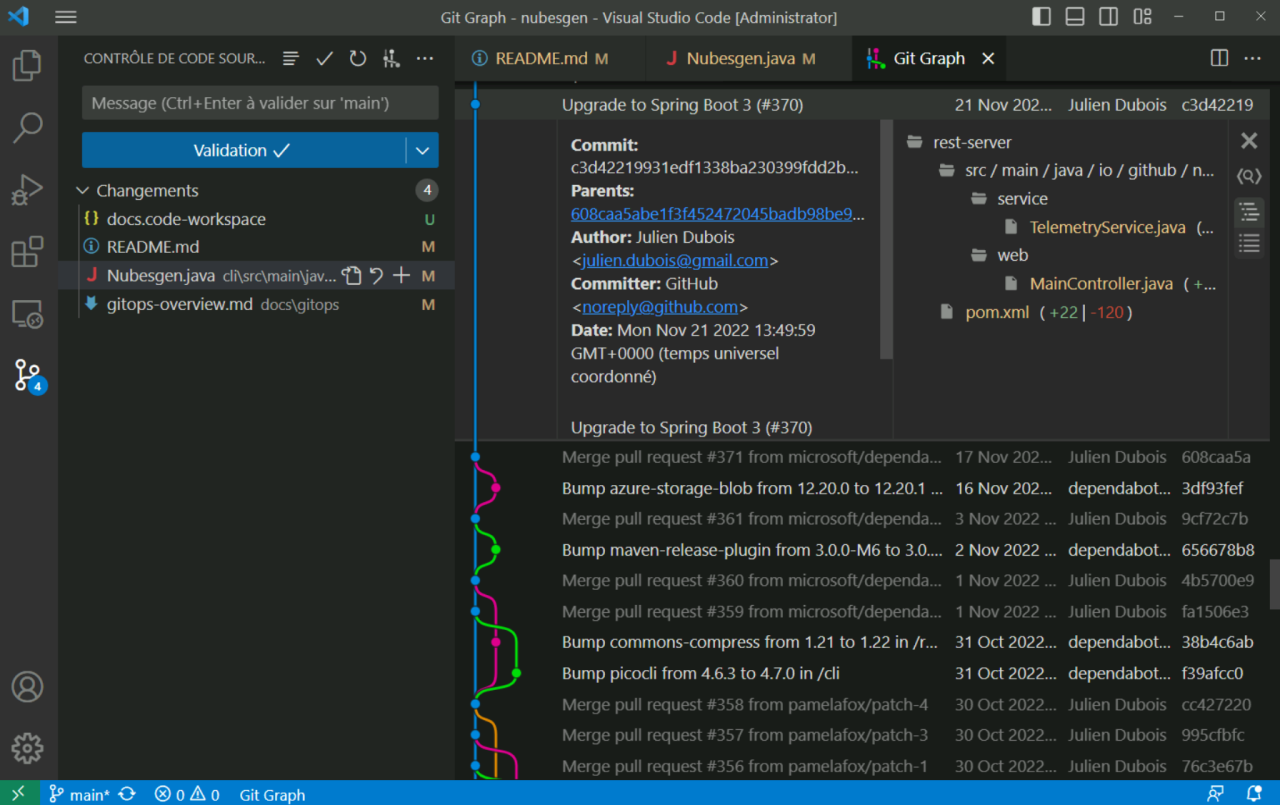
Extensions like GitLens and Git Graph introduce workflows that go beyond basic version control commands, empowering developers to adopt more efficient and transparent processes. These workflows often involve visual commit histories, inline annotations, and seamless repository management, which streamline tasks such as code review, collaborative development, and debugging.
Example: Using GitLens’s inline blame annotations combined with commit history exploration allows a developer to quickly identify when a bug was introduced and who authored the change. This supports targeted discussions and faster resolution without the need to leave the editor environment.
Example: With Git Graph, a team can visualize their branch structure, perform merges, and resolve conflicts directly through the graphical interface. This simplifies complex workflows involving multiple branches, feature integrations, and release management, reducing errors and saving time.
Custom workflows enabled by these extensions include real-time code authorship tracking, integrated code reviews within the editor, and visual management of branch histories. These features foster more collaborative development environments, reduce context switching, and improve overall code quality by making version history more accessible and understandable. Teams working on large or distributed projects particularly benefit from these extensions, as they facilitate transparent, efficient, and traceable development cycles.
Troubleshooting common issues in Git with VSCode
While Visual Studio Code offers a robust environment for Git integration, users may encounter various issues that can hinder smooth development workflows. Troubleshooting effectively is essential to maintain productivity and ensure seamless version control management. This guide provides practical methods for diagnosing connection problems with remote repositories, resolving merge conflicts, handling broken repositories, and recovering lost changes within VSCode.
Addressing common Git issues requires a combination of diagnostic steps and corrective procedures. Proper understanding of Git’s underlying mechanisms, combined with VSCode’s user interface features, allows developers to swiftly identify problems and implement solutions, minimizing downtime and preventing data loss.
Diagnosing Connection Problems with Remote Repositories
Connectivity issues between VSCode and remote repositories can stem from network configurations, authentication errors, or misconfigured Git settings. Diagnosing these problems involves systematic checks to identify root causes and restore proper synchronization.
- Verify Network Access: Confirm that the internet connection is active and that there are no firewall or proxy restrictions blocking Git-related traffic. Test access by pinging Git server URLs or accessing repositories through a web browser.
- Check Remote URL Configuration: Use the command palette or terminal within VSCode to run
git remote -v
. Ensure the URLs listed are correct and accessible. Mistyped URLs or outdated links can cause connection failures.
- Authenticate Properly: Ensure that authentication credentials (SSH keys, personal access tokens, or username/password) are correctly configured. You can test SSH connectivity by running
ssh -T [email protected]
or similar commands for other providers.
- Inspect Git Output: Open the Output panel in VSCode (View > Output) and select "Git" from the dropdown menu. Review error messages for hints on issues such as permission denials, SSL problems, or protocol errors.
- Update Git Version: Make sure the installed Git version is current. Outdated versions may lack compatibility with modern server protocols. Update Git through your system's package manager or official installer.
Resolving Merge Conflicts and Broken Repositories
Merging branches or pulling updates from remote repositories can sometimes lead to conflicts or repository inconsistencies. Proper resolution involves understanding conflict markers, manual editing, and repository maintenance procedures to ensure code integrity.
- Identify Conflict Markers: When merge conflicts occur, Git annotates conflicting sections with markers like
<<<<<<<,=======, and>>>>>>>. VSCode highlights these conflicts, making them easier to locate. - Manual Conflict Resolution: Review each conflict block and decide which changes to keep. Use the inline editor to accept changes, discard them, or combine code as needed. After resolving all conflicts, remove the conflict markers.
- Completing the Merge: Once conflicts are resolved, stage the changes using the Source Control panel or terminal (
git add
), then commit with a descriptive message (
git commit
).
- Handling Broken Repositories: If the repository becomes corrupted or unresponsive, consider cloning a fresh copy or resetting to a stable state. Use commands like
git fsck
to check repository integrity and
git reset --hard
to revert to the last known good commit.
- Reinitializing Repositories: In cases of severe corruption, reinitialize the repository with
git init
, then add remote origins and reapply necessary configurations. Always back up existing data before drastic measures.
Resetting Repositories and Recovering Lost Changes
Accidental deletions, resets, or overwriting changes can lead to data loss. Git offers recovery mechanisms that, when used properly, allow users to restore previous states or retrieve uncommitted modifications within VSCode.
- Resetting Repositories: To undo recent changes or commits, use
git reset
.
- Soft reset (
git reset --soft <commit>): Moves HEAD to a specific commit while preserving staged changes. - Mixed reset (
git reset --mixed <commit>): Resets HEAD and unstages changes but keeps working directory modifications. - Hard reset (
git reset --hard <commit>): Reverts to a previous commit discarding all subsequent changes. Use with caution.
- Soft reset (
- Recovering Uncommitted Changes: In VSCode, unsaved or uncommitted modifications can sometimes be retrieved from the local history or through Git stash. Use
git stash
to temporarily save changes and
git stash pop
to restore them.
- Restoring Deleted Files: If files are deleted unintentionally, Git can recover them using
git checkout -- <file>
or via the Source Control interface by reverting specific changes.
- Using VSCode Local History: For more granular recovery, utilize extensions that track local file history within VSCode, providing snapshots that can be restored even after Git operations.
Always ensure to create backups or commits before performing destructive operations to prevent permanent data loss.
Automating Git workflows in VSCode
Streamlining Git operations through automation within Visual Studio Code significantly enhances developer productivity, reduces manual errors, and ensures consistency across development processes. By leveraging pre-commit hooks, integrating continuous integration (CI) tools, and scripting common Git tasks, developers can establish a robust and efficient workflow tailored to their project needs.
This section explores how to set up automated processes in VSCode that facilitate seamless code quality checks, testing, and deployment, empowering teams to maintain high standards and accelerate delivery cycles.
Setting up pre-commit hooks and automated testing within VSCode
Pre-commit hooks serve as automated gatekeepers that execute scripts before commits are finalized, ensuring that code adheres to quality standards, passes tests, or formats correctly. Integrating these hooks within VSCode involves configuring Git hooks and leveraging extensions that automate their application.
To implement pre-commit hooks:
- Use tools like Husky to manage Git hooks efficiently within Node.js projects. Husky simplifies the setup of hooks such as pre-commit, pre-push, etc., and integrates seamlessly with VSCode terminals.
- Create hook scripts in the
.git/hooksdirectory or configure Husky viapackage.jsonto run linting, unit tests, or code formatting tools automatically. - Configure automated testing to run with each commit by integrating testing frameworks like Jest, Mocha, or pytest, ensuring that only code passing all tests is committed.
In VSCode, developers can also utilize extensions like GitLens or Pre-commit to visualize hook execution and manage their configurations directly within the editor, providing immediate feedback on code issues before commits are processed.
Integrating continuous integration tools with Git repositories
Continuous integration (CI) automates the process of building, testing, and deploying code changes upon commit or pull request, fostering rapid feedback and maintaining code integrity across teams.
To set up CI integration within VSCode environments:
- Choose a CI platform such as GitHub Actions, GitLab CI, Jenkins, or Travis CI that suits your project requirements.
- Create configuration files (e.g.,
.github/workflows/ci.ymlfor GitHub Actions) defining build steps, test commands, and deployment scripts. These files are stored within the repository, making the process version-controlled and transparent. - Connect your Git repository to the CI service by linking repositories and setting up triggers for branches or pull requests.
- Configure your CI pipelines to run automated tests, static code analysis, and security scans, providing feedback directly within pull requests or via email notifications.
Within VSCode, developers can monitor the status of CI workflows through integrated interfaces or browser-based dashboards, enabling quick identification of issues and facilitating smooth collaboration.
Scripting common Git tasks with sequences or snippets
Automating repetitive Git commands through scripts or editor snippets accelerates workflow efficiency and minimizes manual errors. Common tasks like branching, merging, or tagging can be scripted to execute with minimal effort.
To create effective scripts:
- Develop shell scripts or batch files that encapsulate sequences of Git commands, such as creating branches, pulling updates, or pushing changes. For example, a script to start a new feature branch might include
git checkout -b feature/
.
- Leverage VSCode snippets to insert predefined sequences of Git commands or workflows. Custom snippets can include boilerplate commands for common operations like commit messages, checkout procedures, or merging strategies.
- Utilize task runners such as Gulp or Make to automate complex workflows involving Git commands, testing, and deployment scripts, all orchestrated within VSCode's Tasks interface.
Implementing these scripting strategies ensures consistent execution, simplifies onboarding for new team members, and accelerates routine development tasks without sacrificing accuracy or control.
Last Word
Mastering Git integration with VSCode opens up new levels of efficiency and collaboration in your development projects. By leveraging the tools, extensions, and best practices discussed, you can ensure smoother workflow management and quicker resolution of issues. Embracing this approach will undoubtedly contribute to more organized, collaborative, and successful development processes.