Embarking on the journey of deploying a React application can seem daunting, but with the right tools and knowledge, it becomes a straightforward process. This guide, “how to setup nginx server for react app deployment,” provides a step-by-step approach to configuring an Nginx server to host your React application efficiently and securely. From understanding the prerequisites to optimizing performance, we’ll explore the essential components needed to bring your React app to life on the web.
We will delve into the intricacies of Nginx configuration, React application builds, and the crucial aspects of SSL/TLS implementation. This guide is designed to be accessible to both beginners and experienced developers, offering practical instructions and best practices to ensure a smooth and successful deployment. Let’s get started on making your React application live.
Prerequisites for Nginx and React App Deployment
Deploying a React application with Nginx requires careful preparation. This involves ensuring you have the necessary software, understand system requirements, and have the essential infrastructure in place. Proper setup guarantees a smooth deployment process and optimal application performance.
Software and Tools Required
To deploy a React application using Nginx, several software components and tools are essential. These tools facilitate development, building, and deployment processes.
- Node.js and npm/Yarn: Node.js is the JavaScript runtime environment, and npm (Node Package Manager) or Yarn is used for managing project dependencies. These are fundamental for creating and building React applications.
- React: The JavaScript library for building user interfaces. You will need React and related packages like react-dom.
- A Code Editor or IDE: A text editor or an Integrated Development Environment (IDE) such as Visual Studio Code, Sublime Text, or WebStorm. These tools provide features like syntax highlighting, code completion, and debugging.
- Git: A version control system to manage your project’s codebase. Git allows for tracking changes, collaboration, and deployment.
- Nginx: The web server that will serve your React application. Nginx handles incoming requests and serves the static files generated by your React build.
- A Terminal or Command Line Interface: For interacting with your operating system, running commands, and managing your project.
- A Package Manager for your OS: Such as `apt` (Debian/Ubuntu), `yum` or `dnf` (CentOS/RHEL), or `brew` (macOS) to install and manage software on your server.
- SSH Client: For securely connecting to your server if it’s remote.
Recommended System Requirements
Optimizing the performance of both Nginx and your React application requires considering system requirements. The specifics depend on the application’s complexity and expected traffic.
- Server Hardware:
- CPU: A multi-core processor is recommended. For low-traffic sites, a single core might suffice, but for higher loads, at least 2-4 cores are preferable.
- RAM: At least 1GB of RAM is recommended for a basic setup. For more complex applications or higher traffic, 2GB or more is advisable.
- Storage: SSD (Solid State Drive) storage is highly recommended for faster read/write speeds. The storage capacity depends on the size of your application files and logs. A minimum of 10GB is generally sufficient, but consider more if you expect to store large files or have extensive logging.
- Nginx Configuration:
- Worker Processes: Configure the number of worker processes in your Nginx configuration file (`nginx.conf`) based on your CPU cores. A common setting is to match the number of cores.
- Worker Connections: Adjust the `worker_connections` directive to handle the expected number of concurrent connections. A good starting point is 1024 or more.
- React Application:
- Code Optimization: Minify and optimize your React application’s code during the build process to reduce file sizes and improve loading times.
- Caching: Implement caching strategies to store static assets in the browser, reducing the load on the server.
Domain Name and SSL Certificate Importance
Before deployment, having a domain name and an SSL certificate is critical for security and accessibility. These elements ensure your website is reachable and secure.
- Domain Name:
- A domain name provides a user-friendly address for your website (e.g., `example.com`). It’s essential for users to access your React application.
- You need to register a domain name through a domain registrar.
- After registration, configure the DNS records to point to your server’s IP address.
- SSL Certificate:
- An SSL (Secure Sockets Layer) certificate encrypts the communication between your server and the user’s browser. This protects sensitive information, such as user credentials.
- It’s displayed by a padlock icon in the browser’s address bar.
- Obtain an SSL certificate from a Certificate Authority (CA). Let’s Encrypt offers free SSL certificates.
- Configure Nginx to use the SSL certificate. This involves setting up the certificate and private key in your Nginx configuration file.
Server Update and Security Steps
Ensuring your server is up-to-date and secure is a crucial step before deploying your React application. This process minimizes vulnerabilities and maintains system stability.
- Update the Operating System:
- Regularly update your server’s operating system packages. For Debian/Ubuntu, use:
`sudo apt update && sudo apt upgrade`
. For CentOS/RHEL, use:
`sudo yum update` or `sudo dnf update`
.
- This ensures you have the latest security patches and bug fixes.
- Regularly update your server’s operating system packages. For Debian/Ubuntu, use:
- Install a Firewall:
- Implement a firewall, such as `ufw` (Uncomplicated Firewall) for Ubuntu or `firewalld` for CentOS/RHEL, to control network traffic.
- Configure the firewall to allow only necessary traffic, such as SSH (if remote access is required), HTTP (port 80), and HTTPS (port 443).
- Create a Regular Backup:
- Implement a backup strategy to safeguard your data.
- Backups should include your application files, database (if applicable), and configuration files.
- Store backups securely, ideally off-site.
- Secure SSH Access:
- Change the default SSH port (port 22) to a non-standard port to reduce the risk of automated attacks.
- Disable password-based authentication and use SSH keys for secure access.
- Consider using a tool like `fail2ban` to automatically ban IP addresses that repeatedly fail to authenticate.
- User Management:
- Create a dedicated user account for deploying and managing your React application. Avoid using the root user for everyday tasks.
- Grant the user appropriate permissions, such as sudo privileges, as needed.
Installing and Configuring Nginx
Nginx is a powerful and versatile web server, reverse proxy, and load balancer. To successfully deploy your React application, you need to install and configure Nginx correctly. This section details the process of installing Nginx on various operating systems, verifying its installation, locating and understanding its configuration files, and the role of the `nginx.conf` file.
Installing Nginx
The installation process for Nginx varies depending on your operating system. Here’s how to install it on some common platforms:
- Ubuntu/Debian: The installation on Ubuntu and Debian-based systems is straightforward, using the `apt` package manager.
First, update the package list:
sudo apt updateThen, install Nginx:
sudo apt install nginxAfter the installation is complete, Nginx will be automatically started.
- CentOS/RHEL: CentOS and Red Hat Enterprise Linux (RHEL) use the `yum` or `dnf` package manager.
Update the package list:
sudo yum updateor
sudo dnf updateInstall Nginx:
sudo yum install nginxor
sudo dnf install nginxStart and enable Nginx to start on boot:
sudo systemctl start nginxsudo systemctl enable nginx- Windows: Installing Nginx on Windows requires downloading the pre-built binaries.
Download the latest stable version of Nginx from the official Nginx website (nginx.org). Extract the downloaded archive to a directory of your choice (e.g., `C:\nginx`).
To start Nginx, open a command prompt or PowerShell window, navigate to the Nginx directory, and run:
nginx.exeTo stop Nginx, use the command:
nginx -s stopor
nginx -s quitVerifying Nginx Installation and Checking Status
After installing Nginx, it’s essential to verify that it’s running correctly. This ensures that the server is operational and ready to serve your application. The method for verification differs slightly based on the operating system.
- Ubuntu/Debian: You can check the status using the `systemctl` command.
Check the status of Nginx:
sudo systemctl status nginxThis command will display information about the Nginx service, including whether it is running, any recent logs, and the process ID.
You can also test Nginx by opening a web browser and navigating to your server’s IP address or `localhost`. If Nginx is installed correctly, you should see the default Nginx welcome page.
- CentOS/RHEL: The `systemctl` command is also used here.
Check the status of Nginx:
sudo systemctl status nginxSimilar to Ubuntu, this command provides details about the Nginx service’s status. Verifying the web page in a browser is also recommended.
- Windows: For Windows, you can check the status by examining the command prompt or PowerShell window where Nginx is running.
If Nginx is running, the console will display messages indicating its operational status. You can also verify the installation by accessing your server’s IP address or `localhost` in a web browser. If Nginx is correctly installed, you will see the default Nginx welcome page.
Locating Nginx Configuration Files and Understanding Their Structure
Understanding the structure of Nginx configuration files is crucial for customizing your server. The location and structure of these files can vary slightly depending on the operating system.
- Ubuntu/Debian: The main configuration file is typically located at `/etc/nginx/nginx.conf`.
Additional configuration files for specific sites are usually placed in the `/etc/nginx/sites-available/` directory. To enable a site, you create a symbolic link to the corresponding file in the `/etc/nginx/sites-enabled/` directory.
For example, to create a symbolic link for a site configuration file named `my-react-app`, you would use the following command:
sudo ln -s /etc/nginx/sites-available/my-react-app /etc/nginx/sites-enabled/The default web root directory for serving files is usually `/var/www/html/`.
- CentOS/RHEL: The main configuration file is located at `/etc/nginx/nginx.conf`.
Site-specific configurations are typically stored in the `/etc/nginx/conf.d/` directory. The default web root directory is `/usr/share/nginx/html/`.
- Windows: The main configuration file is located in the Nginx installation directory, usually at `C:\nginx\conf\nginx.conf`.
Site-specific configurations can be included within the `nginx.conf` file or in separate files within the `conf` directory. The default web root directory is usually `C:\nginx\html\`.
The Function of the `nginx.conf` File
The `nginx.conf` file is the primary configuration file for Nginx. It defines the overall behavior of the server, including how it handles requests, where it serves content from, and other important settings.
Here’s a breakdown of its key components:
- Global Settings: These settings affect the entire Nginx server. Examples include user and group settings, worker process counts, and error log locations.
For instance, you might configure the user and group under which Nginx processes run. This is generally set to `www-data` on Debian/Ubuntu systems.
- Events Block: This block configures how Nginx handles connections. It defines settings such as the number of worker connections.
The `worker_connections` directive specifies the maximum number of simultaneous connections each worker process can handle. Adjusting this value can improve performance, especially under heavy load.
- HTTP Block: This block contains settings related to HTTP traffic, including virtual server configurations (server blocks).
Within the `http` block, you define server blocks. Each server block typically corresponds to a website or application. It specifies the domain name, port to listen on, and the location of the website’s files.
An example server block:
server
    listen 80;
    server_name example.com www.example.com;
    root /var/www/example.com;
    index index.html index.htm;
    location /
        try_files $uri $uri/ =404;
In this example:
- `listen 80;` specifies that the server listens on port 80 (HTTP).
- `server_name example.com www.example.com;` defines the domain names the server will respond to.
- `root /var/www/example.com;` sets the root directory for the website’s files.
- `index index.html index.htm;` specifies the default files to serve.
- The `location /` block handles requests for the root directory and uses `try_files` to check for files and directories.
Proper configuration of the `nginx.conf` file is essential for ensuring your React application is served correctly and securely.
Building Your React Application for Production
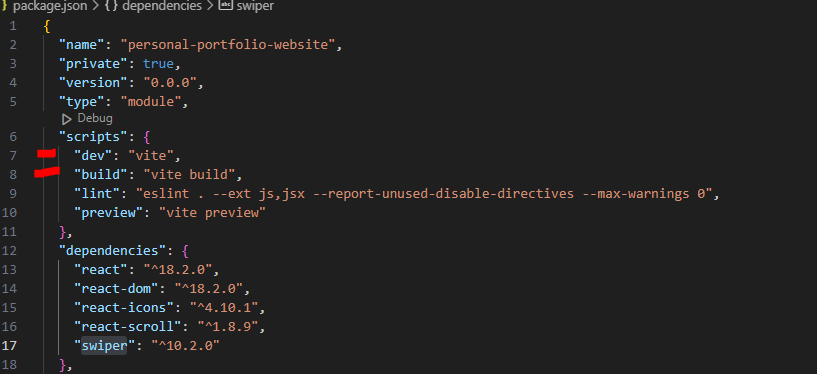
To successfully deploy a React application using Nginx, the application needs to be built for production. This process transforms the development code into optimized, static assets that the server can efficiently serve to users. This section Artikels the steps involved, the output of the build process, and best practices for optimizing your React application for deployment.
Building the React Application
The standard practice for building a React application for production involves using a build tool, typically integrated into the project’s setup. This tool bundles the code, optimizes it, and creates the necessary static assets. The most common tool used is `create-react-app` (CRA), which provides a streamlined process. However, tools like Vite or Webpack can also be used.
Regardless of the tool, the fundamental steps are similar.To build a React application using `create-react-app`, the following command is typically used in the project’s root directory:“`bashnpm run build# oryarn build“`This command triggers the build process, which:
- Transpiles the JavaScript code (using Babel) to a format compatible with most browsers.
- Bundles the JavaScript and CSS files, often minifying them to reduce their size.
- Optimizes images.
- Generates static HTML, CSS, and JavaScript files.
- Creates a `build` directory containing the production-ready assets.
Understanding the Build Output
The output of the build process is primarily contained within a `build` directory, which is designed to be served by a web server like Nginx. The contents of this directory are crucial for the application’s functionality. The exact contents and organization can vary slightly depending on the build tool and configuration.The `build` directory typically contains the following types of files:
- HTML file (e.g., `index.html`): This is the entry point of your application. It contains the basic HTML structure, and it typically includes links to the CSS and JavaScript files generated during the build process. The JavaScript files are often injected into the `index.html` file to initialize the React application.
- JavaScript files (e.g., `static/js/*.js`): These files contain the compiled and minified JavaScript code of your application. They include your React components, application logic, and any third-party libraries you’ve used. The filenames often include a hash (e.g., `main.abcdef12.js`) to enable long-term caching by the browser.
- CSS files (e.g., `static/css/*.css`): These files contain the styles for your application, compiled from your CSS, Sass, or other styling preprocessors. Similar to JavaScript files, the filenames usually include a hash for caching.
- Image and Asset Files (e.g., `static/media/*`): These files contain any images, fonts, or other assets used by your application. The build process may optimize these assets for size and performance.
- Other Supporting Files: Depending on your application’s configuration, you might find other files, such as service worker files or manifest files.
Optimizing the React Application Build
Optimizing the build process is essential for improving the performance of your application. Several strategies can be employed to minimize file sizes, improve loading times, and enhance the user experience. These optimizations are applied during the build process and affect the files within the `build` directory.Here are some key best practices for optimization:
- Code Splitting: Code splitting is a technique that allows you to split your application’s code into smaller chunks. This means that the browser only downloads the JavaScript code that is needed for the current page, which reduces the initial load time. Build tools like Webpack and `create-react-app` support code splitting out of the box. Lazy loading components is a common way to implement code splitting.
- Minification and Compression: Minification removes unnecessary characters (whitespace, comments) from your code, making the files smaller. Compression, often using Gzip or Brotli, further reduces the size of the files by compressing them before they are sent to the browser. These optimizations are usually handled automatically by the build tool.
- Image Optimization: Optimize images by compressing them, resizing them, and choosing the correct image format (e.g., WebP for better compression). Tools like `imagemin` can be integrated into the build process to automate image optimization.
- Caching: Configure your web server to use aggressive caching for static assets. This allows the browser to store the files locally, so they don’t need to be downloaded every time the user visits your site. Filename hashing, used in the build process, is crucial for cache busting.
- Tree Shaking: Tree shaking removes unused code from your application’s bundle. This helps to reduce the size of the JavaScript files by only including the code that is actually used in your application. Modern build tools automatically perform tree shaking.
- Lazy Loading of Resources: Load images and other resources (like fonts) only when they are needed. This can significantly reduce the initial page load time.
- Use a Content Delivery Network (CDN): A CDN distributes your application’s assets across multiple servers around the world. This ensures that users can download the assets from a server that is geographically close to them, which reduces latency and improves loading times.
By implementing these optimization techniques, you can significantly improve the performance of your React application and provide a better user experience. For example, consider an e-commerce application. If the product images are not optimized, the page load time can be significantly increased, potentially leading to users abandoning the site. By optimizing the images, the page loads faster, leading to a better user experience and potentially increased sales.
Configuring Nginx for React App

Now that we’ve addressed the prerequisites and have our React application built, the next crucial step is configuring Nginx to serve it. This involves creating a configuration file that tells Nginx how to handle incoming requests and serve the static assets generated by the React build process. A well-configured Nginx setup ensures that your application is accessible, performs efficiently, and handles routing correctly.Configuring Nginx for a React application involves several key elements.
These include defining a server block, specifying the root directory where the React build files reside, and understanding the role of the `try_files` directive in managing client-side routing. This configuration ensures that all requests are correctly routed to the application and that the static assets, such as HTML, CSS, JavaScript, and images, are served efficiently.
Creating an Nginx Configuration File
To serve your React application, you’ll need to create a configuration file within the Nginx configuration directory. This file will contain the instructions for Nginx to handle requests for your application.
The location of the configuration files typically resides in the `/etc/nginx/sites-available/` directory. You’ll create a new file, often named after your domain or application (e.g., `my-react-app`). Then, create a symbolic link to this file in the `/etc/nginx/sites-enabled/` directory to activate it. This separation allows for easy enabling and disabling of sites without modifying the core configuration files.
Here’s a basic example of a configuration file. This example assumes your React application’s build files are located in `/var/www/my-react-app/build/`.
“`nginxserver listen 80; server_name your_domain.com www.your_domain.com; # Replace with your domain or IP address root /var/www/my-react-app/build; index index.html index.htm; location / try_files $uri $uri/ /index.html; “`
Let’s break down the key parts of this configuration:
-
listen 80;: This directive specifies that Nginx should listen for incoming HTTP traffic on port 80. For HTTPS, you would use port 443. -
server_name your_domain.com www.your_domain.com;: This defines the domain names or IP addresses that this server block will respond to. Replace `your_domain.com` with your actual domain name. -
root /var/www/my-react-app/build;: This directive sets the root directory where Nginx will look for files to serve. This is the directory containing your React application’s built assets (HTML, CSS, JavaScript, images, etc.). -
index index.html index.htm;: This specifies the default files to serve when a user requests a directory. In this case, it will serve `index.html` if it exists. -
location / ...: This block handles requests for all paths (the root path `/` and all other routes). -
try_files $uri $uri/ /index.html;: This is the most crucial part for React applications. It attempts to find a file matching the requested URI (`$uri`). If not found, it tries the URI with a trailing slash (`$uri/`). If neither of these exists (which is typical for client-side routes in React), it serves `index.html`. This allows React Router to handle the routing on the client-side.
Setting Up a Server Block
The server block is the fundamental unit in Nginx configuration. It defines how Nginx handles requests for a specific domain or IP address. Setting up a server block involves specifying the listening port, the domain name, and the root directory where the application’s files are located.
Here’s how to create a server block, with additional explanation:
-
Listening Port: The `listen` directive is crucial. It tells Nginx which port to listen on for incoming connections. For standard HTTP traffic, this is usually port
80. For HTTPS (secure) traffic, it’s port
443. For example:listen 80;or
listen 443 ssl;(for HTTPS).
-
Server Name: The `server_name` directive specifies the domain names or IP addresses that this server block should respond to. You can include multiple names, separated by spaces. For example:
server_name your_domain.com www.your_domain.com;This configuration ensures that requests to both `your_domain.com` and `www.your_domain.com` are handled by this server block. You can also use an underscore (`_`) to match any server name.
-
Root Directory: The `root` directive defines the directory where Nginx will look for the files to serve. This should point to the `build` directory of your React application. For instance:
root /var/www/my-react-app/build; -
Index Files: The `index` directive specifies the default files to serve when a user requests a directory. Typically, you’ll want to serve `index.html` for React applications:
index index.html; - Location Blocks: Location blocks (`location / … `) define how Nginx handles requests for specific paths. The most important one for React is the root location (`/`), which handles all requests. This is where you’ll use the `try_files` directive.
Understanding and Using the `try_files` Directive
The `try_files` directive is a critical component for handling routing in React applications. It allows Nginx to correctly serve the application’s files and manage client-side routing.
The `try_files` directive works by attempting to find files based on the specified order. The general syntax is:
try_files $uri $uri/ =404;
For React applications, a typical configuration is:
try_files $uri $uri/ /index.html;
Here’s how it works:
-
$uri: This represents the requested URI (e.g., `/`, `/about`, `/contact`). Nginx first tries to find a file matching this URI in the root directory (e.g., `/var/www/my-react-app/build/`). If a file like `/var/www/my-react-app/build/about.html` exists, it serves it. -
$uri/: If the first attempt fails, Nginx tries to find a directory matching the URI. If the URI is `/about`, it looks for a directory named `/about`. -
/index.html: If neither of the above attempts is successful, Nginx serves the `index.html` file. This is the crucial part for React applications. When a user navigates to a route like `/about`, the server doesn’t have a corresponding file. The `try_files` directive then serves `index.html`, and React Router takes over, interpreting the `/about` route and rendering the correct component on the client-side.
Why is this important?
- Client-Side Routing: React Router (or any other client-side routing library) handles the navigation within the application. The server needs to serve the initial `index.html` file, and the client-side JavaScript then takes over and manages the routing.
- Preventing 404 Errors: Without `try_files`, Nginx would return a 404 Not Found error for any route other than the root path (`/`). This is because the server wouldn’t find a file matching the route.
Configuring Nginx to Handle Requests for the Root Path (`/`)
Configuring Nginx to handle the root path (`/`) is essential for serving your React application’s initial page and ensuring that the application loads correctly.
The configuration to handle the root path is done within the `location / … ` block of your Nginx configuration file. Here’s a typical setup:
location / root /var/www/my-react-app/build; index index.html; try_files $uri $uri/ /index.html;
Let’s break down how this works:
- `root /var/www/my-react-app/build;`: This line specifies the root directory for serving files. When a user requests the root path (`/`), Nginx will look for files within this directory.
- `index index.html;`: This line tells Nginx to serve `index.html` as the default file when a user requests the root path (`/`). This is the entry point for your React application.
-
`try_files $uri $uri/ /index.html;`: This is the key directive for client-side routing.
- If the request is for `/` (the root path), it first checks if there’s a file named `/index.html` in the build directory. If it exists, it serves it.
- If there’s no file, it serves `/index.html`.
Example Scenario:
When a user accesses your website at `your_domain.com` (which is equivalent to requesting `/`), Nginx will:
- Look for a file named `/index.html` within the `/var/www/my-react-app/build/` directory.
- If `/index.html` exists, serve it to the user.
- If `/index.html` doesn’t exist (which is unlikely in a standard React build), the `try_files` directive will fall back to serving `/index.html`. This ensures that the user receives the initial HTML file for your React application.
This initial `index.html` file then loads your React application, which then uses React Router to handle the rest of the routing on the client-side.
Setting Up SSL/TLS with Nginx
Setting up SSL/TLS with Nginx is a crucial step for securing your React application and ensuring data privacy. Implementing HTTPS encrypts the communication between your users’ browsers and your server, protecting sensitive information from eavesdropping and tampering. This section Artikels the process of obtaining and configuring SSL certificates, along with automating the renewal process to maintain secure connections.
Generating an SSL Certificate
Generating an SSL certificate is the first step toward enabling HTTPS. Several Certificate Authorities (CAs) offer SSL certificates; however, Let’s Encrypt is a popular and free option. Using Let’s Encrypt is often the preferred choice due to its ease of use and automatic renewal capabilities.
- Install Certbot: Certbot is a command-line tool that automates the process of obtaining and installing Let’s Encrypt certificates. Install it on your server. For Debian/Ubuntu, you can use:
sudo apt update
sudo apt install certbot python3-certbot-nginxFor CentOS/RHEL, the installation process might vary, so refer to the Certbot documentation for the appropriate commands.
- Obtain the Certificate: Once Certbot is installed, use it to obtain a certificate for your domain. Run the following command, replacing `your_domain.com` and `www.your_domain.com` with your actual domain and any subdomains:
sudo certbot --nginx -d your_domain.com -d www.your_domain.comCertbot will then interactively ask for your email address and agree to the terms of service. It will also automatically configure Nginx to use the certificate.
- Verify the Certificate: After successful certificate generation, Certbot will place the certificate files in a directory (usually `/etc/letsencrypt/live/your_domain.com/`). You can verify that the certificate is installed correctly by visiting your domain in a web browser using HTTPS (e.g., `https://your_domain.com`). The browser should display a padlock icon, indicating a secure connection.
Configuring Nginx to Use the SSL Certificate
After obtaining an SSL certificate, configure Nginx to use it. Certbot typically automates this process, but it’s essential to understand the underlying configuration.
- Nginx Configuration File: Nginx configuration files are usually located in the `/etc/nginx/sites-available/` directory. The specific file name depends on your setup. Open the configuration file for your React application using a text editor (e.g., `sudo nano /etc/nginx/sites-available/your_domain.com`).
- HTTPS Server Block: If Certbot didn’t automatically configure HTTPS, you’ll need to add a new server block or modify the existing one to listen on port 443 (HTTPS) and specify the SSL certificate and key paths. This usually involves creating a server block like this:
  server
      listen 443 ssl;
      server_name your_domain.com www.your_domain.com;

      ssl_certificate /etc/letsencrypt/live/your_domain.com/fullchain.pem;
      ssl_certificate_key /etc/letsencrypt/live/your_domain.com/privkey.pem;

      # ... other configurations ...
Replace `your_domain.com` and the file paths with your actual domain and certificate paths.
- Redirect HTTP to HTTPS (Optional): To ensure all traffic uses HTTPS, redirect HTTP traffic (port 80) to HTTPS. Add a server block to redirect all HTTP requests to HTTPS:
  server
      listen 80;
      server_name your_domain.com www.your_domain.com;
      return 301 https://$host$request_uri;
This configuration redirects all incoming requests on port 80 to their corresponding HTTPS equivalents.
- Test and Reload Nginx: After making changes to the configuration file, test the configuration for syntax errors:
sudo nginx -tIf the test is successful, reload Nginx to apply the changes:
sudo nginx -s reloadVerify the HTTPS configuration by accessing your website using `https://your_domain.com`.
Automatically Renewing the SSL Certificate
SSL certificates expire, so automating the renewal process is critical. Let’s Encrypt certificates have a validity period of 90 days. Certbot can automatically renew these certificates before they expire.
- Verify Automatic Renewal: Certbot typically sets up a cron job or systemd timer to automatically renew the certificates. You can verify this by checking your system’s scheduled tasks. For example, you can check the cron jobs with:
sudo crontab -lLook for a line that contains `certbot renew`.
- Test the Renewal Process: You can test the renewal process manually by running:
sudo certbot renew --dry-runThis command simulates the renewal process without actually renewing the certificates. If the test is successful, the renewal process is correctly configured.
- Monitor for Issues: Regularly monitor your system logs for any errors related to certificate renewal. Certbot will usually send email notifications to the email address you provided during the initial setup if any issues arise.
Redirecting HTTP Traffic to HTTPS
Redirecting HTTP traffic to HTTPS ensures that all user connections are secure. This is crucial for preventing potential security vulnerabilities and providing a consistent user experience.
- Implement the Redirect: As mentioned earlier, the redirect is usually implemented within the Nginx configuration file. Add a server block that listens on port 80 and redirects all requests to the HTTPS version of your site using a 301 (permanent) redirect:
  server
      listen 80;
      server_name your_domain.com www.your_domain.com;
      return 301 https://$host$request_uri;
This configuration redirects all traffic from `http://your_domain.com` and `http://www.your_domain.com` to `https://your_domain.com` and `https://www.your_domain.com` respectively.
- Test the Redirect: After adding the redirect, test it by accessing your website using the HTTP protocol (e.g., `http://your_domain.com`). The browser should automatically redirect to the HTTPS version.
- Consider Subdomain Redirection: If you use subdomains, ensure they also redirect to HTTPS. You may need to add similar redirect configurations for each subdomain in your Nginx configuration. For instance, if you have a subdomain like `api.your_domain.com`, add a redirect for `http://api.your_domain.com` to `https://api.your_domain.com`.
Deploying the React App to the Nginx Server
Now that Nginx is configured and your React application is built for production, the next step is deploying your application. This involves transferring the built files to the Nginx server and configuring Nginx to serve those files. This section details the deployment process, from file transfer to troubleshooting, ensuring your React app is accessible through your domain.
Transferring Built React Application Files
The built React application, located in the `build` directory (or the directory specified in your `package.json`’s `build` script), needs to be transferred to the Nginx server. The method of transfer depends on your server setup. Common methods include Secure Copy Protocol (SCP), File Transfer Protocol (FTP), or using a cloud storage service.
Here’s a breakdown of the process:
- Using SCP (Secure Copy): SCP is a secure method for transferring files over SSH. It’s generally preferred due to its security.
- Open your terminal and use the following command, replacing the placeholders with your actual values:
scp -r /path/to/your/react/app/build username@your_server_ip:/var/www/your_domain
-
- `/path/to/your/react/app/build`: The local path to your React app’s `build` directory.
- `username@your_server_ip`: Your server’s username and IP address.
- `/var/www/your_domain`: The destination directory on the Nginx server (where your website files reside, configured in the Nginx configuration).
- You’ll be prompted for your server password.
- Once authenticated, the `build` directory and its contents will be transferred to the server.
- Using FTP (File Transfer Protocol): FTP is another option, though less secure than SCP.
- You’ll need an FTP client (like FileZilla) installed on your local machine.
- Connect to your server using your server’s IP address, username, and password.
- Navigate to the destination directory on the server (e.g., `/var/www/your_domain`).
- Upload the contents of your React app’s `build` directory to this location.
- Using Cloud Storage Services: Services like AWS S3, Google Cloud Storage, or Azure Blob Storage can also be used to store and serve your static React app.
- Upload your `build` directory contents to the storage bucket.
- Configure the storage bucket to serve as a static website.
- Point your domain to the storage bucket’s endpoint (often using DNS settings).
Testing the Deployment
After transferring the files, it’s crucial to verify that the deployment was successful. This involves checking if your React application is accessible through your domain or server’s IP address.
- Accessing Your Domain: Open your web browser and enter your domain name (e.g., `yourdomain.com`). If everything is configured correctly, your React app should load.
- Accessing Your Server’s IP Address: If your domain isn’t yet pointing to your server, you can temporarily access your app using your server’s IP address (e.g., `192.168.1.100`). If your app loads, the deployment is successful.
- Checking the Browser’s Developer Tools: Open your browser’s developer tools (usually by pressing F12 or right-clicking and selecting “Inspect”). Check the “Network” tab to see if all the necessary files (HTML, CSS, JavaScript, images) are being loaded correctly, with HTTP status code 200 (OK). Also, inspect the “Console” tab for any JavaScript errors.
- Verifying Server Logs: Check your Nginx error logs (usually located at `/var/log/nginx/error.log`) and access logs (usually located at `/var/log/nginx/access.log`) for any errors or unusual activity. These logs can provide valuable insights into potential issues.
Troubleshooting Common Deployment Issues
Deployment issues can arise, and knowing how to troubleshoot them is essential. Common problems include incorrect file paths, configuration errors, and permission issues.
- Incorrect File Paths: The `index.html` file, which is the entry point of your React application, must be accessible at the root of your domain or at the location specified in your Nginx configuration.
- Solution: Verify the `root` directive in your Nginx configuration points to the correct directory (e.g., `/var/www/your_domain/build`). Double-check that the `index.html` file is present in that directory.
- Configuration Errors: Errors in your Nginx configuration can prevent your app from loading.
- Solution: Use `sudo nginx -t` to test your Nginx configuration for syntax errors before restarting the service. Examine your Nginx error logs (e.g., `/var/log/nginx/error.log`) for specific error messages that can guide you in fixing the configuration.
- Permission Issues: The Nginx user (usually `www-data`) needs read access to the files in your React app’s directory.
- Solution: Ensure the Nginx user has the necessary permissions. Use the following command to change the ownership of the files:
sudo chown -R www-data:www-data /var/www/your_domain
- Also, ensure that the directory permissions are set appropriately. A typical setup would include read and execute permissions for the Nginx user.
- Caching Issues: Browser caching can sometimes prevent changes from appearing immediately.
- Solution: Clear your browser’s cache and cookies, or use a hard refresh (Ctrl+Shift+R or Cmd+Shift+R). You can also configure Nginx to set appropriate caching headers for static assets to control how long the browser caches them.
- 404 Errors: A 404 error (Not Found) often indicates that the requested resource (e.g., a route in your React app) isn’t found on the server.
- Solution: This often happens with React Router. To fix this, you’ll need to configure Nginx to serve the `index.html` file for all routes. This is typically done by adding a `try_files` directive to your Nginx configuration.
try_files $uri $uri/ /index.html;
- This directive tells Nginx to first look for a file matching the requested URI. If it doesn’t find a file, it tries the URI with a trailing slash. If that also fails, it serves `index.html`.
Updating the React App
After the initial deployment, you’ll likely need to update your React application with new features or bug fixes. The update process involves rebuilding the app and redeploying the new files.
- Build the Updated Application: On your local machine, make the necessary changes to your React code and rebuild the application using your build command (e.g., `npm run build` or `yarn build`). This will generate a new `build` directory.
- Transfer the New Files: Use the same method you used for the initial deployment (SCP, FTP, or cloud storage) to transfer the contents of the new `build` directory to your Nginx server.
- Overwrite Existing Files: When transferring the files, ensure you overwrite the existing files in the destination directory on the server.
- Clear Cache (if necessary): If you’ve made changes to your JavaScript or CSS files, you may need to clear your browser’s cache or perform a hard refresh to see the updates. You might also consider implementing cache-busting techniques (e.g., adding a hash to the filenames) to ensure that browsers always download the latest versions of your assets.
- Restart Nginx (if configuration changed): If you’ve made any changes to your Nginx configuration, restart the Nginx service to apply the changes. Use the command `sudo systemctl restart nginx`.
- Verify the Update: After redeploying, access your domain in your browser to verify that the changes have been applied and that the application is functioning correctly. Check the browser’s developer tools for any errors.
Advanced Nginx Configuration for React Apps

To optimize the performance and security of your React application deployed on an Nginx server, it’s crucial to implement advanced configuration techniques. This section explores strategies to enhance speed, reduce file sizes, and protect your server from potential abuse, providing a more robust and efficient user experience.
Caching Static Assets
Caching static assets significantly improves a React application’s performance by reducing the load on the server and decreasing the time it takes for users to access the application. This is achieved by storing copies of static files, such as JavaScript bundles, CSS stylesheets, and images, on the user’s browser or a proxy server.To configure caching in Nginx, you typically use the `expires` directive within the `location` block that serves your static assets.
This directive specifies how long a browser should cache a file.Here’s an example of how to configure caching for static assets in your Nginx configuration file:“`nginxlocation / root /var/www/your-react-app/build; index index.html index.htm; try_files $uri $uri/ /index.html;location ~* \.(js|css|png|jpg|jpeg|gif|ico|svg)$ root /var/www/your-react-app/build; expires 30d; # Cache for 30 days add_header Cache-Control “public”;“`In this configuration:* The first `location` block handles requests for the root directory and serves the `index.html` file.
- The second `location` block uses a regular expression `~* \.(js|css|png|jpg|jpeg|gif|ico|svg)$` to match requests for static assets. The `~*` indicates a case-insensitive match.
- The `expires 30d;` directive sets the cache expiration time to 30 days. This means the browser will cache these files for 30 days, reducing the number of requests to the server.
- `add_header Cache-Control “public”;` sets the `Cache-Control` header to “public”, indicating that the response can be cached by both the browser and intermediary caches.
By implementing caching, you can dramatically reduce the time it takes for users to load your React application, leading to a better user experience.
Gzip Compression
Gzip compression reduces the size of the files served by Nginx, resulting in faster loading times and reduced bandwidth usage. When a browser requests a file, Nginx compresses it before sending it, and the browser decompresses it upon receipt.To enable gzip compression in Nginx, you need to configure the `gzip` directives within your server or location block.Here’s an example of how to configure gzip compression:“`nginxhttp gzip on; gzip_vary on; gzip_min_length 1000; gzip_proxied any; gzip_types text/plain text/css application/json application/javascript text/xml application/xml application/xml+rss text/javascript;“`In this configuration:* `gzip on;` enables gzip compression.
`gzip_vary on;` adds the `Vary
Accept-Encoding` header, which is important for caching.
- `gzip_min_length 1000;` specifies the minimum length of the file (in bytes) that should be compressed. This prevents the overhead of compression from outweighing the benefits for very small files.
- `gzip_proxied any;` allows compression of responses from proxied servers.
- `gzip_types` defines the MIME types that should be compressed. Make sure to include the MIME types for your React application’s assets.
After implementing gzip compression, you can verify that it’s working by inspecting the HTTP response headers in your browser’s developer tools. You should see the `Content-Encoding: gzip` header.By enabling gzip compression, you can significantly reduce the size of your application’s files, leading to faster loading times and a better user experience, particularly for users with slower internet connections.
Implementing HTTP/2
HTTP/2 enhances the speed and efficiency of a React application by allowing multiple requests to be multiplexed over a single TCP connection. This reduces latency and improves the overall performance of the application.To implement HTTP/2 in Nginx, you need to ensure the following:
1. Nginx Version
Your Nginx server must be version 1.9.5 or later, as this version introduced HTTP/2 support.
2. SSL/TLS Configuration
HTTP/2 requires an encrypted connection (HTTPS). You must have SSL/TLS configured for your domain.
3. Configuration
Add the `http2` parameter to the `listen` directive in your Nginx configuration.Here’s an example of how to configure HTTP/2:“`nginxserver listen 443 ssl http2; server_name yourdomain.com; ssl_certificate /path/to/your/certificate.pem; ssl_certificate_key /path/to/your/private.key; # … other configurations …“`In this configuration:* `listen 443 ssl http2;` specifies that Nginx should listen on port 443 (HTTPS) with SSL enabled and HTTP/2 support.
`ssl_certificate` and `ssl_certificate_key` specify the paths to your SSL/TLS certificate and private key.
After implementing HTTP/2, you can verify that it’s working by using a browser’s developer tools or an online HTTP/2 test tool. You should see that multiple requests are being served over a single connection.By enabling HTTP/2, you can significantly improve the performance of your React application, especially for users with slower internet connections or those accessing the application from mobile devices.
Setting Up Rate Limiting
Rate limiting protects the server from abuse, such as denial-of-service (DoS) attacks or excessive requests from a single client. This is achieved by limiting the number of requests a client can make within a specified time period.To set up rate limiting in Nginx, you use the `limit_req_zone` and `limit_req` directives.Here’s an example of how to configure rate limiting:“`nginxhttp limit_req_zone $binary_remote_addr zone=mylimit:10m rate=10r/s; # …
other configurations …server # … other configurations … location /api/ limit_req zone=mylimit burst=20 nodelay; proxy_pass http://your-backend-server; “`In this configuration:* `limit_req_zone $binary_remote_addr zone=mylimit:10m rate=10r/s;` defines a shared memory zone named `mylimit` with a size of 10 megabytes and a request rate of 10 requests per second.
The `$binary_remote_addr` variable is used to identify the client based on their IP address. `limit_req zone=mylimit burst=20 nodelay;` applies the rate limiting to the `/api/` location. The `burst=20` parameter allows for a burst of up to 20 requests above the defined rate, and `nodelay` immediately processes excess requests instead of queuing them.By implementing rate limiting, you can protect your server from abuse and ensure that your React application remains available and responsive, even during periods of high traffic.
Monitoring and Maintenance
Regular monitoring and maintenance are crucial for ensuring the stability, security, and optimal performance of your Nginx server and React application. Proactive measures allow you to identify and address potential issues before they impact users, ensuring a smooth and reliable user experience. This section Artikels essential monitoring and maintenance practices.
Monitoring Nginx Server Logs for Errors and Performance Issues
Monitoring Nginx logs is essential for understanding server behavior, identifying errors, and optimizing performance. Nginx logs contain valuable information about requests, errors, and resource usage.To effectively monitor Nginx logs:
- Accessing the Logs: Nginx typically stores access logs (containing information about client requests) and error logs (containing error messages and warnings). The default locations for these logs are often:
- Access Log:
/var/log/nginx/access.log - Error Log:
/var/log/nginx/error.log
The exact location may vary depending on your operating system and Nginx configuration.
- Access Log:
- Analyzing Error Logs: The error log is particularly important for identifying issues. Look for entries with levels like “error,” “warn,” and “crit.” Common errors include:
- File not found errors (404 errors).
- Permission denied errors.
- Configuration errors.
- Analyzing Access Logs: The access log provides insights into request patterns, response times, and user behavior. Key information includes:
- The client’s IP address.
- The date and time of the request.
- The request method (e.g., GET, POST).
- The requested URL.
- The HTTP status code (e.g., 200 OK, 404 Not Found, 500 Internal Server Error).
- The size of the response in bytes.
- The user agent (browser or client).
- Using Log Analysis Tools: Several tools can help you analyze Nginx logs more efficiently.
- `grep` and `awk`: These command-line utilities are useful for filtering and extracting specific information from the logs. For example, you can use `grep “error” /var/log/nginx/error.log` to find all error messages.
- `fail2ban`: This tool can automatically ban IP addresses that generate too many failed login attempts or other suspicious activity, enhancing security.
- Log Analysis Software: Consider using dedicated log analysis tools like the ELK Stack (Elasticsearch, Logstash, Kibana) or Graylog for more advanced analysis, visualization, and alerting. These tools can aggregate logs from multiple sources, providing a comprehensive view of your server’s performance.
- Monitoring Log Rotation: Ensure that log rotation is configured to prevent the log files from growing too large, which can consume disk space and slow down log analysis. Nginx uses the `logrotate` utility for log rotation, which is typically configured through a configuration file.
Using Monitoring Tools to Track Server Resource Usage (CPU, Memory, etc.)
Tracking server resource usage is vital for identifying performance bottlenecks and ensuring that your server has sufficient resources to handle the load. Several tools are available for monitoring CPU, memory, disk I/O, and network usage.Commonly used monitoring tools:
- `top` and `htop`: These command-line utilities provide real-time views of running processes and resource usage. `top` is a standard tool, while `htop` offers a more user-friendly interface. These tools display CPU usage, memory usage, and other relevant metrics for each process.
- `vmstat`: This command provides detailed information about virtual memory, CPU activity, and disk I/O. It can help identify memory bottlenecks, CPU saturation, and disk I/O issues.
- `iostat`: This tool provides statistics about disk I/O activity, including read/write rates, which is useful for identifying slow disk performance.
- `netstat` and `ss`: These utilities display network connections, listening ports, and network statistics. They can help identify network-related issues.
- System Monitoring Dashboards: Consider using a system monitoring dashboard for a more comprehensive view of your server’s performance.
- `Grafana`: Grafana can visualize metrics from various sources, including Prometheus, InfluxDB, and others. It allows you to create custom dashboards to monitor server resources and application performance.
- `Prometheus`: Prometheus is a monitoring system that collects metrics from various sources and stores them in a time-series database. It can be integrated with Grafana for visualization.
- `Zabbix`: Zabbix is a popular open-source monitoring solution that can monitor a wide range of metrics, including server resources, network devices, and applications.
- Cloud Provider Monitoring: If you’re using a cloud provider (e.g., AWS, Google Cloud, Azure), utilize their built-in monitoring tools. These tools provide detailed metrics and dashboards for your virtual machines and other services. For example, AWS CloudWatch, Google Cloud Monitoring, and Azure Monitor.
Steps for Regularly Backing Up the Nginx Configuration and React App Files
Regular backups are crucial for disaster recovery and data protection. Backing up your Nginx configuration and React app files ensures that you can quickly restore your application in case of data loss, server failures, or accidental misconfigurations.To implement a backup strategy:
- Backing Up Nginx Configuration: The Nginx configuration files are typically located in the `/etc/nginx/` directory. Regularly back up the following files and directories:
- `/etc/nginx/nginx.conf`: The main Nginx configuration file.
- `/etc/nginx/conf.d/`: Directory containing site-specific configuration files.
- `/etc/nginx/sites-available/` and `/etc/nginx/sites-enabled/`: Directories containing virtual host configurations.
- `/etc/nginx/ssl/`: If you are using SSL/TLS, back up your SSL certificates and keys.
- Backing Up React App Files: The React app files are typically located in the directory where you deployed your application (e.g., `/var/www/your-app/`). Back up the following files and directories:
- The built React app files (usually in a `build` or `dist` directory).
- Any custom configuration files or scripts related to your React app.
- Choosing a Backup Method: Several backup methods are available.
- Manual Backups: You can manually create backups using tools like `tar` or `rsync`. For example, `tar -czvf nginx_config_backup.tar.gz /etc/nginx/` will create a compressed archive of your Nginx configuration.
- Automated Backups: Automate backups using scripts or tools like `cron` to schedule backups at regular intervals. This ensures that backups are performed consistently.
- Cloud-Based Backups: Consider using cloud-based backup services (e.g., AWS S3, Google Cloud Storage, Azure Blob Storage) to store your backups offsite. This provides an additional layer of protection against data loss.
- Testing Backups: Regularly test your backups to ensure that they are working correctly and that you can successfully restore your application from a backup.
- Backup Frequency: The frequency of your backups depends on how frequently your configuration or app files change. For frequently updated configurations or apps, perform backups daily or even more frequently. For less frequently updated configurations, weekly or monthly backups might suffice.
Procedures for Updating Nginx and Its Related Dependencies
Keeping Nginx and its dependencies up to date is crucial for security, performance, and bug fixes. Updates often include security patches, performance improvements, and new features.To update Nginx and its dependencies:
- Checking for Updates: Before updating, check for available updates using your system’s package manager.
- Debian/Ubuntu:
sudo apt update && sudo apt list --upgradable - CentOS/RHEL:
sudo yum check-updateorsudo dnf check-update
- Debian/Ubuntu:
- Updating Nginx: Use your system’s package manager to install the latest version of Nginx.
- Debian/Ubuntu:
sudo apt upgrade nginx - CentOS/RHEL:
sudo yum update nginxorsudo dnf update nginx
- Debian/Ubuntu:
- Updating Dependencies: Ensure that other dependencies, such as OpenSSL (for SSL/TLS), are also updated. Your system’s package manager will usually handle these updates automatically.
- Testing the Configuration: Before restarting Nginx, test the configuration to ensure that there are no syntax errors. Use the following command:
sudo nginx -t
If the test is successful, the output will indicate that the configuration is valid. If there are errors, the output will provide details about the issues.
- Restarting Nginx: After updating and testing the configuration, restart Nginx to apply the changes.
sudo systemctl restart nginx
or
sudo service nginx restart
- Monitoring After Updates: After updating Nginx, monitor your server logs and application performance to ensure that everything is working as expected. Check for any errors or performance issues that may have arisen due to the update.
- Rollback Plan: Have a rollback plan in place in case the update causes issues. This might involve restoring from a backup or reverting to a previous version of Nginx. If the update causes significant problems, consider rolling back to the previous version of Nginx while you troubleshoot the issue.
Common Deployment Issues and Solutions
Deploying a React application with Nginx, while generally straightforward, can sometimes present challenges. These issues can range from simple configuration errors to more complex problems related to file permissions or routing. Understanding these common pitfalls and knowing how to troubleshoot them is crucial for a smooth deployment process. This section Artikels frequent deployment problems and offers practical solutions to ensure your React app runs seamlessly on your Nginx server.
File Permissions and Ownership
Incorrect file permissions and ownership are frequent causes of deployment failures. Nginx, by default, runs under a specific user and group (often `www-data` on Debian/Ubuntu systems). If the application files are not accessible to this user, Nginx will be unable to serve them, leading to errors.To address this, you must ensure the Nginx user has the necessary read permissions for the React application’s files and directories.
- Identifying the Nginx User: Determine the user Nginx is running under. This can typically be found by examining the Nginx configuration files, such as `/etc/nginx/nginx.conf` or by running the command `ps aux | grep nginx`. Look for the user in the output.
- Checking File Ownership: Verify the ownership of your React application’s files and directories. Use the command `ls -l /path/to/your/app` to list the files and their ownership. The output will show the user and group associated with each file.
- Adjusting File Permissions: If the Nginx user doesn’t own the files or doesn’t have read access, use the following commands to correct the permissions:
- To change ownership: `sudo chown -R www-data:www-data /path/to/your/app` (replace `www-data` with the actual Nginx user and group).
- To grant read permissions: `sudo chmod -R 755 /path/to/your/app` (This sets permissions for the owner (read, write, execute), group (read, execute), and others (read, execute)). For specific files like `index.html` and the JavaScript bundles, you can use `chmod 644 /path/to/your/app/index.html` and `chmod 644 /path/to/your/app/static/js/*.js`.
Incorrect Paths or Missing Files
Incorrect paths or missing files in your Nginx configuration or React application build can result in a variety of errors, including “404 Not Found” errors or the application not loading correctly.To resolve these issues, careful verification of file paths and a clean build process are essential.
- Verify the Root Directive: Ensure that the `root` directive in your Nginx configuration points to the correct directory containing your React application’s built files (typically the `build` or `dist` folder). For example:
`root /var/www/your-app/build;`
- Check the Index Directive: Confirm that the `index` directive is correctly set to `index.html` to serve the main application entry point. Example:
`index index.html;`
- Inspect the Build Output: After building your React application for production (using `npm run build` or `yarn build`), examine the generated files and their paths within the build directory. Verify that all necessary assets (JavaScript, CSS, images) are present and correctly placed.
- Examine Browser Developer Tools: Use your browser’s developer tools (usually accessible by pressing F12) to check the network requests. Look for “404 Not Found” errors or other error messages that indicate missing files or incorrect paths. This will help you identify the specific files that are causing the problem.
- Double-Check Relative Paths in Your React App: Ensure that all relative paths used in your React application (e.g., for images, fonts, or other assets) are correct relative to the base URL or the deployment path.
Debugging Routing Issues in React Applications
Routing problems are a common challenge when deploying React applications, especially single-page applications (SPAs) that rely on client-side routing. Nginx, by default, is not aware of your React application’s routes and will often return a 404 error when a user directly accesses a route other than the root.To address routing issues, you must configure Nginx to handle all requests and direct them to your `index.html` file, allowing your React application’s router to handle the navigation.
- Configure Nginx to Serve `index.html` for all Requests: Modify your Nginx configuration file to include a `try_files` directive. This directive tells Nginx to first check if the requested file exists. If it doesn’t, it will serve the `index.html` file. This allows your React application to handle the routing on the client-side. The configuration typically looks like this:
location /
try_files $uri $uri/ /index.html;This configuration tells Nginx to:
- Check if the requested URI exists as a file (`$uri`).
- Check if the requested URI exists as a directory (`$uri/`).
- If neither of the above exists, serve `index.html`.
- Check Base URL Configuration (if applicable): If your React application is deployed to a subdirectory (e.g., `yourdomain.com/app`), you need to configure the `base` URL in your React Router and in your Nginx configuration. In your React app, you might use `
`. In your Nginx configuration, the `root` directive should point to the build directory, and the `location` block should handle the subdirectory. For example:
location /app/ root /var/www/your-app/build; try_files $uri $uri/ /app/index.html;
- Test with Different Routes: After making these changes, test your application by navigating to different routes directly in your browser’s address bar. Ensure that the application loads correctly and that navigation works as expected.
- Examine Browser Console for Errors: Check the browser’s developer console for any JavaScript errors that might indicate routing problems. React Router will often log errors if a route is not found or if there are issues with the router configuration.
Bonus Topic (Advanced Techniques)

Deploying a React application involves more than just serving static files. This section delves into advanced techniques that can significantly enhance your deployment strategy, including reverse proxies for API handling, load balancing for scalability, environment variable management, and the automation of deployments through CI/CD pipelines. These techniques are crucial for building robust, scalable, and maintainable React applications in production environments.
Setting Up a Reverse Proxy with Nginx for Handling API Requests
A reverse proxy acts as an intermediary between clients and your backend API servers. This setup offers several advantages, including improved security, performance, and easier management of API requests. By configuring Nginx as a reverse proxy, you can handle requests to your API endpoints without exposing the backend directly to the internet.To set up a reverse proxy with Nginx, follow these steps:
- Configure the Nginx Server Block: Modify your Nginx configuration file (e.g., `/etc/nginx/sites-available/your_app`) to include a `location` block that matches your API endpoints. This block will define how Nginx forwards requests to your backend API server.
- Define the Proxy Pass Directive: Within the `location` block, use the `proxy_pass` directive to specify the address of your backend API server. This directive tells Nginx to forward requests to the specified URL.
- Set Up Proxy Headers: Configure proxy headers to pass information about the original client request to the backend server. This information can include the client’s IP address, the original host, and the protocol used. This is crucial for the backend to function correctly.
- Example Configuration: Consider a React app running on `yourdomain.com` and an API backend running on `api.yourdomain.com:3001`. Your Nginx configuration might look like this:
server
    listen 80;
    server_name yourdomain.com;

    location /
        root /var/www/your_app/build;
        index index.html index.htm;
        try_files $uri $uri/ /index.html;


    location /api/
        proxy_pass http://api.yourdomain.com:3001/;
        proxy_set_header Host $host;
        proxy_set_header X-Real-IP $remote_addr;
        proxy_set_header X-Forwarded-For $proxy_add_x_forwarded_for;
        proxy_set_header X-Forwarded-Proto $scheme;
In this example:
- The first `location /` block serves the static React app files.
- The `location /api/` block intercepts requests to the `/api/` path and forwards them to the backend API server at `http://api.yourdomain.com:3001/`.
- The `proxy_set_header` directives ensure that the backend receives the necessary information about the client request.
Configuring Nginx for Load Balancing Across Multiple React App Instances
Load balancing distributes incoming network traffic across multiple servers, ensuring high availability and improved performance. This is particularly useful for React applications that experience high traffic volumes. By setting up load balancing with Nginx, you can distribute the load across multiple instances of your React app.To configure Nginx for load balancing, follow these steps:
- Define Upstream Servers: In your Nginx configuration, define an `upstream` block that lists the IP addresses or hostnames of your React app instances.
- Configure the Server Block: In your server block, use the `proxy_pass` directive to forward requests to the upstream servers. Nginx will automatically distribute the load across the servers defined in the upstream block.
- Load Balancing Methods: Nginx supports several load-balancing methods, including round-robin (default), least-connected, and IP hash. Choose the method that best suits your application’s needs.
- Example Configuration: Suppose you have three instances of your React app running on `app1.yourdomain.com:3000`, `app2.yourdomain.com:3000`, and `app3.yourdomain.com:3000`. Your Nginx configuration might look like this:
upstream react_app_servers
    server app1.yourdomain.com:3000;
    server app2.yourdomain.com:3000;
    server app3.yourdomain.com:3000;


server
    listen 80;
    server_name yourdomain.com;

    location /
        proxy_pass http://react_app_servers;
        proxy_set_header Host $host;
        proxy_set_header X-Real-IP $remote_addr;
        proxy_set_header X-Forwarded-For $proxy_add_x_forwarded_for;
        proxy_set_header X-Forwarded-Proto $scheme;
In this example:
- The `upstream react_app_servers` block defines the three React app instances.
- The `proxy_pass http://react_app_servers` directive in the `location /` block forwards requests to the upstream servers, using the default round-robin load-balancing method.
Designing the Setup for Using Environment Variables Within the React App During Deployment
Environment variables allow you to configure your React app differently for various environments (development, staging, production) without modifying the application code. This is crucial for managing API keys, database credentials, and other sensitive information. By using environment variables, you can keep your secrets secure and adapt your application to different deployment environments.To use environment variables in your React app during deployment, follow these steps:
- Define Environment Variables: Define environment variables in your deployment environment (e.g., on the server, in a CI/CD pipeline).
- Access Environment Variables in Your React App: Use the `process.env` object in your React app to access the environment variables.
- Build Process Configuration: Ensure that your build process includes the environment variables in the production build.
- Example: In your React app, you might access an API key like this:
const apiKey = process.env.REACT_APP_API_KEY;
When deploying to a server, you would set the `REACT_APP_API_KEY` environment variable on the server. For example, in a systemd service file, you might include the following:
[Service]
Environment=REACT_APP_API_KEY=YOUR_API_KEY
This ensures that the `REACT_APP_API_KEY` is available during the build and runtime of your application.
Demonstrating How to Set Up Automatic Deployments Using a CI/CD Pipeline
A Continuous Integration and Continuous Deployment (CI/CD) pipeline automates the process of building, testing, and deploying your React application. This automation reduces the risk of errors, speeds up the deployment process, and allows you to release updates more frequently. A typical CI/CD pipeline includes steps for code integration, testing, building, and deployment.To set up automatic deployments using a CI/CD pipeline, follow these steps:
- Choose a CI/CD Platform: Select a CI/CD platform like GitHub Actions, GitLab CI, Jenkins, or CircleCI.
- Configure the CI Pipeline: Configure your CI pipeline to automatically build and test your React application whenever code changes are pushed to your repository.
- Configure the CD Pipeline: Configure your CD pipeline to automatically deploy your React application to your Nginx server after the build and tests have passed. This typically involves steps to transfer the built files to the server, update the Nginx configuration, and restart Nginx.
- Example with GitHub Actions: Here is an example of a simple GitHub Actions workflow for deploying a React app to an Nginx server:
name: Deploy React App

on:
  push:
    branches:

-main

jobs:
  deploy:
    runs-on: ubuntu-latest

    steps:

-uses: actions/checkout@v3

-name: Install Node.js
        uses: actions/setup-node@v3
        with:
          node-version: '16'

-name: Install dependencies
        run: npm install

-name: Build the app
        run: npm run build

-name: Deploy to server
        uses: appleboy/ssh-action@master
        with:
          host: $ secrets.SSH_HOST
          username: $ secrets.SSH_USERNAME
          key: $ secrets.SSH_PRIVATE_KEY
          script: |
            cd /var/www/your_app
            rm -rf build/*
            scp -r build/* $ secrets.SSH_USERNAME @$ secrets.SSH_HOST :/var/www/your_app/build/
            sudo nginx -s reload
In this example:
- The workflow is triggered on pushes to the `main` branch.
- The workflow installs Node.js, installs dependencies, and builds the React app.
- The `appleboy/ssh-action` action is used to securely transfer the built files to the server and restart Nginx.
- The secrets such as `SSH_HOST`, `SSH_USERNAME`, and `SSH_PRIVATE_KEY` should be stored in the GitHub repository’s settings for security.
Concluding Remarks
In conclusion, “how to setup nginx server for react app deployment” encapsulates the key steps involved in deploying your React application with Nginx. By following the guidance provided, you can establish a robust and efficient deployment strategy, ensuring optimal performance and security for your application. Remember to continuously monitor and maintain your server to keep your application running smoothly. Happy deploying!