Embark on a journey to master Continuous Integration (CI) with GitHub Actions, a powerful practice that revolutionizes software development. This guide goes beyond the basics, providing a comprehensive understanding of CI and how it can streamline your workflow. We’ll explore how GitHub Actions acts as a central hub for automating builds, tests, and deployments, saving you valuable time and effort.
This detailed Artikel will take you from the fundamentals of CI to advanced features, equipping you with the knowledge to implement CI/CD pipelines for any project. You’ll learn to configure workflows, integrate testing frameworks, implement code analysis, and automate deployments, all within the GitHub ecosystem. Furthermore, we will delve into security considerations, troubleshooting common issues, and provide illustrative examples to ensure a smooth and successful implementation.
Introduction to Continuous Integration (CI) with GitHub Actions
Continuous Integration (CI) is a software development practice where developers frequently merge their code changes into a central repository, after which automated builds and tests are run. This approach helps to catch integration issues early and frequently, leading to more stable and reliable software. By automating these processes, CI significantly reduces the time and effort spent on manual testing and integration, enabling faster release cycles and improved collaboration.GitHub Actions is a powerful CI/CD (Continuous Integration/Continuous Deployment) platform directly integrated within GitHub.
It allows developers to automate their build, test, and deployment pipelines. GitHub Actions provides a flexible and versatile environment for automating various tasks related to software development, from simple linting and testing to complex deployment workflows.
Core Concept of Continuous Integration
Continuous Integration revolves around the principle of integrating code changes frequently. This is typically achieved through the following steps: developers commit code changes to a shared repository; an automated build process is triggered; automated tests are executed to verify the code; and feedback is provided to the developers. This iterative process helps in identifying and resolving integration issues early in the development lifecycle.
Benefits of Continuous Integration in Software Development
CI offers several significant advantages for software development teams:
- Early Bug Detection: Integrating code frequently and running automated tests helps identify bugs and integration issues early in the development process, before they can accumulate and become more difficult to resolve.
- Reduced Integration Risk: Frequent integration reduces the risk of integration problems by ensuring that code changes are tested and integrated regularly.
- Improved Code Quality: Automated testing, including unit tests, integration tests, and other forms of quality assurance, helps to maintain and improve code quality.
- Faster Release Cycles: By automating the build, test, and deployment processes, CI enables faster and more frequent software releases.
- Increased Team Collaboration: CI promotes collaboration among developers by encouraging frequent code merges and providing immediate feedback on code changes.
- Reduced Manual Effort: Automating the build, test, and deployment processes reduces the manual effort required for software development, freeing up developers to focus on more creative tasks.
Overview of GitHub Actions as a CI/CD Platform
GitHub Actions provides a comprehensive CI/CD platform that is seamlessly integrated with GitHub repositories. It allows developers to define workflows that automate various tasks, such as building, testing, and deploying code. Workflows are defined using YAML files, making them easy to configure and manage. GitHub Actions supports a wide range of programming languages and frameworks, providing flexibility for different project requirements.
Real-World Examples of How CI Improves Development Workflows
CI has been successfully implemented in many real-world scenarios, demonstrating its effectiveness in improving development workflows:
- E-commerce Platform: An e-commerce platform utilizes CI to automate the build and testing of its web application. Every time a developer commits code, GitHub Actions automatically runs unit tests, integration tests, and performance tests. If all tests pass, the code is automatically deployed to a staging environment for further testing. This process significantly reduces the time it takes to release new features and bug fixes.
- Mobile App Development: A mobile app development team uses CI to automate the build, testing, and distribution of their iOS and Android applications. When a developer pushes code, GitHub Actions builds the app, runs unit tests, and integration tests. If the tests pass, the app is automatically packaged and distributed to beta testers. This process speeds up the release cycle and allows the team to gather feedback quickly.
- Open-Source Project: An open-source project leverages CI to ensure the quality and maintainability of its code. Every time a contributor submits a pull request, GitHub Actions runs automated tests and checks for code style violations. This ensures that all contributions meet the project’s quality standards.
- Web Application with Multiple Environments: A web application uses CI to deploy code to different environments (development, staging, production) automatically. When a developer merges code into the main branch, GitHub Actions builds the application, runs tests, and deploys it to the staging environment. After successful testing in staging, the code is automatically deployed to the production environment.
These examples illustrate the versatility and effectiveness of CI in improving software development workflows across various industries and project types.
Prerequisites and Setup
To effectively implement Continuous Integration (CI) with GitHub Actions, a few key prerequisites must be met. This section Artikels the essential requirements and guides you through the initial setup process, ensuring a smooth transition into automated build, test, and deployment workflows. Setting up the right environment is crucial for the successful execution of your CI pipelines.
GitHub Repository Requirements
A GitHub repository is the fundamental building block for utilizing GitHub Actions. This repository will house your project’s source code, and it’s where your CI workflows will be defined and executed.
- GitHub Account: You’ll need an active GitHub account to create and manage repositories. Ensure you have appropriate permissions (read/write) to the repository you intend to use.
- Repository Creation: If you don’t already have one, create a new repository on GitHub. This can be a public or private repository, depending on your project’s needs. Public repositories are accessible to anyone, while private repositories require authentication.
- Codebase: Your repository should contain the source code for your project. This code will be the subject of your CI workflows.
- Understanding of Version Control (Git): Familiarity with Git and version control concepts is essential. You should be comfortable with basic Git operations like cloning, committing, pushing, and pulling code. This ensures effective interaction with the repository.
Creating the .github/workflows Directory and YAML File Structure
GitHub Actions workflows are defined using YAML files stored within the `.github/workflows` directory of your repository. This structure organizes your automation logic.
The following steps are required:
- Navigate to your Repository: Open your GitHub repository in your web browser or clone it locally.
- Create the .github Directory: If it doesn’t already exist, create a directory named `.github` at the root of your repository. This directory is where all your workflow files will reside.
- Create the workflows Directory: Inside the `.github` directory, create another directory named `workflows`. This is where you’ll store your YAML files, each representing a specific workflow.
- Create a YAML File: Inside the `workflows` directory, create a YAML file. The filename can be anything descriptive, but it typically ends with the `.yml` or `.yaml` extension (e.g., `ci.yml`, `build.yaml`). This file will contain the definition of your CI workflow.
Initial Configuration Steps for a Basic CI Workflow
Configuring a basic CI workflow involves defining the events that trigger the workflow, the jobs to be executed, and the steps within each job. Here’s how to structure a simple CI workflow:
Here’s an example of a simple CI workflow that runs tests on every push to the `main` branch:
name: CI Workflow

on:
  push:
    branches:

-main

jobs:
  build:
    runs-on: ubuntu-latest
    steps:

-uses: actions/checkout@v3

-name: Set up Python
        uses: actions/setup-python@v4
        with:
          python-version: '3.x'

-name: Install dependencies
        run: |
          python -m pip install --upgrade pip
          pip install -r requirements.txt

-name: Run tests
        run: pytest
Let’s break down the key components:
- `name:` Defines a name for the workflow. This name appears in the GitHub Actions interface.
- `on:` Specifies the events that trigger the workflow. In this example, the workflow is triggered on every push to the `main` branch.
- `jobs:` Defines the jobs to be executed. A workflow can have multiple jobs.
- `build:` The name of the job.
- `runs-on:` Specifies the operating system for the job. Here, it’s set to `ubuntu-latest`.
- `steps:` Defines the individual steps within the job.
- `uses: actions/checkout@v3` Checks out your repository code.
- `uses: actions/setup-python@v4` Sets up a specific version of Python.
- `with:` Configures the `setup-python` action, specifying the Python version.
- `run:` Executes a command in the job’s environment. Here, it installs dependencies and runs tests.
To implement this in your project:
- Create the `.github/workflows/ci.yml` file (or similar).
- Paste the example YAML code into the file.
- Customize the `on` section to trigger on the appropriate branches or events for your project.
- Adjust the `steps` to match your project’s build and test processes (e.g., installing dependencies, running tests, building artifacts).
- Commit and push the changes to your repository. GitHub Actions will automatically detect the workflow file and begin executing the CI pipeline.
Understanding Workflow Components
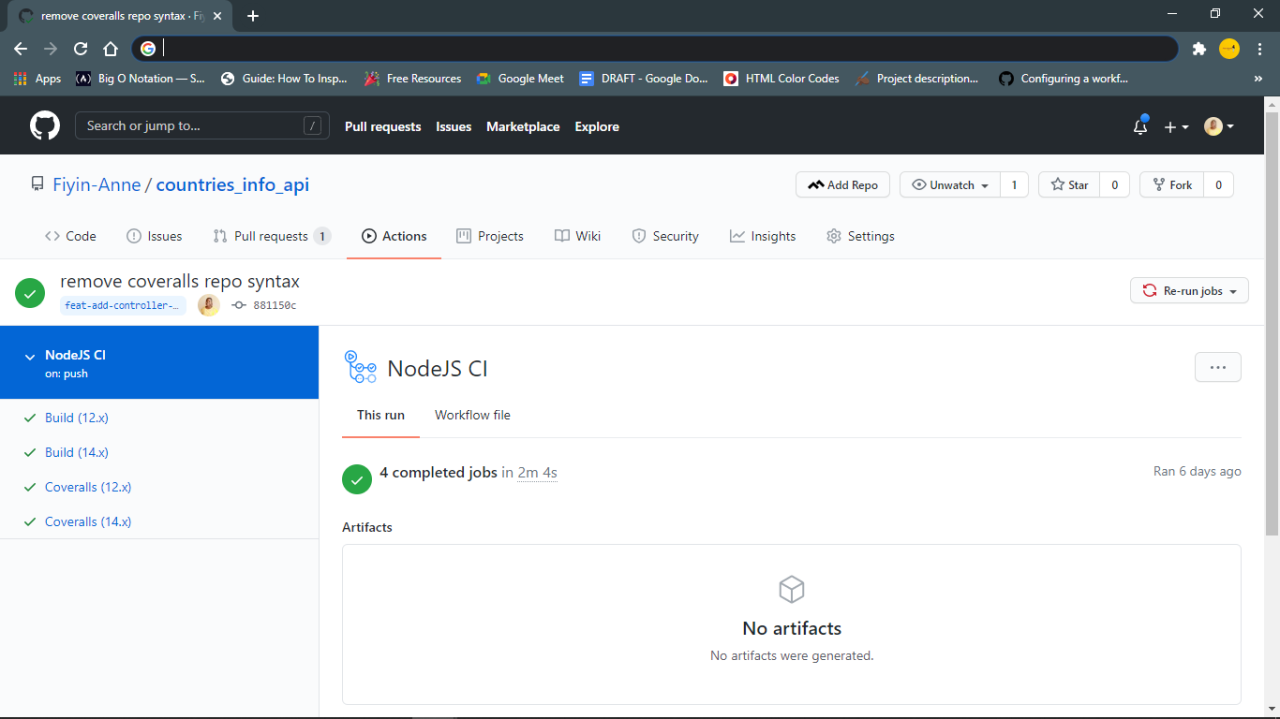
GitHub Actions workflows are defined using YAML files that specify the steps to be executed when a particular event occurs in your repository. These files are stored in the `.github/workflows` directory of your repository. Understanding the core components of a workflow file is crucial for effectively automating your CI/CD pipeline.
Jobs, Runs-on, Steps, and Actions
The building blocks of a GitHub Actions workflow are jobs, which run on specified runners, and each job comprises a series of steps. Steps can either execute commands directly or utilize pre-built actions.
- Jobs: Jobs represent a set of steps that are executed on a runner. Each workflow file can contain one or more jobs. Jobs run in parallel by default, allowing for efficient use of resources. Each job has a unique identifier.
Example:
jobs: build: # ... job configuration ... test: # ... job configuration ... - Runs-on: The `runs-on` specifies the type of virtual machine (runner) that the job will execute on. GitHub provides a variety of runners, including Linux, macOS, and Windows, with different versions of each operating system available. You can also use self-hosted runners if you require more control over the environment.
Example:
jobs: build: runs-on: ubuntu-latest # ... other job configurations ... - Steps: Steps are individual tasks within a job. They can execute commands, run actions, or perform other operations. Steps run sequentially within a job.
Example:
jobs: build: runs-on: ubuntu-latest steps: -name: Checkout code uses: actions/checkout@v3 -name: Set up JDK 17 uses: actions/setup-java@v3 with: java-version: '17' distribution: 'temurin' -name: Build with Maven run: mvn clean install - Actions: Actions are pre-built, reusable units of code that perform common tasks. They can be created by the community or by GitHub. Actions simplify workflow configuration by encapsulating complex operations. Actions are specified using the `uses` , followed by the action’s repository path and version.
Example:
    jobs:
      build:
        runs-on: ubuntu-latest
        steps:

-name: Checkout code
            uses: actions/checkout@v3

-name: Run tests
            uses: actions/setup-java@v3
            with:
              java-version: '17'
              distribution: 'temurin'
Defining Triggers for Workflow Execution
Workflows are triggered by specific events that occur in your repository. These events are defined using the `on` in the workflow file. Common triggers include `push`, `pull_request`, and `schedule`.
- Push: The `push` trigger executes the workflow when code is pushed to a branch or tag. You can specify which branches or tags to trigger on using the `branches` and `tags` filters.
Example:
on: push: branches: -main -develop tags: -v* - Pull Request: The `pull_request` trigger executes the workflow when a pull request is created, updated, or synchronized. Similar to `push`, you can filter by branch using `branches` and `branches-ignore`.
Example:
on: pull_request: branches: -main -develop - Schedule: The `schedule` trigger allows you to schedule workflow execution using cron syntax. This is useful for tasks that need to run periodically, such as generating reports or performing maintenance tasks.
Example:
on: schedule: -cron: '0 0 - - -' # Runs every day at midnight UTC - Other Triggers: GitHub Actions supports a wide variety of other triggers, including `workflow_dispatch` (manually trigger the workflow), `issue_comment`, `release`, and more. Each trigger provides specific context and data to the workflow. Refer to the official GitHub Actions documentation for a complete list of available triggers.
Configuring Environment Variables and Secrets
Environment variables and secrets provide a way to configure your workflow and pass sensitive information without hardcoding it in the workflow file.
- Environment Variables: Environment variables are key-value pairs that can be accessed within the workflow. They are useful for configuring the build environment, passing configuration parameters, or customizing the behavior of your scripts and actions.
Example:
jobs: build: runs-on: ubuntu-latest env: NODE_VERSION: 16 steps: -name: Checkout code uses: actions/checkout@v3 -name: Set up Node.js uses: actions/setup-node@v3 with: node-version: $ env.NODE_VERSION -name: Install dependencies run: npm install -name: Build run: npm run build - Secrets: Secrets are encrypted environment variables that are stored securely in your repository. They are used to store sensitive information, such as API keys, access tokens, and passwords. Secrets are not visible in the workflow logs. Secrets can be accessed using the `secrets` context within the workflow. Secrets are managed in the repository settings.
Example:
    jobs:
      deploy:
        runs-on: ubuntu-latest
        steps:

-name: Deploy to production
            run: |
              echo "Deploying with API key: $ secrets.API_KEY "
Building and Testing Your Code
Automating the build and testing process is a core benefit of continuous integration. This section details how to configure GitHub Actions to build and test your code across various programming languages, ensuring code quality and early detection of issues. By integrating these steps into your workflow, you establish a robust feedback loop, making it easier to maintain and evolve your codebase.
Specifying Build Steps for Different Programming Languages
The build process varies depending on the programming language used. GitHub Actions allows you to define specific steps for each language, utilizing pre-built actions or custom scripts. These steps typically involve installing dependencies, compiling code, and preparing it for testing.
- Node.js: The build process for Node.js projects often involves installing dependencies using npm or yarn and then running build scripts defined in your `package.json` file.
For example, in your workflow file, you might have:
“`yaml
jobs:
build:
runs-on: ubuntu-latest
steps:-uses: actions/checkout@v3
-uses: actions/setup-node@v3
with:
node-version: ’16’-run: npm install
-run: npm run build
“`This configuration checks out the code, sets up Node.js version 16, installs dependencies, and runs the build command.
- Python: Python projects frequently require setting up a virtual environment to manage dependencies. The build step usually involves installing dependencies from a `requirements.txt` file and then executing your Python scripts.
Here’s an example for a Python workflow:
“`yaml
jobs:
build:
runs-on: ubuntu-latest
steps:-uses: actions/checkout@v3
-name: Set up Python
uses: actions/setup-python@v4
with:
python-version: ‘3.9’-name: Install dependencies
run: |
python -m pip install –upgrade pip
pip install -r requirements.txt-name: Run build
run: python setup.py build
“`This sets up Python 3.9, upgrades pip, installs dependencies, and runs the build using `setup.py`.
- Java: Java projects typically use build tools like Maven or Gradle to manage dependencies and build the application. The build process involves compiling the Java source code and packaging it into a deployable artifact (e.g., a JAR or WAR file).
Here’s a Maven example:
“`yaml
jobs:
build:
runs-on: ubuntu-latest
steps:-uses: actions/checkout@v3
-name: Set up JDK 17
uses: actions/setup-java@v3
with:
java-version: ’17’
distribution: ‘temurin’-name: Build with Maven
run: mvn -B package –file pom.xml
“`This checks out the code, sets up Java 17, and runs the Maven `package` goal. The `-B` flag ensures the build runs in batch mode.
Integrating Testing Frameworks into a CI Workflow
Testing is a critical component of CI. Integrating testing frameworks into your workflow allows for automated execution of tests after each code change. This ensures that new code integrates correctly with existing code and that existing functionality continues to work as expected. The specific steps depend on the chosen testing framework.
- Unit Tests: These tests verify the functionality of individual units or components of your code.
- Integration Tests: These tests verify the interaction between different components or modules.
- End-to-End (E2E) Tests: These tests simulate user interactions with the application to ensure that the entire system functions as expected.
To include tests in your GitHub Actions workflow, you generally need to:
- Install the testing framework and its dependencies.
- Run the tests using a command-line tool provided by the framework.
- Analyze the test results and report any failures.
Comparing Testing Frameworks
Choosing the right testing framework depends on the programming language, project requirements, and team preferences. The following table provides a comparison of some popular testing frameworks.
| Feature | JUnit (Java) | pytest (Python) | Jest (JavaScript) |
|---|---|---|---|
| Languages | Java | Python | JavaScript (Node.js) |
| Features |
|
|
|
| Setup |
|
|
|
Implementing Code Analysis and Linting
Code analysis and linting are crucial for maintaining code quality, consistency, and readability within a project. These practices help identify potential issues early in the development cycle, reducing the likelihood of bugs, security vulnerabilities, and technical debt. Integrating these tools into a CI workflow ensures that code quality is consistently checked with every commit, preventing problematic code from being merged into the main branch.
Integrating Linters into a CI Workflow
Linters automatically analyze code for style, errors, and potential problems, enforcing a consistent coding style and identifying areas for improvement. Integrating linters into a CI workflow automates this process, ensuring that code adheres to predefined standards before being merged.
- Example: ESLint Integration (JavaScript/TypeScript)
- Install ESLint: Install ESLint and any necessary plugins as development dependencies in your project using a package manager like npm or yarn.
- Configure ESLint: Create an ESLint configuration file (e.g., `.eslintrc.js` or `.eslintrc.json`) to define your coding style rules. This file specifies rules for code style, error prevention, and potential code improvements.
- Create a GitHub Actions Workflow: Create a YAML file (e.g., `.github/workflows/eslint.yml`) to define your CI workflow.
- Workflow Steps: The workflow typically includes the following steps:
- Checkout Code: Use the `actions/checkout` action to check out your code from the repository.
- Install Dependencies: Install project dependencies using your project’s package manager (e.g., `npm install` or `yarn install`).
- Run ESLint: Run ESLint using a command like `npx eslint .` (assuming your project’s root directory is the starting point).
- Handle Errors: If ESLint finds any errors, the workflow should fail, preventing the merge of non-compliant code.
ESLint is a popular linter for JavaScript and TypeScript. Its integration into a CI workflow involves several steps.
A basic example of a `eslint.yml` workflow file might look like this:
    name: ESLint

    on:
      push:
        branches: [ main ]
      pull_request:
        branches: [ main ]

    jobs:
      eslint:
        runs-on: ubuntu-latest
        steps:

-uses: actions/checkout@v3

-name: Use Node.js
            uses: actions/setup-node@v3
            with:
              node-version: '16.x'

-run: npm install

-run: npx eslint .
Flake8 is a popular linter and code checker for Python. Integration follows a similar process.
- Install Flake8: Install Flake8 as a development dependency using `pip install flake8`.
- Configure Flake8: Create a configuration file (e.g., `setup.cfg`, `.flake8`) to define your desired style rules and ignore specific errors or warnings.
- Create a GitHub Actions Workflow: Create a YAML file (e.g., `.github/workflows/flake8.yml`) for your CI workflow.
- Workflow Steps:
- Checkout Code: Use the `actions/checkout` action.
- Set up Python: Use `actions/setup-python` to set up the correct Python version.
- Install Dependencies: Install project dependencies using `pip install -r requirements.txt` (if applicable).
- Run Flake8: Run Flake8 using a command like `flake8 .` to analyze the code.
- Handle Errors: The workflow fails if Flake8 reports any issues.
An example `flake8.yml` file might be:
    name: Flake8

    on:
      push:
        branches: [ main ]
      pull_request:
        branches: [ main ]

    jobs:
      flake8:
        runs-on: ubuntu-latest
        steps:

-uses: actions/checkout@v3

-name: Set up Python
            uses: actions/setup-python@v4
            with:
              python-version: '3.x'

-name: Install dependencies
            run: |
              python -m pip install --upgrade pip
              pip install -r requirements.txt
              pip install flake8

-name: Run flake8
            run: flake8 .
Incorporating Static Code Analysis Tools
Static code analysis tools perform a deeper analysis of the code, identifying potential bugs, security vulnerabilities, and code smells. These tools go beyond basic linting to provide more comprehensive code quality assessments.
- Example: SonarQube Integration
- Set up SonarQube Server: Install and configure a SonarQube server. This can be done on your own infrastructure or by using a SonarQube cloud service.
- Install SonarScanner: Install the SonarScanner, a command-line tool that analyzes your code and sends the results to the SonarQube server.
- Configure SonarScanner: Create a `sonar-project.properties` file in the root of your project to configure the SonarScanner. This file specifies information like the project key, project name, source directories, and the location of the SonarQube server.
- Create a GitHub Actions Workflow: Create a YAML file (e.g., `.github/workflows/sonarqube.yml`).
- Workflow Steps:
- Checkout Code: Use the `actions/checkout` action.
- Set up Java (if required): If your project uses Java, use `actions/setup-java` to set up the correct Java version.
- Install Dependencies: Install any necessary dependencies for your project.
- Run SonarScanner: Execute the SonarScanner using a command that points to your `sonar-project.properties` file. This step typically involves running the scanner and providing the necessary parameters for authentication with the SonarQube server.
- Analyze Results: After the scan, the workflow can be configured to check the quality gate status from SonarQube. If the quality gate fails (e.g., due to too many code smells or insufficient code coverage), the workflow will fail, preventing the merge of code that doesn’t meet the quality standards.
SonarQube is a widely used platform for continuous inspection of code quality. Integrating SonarQube into a CI workflow provides detailed reports on code quality, including metrics like code coverage, code smells, and potential vulnerabilities.
A simplified `sonarqube.yml` example:
    name: SonarQube

    on:
      push:
        branches: [ main ]
      pull_request:
        branches: [ main ]

    jobs:
      sonarqube:
        runs-on: ubuntu-latest
        steps:

-uses: actions/checkout@v3
            with:
              fetch-depth: 0  # Shallow clones should be disabled for a better use of blame and check out

-name: Set up JDK 17
            uses: actions/setup-java@v3
            with:
              java-version: 17
              distribution: 'zulu'

-name: SonarQube Scan
            run: |
              ./mvnw clean verify sonar:sonar -Dsonar.projectKey=your-project-key \
              -Dsonar.host.url=your-sonarqube-url \
              -Dsonar.login=your-sonar-token
In the example above:
- The `fetch-depth: 0` in the `actions/checkout@v3` step is essential. It ensures that the entire Git history is fetched. This is needed for SonarQube to accurately analyze the code, particularly for features like blame analysis and detecting issues across commits. Using a fetch depth of 0 ensures that the full repository history is available.
- The `java-version: 17` and `distribution: ‘zulu’` are used to set up the Java Development Kit (JDK). SonarQube often requires a specific version of Java to analyze Java code.
- The `sonar:sonar` command triggers the SonarScanner to analyze the code. Parameters like `-Dsonar.projectKey`, `-Dsonar.host.url`, and `-Dsonar.login` are crucial for configuring the scan to connect to your SonarQube instance and authenticate.
Deployment Strategies
Deployment strategies are crucial for a smooth and efficient software release process. GitHub Actions provides a robust platform for automating deployments, allowing developers to push code changes and have them automatically deployed to various environments. This section explores different deployment strategies supported by GitHub Actions and details the steps involved in deploying code to specific environments.
Identifying Deployment Strategies
GitHub Actions supports various deployment strategies, catering to diverse project needs and infrastructure setups. These strategies allow developers to deploy applications to different platforms and environments, ensuring flexibility and control over the release process.Here are some of the key deployment strategies:
- Cloud Provider Deployments: These involve deploying code directly to cloud platforms such as Amazon Web Services (AWS), Google Cloud Platform (GCP), Microsoft Azure, and others. GitHub Actions provides pre-built actions and integrations for seamless deployments to these platforms.
- Server Deployments: This strategy involves deploying code to traditional servers, which can be either physical or virtual machines. This often involves using SSH to securely transfer files and execute commands on the server.
- Container Deployments: This strategy leverages containerization technologies like Docker. Code is packaged into containers and deployed to container orchestration platforms such as Kubernetes or directly to container registries.
- Platform-as-a-Service (PaaS) Deployments: PaaS providers like Heroku, Netlify, and Vercel offer streamlined deployment processes. GitHub Actions can integrate with these platforms to automatically deploy code changes.
- Static Site Deployments: For static websites, GitHub Actions can deploy the generated HTML, CSS, and JavaScript files to platforms like GitHub Pages, Netlify, or AWS S3.
Deploying Code to Specific Environments
Deploying code to specific environments, such as staging and production, is a critical part of the software development lifecycle. It allows for testing and validation before releasing changes to end-users.Here are the general steps involved in deploying code to a specific environment using GitHub Actions:
- Define Environments: Identify the different environments (e.g., staging, production) and their corresponding infrastructure configurations.
- Create Environment Secrets: Store sensitive information like API keys, database credentials, and deployment tokens as secrets within the GitHub repository. This prevents hardcoding sensitive data in the workflow files.
- Configure Workflow Files: Create separate workflow files or use conditional logic within a single workflow file to define the deployment steps for each environment.
- Use Actions or Custom Scripts: Utilize pre-built actions or write custom scripts to handle the deployment process. These scripts can include tasks like building the application, transferring files, and restarting services.
- Conditional Execution: Use conditional statements within the workflow file to execute deployment steps based on factors like the branch name, environment variables, or commit messages. For example, deploy to staging when changes are pushed to the `develop` branch and to production when changes are merged into the `main` branch.
- Environment Variables: Utilize environment variables to pass configuration values specific to each environment.
- Testing and Validation: Incorporate automated testing and validation steps before deploying to production. This includes unit tests, integration tests, and end-to-end tests.
- Notifications: Configure notifications to alert team members about deployment status, including success or failure notifications, using tools like Slack or email.
Pros and Cons of Deploying to Different Platforms
Choosing the right platform for deployment depends on various factors, including the application type, infrastructure requirements, and budget. Each platform has its advantages and disadvantages.Here is a comparison of the pros and cons of deploying to different platforms:
| Platform | Pros | Cons |
|---|---|---|
| Cloud Providers (AWS, GCP, Azure) |
|
|
| Server Deployments |
|
|
| Container Deployments (Kubernetes, Docker) |
|
|
| PaaS (Heroku, Netlify, Vercel) |
|
|
| Static Site Deployments (GitHub Pages, Netlify, AWS S3) |
|
|
Advanced Workflow Features
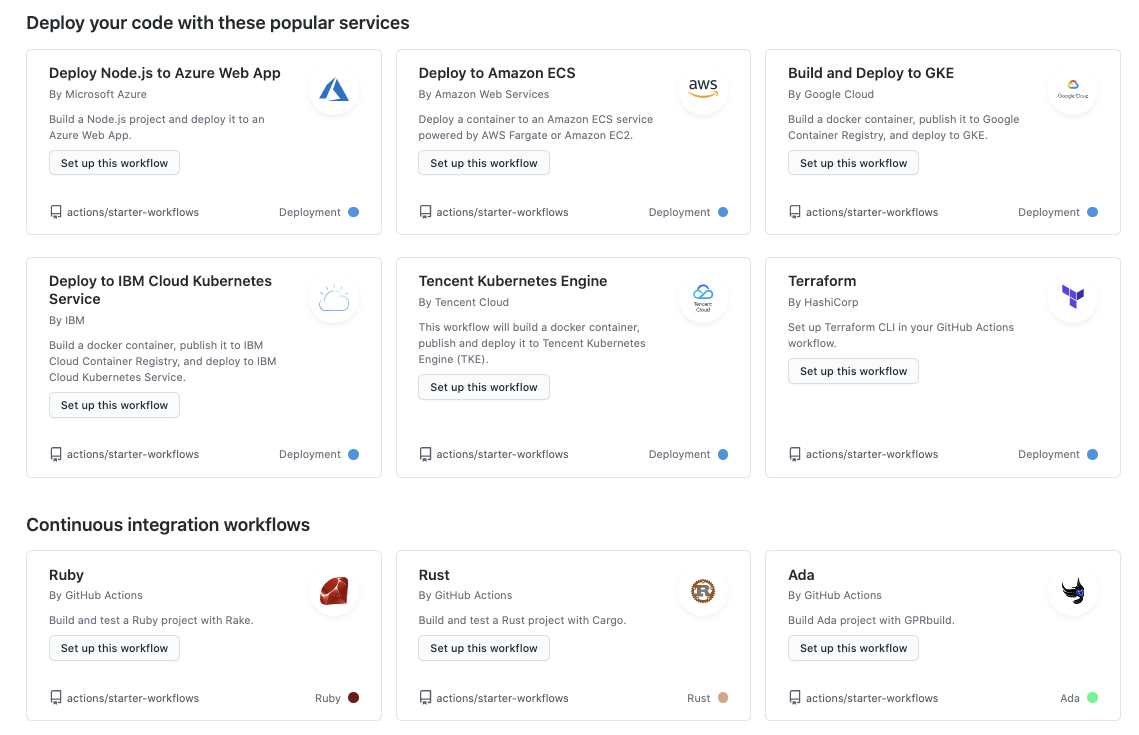
GitHub Actions offers a robust set of advanced features to optimize your CI/CD pipelines. These features allow for greater flexibility, efficiency, and reusability in your workflows, enabling you to handle complex build and deployment scenarios with ease. Leveraging these capabilities can significantly improve your development workflow, reducing build times, improving code quality, and streamlining deployments.
Using Workflow Matrices for Parallel Testing
Workflow matrices facilitate parallel execution of jobs across multiple environments, operating systems, or software versions. This parallelization dramatically reduces the overall time required to complete your CI process, leading to faster feedback cycles.To implement a matrix strategy:
- Define a `matrix` section within the `jobs.
.strategy` section of your workflow file. - Specify the axes of variation using keys like `os`, `node-version`, or custom variables.
- GitHub Actions will automatically create separate jobs for each combination defined in the matrix.
For instance, to test your code across different operating systems and Node.js versions, your workflow file might include:“`yamljobs: test: runs-on: $ matrix.os strategy: matrix: os: [ubuntu-latest, windows-latest, macos-latest] node-version: [14, 16, 18] steps:
uses
actions/checkout@v3
name
Use Node.js $ matrix.node-version uses: actions/setup-node@v3 with: node-version: $ matrix.node-version
run
npm install
run
npm test“`In this example, GitHub Actions will create nine separate test jobs, one for each combination of operating system and Node.js version. The `runs-on` key dynamically sets the runner based on the `os` value from the matrix. The `node-version` key is then used to select the specific Node.js version to be used within each job. This approach significantly reduces the total testing time compared to running the tests sequentially.
Caching Dependencies to Speed Up Build Times
Caching dependencies is a crucial optimization technique that significantly reduces build times. By caching dependencies, you avoid the need to download them repeatedly for each workflow run, especially for projects with numerous dependencies or large package sizes.To implement dependency caching:
- Use the `actions/cache` action.
- Specify a unique `key` to identify the cache. This key should reflect the dependencies being cached (e.g., `npm`, `yarn`, `pip`).
- Define a `path` to the directory where the dependencies are stored (e.g., `node_modules`, `.venv`).
Here’s an example demonstrating how to cache npm dependencies:“`yamljobs: build: runs-on: ubuntu-latest steps:
uses
actions/checkout@v3
uses
actions/setup-node@v3 with: node-version: ’16’
name
Cache node modules id: cache-npm uses: actions/cache@v3 with: path: node_modules key: $ runner.os -npm-$ hashFiles(‘/package-lock.json’) restore-keys: | $ runner.os -npm-
run
npm install if: steps.cache-npm.outputs.cache-hit != ‘true’
run
npm run build“`In this example:
- The `actions/cache` action attempts to restore the cache based on the provided `key`.
- The `key` is constructed using the operating system, “npm”, and a hash of the `package-lock.json` file. This ensures that the cache is invalidated whenever the dependencies change.
- The `restore-keys` option provides a fallback key, which can be useful if the exact key is not found.
- The `if: steps.cache-npm.outputs.cache-hit != ‘true’` condition ensures that `npm install` is only executed if the cache is not found.
By implementing dependency caching, you can dramatically reduce build times, especially for projects that frequently update their dependencies. This optimization is particularly beneficial for projects with large dependency trees.
Creating Custom Actions for Reusable Workflow Components
Custom actions enable you to encapsulate and reuse workflow logic, promoting code reusability and maintainability. Creating custom actions allows you to abstract complex tasks into modular components that can be easily shared across multiple workflows.To create a custom action:
- Create a new repository or directory structure.
- Define an `action.yml` or `action.yaml` file in the root of your repository. This file describes the action’s inputs, outputs, and the entry point (e.g., a script or Docker container).
- Implement the action’s logic, typically using a script (e.g., Bash, Python, JavaScript) or a Docker container.
- Publish the action to a public or private repository.
Here’s an example of a simple custom action written in JavaScript that prints a greeting:“`yaml# action.ymlname: ‘Hello World’description: ‘Prints a greeting to the console’inputs: who-to-greet: description: ‘The person to greet’ required: true default: ‘World’outputs: time: description: ‘The time we greeted you’runs: using: ‘node16’ main: ‘index.js’“““javascript// index.jsconst core = require(‘@actions/core’);try const nameToGreet = core.getInput(‘who-to-greet’); const time = new Date().toTimeString(); core.setOutput(‘time’, time); console.log(`Hello $nameToGreet!`); catch (error) core.setFailed(error.message);“`To use this custom action in your workflow:“`yamljobs: greet: runs-on: ubuntu-latest steps:
uses
actions/checkout@v3
uses
./path/to/your/action # Replace with the actual path or repository with: who-to-greet: ‘GitHub’“`In this example:
- The `action.yml` file defines the action’s inputs, outputs, and the entry point (index.js).
- The `index.js` file contains the JavaScript code that performs the greeting.
- The workflow file uses the custom action by specifying the path to the action’s repository or local directory.
Custom actions streamline workflow creation by allowing you to reuse code and simplify complex tasks into modular components. This modular approach enhances code maintainability and facilitates collaboration across projects.
Monitoring and Logging
Effective monitoring and logging are crucial for maintaining a healthy and efficient Continuous Integration (CI) pipeline. They provide insights into workflow execution, help identify bottlenecks, and enable rapid troubleshooting. Properly implemented monitoring and logging capabilities ensure the CI process runs smoothly and efficiently, minimizing downtime and maximizing productivity.
Accessing and Interpreting Workflow Logs
Workflow logs are essential for understanding what happened during a CI run. They provide a detailed record of each step, including commands executed, output generated, and any errors encountered.To access workflow logs in GitHub Actions:
- Navigate to the “Actions” tab in your repository.
- Select the workflow run you want to examine.
- Click on the specific job within the run.
- You will see a list of steps. Click on a step to view its log output.
The log output displays the commands executed, the output of those commands, and any error messages. The logs are organized chronologically, making it easy to follow the execution flow. Key elements to look for include:
- Step start and end times: These help identify time-consuming steps.
- Command outputs: The results of each command, including success or failure messages.
- Error messages: Detailed information about any errors that occurred, which is critical for debugging.
- Warnings: Potential issues that might require attention.
Analyzing logs effectively involves:
- Identifying the source of errors: Look for error messages and stack traces to pinpoint the failing step and command.
- Understanding the execution flow: Trace the execution path to see how different steps interact and where problems arise.
- Analyzing performance: Identify steps that take a long time to complete, which might indicate performance bottlenecks.
For example, consider a build step failing due to a missing dependency. The logs would display an error message indicating the missing package and the command that failed. Analyzing the logs allows the user to quickly identify and resolve the issue, such as by adding the missing dependency to the project’s configuration file.
Setting Up Notifications for Workflow Success and Failure
Automated notifications are critical for staying informed about the status of your CI workflows. Receiving notifications allows you to react quickly to failures and monitor the overall health of your CI pipeline.GitHub Actions offers several ways to set up notifications:
- Email Notifications: By default, GitHub sends email notifications for workflow failures to the repository’s collaborators. You can customize these notifications in your GitHub account settings.
- Slack Notifications: You can integrate your workflows with Slack to receive notifications directly in your Slack channels. This typically involves setting up a Slack app and configuring a webhook in your workflow.
- Microsoft Teams Notifications: Similar to Slack, you can integrate with Microsoft Teams using a webhook.
- Other Notification Services: Using third-party services like PagerDuty or custom integrations, you can send notifications to various channels and platforms.
To set up email notifications, no specific configuration is usually required, as GitHub sends them automatically. However, you can customize the types of events for which you receive notifications.To configure Slack notifications, you typically need to:
- Create a Slack app and obtain a webhook URL.
- Add the webhook URL as a secret in your GitHub repository settings.
- Update your workflow file to send a message to the Slack channel using the webhook.
Here is an example of a workflow snippet that sends a notification to Slack upon workflow failure:“`yamlon: push: branches: – mainjobs: build: runs-on: ubuntu-latest steps:
name
Checkout code uses: actions/checkout@v3
name
Build run: ./build.sh
name
Send Slack notification on failure if: failure() uses: actions/slack@v1 with: status: failed channel: ‘#your-slack-channel’ webhook-url: $ secrets.SLACK_WEBHOOK_URL “`In this example, the `if: failure()` condition ensures that the Slack notification is sent only if the workflow fails.
The `secrets.SLACK_WEBHOOK_URL` variable stores the Slack webhook URL, keeping it secure.
Monitoring the Performance of CI Workflows
Monitoring the performance of CI workflows is vital for optimizing build times and resource utilization. Analyzing performance metrics can reveal bottlenecks, identify areas for improvement, and ensure a fast and efficient CI pipeline.Key performance metrics to monitor include:
- Workflow run time: The total time it takes for a workflow to complete.
- Step-specific run times: The time taken by individual steps within a workflow.
- Resource usage: CPU, memory, and disk I/O consumption during workflow execution.
- Success/failure rates: The percentage of successful and failed workflow runs.
GitHub Actions provides several tools for monitoring performance:
- Workflow run history: The “Actions” tab displays the history of workflow runs, including their duration and status.
- Step summary: Each workflow run provides a detailed summary of each step, including its start and end times, which allows you to identify time-consuming steps.
- Custom metrics and logging: You can integrate tools to collect and analyze custom metrics.
- Third-party monitoring tools: Integrate with monitoring tools like Datadog or Prometheus to gain more detailed insights.
To improve performance, consider the following strategies:
- Optimize build scripts: Review and optimize the scripts used in your workflows to reduce execution time.
- Cache dependencies: Utilize caching mechanisms to store and reuse dependencies, reducing the need to download them repeatedly.
- Parallelize tasks: Break down large tasks into smaller, parallelizable units to improve overall execution time.
- Use optimized runners: Choose the appropriate runner size and configuration based on your resource requirements.
For example, if a build step consistently takes a long time, you can analyze the logs to identify the cause. Perhaps the build is compiling unnecessary code or using inefficient build tools. Optimizing the build process or switching to a faster compiler can significantly reduce the overall workflow run time. Another example is caching dependencies, which can save significant time during build steps that require downloading and installing dependencies, such as npm packages or Python libraries.
By caching these dependencies, subsequent workflow runs can reuse them, leading to faster build times.
Security Considerations
Securing your Continuous Integration (CI) workflows is paramount to protecting your codebase, sensitive information, and the overall integrity of your software development lifecycle. A compromised CI pipeline can be a gateway for attackers to inject malicious code, steal secrets, or disrupt your development processes. Therefore, implementing robust security measures is crucial for maintaining a secure and reliable CI environment.
Importance of Securing CI Workflows
The CI pipeline, by its nature, handles a significant amount of sensitive information, including code, build artifacts, and access credentials. Failing to secure this pipeline exposes your organization to a multitude of risks.
- Code Integrity: A compromised CI system can be used to inject malicious code into your application. This can lead to vulnerabilities, data breaches, and reputational damage.
- Secret Exposure: CI workflows often require access to secrets like API keys, database credentials, and SSH keys. If these secrets are not handled securely, they can be exposed to unauthorized parties, leading to significant security breaches.
- Supply Chain Attacks: Attackers can target the CI system to compromise dependencies and inject malicious code into the software supply chain. This can affect not only your organization but also any users of your software.
- Denial of Service (DoS): A compromised CI system can be used to launch denial-of-service attacks against your infrastructure or other systems.
- Compliance Violations: Failure to secure your CI system can lead to non-compliance with industry regulations and standards, resulting in fines and legal issues.
Best Practices for Handling Secrets Securely within GitHub Actions
GitHub Actions provides several mechanisms for securely handling secrets, minimizing the risk of exposure. Properly implementing these best practices is essential for maintaining a secure CI/CD pipeline.
- Use GitHub Secrets: Store sensitive information like API keys, database passwords, and other credentials as GitHub Secrets. These secrets are encrypted and only accessible within your repository’s workflows. You can define secrets at the repository, organization, or environment level.
- Avoid Hardcoding Secrets: Never hardcode secrets directly into your workflow files. This makes them easily accessible to anyone with access to your repository. Always use GitHub Secrets instead.
- Use Environment Variables: When possible, utilize environment variables to pass secrets to your build scripts or applications. This provides a layer of abstraction and allows for easier management of secrets.
- Limit Access to Secrets: Grant access to secrets only to the necessary workflows and jobs. Avoid giving broader access than required.
- Rotate Secrets Regularly: Regularly rotate your secrets, such as API keys and passwords. This limits the impact of a potential compromise. The frequency of rotation depends on the sensitivity of the secret and your organization’s security policies.
- Use Encryption at Rest and in Transit: Ensure that secrets are encrypted both when stored (at rest) and when transmitted (in transit) within your CI/CD pipeline. GitHub Actions automatically encrypts secrets at rest. Use HTTPS and other secure protocols for data transmission.
- Audit Secret Usage: Regularly audit your workflows to identify how secrets are being used. Look for any potential misuse or unnecessary access to secrets. Review logs and audit trails to detect any suspicious activity.
- Protect Secrets from Logging: Avoid logging secrets to the console or any other output that might be visible to unauthorized users. GitHub Actions automatically masks secrets in the logs, but always be mindful of where secrets might appear.
- Use Secrets in Actions Inputs: When using reusable workflows or actions, pass secrets as inputs to the action rather than hardcoding them. This allows for better control and management of secrets.
- Consider Third-Party Secret Management Solutions: For more complex secret management needs, consider integrating third-party secret management solutions such as HashiCorp Vault, AWS Secrets Manager, or Azure Key Vault. These tools provide advanced features like secret rotation, access control, and auditing.
Potential Security Vulnerabilities and Mitigation Strategies
CI/CD pipelines are vulnerable to various security threats. Understanding these vulnerabilities and implementing appropriate mitigation strategies is crucial for safeguarding your CI/CD environment.
- Supply Chain Attacks: Attackers can compromise dependencies to inject malicious code into your application.
- Mitigation:
- Regularly update dependencies to the latest versions.
- Use a Software Bill of Materials (SBOM) to track dependencies and identify vulnerabilities.
- Use a dependency scanning tool to identify and address vulnerabilities in your dependencies.
- Verify the integrity of dependencies before installing them.
- Use a private package registry to control the source of your dependencies.
- Code Injection: Attackers can inject malicious code into your application through vulnerabilities in your build process or dependencies.
- Mitigation:
- Sanitize all user inputs and data.
- Use a static code analysis tool to identify and fix code vulnerabilities.
- Implement strong code review processes.
- Use a Web Application Firewall (WAF) to protect your application from common attacks.
- Credential Exposure: Secrets like API keys, database credentials, and SSH keys can be exposed if not handled securely.
- Mitigation:
- Use GitHub Secrets to store and manage sensitive credentials.
- Never hardcode secrets in your code or workflow files.
- Rotate secrets regularly.
- Limit access to secrets to only the necessary workflows and jobs.
- Protect secrets from logging.
- Workflow Injection: Attackers can inject malicious code into your workflow files to gain unauthorized access.
- Mitigation:
- Carefully review all workflow files.
- Use trusted actions from verified publishers.
- Avoid using untrusted inputs in your workflow files.
- Regularly update your workflow files.
- Privilege Escalation: Attackers can exploit vulnerabilities to gain elevated privileges within your CI/CD environment.
- Mitigation:
- Follow the principle of least privilege and grant only the necessary permissions to your CI/CD workflows.
- Use role-based access control (RBAC) to manage user access.
- Regularly audit user access and permissions.
- Build Artifact Tampering: Attackers can tamper with build artifacts to inject malicious code into your application.
- Mitigation:
- Use digital signatures to verify the integrity of build artifacts.
- Store build artifacts in a secure repository.
- Implement a secure build process that prevents unauthorized access.
- Log Poisoning: Attackers can inject malicious code into your logs to hide their activities or mislead investigators.
- Mitigation:
- Sanitize all data before logging it.
- Use a security information and event management (SIEM) system to monitor your logs.
- Implement a log rotation policy.
- Protect your logs from unauthorized access.
- Container Vulnerabilities: If you use containers in your CI/CD pipeline, they may be vulnerable to various security threats.
- Mitigation:
- Use a container image scanner to identify and address vulnerabilities in your container images.
- Regularly update your container images.
- Follow container security best practices.
- Use a container runtime with strong security features.
- Network Attacks: Attackers can launch various network attacks against your CI/CD environment.
- Mitigation:
- Use a firewall to protect your CI/CD environment.
- Implement network segmentation.
- Monitor network traffic for suspicious activity.
- Use intrusion detection and prevention systems.
Troubleshooting Common Issues

Setting up and maintaining a Continuous Integration (CI) pipeline with GitHub Actions can sometimes be challenging. Errors can arise from various sources, including incorrect configuration, dependency issues, and build failures. This section provides solutions to common problems, helping you to diagnose and resolve issues effectively.
Dependency Resolution Problems
Dependency management is a critical aspect of any software project, and problems here can halt your CI process. Common issues include missing packages, version conflicts, and problems with package repositories.
- Missing Dependencies: Often, your project’s build process requires specific packages or libraries. If these are not installed, the build will fail. The error message will typically indicate which package is missing.
- Version Conflicts: Different parts of your project, or different dependencies, may require different versions of the same package. This can lead to conflicts and build failures.
- Repository Access Issues: Your CI workflow may not have the necessary permissions to access private package repositories or external package sources.
Solution: Ensure that all dependencies are declared in your project’s dependency file (e.g., `package.json` for Node.js, `requirements.txt` for Python, or a `pom.xml` for Java). Within your GitHub Actions workflow, use commands to install these dependencies. For instance, in a Node.js project, you’d use `npm install` or `yarn install` before running your build scripts.
Solution: Carefully manage your dependencies. Consider using a dependency management tool like `npm`, `yarn`, or `pip` to resolve these conflicts. Lock down the versions of your dependencies in your dependency file to ensure consistency across different environments. Regularly update your dependencies and test your application to identify and address conflicts promptly.
Solution: Provide authentication credentials for accessing private repositories. This typically involves setting environment variables in your GitHub Actions workflow that contain the necessary tokens or API keys. The exact method depends on the package manager and the repository you are using. For example, for private npm packages, you might use a `.npmrc` file with authentication details, or for Python packages from a private PyPI server, you might need to configure the `pip` tool with credentials.
Build Failures
Build failures are common and can stem from various issues, including code errors, incorrect build configurations, or environmental inconsistencies.
- Code Compilation Errors: Syntax errors, missing semicolons, or other code-related issues can prevent the code from compiling.
- Test Failures: If tests fail, the build will often be marked as failed. This indicates that your code is not meeting the expected requirements.
- Configuration Errors: Problems with the build configuration can lead to failures. This could involve incorrect settings in your build scripts, build files, or CI configuration files.
Solution: Review the build logs carefully to identify the exact location of the error. Fix the code and push the changes. Using linters and static analysis tools within your CI pipeline can help catch these errors early.
Solution: Examine the test reports to determine which tests have failed and why. Fix the underlying issues in your code and re-run the tests. The CI pipeline should provide detailed reports to pinpoint the source of the problem.
Solution: Carefully review the build configuration files, such as `pom.xml`, `Gruntfile.js`, or your `Dockerfile`, and ensure all settings are correct. Verify that the CI workflow is configured correctly and that it matches the project’s requirements. Make sure that all environment variables and secrets are properly set.
Workflow Configuration Problems
Incorrect configuration of your GitHub Actions workflow can lead to unexpected behavior or outright failures.
- Syntax Errors in Workflow Files: Incorrect YAML syntax in your workflow files (`.github/workflows/*.yml`) is a common source of errors.
- Incorrect Permissions: Your workflow may not have the necessary permissions to perform certain actions, such as deploying to a cloud provider or accessing secrets.
- Unexpected Workflow Behavior: The workflow may be running in a way that you did not intend. This could be due to incorrect triggers, conditional logic, or job dependencies.
Solution: Use a YAML validator to check your workflow files for syntax errors. GitHub provides a built-in validator on the Actions tab of your repository. Ensure proper indentation and formatting. Double-check for any typos in the names of jobs, steps, or actions.
Solution: Review the permissions granted to your workflow in the workflow file. Grant the necessary permissions to allow the workflow to perform its tasks. For example, if you are deploying to AWS, ensure that your workflow has the correct AWS credentials and permissions to access the required resources. Use the `permissions` key in your workflow file to manage permissions.
Solution: Review the workflow file carefully and make sure that the triggers, conditions, and job dependencies are configured correctly. Use the GitHub Actions UI to monitor the workflow runs and identify any unexpected behavior. Add logging statements to your workflow to track the execution flow and help debug issues.
Common Errors and Solutions:
- Error: “ModuleNotFoundError: No module named ‘requests'”
Solution: Install the missing package using `pip install requests` in your workflow before running your Python script.
- Error: “npm ERR! code E404”
Solution: Ensure that the package name is correct, and the package exists on the npm registry or configure your workflow to access private npm repositories by providing authentication details.
- Error: “SyntaxError: Unexpected token .”
Solution: Review your code for syntax errors and ensure that your code is valid according to the programming language’s syntax rules. Use linters to catch errors early.
- Error: “The process ‘/usr/bin/docker’ failed with exit code 127”
Solution: Check the runner environment, confirm Docker is installed, and ensure the workflow has the necessary permissions. Also, verify the Docker commands are correctly formatted and that there are no typos in your commands.
Illustrative Examples
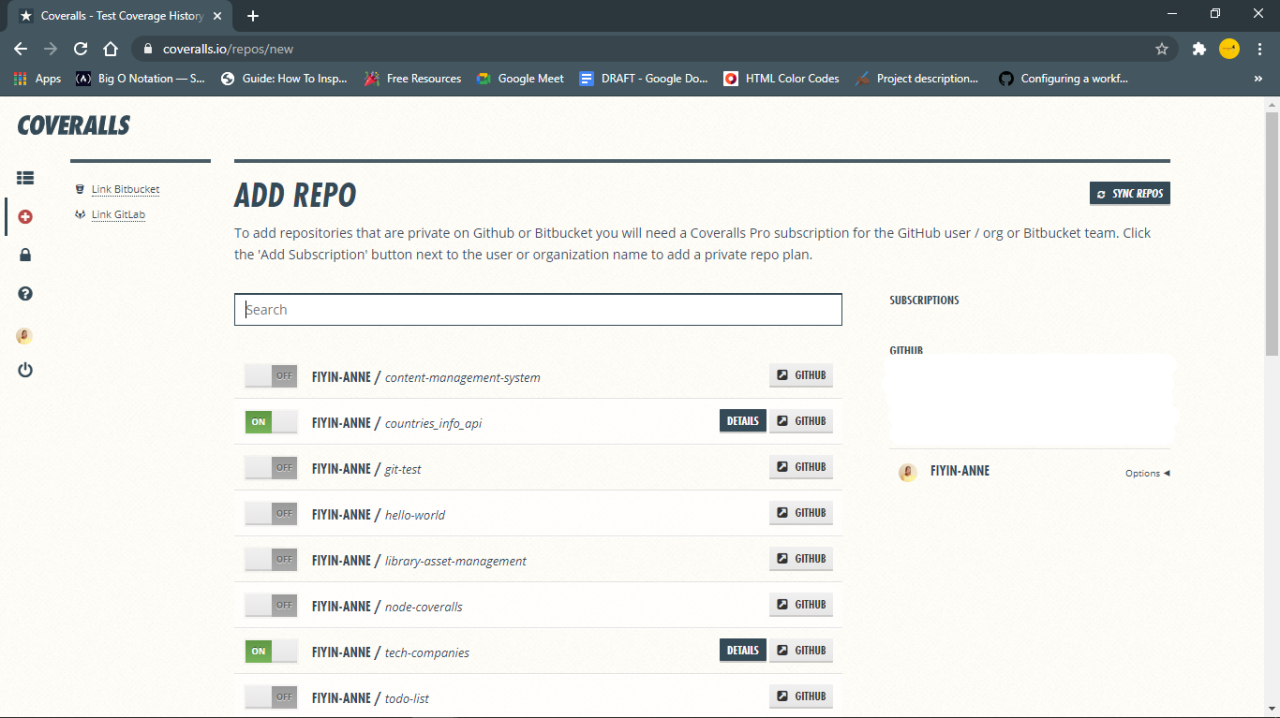
Continuous Integration (CI) becomes significantly more practical when viewed through the lens of concrete examples. This section provides step-by-step guides and illustrative scenarios to demonstrate how to implement CI using GitHub Actions for different project types. These examples are designed to be easily adaptable and serve as a foundation for more complex CI pipelines.
Setting Up CI for a Simple Python Application
Implementing CI for a Python application involves several key steps, including defining the workflow, specifying dependencies, and running tests. This example demonstrates how to set up a CI pipeline for a basic Python project.
- Project Setup: Create a new GitHub repository and initialize a simple Python project. This includes a `requirements.txt` file to specify project dependencies and a test file (e.g., `test_app.py`) containing unit tests.
- Create the Workflow File: Navigate to your repository on GitHub, go to the “Actions” tab, and click “Set up a workflow yourself.” This will open the workflow editor. Create a new file named `.github/workflows/python-ci.yml`.
- Define the Workflow: The workflow file defines the steps that GitHub Actions will execute. The following is a sample workflow file:
    name: Python CI

    on:
      push:
        branches: [ "main" ]
      pull_request:
        branches: [ "main" ]

    jobs:
      build:
        runs-on: ubuntu-latest
        steps:

-uses: actions/checkout@v3

-name: Set up Python 3.x
            uses: actions/setup-python@v4
            with:
              python-version: '3.x'

-name: Install dependencies
            run: |
              python -m pip install --upgrade pip
              pip install -r requirements.txt

-name: Run tests
            run: |
              python -m unittest discover
This workflow is triggered on pushes and pull requests to the `main` branch. It checks out the code, sets up a Python environment, installs dependencies from `requirements.txt`, and then runs the tests using the `unittest` module.
- Add Dependencies: Create a `requirements.txt` file in your project root and list your project dependencies. For instance:
pytest - Create Test File: Create a test file (e.g., `test_app.py`) to include unit tests for your application. An example is:
import unittest class TestStringMethods(unittest.TestCase): def test_upper(self): self.assertEqual('foo'.upper(), 'FOO') def test_isupper(self): self.assertTrue('FOO'.isupper()) self.assertFalse('Foo'.isupper()) if __name__ == '__main__': unittest.main() - Commit and Push: Commit the workflow file, `requirements.txt`, and test files to your GitHub repository.
- Observe the CI Run: Navigate to the “Actions” tab in your GitHub repository. You will see the workflow running. Clicking on the workflow run will display detailed logs, including the results of the test execution.
Demonstrating CI Configuration for a Web Application Using JavaScript and a Popular Framework
Implementing CI for a web application involves integrating tools like linters, test runners, and build processes. This example focuses on a JavaScript web application using a popular framework, such as React or Vue.js.
- Project Setup: Create a new GitHub repository and initialize a web application project using a framework of your choice (e.g., create-react-app, Vue CLI).
- Create the Workflow File: Create a workflow file named `.github/workflows/web-ci.yml`.
- Define the Workflow: The workflow file defines the steps to build, test, and lint the web application. A sample workflow file might look like this:
    name: Web CI

    on:
      push:
        branches: [ "main" ]
      pull_request:
        branches: [ "main" ]

    jobs:
      build:
        runs-on: ubuntu-latest
        steps:

-uses: actions/checkout@v3

-name: Use Node.js 16.x
            uses: actions/setup-node@v3
            with:
              node-version: 16.x

-name: Install dependencies
            run: npm install

-name: Run tests
            run: npm test

-name: Lint
            run: npm run lint

-name: Build
            run: npm run build
This workflow is triggered on pushes and pull requests to the `main` branch. It checks out the code, sets up Node.js, installs dependencies, runs tests (using a testing framework like Jest or Mocha), lints the code (using a linter like ESLint or Prettier), and builds the application.
- Configure Scripts: Ensure your `package.json` file includes scripts for testing, linting, and building your application. For example:
"scripts": "test": "jest", "lint": "eslint .", "build": "react-scripts build" - Commit and Push: Commit the workflow file, `package.json`, and application code to your GitHub repository.
- Observe the CI Run: Navigate to the “Actions” tab in your GitHub repository to monitor the workflow execution.
Designing a Descriptive Illustration of the CI Workflow Stages for a Specific Project
Visualizing the CI workflow stages can help in understanding the flow of the process and identifying potential bottlenecks. This section presents a descriptive illustration of the CI workflow for a fictional e-commerce project.
The e-commerce project CI workflow consists of several key stages, each designed to ensure the quality and stability of the codebase. The workflow is triggered on every push to the `main` branch and on pull requests. The stages are:
- Code Checkout: The workflow starts by checking out the latest version of the code from the repository.
- Dependency Installation: The CI environment installs all project dependencies, including libraries and frameworks, based on the project’s dependency file (e.g., `package.json` for JavaScript, `requirements.txt` for Python).
- Code Linting: A linter is used to check the code for style and potential errors. This ensures code consistency and adherence to coding standards.
- Unit Testing: Unit tests are executed to verify individual components of the application. This ensures that each part of the system functions correctly.
- Integration Testing: Integration tests are run to ensure that different parts of the application work together seamlessly.
- Build Process: The application is built, creating production-ready artifacts (e.g., compiled code, bundled assets).
- Deployment (Conditional): If all tests pass and the build is successful, the application is deployed to a staging environment for further testing. Deployment to production is often triggered manually or based on specific criteria (e.g., successful staging testing).
- Notifications: The CI system sends notifications about the build status, including success or failure, to relevant stakeholders (e.g., developers, project managers).
The diagram illustrates a linear flow, where each stage depends on the successful completion of the previous one. Failures at any stage halt the process, providing immediate feedback to the development team. The conditional deployment step highlights the importance of controlled releases and staging environments.
Last Recap
In conclusion, mastering CI with GitHub Actions empowers you to build, test, and deploy your code with efficiency and confidence. From understanding the core concepts to implementing advanced features, this guide provides a solid foundation for optimizing your software development lifecycle. By embracing CI, you can reduce errors, accelerate releases, and ultimately, deliver higher-quality software. So, take the leap, explore the possibilities, and transform your development process with the power of GitHub Actions.