Embark on a journey into the world of web hosting with this comprehensive guide on how to set up Apache virtual hosts for multiple sites. This essential skill allows you to host numerous websites on a single server, maximizing resource utilization and simplifying management. Whether you’re a seasoned system administrator or a curious beginner, understanding virtual host configuration is key to efficiently managing web applications.
This guide will walk you through every step, from the initial prerequisites and configuration file basics to advanced topics like SSL/TLS setup, subdomain configuration, and dynamic virtual hosts. We’ll cover essential aspects like domain name setup, file permissions, and Apache directives, ensuring you have the knowledge to successfully host multiple websites and optimize your server’s performance. You’ll learn how to configure virtual hosts for different scenarios, including those with distinct port numbers, IP addresses, and subdomains.
Prerequisites for Apache Virtual Host Configuration

Before you can configure Apache virtual hosts, several prerequisites must be in place. These elements ensure a smooth and secure setup, allowing you to serve multiple websites from a single server. Neglecting these steps can lead to configuration errors, security vulnerabilities, and website downtime.
Software Packages and System Configuration
Setting up Apache virtual hosts requires specific software and system configurations. This section Artikels the essential packages and configurations needed before you begin.The following software packages are typically required:
- Apache Web Server: The core web server software. This is the foundation upon which virtual hosts are built. The installation process varies depending on your operating system. For example, on Debian/Ubuntu systems, you would typically use the command
sudo apt update && sudo apt install apache2. On CentOS/RHEL systems, the command would besudo yum install httpdorsudo dnf install httpd. - Text Editor: A text editor is crucial for editing configuration files. Common choices include
nano,vim, oremacs. - Firewall Configuration: Ensure that your firewall allows traffic on port 80 (HTTP) and port 443 (HTTPS) if you plan to use SSL/TLS. Firewall rules need to be configured to allow incoming connections on these ports. For example, using
ufwon Ubuntu, you would runsudo ufw allow 80andsudo ufw allow 443.
Additionally, the following system configurations are important:
- Operating System: A functional operating system, such as Linux (Debian, Ubuntu, CentOS, RHEL), macOS, or Windows Server.
- Network Connectivity: A stable internet connection for accessing your websites.
- Static IP Address (Recommended): While not strictly required, a static IP address is recommended for each server. This helps ensure that your websites remain accessible even if the server restarts.
Domain Name and DNS Configuration
A domain name and proper DNS configuration are essential for each website you host using virtual hosts. This section explains why they are important and how they work.Every website needs a unique domain name to be accessible on the internet. The domain name acts as a human-readable address that maps to the server’s IP address.
- Domain Name Registration: You must register a domain name through a domain registrar (e.g., GoDaddy, Namecheap, Google Domains). The domain name should reflect the website’s purpose or brand.
- DNS Records: After registering a domain name, you need to configure DNS (Domain Name System) records. These records tell the internet how to find your website. The most important record is the A record, which maps your domain name (e.g., example.com) to your server’s IP address.
For example, if your server’s IP address is 192.0.2.1, the A record for your domain example.com would point to that IP address. When a user types “example.com” into their browser, their computer queries the DNS to find the IP address associated with that domain. The browser then uses that IP address to connect to your server. Without correct DNS configuration, users will not be able to access your website.
User Permissions and Ownership
Proper user permissions and ownership are crucial for security and stability. This section explains how to configure these settings for your website directories and files.Incorrect permissions can lead to security vulnerabilities, allowing unauthorized access to your website files.
- Website Directory Ownership: The website directory (e.g.,
/var/www/example.com/) should typically be owned by the user that Apache runs as (usuallywww-dataon Debian/Ubuntu orapacheon CentOS/RHEL) and the group should also be the same user or a specific group (likewww-dataorapache). You can set the ownership using thechowncommand. For example:sudo chown -R www-data:www-data /var/www/example.com/ - File Permissions: Files within the website directory should typically have permissions set to allow the web server to read them. Common file permission settings are 644 (read/write for the owner, read-only for the group and others) and directory permissions are 755 (read/write/execute for the owner, read/execute for the group and others). You can use the
chmodcommand to set these permissions.For example:
sudo find /var/www/example.com/ -type f -exec chmod 644 \;andsudo find /var/www/example.com/ -type d -exec chmod 755 \; - Avoiding Write Access for Web Server: It’s crucial to avoid giving the web server write access to critical configuration files (e.g.,
.htaccessfiles) to prevent security risks.
By adhering to these user permission and ownership guidelines, you can enhance the security and reliability of your web server setup.
Understanding Apache Configuration Files
To effectively manage multiple websites on a single server, a thorough understanding of Apache’s configuration files is crucial. These files dictate how Apache handles requests, directs traffic, and serves content. Understanding the structure and purpose of these files allows for precise control over each website hosted on the server.
Main Apache Configuration File (httpd.conf or apache2.conf)
The primary configuration file for Apache serves as the central hub for settings that govern the server’s overall behavior. The name of this file varies depending on the operating system and Apache version; it is typically named either `httpd.conf` or `apache2.conf`. This file houses global directives that apply to all websites hosted on the server unless overridden by more specific configurations.The structure of this file is based on a hierarchical system.
It often includes directives for:* Server-wide settings: These directives set up the server’s basic operational parameters.
Module loading
Apache’s modular architecture allows for customization through the use of modules. The configuration file specifies which modules to load.
Global settings
These include configurations like the server’s hostname, listening ports, and the user and group Apache runs under.Here’s a breakdown of some important directives:* `ServerRoot`: Specifies the directory where Apache is installed. This is the base directory for other configuration files and server-related files. For example, `ServerRoot “/etc/apache2″` on Ubuntu.
`Listen`
Defines the IP address and port that Apache listens on for incoming requests. The most common setting is `Listen 80` (for HTTP) and `Listen 443` (for HTTPS).
`User` and `Group`
Specify the user and group Apache runs as. For security reasons, it is generally recommended to use a non-privileged user and group. For example, `User www-data` and `Group www-data` on Ubuntu.
`Include`
This directive is used to include other configuration files, promoting modularity and organization. For instance, virtual host configurations are often managed in separate files and included using this directive.The exact location of the main configuration file varies depending on the operating system:* Ubuntu/Debian: Typically located at `/etc/apache2/apache2.conf`. The `apache2.conf` file often includes other configuration files within the `/etc/apache2/` directory, such as the `ports.conf` file and the `sites-enabled` directory for virtual hosts.
CentOS/RHEL/Fedora
Generally found at `/etc/httpd/conf/httpd.conf`. Similar to Ubuntu, this file often includes other configuration files for better organization.
Windows
The configuration file is usually located in the Apache installation directory, typically under `conf/httpd.conf`. The default installation directory might be `C:\Program Files\Apache24`.Understanding the role of the main configuration file and its location is the first step towards configuring virtual hosts. It provides the foundation for managing the server’s overall behavior, including the inclusion of virtual host configurations.
Virtual Host Configuration File Locations
Virtual host configuration files are typically stored separately from the main Apache configuration file. This separation promotes organization and simplifies management. The location of these files varies depending on the operating system.The locations of virtual host configuration files are typically:* Ubuntu/Debian: Virtual host configurations are often stored in the `/etc/apache2/sites-available/` directory. When a virtual host is enabled, a symbolic link is created in the `/etc/apache2/sites-enabled/` directory, pointing to the configuration file in `sites-available`.
CentOS/RHEL/Fedora
Virtual host configurations are often located in the `/etc/httpd/conf.d/` directory or `/etc/httpd/sites-enabled/`. Some distributions might use a separate directory structure similar to Ubuntu, with a `sites-available` and `sites-enabled` approach.
Windows
The virtual host configuration files are typically included in the main configuration file (e.g., `httpd.conf`) or located in a dedicated directory within the Apache installation directory, such as `conf/extra/`.It is crucial to know where these files are located to modify or add new virtual host configurations. This structure makes it easy to enable, disable, and manage multiple websites on a single server.
The `` Directive and Its Components
The `
`DocumentRoot`
Defines the directory from which the website’s files are served. This is the root directory for the website’s content. For example, `DocumentRoot /var/www/example.com`.
`ErrorLog`
Specifies the file where error messages for the website are logged. This is essential for troubleshooting. For example, `ErrorLog /var/log/apache2/example.com_error.log`.
`CustomLog`
Specifies the file where access logs (information about each request) are recorded. This is crucial for tracking website traffic. For example, `CustomLog /var/log/apache2/example.com_access.log combined`.
`ServerAlias`
Defines alternative names or aliases for the website. This can include subdomains or other domain names. For example, `ServerAlias www.example.com`.
`
This directive is used to apply specific settings to a directory or its subdirectories. It is commonly used to control access, set file permissions, and enable features like `.htaccess` files.Here’s a simplified example of a virtual host configuration:“`apache
- `ServerName` and `ServerAlias` define the domain names associated with the website.
- `DocumentRoot` points to the website’s content directory.
- `ErrorLog` and `CustomLog` specify the log file locations.
- The `
` directive configures directory-specific settings, such as access control and the use of `.htaccess` files.
Understanding the components within the `
Setting up Virtual Hosts – Basic Configuration
Now that the prerequisites are in place, we can proceed to configure Apache virtual hosts. This involves setting up configurations that allow Apache to serve multiple websites from a single server. We will begin with the fundamental steps to create a basic virtual host configuration. This foundational understanding is crucial before moving on to more complex setups.
Creating a Basic Virtual Host Configuration
A basic virtual host configuration allows Apache to respond to requests for a specific domain name and serve the corresponding website content. This is achieved by defining the `ServerName` and `DocumentRoot` directives within the virtual host configuration file.To create a basic virtual host, you will typically modify the Apache configuration files, often located in directories like `/etc/apache2/sites-available/` (Debian/Ubuntu) or `/etc/httpd/conf.d/` (CentOS/RHEL).
The specific location depends on your operating system and Apache installation.The core components of a basic virtual host configuration are:
- ServerName: This directive specifies the domain name or hostname that the virtual host will respond to. For example, `ServerName example.com` tells Apache to handle requests for `example.com`.
- DocumentRoot: This directive defines the directory on the server’s file system from which the website’s files will be served. For example, `DocumentRoot /var/www/example.com` indicates that the website’s files are located in the `/var/www/example.com` directory.
Here’s an example of a minimal virtual host configuration, which is typically placed in a file (e.g., `example.com.conf`) within the sites-available directory:“`apache
When a request arrives for `example.com`, Apache will serve the content from the `/var/www/example.com` directory. The `
Creating a Sample index.html File
After setting up the virtual host configuration, you need to create a sample `index.html` file within the `DocumentRoot` directory. This file will be displayed when a user accesses the website through their web browser. This step verifies that the configuration is working correctly.To create the sample `index.html` file:
- Create the DocumentRoot directory: If it doesn’t already exist, create the directory specified by the `DocumentRoot` directive. For example, if `DocumentRoot` is set to `/var/www/example.com`, create that directory:
“`bash sudo mkdir -p /var/www/example.com “`
- Create the index.html file: Create a file named `index.html` inside the `DocumentRoot` directory. Use a text editor to add some basic HTML content to the file.
“`bash sudo nano /var/www/example.com/index.html “`Add the following HTML code into the `index.html` file:“`html
This is a test page for example.com.
“`
- Save the file: Save the `index.html` file.
After completing these steps, when you access `example.com` in your web browser, you should see the “Hello, World!” message displayed. This confirms that your virtual host configuration and the `index.html` file are working correctly.
Restarting or Reloading the Apache Web Server
After modifying the Apache configuration files, you must restart or reload the Apache web server for the changes to take effect. The method for doing this varies depending on your operating system.The primary methods for restarting or reloading Apache include:
- Restarting Apache: This completely stops and then restarts the Apache service. It’s often the most reliable way to ensure that all changes are applied.
- Reloading Apache: This reloads the configuration files without interrupting existing connections. It’s a faster option, but some changes might require a full restart.
Here are the commands for restarting or reloading Apache on common Linux distributions:
- Debian/Ubuntu:
- Restart:
sudo systemctl restart apache2 - Reload:
sudo systemctl reload apache2
- Restart:
- CentOS/RHEL:
- Restart:
sudo systemctl restart httpd - Reload:
sudo systemctl reload httpd
- Restart:
After making changes to the virtual host configuration, run the appropriate command for your system. Check the Apache error logs (usually located in `/var/log/apache2/error.log` or `/var/log/httpd/error_log`) if you encounter any issues. These logs provide valuable information about configuration errors.
Setting up Virtual Hosts – Advanced Configuration
This section delves into more sophisticated virtual host configurations, expanding beyond the basic setup to handle scenarios involving different ports, IP addresses, and directory-specific access controls. These advanced techniques provide greater flexibility and control over how your web server manages multiple websites, enhancing both security and performance.
Configuring Virtual Hosts with Different Port Numbers
Configuring virtual hosts with different port numbers allows you to serve websites on non-standard ports, most commonly using port 443 for secure HTTPS connections. This configuration is essential for securing web traffic and is often used in conjunction with SSL/TLS certificates.For instance, you might have one website accessible via HTTP on port 80 and another accessible via HTTPS on port
Here’s how you might configure this in your Apache configuration file (e.g., `httpd.conf` or a site-specific file within the `sites-available` directory):
“`apache
Configuring Virtual Hosts with Different IP Addresses
Configuring virtual hosts with different IP addresses on the same server allows you to host multiple websites, each with its own dedicated IP address. This configuration is useful when you need to comply with certain security requirements, bypass restrictions or for purposes.Here’s an example of how to configure virtual hosts with different IP addresses:“`apache
Ensure that the server has these IP addresses configured.
Each `
` block is associated with a different domain name (`site1.com` and `site2.com`) and a different document root.
After configuring the virtual hosts, ensure that DNS records for `site1.com` and `site2.com` point to the corresponding IP addresses. Then, restart or reload Apache.
Using the `` Directive
The `
`Options Indexes FollowSymLinks`
Allows directory listings (if no `index.html` exists) and symbolic links.
`AllowOverride All`
Enables the use of `.htaccess` files for further customization.
`Require all granted`
Allows access to all users.
The second `
` block, specifically for the `/private` subdirectory, adds an extra layer of security.
`Require valid-user`
This directive mandates that users must authenticate (e.g., with a username and password) to access the contents of the `/private` directory. This is typically achieved using `.htaccess` and `.htpasswd` files.This configuration restricts access to the `/private` directory, ensuring that only authenticated users can view its contents, while the rest of the website remains publicly accessible.
Configuring SSL/TLS for Virtual Hosts
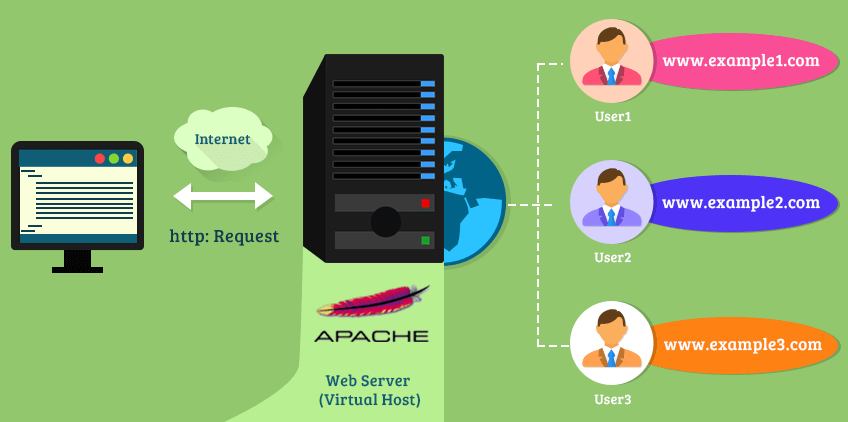
Implementing SSL/TLS encryption for your Apache virtual hosts is crucial for securing data transmitted between your server and users’ browsers. This process ensures that sensitive information, such as login credentials and personal data, is protected from interception. This section details the steps required to configure SSL/TLS, from obtaining certificates to configuring Apache to use them effectively.
Obtaining and Installing SSL/TLS Certificates
The process of obtaining and installing an SSL/TLS certificate involves several steps. You must first generate a Certificate Signing Request (CSR), submit it to a Certificate Authority (CA), and then install the issued certificate on your server.
The process generally involves the following steps:
- Generate a Certificate Signing Request (CSR): This request contains information about your website, such as the domain name and organization details. You generate this request using OpenSSL or a similar tool. This process also generates a private key, which must be kept secure.
- Submit the CSR to a Certificate Authority (CA): You submit the CSR to a trusted CA, such as Let’s Encrypt, DigiCert, or Sectigo. The CA will verify your domain ownership and, upon successful verification, will issue an SSL/TLS certificate.
- Download the SSL/TLS Certificate: Once the CA has validated your request, they will provide you with the SSL/TLS certificate. This certificate is a digital file that contains your domain information and is signed by the CA.
- Install the Certificate on Your Server: You need to install the certificate and the private key on your Apache server. The exact location of these files will depend on your server configuration.
Apache Configuration Directives for Enabling HTTPS
To enable HTTPS for a virtual host, you must configure Apache to use the SSL/TLS certificate and private key. This involves modifying the virtual host configuration file.
Here are the essential Apache configuration directives for enabling HTTPS:
SSLEngine on: This directive enables SSL/TLS for the virtual host. It instructs Apache to handle SSL/TLS connections.SSLCertificateFile /path/to/your/certificate.crt: This directive specifies the path to your SSL/TLS certificate file. Replace/path/to/your/certificate.crtwith the actual path to your certificate.SSLCertificateKeyFile /path/to/your/private.key: This directive specifies the path to your private key file. Ensure that the private key file is protected and only accessible by the appropriate user (usually the user Apache runs as, such as ‘www-data’ on Debian/Ubuntu).SSLCertificateChainFile /path/to/your/intermediate.crt(Optional): This directive specifies the path to the certificate chain file (also known as the intermediate certificate). The certificate chain helps browsers verify the authenticity of your certificate. This file typically contains the intermediate certificates provided by the CA.
Example configuration snippet within a virtual host configuration file (e.g., in /etc/apache2/sites-available/your-site.conf):
<VirtualHost
-:443>
    ServerName yourdomain.com
    DocumentRoot /var/www/yourdomain.com/html

    SSLEngine on
    SSLCertificateFile /etc/apache2/ssl/yourdomain.com.crt
    SSLCertificateKeyFile /etc/apache2/ssl/yourdomain.com.key
    SSLCertificateChainFile /etc/apache2/ssl/intermediate.crt

    <Directory /var/www/yourdomain.com/html>
        Options Indexes FollowSymLinks
        AllowOverride All
        Require all granted
    </Directory>
</VirtualHost>
Redirecting HTTP Traffic to HTTPS
Redirecting HTTP traffic to HTTPS ensures that all users are automatically using the secure connection.
This is crucial for maintaining security and is a recommended practice.
To redirect HTTP traffic to HTTPS, you can add the following configuration within your virtual host configuration file for the non-HTTPS (port 80) virtual host:
<VirtualHost
-:80>
    ServerName yourdomain.com
    Redirect permanent / https://yourdomain.com/
</VirtualHost>
Explanation:
- The
<VirtualHostsection defines the configuration for the HTTP virtual host, listening on port 80.
-:80> - The
ServerName yourdomain.comdirective specifies the domain name. This should match the domain name for your HTTPS virtual host. - The
Redirect permanent / https://yourdomain.com/directive performs the redirection. It tells the browser to permanently redirect all requests from the root path (/) to the HTTPS version of the website (https://yourdomain.com/). The “permanent” flag indicates a 301 redirect, which is the correct response for a permanent move.
Configuring Virtual Hosts for Subdomains
Setting up virtual hosts for subdomains allows you to host multiple websites or applications under the same domain but with different prefixes, such as `blog.example.com` or `shop.example.com`. This is a common practice for organizing content, separating different services, or branding purposes. Configuring subdomains involves both server-side configuration (Apache) and DNS configuration.
Creating a Virtual Host Configuration for a Subdomain
The Apache configuration for a subdomain is similar to that of a regular virtual host, with the key difference being the `ServerName` directive, which specifies the subdomain.Here’s an example configuration, typically found in `/etc/apache2/sites-available/` (or similar, depending on your operating system), for a subdomain like `blog.example.com`:“`apache
Apache will use this to determine which virtual host to serve when a request for `blog.example.com` is received.
`ServerAlias www.blog.example.com`
(Optional) Defines an alias. If a user types `www.blog.example.com`, the same virtual host will be served.
`DocumentRoot /var/www/blog`
Sets the directory from which to serve files for this subdomain. Ensure this directory exists and contains your website’s files.
`
Defines access control directives for the `DocumentRoot`. `Options Indexes FollowSymLinks` allows directory indexing and symbolic links. `AllowOverride All` allows `.htaccess` files to override the configuration. `Require all granted` grants access to all.
`ErrorLog` and `CustomLog`
Specifies the locations for error and access logs, respectively, for this subdomain. This helps in troubleshooting.After creating the configuration file, you typically enable it using `a2ensite blog.conf` (or the equivalent command for your system) and then reload or restart Apache (`sudo systemctl reload apache2` or `sudo systemctl restart apache2`).
DNS Configuration for Subdomains
Proper DNS configuration is crucial for subdomains to function correctly. DNS records map domain names (like `blog.example.com`) to IP addresses.To set up DNS for a subdomain:
1. Access your DNS control panel
This is usually provided by your domain registrar (e.g., GoDaddy, Namecheap) or your DNS hosting provider (e.g., Cloudflare, Amazon Route 53).
2. Create an A record
An A record maps a domain name to an IPv4 address. You’ll create an A record for your subdomain.
Name/Host
Enter the subdomain name (e.g., `blog`). Some providers may require you to enter the full subdomain (`blog.example.com`), but often just the subdomain part is sufficient.
Value/Points to
Enter the public IP address of your server where Apache is running. This is the IP address where your Apache instance is accessible.
TTL (Time To Live)
The TTL determines how long the DNS record is cached by resolvers. A shorter TTL (e.g., 300 seconds) allows for faster propagation of changes, but increases DNS traffic. A longer TTL (e.g., 3600 seconds) reduces traffic but delays changes. For example, you might configure an A record like this:
Name
`blog`
Value
`192.0.2.100` (example IP address) This will map `blog.example.com` to the IP address `192.0.2.100`.
3. (Optional) Create a CNAME record
A CNAME record (Canonical Name) creates an alias. You can use a CNAME to point your subdomain to another domain. This is less common for subdomains hosted on the same server as the main domain. For instance, if you wanted `www.blog.example.com` to point to `blog.example.com`, you could create a CNAME record:
Name
`www.blog`
Value
`blog.example.com`
4. Save your DNS changes
It can take some time for DNS changes to propagate across the internet (typically from a few minutes to a few hours, depending on the TTL settings).
Troubleshooting Subdomain Virtual Host Configurations
When configuring subdomain virtual hosts, several issues can arise. Here’s a list of common troubleshooting steps:
- DNS Propagation: Verify that the DNS records have propagated correctly. Use online tools like `dig` or `nslookup` to check the DNS resolution for your subdomain. If the IP address is not resolving correctly, the problem is likely in the DNS configuration. For instance, running `dig blog.example.com` should return the correct IP address.
- Apache Configuration Syntax: Check the Apache configuration files for syntax errors. Use `apachectl configtest` or `apache2ctl configtest` (depending on your system) to validate your configuration files. Fix any errors reported.
- Virtual Host Enabled: Ensure the virtual host configuration file is enabled. Use `a2ensite` to enable the site and then reload or restart Apache. If you modify the configuration, remember to reload or restart Apache to apply the changes.
- ServerName and ServerAlias Correctness: Double-check that the `ServerName` directive in your virtual host configuration matches the subdomain you are trying to access. Also, verify the `ServerAlias` directive (if used) is configured correctly.
- DocumentRoot Path: Confirm that the `DocumentRoot` directory exists and contains the website’s files. Also, verify the permissions of the `DocumentRoot` directory and its contents. The Apache user (often `www-data` or `apache`) needs read access.
- Firewall Rules: Ensure your server’s firewall allows traffic on port 80 (for HTTP) and port 443 (for HTTPS). Common firewalls like `ufw` or `firewalld` can be configured to allow these ports.
- `.htaccess` Conflicts: If you are using `.htaccess` files, ensure there are no conflicting directives that might be interfering with the subdomain’s configuration. Consider temporarily disabling `.htaccess` files to see if they are the source of the problem.
- Browser Caching: Clear your browser’s cache or try accessing the subdomain in a private/incognito window. Sometimes, old cached DNS information or website files can cause issues.
- Apache Error Logs: Examine the Apache error logs (e.g., `/var/log/apache2/error.log`) for any error messages related to the subdomain. These logs often provide valuable clues about the cause of the problem. Also, check the access logs for the subdomain.
- Listen Directive: Make sure Apache is listening on the correct port (usually 80 for HTTP and 443 for HTTPS). Check your Apache configuration files (e.g., `ports.conf`) to verify the `Listen` directives.
Best Practices for Virtual Host Configuration
Configuring Apache virtual hosts effectively is crucial for managing multiple websites on a single server, optimizing performance, and ensuring security. Following best practices ensures that your server remains organized, secure, and easy to maintain. This section will explore essential strategies for configuring virtual hosts, emphasizing organization, security, and maintainability.
Descriptive Naming for Virtual Host Configuration Files
Using descriptive names for virtual host configuration files significantly enhances manageability and troubleshooting. Meaningful names make it easier to identify the website associated with each configuration file, especially when dealing with numerous sites.For instance, instead of using generic names like `vhost1.conf` or `site.conf`, adopt a naming convention that clearly reflects the domain name. Examples include:* `example.com.conf`
- `www.anotherexample.net.conf`
- `blog.example.org.conf`
This approach provides immediate clarity, allowing administrators to quickly locate and modify the correct configuration file. It streamlines the process of identifying and resolving issues related to specific websites hosted on the server.
Organizing Virtual Host Configurations for Maintainability
A well-structured organization of virtual host configuration files is critical for long-term maintainability. A clear and consistent directory structure simplifies management, especially as the number of hosted websites grows.A recommended structure involves creating a dedicated directory for virtual host configurations, typically within the Apache configuration directory. For example, on Debian/Ubuntu systems, this is often `/etc/apache2/sites-available/` and `/etc/apache2/sites-enabled/`. On CentOS/RHEL, it is `/etc/httpd/conf.d/`.Within this directory, each virtual host configuration file should be placed.
When the site is ready to be activated, a symbolic link is created from the `/etc/apache2/sites-enabled/` directory to the configuration file in `/etc/apache2/sites-available/` directory.This structure provides several advantages:* Centralized Management: All virtual host configurations are located in a single, easily accessible location.
Simplified Activation/Deactivation
Enabling or disabling a site is as simple as creating or removing a symbolic link, or, in some cases, enabling or disabling the configuration file.
Improved Version Control
Configuration files can be easily managed with version control systems like Git, allowing for tracking changes, rolling back to previous versions, and collaborating effectively.By adopting a well-defined directory structure, administrators can significantly reduce the time and effort required to manage virtual hosts.
Security Considerations for Virtual Host Configuration
Security is paramount when configuring virtual hosts. Several measures must be implemented to protect the server and the websites hosted on it.Here are key security considerations:* Access Control: Implement access control mechanisms to restrict access to sensitive files and directories.
Use `.htaccess` files (where allowed by the server configuration) or `
` directives in the virtual host configuration to control access based on IP address, user agent, or other criteria.
For example
“`apache
Keep the operating system and all installed software, including Apache, up to date with the latest security patches.
Disable unnecessary modules in Apache to reduce the attack surface.
Configure the server to use strong passwords and regularly audit user accounts.
SSL/TLS Configuration
Implement SSL/TLS encryption to secure communications.
Obtain SSL/TLS certificates from a trusted Certificate Authority (CA).
Configure the virtual host to listen on port 443 and use the certificate and private key.
Enforce HTTPS redirection to ensure all traffic is encrypted.
For example
“`apache
Review access logs to identify potential security breaches.
Monitor system resource usage to detect denial-of-service (DoS) attacks.
Use intrusion detection systems (IDS) to alert on malicious activity.
* Input Validation and Sanitization: Implement input validation and sanitization techniques to protect against common web application vulnerabilities, such as cross-site scripting (XSS) and SQL injection.
Validate user input on both the client and server sides.
Sanitize user input to remove or neutralize potentially harmful characters.
Use parameterized queries to prevent SQL injection attacks.
By addressing these security considerations, administrators can significantly enhance the security posture of their Apache server and the websites it hosts.
Troubleshooting Common Issues
Configuring Apache virtual hosts, while powerful, can sometimes lead to unexpected problems. Understanding common errors and how to troubleshoot them is crucial for a smooth web server experience. This section focuses on identifying and resolving typical issues that may arise during the configuration process.
Common Virtual Host Configuration Errors
Several errors frequently occur during virtual host setup. Knowing these common pitfalls allows for quicker identification and resolution.
- “ServerName not found” or “NameVirtualHost
-:80/443 is not properly formed” Errors: This indicates that Apache is unable to determine the server’s name based on the `ServerName` directive within the virtual host configuration. This can also happen if the `NameVirtualHost` directive is missing or incorrectly formatted. - Permission Issues: Apache may lack the necessary permissions to access website files or directories. This often results in “Forbidden” errors (403) when accessing the website.
- Syntax Errors in Configuration Files: Typos or incorrect syntax within the virtual host configuration files (e.g., `httpd.conf`, `apache2.conf`, or files within the `sites-available` directory) can prevent Apache from starting or loading the configuration.
- Incorrect DocumentRoot Path: The `DocumentRoot` directive specifies the directory from which Apache serves files. If this path is incorrect, the website will not load or will display a default page.
- Port Conflicts: If another application is already using the port specified in the virtual host configuration (e.g., port 80 or 443), Apache may fail to start or the website may not be accessible.
- Incorrect Virtual Host Order: In some configurations, the order of virtual host definitions can matter. The first matching virtual host in the configuration file will be used. If the desired virtual host is not listed first, a different site may be served.
- Missing or Incorrect DNS Records: If the domain name is not correctly configured in the DNS records, the website will not resolve to the server’s IP address, and the site will be inaccessible.
- SSL/TLS Certificate Issues: When using HTTPS, problems can arise from an invalid or improperly configured SSL/TLS certificate, leading to browser warnings or connection failures.
Using Apache’s Error Logs for Diagnosis
Apache’s error logs are invaluable for diagnosing and resolving virtual host configuration problems. They provide detailed information about errors encountered by the server.
The location of the error logs varies depending on the operating system and Apache configuration. Common locations include:
- Linux (Debian/Ubuntu): `/var/log/apache2/error.log`
- Linux (CentOS/RHEL/Fedora): `/var/log/httpd/error_log`
- Windows: Typically within the Apache installation directory, often in a `logs` subdirectory (e.g., `C:\Program Files\Apache24\logs\error.log`).
When an error occurs, Apache logs the event, often including details about the error type, the file and line number where the error originated, and sometimes even the reason for the error. Examine the error log carefully to identify the cause of the problem.
For example, an error log entry might look like this:
[Mon Jan 1 12:00:00.000000 2024] [core:warn] [pid 1234] AH00098: The ServerName directive is not set globally, but only infor example. Set it globally or inside
This log entry indicates a warning regarding the `ServerName` directive. It suggests that the directive should be set either globally or within the virtual host definition. Based on the log, the user can edit the configuration files, add the missing `ServerName` directive, and restart Apache to resolve the issue.
Testing and Validating Virtual Host Configurations with `apachectl` or `httpd`
Before restarting Apache after making changes to virtual host configurations, it’s crucial to test the configuration to ensure there are no syntax errors. The `apachectl` or `httpd` command-line tools provide a way to validate the configuration.
The primary commands used for testing are:
- `apachectl configtest` (or `httpd -t`): This command checks the syntax of the Apache configuration files. It reports any errors it finds, helping identify typos or other configuration mistakes.
- `apachectl -k graceful` (or `apachectl graceful`): This command restarts Apache gracefully, which means it attempts to reload the configuration without interrupting existing connections. If the configuration test fails, Apache will not restart.
For example, to test the configuration, you would typically run:
sudo apachectl configtest
If the configuration is valid, the output will typically be:
Syntax OK
If there are errors, the output will provide details about the location and nature of the errors, allowing you to correct them before restarting the server.
Once the configuration is validated, the user can proceed to restart or reload Apache to apply the changes.
Examples of Virtual Host Configurations
Virtual host configurations can be adapted to suit various hosting requirements, from simple setups for multiple websites on a single server to more complex scenarios involving SSL/TLS and subdomains. This section provides practical examples to illustrate how to configure Apache virtual hosts for different use cases. These examples will demonstrate the flexibility and power of virtual hosts in managing web server configurations.Here are several illustrative examples to guide you in setting up virtual hosts effectively.
Multiple Websites on the Same IP Address
Configuring multiple websites to run on the same IP address is a common requirement for shared hosting environments. This setup relies on the `ServerName` directive within each virtual host configuration to distinguish between different websites based on the requested domain name.
| Configuration File | Description |
|---|---|
/etc/apache2/sites-available/website1.conf |
This configuration defines the virtual host for
|
/etc/apache2/sites-available/website2.conf |
This configuration defines the virtual host for
|
In this example, both websites are configured to listen on port 80 (HTTP). The `ServerName` directive specifies the domain name for each website, and `DocumentRoot` indicates the location of the website’s files. Ensure that these configuration files are enabled using `a2ensite website1.conf` and `a2ensite website2.conf` and that Apache is restarted to apply the changes.
HTTPS Configuration
Securing websites with HTTPS is essential for protecting user data and improving search engine rankings. Configuring SSL/TLS involves obtaining an SSL certificate, configuring the virtual host to listen on port 443, and specifying the certificate and key files.
<VirtualHost
-:443>
ServerName securewebsite.com
DocumentRoot /var/www/securewebsite
SSLEngine on
SSLCertificateFile /etc/apache2/ssl/securewebsite.crt
SSLCertificateKeyFile /etc/apache2/ssl/securewebsite.key
<Directory /var/www/securewebsite>
AllowOverride All
Require all granted
</Directory>
</VirtualHost>
This configuration sets up a virtual host for securewebsite.com using SSL/TLS. The `SSLEngine on` directive enables SSL, and `SSLCertificateFile` and `SSLCertificateKeyFile` specify the paths to the SSL certificate and private key, respectively. It is crucial to replace the placeholder paths with the actual locations of your SSL certificate and key files.
Virtual Host for a Development Environment with Access Control
Setting up a virtual host for a development environment often involves restricting access to authorized users or IP addresses. This example demonstrates how to configure access control using the `Require` directive within the `Directory` block.
<VirtualHost

-:80>
ServerName dev.example.com
DocumentRoot /var/www/dev.example.com
<Directory /var/www/dev.example.com>
AllowOverride All
Require ip 192.168.1.100
Require valid-user
</Directory>
</VirtualHost>
In this configuration, the virtual host for dev.example.com restricts access to users from the IP address 192.168.1.100 and requires valid user authentication. This helps secure the development environment and prevent unauthorized access.
WordPress Website Configuration Example
Configuring a virtual host for a WordPress website involves setting up the document root to point to the WordPress installation directory and configuring the necessary directives to ensure WordPress functions correctly.
      <VirtualHost
-:80>
        ServerName wordpress.example.com
        DocumentRoot /var/www/wordpress
        <Directory /var/www/wordpress>
          AllowOverride All
          Require all granted
        </Directory>
        <FilesMatch \.php$>
          <FilesMatch>
            SetHandler "proxy:unix:/run/php/php7.4-fpm.sock|fcgi://localhost"
          </FilesMatch>
        </FilesMatch>
      </VirtualHost>
This example configures a virtual host for a WordPress website, assuming WordPress is installed in `/var/www/wordpress`. The `AllowOverride All` directive allows for `.htaccess` files, which are commonly used in WordPress for URL rewriting and other configurations. The example also includes a configuration to handle PHP files through a FastCGI process manager (PHP-FPM), improving performance.
Remember to adjust the PHP-FPM socket path (e.g., `php7.4-fpm.sock`) according to your PHP version and system configuration.
Advanced Topics – Dynamic Virtual Hosts

Dynamic virtual hosts offer a powerful and flexible approach to managing multiple websites on a single server. Unlike static virtual hosts, which require manual configuration for each site, dynamic virtual hosts automatically configure themselves based on incoming requests. This is particularly useful in environments where websites are frequently added or removed, or where the `ServerName` or other request criteria can be used to determine the site to serve.
Concept of Dynamic Virtual Hosts and Their Use Cases
Dynamic virtual hosts automate the process of serving different websites from a single server. They rely on wildcard directives or other conditional logic within the Apache configuration to determine which website should be served based on the incoming request’s characteristics, such as the `ServerName` (domain name) or the IP address.
Dynamic virtual hosts are valuable in various scenarios:
- Shared Hosting Environments: Providers use dynamic virtual hosts to allow users to host multiple websites under a single IP address without manual configuration for each site. This simplifies server management and allows for scalability.
- Rapid Website Deployment: They streamline the deployment of new websites. When a new domain is added, the server automatically configures a virtual host for it, eliminating the need for manual configuration changes.
- Development and Testing: Developers can quickly set up test environments by creating subdomains or using different domain names without manually configuring virtual hosts for each project.
- Large-Scale Web Applications: Dynamic virtual hosts can be used to manage a large number of websites, such as those found in a content delivery network (CDN) or a multi-tenant application.
Configuration for Setting Up Dynamic Virtual Hosts
Setting up dynamic virtual hosts typically involves configuring Apache to listen for requests on a specific IP address and port, and then using directives like `VirtualHost` with wildcard entries to match incoming requests. Here’s an example configuration based on the `ServerName`:
1. Main Configuration File (`httpd.conf` or `apache2.conf`):
Ensure the following directives are present or uncommented:
  Listen 80
  NameVirtualHost
80
2. Virtual Host Configuration File (e.g., in `sites-available` directory):
Create a configuration file (e.g., `dynamic-vhosts.conf`) with the following content. This configuration utilizes a wildcard `ServerName` to capture any domain name. The `DocumentRoot` is dynamically constructed using the `ServerName` to locate the website’s content. This assumes that each website’s files are located in a subdirectory of `/var/www/vhosts/` with the same name as the domain.
<VirtualHost
80>
ServerNameVirtualDocumentRoot /var/www/vhosts/%0/htdocs
<Directory /var/www/vhosts/%0/htdocs>
Options Indexes FollowSymLinks
AllowOverride All
Require all granted
</Directory>
</VirtualHost>
Explanation of the directives:
- `Listen 80`: Specifies the port Apache should listen on.
- `NameVirtualHost
-:80`: Enables name-based virtual host support on all IP addresses. - `ServerName
-`: This wildcard directive matches any incoming `ServerName` (domain name) in the HTTP request header. - `VirtualDocumentRoot /var/www/vhosts/%0/htdocs`: This is the core of the dynamic configuration. The `%0` is a placeholder that gets replaced with the value of the `ServerName` (e.g., `example.com`). Therefore, the document root for `example.com` would be `/var/www/vhosts/example.com/htdocs`. The directory `/var/www/vhosts/example.com/htdocs` should exist, and contain the website’s files.
- `<Directory /var/www/vhosts/%0/htdocs>`: This section sets access control for the dynamically created document root directories, allowing the server to serve the content.
3. Enable the Configuration:
Enable the configuration using the `a2ensite` command (Debian/Ubuntu) or by creating a symbolic link from `sites-available` to `sites-enabled` and restarting Apache.
  sudo a2ensite dynamic-vhosts.conf
  sudo systemctl restart apache2
4. Create Website Directories:
For each domain, create the corresponding directory structure under `/var/www/vhosts/` and place the website’s files in the `htdocs` directory.
  sudo mkdir -p /var/www/vhosts/example.com/htdocs
  sudo chown -R www-data:www-data /var/www/vhosts/example.com
  sudo chmod -R 755 /var/www/vhosts/example.com
Replace `example.com` with the actual domain name. Ensure that the `www-data` user (or the user Apache runs as) has read permissions on the website files.
Risks and Benefits of Using Dynamic Virtual Hosts
Dynamic virtual hosts offer significant advantages but also come with potential risks. Understanding these trade-offs is crucial for making informed decisions about server configuration.
Benefits:
- Simplified Management: Reduces manual configuration for each website, saving time and effort.
- Scalability: Easily accommodates new websites without requiring server configuration changes.
- Automation: Automates the process of setting up virtual hosts, reducing the chance of errors.
- Flexibility: Supports various use cases, including shared hosting and development environments.
Risks:
- Security Concerns: Misconfiguration can lead to security vulnerabilities. For example, if directory permissions are not set correctly, one website might be able to access the files of another. It’s critical to secure the `DocumentRoot` directories.
- Resource Consumption: Dynamic virtual hosts can potentially consume more server resources if not properly optimized. Each request needs to be evaluated against the configuration.
- Potential for Errors: Errors in the configuration file can affect all websites hosted on the server. A single mistake can cause all sites to fail. Thorough testing and careful configuration are necessary.
- Configuration Complexity: While simplifying some tasks, dynamic configurations can be complex and difficult to troubleshoot if problems arise.
Mitigating Risks:
To mitigate the risks associated with dynamic virtual hosts, it is crucial to implement the following practices:
- Strict Access Control: Implement robust access control measures, such as setting appropriate file and directory permissions to prevent unauthorized access to website files.
- Regular Security Audits: Conduct regular security audits to identify and address potential vulnerabilities.
- Monitoring and Logging: Implement comprehensive monitoring and logging to track server performance and identify potential issues.
- Testing: Thoroughly test the configuration in a staging environment before deploying it to a production server.
- Regular Backups: Maintain regular backups of the server configuration and website files to ensure data recovery in case of a failure.
Concluding Remarks
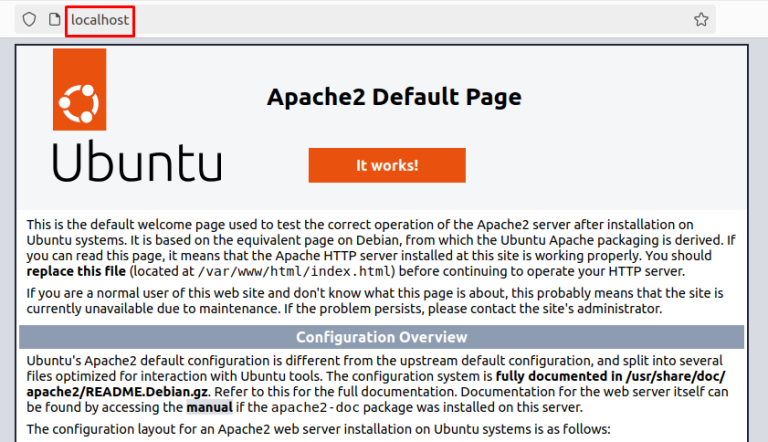
In conclusion, mastering the art of setting up Apache virtual hosts for multiple sites is a fundamental skill for any web administrator. We’ve explored the entire process, from the initial setup to advanced configurations and troubleshooting, providing you with the tools and knowledge to manage multiple websites efficiently. By following the best practices Artikeld in this guide, you can ensure a secure, well-organized, and high-performing web server.
Embrace the power of virtual hosts and unlock the full potential of your server infrastructure.