Learning how to host a website on cPanel with a domain name provides a reliable and efficient way to establish your online presence. This process involves understanding the essential steps from acquiring a domain to configuring hosting settings, ensuring your website is accessible and secure for visitors worldwide.
By mastering these procedures, you can effortlessly manage your website’s files, databases, and security features, making it easier to maintain and grow your online platform. Whether you are a beginner or have some experience, this guide offers clear insights to streamline your hosting setup effectively.
Introduction to Hosting a Website on cPanel with a Domain Name
Hosting a website on cPanel with a registered domain name is a fundamental step towards establishing an online presence. This process involves deploying your website files on a server managed through cPanel, a popular web hosting control panel that simplifies website management. Simultaneously, associating your website with a domain name ensures that visitors can access your site via a memorable web address rather than an IP address, enhancing accessibility and branding.
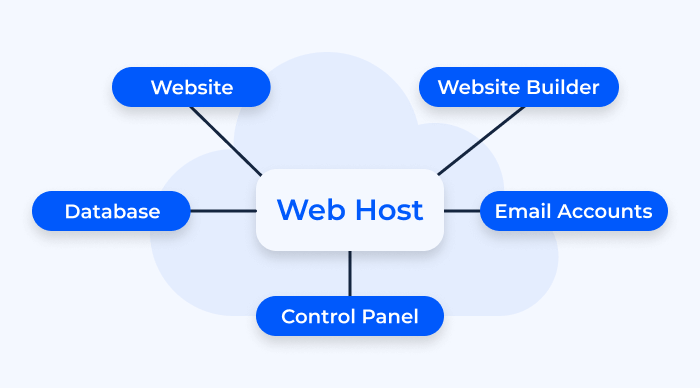
The core concept revolves around acquiring a reliable hosting service that provides cPanel access, which acts as an intuitive interface for managing files, databases, email accounts, and domain settings. Registering a domain name through a domain registrar, then linking it with your hosting account, creates a seamless pathway for users to reach your website. This integration of hosting and domain registration forms the foundation of a professional online platform.
Choosing a Reliable Hosting Provider with cPanel Access
Opting for a dependable hosting provider is crucial to ensure your website’s stability, security, and scalability. Reliable providers typically offer 24/7 customer support, high uptime guarantees, and robust hardware infrastructure, minimizing the risks of downtime or data loss. When selecting a host, verify that they include cPanel as part of their hosting packages, as it provides a user-friendly environment for managing your website without requiring advanced technical skills.
cPanel’s widespread adoption by hosting services results from its comprehensive features and ease of use. It allows users to perform complex tasks such as creating databases, managing files, configuring email accounts, and installing applications through graphical interfaces, thereby streamlining website management processes.
Benefits of Using cPanel for Website Hosting and Domain Management
Using cPanel for hosting and domain management offers numerous advantages that facilitate efficient website administration. Its intuitive interface simplifies the process of deploying website files, maintaining security settings, and configuring DNS records to connect your domain with the hosting server.
Key benefits include:
- Ease of Use: cPanel provides a graphical user interface that reduces the complexity of hosting tasks, making it accessible for beginners and experienced users alike.
- Centralized Management: All essential functions—file management, email setup, database administration, and domain configuration—are accessible from a single dashboard.
- Automation and Integration: Features like one-click installers for WordPress and other CMS platforms streamline website deployment, saving time and effort.
- Security Features: cPanel includes tools for SSL management, password protection, and malware scanning to safeguard your website and data.
- Scalability: As your website grows, cPanel makes it straightforward to upgrade resources, add new domains, or configure additional services without significant disruption.
Overall, cPanel enhances the efficiency and security of website hosting, providing a reliable foundation for both personal projects and professional enterprise sites. Its seamless integration with domain management further simplifies the process of establishing a fully functional online presence.
Acquiring and Setting Up a Domain Name
Securing a domain name is a fundamental step in establishing an online presence. A well-chosen domain not only enhances your brand visibility but also ensures that your website is easily accessible to your target audience. Proper setup and configuration of your domain are essential to ensure seamless connectivity with your hosting server and to optimize your website’s performance and credibility.
In this section, we will explore the process of registering a domain name through reputable registrars, understand the significance of common domain extensions, and delve into the essential DNS configurations required to link your domain to your hosting provider effectively.
Registering a Domain Name through Domain Registrars
The first step in acquiring a domain name involves selecting a reliable domain registrar. These are accredited organizations authorized to sell and manage domain names. When choosing a registrar, consider factors such as pricing, customer support, domain management features, and reputation.
To register a domain name, follow these steps:
- Identify a suitable domain name that reflects your brand, business, or personal identity. Use tools available on registrar websites to check for availability.
- Visit a trusted domain registrar such as GoDaddy, Namecheap, Google Domains, or Bluehost.
- Search for your preferred domain name using their search tool. If the domain is available, proceed to add it to your cart.
- Select the desired domain extension (e.g., .com, .net, .org) based on your needs and availability.
- Review your selection, opt for additional services if required (like privacy protection), and proceed to checkout.
- Create an account with the registrar if you haven’t already, and complete the purchase by providing payment details.
- Once registered, you will receive access to your domain management dashboard, where further configurations can be made.
Common Domain Extensions and Their Uses
Understanding domain extensions (also known as top-level domains or TLDs) helps in selecting the most appropriate one for your website. Below is a table highlighting common domain extensions, their typical uses, and significance:
| Domain Extension | Typical Uses / Significance |
|---|---|
| .com | Commercial entities, businesses, and general-purpose websites. It is the most recognized and trusted extension worldwide. |
| .net | Network providers, internet infrastructure companies, or projects related to networking. Often used as an alternative when .com is unavailable. |
| .org | Non-profit organizations, charities, open-source projects, and communities. It signifies credibility and community-oriented initiatives. |
| .edu | Educational institutions. Restricted to accredited higher education entities in certain countries. |
| .gov | Governmental agencies. Restricted to official government bodies, primarily in the United States. |
| .info | Informational websites, resources, or data repositories. It is a generic extension suitable for informational purposes. |
| .co | Business ventures, startups, or as an abbreviation for ‘company’. It is increasingly popular for branding purposes. |
| .io | Technology startups, gaming, or innovative projects. Originally the country code for British Indian Ocean Territory, it is now widely adopted in tech sectors. |
DNS Configuration Essentials for Linking the Domain to Hosting Server
Configuring DNS (Domain Name System) settings accurately is crucial to ensure that your domain points correctly to your hosting server, enabling visitors to access your website seamlessly. DNS settings typically include records such as A, CNAME, MX, and TXT records, each serving specific functions.
Key steps for DNS configuration include:
- Access your domain registrar’s control panel and locate the DNS management section.
- Identify the current DNS records associated with your domain. These may be default or previously configured records.
- To link your domain to your hosting server, set the A record to point to your server’s IP address. For example, if your hosting provider’s server IP is 192.0.2.1, update the A record accordingly.
- If your hosting provider supplies nameservers, you can opt to update the NS records to point to their servers (discussed further below).
- Ensure that other necessary records, such as MX records for email, are correctly configured based on your email provider’s instructions.
- Save changes and wait for DNS propagation, which can take from a few minutes up to 48 hours, depending on various factors.
Updating Nameservers to Point to Hosting Provider’s Servers
Many hosting providers offer their own nameservers, simplifying the process of linking your domain to your hosting account. Updating your domain’s nameservers directs all DNS queries to your hosting provider, allowing them to manage all DNS records centrally.
The typical process involves:
- Log into your domain registrar’s account and navigate to the domain management section.
- Locate the option to update or change nameservers, often under DNS settings or Name Server Management.
- Replace the default registrar nameservers with the ones provided by your hosting provider. For example:
ns1.yourhostingprovider.comns2.yourhostingprovider.com
- Save the changes. Remember that DNS propagation may take up to 48 hours for the updates to fully implement across the internet.
- Verify the update by using DNS lookup tools or your registrar’s domain management tools to confirm that the new nameservers are active.
Properly updating nameservers ensures that your domain directs visitors to your website hosted on the specified server, providing a smooth user experience and robust domain management.
Accessing and Navigating cPanel Dashboard
After acquiring your domain and hosting service, the next step involves accessing the cPanel dashboard to manage your website effectively. The cPanel interface provides a centralized platform where you can oversee various aspects of your website, from file management to email setup, all through an intuitive and user-friendly environment.
Understanding how to securely log into cPanel and navigate its main sections is essential for efficient website management. This section details the procedures for secure login, highlights the main areas within cPanel relevant to website hosting, and enumerates key tools and features necessary for setting up and maintaining your website.
Secure Login to cPanel
Accessing cPanel requires a secure login process to protect your website and data. Typically, cPanel login credentials are provided by your hosting provider upon account setup. The login URL usually follows the format: https://yourdomain.com/cpanel or https://yourdomain.com:2083. Enter your assigned username and password in the login fields.
For enhanced security, consider the following best practices:
- Always access cPanel through a secure connection (HTTPS).
- Use a strong, unique password combining upper and lowercase letters, numbers, and special characters.
- Enable two-factor authentication if available for your hosting account.
- Log out after completing your tasks and avoid using public Wi-Fi networks when managing sensitive settings.
Main Sections of cPanel Relevant to Hosting a Website
Once logged in, the cPanel dashboard is organized into various sections, each dedicated to specific functions essential for website hosting and management. Familiarity with these sections streamlines the process of setting up and maintaining your website.
| Section | Description |
|---|---|
| Files | Includes tools like File Manager, Backup, and FTP Accounts for managing your website’s files and directories. |
| Databases | Provides access to MySQL Databases, phpMyAdmin, enabling database creation, management, and data manipulation. |
| Domains | Allows configuration of Addon Domains, Subdomains, and redirects to organize your website’s domain structure. |
| Offers email account creation, management, and settings for communication purposes associated with your domain. | |
| Security | Includes SSL/TLS management, IP Blocker, Hotlink Protection, and other security features to safeguard your website. |
| Software | Facilitates application installation via tools like Softaculous, PHP version management, and PHP configuration. |
| Metrics | Provides access to tools like Awstats, Webalizer, and CPU/Memory usage to monitor website performance. |
Tools and Features Essential for Website Setup
Efficient website setup in cPanel involves utilizing a combination of tools and features designed to streamline the process from file upload to database configuration. Below is an organized list of the most vital tools and features:
- File Manager: Enables uploading, editing, and organizing website files directly through the browser, eliminating the need for FTP clients for basic tasks.
- MySQL Databases and phpMyAdmin: Facilitates the creation of databases and management of database contents, crucial for dynamic websites.
- Addon Domains and Subdomains: Allows hosting multiple websites under the same hosting account and organizing site sections.
- SSL/TLS Manager: Ensures data encryption and security via SSL certificates, important for building user trust and complying with security standards.
- Softaculous or Application Installer: Simplifies installing popular web applications such as WordPress, Joomla, or Drupal, reducing setup time and complexity.
- Backup Tools: Provides options for creating backups of website files and databases, essential for data recovery and site maintenance.
- Email Account Management: Sets up domain-based email accounts needed for professional communication.
Note: Regularly familiarizing yourself with these tools helps ensure smooth website operation and simplifies troubleshooting processes.
Uploading Website Files to cPanel
Uploading website files forms a crucial part of making your website accessible on the internet. Properly transferring your files and organizing your website structure within cPanel ensures smooth operation and easy maintenance. cPanel provides multiple methods for uploading files, each suited to different user preferences and technical levels.
In this section, we will explore two primary methods for uploading website files: using the built-in File Manager and employing an FTP client. Understanding these options allows you to choose the most efficient approach for your needs, whether you prefer a graphical interface or a more automated, bulk transfer process.
Methods to Upload Website Files via File Manager or FTP Client
Uploading website files can be achieved through cPanel’s File Manager, a web-based interface, or an FTP (File Transfer Protocol) client, which provides a dedicated application for file management. Both methods have their advantages and are suitable for different scenarios.
Using cPanel File Manager
- Log in to your cPanel account and locate the File Manager icon in the Files section.
- Navigate to the public_html directory, which is the root folder for your primary website.
- Click the “Upload” button in the toolbar to select files from your local computer.
- Choose your website files (HTML, CSS, images, scripts) and wait for the upload to complete.
- Organize your files into subfolders if needed, such as “images” or “css,” for better structure and management.
This method is straightforward and suitable for smaller websites or users comfortable with web interfaces. It allows direct control over individual files and folders without requiring additional software.
Using FTP Client
- Choose an FTP client such as FileZilla, Cyberduck, or WinSCP and install it on your computer.
- Obtain your FTP credentials from cPanel, including the hostname, username, password, and port number.
- Configure the FTP client by entering your credentials and connecting to the server.
- Navigating the local directory on your computer and the remote directory on your server, typically public_html.
- Drag and drop website files from your computer to the server window in the FTP client.
- Ensure files are uploaded into correct subfolders, maintaining the intended website structure.
Using an FTP client is especially advantageous for uploading large files or multiple files simultaneously. It provides an efficient workflow and is preferred for website updates and backups.
Organizing Website Structure within cPanel
Proper organization of website files is essential for functionality, security, and ease of maintenance. Within the public_html directory, you should create a logical folder hierarchy to manage your website’s assets effectively.
- Keep your main HTML files in the root directory or within a dedicated folder such as “public_html”.
- Create subfolders for images, CSS stylesheets, JavaScript files, and other assets, such as “images,” “css,” and “js.”
- Maintain consistent naming conventions to facilitate easier updates and troubleshooting.
- Ensure that links within your HTML files correctly point to the respective asset folders.
For example, your website structure might look like this:
public_html/
│
├── index.html
├── about.html
├── contact.html
│
├── css/
│   └── styles.css
│
├── images/
│   └── logo.png
│
└── js/
    └── scripts.js
This organization ensures all assets are neatly categorized, which simplifies updates and reduces the likelihood of broken links or missing files.
Comparison Table: File Manager vs. FTP Upload Procedures
| Feature | File Manager | FTP Client |
|---|---|---|
| Ease of Use | Intuitive, browser-based interface suitable for beginners | Requires software installation and configuration, better for advanced users |
| Speed | Slower for large batches of files, dependent on browser stability | Faster for bulk uploads and large files due to dedicated transfer protocols |
| File Management | Manual control over individual files and folders via web interface | Drag-and-drop functionality for multiple files, easier organization |
| Security | Secure with HTTPS, though limited by browser capabilities | More secure for large transfers, with options for encryption and resume interrupted uploads |
| Connectivity | Connected directly through cPanel interface | Requires FTP credentials and client setup, but offers persistent connection |
| Best Used For | Quick edits, small website updates, beginner users | Large file uploads, regular backups, professional website management |
Creating and Configuring Databases in cPanel

Databases are essential components for dynamic websites, enabling storage and management of data such as user information, content, and settings. Within cPanel, creating and configuring databases simplifies the process of setting up a robust backend for your website. Proper database management ensures efficient data handling, security, and scalability for your online presence.
This section guides you through creating databases, managing user privileges, setting passwords, and designing sample data schemas that support common website functionalities like user login systems and content management.
Creating MySQL or Other Database Types in cPanel
cPanel offers straightforward tools to create various database types, predominantly MySQL, which is widely used due to its reliability and compatibility with web applications. Utilizing the MySQL Database Wizard or the MySQL Databases interface, users can quickly set up new databases.
- Log in to your cPanel dashboard and locate the ‘Databases’ section.
- Click on ‘MySQL Databases’ to access database management options.
- Enter a unique name for your new database in the provided field. It is advisable to prefix the database name with your domain or project name for easy identification.
- Click ‘Create Database’ to generate the database.
- Next, create a database user with specific privileges by navigating to the ‘MySQL Users’ section.
- Enter a username and strong password, then click ‘Create User.’
- Assign the user to the database by selecting the user and database from the dropdown menus and specifying privileges such as SELECT, INSERT, UPDATE, DELETE, etc.
- Confirm the settings to finalize the database creation and user assignment.
Setting Database User Privileges and Passwords
Proper privilege management is crucial for database security and functionality. cPanel provides an intuitive interface to assign specific privileges to database users, granting only the necessary permissions for their roles.
- Access the ‘MySQL Users’ section within cPanel.
- Select the user for whom you want to modify privileges.
- Click on ‘Manage User Privileges’ to open the privileges matrix.
- Check or uncheck privileges such as SELECT, INSERT, UPDATE, DELETE, CREATE, DROP, etc., based on the user’s responsibilities.
- Set a strong, unique password for each user to prevent unauthorized access, and update passwords regularly.
- After configuring privileges, save changes to apply the new settings.
Sample Database Table Structures for Common Website Functions
Designing efficient database tables is fundamental for website features like user authentication and content management. Below are sample schemas for typical tables used in web applications, organized to illustrate their structure, fields, data types, and purposes.
| Table Name | Fields | Data Types | Purpose |
|---|---|---|---|
| users |
|
Defines user credentials and registration info | |
| content |
|
Stores articles, posts, or other content items | |
| comments |
|
Holds user comments linked to content and users | |
| categories |
|
Defines content categories or tags |
Note: When designing your database, ensure that fields like passwords are stored securely using hashing algorithms, and that foreign key constraints are properly implemented to maintain referential integrity.
Configuring Domain Name Settings for the Website

Proper configuration of your domain name settings is essential to ensure that your website is accessible, secure, and functions as intended. This process involves associating your domain with the correct document root, setting up SSL certificates for security, and managing redirects or subdomains to enhance user experience and website organization.
In this section, we will explore step-by-step procedures to effectively configure domain name settings within cPanel, ensuring your website operates smoothly and securely.
Associating the Domain with the Website’s Document Root
Linking your domain name to the appropriate directory in your hosting account ensures that visitors view the correct website content when they access your domain. This process involves setting the domain’s document root within cPanel, which directs the server where to retrieve the website files.
- Log into your cPanel account and navigate to the “Domains” or “Addon Domains” section, depending on whether you are configuring a new domain or managing an existing one.
- Select the domain you wish to configure. If adding a new domain, click on “Create a New Domain” or “Add Domain,” then enter the domain name.
- Specify the document root folder where your website files are stored. Typically, cPanel automatically suggests a folder named after your domain (e.g., /public_html/yourdomain.com), but you can customize this location if needed.
- Confirm the settings by clicking “Add Domain” or “Create,” which associates the domain with the specified document root directory.
- Ensure that your domain’s DNS records are correctly pointed to your hosting server’s IP address, typically managed via your domain registrar’s DNS settings, so that domain resolution aligns with your hosting setup.
This association guarantees that when users enter your domain name in their browser, they are directed to the correct folder containing your website files.
Setting Up SSL Certificates for Domain Security
Securing your website with an SSL certificate encrypts data transmitted between your server and visitors, thus protecting sensitive information and fostering user trust. cPanel offers tools like AutoSSL to simplify the process of obtaining and installing SSL certificates automatically, often at no additional cost.
- Access the “SSL/TLS” or “SSL/TLS Status” section within cPanel.
- Locate the domain you wish to secure and verify if an SSL certificate has already been installed or if it needs to be issued.
- Click on the “Run AutoSSL” button to initiate automatic SSL certificate provisioning. This process contacts the certificate authority and installs the certificate if the domain meets the provider’s validation criteria.
- Once the process completes successfully, verify the SSL status to ensure the certificate is active. Your website should now display HTTPS in the URL, indicating a secure connection.
- Test the SSL installation by accessing your website with HTTPS and checking for security indicators in your browser, such as a padlock icon.
The AutoSSL feature in cPanel simplifies SSL management, providing an efficient way to secure multiple domains without manually generating or installing certificates.
Configuring Redirects and Subdomains
Redirects and subdomains enable better website organization, user navigation, and search engine optimization. Proper configuration ensures visitors reach the intended content, whether through URL redirection or by accessing specific sections via subdomains.
Below are common procedures to set up redirects and subdomains within cPanel:
- Creating Subdomains: Navigate to the “Subdomains” section in cPanel. Enter the desired subdomain name (e.g., blog, shop) and select the parent domain. The system will automatically suggest a directory for hosting subdomain files. Confirm to create the subdomain, which will now be accessible via subdomain.domain.com.
- Setting Up Redirects: Access the “Redirects” menu in cPanel. Choose whether to create a temporary (302) or permanent (301) redirect. Enter the source URL (e.g., www.yourdomain.com/oldpage) and specify the destination URL (e.g., www.yourdomain.com/newpage). Save the redirect to ensure visitors are seamlessly transferred to the new location.
- Managing Redirects: For complex redirect rules or multiple redirects, consider editing the .htaccess file directly or using cPanel’s redirect interface to add custom redirect rules, ensuring consistent URL management and improved site navigation.
Implementing redirects and subdomains effectively enhances your website’s structure, user experience, and performance, providing clear paths for visitors to access different sections or content variations.
Installing Web Applications and CMS Platforms
After setting up your domain and hosting environment on cPanel, installing web applications and Content Management Systems (CMS) is a critical step to create a fully functional website. Popular CMS platforms like WordPress, Joomla, and Drupal streamline the website development process by offering pre-built templates, plugins, and management tools. cPanel provides convenient auto-installers that simplify this process; however, manual installation options are also available for more customization or when auto-installers are not accessible.
Understanding both auto-installation methods through cPanel tools and manual setup procedures ensures flexibility in deploying your website, regardless of hosting provider limitations or specific project requirements.
Using cPanel Auto-Installers for CMS Platforms
Most cPanel hosting environments include auto-installer tools such as Softaculous, Fantastico, or Installatron. These interfaces allow users to quickly deploy popular CMS platforms with minimal effort, often in just a few clicks. Auto-installers handle downloading, extracting files, creating databases, and configuring initial settings automatically.
- Access the auto-installer tool: Log into cPanel and locate the auto-installer icon (e.g., Softaculous Apps Installer).
- Select the CMS platform: Choose WordPress, Joomla, or Drupal from the available options.
- Initiate the installation: Click on the ‘Install’ button and configure basic settings such as domain, site name, admin username, and password.
- Complete the process: Follow on-screen prompts to finish installation. The system will automatically set up files and databases.
Manual Installation of CMS Platforms
In cases where auto-installers are unavailable or when custom configurations are required, manual installation is a reliable alternative. This process involves downloading CMS files, creating a database, and configuring settings manually, providing deeper control over the installation process.
- Download the CMS package: Obtain the latest version of WordPress, Joomla, or Drupal from their official websites.
- Upload files to cPanel: Use the File Manager or FTP client to upload the archive to the desired directory within your hosting account.
- Extract files: Unzip the uploaded archive into the target directory, making sure files are correctly placed.
- Create a database: Navigate to cPanel’s MySQL Databases section to set up a new database and user, assigning appropriate permissions.
- Configure the CMS: Access the website URL in a browser. The installation script will guide you through database connection setup and initial configuration.
Summary of Installation Steps
| CMS Platform | Method | Key Steps | cPanel Features Used |
|---|---|---|---|
| WordPress | Auto-Installer | Access auto-installer → Select WordPress → Fill site info → Install | Softaculous / Fantastico |
| WordPress | Manual | Download zip → Upload via File Manager → Extract → Create database → Run installer | File Manager, MySQL Databases |
| Joomla | Auto-Installer | Access installer → Choose Joomla → Configure parameters → Install | Softaculous / Fantastico |
| Joomla | Manual | Download package → Upload/extract → Set up database → Complete installation via browser | File Manager, MySQL Databases |
| Drupal | Auto-Installer | Access installer → Select Drupal → Fill configuration details → Install | Softaculous / Installatron |
| Drupal | Manual | Download archive → Upload and extract → Create database → Run installer in browser | File Manager, MySQL Databases |
Testing and Troubleshooting the Hosted Website
After successfully uploading your website and configuring your domain, it is essential to verify that your site functions correctly across different devices and browsers. Proper testing ensures a seamless user experience and helps identify potential issues early on. Troubleshooting is equally important to resolve common problems that may arise during or after the deployment process, such as DNS delays, permission errors, or broken links.
This section provides a comprehensive guide to effectively test and troubleshoot your hosted website, ensuring it operates smoothly and reliably.
Verifying Website Loading and Functionality
To confirm that your website loads correctly, access your domain URL through various web browsers and devices. Observe the homepage for layout consistency, images, and interactive elements. Check internal links, forms, and media files to ensure they function as intended. Use developer tools available in browsers like Chrome or Firefox to inspect elements, view console errors, and monitor network activity.
Additionally, use online tools such as
Pingdom, GTmetrix, or Google’s PageSpeed Insights
to analyze loading speed, performance metrics, and mobile responsiveness.
Common Troubleshooting Steps
When encountering issues, applying systematic troubleshooting steps can efficiently identify and resolve problems. The following points Artikel common issues along with recommended solutions:
- DNS Propagation Delays: It may take up to 48 hours for DNS changes to fully propagate across the internet. During this period, your website might not load correctly from all locations. Verify DNS updates using online propagation checkers like WhatsMyDNS.net. If delays persist beyond 48 hours, review your domain’s DNS settings to ensure correct A records or CNAME configurations.
- Permission Errors: Incorrect file or folder permissions can prevent website files from rendering or executing properly. In cPanel, navigate to the File Manager and set permissions to 644 for files and 755 for directories. Avoid setting permissions too permissively, which can pose security risks.
- Broken Links or Missing Content: Use tools like Broken Link Checker or Screaming Frog Spider to scan your website for broken URLs. Manually test links, especially after migrating or updating content, and ensure that all linked resources are correctly uploaded and referenced.
Importance of Browser Cache Clearing and SSL Validation
During testing, cached data in browsers can prevent the visibility of recent changes, leading to false assumptions that your website is not updating correctly. Clearing browser cache ensures that the latest version of your site loads, providing an accurate preview for troubleshooting. To perform this, access your browser settings and clear cached images and files or use incognito/private browsing modes for testing.
SSL validation is crucial for website security and user trust. When installing SSL certificates via cPanel, verify that your site loads over HTTPS without warnings. Use tools like SSL Labs’ SSL Server Test to confirm proper certificate installation and configuration. An invalid or misconfigured SSL certificate can cause browsers to block access or display security warnings, negatively impacting your visitors’ experience and rankings.
Managing and Maintaining the Hosted Website

Effective management and consistent maintenance are crucial for ensuring the optimal performance, security, and longevity of your website hosted on cPanel. Regular upkeep minimizes downtime, protects against malicious threats, and keeps your site running smoothly for visitors and users alike. Properly managed websites foster trust and enhance user experience, making maintenance an essential ongoing process.
This section Artikels the key tasks involved in maintaining your website, including routine backups, updates, security scans, and the crucial steps for renewing SSL certificates and domain registration to sustain the site’s security and accessibility over time.
Essential Maintenance Tasks
Maintaining a website involves several routine tasks to ensure its stability, security, and functionality. The following tasks are fundamental for any website owner or administrator:
- Performing Regular Backups: Creating copies of website files and databases to prevent data loss due to failures or attacks.
- Applying Updates: Keeping the website’s CMS, plugins, themes, and server software up-to-date to patch security vulnerabilities and enhance features.
- Conducting Security Scans: Running security scans to detect malware, vulnerabilities, or malicious activity that could compromise your website or server.
- Monitoring Performance: Regularly checking website speed and uptime to identify and resolve issues promptly.
- Managing User Access: Controlling and updating user permissions to prevent unauthorized modifications or access.
Setting Up Automatic Backups via cPanel
Automated backups are vital for ensuring data safety without manual intervention. cPanel provides built-in tools that facilitate scheduled backups, allowing website owners to maintain regular copies effortlessly. Setting up automatic backups involves configuring the backup scheduler and storing backups in a secure location.
- Log in to your cPanel dashboard and locate the Backup or Backup Wizard feature.
- Navigate to the Backup Schedule or similar section, typically found under the Backup interface.
- Select the frequency of backups, such as daily, weekly, or monthly, based on your website’s update frequency and data sensitivity.
- Choose the backup destination—either storing locally on the server or remotely via FTP, Amazon S3, or other remote storage options.
- Configure email notifications to receive alerts once backups are completed successfully or if errors occur.
- Save your settings, and cPanel will handle automatic backups according to your schedule, ensuring your website data is consistently protected.
It is recommended to periodically test backup restoration to verify the integrity and usability of backup files, preventing surprises during critical recovery situations.
Renewing SSL Certificates and Domain Registration
Maintaining secure communication and website accessibility requires timely renewal of SSL certificates and domain registrations. Neglecting renewal deadlines can result in security warnings for visitors or loss of domain ownership, impacting your website’s credibility and availability.
- SSL Certificate Renewal:
- Access your hosting provider’s SSL management section within cPanel or the certificate authority’s portal.
- Review the expiration date of your current SSL certificate.
- Choose to renew or reissue the certificate, following the provider’s instructions, which often involve completing validation steps.
- Install the renewed SSL certificate via cPanel’s SSL/TLS manager to ensure HTTPS functionality remains active.
- Verify the installation by visiting your website with HTTPS and checking for the secure padlock icon in the browser address bar.
- Domain Registration Renewal:
- Log into your domain registrar’s control panel, which is often integrated with your hosting provider or separate depending on where the domain was registered.
- Locate the domain management section and check the expiration date of your domain.
- Set up automatic renewal if available, or manually renew before the expiration date to avoid service interruption.
- Confirm the renewal payment and update contact details if necessary to receive renewal notices.
Proper maintenance, including timely renewal of SSL certificates and domain registration, ensures your website remains secure, trustworthy, and continuously accessible to visitors.
Wrap-Up
In conclusion, hosting a website on cPanel with a domain name combines simplicity with powerful management tools, enabling you to create a professional online presence. Proper setup and ongoing maintenance ensure your website remains secure, accessible, and up-to-date, paving the way for sustained digital success.