Embark on a journey to master the art of deploying a WordPress site using Docker containers. This guide offers a streamlined approach to harnessing the power of Docker, a revolutionary technology that simplifies application deployment and management. We’ll explore the synergy between WordPress, a widely-used content management system, and Docker, a containerization platform, to create a robust and scalable solution for your website needs.
We’ll delve into the core concepts, from understanding the benefits of containerization to configuring your environment and building your WordPress image. You’ll learn how to define services using Docker Compose, customize your WordPress installation, and manage your database effectively. Furthermore, we will cover networking, port mapping, and advanced configurations for optimizations and best practices. This comprehensive approach will empower you to deploy, manage, and scale your WordPress site with ease.
Introduction: Deploying WordPress with Docker
Deploying a WordPress website can seem complex, but using Docker simplifies the process considerably. This guide explains how Docker streamlines WordPress deployment, providing a more efficient, portable, and scalable solution compared to traditional methods. We’ll cover the fundamentals of both WordPress and Docker to set the stage for a successful deployment.
Benefits of Using Docker for WordPress
Docker offers several advantages when deploying WordPress. These benefits enhance the development workflow, improve website performance, and simplify management.
- Portability: Docker containers package WordPress and its dependencies into a single unit. This ensures that the website runs consistently across different environments, from local development machines to staging servers and production deployments. This “write once, run anywhere” capability eliminates compatibility issues.
- Isolation: Docker containers isolate WordPress from the host operating system and other applications. This isolation prevents conflicts between WordPress and other software installed on the server, enhancing security and stability.
- Resource Efficiency: Docker containers utilize resources more efficiently than virtual machines. They share the host operating system’s kernel, reducing overhead and improving performance. This allows for more efficient use of server resources.
- Scalability: Docker makes it easy to scale a WordPress website. You can quickly create multiple instances of your WordPress container to handle increased traffic. This is achieved by orchestrating the containers, typically using tools like Docker Compose or Kubernetes.
- Simplified Deployment: Docker simplifies the deployment process. Instead of manually configuring the server, installing WordPress, and setting up dependencies, you can deploy a WordPress website with a single command. This reduces the risk of human error and saves time.
- Version Control: Docker allows you to manage different versions of your WordPress site. You can easily switch between different versions of your site by changing the Docker image tag. This facilitates testing and rollback if issues arise.
Understanding WordPress Components
WordPress is a popular content management system (CMS) built on PHP and uses a MySQL database to store content. Understanding its core components is essential for a successful Docker deployment.
- Themes: Themes define the visual appearance of your WordPress website. They control the layout, design, and overall look and feel. Themes are collections of template files, stylesheets (CSS), and JavaScript files.
- Plugins: Plugins extend the functionality of WordPress. They add features such as contact forms, optimization, e-commerce capabilities, and more. Plugins are essentially add-ons that integrate with the WordPress core.
- Database: The database stores all the content of your WordPress website, including posts, pages, user data, and settings. WordPress typically uses a MySQL database. The database is crucial for storing and retrieving the information that makes up your website.
- Core Files: The core files are the fundamental components of WordPress. They include the PHP files, libraries, and other essential resources that make the CMS function.
Core Concepts of Docker Containers and Images
Docker is a platform for developing, shipping, and running applications in containers. Understanding these core concepts is crucial for deploying WordPress with Docker.
- Images: A Docker image is a read-only template that contains the instructions for creating a Docker container. Think of an image as a blueprint. Images are built from a Dockerfile, which specifies the base image, the application code, and the dependencies. Docker images are lightweight, portable, and self-contained.
- Containers: A Docker container is a running instance of a Docker image. It’s a isolated environment where your application runs. Containers are created from images and contain everything the application needs to run, including code, runtime, system tools, system libraries, and settings.
- Dockerfile: A Dockerfile is a text file that contains the instructions for building a Docker image. It specifies the base image, the commands to install software, copy files, and configure the container. The Dockerfile is used by Docker to automatically build images.
- Volumes: Volumes provide a way to persist data generated by and used by Docker containers. They are directories within one or more containers that are bypassed by the Docker storage driver. This allows data to survive container restarts and can be shared between containers.
- Networking: Docker provides networking capabilities that allow containers to communicate with each other and the outside world. Docker uses a virtual network to connect containers. You can configure the network to expose ports, allowing external access to your application.
Prerequisites
Before embarking on the journey of deploying a WordPress site using Docker, it’s crucial to establish a solid foundation. This involves setting up the necessary tools and understanding the fundamental concepts that underpin the process. The following sections detail the prerequisites, ensuring a smooth and successful deployment.
Installing Docker and Docker Compose
To effectively deploy WordPress with Docker, you need both Docker and Docker Compose installed on your system. Docker provides the containerization engine, while Docker Compose simplifies the definition and management of multi-container applications like WordPress. The installation process varies slightly depending on your operating system.
- Windows: The recommended method for installing Docker on Windows is through Docker Desktop. Docker Desktop provides a user-friendly interface and handles the complexities of setting up the Docker environment.
- Download Docker Desktop for Windows from the official Docker website.
- Run the installer and follow the on-screen instructions. Ensure that “Use WSL 2 instead of Hyper-V” is selected for optimal performance. This leverages the Windows Subsystem for Linux 2, providing a more efficient and stable Docker experience.
- After installation, Docker Desktop will start automatically. You can verify the installation by opening a terminal or command prompt and running the command:
docker --version. This should display the installed Docker version. - Docker Compose is included with Docker Desktop for Windows, so no separate installation is required. Verify its installation by running:
docker-compose --version.
- macOS: Similar to Windows, Docker Desktop is the preferred method for installing Docker on macOS.
- Download Docker Desktop for macOS from the official Docker website.
- Open the downloaded
.dmgfile and drag the Docker icon to the Applications folder. - Launch Docker Desktop from the Applications folder.
- Docker Desktop will start and prompt you to accept the terms and conditions.
- As with Windows, verify the Docker and Docker Compose installations using the commands:
docker --versionanddocker-compose --versionrespectively.
- Linux: The installation process for Docker on Linux varies depending on the distribution. Here’s a general guide for Debian/Ubuntu based systems:
- Update Package Index: Open a terminal and run:
sudo apt update. - Install Docker: Install Docker Engine, Docker Compose, and other dependencies by running:
sudo apt install docker.io docker-compose. - Add User to Docker Group (Optional but recommended): To avoid using
sudofor every Docker command, add your user to the Docker group:sudo usermod -aG docker $USER. Then, either log out and back in or restart your system for the changes to take effect. - Verify Installation: Confirm Docker and Docker Compose are installed correctly by running:
docker --versionanddocker-compose --version.
- Update Package Index: Open a terminal and run:
Installing a Code Editor or IDE
A suitable code editor or Integrated Development Environment (IDE) is essential for managing the configuration files, such as the docker-compose.yml file, which defines your WordPress environment. While a simple text editor can suffice, a more feature-rich editor or IDE provides benefits such as syntax highlighting, code completion, and debugging capabilities.
- Popular Code Editors:
- Visual Studio Code (VS Code): A free and open-source editor with extensive features and a vast marketplace of extensions. VS Code is highly customizable and supports various programming languages.
- Sublime Text: A sophisticated text editor known for its speed and versatility. It’s a paid application, but it offers a free trial period.
- Atom: A hackable text editor developed by GitHub. It’s open-source and highly customizable.
- Popular IDEs:
- PHPStorm: A powerful IDE specifically designed for PHP development, offering advanced features like debugging, code analysis, and refactoring. PHPStorm is a paid application.
- Eclipse: A versatile IDE that supports various programming languages, including PHP. It’s free and open-source.
- Installation Steps (Example: VS Code):
- Visit the official Visual Studio Code website and download the installer for your operating system.
- Run the installer and follow the on-screen instructions.
- Once installed, open VS Code.
- Consider installing relevant extensions, such as the “Docker” extension, for enhanced Docker support. Search for extensions within VS Code by clicking on the Extensions icon in the Activity Bar on the side.
Understanding the Command-Line Interface (CLI)
The command-line interface (CLI), also known as the terminal or console, is a text-based interface for interacting with your operating system and Docker. Understanding basic CLI commands is fundamental for managing your Docker containers and interacting with your WordPress environment.
- Basic CLI Commands:
cd(Change Directory): Navigates through the file system. For example,cd /path/to/your/projectchanges the current directory to the specified path.ls(List): Lists the files and directories in the current directory. Options likels -l(long listing) provide more detailed information.pwd(Print Working Directory): Displays the current directory.mkdir(Make Directory): Creates a new directory. For example,mkdir my-wordpress-sitecreates a new directory named “my-wordpress-site”.rm(Remove): Removes files or directories. Be cautious with this command. For example,rm -rf my-directoryremoves the directory “my-directory” and its contents.docker ps: Lists running Docker containers.docker ps -a: Lists all Docker containers, including stopped ones.docker images: Lists Docker images available on your system.docker-compose up -d: Builds, (re)creates, and starts containers defined in yourdocker-compose.ymlfile in detached mode (running in the background).docker-compose down: Stops and removes containers, networks, and volumes defined in yourdocker-compose.ymlfile.
- Using the CLI:
- Open your terminal or command prompt.
- Navigate to the directory where your project files (including your
docker-compose.ymlfile) are located using thecdcommand. - Use the Docker and Docker Compose commands to build, run, manage, and interact with your WordPress containers.
Docker Compose Configuration
Configuring services using Docker Compose simplifies the deployment of multi-container applications like WordPress. This involves defining the services, their dependencies, and configurations within a `docker-compose.yml` file. This file acts as a blueprint, allowing Docker Compose to manage the creation and interaction of the containers.To effectively manage a WordPress site, the `docker-compose.yml` file needs to define three key services: WordPress, MySQL, and phpMyAdmin.
Each service will have specific configurations, including image definitions, environment variables, volume mounts, and network settings.
Defining the Services
The `docker-compose.yml` file uses a YAML format to define the services. Each service is defined under a top-level `services` key. Within each service definition, various configurations are specified.Here’s an example of a basic `docker-compose.yml` file for a WordPress site:“`yamlversion: “3.9”services: wordpress: image: wordpress:latest ports:
“8000
80″ volumes:
wordpress_data
/var/www/html environment:
WORDPRESS_DB_HOST=db
WORDPRESS_DB_USER=wordpress
WORDPRESS_DB_PASSWORD=password
WORDPRESS_DB_NAME=wordpress
depends_on: – db restart: always db: image: mysql:8.0 ports:
“3306
3306″ volumes:
db_data
/var/lib/mysql environment:
MYSQL_ROOT_PASSWORD=password
MYSQL_DATABASE=wordpress
MYSQL_USER=wordpress
MYSQL_PASSWORD=password
restart: always phpmyadmin: image: phpmyadmin/phpmyadmin:latest ports:
“8080
80″ environment:
PMA_HOST=db
PMA_USER=wordpress
PMA_PASSWORD=password
depends_on: – db restart: alwaysvolumes: wordpress_data: db_data:“`Let’s break down each service definition:
- wordpress: This service uses the official WordPress image from Docker Hub. It maps port 8000 on the host to port 80 inside the container, allowing access to the WordPress site. The `volumes` section mounts a volume named `wordpress_data` to `/var/www/html` inside the container, persisting WordPress data. The `environment` section defines environment variables for database connection. The `depends_on` directive ensures the database service is running before WordPress starts.
The `restart: always` directive ensures the container restarts automatically if it fails.
- db: This service uses the official MySQL 8.0 image. It maps port 3306 on the host to port 3306 inside the container. A volume `db_data` is mounted to persist the database data. Environment variables set the MySQL root password, database name, user, and password. `restart: always` ensures the container restarts automatically.
- phpmyadmin: This service uses the official phpMyAdmin image. It maps port 8080 on the host to port 80 inside the container, providing a web interface to manage the MySQL database. Environment variables configure phpMyAdmin to connect to the MySQL database. The `depends_on` directive ensures the database service is running before phpMyAdmin starts. `restart: always` ensures the container restarts automatically.
- volumes: Defines named volumes `wordpress_data` and `db_data` to persist data across container restarts. Named volumes are managed by Docker and make it easier to manage persistent data.
Environment Variables for WordPress Configuration
Environment variables are a crucial aspect of configuring the WordPress site. They provide a way to inject configuration settings into the containers without modifying the image itself.Here are some key environment variables used in the `docker-compose.yml` file:
- WORDPRESS_DB_HOST: Specifies the hostname or IP address of the database server. In this example, it’s set to `db`, which is the service name of the MySQL container.
- WORDPRESS_DB_USER: Specifies the database username.
- WORDPRESS_DB_PASSWORD: Specifies the database password.
- WORDPRESS_DB_NAME: Specifies the database name.
- MYSQL_ROOT_PASSWORD: Sets the root password for the MySQL database.
- MYSQL_DATABASE: Sets the default database name.
- MYSQL_USER: Specifies the database user.
- MYSQL_PASSWORD: Specifies the database password for the user.
- PMA_HOST: Specifies the database host for phpMyAdmin.
- PMA_USER: Specifies the database user for phpMyAdmin.
- PMA_PASSWORD: Specifies the database password for phpMyAdmin.
By modifying these environment variables, you can customize the database connection details, the WordPress site URL, and other settings without rebuilding the container images. For instance, to change the WordPress site URL, you could add an environment variable like `WORDPRESS_SITE_URL=http://yourdomain.com` to the `wordpress` service definition. This ensures that WordPress uses the correct URL for its internal links and the site’s home and address settings.Environment variables also allow for secrets management, where sensitive information like passwords can be stored securely.
Consider using Docker secrets or a secrets management tool to securely store and manage passwords and other sensitive data. This is especially important in production environments.
Creating the WordPress Image
Creating a custom WordPress image offers significant advantages over using the pre-built WordPress image directly. This approach allows for greater control over the WordPress environment, enabling the inclusion of specific themes, plugins, and configurations from the outset. This ensures consistency across deployments and simplifies the process of setting up a WordPress site.
Methods for Creating a WordPress Image Using a Dockerfile
The primary method for creating a custom WordPress image involves writing a Dockerfile. The Dockerfile acts as a blueprint, containing instructions for building the image. Several approaches can be employed, each offering different levels of customization and complexity.
One common method is to extend the official WordPress image:
The Dockerfile starts by specifying the base image, which is the official WordPress image from Docker Hub. Subsequent instructions then customize the base image by adding themes, plugins, and configuration files.
FROM wordpress:latest
# Install any necessary system packages
RUN apt-get update && apt-get install -y --no-install-recommends
# Copy custom themes and plugins
COPY ./themes /var/www/html/wp-content/themes
COPY ./plugins /var/www/html/wp-content/plugins
# Copy a custom wp-config.php file
COPY ./wp-config.php /var/www/html/
Another approach involves creating a completely new image from scratch. This gives you more control but requires more effort. You’ll need to install all the necessary software, including PHP, MySQL client, and other dependencies.
FROM php:8.2-apache
# Install necessary dependencies
RUN apt-get update && apt-get install -y --no-install-recommends \
    mariadb-client \
    zip \
    unzip \
    && rm -rf /var/lib/apt/lists/*
# Set up Apache configurations
COPY ./apache.conf /etc/apache2/sites-available/000-default.conf
# Enable Apache modules
RUN a2enmod rewrite
# Download and install WordPress
WORKDIR /var/www/html
RUN curl -O https://wordpress.org/latest.tar.gz && \
    tar -xzf latest.tar.gz && \
    rm latest.tar.gz
# Copy custom themes and plugins
COPY ./themes /var/www/html/wp-content/themes
COPY ./plugins /var/www/html/wp-content/plugins
# Copy a custom wp-config.php file
COPY ./wp-config.php /var/www/html/
In both cases, the Dockerfile should be placed in the same directory as the WordPress files (themes, plugins, and `wp-config.php`). Then, the image can be built using the `docker build` command:
docker build -t my-wordpress-image .
Customizing the WordPress Image with Themes and Plugins
Customization of the WordPress image allows for the inclusion of specific themes and plugins during the image creation process, eliminating the need for manual installation after deployment. This streamlined approach improves deployment efficiency and ensures consistent WordPress installations.
Themes and plugins can be incorporated into the WordPress image by copying them into the appropriate directories within the image. This is typically done using the `COPY` instruction in the Dockerfile.
-
Copying Themes: Themes are placed in the `/var/www/html/wp-content/themes` directory. The `COPY` instruction in the Dockerfile will move the theme files from a local directory to this location within the image. For example:
COPY ./themes /var/www/html/wp-content/themesThis command copies the `themes` directory from the current directory on the host machine to the themes directory inside the WordPress container.
-
Copying Plugins: Similarly, plugins are placed in the `/var/www/html/wp-content/plugins` directory. The `COPY` instruction is used to transfer the plugin files.
COPY ./plugins /var/www/html/wp-content/pluginsThis instruction copies the `plugins` directory from the current directory on the host machine to the plugins directory inside the WordPress container.
-
Activating Themes and Plugins: After copying the themes and plugins, they need to be activated within the WordPress admin interface. This step can be automated through various methods, such as using a custom `wp-config.php` file or the WordPress CLI. For instance, using the WordPress CLI:
docker exec -itwp plugin activate This command activates the specified plugin within the running WordPress container. The `
` should be replaced with the actual ID of the container.
Mounting Volumes for Persistent Storage of WordPress Data
Mounting volumes is crucial for persistent storage of WordPress data, such as uploads, themes, and plugins. Without volumes, data stored inside the container would be lost whenever the container is stopped or removed. This is accomplished by mapping host directories to container directories.
Mounting volumes ensures that important data persists even if the container is rebuilt or updated. This prevents data loss and allows for easier backups and restores.
Volumes can be mounted using the `docker run` command or within the `docker-compose.yml` file. The common directories to mount are:
-
`/var/www/html/wp-content/uploads`: This directory stores all media uploads (images, videos, documents). Mounting this directory ensures that uploaded files are preserved.
        docker run -d -p 8080:80 \
        -v wordpress_uploads:/var/www/html/wp-content/uploads \
        --name wordpress wordpress:latest
In this example, the `-v` flag mounts a volume named `wordpress_uploads` to the `/var/www/html/wp-content/uploads` directory inside the container. This means that all files uploaded to the WordPress site will be stored in the `wordpress_uploads` volume, which persists even if the container is stopped or removed.
When using `docker-compose.yml`, the volume configuration will look similar.
-
`/var/www/html/wp-content/themes`: Although themes can be copied into the image, mounting this directory allows for easier theme updates and modifications without rebuilding the image.
        docker run -d -p 8080:80 \
        -v wordpress_themes:/var/www/html/wp-content/themes \
        --name wordpress wordpress:latest
This command mounts a volume named `wordpress_themes` to the `/var/www/html/wp-content/themes` directory. This is particularly useful during theme development, as changes made to the theme files on the host machine are immediately reflected in the WordPress site.
-
`/var/www/html/wp-content/plugins`: Similar to themes, mounting the plugins directory allows for easier plugin management and updates.
        docker run -d -p 8080:80 \
        -v wordpress_plugins:/var/www/html/wp-content/plugins \
        --name wordpress wordpress:latest
Mounting a volume to `/var/www/html/wp-content/plugins` allows for easy management of plugins without rebuilding the image.
By using volumes, the WordPress data becomes independent of the container’s lifecycle, making it easier to manage and maintain the WordPress site. For example, if you were to rebuild the container, the data would still be preserved because it is stored in the volume.
Building and Running the Containers
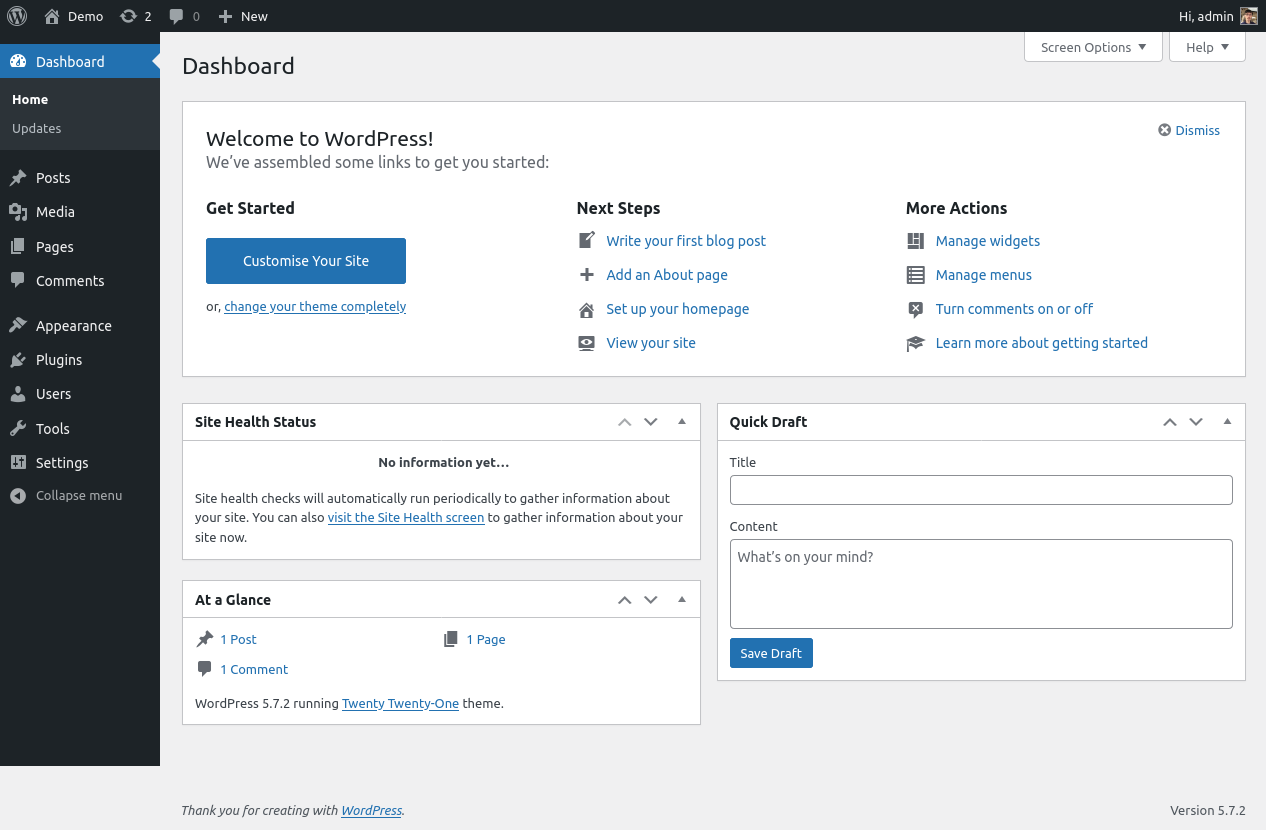
Now that the Docker Compose configuration and the WordPress image are prepared, the next step is to build and run the containers. This involves using Docker Compose to orchestrate the build process, ensuring all necessary components are created and initialized correctly. The following sections detail the steps involved in building, starting, and accessing the WordPress site and phpMyAdmin.
Building the Docker Images
Before running the containers, it is essential to build the Docker images. This process uses the Docker Compose configuration file (docker-compose.yml) to define how each image is created. Building the images ensures that all dependencies are installed and that the application code is correctly packaged.To build the Docker images, execute the following command in the directory containing your `docker-compose.yml` file:
docker-compose build
This command reads the `docker-compose.yml` file and builds the images for the services defined within it. This includes the WordPress image (which may have been built previously if you followed the “Creating the WordPress Image” section) and the database image (typically MySQL or MariaDB, depending on your configuration). The build process will download the necessary base images, install dependencies, and configure the environment as specified in the Dockerfiles and the Docker Compose file.
Starting and Stopping the Containers
Once the images are built, the containers can be started and stopped. Docker Compose provides simple commands to manage the lifecycle of the containers defined in the `docker-compose.yml` file.To start the containers, use the following command:
docker-compose up -d
The `-d` flag runs the containers in detached mode, meaning they run in the background. Without this flag, the logs of the containers would be displayed in the terminal.To stop the containers, use the following command:
docker-compose down
This command stops and removes the containers, networks, and volumes defined in the `docker-compose.yml` file. This is a clean way to shut down the application and release resources.
Accessing the WordPress Site and phpMyAdmin
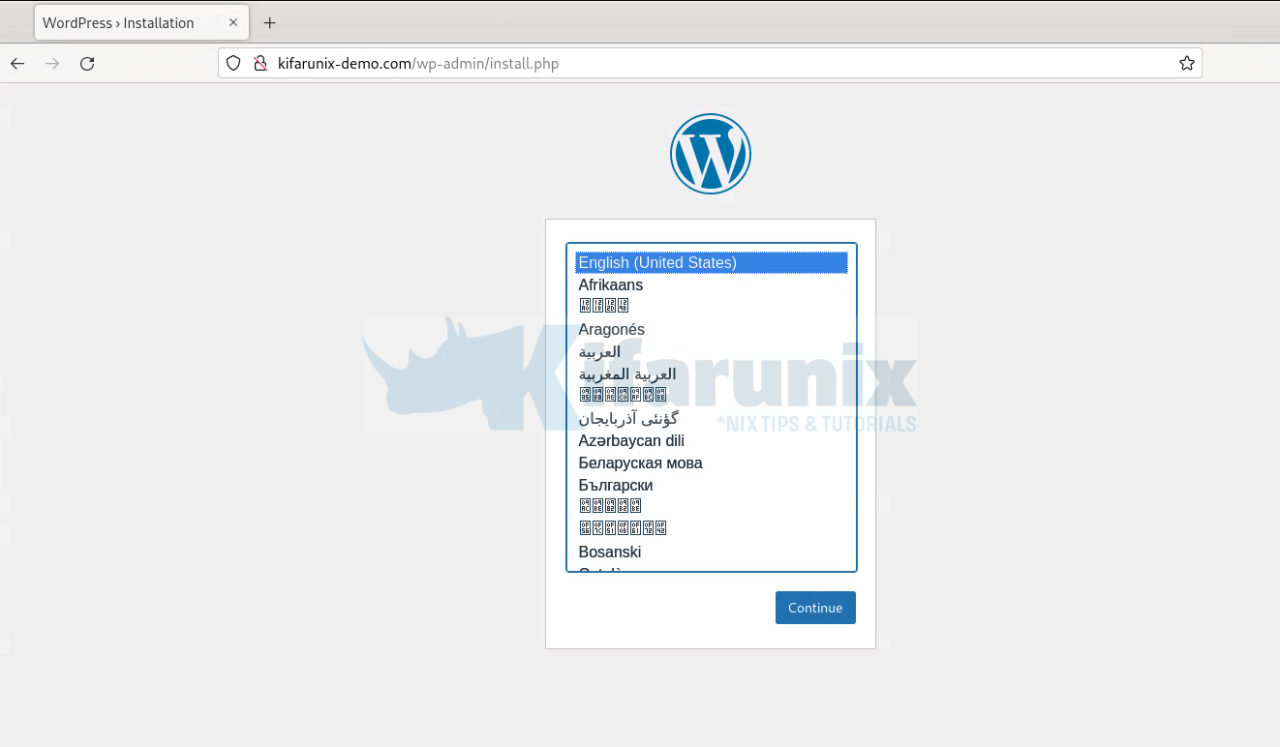
After the containers have been started, the WordPress site and phpMyAdmin can be accessed through a web browser. This involves using the ports specified in the `docker-compose.yml` file. The example assumes that port 80 is mapped to the WordPress container, and port 8080 is mapped to the phpMyAdmin container.To access the WordPress site, open a web browser and navigate to:
http://localhost
or
http://your_server_ip
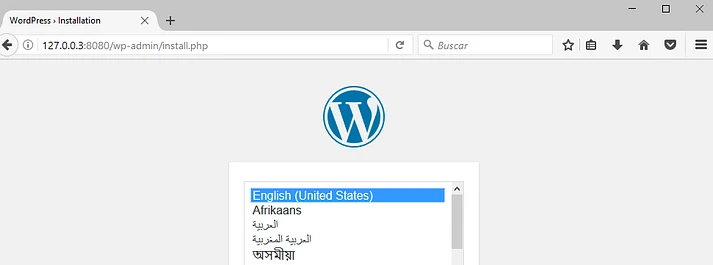
Replace `your_server_ip` with the IP address of the server where the containers are running. If the site is configured correctly, the WordPress installation screen or your WordPress website’s home page should be displayed.To access phpMyAdmin, open a web browser and navigate to:
http://localhost:8080
or
http://your_server_ip:8080
Again, replace `your_server_ip` with the IP address of your server. You will be prompted to enter the database credentials (username, password, and database name) configured in your `docker-compose.yml` file to access the database management interface.
Database Configuration and Management
Managing the database is a critical aspect of deploying and maintaining a WordPress site. The database stores all your website’s content, settings, and user data. Proper configuration, management, and maintenance of the database are essential for the smooth operation and data integrity of your WordPress site within the Docker environment. This section Artikels the steps involved in connecting to, creating, managing, and backing up your WordPress database using phpMyAdmin.
Connecting to the MySQL Database Using phpMyAdmin
phpMyAdmin is a free and open-source administration tool for MySQL and MariaDB. It provides a web interface to manage your database, making it easier to interact with your data. To connect to the MySQL database running in your Docker container using phpMyAdmin, follow these steps:
- Deploy phpMyAdmin: You’ll need to deploy a phpMyAdmin container. This container needs to be configured to connect to your MySQL container. You can add phpMyAdmin to your existing `docker-compose.yml` file or create a separate one. A basic configuration example might look like this:
version: "3.9"
services:
  db:
    image: mysql:8.0
    container_name: wordpress_db
    restart: always
    environment:
      MYSQL_ROOT_PASSWORD: your_root_password
      MYSQL_DATABASE: wordpress
      MYSQL_USER: wordpress
      MYSQL_PASSWORD: your_wordpress_password
    ports:

-"3306:3306"
    volumes:

-db_data:/var/lib/mysql
  wordpress:
    depends_on:

-db
    image: wordpress:latest
    container_name: wordpress_app
    restart: always
    ports:

-"8000:80"
    environment:
      WORDPRESS_DB_HOST: db:3306
      WORDPRESS_DB_USER: wordpress
      WORDPRESS_DB_PASSWORD: your_wordpress_password
      WORDPRESS_DB_NAME: wordpress
    volumes:

-wordpress_data:/var/www/html
  phpmyadmin:
    depends_on:

-db
    image: phpmyadmin/phpmyadmin:latest
    container_name: phpmyadmin_app
    restart: always
    ports:

-"8080:80"
    environment:
      PMA_HOST: db
      PMA_PORT: 3306
This example includes the `phpmyadmin` service.
It depends on the `db` service (your MySQL database) and maps port 8080 on your host to port 80 in the phpMyAdmin container. The `PMA_HOST` environment variable specifies the database host (the name of the MySQL service, which is `db` in this example).
- Start the Containers: After updating your `docker-compose.yml` file, start all the containers using the command `docker-compose up -d`. The `-d` flag runs the containers in detached mode.
- Access phpMyAdmin: Open your web browser and navigate to `http://localhost:8080` (or the port you specified in your `docker-compose.yml` file). You should see the phpMyAdmin login screen.
- Login to phpMyAdmin: Enter the MySQL root username (usually `root`) and the root password you set in your `docker-compose.yml` file (`MYSQL_ROOT_PASSWORD`). If you have created a separate user for your WordPress database, you can also log in using those credentials.
- Database Access: Once logged in, you will have access to your MySQL database through the phpMyAdmin interface. You can then manage databases, create tables, and browse data.
Creating and Managing the WordPress Database within MySQL
Creating and managing the WordPress database within MySQL involves several steps to ensure your website functions correctly. This involves creating the database itself, and the user with appropriate privileges.
- Access phpMyAdmin: Log in to phpMyAdmin as described in the previous section.
- Create the Database:
- Click on the “Databases” tab in the phpMyAdmin interface.
- In the “Create database” field, enter a name for your WordPress database (e.g., `wordpress`).
- Select “utf8mb4_unicode_ci” as the collation. This collation supports a wider range of characters, including emojis, which is important for modern websites.
- Click the “Create” button.
- Create a Database User and Grant Privileges: It is best practice to create a dedicated user for your WordPress database.
- Click on the “Users” tab in phpMyAdmin.
- Click “Add user”.
- In the “User name” field, enter a username (e.g., `wordpress`).
- In the “Host” field, select “Localhost” or specify the host where the user will connect from. If your WordPress application is in a Docker container, you can use `%` to allow access from any host (but be mindful of security implications).
- In the “Password” section, set a strong password for the user.
- In the “Global privileges” section, grant the user the following privileges: SELECT, INSERT, UPDATE, DELETE, CREATE, DROP, ALTER, INDEX. This allows WordPress to perform the necessary database operations.
- Click “Go” to create the user and grant the privileges.
- Update WordPress Configuration: When installing WordPress, or updating your Docker Compose file, make sure the following environment variables are set to match your database configuration:
- `WORDPRESS_DB_HOST`: The database host, usually `db` (the service name in your `docker-compose.yml` file).
- `WORDPRESS_DB_USER`: The database username (e.g., `wordpress`).
- `WORDPRESS_DB_PASSWORD`: The database user’s password.
- `WORDPRESS_DB_NAME`: The database name (e.g., `wordpress`).
Procedures for Backing Up and Restoring the WordPress Database
Regularly backing up your WordPress database is crucial for data protection and disaster recovery. These backups ensure that you can restore your website in case of data loss, corruption, or other unforeseen issues. Restoring the database allows you to recover from any issues and return your website to a previous working state.
- Backing Up the Database:
- Using phpMyAdmin:
- Log in to phpMyAdmin.
- Select your WordPress database from the left-hand sidebar.
- Click on the “Export” tab.
- Choose an export method: “Quick” or “Custom.” “Quick” is suitable for basic backups. “Custom” allows for more granular control over the backup process.
- Select the format: “SQL” is the most common and compatible format.
- Click “Go” to download the SQL file containing your database backup.
- Using the `mysqldump` Command (via Docker):
- Open a terminal and access the MySQL container’s shell using the command: `docker exec -it wordpress_db bash`. Replace `wordpress_db` with the name of your MySQL container.
- Execute the `mysqldump` command to create a backup:
mysqldump -u wordpress -p wordpress > wordpress_backup.sqlReplace `wordpress` with your database username, and you will be prompted for the password.
The `wordpress_backup.sql` file will be created inside the container. You can then copy it to your host machine using `docker cp wordpress_db:/wordpress_backup.sql .`
- Automated Backups: Consider using a plugin like UpdraftPlus or a similar solution that automates the backup process, storing backups on cloud services such as Google Drive or Amazon S3.
- Using phpMyAdmin:
- Restoring the Database:
- Using phpMyAdmin:
- Log in to phpMyAdmin.
- Select your WordPress database from the left-hand sidebar.
- Click on the “Import” tab.
- Click “Choose File” and select the SQL backup file you created.
- Click “Go” to import the data.
- Using the `mysql` Command (via Docker):
- Access the MySQL container’s shell using `docker exec -it wordpress_db bash`.
- Execute the `mysql` command to restore the database:
mysql -u wordpress -p wordpress < wordpress_backup.sqlReplace `wordpress` with your database username, and you will be prompted for the password.
- Using phpMyAdmin:
- Important Considerations:
- Regular Backups: Implement a regular backup schedule (daily or weekly) depending on the frequency of content updates.
- Backup Storage: Store backups in a secure location, ideally off-site, to protect against data loss due to hardware failure or other disasters. Cloud storage solutions are ideal for this.
- Testing Restores: Periodically test your backup and restore procedures to ensure they work correctly. This verifies the integrity of your backups and your ability to recover your data.
- Database Size: For very large databases, consider using more advanced backup and restore techniques to optimize the process.
Networking and Port Mapping: Accessing the Site
After successfully deploying your WordPress site using Docker containers, the next crucial step is to make it accessible from your host machine and, ultimately, the internet. This involves configuring network settings and port mappings within your Docker Compose file. This section details the process of exposing your WordPress site, configuring the site URL, and employing a reverse proxy for enhanced security and functionality.
Port Mapping Configuration
Port mapping is essential for allowing external access to services running inside Docker containers. This configuration directs traffic from a specific port on your host machine to a corresponding port within the container.
To achieve this, you will modify your `docker-compose.yml` file. Within the `wordpress` service definition, you'll need to add a `ports` section. This section maps ports on the host machine to ports inside the container. The standard configuration for WordPress is to map port 80 (HTTP) and port 443 (HTTPS) on the host machine to ports 80 and 443 inside the container, respectively.
Here's an example of how the `wordpress` service definition might look:
```yaml
version: "3.9"
services:
wordpress:
image: wordpress:latest
ports:
-"80:80"
-"443:443"
environment:
WORDPRESS_DB_HOST: db
WORDPRESS_DB_USER: wordpress
WORDPRESS_DB_PASSWORD: password
WORDPRESS_DB_NAME: wordpress
depends_on:
-db
db:
image: mariadb:latest
environment:
MYSQL_ROOT_PASSWORD: password
MYSQL_DATABASE: wordpress
MYSQL_USER: wordpress
MYSQL_PASSWORD: password
volumes:
-db_data:/var/lib/mysql
volumes:
db_data:
```
In this example, the first line `80:80` maps port 80 on your host machine to port 80 inside the WordPress container. The second line `443:443` maps port 443 on your host machine to port 443 inside the WordPress container. This allows you to access your WordPress site via `http://localhost` (or your host machine's IP address) and, after configuring SSL, via `https://localhost`.
Configuring the Site URL
Once the port mappings are in place, you need to configure the WordPress site URL within the WordPress settings. This is critical to ensure that all internal links and resources within your site are correctly generated.
To do this, you can modify the `wp-config.php` file, which can be found in the WordPress container's `/var/www/html` directory. You can access this file in a few ways, including using `docker exec` to execute commands inside the container. Alternatively, you can use a volume mount to map a directory on your host machine to the `/var/www/html` directory within the container, which allows you to edit the files directly on your host machine.
Within `wp-config.php`, you can define the `WP_HOME` and `WP_SITEURL` constants.
```php
define('WP_HOME', 'http://localhost');
define('WP_SITEURL', 'http://localhost');
```
After modifying `wp-config.php`, save the changes. Then, restart the WordPress container to ensure the new settings are applied. Alternatively, you can access the WordPress admin dashboard (typically at `http://localhost/wp-admin`) and change the site URL settings from within the WordPress administration interface under "Settings" -> "General". Make sure to set the "WordPress Address (URL)" and "Site Address (URL)" fields to your desired URL (e.g., `http://localhost` or your domain name if you have one).
Reverse Proxy Implementation with Nginx
For production environments, and even for local development with more advanced setups, using a reverse proxy, such as Nginx, is highly recommended. A reverse proxy sits in front of your WordPress container and handles several crucial tasks. This includes SSL/TLS encryption, domain name management, and load balancing.
The following steps describe how to set up a reverse proxy with Nginx using Docker Compose:
1. Create an `nginx` service in your `docker-compose.yml` file. This service will run the Nginx container.
2. Configure Nginx: You'll need to create an Nginx configuration file (e.g., `nginx.conf`) that specifies how Nginx should handle incoming requests and forward them to your WordPress container. This file typically defines server blocks for your domain name, SSL certificates (if using HTTPS), and proxy settings.
Here's a simplified example of an `nginx.conf` file:
```nginx
server
listen 80;
server_name example.com www.example.com;
location /
proxy_pass http://wordpress:80;
proxy_set_header Host $host;
proxy_set_header X-Real-IP $remote_addr;
proxy_set_header X-Forwarded-For $proxy_add_x_forwarded_for;
proxy_set_header X-Forwarded-Proto $scheme;
```
In this configuration:
* `listen 80;` tells Nginx to listen on port 80 (HTTP).
- `server_name example.com www.example.com;` specifies the domain names that this server block handles.
- `proxy_pass http://wordpress:80;` forwards requests to the WordPress container on port 80. Note that `wordpress` is the service name defined in your `docker-compose.yml` file, so Docker's internal DNS resolves this name to the WordPress container's IP address.
- The `proxy_set_header` directives set headers that are essential for the WordPress container to correctly identify the client's IP address and the original request protocol.
3. Integrate Nginx into your `docker-compose.yml` file. Mount the Nginx configuration file into the Nginx container and define dependencies to ensure the WordPress container is running before Nginx.
Here is an example of the modified `docker-compose.yml` file:
```yaml
version: "3.9"
services:
wordpress:
image: wordpress:latest
environment:
WORDPRESS_DB_HOST: db
WORDPRESS_DB_USER: wordpress
WORDPRESS_DB_PASSWORD: password
WORDPRESS_DB_NAME: wordpress
depends_on:
-db
networks:
-wordpress_network
db:
image: mariadb:latest
environment:
MYSQL_ROOT_PASSWORD: password
MYSQL_DATABASE: wordpress
MYSQL_USER: wordpress
MYSQL_PASSWORD: password
volumes:
-db_data:/var/lib/mysql
networks:
-wordpress_network
nginx:
image: nginx:latest
ports:
-"80:80"
-"443:443"
volumes:
-./nginx.conf:/etc/nginx/conf.d/default.conf
-./ssl:/etc/nginx/ssl
depends_on:
-wordpress
networks:
-wordpress_network
volumes:
db_data:
networks:
wordpress_network:
```
In this updated example, the `nginx` service is added. It uses the `nginx:latest` image, maps ports 80 and 443 to the host, and mounts your custom `nginx.conf` file and an `ssl` directory (for SSL certificates) into the container. The `depends_on` directive ensures that the `wordpress` service is running before Nginx. A custom network `wordpress_network` is defined, and both `wordpress` and `nginx` services are added to this network, enabling them to communicate using service names.
4. SSL/TLS Configuration: For HTTPS, you'll need to obtain SSL/TLS certificates. You can generate self-signed certificates for local development using tools like OpenSSL. In a production environment, you should obtain certificates from a trusted Certificate Authority (CA) like Let's Encrypt. Configure your `nginx.conf` to use these certificates.
The `ssl` directory mentioned in the `docker-compose.yml` file should contain your certificate and key files.
5. Testing and Verification: After deploying the reverse proxy, access your WordPress site through the domain name configured in your `nginx.conf` file (e.g., `http://example.com` or `https://example.com`). Verify that the site loads correctly and that all resources are served as expected. Check your browser's developer tools for any errors related to mixed content (HTTP resources loaded on an HTTPS page) and address them accordingly.
By implementing these steps, you can successfully deploy a WordPress site using Docker, configure port mappings for external access, and leverage the power of a reverse proxy to handle SSL/TLS, domain name management, and other advanced configurations. This approach provides a robust, secure, and scalable foundation for your WordPress site.
Advanced Configuration: Optimizations and Best Practices
Optimizing a WordPress site deployed in a Docker container is crucial for performance, security, and data integrity. This section Artikels advanced configurations that enhance these aspects, ensuring a robust and reliable WordPress environment. We will explore caching, security hardening, and automated backups.
Configuring Caching Mechanisms for Improved Performance
Caching significantly improves website performance by storing frequently accessed data and serving it to users more quickly. Implementing caching reduces server load and enhances the user experience. Several caching mechanisms can be employed with WordPress in a Docker environment, including Redis and Memcached.
Implementing caching with Redis involves several steps:
- Install Redis in your Docker Compose file: Add a Redis service to your
docker-compose.ymlfile. This service should expose the Redis port (usually 6379). - Configure WordPress for Redis: Install a Redis object cache plugin within WordPress. Popular options include Redis Object Cache and WP Redis. Activate the plugin and configure it to connect to your Redis instance (host: redis, port: 6379).
- Test and Monitor: After configuration, monitor your site's performance using tools like Google PageSpeed Insights or GTmetrix. Observe the reduction in server response times and improved page load speeds.
Similarly, configuring Memcached involves these steps:
- Install Memcached in your Docker Compose file: Add a Memcached service to your
docker-compose.ymlfile, exposing its port (usually 11211). - Configure WordPress for Memcached: Install a Memcached object cache plugin. Common choices include Memcached Object Cache. Activate the plugin and configure it to connect to your Memcached instance (host: memcached, port: 11211).
- Test and Monitor: Similar to Redis, test and monitor your site's performance after implementing Memcached. Observe improvements in response times and page load speeds.
For example, consider a news website with high traffic. Without caching, each page load might involve database queries and template processing, leading to slow load times. Implementing Redis or Memcached can significantly reduce these load times. A test on a WordPress site, after integrating Redis, saw a reduction in server response time from 1.5 seconds to 0.5 seconds, and a 30% reduction in database query load.
Implementing Security Best Practices
Securing a WordPress site within a Docker container requires a layered approach, covering various aspects from container configuration to WordPress-specific settings.
Implementing security best practices includes:
- Regularly Update WordPress, Themes, and Plugins: Keep all software components up to date to patch security vulnerabilities. This is critical because outdated versions are often the targets of attacks.
- Use Strong Passwords: Enforce strong, unique passwords for all user accounts and database credentials. Regularly change these passwords.
- Implement SSL/TLS: Configure SSL/TLS certificates to encrypt traffic between the user's browser and the server. This protects sensitive information during transmission. You can use Let's Encrypt for free SSL certificates.
- Limit Login Attempts: Use plugins like "Limit Login Attempts Reloaded" to prevent brute-force attacks. This plugin locks out users after a specified number of failed login attempts.
- Implement a Web Application Firewall (WAF): Use a WAF, such as the Wordfence plugin, to filter malicious traffic and protect against common attacks like SQL injection and cross-site scripting (XSS).
- Disable File Editing: Disable file editing in the WordPress admin panel to prevent unauthorized modification of core files. Add the following line to your
wp-config.phpfile:define( 'DISALLOW_FILE_EDIT', true ); - Secure the Docker Container:
- Use a non-root user inside the container.
- Regularly update the base image and dependencies.
- Remove unnecessary packages and services.
- Implement a security scanner to identify vulnerabilities.
- Database Security:
- Use a strong password for the database user.
- Restrict database user privileges to the minimum necessary.
- Regularly back up the database.
Consider a scenario where a site owner does not update WordPress plugins regularly. An attacker could exploit a known vulnerability in an outdated plugin to gain access to the site. Conversely, a site that implements regular updates, strong passwords, and a WAF is far less vulnerable to such attacks. Real-world examples consistently show that sites adhering to these practices experience significantly fewer security breaches.
Setting Up Automated Backups
Automated backups are essential for data recovery in case of data loss, server failures, or security breaches. Implementing a reliable backup strategy ensures that your WordPress site can be restored to a previous state.
Implementing automated backups involves these steps:
- Choose a Backup Solution: Select a backup solution that meets your needs. Popular options include UpdraftPlus, Duplicator, and WP-CLI scripts with cloud storage integration (e.g., Amazon S3, Google Cloud Storage, Dropbox).
- Configure Backup Schedule: Set up a backup schedule that suits your content update frequency. For frequently updated sites, consider daily or even more frequent backups. For less active sites, weekly backups might suffice.
- Configure Backup Storage: Configure the backup solution to store backups in a secure location, preferably off-site. Cloud storage services provide a reliable and accessible backup repository.
- Automate the Backup Process: Use a plugin or script to automate the backup process. Most plugins offer scheduled backup options. If using WP-CLI, create a cron job to run the backup script automatically.
- Test the Backup and Restore Process: Regularly test your backup and restore process to ensure that you can successfully recover your site from a backup. This is a crucial step to validate the backup strategy.
For example, a WordPress site using UpdraftPlus could be configured to automatically back up the database and files daily to a cloud storage service like Google Drive. In the event of a server crash, the site owner can restore the latest backup, minimizing downtime and data loss. This is a critical measure to protect against data loss. In a study, it was observed that sites with automated backups recovered from data loss incidents significantly faster than those without, often by several hours or even days.
Troubleshooting Common Issues
Deploying a WordPress site with Docker, while generally streamlined, can sometimes present challenges. These issues often stem from misconfigurations, permission problems, or network-related difficulties. Understanding common pitfalls and their solutions is crucial for a smooth deployment process and for maintaining a functional WordPress site. This section provides practical guidance to address frequently encountered problems.
Database Connection Errors
Database connection errors are among the most common issues during WordPress deployment. These errors typically manifest as messages indicating a failure to connect to the database, preventing WordPress from accessing its data.
Several factors can cause database connection errors. These include:
- Incorrect Database Credentials: WordPress relies on accurate database credentials (hostname, database name, username, and password) to connect to the database. These credentials are typically configured within the `wp-config.php` file.
- Database Server Availability: The database server (e.g., MySQL or MariaDB) must be running and accessible from the WordPress container. If the database container is not running or is inaccessible due to network issues, WordPress will be unable to connect.
- Network Configuration: Incorrect network settings within the Docker Compose configuration can prevent the WordPress container from reaching the database container. This often involves incorrect service names or port mappings.
- Firewall Restrictions: Firewalls on the host machine or within the Docker network can block communication between the WordPress and database containers.
Troubleshooting steps for database connection errors include:
- Verify Database Credentials: Double-check the database credentials in `wp-config.php` against the credentials configured in your Docker Compose file or database container settings. Ensure there are no typos or incorrect values. For example, ensure the `DB_HOST` value is correct. If your database service is named "db", the `DB_HOST` should be "db".
- Check Database Container Status: Use the `docker ps` command to verify that the database container is running. If the container is not running, start it using `docker-compose up -d`.
- Inspect Network Configuration: Ensure that the service names and port mappings in your Docker Compose file are correctly configured. The WordPress container must be able to resolve the database service name.
- Examine Container Logs: Use the `docker logs
` command to view the logs of both the WordPress and database containers. These logs often provide valuable error messages and diagnostic information. For example, the database logs might indicate authentication failures. - Test Database Connectivity: Within the WordPress container, try to connect to the database using a command-line tool like `mysql` or `mariadb`. This can help isolate the problem and confirm that the network connection and credentials are valid.
Permission Issues
Permission issues frequently cause problems when deploying WordPress in a Docker environment. These issues typically arise when the web server (e.g., Apache or Nginx) does not have the necessary permissions to read, write, or execute files within the WordPress installation directory. This can result in problems like inability to install plugins, themes, or update WordPress core files.
The primary causes of permission issues include:
- Incorrect File Ownership: Files and directories within the WordPress installation may be owned by the wrong user or group. This can prevent the web server from accessing and modifying the files.
- Inadequate File Permissions: Files and directories may have insufficient permissions, preventing the web server from performing necessary operations like writing to the `wp-content` directory.
- Volume Mounting Problems: Incorrectly configured volume mounts can lead to permission conflicts between the host machine and the Docker container.
Resolving permission issues involves the following steps:
- Identify the Web Server User: Determine the user that the web server within the container is running as. This is usually `www-data` or `apache`.
- Adjust File Ownership: Ensure that the WordPress files and directories are owned by the web server user. You can achieve this using the `chown` command within the Dockerfile or during the container startup. For example, to change the ownership of the WordPress files to `www-data`, you could use the command `chown -R www-data:www-data /var/www/html` (assuming the WordPress files are in `/var/www/html`).
- Set Appropriate File Permissions: Set appropriate permissions on the WordPress files and directories. The recommended practice is to grant read and execute permissions to the web server user for the core WordPress files and directories, and read, write, and execute permissions for the `wp-content` directory and its contents. This can be done using the `chmod` command. For example, to set the correct permissions for the `wp-content` directory, use `chmod -R 755 /var/www/html/wp-content`.
- Use Volume Mounts Correctly: When using volume mounts, ensure that the user and group IDs on the host machine match the user and group IDs within the container. This avoids permission conflicts.
Common Error Messages and Resolutions
Understanding common error messages and their corresponding resolutions can significantly speed up the troubleshooting process. This section highlights frequently encountered error messages and provides practical solutions.
Common error messages and their resolutions include:
- "Error establishing a database connection": This error indicates that WordPress cannot connect to the database. The resolutions include verifying database credentials in `wp-config.php`, checking the database container status, and ensuring network connectivity.
- "Internal Server Error": This generic error often indicates a problem with the web server configuration, PHP errors, or permission issues. Resolutions include checking the web server logs (e.g., Apache error log or Nginx error log), verifying file permissions, and inspecting the PHP error log.
- "Forbidden": This error indicates that the web server is denying access to a resource. Resolutions include checking file permissions, verifying the `.htaccess` file (if using Apache), and ensuring that the web server is configured correctly.
- "Cannot write to file": This error suggests a permission issue where the web server does not have write access to a specific file or directory. Resolutions include verifying file ownership and permissions, and ensuring that the web server user has write access to the necessary files and directories.
- "Maximum execution time exceeded": This error indicates that a PHP script has exceeded the maximum execution time allowed. Resolutions include increasing the `max_execution_time` directive in the PHP configuration file or optimizing the script to run faster.
Debugging Tips for Docker Containers and WordPress
Effective debugging is crucial for identifying and resolving issues within a Dockerized WordPress environment. This section provides useful tips for troubleshooting containers and WordPress.
Useful debugging tips include:
- Utilize Container Logs: Regularly examine the logs of both the WordPress and database containers. These logs often contain valuable error messages and diagnostic information. Use the `docker logs
` command to view the logs. - Inspect Container Shells: Access the container's shell using the `docker exec -it
bash` command. This allows you to execute commands, inspect files, and test connectivity within the container. - Enable Debug Mode in WordPress: Enable debug mode in `wp-config.php` by setting `define( 'WP_DEBUG', true );`. This will display detailed error messages on the website.
- Use a Database Client: Connect to the database using a database client (e.g., phpMyAdmin, DBeaver) to verify data and troubleshoot database-related issues. This can help isolate problems related to data or database structure.
- Check Network Connectivity: Use tools like `ping` and `nslookup` within the container to test network connectivity and DNS resolution. This helps identify network-related issues.
- Test File Permissions: Use the `ls -l` command to inspect file permissions within the container and ensure they are configured correctly. This helps diagnose and resolve permission issues.
- Review Docker Compose Configuration: Carefully review the Docker Compose configuration file for any errors or misconfigurations. Pay close attention to service names, port mappings, and volume mounts.
- Restart Containers: Sometimes, simply restarting the containers can resolve transient issues. Use the `docker-compose down` and `docker-compose up -d` commands to restart the containers.
Deployment on a Cloud Platform: Scalability
Deploying a WordPress site with Docker containers on a cloud platform offers significant advantages in terms of scalability, reliability, and manageability. This section Artikels the key steps involved in deploying a WordPress site on a cloud platform and compares different cloud providers, focusing on their cost implications and scaling capabilities.
Deploying WordPress on a Cloud Platform
The process of deploying a WordPress site using Docker containers on a cloud platform generally involves these steps:
- Choose a Cloud Provider: Select a cloud platform like Amazon Web Services (AWS), Google Cloud Platform (GCP), or Microsoft Azure based on your specific needs and budget. Consider factors like pricing, available services, and your familiarity with the platform.
- Set up the Infrastructure: Create the necessary infrastructure components within your chosen cloud provider. This typically includes virtual machines (VMs) or container orchestration services (like AWS ECS, Google Kubernetes Engine, or Azure Kubernetes Service), a database service (like AWS RDS, Google Cloud SQL, or Azure Database for MySQL), and a load balancer.
- Containerize the WordPress Application: Use the Docker Compose configuration from the previous sections to create a Docker image for your WordPress application, including the WordPress core files, the web server (e.g., Apache or Nginx), and PHP.
- Deploy the Docker Containers: Deploy the Docker containers to the chosen cloud platform. This usually involves pushing your Docker image to a container registry (like AWS ECR, Google Container Registry, or Azure Container Registry) and then using the cloud provider's container orchestration service to run the containers on your infrastructure.
- Configure the Database: Configure the database connection within the WordPress application to connect to the database service provided by the cloud platform. This includes setting the database host, username, password, and database name.
- Configure the Load Balancer: Configure a load balancer to distribute incoming traffic across multiple instances of your WordPress application. This ensures high availability and improved performance.
- Configure DNS and Networking: Configure DNS records to point your domain name to the load balancer's public IP address or domain name. Also, configure the necessary networking settings, such as security groups or firewall rules, to allow traffic to your WordPress site.
- Monitor and Manage the Deployment: Monitor the performance and health of your WordPress site using the cloud provider's monitoring tools. Regularly update your Docker images and containers to incorporate security patches and new features. Use the cloud provider's management tools to scale your resources as needed.
Cloud Platform Comparison and Cost Analysis
Different cloud platforms offer various services and pricing models for WordPress deployments. Here's a comparison of AWS, GCP, and Azure, focusing on cost considerations. Note that these are estimates, and actual costs can vary based on region, instance size, and usage.
The following table provides a comparative overview:
| Cloud Platform | Compute Options | Database Options | Estimated Monthly Cost (Small Site) | Scalability Features |
|---|---|---|---|---|
| Amazon Web Services (AWS) |
|
|
$50 - $200 (Varies greatly based on instance size, database type, and traffic) |
|
| Google Cloud Platform (GCP) |
|
|
$40 - $180 (Varies based on instance type, database size, and region) |
|
| Microsoft Azure |
|
|
$45 - $190 (Based on VM size, database configuration, and traffic) |
|
Important Considerations:
- Instance Size: Choosing the right instance size (CPU, RAM) is crucial. Start small and scale up as needed.
- Database Type: Managed database services are generally more cost-effective and easier to manage than self-managed databases.
- Traffic Volume: Higher traffic requires more resources, leading to increased costs.
- Storage: Consider storage costs for both the WordPress files and the database.
- Region: Pricing varies by region. Choose a region closest to your target audience.
Scaling the WordPress Deployment
Scaling a WordPress deployment on a cloud platform involves adjusting resources to handle fluctuations in traffic and ensure optimal performance. Scaling can be performed in several ways:
- Vertical Scaling: This involves increasing the resources (CPU, RAM) of the virtual machine or container instance. This is generally simpler but has limitations. For example, if a virtual machine has reached its maximum capacity, vertical scaling will not be sufficient.
- Horizontal Scaling: This involves adding more instances of the WordPress application to distribute the load. This is often the preferred method for scalability.
- Database Scaling: Scaling the database can involve increasing the database server's resources or using database replication and sharding.
- Caching: Implementing caching mechanisms, such as object caching (e.g., Redis or Memcached) and page caching (e.g., using a plugin like WP Super Cache or W3 Total Cache), can significantly reduce the load on the server and database.
- Content Delivery Network (CDN): Using a CDN can cache static content (images, CSS, JavaScript) closer to the users, reducing latency and improving performance.
Examples of Scaling in Action:
Consider a WordPress site experiencing a sudden surge in traffic due to a viral blog post. With a properly configured cloud deployment, the following might happen:
- Horizontal Scaling with AWS: AWS Auto Scaling detects the increased CPU utilization on the EC2 instance. It automatically launches additional EC2 instances running the WordPress application, placing them behind the Elastic Load Balancer (ELB). The ELB distributes the traffic across these new instances.
- Database scaling: If the database is becoming a bottleneck, the cloud provider might automatically increase the database server's resources.
- Caching: A CDN, such as CloudFront, caches static assets, reducing the load on the origin server. Redis or Memcached object caching is implemented to reduce the database queries.
Closing Notes
In conclusion, deploying a WordPress site using Docker containers offers a modern and efficient approach to web development. This guide has equipped you with the knowledge and tools to navigate the complexities of containerization, from initial setup to advanced optimizations. By embracing Docker, you can achieve improved portability, scalability, and resource utilization for your WordPress projects. Now, go forth and deploy your WordPress site with confidence!