Embark on a journey to master the art of hosting multiple WordPress websites on a single Apache web server. This guide delves into the intricacies of configuring Apache, the world’s most popular web server, to efficiently manage and serve numerous WordPress installations. We’ll explore everything from server setup and domain configuration to advanced optimization techniques, ensuring your websites run smoothly and securely.
This comprehensive exploration will cover essential aspects such as virtual host configurations, SSL/TLS implementation, and WordPress-specific optimizations. Whether you’re a seasoned web administrator or a budding enthusiast, this guide provides the knowledge and practical steps needed to successfully host multiple WordPress sites, maximizing your server’s potential and enhancing your online presence.
Prerequisites
Before you can host multiple WordPress sites on a single Apache server, several prerequisites must be met. These steps ensure a stable, secure, and efficient hosting environment. The initial setup focuses on the server infrastructure and domain configuration, which are fundamental to the overall process. Proper preparation here will significantly streamline the subsequent WordPress installation and configuration.
Server Setup and Domain Configuration
Setting up the server and configuring domains is the first step in hosting multiple WordPress sites. This involves selecting a suitable operating system, installing the necessary software, and configuring domain name system (DNS) records to point to the server.To begin, choose an operating system. Ubuntu and CentOS are popular choices due to their stability, security, and large community support. The following steps Artikel the setup process for Ubuntu, but similar principles apply to other Linux distributions.
- Server Operating System Installation: Download the latest Ubuntu Server ISO image from the official Ubuntu website. Install the operating system on your chosen server hardware or virtual machine. During installation, select a static IP address, subnet mask, gateway, and DNS servers. These settings are crucial for network connectivity and domain resolution.
- Initial Server Configuration: After installation, update the system packages using the following commands in the terminal:
sudo apt update
sudo apt upgradeThese commands ensure the system has the latest security patches and software updates. Configure a strong password for the root user and create a regular user account with sudo privileges for day-to-day server administration.
- Firewall Configuration: Implement a firewall to protect the server from unauthorized access. UFW (Uncomplicated Firewall) is a user-friendly firewall available on Ubuntu. Enable it and allow SSH (port 22), HTTP (port 80), and HTTPS (port 443) traffic:
sudo ufw enable
sudo ufw allow ssh
sudo ufw allow http
sudo ufw allow httpsThis configuration allows you to remotely access the server via SSH and allows web traffic.
Configuring DNS records is critical for directing domain traffic to the server. This involves accessing the domain registrar’s control panel and setting up the appropriate DNS records.
- A Records: Create A records for each domain and subdomain you intend to host. An A record maps a domain name or subdomain to the server’s IP address. For example, to host `example.com` and `www.example.com`, create two A records, both pointing to the server’s IP address. Similarly, for `site1.example.com`, create an A record also pointing to the server’s IP address.
- Wildcard Records: To simplify the management of subdomains, consider using a wildcard DNS record. A wildcard record, typically denoted by `*.example.com`, directs all subdomains of `example.com` to the server’s IP address. This eliminates the need to create individual A records for each new subdomain.
- DNS Propagation: After configuring the DNS records, allow time for DNS propagation. Propagation is the process by which DNS records are updated across the internet. This process can take up to 48 hours, although it usually completes much faster. You can check the propagation status using online DNS lookup tools.
Installing and updating the Apache web server and its modules is essential for serving web content. This involves using the package manager to install Apache and enabling the necessary modules.
- Apache Installation: Install Apache using the package manager. On Ubuntu, use the following command:
sudo apt install apache2This command downloads and installs Apache and its dependencies. After installation, Apache automatically starts and is ready to serve web pages.
- Module Installation and Enabling: Several Apache modules are crucial for WordPress hosting. Install and enable the following modules:
- mod_rewrite: This module is required for WordPress permalink functionality. Enable it using:
sudo a2enmod rewriteThen, restart Apache:
sudo systemctl restart apache2 - mod_ssl: This module is necessary for enabling HTTPS. Install it using:
sudo apt install libapache2-mod-sslThen, enable the module and restart Apache:
sudo a2enmod ssl
sudo systemctl restart apache2
- mod_rewrite: This module is required for WordPress permalink functionality. Enable it using:
- Testing Apache: After installation, verify Apache is running by accessing the server’s IP address or domain name in a web browser. You should see the default Apache welcome page. This confirms that Apache is correctly installed and serving content.
Virtual Host Configuration
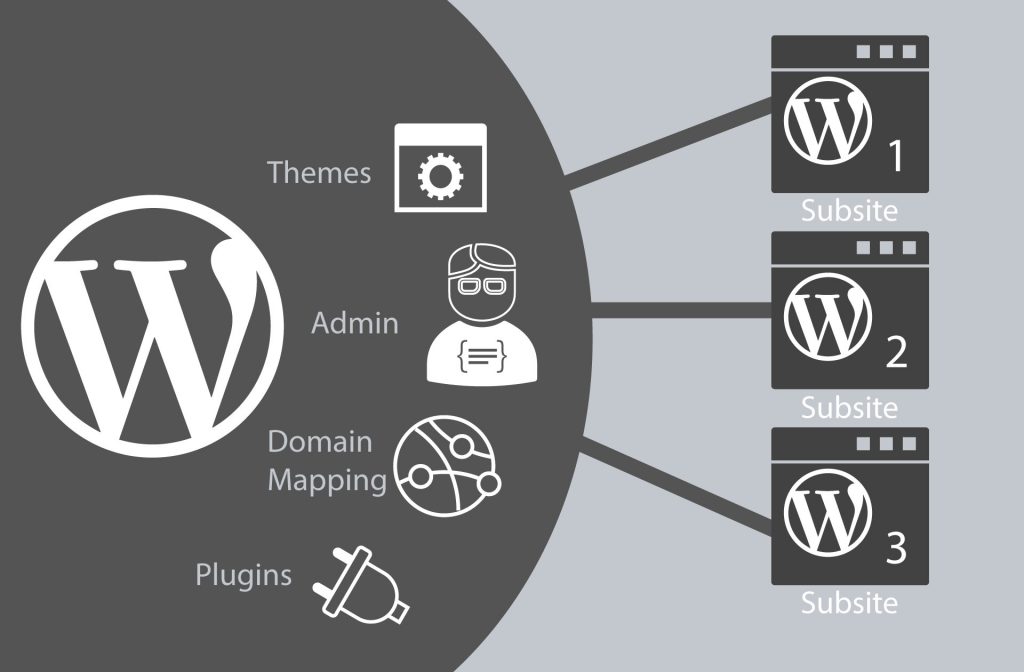
Configuring Apache for multiple WordPress sites relies heavily on virtual hosts. Virtual hosts allow a single server to host multiple websites, each appearing as a separate entity to users. This isolation is crucial for security, resource management, and ease of maintenance. Let’s delve into the core concepts and configurations required to make this happen.
Purpose of Virtual Hosts and Website Isolation
Virtual hosts serve the fundamental purpose of enabling a single web server, such as Apache, to handle multiple domain names or IP addresses. They effectively create distinct “containers” for each website hosted on the server.This isolation provides several key benefits:* Resource Management: Each virtual host can be configured with specific resource limitations, such as memory or CPU usage, preventing one website from consuming resources and negatively impacting others.
Security
Isolating websites reduces the risk of a security breach on one site affecting others. If one site is compromised, the others remain protected.
Organization and Maintenance
Virtual hosts make it easier to manage individual websites. Each site has its own configuration, logs, and document root, simplifying updates, backups, and troubleshooting.
Flexibility
Virtual hosts allow for different configurations for each website, such as using different PHP versions, SSL certificates, or access control settings.Virtual hosts achieve this isolation by intercepting incoming HTTP requests and directing them to the appropriate website based on the request’s domain name (ServerName) or IP address.
Structure of a Virtual Host Configuration File
The virtual host configuration file is the core of this setup. It tells Apache how to handle requests for a specific domain or IP address. These files typically reside in a dedicated directory within the Apache configuration directory. Let’s explore the key directives used within these files:* `
You can also specify a specific IP address (e.g., `
ServerName
This directive specifies the domain name that the virtual host is responsible for (e.g., `ServerName example.com`). This is the primary domain name associated with the website.
ServerAlias
This directive defines alternative domain names or subdomains that should also be handled by the virtual host (e.g., `ServerAlias www.example.com`).
DocumentRoot
This directive specifies the directory on the server where the website’s files (HTML, CSS, JavaScript, images, etc.) are stored (e.g., `DocumentRoot /var/www/example.com`).
`
This directive block applies configuration settings to a specific directory and its subdirectories. It is often used to control access, set permissions, and configure other directory-specific settings. Within a `
ErrorLog
This directive specifies the location of the error log file for the virtual host (e.g., `ErrorLog /var/log/apache2/example.com-error.log`).
CustomLog
This directive specifies the location of the access log file for the virtual host (e.g., `CustomLog /var/log/apache2/example.com-access.log combined`). The `combined` argument indicates a common log format.Here’s a basic example of a virtual host configuration:“`apache
- The website’s files are located in `/var/www/example.com`.
- The configuration within the `
` block applies to the document root and its subdirectories, allowing for `.htaccess` files to override settings. - Error and access logs are stored in the specified locations.
Location and Naming Conventions of Apache Configuration Files
The location of Apache configuration files, including virtual host files, varies depending on the Linux distribution. Understanding these locations is crucial for finding, editing, and enabling your virtual host configurations.* Debian/Ubuntu:
Main configuration directory
`/etc/apache2/`
Virtual host configuration directory
`/etc/apache2/sites-available/`
Enabled virtual host directory
`/etc/apache2/sites-enabled/`
Naming convention
Files in `sites-available` typically end with `.conf` (e.g., `example.com.conf`).
Enabling a virtual host
Use the `a2ensite` command (e.g., `sudo a2ensite example.com.conf`).
Disabling a virtual host
Use the `a2dissite` command (e.g., `sudo a2dissite example.com.conf`).
Reloading Apache after changes
`sudo systemctl reload apache2` or `sudo service apache2 reload`.* CentOS/RHEL/Fedora:
Main configuration directory
`/etc/httpd/`
Virtual host configuration directory
`/etc/httpd/conf.d/` (or sometimes `/etc/httpd/sites-available/` and `/etc/httpd/sites-enabled/`)
Naming convention
Files in `conf.d` or `sites-available` typically end with `.conf` (e.g., `example.com.conf`).
Enabling a virtual host
Often involves placing the `.conf` file in the `conf.d` directory or creating a symbolic link from `sites-enabled` to `sites-available`.
Reloading Apache after changes
`sudo systemctl reload httpd` or `sudo service httpd reload`.The specific commands and directory structures may vary slightly depending on the version of the distribution and the specific Apache package used. However, the core concepts remain the same. The general pattern is to place the configuration files in a designated “available” directory and then enable them by creating symbolic links or moving them to an “enabled” directory, followed by a reload of the Apache service.
Configuring Virtual Hosts for WordPress Sites

Configuring virtual hosts is a critical step in hosting multiple WordPress sites on a single Apache server. This process allows the server to differentiate between different domain names and serve the correct content for each site. Properly configuring virtual hosts ensures that each WordPress installation functions independently, maintaining its own settings, files, and database. This section will guide you through creating and configuring virtual hosts for WordPress, including SSL implementation.
Creating a Virtual Host Configuration File Template
A template for a virtual host configuration file provides a starting point for setting up each WordPress site. This template should include basic directives for both HTTP and HTTPS (SSL) configurations, which are essential for secure communication.Here’s a sample template:“`apache
`DocumentRoot`
Specifies the directory where the WordPress files for this site are located.
`ServerName`
Defines the primary domain name for the site.
`ServerAlias`
Lists other domain names or subdomains that should also serve the same content.
`
Controls access and permissions for the specified directory.
`SSLEngine on`
Enables SSL for the HTTPS virtual host.
`SSLCertificateFile` and `SSLCertificateKeyFile`
Specify the paths to the SSL certificate and private key, respectively.
Modifying the DocumentRoot Directive
The `DocumentRoot` directive is crucial for directing Apache to the correct WordPress installation directory. Each virtual host must point to the specific directory where the files for that WordPress site are stored. This ensures that the server serves the correct content for each domain or subdomain.For instance, if you have two WordPress sites, `example.com` and `anotherexample.com`, you would configure the `DocumentRoot` directive as follows:* For `example.com`: `DocumentRoot /var/www/html/example.com` (assuming WordPress files are in `/var/www/html/example.com`)
For `anotherexample.com`
`DocumentRoot /var/www/html/anotherexample.com` (assuming WordPress files are in `/var/www/html/anotherexample.com`)It is important to ensure that the specified directories exist and that the web server user (typically `www-data` or `apache`) has read access to these directories and their contents.
Using ServerName and ServerAlias Directives
The `ServerName` and `ServerAlias` directives are essential for mapping domain names and subdomains to the appropriate virtual host. `ServerName` specifies the primary domain name that the virtual host will respond to. `ServerAlias` lists any other names or aliases that should also be served by the same virtual host. This includes subdomains (e.g., `www.example.com`, `blog.example.com`) and other domain names that you want to serve the same content.For example:“`apacheServerName example.comServerAlias www.example.com blog.example.com anotherexample.net“`This configuration ensures that requests for `example.com`, `www.example.com`, `blog.example.com`, and `anotherexample.net` are all handled by the same virtual host, serving the content located in the `DocumentRoot` directory specified for that virtual host.To further illustrate the use of `ServerAlias`, consider the following table that compares different approaches:
| Approach | ServerName | ServerAlias | Description |
|---|---|---|---|
| Single Domain | example.com |
www.example.com |
Serves the same content for both `example.com` and `www.example.com`. |
| Subdomain | example.com |
www.example.com blog.example.com |
Serves the same content for `example.com` and `www.example.com`. `blog.example.com` could point to a different application/content, requiring a different virtual host configuration. |
| Multiple Domains | example.com |
www.example.com anotherexample.net |
Serves the same content for `example.com`, `www.example.com`, and `anotherexample.net`. |
The table provides a clear comparison of how `ServerAlias` can be used to handle various domain and subdomain scenarios.
SSL/TLS Configuration for Secure Connections
Securing your WordPress sites with SSL/TLS is crucial for protecting sensitive data, building user trust, and improving search engine rankings. This section details the process of implementing SSL/TLS on your Apache server for each WordPress site, covering certificate acquisition, configuration, and best practices.
Obtaining and Installing SSL/TLS Certificates
The process of obtaining and installing SSL/TLS certificates involves several steps, beginning with certificate generation and server configuration. Let’s Encrypt provides a free and automated way to obtain SSL/TLS certificates, simplifying this process.To obtain and install an SSL/TLS certificate, follow these steps:
1. Install Certbot
Certbot is a client that automates the process of obtaining and installing Let’s Encrypt certificates. On Debian/Ubuntu, use the following command: “`bash sudo apt-get update sudo apt-get install certbot python3-certbot-apache “` On CentOS/RHEL, use: “`bash sudo yum install certbot python3-certbot-apache “`
2. Obtain a Certificate
Use Certbot to obtain a certificate for your domain. Certbot will automatically configure your Apache virtual host. Replace `yourdomain.com` with your actual domain name. You can also specify multiple domains in a single command if they share the same server configuration: “`bash sudo certbot –apache -d yourdomain.com -d www.yourdomain.com “` Certbot will prompt you for your email address and agree to the terms of service.
It will then automatically configure your Apache virtual host to use SSL/TLS.
3. Verify the Installation
After Certbot completes, verify the installation by accessing your website using `https://yourdomain.com`. Your browser should display a padlock icon, indicating a secure connection.
4. Certificate Renewal
Let’s Encrypt certificates are valid for 90 days. Certbot automatically sets up a cron job to renew the certificates before they expire. However, it’s good practice to manually test the renewal process periodically. You can test the renewal with the following command: “`bash sudo certbot renew –dry-run “` This command simulates the renewal process without actually changing the certificates.If you choose to use a commercial certificate authority (CA), the process involves generating a Certificate Signing Request (CSR), submitting it to the CA, receiving the signed certificate, and installing it on your server.
The specific steps will vary depending on the CA you choose. Commercial CAs offer extended validation (EV) certificates that can provide additional trust signals to users.
Configuring Virtual Hosts for SSL/TLS
Configuring your Apache virtual host to use SSL/TLS involves specifying the certificate and key files, enabling SSL, and redirecting HTTP traffic to HTTPS. The Certbot command usually handles most of this configuration automatically. However, understanding the underlying directives is important for troubleshooting and customization.The following directives are essential for configuring SSL/TLS within your Apache virtual host configuration file:
1. SSLEngine
This directive enables or disables SSL/TLS for the virtual host. Set it to `On` to enable SSL/TLS. “`apache SSLEngine on “`
2. SSLCertificateFile
This directive specifies the path to your SSL/TLS certificate file. This file contains the public key and other information about your website’s identity. “`apache SSLCertificateFile /etc/letsencrypt/live/yourdomain.com/fullchain.pem “`
3. SSLCertificateKeyFile
This directive specifies the path to your private key file. This file is used to decrypt the traffic and must be kept secure. “`apache SSLCertificateKeyFile /etc/letsencrypt/live/yourdomain.com/privkey.pem “`
4. SSLCertificateChainFile (Optional)
This directive specifies the path to the intermediate certificate file, which chains your certificate to a trusted root CA. This is often included in the `fullchain.pem` file provided by Let’s Encrypt. “`apache SSLCertificateChainFile /etc/letsencrypt/live/yourdomain.com/chain.pem “`
5. Virtual Host Configuration
Ensure you have a separate virtual host configuration for port 443 (HTTPS). This configuration should include the SSL/TLS directives. You might also have a virtual host configuration for port 80 (HTTP) that redirects all traffic to HTTPS. “`apache
Best Practices for SSL Configuration in Apache
Implementing SSL/TLS correctly involves not only obtaining and installing a certificate but also configuring your server for optimal security and performance. Here are some best practices to consider:* Enable HTTP Strict Transport Security (HSTS): HSTS forces browsers to always use HTTPS for your website, even if a user types in `http://yourdomain.com`. This helps prevent man-in-the-middle attacks. Add the following directive to your virtual host configuration: “`apache Header always set Strict-Transport-Security “max-age=31536000; includeSubDomains” “` The `max-age` directive specifies the time (in seconds) that the browser should enforce HTTPS.
The `includeSubDomains` directive ensures that HTTPS is also enforced for all subdomains. Consider using `preload` after testing to submit your domain to the HSTS preload list, increasing security.* Configure OCSP Stapling: OCSP stapling improves SSL/TLS performance and privacy by allowing your server to provide the browser with the certificate’s revocation status. This reduces the load on the CA’s servers.
Add the following directives to your virtual host configuration: “`apache SSLUseStapling on SSLStaplingResponderTimeout 5 SSLStaplingReturnResponderErrors off SSLStaplingCache shmcb:/var/run/ocsp(128000) “` The specific path for `SSLStaplingCache` might vary based on your operating system and Apache configuration.* Use Strong Cipher Suites: Configure your server to use strong and modern cipher suites.
This ensures that the encryption used for your website is robust and resistant to known vulnerabilities. You can specify the allowed cipher suites using the `SSLCipherSuite` directive. Consult a security professional or a reputable online resource for the most up-to-date and secure cipher suite configurations. Example (This is just an example, always research the latest best practices): “`apache SSLCipherSuite TLS_AES_128_GCM_SHA256:TLS_AES_256_GCM_SHA384:TLS_CHACHA20_POLY1305_SHA256:ECDHE-RSA-AES128-GCM-SHA256:ECDHE-RSA-AES256-GCM-SHA384 SSLProtocol all -SSLv2 -SSLv3 -TLSv1 -TLSv1.1 “` The `SSLProtocol` directive should disable outdated protocols like SSLv2, SSLv3, TLSv1, and TLSv1.1.* Regularly Monitor Your SSL/TLS Configuration: Use online tools (e.g., SSL Labs’ SSL Server Test) to test your SSL/TLS configuration and identify any potential vulnerabilities or misconfigurations.
This is important for ensuring your website remains secure over time.
WordPress Specific Configuration and Optimization

Optimizing Apache for WordPress involves several key configurations to enhance performance, security, and user experience. This section delves into WordPress-specific configurations, focusing on the crucial role of `.htaccess` files, the enabling of pretty permalinks, and various optimization techniques, including caching strategies. These configurations are essential for a WordPress site to run efficiently and effectively.
.htaccess File Configuration
The `.htaccess` file is a powerful configuration file used by Apache web servers to control various aspects of a website’s behavior. In the context of WordPress, this file plays a crucial role in managing permalinks, redirecting URLs, and implementing security measures. WordPress automatically generates and utilizes this file to ensure proper functionality.
- Purpose and Functionality: The primary purpose of the `.htaccess` file is to allow for directory-level configuration of the web server. It enables administrators to override the global server configuration, tailoring settings for specific directories or the entire website. WordPress uses this file extensively for URL rewriting, which is essential for pretty permalinks.
- Location: The `.htaccess` file is typically located in the root directory of your WordPress installation. It’s a hidden file, so you may need to configure your FTP client or file manager to show hidden files to view it.
- Default Configuration: When WordPress is installed, it automatically creates a default `.htaccess` file. This file usually contains directives related to permalink structure and security.
- Customization: While WordPress manages the core `.htaccess` configuration, you can add custom directives to enhance security, performance, and functionality. For example, you can add rules to redirect specific URLs, block access to certain files or directories, or implement caching mechanisms.
- Security Considerations: Improperly configured `.htaccess` files can pose security risks. It is crucial to understand the implications of any custom directives you add. For example, restricting access to sensitive files, such as the `wp-config.php` file, can improve security.
Enabling Pretty Permalinks with mod_rewrite
Pretty permalinks, also known as clean URLs, are human-readable and search engine-friendly URLs. They replace the default WordPress URLs, which often include query parameters, with more descriptive and user-friendly formats. Enabling pretty permalinks requires the `mod_rewrite` module in Apache to be enabled and correctly configured.
- mod_rewrite Module: The `mod_rewrite` module is an Apache module that provides a powerful mechanism for manipulating URLs. It allows you to rewrite URLs based on various conditions, such as the requested path or the user’s browser.
- Enabling mod_rewrite: To enable `mod_rewrite`, you typically need to ensure the module is installed and enabled in your Apache configuration. This usually involves uncommenting the `LoadModule rewrite_module modules/mod_rewrite.so` line in your Apache configuration file (e.g., `/etc/apache2/apache2.conf` or `/etc/httpd/conf/httpd.conf`) and restarting the Apache service.
- WordPress Permalink Settings: After enabling `mod_rewrite`, you need to configure the permalink settings in your WordPress admin dashboard. Navigate to “Settings” -> “Permalinks” and choose a permalink structure that suits your needs. WordPress will then automatically update the `.htaccess` file to reflect your chosen structure.
- .htaccess Update: WordPress automatically updates the `.htaccess` file with the necessary rewrite rules to handle pretty permalinks. These rules typically include directives that redirect requests to the WordPress index.php file, which then handles the routing based on the requested URL.
- Testing: After configuring permalinks, test them by navigating to different posts and pages on your website. Ensure that the URLs are correctly formatted and that the content is displayed as expected. If you encounter errors, review the Apache error logs for clues.
Optimizing Apache for WordPress Performance
Optimizing Apache for WordPress performance involves several strategies aimed at reducing server load, improving page load times, and enhancing the overall user experience. These strategies include caching, minimizing HTTP requests, and optimizing database queries.
- Caching Strategies: Caching is a fundamental technique for improving website performance. It involves storing frequently accessed data in a temporary location (cache) so that it can be retrieved quickly without having to regenerate it from scratch.
- Minifying Resources: Minifying CSS and JavaScript files reduces their file size, leading to faster download times. Tools like Autoptimize and WP Rocket can automate this process.
- Image Optimization: Optimizing images for web use reduces their file size without significantly impacting quality. This includes using appropriate image formats (e.g., WebP), compressing images, and resizing them to the correct dimensions.
- Database Optimization: Optimizing the WordPress database involves removing unnecessary data, such as post revisions and spam comments, and optimizing database tables. Plugins like WP-Optimize can automate this process.
- PHP Version: Ensure you are running a recent version of PHP, as newer versions often include performance improvements.
Caching methods are essential for enhancing the performance of a WordPress website. Various caching strategies can be implemented at different levels to reduce server load and improve page load times. The following table compares different caching methods and their details.
| Caching Method | Description | Benefits | Considerations |
|---|---|---|---|
| Browser Caching | Stores static resources (e.g., images, CSS, JavaScript) on the user’s browser. | Reduces server load, faster page load times for returning visitors. | Requires proper HTTP headers (e.g., `Cache-Control`) to be set on the server. Browser cache can be cleared by users. |
| Server-Side Caching | Caches the generated HTML pages on the server. | Significantly reduces server load, improves page load times for all visitors. | Requires a caching plugin or server configuration (e.g., using Varnish or Redis). Cache needs to be cleared when content is updated. |
| Object Caching | Caches database queries and other frequently accessed data in memory. | Reduces database load, improves page load times for dynamic content. | Requires a caching plugin (e.g., Redis or Memcached) and server-side configuration. |
| CDN (Content Delivery Network) | Distributes website content across multiple servers geographically closer to users. | Reduces latency, improves page load times for users worldwide, and reduces server load. | Requires a CDN provider and configuration. Can increase costs. |
Testing and Troubleshooting
Configuring Apache for multiple WordPress sites can be complex, and errors are common. This section details essential testing and troubleshooting steps to ensure your configuration functions correctly and to resolve any issues that may arise. Proper testing and troubleshooting are critical for a stable and secure web server environment.Understanding and implementing these steps will help you quickly identify and resolve problems, minimizing downtime and ensuring a smooth user experience for your WordPress sites.
Syntax Validation
Before restarting Apache after making configuration changes, it’s crucial to validate the syntax to prevent server errors. This step helps catch typos, incorrect directives, and other configuration mistakes.To test the Apache configuration for syntax errors, you can use the following command in your terminal:
sudo apachectl configtest
This command checks the configuration files for any errors. If the configuration is valid, it will output “Syntax OK”. If there are errors, it will provide details about the issue, including the file and line number where the error occurred. For example, an error message might indicate a missing closing tag or an incorrect directive. Correcting these errors is crucial for the proper functioning of your Apache server.
Restarting or Reloading Apache
After making changes to your Apache configuration, you need to restart or reload the Apache service for the changes to take effect. The method you choose depends on the type of changes you made.Reloading Apache is generally preferred for minor configuration changes, as it avoids interrupting existing connections. Restarting Apache is necessary for more significant changes, such as modifying core modules or changing the server’s port.To restart Apache, use the following command:
sudo systemctl restart apache2
To reload Apache, use the following command:
sudo systemctl reload apache2
The specific commands may vary slightly depending on your operating system. For example, on some older systems, you might use `service apache2 restart` or `service apache2 reload`. After restarting or reloading, it is always a good idea to check the Apache error logs for any issues.
Troubleshooting Common Issues
Several common issues can arise when configuring Apache for WordPress sites. Understanding these issues and how to troubleshoot them is essential for maintaining a functional web server.
- 404 Errors: These errors indicate that the requested resource (e.g., a page or image) cannot be found. Common causes include incorrect `.htaccess` file configuration, incorrect WordPress permalink settings, or missing files.
- Permission Problems: File and directory permissions are crucial for Apache to access and serve your WordPress files. Incorrect permissions can lead to various errors, including the inability to write to files, display images, or update WordPress.
- SSL Certificate Errors: If you have configured SSL/TLS, certificate errors can occur if the certificate is not installed correctly, has expired, or is not trusted by the browser. These errors can prevent users from accessing your site securely.
Troubleshooting Steps for Common Apache Configuration Problems
Troubleshooting involves a systematic approach to identify and resolve issues. The following bullet points Artikel steps to address common Apache configuration problems.
- 404 Errors:
- Verify the `.htaccess` file: Ensure the file exists in your WordPress root directory and contains the correct rewrite rules. You can often regenerate this file by going to Settings -> Permalinks in your WordPress dashboard and saving the settings.
- Check WordPress permalinks: Ensure that the permalink structure is correctly configured in your WordPress settings. Sometimes, resetting the permalink structure can resolve 404 errors.
- Verify file paths: Double-check the file paths in your Apache configuration, especially in the `DocumentRoot` and `Directory` directives of your Virtual Host configuration.
- Inspect the Apache error logs: Look for error messages related to missing files or access denied errors.
- Permission Problems:
- Check file and directory ownership: Ensure that the files and directories are owned by the correct user and group (usually `www-data` or `apache`).
- Set appropriate permissions: Set the correct permissions for files (typically 644) and directories (typically 755).
- Use the `chown` and `chmod` commands: Use these commands to change file ownership and permissions. For example: `sudo chown -R www-data:www-data /var/www/yourdomain.com` and `sudo chmod -R 755 /var/www/yourdomain.com`.
- Examine the Apache error logs: Look for “permission denied” errors, which indicate permission problems.
- SSL Certificate Errors:
- Verify certificate installation: Ensure that the SSL certificate is correctly installed and configured in your Apache Virtual Host configuration.
- Check certificate validity: Verify that the SSL certificate has not expired.
- Check for mixed content: Ensure that all resources on your website are served over HTTPS. Mixed content (HTTP content loaded on an HTTPS page) can cause browser warnings.
- Check the Apache error logs: Look for errors related to SSL certificate configuration, such as “certificate not found” or “unable to verify certificate.”
- Incorrect Virtual Host Configuration:
- Check the Virtual Host file: Verify that the Virtual Host configuration file for your WordPress site is correctly configured.
- Check the DocumentRoot directive: Ensure the `DocumentRoot` directive points to the correct WordPress installation directory.
- Check the ServerName and ServerAlias directives: Ensure the `ServerName` and `ServerAlias` directives are set to the correct domain names.
- Check the Apache error logs: Review the Apache error logs for messages related to the Virtual Host configuration.
Advanced Configurations and Considerations
This section delves into more sophisticated configurations that can significantly enhance the performance, security, and flexibility of your Apache web server setup for multiple WordPress sites. We will explore advanced techniques like managing different PHP versions, utilizing environment variables, and employing a reverse proxy to optimize your web server infrastructure. These strategies are crucial for scaling and managing complex web applications.
Configuring Different PHP Versions for Each WordPress Site
Managing diverse PHP versions allows you to accommodate the specific requirements of each WordPress site, particularly when dealing with legacy plugins or themes. This approach ensures compatibility and stability across your hosted sites.To configure different PHP versions, you’ll typically use a combination of Apache’s virtual host configuration and PHP’s FastCGI Process Manager (FPM). Here’s a general approach:
- Install Multiple PHP Versions: Install the desired PHP versions on your server. For example, if you need PHP 7.4 and PHP 8.1, install both. Ensure that each version has its own FPM pool configuration file (e.g.,
/etc/php/7.4/fpm/pool.d/www.confand/etc/php/8.1/fpm/pool.d/www.conf). - Configure Virtual Hosts: In your Apache virtual host configuration for each WordPress site, specify the PHP version to be used. This is usually done using the
ProxyPassMatchdirective or similar configuration. TheProxyPassMatchdirective forwards requests to the appropriate PHP-FPM pool. - Example Configuration:
- For a site using PHP 7.4:
“`apache
- Site using PHP 8.1:
“`apache
- Restart Apache: After making these changes, restart your Apache web server to apply the new configurations.
This approach ensures that each virtual host uses the specified PHP version, providing the necessary flexibility for your WordPress sites.
Detailing the Use of Environment Variables in Apache Virtual Host Configurations
Environment variables provide a powerful way to manage configuration settings dynamically, making your Apache configuration more flexible and easier to maintain. They allow you to store sensitive information, such as database credentials or API keys, outside of your configuration files.Environment variables can be set in several ways:
- In the Apache Configuration: You can define environment variables directly within your Apache configuration files. This method is suitable for variables that are specific to the Apache server itself.
- Using
SetEnvorPassEnvDirectives: TheSetEnvdirective sets a variable for the Apache process, whilePassEnvpasses environment variables from the system to Apache. - Example Usage:
“`apache
- Accessing Environment Variables: You can access these variables within your WordPress configuration files (e.g.,
wp-config.php) or using thegetenv()function in PHP. - Example in
wp-config.php:
“`php “`By using environment variables, you can avoid hardcoding sensitive information in your configuration files, improving security and making your configurations more adaptable to different environments.
Discussing the Use of a Reverse Proxy (e.g., Nginx) in Front of Apache for Improved Performance and Security
Implementing a reverse proxy, such as Nginx, in front of your Apache web server can significantly enhance performance and security. The reverse proxy acts as an intermediary, handling client requests and forwarding them to the Apache server.Benefits of using a reverse proxy:
- Improved Performance:
- Caching: Reverse proxies can cache static content (images, CSS, JavaScript) and serve it directly to clients, reducing the load on the Apache server.
- Load Balancing: They can distribute traffic across multiple Apache servers, preventing overload and improving response times.
- SSL/TLS Termination: The reverse proxy can handle SSL/TLS encryption and decryption, offloading this computationally intensive task from Apache.
- Enhanced Security:
- Hiding Internal Structure: The reverse proxy hides the internal structure of your web server from the outside world.
- DDoS Protection: It can filter malicious traffic and protect against Distributed Denial of Service (DDoS) attacks.
- Web Application Firewall (WAF): Reverse proxies can be integrated with WAFs to provide an additional layer of security.
- Simplified Configuration: The reverse proxy can simplify the configuration of your web server by handling tasks like SSL/TLS termination and load balancing.
Implementing a reverse proxy typically involves the following steps:
- Install and Configure the Reverse Proxy (Nginx): Install Nginx on your server and configure it to listen for client requests on port 80 (HTTP) and 443 (HTTPS).
- Configure Nginx to Forward Requests to Apache: Configure Nginx to forward requests to your Apache server, typically running on port 8080 or another non-standard port.
- Configure Apache: Configure Apache to listen on the internal port and handle requests forwarded by Nginx.
- Example Nginx Configuration:
“`nginxserver listen 80; server_name example.com www.example.com; location / proxy_pass http://localhost:8080; # Forward requests to Apache proxy_set_header Host $host; proxy_set_header X-Real-IP $remote_addr; proxy_set_header X-Forwarded-For $proxy_add_x_forwarded_for; proxy_set_header X-Forwarded-Proto $scheme; # SSL configuration (if using HTTPS)“`This configuration forwards all requests to the Apache server.
In this setup, Apache handles the WordPress application, while Nginx manages caching, SSL termination, and other tasks.
Illustrating the Flow of a Request from the User to the Apache Server, Including the Reverse Proxy
The following illustration depicts the request flow when using a reverse proxy (Nginx) in front of an Apache server. This flow is fundamental to understanding how requests are handled and how each component contributes to the overall process.
Illustration Description:
The diagram illustrates the flow of an HTTP request from a user’s web browser to a WordPress site hosted on an Apache server, with Nginx acting as a reverse proxy. The diagram uses a sequence of steps, from left to right, to represent the request’s journey.
- User’s Web Browser: The process begins with the user’s web browser initiating an HTTP request (e.g., for a webpage, image, or other resource).
- Reverse Proxy (Nginx):
- The request first arrives at the reverse proxy server (Nginx), which is publicly accessible.
- Step 1: Nginx receives the HTTP request on port 80 (HTTP) or 443 (HTTPS).
- Step 2: Nginx checks its configuration to determine how to handle the request.
- Step 3: If the requested resource is cached, Nginx serves the cached content directly to the user’s browser, bypassing Apache, thereby improving response time.
- Step 4: If the content is not cached, or the request cannot be handled directly (e.g., a PHP file), Nginx forwards the request to the Apache server.
- Step 5: Nginx can also handle SSL/TLS termination, decrypting the HTTPS traffic and forwarding the unencrypted request to Apache.
- Apache Web Server:
- The request arrives at the Apache web server, typically on an internal port (e.g., 8080).
- Step 6: Apache receives the request from Nginx.
- Step 7: Apache processes the request. If the request is for a dynamic resource (e.g., a PHP file), Apache passes it to the PHP-FPM (FastCGI Process Manager) for processing.
- Step 8: PHP-FPM executes the PHP code, which may involve database queries and other operations.
- Step 9: The PHP code generates the HTML content for the requested page.
- Step 10: Apache sends the generated content back to Nginx.
- Reverse Proxy (Nginx):
- Step 11: Nginx receives the content from Apache.
- Step 12: Nginx can cache the content for future requests.
- Step 13: Nginx sends the content to the user’s web browser.
- User’s Web Browser: The user’s browser receives the content and displays the webpage.
This detailed request flow demonstrates the key roles of the reverse proxy and the Apache server in serving a WordPress site, highlighting the benefits of improved performance, security, and scalability.
Site Management and Maintenance
Maintaining multiple WordPress sites on a single Apache server requires a proactive approach to ensure optimal performance, security, and uptime. This involves regular updates, robust backup strategies, and a focus on security best practices. Proper site management is critical for preventing vulnerabilities, mitigating risks, and providing a smooth user experience.
Updating WordPress Core, Plugins, and Themes
Keeping WordPress, plugins, and themes up-to-date is crucial for security and functionality. Outdated software is a primary target for attackers, and updates often include critical security patches and bug fixes. These updates can be performed through the WordPress dashboard, via the command line using WP-CLI, or by using a dedicated deployment tool.
- Updating via the WordPress Dashboard: This is the most straightforward method for individual sites. Log into the WordPress admin panel for each site, navigate to the “Updates” section, and follow the on-screen instructions. Remember to test updates on a staging environment before applying them to a live site to prevent any unexpected issues.
- Updating via WP-CLI: WP-CLI is a command-line interface for WordPress, allowing for more efficient updates, especially across multiple sites. Using WP-CLI, you can update the core, plugins, and themes with simple commands. For example, to update all plugins:
wp plugin update --all - Using Deployment Tools: Tools like DeployHQ or Capistrano can automate the deployment process, including updates, across multiple servers. These tools often integrate with version control systems (like Git) to manage code changes and deployments. This approach is particularly beneficial for complex environments or when managing multiple sites with similar configurations.
Regular Backups and Automation
Regular backups are essential for data recovery in case of server failures, hacking attempts, or accidental data loss. A solid backup strategy includes both file and database backups. Automation is key to ensuring backups are performed consistently and reliably.
- Backup Strategies:
- Full Backups: Include the entire WordPress installation, including the WordPress core files, themes, plugins, uploads, and the database. This provides the most comprehensive recovery option.
- Database Backups: Focus specifically on the WordPress database, which contains all the content and configuration settings. This is the most critical component to back up regularly.
- File Backups: Backup the WordPress files, including themes, plugins, and uploads.
- Backup Automation:
- Using Backup Plugins: WordPress plugins like UpdraftPlus, Duplicator, or BackWPup can automate the backup process. These plugins typically allow you to schedule backups, store them in various locations (e.g., cloud storage, FTP), and restore your site from a backup.
- Automating with Shell Scripts: For more advanced users, shell scripts can automate backups. These scripts can use tools like `mysqldump` for database backups and `tar` or `rsync` for file backups. They can then be scheduled using `cron` to run automatically.
- Offsite Backup Storage: Store backups in a separate location from your server, such as cloud storage (e.g., Amazon S3, Google Cloud Storage, Dropbox), to protect against server failures or data loss.
- Backup Frequency: The frequency of backups depends on how often the site content changes. For frequently updated sites, daily or even hourly backups are recommended. For less active sites, weekly backups may suffice.
- Testing Backups: Regularly test your backups by restoring them to a staging environment to ensure they are working correctly. This validates the backup process and allows you to identify and address any issues before a real disaster occurs.
Security Measures and Recommendations
Implementing robust security measures is vital to protect WordPress sites from attacks. This involves a multi-layered approach, including firewalls, regular security audits, and other best practices.
- Firewalls:
- Web Application Firewalls (WAFs): Protect against common web attacks, such as SQL injection and cross-site scripting (XSS). Examples include ModSecurity with the OWASP Core Rule Set and Cloudflare’s WAF.
- Server-Level Firewalls: Restrict access to the server based on IP addresses and other criteria. Examples include `iptables` and `firewalld` on Linux systems.
- Regular Security Audits:
- Vulnerability Scanning: Use tools like WPScan or Sucuri SiteCheck to identify potential vulnerabilities in WordPress core, themes, and plugins. These scans can detect known vulnerabilities and misconfigurations.
- Penetration Testing: Hire a security professional to perform penetration testing to simulate attacks and identify weaknesses.
- Other Security Best Practices:
- Strong Passwords: Enforce strong, unique passwords for all user accounts and database users. Consider using a password manager.
- Two-Factor Authentication (2FA): Enable 2FA on all user accounts to add an extra layer of security.
- Limit Login Attempts: Implement measures to limit the number of failed login attempts to prevent brute-force attacks.
- Keep Software Updated: Regularly update WordPress core, themes, and plugins to patch security vulnerabilities.
- Remove Unused Themes and Plugins: Delete any themes or plugins that are not actively in use, as they can be potential entry points for attackers.
- File Permissions: Properly configure file permissions to restrict access to sensitive files.
- Database Security: Use a strong database password, and consider changing the database table prefix.
- Monitor Website Activity: Implement monitoring tools to track website activity, detect suspicious behavior, and receive alerts about potential security threats.
Final Wrap-Up
In conclusion, configuring Apache for multiple WordPress sites is a rewarding endeavor that unlocks the potential for efficient web hosting. By understanding the fundamentals and applying the techniques Artikeld in this guide, you can create a robust and scalable hosting environment. From server setup to advanced configurations, you’re now equipped to manage multiple WordPress sites with confidence, ensuring optimal performance, security, and user experience.