Embark on a journey into the world of full-stack application deployment with Render, a platform designed to simplify and streamline the process. This guide is crafted to illuminate the path from code to cloud, offering insights into deploying applications with ease and efficiency. We’ll explore the intricacies of setting up your frontend, backend, and database, culminating in a fully functional, deployed application ready for the world.
This comprehensive guide will delve into the benefits of using Render, comparing it to other cloud platforms while highlighting its user-friendly features and cost-effectiveness. We will cover essential components such as frontend frameworks (React, Angular, Vue), backend technologies (Node.js, Python/Flask/Django), and database integration (PostgreSQL, MongoDB). Through practical steps and best practices, you’ll gain the knowledge to deploy your full-stack projects with confidence.
Introduction to Render and Full-Stack Deployment
Deploying full-stack applications can be complex, involving numerous technologies and intricate configurations. Render simplifies this process by providing a unified platform for deploying and managing various application components. This introduction explores the advantages of using Render, compares it to other cloud platforms, and Artikels the essential elements of a full-stack application.
Benefits of Using Render for Full-Stack Application Deployment
Render offers several advantages that streamline the deployment process and enhance the developer experience. These benefits contribute to faster development cycles, improved scalability, and reduced operational overhead.
- Simplified Deployment: Render automates many aspects of deployment, including building, configuring, and scaling applications. This simplifies the process, allowing developers to focus on writing code.
- Unified Platform: Render supports a wide range of services, including web servers, databases, and background workers, all within a single platform. This eliminates the need to manage multiple services across different providers.
- Automatic Scaling: Render automatically scales applications based on demand, ensuring optimal performance and availability without manual intervention. This feature helps handle traffic spikes efficiently.
- Free Tier Availability: Render offers a free tier for many services, making it an accessible option for developers and small projects. This allows for experimentation and learning without upfront costs.
- Ease of Use: The platform’s intuitive interface and streamlined deployment process make it easy to deploy and manage applications, even for developers with limited experience.
Comparison of Render with Other Cloud Platforms
Several cloud platforms offer similar services, but they differ in terms of ease of use, pricing, and supported technologies. The following table provides a comparison of Render with other popular platforms.
| Feature | Render | AWS | Google Cloud Platform (GCP) | Heroku |
|---|---|---|---|---|
| Deployment Options | Web Services, Static Sites, Databases, Background Workers | EC2, Elastic Beanstalk, ECS, EKS, App Engine, Cloud Functions, etc. | Compute Engine, App Engine, Cloud Functions, Cloud Run, Kubernetes Engine (GKE), etc. | Web applications, background jobs |
| Pricing | Pay-as-you-go; Free tier available for many services | Pay-as-you-go; Complex pricing structure | Pay-as-you-go; Complex pricing structure | Pay-as-you-go; Free tier available, higher cost for scaling |
| Ease of Use | Very easy; streamlined deployment process | Steep learning curve; requires significant configuration | Steep learning curve; requires significant configuration | Easy; simplified deployment, but limited customization |
| Supported Technologies | Node.js, Python, Ruby, Go, Docker, PostgreSQL, MySQL, Redis, and more | Supports a wide range of technologies | Supports a wide range of technologies | Limited technology support, primarily focused on web applications |
The table illustrates the differences between Render and other platforms, highlighting Render’s ease of use and competitive pricing, especially the free tier. While platforms like AWS and GCP offer more extensive features and control, they also present a steeper learning curve and more complex pricing models. Heroku provides a simplified deployment experience, but its pricing can become expensive as applications scale.
Overview of Full-Stack Application Components
Full-stack applications typically consist of three main components that work together to provide a complete user experience. Understanding these components is crucial for successful deployment.
- Frontend: The frontend, also known as the client-side, is the part of the application that users interact with directly. This includes the user interface (UI), which is often built using HTML, CSS, and JavaScript. Frontend frameworks like React, Angular, and Vue.js are commonly used to build interactive and dynamic user interfaces.
- Backend: The backend, or server-side, handles the application’s logic, data storage, and communication with the frontend. It processes requests from the frontend, interacts with the database, and returns responses. Common backend technologies include Node.js with Express.js, Python with Django or Flask, and Ruby on Rails.
- Database: The database stores and manages the application’s data. It is used by the backend to persist and retrieve information. Popular database options include relational databases like PostgreSQL and MySQL, and NoSQL databases like MongoDB and Redis.
Setting Up Your Frontend (React, Angular, Vue, etc.)
Preparing your frontend application for deployment on Render involves several key steps. This process ensures that your application is correctly built, all necessary dependencies are installed, and your static assets are served efficiently. Careful configuration of the build process and environment variables is crucial for a successful deployment.
Preparing Your Frontend Application for Deployment
Before deploying your frontend, you need to ensure your application is ready for production. This involves setting up your project with the correct dependencies and configurations, including a build process that transforms your source code into optimized static assets.
- Install Dependencies: Make sure all project dependencies are installed. This is usually handled with a package manager like npm or yarn. Ensure your `package.json` file is present and up-to-date.
- Create a Build Script: Most frontend frameworks use a build script to bundle and optimize your code. This script is defined in your `package.json` file under the “scripts” section. The build script typically compiles your code, optimizes images, and creates static assets ready for deployment.
- Environment Variables: Configure environment variables for different environments (development, production). These variables are used to store sensitive information like API keys and database connection strings.
Configuring the Build Process and Environment Variables
The build process transforms your source code into optimized static assets. Environment variables allow you to configure your application differently based on the deployment environment.
To configure your build process and environment variables, you typically use a combination of your framework’s build tools and Render’s settings.
- Build Scripts in `package.json`: The `package.json` file contains the build scripts. Common build scripts vary depending on the framework.
- Environment Variables in Render: Render allows you to define environment variables directly in the dashboard. These variables are accessible to your application during the build and runtime.
Here are some common build scripts for popular frontend frameworks:
- React (using Create React App): The default build script is `npm run build`. This script uses Webpack to bundle your application and output the static assets to the `build` directory.
- Angular: The build script is `ng build –prod`. This script uses the Angular CLI to build the application in production mode, optimizing the code and creating static assets in the `dist` directory.
- Vue.js (using Vue CLI): The build script is `npm run build`. This script uses Webpack to bundle the application and output the static assets to the `dist` directory.
- Next.js: Next.js is a React framework for production. It uses the build command `next build` and automatically optimizes the application for production, generating static assets in the `.next` directory.
- Gatsby: Gatsby is a React framework for static site generation. It uses the build command `gatsby build` to generate static HTML, CSS, and JavaScript files, typically outputting to the `public` directory.
Specifying the Build and Publish Directory
Specifying the build command and publish directory is essential for Render to correctly build and serve your frontend application.
- Build Command: In Render’s settings, you’ll specify the command to build your application. This is the command that Render will execute to create the static assets. This should correspond to the build script defined in your `package.json` file.
- Publish Directory: The publish directory is the directory where your built static assets are located. Render will serve the contents of this directory. This directory is often named `build`, `dist`, or `public`, depending on the framework.
For example, in Render’s dashboard:
- For a React application using Create React App:
- For an Angular application:
Build Command:
npm install && npm run build
Publish Directory:build
Build Command:
npm install && ng build --prod
Publish Directory:dist/[your-app-name](Replace `[your-app-name]` with your application’s name)
Handling Static Assets and Routing
Frontend applications often involve static assets like images, CSS files, and JavaScript files. Routing is also crucial for navigating between different parts of your application.
- Static Assets: Your static assets (images, CSS, JavaScript) are typically located within your publish directory. Ensure these assets are correctly referenced in your HTML files.
- Routing: Frontend routing is handled by the client-side JavaScript framework (e.g., React Router, Angular Router, Vue Router). The server (Render) needs to be configured to serve your `index.html` file for all routes. This is usually achieved by configuring Render to serve your `index.html` file as the entry point for all requests that don’t match a static file.
Here’s how to handle routing on Render:
- Configure a catch-all route: In Render, you may need to configure a “catch-all” or “fallback” route to serve your `index.html` file for all requests. This is usually achieved by configuring the web server (e.g., Nginx, Apache) that serves your static files. This ensures that when a user navigates to a route like `/about` or `/contact`, the server will still serve your `index.html` file, and your frontend router will handle the navigation.
Render typically handles this automatically for static sites.
Backend Setup (Node.js, Python/Flask/Django, etc.)
Preparing your backend application for deployment on Render is a crucial step in bringing your full-stack application to life. This section details the essential procedures for configuring and deploying your backend, covering key aspects such as application preparation, runtime environment configuration, environment variable management, and deployment steps. The following information will guide you through the process, ensuring a smooth transition from development to production.
Preparing Your Backend Application
Before deploying your backend, it’s necessary to prepare your application code to ensure it runs correctly in the Render environment. This preparation involves several key considerations, depending on the backend framework you’re using (Node.js, Python/Flask/Django, etc.).
- Node.js: For Node.js applications, ensure that your `package.json` file is correctly configured. This file specifies your project’s dependencies and scripts.
- Verify the `engines` field to specify the required Node.js version. For example:
"engines": "node": "18.x" - Define a `start` script in the `scripts` section to launch your application. This script typically runs your main server file (e.g., `node server.js` or `npm start`).
- Install all project dependencies using `npm install` or `yarn install` to create a `node_modules` folder.
- Verify the `engines` field to specify the required Node.js version. For example:
- Python (Flask/Django): For Python applications, the process involves similar steps, focusing on dependency management and a clear entry point.
- Create a `requirements.txt` file listing all project dependencies. You can generate this file using `pip freeze > requirements.txt`.
- Define a `Procfile` (if using a custom build process) or configure the start command in Render. This command will run your application. For example, `gunicorn myapp.wsgi` (for Django) or `python app.py` (for Flask).
- Ensure your application’s entry point is correctly specified and that any necessary environment variables are configured.
- General Preparation: Regardless of the framework, always:
- Test your application locally to confirm it runs without errors.
- Remove any development-specific configurations or dependencies that are not required in the production environment.
- Ensure your application handles environment variables correctly (more details in the environment variables section).
Configuring the Runtime Environment
Setting up the runtime environment on Render involves specifying the necessary versions of your programming language and any related tools. Render provides flexibility in choosing these versions, ensuring compatibility with your application’s requirements.
- Node.js: Render automatically detects Node.js projects. You can specify the Node.js version in your `package.json` file using the `engines` field. Render will use the specified version.
- Python: When deploying Python applications, Render allows you to select a Python version. This can be done during the service creation process. Render supports multiple Python versions. You can select the version that matches your project requirements.
- Build Command: Render uses a build command to prepare your application for deployment. For Node.js applications, this might involve installing dependencies (e.g., `npm install`). For Python applications, it might involve installing dependencies from `requirements.txt`. The build command can be configured during the service creation or in the service settings.
- Start Command: The start command is executed after the build process. This command starts your application. For example, `node server.js` for Node.js or `gunicorn myapp.wsgi` for Django.
Setting Up Environment Variables
Environment variables are crucial for storing sensitive information such as database credentials, API keys, and other configuration settings. They allow you to keep this information separate from your codebase.
- Render’s Environment Variables Interface: Render provides a dedicated interface for managing environment variables. This interface allows you to add, edit, and delete variables securely.
- Adding Environment Variables:
- Navigate to your Render service’s settings.
- Click on the “Environment” tab.
- Click the “Add Environment Variable” button.
- Enter the variable’s key (name) and value.
- Click “Save”.
- Accessing Environment Variables in Your Code:
- Node.js: Access environment variables using `process.env.YOUR_VARIABLE_NAME`. For example:
const apiKey = process.env.API_KEY; - Python: Access environment variables using `os.environ.get(‘YOUR_VARIABLE_NAME’)`. For example:
        import os
        apiKey = os.environ.get('API_KEY')
- Node.js: Access environment variables using `process.env.YOUR_VARIABLE_NAME`. For example:
- Best Practices:
- Never hardcode sensitive information in your code.
- Use environment variables for all configuration settings that may vary between environments (development, staging, production).
- Regularly review and update your environment variables to ensure security.
Deploying the Backend as a Web Service on Render
Deploying your backend as a web service on Render involves a straightforward process, integrating your code with Render’s infrastructure.
- Create a New Web Service: In the Render dashboard, click “New” and select “Web Service.”
- Connect to Your Repository: Connect Render to your code repository (GitHub, GitLab, or Bitbucket). Select the repository containing your backend code.
- Configure Build and Start Commands: Configure the build command and start command based on your application type. Render will often auto-detect these commands.
- Specify the Environment: Choose the runtime environment (Node.js version, Python version, etc.) appropriate for your application.
- Configure Environment Variables: Add any necessary environment variables (database credentials, API keys, etc.) using the “Environment” tab.
- Choose a Plan and Region: Select the appropriate plan (free, starter, or paid) and region for your service.
- Deploy: Click “Create Web Service” to initiate the deployment. Render will build and deploy your application.
- Monitor Deployment: Monitor the deployment logs in the Render dashboard to identify any issues.
- Access Your Application: Once deployed, Render will provide a URL for your web service. You can use this URL to access your backend application.
Database Integration (PostgreSQL, MongoDB, etc.)

Integrating a database is a crucial step in deploying a full-stack application. Render offers managed database services, simplifying the process of setting up, configuring, and maintaining your database. This section will guide you through the database integration process on Render, focusing on the available options, creation, configuration, and connection to your backend.
Render simplifies database management by providing managed database services. This allows developers to focus on application development without the complexities of database administration.
Database Options on Render
Render provides several database options to cater to different application needs.
- PostgreSQL: A powerful, open-source relational database known for its reliability, feature-richness, and adherence to SQL standards. It is a popular choice for many applications due to its strong data integrity and advanced features.
- MongoDB: A flexible, NoSQL document database that is well-suited for applications requiring a dynamic schema and high scalability. MongoDB’s document-oriented structure makes it ideal for storing and retrieving unstructured or semi-structured data.
- Other Database Options: Render supports connecting to external database services, including MySQL, Redis, and others. This flexibility allows you to use the database that best fits your project requirements.
Creating and Configuring a Database Instance on Render
Setting up a database instance on Render is a straightforward process.
- Select Database Service: Within the Render dashboard, navigate to the “Databases” section and select the database type you wish to use (PostgreSQL or MongoDB).
- Configure Database: Provide a name for your database instance and select a region. Render offers various instance sizes, allowing you to choose the resources (CPU, memory, storage) that match your application’s needs. Consider the expected data volume and read/write operations when selecting the instance size.
- Environment Variables: Once the database is created, Render automatically sets up environment variables containing the connection details (host, port, username, password, database name). These variables are accessible to your backend application.
- Database Access: You can access the database through a connection string, which is also provided as an environment variable. For PostgreSQL, this string typically includes the username, password, host, port, and database name.
Connecting Your Backend Application to the Database
Connecting your backend application to the database involves using the connection details provided by Render.
- Retrieve Connection Details: Access the environment variables within your backend application code. The specific variable names will depend on the database type and Render’s conventions (e.g., `DATABASE_URL` for PostgreSQL).
- Install Database Driver/Client: Install the appropriate database driver or client library for your chosen language and database. For example, you would use the `pg` package for Node.js and PostgreSQL, or the `pymongo` package for Python and MongoDB.
- Establish Database Connection: Use the connection details from the environment variables to establish a connection to the database. This often involves creating a database client object and configuring it with the connection string or individual connection parameters.
- Perform Database Operations: Once the connection is established, you can execute database queries, such as creating tables, inserting data, querying data, and updating data.
Example (Node.js with PostgreSQL using `pg` package):
First, install the `pg` package:
npm install pg
Then, use the following code to connect to the database:
const  Client  = require('pg');

const client = new Client(
  connectionString: process.env.DATABASE_URL,
);

client.connect()
  .then(() => console.log('connected to postgres'))
  .catch(err => console.error('connection error', err));

// Example query
client.query('SELECT NOW()')
  .then(res => console.log(res.rows[0]))
  .catch(err => console.error(err))
  .finally(() => client.end());
In this example, the `DATABASE_URL` environment variable, provided by Render, contains the connection string.
Managing Database Migrations and Schema Updates During Deployment
Database migrations are essential for managing schema changes over time. They allow you to apply changes to your database schema in a controlled and versioned manner.
Best practices for database migrations include:
- Use a Migration Tool: Employ a dedicated migration tool specific to your database and language (e.g., `knex.js` for Node.js, `Flyway` for Java, `Alembic` for Python). These tools help you manage migration files, apply migrations, and roll them back if necessary.
- Version Control: Store migration files in your version control system (e.g., Git). This ensures that your schema changes are tracked and can be easily reverted if needed.
- Automated Migrations: Integrate your migration process into your deployment pipeline. This ensures that database migrations are applied automatically when you deploy a new version of your application.
- Idempotent Migrations: Write migrations that can be run multiple times without causing unintended side effects. This is especially important if your deployment process runs migrations multiple times.
- Testing Migrations: Test your migrations in a development or staging environment before deploying them to production. This helps to identify potential issues before they affect your users.
- Rollback Strategy: Plan a rollback strategy in case a migration fails or introduces issues. This might involve creating a rollback migration or having a way to revert to a previous database schema.
- Data Migrations: When migrating, consider how data will be affected. For example, if a column is renamed, write migrations that update existing data to match the new column name.
Example (Knex.js migration file):
exports.up = function(knex)
  return knex.schema.createTable('users', table =>
    table.increments('id');
    table.string('name');
    table.string('email').unique();
    table.timestamps(true, true); // Adds created_at and updated_at columns
  );
;

exports.down = function(knex)
  return knex.schema.dropTable('users');
;
This example illustrates a Knex.js migration file for creating a ‘users’ table. The `up` function creates the table, and the `down` function drops it. When deploying on Render, you can trigger this migration as part of your build process using the Render build command (e.g., `knex migrate:latest`).
Connecting Frontend and Backend
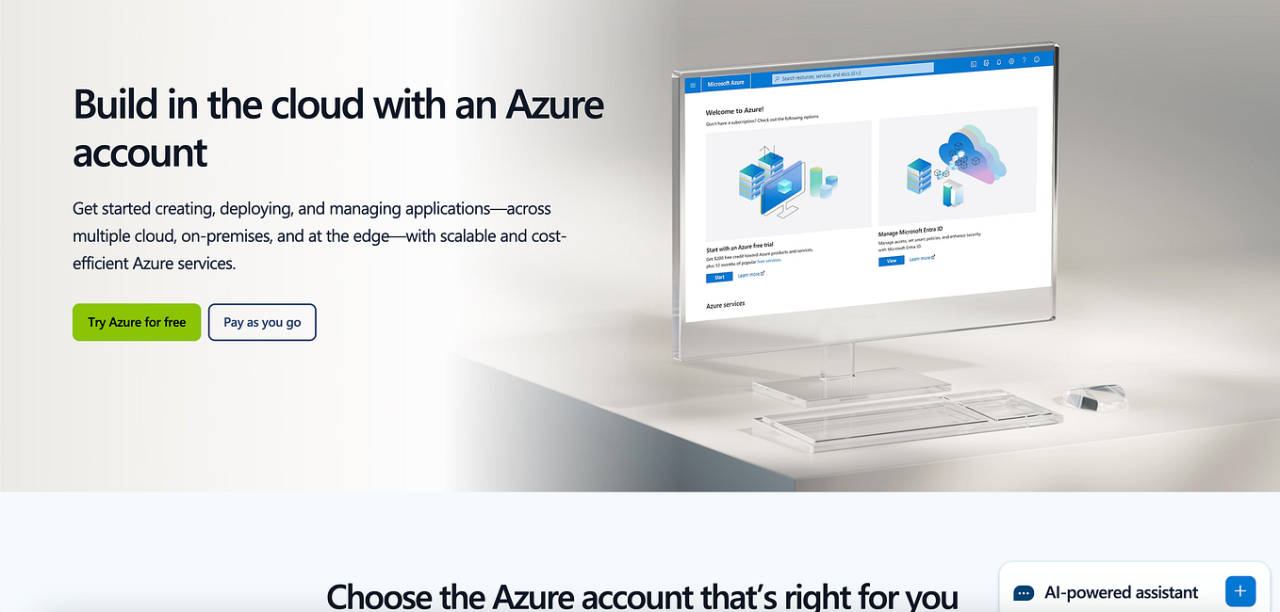
Establishing seamless communication between your frontend and backend applications is crucial for a full-stack application’s functionality. This involves configuring the frontend to send requests to the backend’s API endpoints and handling the responses. Successfully implementing this connection ensures that data flows correctly between the client-side and server-side components, enabling features like user authentication, data retrieval, and dynamic content updates.
Configuring Frontend Communication
The frontend application needs to be configured to know the location of the backend API. This usually involves specifying the API endpoint URLs.
- Specifying API Endpoint URLs: The frontend must be aware of the backend’s API endpoints. This can be achieved by hardcoding the URLs, but it’s generally a bad practice as it makes the application less flexible and harder to maintain. Instead, use environment variables to store these URLs.
- Making API Calls: Frontend frameworks provide mechanisms to make HTTP requests to the backend. The most common method involves using the
fetchAPI or libraries like Axios. - Handling Responses: After sending a request, the frontend needs to handle the response from the backend. This includes parsing the response data (usually JSON), checking for errors, and updating the user interface accordingly.
Methods for Handling API Calls and Data Fetching
Frontend applications employ various methods for making API calls and retrieving data from the backend. The choice of method often depends on the complexity of the application and the preferred framework or library.
- Fetch API: The
fetchAPI is a built-in browser API for making HTTP requests. It is a modern and widely supported method.Example (JavaScript):
fetch('https://your-backend-api.render.com/api/data') .then(response => if (!response.ok) throw new Error('Network response was not ok'); return response.json(); ) .then(data => // Process the data console.log(data); ) .catch(error => // Handle errors console.error('There was a problem with the fetch operation:', error); ); - Axios: Axios is a popular third-party library that simplifies making HTTP requests. It offers features like request interception, response transformation, and automatic JSON data handling.
Example (JavaScript):
import axios from 'axios'; axios.get('https://your-backend-api.render.com/api/data') .then(response => // Process the data console.log(response.data); ) .catch(error => // Handle errors console.error('There was an error!', error); ); - Framework-Specific Methods: Many frontend frameworks, such as React, Angular, and Vue.js, provide their own ways to handle API calls, often integrating with state management libraries to update the UI efficiently. For instance, React’s
useEffecthook is commonly used for data fetching.
Strategies for Managing CORS Issues
Cross-Origin Resource Sharing (CORS) is a security mechanism that restricts web pages from making requests to a different domain than the one that served the web page. This can cause issues when the frontend and backend are hosted on different domains, which is typical in a Render deployment. To resolve these issues, specific configurations are necessary on the backend.
- Backend Configuration: The backend server needs to be configured to allow requests from the frontend’s origin. This involves setting the appropriate CORS headers in the server’s response.
Example (Node.js with Express and the
corspackage):const express = require('express'); const cors = require('cors'); const app = express(); app.use(cors()); // Allow all origins (for development) or specify origins: cors( origin: 'https://your-frontend.com' ) app.get('/api/data', (req, res) => res.json( message: 'Data from the backend' ); ); const port = process.env.PORT || 3001; app.listen(port, () => console.log(`Server listening on port $port`); );Example (Python with Flask and the
flask_corspackage):from flask import Flask, jsonify from flask_cors import CORS app = Flask(__name__) CORS(app) # Allow all origins (for development) or specify origins: CORS(app, resources=r"/api/*": "origins": "https://your-frontend.com") @app.route('/api/data') def get_data(): return jsonify('message': 'Data from the backend') if __name__ == '__main__': app.run(debug=True) - CORS Headers: The backend must include the following headers in its responses:
Access-Control-Allow-Origin: Specifies the allowed origin(s). A value of*allows requests from any origin (use with caution in production). For production, explicitly list the frontend’s origin (e.g.,https://your-frontend.com).Access-Control-Allow-Methods: Specifies the allowed HTTP methods (e.g.,GET, POST, PUT, DELETE).Access-Control-Allow-Headers: Specifies the allowed request headers (e.g.,Content-Type, Authorization).
- Proxying Requests (for Development): During development, you can use a proxy server to forward requests from your frontend to your backend. This avoids CORS issues because the frontend is effectively making requests to the same origin. This is usually configured within the frontend’s development server configuration (e.g., in
package.jsonfor a React app).
Configuring Environment Variables for API Endpoints
Using environment variables is a best practice for managing API endpoints in both the frontend and backend. This allows you to easily switch between different API environments (e.g., development, staging, production) without modifying the code directly.
- Frontend Environment Variables: Frontend frameworks typically provide mechanisms to access environment variables. These variables are usually set during the build process.
Example (React with Create React App):
Create a
.envfile in your frontend project’s root directory:REACT_APP_API_URL=https://your-backend-api.render.com
Access the variable in your React component:
const apiUrl = process.env.REACT_APP_API_URL;
- Backend Environment Variables: The backend application should also use environment variables to store the API endpoint URLs, database connection strings, and other sensitive information. Render provides a way to set environment variables in the dashboard.
Example (Node.js with Express):
  const apiUrl = process.env.API_URL; // Set in Render dashboard
  const port = process.env.PORT || 3000; // Set in Render dashboard
When deploying to Render, set the
API_URLenvironment variable in the Render dashboard. - Benefits of Environment Variables:
- Security: Keeps sensitive information (like API keys) out of your codebase.
- Flexibility: Allows easy switching between different environments (development, production).
- Maintainability: Simplifies configuration changes without modifying code.
Deployment Process on Render
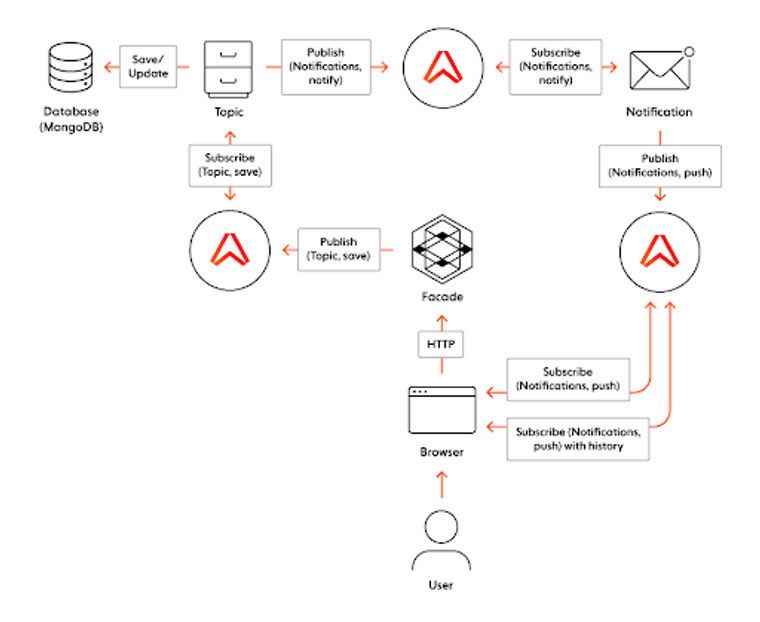
Deploying your full-stack application on Render is a streamlined process designed for ease of use and automation. Render simplifies the complexities of infrastructure management, allowing you to focus on developing your application. This section Artikels the steps involved in deploying your application, setting up automated deployments, monitoring your deployment process, and managing logs and error messages.
Connecting to a Repository and Initial Deployment
The first step involves connecting your application to a code repository. Render supports integration with popular platforms like GitHub and GitLab, enabling automatic deployments triggered by code changes.
- Connecting to a Repository: You begin by navigating to the Render dashboard and creating a new service. Choose the appropriate service type (e.g., Web Service for your frontend and backend). Then, connect to your chosen repository provider (GitHub or GitLab). Render will prompt you to authorize access to your repositories. After authorization, you can select the repository containing your application’s code.
- Configuration: Once connected, Render will analyze your repository and, in many cases, automatically detect the build and start commands required for your application. You may need to specify the build command (e.g., `npm install` or `pip install -r requirements.txt`) and the start command (e.g., `npm start` or `python app.py`). Configure the environment variables needed for your application, such as API keys, database connection strings, and other sensitive information.
- Deployment Initiation: After configuration, initiate the deployment process. Render will clone your repository, execute the build command, and then start your application. The initial deployment can take some time, depending on the complexity of your application and the size of its dependencies.
- Deployment Verification: Once the deployment completes, Render will provide a unique URL for your deployed application. Access this URL to verify that your application is running correctly. Check both your frontend and backend to ensure they are functioning as expected.
Setting Up Automatic Deployments
Automated deployments are a key feature that enables continuous integration and continuous deployment (CI/CD). This automation ensures that every code push to your repository triggers a new deployment, keeping your application up-to-date with the latest changes.
- Automatic Triggering: By default, Render automatically triggers a new deployment every time you push code changes to the connected repository’s main branch (usually `main` or `master`).
- Branch Selection: You can configure Render to deploy from different branches, allowing you to test new features or bug fixes in a staging environment before merging them into the production branch. This is achieved by selecting the desired branch in the Render dashboard.
- Rollbacks: Render automatically keeps a history of your deployments. If a new deployment introduces errors, you can easily roll back to a previous, working version with a single click. This rollback feature minimizes downtime and ensures a stable user experience.
- Deployment Hooks (Optional): Render also offers deployment hooks, which allow you to execute custom scripts before, during, or after a deployment. This is useful for tasks such as database migrations or cache invalidation.
Monitoring the Deployment Process and Troubleshooting
Monitoring the deployment process is crucial for identifying and resolving issues quickly. Render provides tools to monitor the progress of your deployments and to troubleshoot any problems that may arise.
- Deployment Logs: Render provides detailed logs for each deployment, including build logs, deployment logs, and application logs. These logs are invaluable for diagnosing errors and understanding what went wrong during the deployment process. You can view the logs directly within the Render dashboard.
- Real-time Monitoring: Render provides real-time monitoring of your application’s performance, including metrics such as CPU usage, memory usage, and response times. This monitoring data can help you identify performance bottlenecks and optimize your application.
- Notifications: You can configure Render to send notifications when deployments fail or when other critical events occur. These notifications can be sent via email, Slack, or other integrations.
- Troubleshooting Strategies: When a deployment fails, carefully examine the deployment logs. Look for error messages, stack traces, and other clues that indicate the root cause of the problem. Common issues include incorrect build commands, missing dependencies, or configuration errors. Review the logs for any specific error messages and search online for solutions.
Managing Logs and Error Messages
Effective log management is essential for debugging and maintaining your application. Render provides a centralized location for viewing and managing logs, including error messages.
- Log Aggregation: Render automatically aggregates logs from all your application components, including your frontend, backend, and database. This centralized logging makes it easier to correlate events and identify the source of errors.
- Log Levels: Implement different log levels (e.g., `debug`, `info`, `warn`, `error`) in your application code to control the verbosity of your logs. Use higher log levels for critical errors and lower log levels for less important information.
- Log Retention: Render retains logs for a certain period (the duration varies depending on your plan). Regularly review your logs and archive or delete older logs as needed.
- Error Message Analysis: Analyze error messages to understand the underlying issues. Pay close attention to stack traces, which provide valuable information about the sequence of function calls that led to the error.
- Log Filtering: Use log filtering tools to narrow down the scope of your investigation. Filter logs by date, time, log level, or specific s to find the relevant information quickly.
Common Error and Solution Example:
Error Message: `Error: Cannot find module ‘some-missing-module’`
Potential Solution: This error typically indicates that a required dependency is missing. Check your `package.json` file (for Node.js applications) or your `requirements.txt` file (for Python applications) to ensure that the missing module is listed as a dependency. If it is not listed, add it and redeploy your application.
If it is listed, try running `npm install` or `pip install -r requirements.txt` locally to verify that the module can be installed and is available in the build environment.
Domain Configuration and SSL
Configuring a custom domain and securing your application with SSL are crucial steps for establishing a professional online presence and ensuring secure communication. This section details the process of setting up your custom domain, obtaining and installing an SSL certificate, and redirecting traffic to HTTPS. This enhances both the user experience and the overall security posture of your full-stack application deployed on Render.
Configuring a Custom Domain
To use a custom domain, you’ll need to configure your domain’s DNS settings to point to your Render application. This involves several steps.
First, you must have already purchased a domain name from a domain registrar (e.g., GoDaddy, Namecheap, Cloudflare). Then, you’ll need to:
- Access your domain registrar’s DNS settings. This is typically found in the control panel of your domain registrar.
- Add a new DNS record. The type of record and the values depend on the type of Render service you are deploying (web service, static site, etc.). Render provides specific instructions for setting up the DNS records, usually involving an “A” record for the root domain (e.g., yourdomain.com) and a “CNAME” record for the “www” subdomain (www.yourdomain.com).
- Specify the values provided by Render. Render will give you specific values, such as an IP address or a CNAME target, to use in your DNS records. These values tell the DNS server where to direct traffic for your domain.
- Verify the DNS settings in Render. Once you’ve configured your DNS records, you’ll need to enter your domain name into your Render service’s settings. Render will then check if the DNS records are configured correctly. This process can take some time for the DNS records to propagate across the internet.
- Wait for DNS propagation. DNS propagation can take up to 48 hours, although it usually happens much faster. During this time, your domain might not yet resolve to your Render application. Check the propagation status using online DNS lookup tools.
By following these steps, you direct traffic from your custom domain to your Render application.
Obtaining and Installing an SSL Certificate
An SSL certificate is essential for encrypting the communication between your user’s browser and your server, protecting sensitive data. Render automatically handles SSL certificates for your applications, making the process straightforward.
Render automatically provisions and manages SSL certificates using Let’s Encrypt. This simplifies the process and ensures your application is secure.
- Render automatically provisions certificates. When you configure your custom domain in Render, it automatically obtains an SSL certificate from Let’s Encrypt.
- No manual installation is required. Unlike some other hosting platforms, you don’t need to manually generate or install an SSL certificate. Render handles this for you.
- Certificates are automatically renewed. Render also automatically renews your SSL certificates before they expire, ensuring continuous security.
- Verification of Domain Ownership. Render will verify your domain ownership before issuing the SSL certificate, typically by checking the DNS records you configured earlier.
This automated process ensures that your application is secured with HTTPS without any manual intervention on your part.
Redirecting Traffic from HTTP to HTTPS
Redirecting all HTTP traffic to HTTPS is crucial for ensuring that all user connections are secure. This prevents unencrypted traffic from reaching your application.
Render provides built-in support for redirecting HTTP traffic to HTTPS. You typically enable this setting within your Render service’s configuration.
- Enable HTTPS redirection in Render settings. Within your Render service’s settings, there will be an option to redirect all HTTP traffic to HTTPS. This option is usually enabled by default.
- Verify the redirection. After enabling the redirection, test it by accessing your domain using the HTTP protocol (e.g., `http://yourdomain.com`). You should be automatically redirected to the HTTPS version (e.g., `https://yourdomain.com`).
- Use HTTPS links in your application. Ensure all links within your application point to the HTTPS version of your domain. This includes links in your HTML, CSS, and JavaScript files.
- Check your HTTP headers. After enabling HTTPS redirection, verify the correct HTTP headers are being sent, such as the `Strict-Transport-Security` header, which tells browsers to always use HTTPS.
By enabling this redirection, you guarantee that all communication with your application is encrypted and secure.
Ensuring Application Security and Accessibility via HTTPS
Several strategies ensure your application is secure and accessible via HTTPS, providing a safe experience for your users.
- Use HTTPS throughout your application. Ensure all internal and external links, including images, scripts, and stylesheets, use HTTPS URLs. This prevents mixed content warnings and vulnerabilities.
- Implement secure coding practices. Follow secure coding practices to prevent common web vulnerabilities, such as cross-site scripting (XSS), SQL injection, and cross-site request forgery (CSRF).
- Keep your dependencies up to date. Regularly update your application’s dependencies to patch security vulnerabilities. Use tools like `npm audit` or `pip check` to identify outdated or vulnerable packages.
- Use a Content Security Policy (CSP). Implement a CSP to control the resources that the browser is allowed to load for your application. This can help prevent XSS attacks by restricting the sources from which content can be loaded.
- Implement a Strict-Transport-Security (HSTS) header. Configure the `Strict-Transport-Security` (HSTS) header to instruct browsers to always connect to your application over HTTPS. This mitigates man-in-the-middle attacks.
- Monitor your application. Regularly monitor your application for security vulnerabilities and suspicious activity. Implement logging and alerting to detect and respond to potential security threats.
- Regularly review your security configurations. Review your security configurations periodically to ensure they meet the latest security best practices and that they are properly implemented.
By implementing these strategies, you can enhance the security and reliability of your application deployed on Render, creating a safe environment for your users.
Scaling and Performance Optimization
Optimizing your full-stack application for performance and scalability is crucial for providing a smooth user experience and handling increased traffic. This involves strategies at both the frontend and backend levels, along with efficient database management and infrastructure considerations. Render provides tools and features to facilitate these optimizations, allowing you to build applications that can handle growth effectively.
Scaling Options on Render
Render offers several scaling options to accommodate the growing demands of your application. Understanding these options is vital for ensuring your application remains responsive and available, even during peak loads.
- Manual Scaling: This involves manually adjusting the resources allocated to your services. You can increase the number of instances, the amount of memory, or the CPU power assigned to your services based on observed performance metrics. This is a straightforward approach for immediate scaling needs, but it requires proactive monitoring and intervention.
- Automatic Scaling (Autoscaling): Render’s autoscaling feature automatically adjusts the number of instances of your services based on real-time metrics, such as CPU usage, memory usage, and incoming requests. This ensures your application can handle traffic spikes without manual intervention. You can configure autoscaling rules based on your specific application’s needs. This is particularly useful for applications with fluctuating traffic patterns.
- Vertical Scaling: This involves increasing the resources (CPU, memory, disk space) of a single instance. Render allows you to upgrade the instance size of your services to provide more processing power and capacity. This is useful for applications that are limited by the resources of a single instance.
- Horizontal Scaling: This involves increasing the number of instances of your service. Render allows you to run multiple instances of your service behind a load balancer. This distributes the traffic across the instances, improving performance and availability. This is particularly useful for applications that are CPU-bound or that need to handle a large number of concurrent requests.
Frontend Performance Optimization Strategies
Optimizing the frontend of your application directly impacts the user experience, as it determines how quickly your application loads and responds to user interactions. Several techniques can significantly improve frontend performance.
- Code Splitting: Divide your JavaScript code into smaller bundles. This allows the browser to load only the necessary code for the initial page load, improving initial load time. Subsequent code bundles can be loaded on demand as the user navigates the application. Frameworks like React, Angular, and Vue.js support code splitting natively.
- Minification and Bundling: Minify your JavaScript, CSS, and HTML files to reduce their file sizes. This removes unnecessary characters, such as whitespace and comments, making the files smaller and faster to download. Bundling combines multiple files into a single file, reducing the number of HTTP requests the browser needs to make. Tools like Webpack, Parcel, and Rollup can automate this process.
- Image Optimization: Optimize images by compressing them and using appropriate formats (e.g., WebP for modern browsers). Use responsive images to serve different image sizes based on the user’s device. Lazy loading images, where images are loaded only when they come into view, can significantly improve initial page load time.
- Caching: Implement caching strategies to store frequently accessed resources, such as images, CSS, and JavaScript files, in the browser’s cache. This reduces the number of requests the browser needs to make to the server. Use HTTP caching headers (e.g., `Cache-Control`) to control how long resources are cached.
- Content Delivery Network (CDN): Utilize a CDN to serve your static assets from servers geographically closer to your users. This reduces latency and improves load times, especially for users located far from your application’s origin server.
Backend Performance Optimization Strategies
Backend performance optimization focuses on improving the efficiency of your server-side code, database queries, and infrastructure. Several techniques can enhance backend performance.
- Efficient Code: Write clean, efficient code and avoid unnecessary computations. Profile your code to identify performance bottlenecks. Optimize algorithms and data structures.
- Caching: Implement caching mechanisms to store the results of expensive operations, such as database queries or API calls. Use caching layers like Redis or Memcached to store cached data in memory for fast access.
- Database Optimization: Optimize your database queries by using indexes, writing efficient queries, and avoiding unnecessary joins. Consider database connection pooling to reduce the overhead of establishing database connections.
- Load Balancing: Distribute traffic across multiple backend instances using a load balancer. This prevents any single instance from becoming overloaded and improves overall performance and availability.
- Asynchronous Tasks: Offload time-consuming tasks, such as sending emails or processing large datasets, to background workers or message queues. This prevents these tasks from blocking the main application thread and improves responsiveness.
- Connection Pooling: Employ connection pooling for database interactions to reduce the overhead associated with establishing and closing database connections. This is particularly effective for applications that frequently interact with the database.
Caching and Performance Enhancements Procedures
Caching is a critical technique for improving application performance. Implement various caching strategies to reduce the load on your servers and improve response times.
- Frontend Caching: Configure browser caching using HTTP headers such as `Cache-Control` and `Expires`. Serve static assets (CSS, JavaScript, images) with long cache durations to minimize the number of requests the browser makes to the server.
- Backend Caching: Utilize in-memory caching (e.g., Redis, Memcached) to store the results of database queries, API responses, and other frequently accessed data. Implement a cache invalidation strategy to ensure that cached data is updated when the underlying data changes.
- CDN Caching: Configure your CDN to cache static assets, such as images, CSS, and JavaScript files, closer to your users. This reduces latency and improves load times.
- Object Caching: Cache the results of expensive computations, such as data transformations or API calls. This reduces the load on your servers and improves response times.
- Partial Page Caching: Cache only parts of a page that are expensive to generate. This can be particularly useful for dynamic content that changes frequently.
Monitoring Application Performance and Identifying Bottlenecks
Regularly monitoring your application’s performance is essential for identifying bottlenecks and areas for improvement. Render provides tools and integrates with services that help you monitor your application.
- Use Render’s Metrics: Render provides built-in metrics for CPU usage, memory usage, request latency, and error rates. Monitor these metrics to identify performance issues and track the impact of your optimizations.
- Implement Application Performance Monitoring (APM): Integrate an APM tool, such as New Relic, Datadog, or Sentry, to gain deeper insights into your application’s performance. These tools provide detailed information about request traces, database queries, and error rates.
- Logging: Implement comprehensive logging to capture information about your application’s behavior, including errors, warnings, and performance metrics. Analyze logs to identify performance bottlenecks and diagnose issues.
- Profiling: Use profiling tools to identify performance bottlenecks in your code. Profiling tools can help you pinpoint the functions or lines of code that are consuming the most resources.
- Load Testing: Conduct load testing to simulate realistic traffic patterns and assess your application’s performance under stress. Load testing helps you identify performance bottlenecks and ensure your application can handle peak loads.
Continuous Integration and Continuous Deployment (CI/CD)
Implementing Continuous Integration and Continuous Deployment (CI/CD) pipelines is a crucial step in modern software development, significantly streamlining the deployment process and enhancing the reliability and efficiency of your applications. Using CI/CD with Render offers a powerful way to automate your workflows, ensuring that code changes are integrated, tested, and deployed quickly and consistently. This approach minimizes manual intervention, reduces the potential for errors, and allows for faster feedback loops, leading to more frequent and reliable releases.
Benefits of CI/CD with Render
Employing CI/CD with Render offers several key advantages, enhancing the development and deployment experience. These benefits contribute to improved efficiency, faster time-to-market, and increased reliability.
- Automated Deployments: CI/CD automates the entire deployment process, from code commits to live updates, reducing manual effort and the risk of human error. This automation ensures that every change, once approved, is deployed consistently.
- Faster Release Cycles: By automating testing and deployment, CI/CD pipelines allow for more frequent releases. This enables faster delivery of new features and bug fixes, providing quicker value to users.
- Improved Code Quality: CI/CD pipelines incorporate automated testing, including unit tests, integration tests, and potentially end-to-end tests. This rigorous testing ensures that code quality is maintained and that regressions are caught early in the development cycle.
- Reduced Risk: CI/CD reduces the risk associated with deployments by automating the process and including testing at every stage. If tests fail, the deployment is halted, preventing potentially breaking changes from reaching production.
- Increased Efficiency: Automating the build, test, and deployment processes frees up developers to focus on writing code and creating new features, boosting overall productivity.
- Simplified Rollbacks: In the event of a deployment issue, CI/CD pipelines often include mechanisms for easy rollbacks to previous versions, minimizing downtime and impact on users.
Integrating CI/CD with Your Repository
Integrating a CI/CD pipeline with your code repository is a fundamental step in automating your deployment workflow. Popular platforms like GitHub Actions provide robust tools for automating these processes.
The following steps Artikel the process of integrating a CI/CD pipeline using GitHub Actions:
- Choose a CI/CD Platform: Select a CI/CD platform that integrates well with your repository. Popular options include GitHub Actions, GitLab CI/CD, and Jenkins. GitHub Actions is a natural choice for repositories hosted on GitHub.
- Create a Workflow File: Within your repository, create a workflow file (e.g.,
.github/workflows/deploy.yml). This file defines the steps of your CI/CD pipeline. - Define the Trigger: Specify the events that trigger the pipeline. Common triggers include pushes to specific branches (e.g.,
mainormaster) or pull requests. - Set Up the Build Environment: Define the environment in which your application will be built. This typically involves specifying the operating system (e.g., Ubuntu, macOS, Windows) and any necessary dependencies (e.g., Node.js, Python, Ruby).
- Install Dependencies: Use package managers (e.g., npm, pip, gem) to install all required dependencies for your project.
- Run Tests: Execute your test suite to ensure that the code changes are working as expected.
- Build the Application: Build your application for deployment. This step may involve compiling code, bundling assets, or creating deployment packages.
- Deploy to Render: Use the Render CLI or API to deploy your application. This typically involves providing your Render API key and specifying the service you want to deploy to.
- Configure Secrets: Securely store sensitive information, such as API keys and database credentials, using environment variables in your CI/CD platform. These secrets are then accessible during the build and deployment processes.
- Monitor the Pipeline: Monitor the pipeline’s execution in your CI/CD platform to track the status of each step and identify any errors.
Example of a basic GitHub Actions workflow file ( .github/workflows/deploy.yml) for deploying a Node.js application to Render:
name: Deploy to Render

on:
  push:
    branches:

-main

jobs:
  deploy:
    runs-on: ubuntu-latest
    steps:

-uses: actions/checkout@v3

-name: Set up Node.js
        uses: actions/setup-node@v3
        with:
          node-version: '16'

-name: Install dependencies
        run: npm install

-name: Build
        run: npm run build

-name: Deploy to Render
        uses: renderinc/deploy-action@v1
        with:
          render-token: $ secrets.RENDER_API_KEY
          service-id: your-render-service-id
In this example:
name: Deploy to Renderdefines the name of the workflow.on: push: branches:specifies that the workflow is triggered on pushes to the
-mainmainbranch.- The
jobs: deploy:section defines the steps to execute. uses: actions/checkout@v3checks out the code from the repository.actions/setup-node@v3sets up Node.js.npm installinstalls the dependencies.npm run buildbuilds the application.renderinc/deploy-action@v1deploys the application to Render using the Render API key and service ID, both of which are sensitive and are best managed as secrets.
Automating Testing and Deployment Procedures
Automating testing and deployment is central to the CI/CD process. It ensures that code changes are thoroughly validated and deployed reliably.
The procedures for automating testing and deployment involve several key steps:
- Automated Testing: Integrate automated testing into your CI/CD pipeline to ensure code quality and prevent regressions. This includes unit tests, integration tests, and end-to-end tests.
- Test Frameworks: Use testing frameworks specific to your technology stack (e.g., Jest for JavaScript, pytest for Python) to write and run tests.
- Test Execution: Configure your CI/CD pipeline to automatically run tests after each code change or pull request.
- Code Coverage: Implement code coverage tools to measure the percentage of your code that is covered by tests. Aim for high code coverage to ensure thorough testing.
- Deployment Triggers: Define triggers for your deployment process, such as successful test runs or merges to specific branches.
- Deployment Scripts: Create deployment scripts or use a deployment tool to automate the deployment process to Render. This includes building the application, preparing deployment packages, and deploying to Render.
- Environment Variables: Use environment variables to configure your application for different environments (development, staging, production).
- Rollback Strategies: Implement rollback strategies to quickly revert to a previous version in case of deployment failures.
- Monitoring and Logging: Integrate monitoring and logging to track the performance and health of your application after deployment.
For example, a Node.js application using Jest for testing might have a CI/CD pipeline that includes the following steps:
- Code is pushed to the repository.
- The CI/CD pipeline is triggered.
- Dependencies are installed using
npm install. - Tests are run using
npm test. - If tests pass, the application is built using
npm run build. - The built application is deployed to Render using the Render CLI or API.
Setting Up Different Environments
Setting up different environments is essential for managing the development, testing, and production phases of your application lifecycle. This allows you to test changes in a safe environment before deploying them to production.
The key procedures for setting up different environments include:
- Environment Variables: Use environment variables to configure your application for different environments. These variables store settings such as API keys, database connection strings, and other environment-specific configurations.
- Configuration Files: Use separate configuration files or mechanisms (e.g.,
.envfiles) for each environment to manage environment-specific settings. - Branching Strategy: Implement a branching strategy, such as Gitflow, to manage code changes and releases for different environments. For example, you might use a
developmentbranch for development, astagingbranch for staging, and amainbranch for production. - Automated Deployments: Configure your CI/CD pipeline to automatically deploy to the appropriate environment based on the branch or trigger. For example, pushes to the
developmentbranch might deploy to a development environment, while pushes to themainbranch might deploy to production. - Database Configuration: Set up separate databases for each environment to isolate data and prevent accidental data loss or corruption.
- Service Configuration: Configure Render services (e.g., web services, background workers) for each environment, ensuring they have the correct settings and dependencies.
- Staging Environment: Create a staging environment that closely mirrors your production environment for testing and validation before releasing to production. This helps catch any environment-specific issues.
- Environment-Specific URLs: Use environment-specific URLs or subdomains to access each environment.
Example configuration for a Node.js application deployed to Render:
- Development Environment: Uses a development database and API keys. Deployed from the
developmentbranch. - Staging Environment: Uses a staging database and API keys. Deployed from the
stagingbranch. - Production Environment: Uses the production database and API keys. Deployed from the
mainbranch.
Environment variables in Render can be configured directly within the Render dashboard or via the Render API. For example, to set the database connection string, you would configure an environment variable named DATABASE_URL with the appropriate value for each environment.
Troubleshooting Common Issues
Deploying a full-stack application, while exciting, can sometimes present challenges. Render, like any platform, can experience issues. This section will cover common problems that can arise during deployment, provide solutions, and guide you on how to effectively diagnose and resolve these issues. Understanding these areas will significantly improve your deployment experience and reduce downtime.
Common Deployment Errors and Solutions
Several errors frequently occur during the deployment process. Recognizing these issues and knowing how to address them is crucial for a smooth deployment.
Build Failures:
Build failures often stem from issues within your application’s codebase or its dependencies. These can halt the deployment process entirely. Here are some common causes and solutions:
- Dependency Installation Problems: Your application may fail to install the necessary dependencies specified in your
package.json(for Node.js projects) orrequirements.txt(for Python projects). - Cause: Incorrect dependency versions, missing dependencies, or issues with the package manager (npm, pip, etc.).
- Solution:
- Carefully review the build logs provided by Render. These logs often pinpoint the specific dependency causing the error.
- Ensure all dependencies are correctly listed in your project’s dependency file.
- Check for version conflicts and consider using specific versions instead of relying on the latest.
- Try deleting the
node_modulesfolder (for Node.js) or reinstalling dependencies with the appropriate package manager commands, such asnpm installorpip install -r requirements.txt.
- Code Errors: Syntax errors, logical errors, or runtime errors in your application code can cause the build process to fail.
- Cause: Typos, incorrect function calls, or logic errors that the build process encounters during compilation or execution.
- Solution:
- Examine the build logs closely. The logs usually indicate the file and line number where the error occurred.
- Use a code editor with linting and syntax checking to identify errors before deployment.
- Test your application locally before deploying to Render to catch potential errors early.
- Consider using a debugger to step through your code and identify the root cause of the issue.
- Environment Variable Issues: Problems with environment variables can lead to build failures.
- Cause: Incorrectly configured environment variables, missing environment variables, or variables that are not accessible during the build process.
- Solution:
- Double-check that all necessary environment variables are set correctly in the Render dashboard.
- Verify that the variable names match what your application expects.
- Ensure the variables are available during the build process by checking Render’s documentation.
Database Connection Problems:
Database connection issues are another common source of deployment errors. These can prevent your application from connecting to your database and accessing data.
- Incorrect Connection Strings: A common mistake is using the wrong connection string.
- Cause: Incorrect database host, port, username, password, or database name in the connection string.
- Solution:
- Carefully verify the database connection string in your application’s code and the Render dashboard.
- Confirm that the host, port, username, password, and database name are correct and match the settings of your Render database.
- Ensure the database service is running and accessible.
- Database Service Not Running: If the database service is not running, your application cannot connect to it.
- Cause: The database service might have crashed or been stopped.
- Solution:
- Check the status of your database service in the Render dashboard.
- If the service is not running, restart it.
- Review the database service logs for any error messages that might indicate the cause of the problem.
- Firewall Issues: Network restrictions can block connections.
- Cause: Firewall rules that prevent your application from connecting to the database.
- Solution:
- Ensure your application’s service is allowed to connect to the database service.
- Check Render’s documentation on network access and security to ensure your services can communicate.
Frontend-Backend Communication Problems:
Difficulties in communication between the frontend and backend can manifest in various ways, from the application failing to load data to experiencing unexpected errors.
- CORS (Cross-Origin Resource Sharing) Errors: CORS errors are common when your frontend and backend reside on different domains.
- Cause: The browser blocks requests from one domain to another unless the server explicitly allows it.
- Solution:
- Configure your backend to allow requests from your frontend’s origin (domain and port). This typically involves setting the
Access-Control-Allow-Originheader in your backend’s responses. - For example, in a Node.js application using the
corsmiddleware, you would configure it to allow the origin of your frontend. - Make sure to set the correct origin.
- Configure your backend to allow requests from your frontend’s origin (domain and port). This typically involves setting the
- Incorrect API Endpoints: Mismatched API endpoints can cause requests to fail.
- Cause: The frontend is sending requests to the wrong URL or the backend’s endpoints are not configured correctly.
- Solution:
- Double-check that your frontend is using the correct API endpoint URLs.
- Verify that the backend endpoints are correctly defined and accessible.
- Use your browser’s developer tools (Network tab) to inspect the requests and responses and identify any errors.
- Network Issues: Problems with the network can prevent requests from reaching the backend.
- Cause: Network connectivity problems, such as incorrect DNS settings, firewalls blocking requests, or the backend server being unavailable.
- Solution:
- Verify that the frontend and backend can communicate with each other.
- Use tools like
pingortracerouteto check network connectivity. - Check the backend server’s status in the Render dashboard.
Methods for Debugging and Diagnosing Issues
Effectively debugging and diagnosing deployment issues involves a systematic approach, using various tools and techniques to pinpoint the root cause.
Examining Logs:
Logs are invaluable for troubleshooting. They provide a detailed record of events, errors, and warnings generated by your application and the deployment platform.
- Accessing Render Logs: Render provides logs for your services.
- Process:
- Navigate to the service in your Render dashboard.
- Click on the “Logs” tab.
- Review the logs for errors, warnings, and other relevant information.
- Analyzing Logs: Carefully examine the logs to identify the cause of the problem.
- Process:
- Look for error messages, stack traces, and other clues.
- Use s to search for specific issues.
- Pay attention to timestamps to correlate events.
Using Browser Developer Tools:
Browser developer tools are essential for debugging frontend-related issues. These tools provide insights into network requests, JavaScript errors, and more.
- Inspecting Network Requests: The “Network” tab helps you monitor requests and responses.
- Process:
- Open your browser’s developer tools (usually by pressing F12).
- Go to the “Network” tab.
- Reload your application.
- Examine the requests and responses for errors, such as 404 (Not Found) or 500 (Internal Server Error) status codes.
- Checking the Console: The “Console” tab displays JavaScript errors and warnings.
- Process:
- Open your browser’s developer tools.
- Go to the “Console” tab.
- Look for error messages and stack traces.
- Fix the identified issues, which might include incorrect function calls or missing dependencies.
Local Development and Testing:
Testing your application locally before deployment can help catch errors early. This helps you replicate the production environment as closely as possible.
- Replicating the Production Environment: Try to mimic the production environment locally.
- Process:
- Configure your local environment to match the dependencies and settings used on Render.
- Use environment variables for sensitive information, as you would on Render.
- Test your application thoroughly.
- Testing Locally Before Deployment: This is a crucial step.
- Process:
- Run your application locally to identify and fix any errors.
- Use the same database configuration locally as you will use on Render.
- Deploy to Render only after the application functions correctly in your local environment.
Contacting Render Support
When troubleshooting, there will be times when you require assistance. Render provides support to help resolve deployment issues.
Accessing Support Resources:
Render offers several resources for support.
- Documentation: Comprehensive documentation is available.
- Process:
- Visit the Render documentation site.
- Search for relevant topics, such as deployment guides, troubleshooting tips, and frequently asked questions.
- Review the documentation to see if it provides a solution to your issue.
- Community Forums: Render has a community forum where users can ask questions and share solutions.
- Process:
- Visit the Render community forum.
- Search for similar issues.
- Post your question if you cannot find a solution.
Submitting a Support Ticket:
If you cannot resolve the issue using the documentation or community forums, you can contact Render support directly.
- Gathering Information: Before submitting a ticket, collect the necessary information.
- Process:
- Provide a clear description of the issue, including the specific error messages and when the issue started.
- Include your Render service name, region, and any relevant logs or screenshots.
- Describe the steps you have already taken to try and resolve the issue.
- Submitting the Ticket: Submit a detailed ticket.
- Process:
- Navigate to the Render support page.
- Complete the support form.
- Submit your ticket.
Wrap-Up
In conclusion, mastering full-stack deployment with Render opens doors to rapid development and scalable applications. We’ve navigated the key steps, from configuring your frontend and backend to integrating databases, managing domains, and optimizing performance. By embracing the strategies Artikeld in this guide, you’re well-equipped to deploy your full-stack applications seamlessly and efficiently, ensuring your projects thrive in the cloud. Remember, the journey of a thousand lines of code begins with a single deployment!