Welcome to the world of automated web tasks! This guide delves into the practical art of setting up cron jobs within cPanel, a fundamental skill for any webmaster or developer seeking to streamline their website management. We’ll explore how these behind-the-scenes tasks can revolutionize your workflow, automating everything from database backups to email notifications, all while you focus on the bigger picture.
Cron jobs, essentially scheduled tasks, are the workhorses of web automation. They allow you to execute commands or scripts at predefined intervals, freeing you from manual intervention and ensuring your website runs smoothly, even when you’re away. cPanel, the widely-used web hosting control panel, provides a user-friendly interface for managing these crucial tasks, making automation accessible to users of all technical levels.
Introduction to Cron Jobs and cPanel
Cron jobs are essential tools for automating tasks on web servers, playing a vital role in the smooth operation of websites and web applications. Coupled with a user-friendly control panel like cPanel, managing these automated tasks becomes significantly easier, allowing website owners to focus on their core business. This section explores the fundamentals of cron jobs and cPanel, highlighting their significance in web hosting.
Understanding Cron Jobs
Cron jobs are scheduled tasks that run automatically at specific times or intervals on a Unix-like operating system, which is commonly used for web hosting servers. They are essentially instructions given to the server to execute commands or scripts without requiring any user interaction. These tasks can range from simple operations like backing up a database to more complex processes such as sending automated emails or generating reports.The primary purpose of cron jobs is to automate repetitive tasks, saving time and ensuring that important operations are performed regularly.
They eliminate the need for manual intervention, minimizing the risk of human error and ensuring consistent execution. For instance, a cron job could be set up to run a script every night to clean up temporary files, optimize a database, or update content on a website.
Overview of cPanel
cPanel is a popular web hosting control panel that provides a graphical user interface (GUI) for managing various aspects of a web hosting account. It simplifies server administration tasks, making it accessible even to users with limited technical expertise. cPanel allows users to manage files, databases, email accounts, domains, and other server-related settings through an intuitive interface.cPanel’s role in managing web hosting tasks is extensive.
It provides a centralized platform for controlling all aspects of a website’s operation, from file management and website statistics to email configuration and database administration. The ease of use and comprehensive features of cPanel make it a preferred choice for both novice and experienced webmasters.
Benefits of Using Cron Jobs for Automation
Employing cron jobs for automation in web applications offers several significant advantages, streamlining website management and improving overall efficiency. These benefits include:The use of cron jobs reduces the need for manual intervention, freeing up valuable time and resources. Instead of manually performing tasks, web administrators can schedule them to run automatically, allowing them to focus on other critical aspects of their websites.
- Efficiency and Time Savings: Cron jobs automate repetitive tasks, significantly reducing the time and effort required for website maintenance. This allows web administrators to focus on other important tasks, such as content creation, marketing, and customer engagement. For example, a task that might take an hour to complete manually can be automated to run in the background, freeing up the administrator’s time.
- Improved Consistency and Reliability: Automated tasks are executed consistently and reliably, minimizing the risk of human error. Cron jobs run precisely at the scheduled times, ensuring that critical operations are performed regularly, such as database backups, email sending, and content updates. This consistency contributes to the overall stability and performance of the website.
- Enhanced Website Performance: Cron jobs can be used to optimize website performance by automating tasks such as database maintenance, file cleanup, and cache clearing. Regular optimization ensures that the website runs smoothly and efficiently, providing a better user experience. For example, a cron job could be set up to clear the website’s cache daily, ensuring that visitors always see the most up-to-date content.
- Cost Reduction: By automating tasks, cron jobs can reduce the need for manual labor, leading to cost savings. Automating tasks like backups, report generation, and email marketing can free up staff time and resources, ultimately reducing operational costs.
By leveraging cron jobs, website owners can ensure that their websites are consistently maintained, optimized, and updated, leading to improved performance, reliability, and user satisfaction.
Accessing Cron Jobs in cPanel
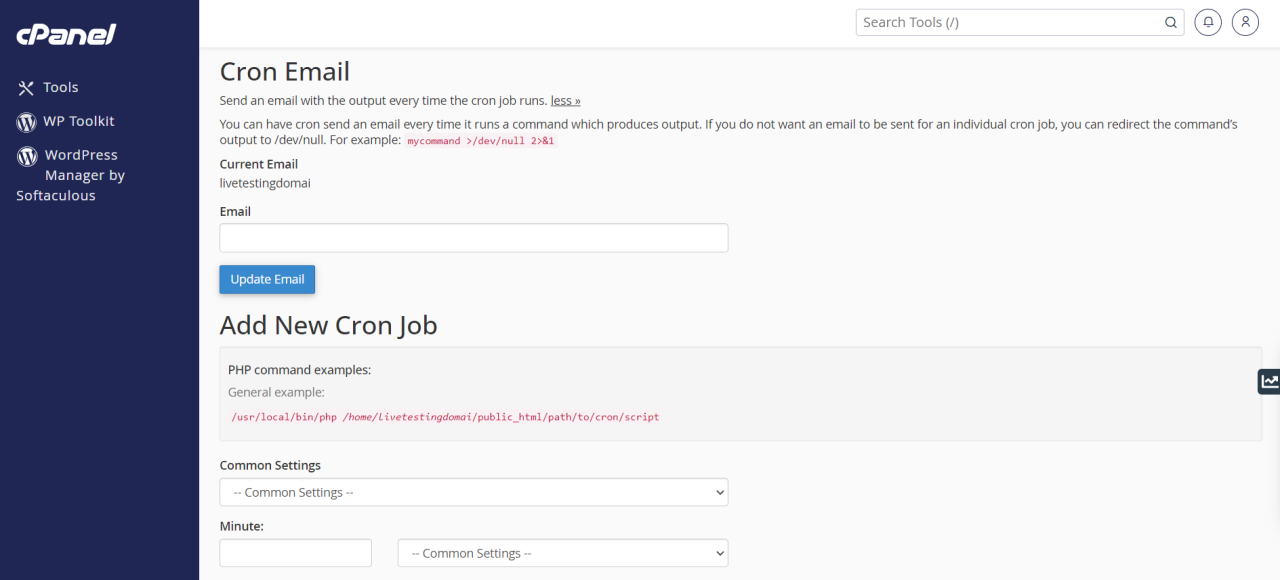
Accessing the Cron Jobs section within cPanel is a straightforward process. This section allows users to schedule commands and scripts to run automatically at specified times. Understanding how to navigate to this area is crucial for effective server management and automation.
Locating the Cron Jobs Section
The Cron Jobs section is easily accessible within the cPanel interface.To find the Cron Jobs section:
- Log in to cPanel: Begin by logging into your cPanel account using your username and password.
- Navigate to the “Advanced” Section: Once logged in, locate the “Advanced” section within the cPanel dashboard. This section typically houses advanced features and settings.
- Find the “Cron Jobs” Icon: Within the “Advanced” section, look for an icon labeled “Cron Jobs.” It often has a clock icon or a visual representation of scheduling.
- Click the “Cron Jobs” Icon: Click on the “Cron Jobs” icon to access the Cron Jobs management interface.
This will take you to the interface where you can create, modify, and delete cron jobs. The specific location of the “Cron Jobs” icon may vary slightly depending on the cPanel theme in use, but it is always located within the “Advanced” section.
Understanding the Cron Jobs Interface Options
The Cron Jobs interface presents several options for managing scheduled tasks. These options allow users to customize the timing and execution of their scripts.The key options available in the Cron Jobs interface include:
- Email Notification: You can specify an email address to receive notifications about the execution of your cron jobs. This is useful for monitoring the status of your scheduled tasks and identifying any errors.
- Cron Job Settings: This is where you define the schedule for your cron job. It involves setting the minute, hour, day, month, and day of the week for the job to run. These settings determine when your command or script will be executed.
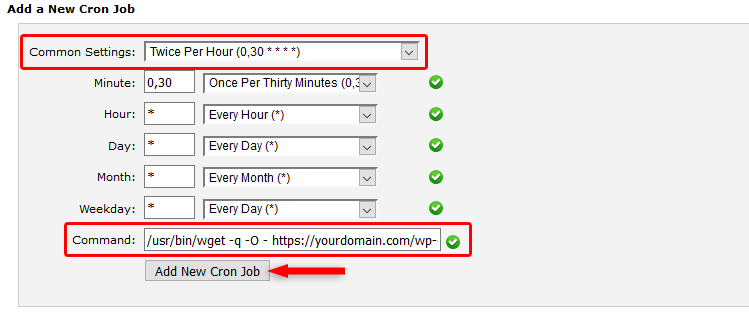
- Common Settings: cPanel often provides a selection of common settings to simplify the process. These include pre-defined schedules like “Once Per Hour,” “Once Per Day,” or “Once Per Week.” This can be useful for tasks that need to be run at regular intervals.
- Add New Cron Job: This is the primary area where you create new cron jobs. You will specify the command or script to be executed, along with the desired schedule.
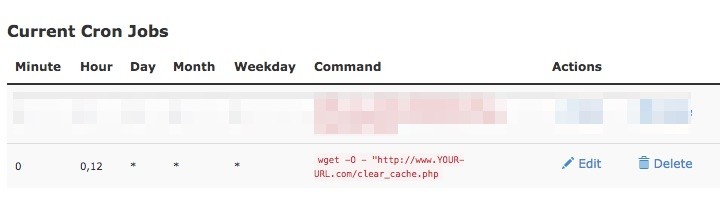
- Current Cron Jobs: This section lists all of your existing cron jobs, providing information about their schedules and the commands they execute. This allows you to easily view and manage your scheduled tasks.
The interface is designed to be user-friendly, with clear labels and options to guide you through the process of setting up and managing cron jobs.
Navigating the cPanel Cron Jobs Section
Navigating the cPanel Cron Jobs section involves understanding the layout and how to interact with the different elements. The interface is designed to be intuitive, but familiarity with the key components is essential.Here’s how to navigate the cPanel Cron Jobs section effectively:
- Email Configuration: At the top of the interface, you’ll typically find a section for setting the email address to which notifications about cron job execution will be sent. Ensure this is set to a valid email address to receive alerts and error messages.
- Add New Cron Job: The primary function is to add new cron jobs.
- Common Settings: Use the dropdown menu to select pre-defined schedules, such as “Once Per Hour” or “Once Per Day.”
- Minute, Hour, Day, Month, and Day of the Week: Customize the schedule by manually entering values for each of these fields. The interface usually provides clear instructions on how to interpret these settings.
- Command: Enter the command or the path to the script you want to execute. Ensure the path is correct and that the script has the necessary permissions. For example, if you have a PHP script called `my_script.php` located in your `public_html` directory, the command might be `/usr/local/bin/php /home/yourusername/public_html/my_script.php`.
- Current Cron Jobs: This section displays a list of all active cron jobs, including their schedules and the commands they execute.
- Edit Cron Jobs: You can modify the schedule or command of an existing cron job by clicking on the edit icon (usually a pencil icon) next to the job.
- Delete Cron Jobs: Remove a cron job by clicking on the delete icon (usually a trash can icon) next to the job.
By understanding these navigation elements, you can efficiently manage your scheduled tasks and automate various server-side processes.
Understanding Cron Job Syntax and Scheduling
Cron jobs are powerful tools for automating tasks on your server, but understanding their syntax is crucial for proper configuration. The scheduling syntax, often represented as a series of five fields, dictates when your commands will execute. Correctly interpreting and utilizing these fields allows you to schedule tasks with precision, ensuring your automated processes run exactly when needed.
Cron Job Syntax Breakdown
The cron job syntax consists of five fields, each representing a specific time unit. These fields, in order, are: minute, hour, day of the month, month, and day of the week. Understanding each field’s meaning is fundamental to scheduling tasks effectively.The cron job syntax is as follows:
minute hour day_of_month month day_of_week command_to_execute
* Minute (0-59): Specifies the minute of the hour the command should run. For example, `0` represents the top of the hour, `15` represents fifteen minutes past the hour, and so on.
Hour (0-23)
Specifies the hour of the day (in 24-hour format) the command should run. `0` represents midnight, `12` represents noon, and `23` represents 11 PM.
Day of the Month (1-31)
Specifies the day of the month the command should run.
Month (1-12)
Specifies the month of the year the command should run. `1` represents January, `2` represents February, and so on.
Day of the Week (0-7)
Specifies the day of the week the command should run. Both `0` and `7` represent Sunday, `1` represents Monday, and so on.
Scheduling Patterns Examples
Understanding how to use the different values within the cron job syntax is key to creating various scheduling patterns. Here are some common examples:
-
Every 5 minutes:
To run a command every 5 minutes, you would set the minute field to `*/5`. The other fields would typically be set to `*`, indicating “any” value. For example:
*/5

-

-

-

- /path/to/your/script.sh -
Daily at Midnight:
To run a command daily at midnight, set the minute field to `0` and the hour field to `0`. The other fields would be set to `*`. For example:
0 0

-

-

- /path/to/your/script.sh -
The First of Every Month:
To run a command on the first day of every month, set the day of the month to `1`. The other fields are typically set to `*`. For example:
0 0 1

-

- /path/to/your/script.sh -
Every Monday at 3 AM:
To run a command every Monday at 3 AM, set the hour to `3` and the day of the week to `1` (Monday). The other fields are typically set to `*`. For example:
0 3

-

- 1 /path/to/your/script.sh
Specifying the Command to be Executed
The final part of a cron job entry is the command to be executed. This can be a shell script, a PHP script, or any other executable file that the server can run. It is essential to specify the full path to the command to ensure it can be found.For instance, if you have a PHP script located at `/home/yourusername/public_html/myscript.php`, you would use the following command in your cron job:
php /home/yourusername/public_html/myscript.php
If you are running a shell script, the path to the script would be specified, like so:
/home/yourusername/myscript.sh
It is important to make sure the script has the execute permissions. Using the full path eliminates potential issues caused by the cron job’s execution environment, which may not have the same environment variables as your user account.
Setting Up a Basic Cron Job
Setting up a basic cron job in cPanel is a straightforward process that allows you to automate tasks on your web server. This is especially useful for repetitive tasks such as running PHP scripts, backing up files, or sending automated emails. By following these steps, you can easily automate these tasks and save valuable time.
Creating a Simple Cron Job to Execute a PHP Script
To create a cron job that executes a PHP script, you’ll need to navigate to the Cron Jobs section in your cPanel and then follow the steps Artikeld below.
- Accessing the Cron Jobs Interface: First, log in to your cPanel account. In the cPanel dashboard, locate the “Cron Jobs” icon under the “Advanced” section and click on it. This will take you to the Cron Jobs management interface.
- Defining the Cron Job Schedule: Within the Cron Jobs interface, you’ll see options for setting the frequency of your cron job. This involves defining the minute, hour, day, month, and weekday when the job should run. You can select pre-defined schedules (like “Once Per Hour” or “Once Per Day”) or specify custom schedules. For example, to run a script every day at midnight, you would set the following values:
- Minute: 0
- Hour: 0
- Day:
– (asterisk, meaning every day) - Month:
– (asterisk, meaning every month) - Weekday:
– (asterisk, meaning every day of the week)
- Specifying the Command to Run: In the “Command” field, you’ll specify the exact command to execute your PHP script. This typically involves the path to the PHP executable followed by the full path to your PHP script. An example command is:
/usr/local/bin/php /home/yourusername/public_html/yourscript.php
- Replace `/usr/local/bin/php` with the correct path to your PHP executable. The location may vary depending on your server configuration. See the “Selecting the Correct PHP Version” section below for details.
- Replace `/home/yourusername/public_html/yourscript.php` with the actual path to your PHP script.
- Adding the Cron Job: Once you’ve configured the schedule and command, click the “Add New Cron Job” button to save your cron job. Your cron job is now active and will run according to the schedule you defined.
Example PHP Script for Testing
To test your cron job, you can create a simple PHP script that writes a timestamp to a log file. This helps verify that the cron job is running correctly and that the PHP script is being executed.
Here’s an example PHP script (e.g., `cron_test.php`):
<?php
$logFile = '/home/yourusername/cron_log.txt'; // Replace with your desired log file path
$timestamp = date('Y-m-d H:i:s');
$logEntry = $timestamp . '
-Cron job executed successfully' . PHP_EOL;
file_put_contents($logFile, $logEntry, FILE_APPEND);
?>
Explanation:
- This script defines a log file path (`$logFile`).
- It gets the current timestamp using `date()`.
- It creates a log entry with the timestamp and a success message.
- It appends the log entry to the log file using `file_put_contents()`.
After saving this script (e.g., as `cron_test.php` in your public_html directory), you can then create the cron job in cPanel to execute this script.
Selecting the Correct PHP Version for Cron Job Execution
Choosing the correct PHP version for your cron job is crucial to ensure your script functions as expected. cPanel provides a mechanism to select the PHP version used by your cron jobs.
Here’s how to select the PHP version:
- Identifying the PHP Path: The path to the PHP executable is essential for the command you enter into your cron job. You can often find this path by creating a simple PHP file (e.g., `phpinfo.php`) in your public_html directory with the following content:
- Accessing PHP Selector in cPanel: In your cPanel, locate the “Select PHP Version” icon under the “Software” section.
- Selecting the Desired PHP Version: In the PHP Selector, you can choose the PHP version you want your cron job to use from a dropdown menu. This will automatically configure the environment variables for your cron job. Make sure to select the PHP version that is compatible with your script.
- Verifying the PHP Path (Alternative Method): Another method to find the PHP path is to SSH into your server (if you have SSH access). You can then use the command `which php` to determine the exact path to the PHP executable.
<?php
phpinfo();
?>
Advanced Cron Job Scheduling
Cron jobs offer powerful automation capabilities, and mastering advanced scheduling techniques significantly enhances their utility. This section explores methods for precise time control, URL fetching, and managing user permissions to optimize your cron job deployments.
Scheduling Cron Jobs at Specific Times and Handling Time Zones
Precisely timing cron jobs is crucial for many tasks, from database backups to sending scheduled emails. Cron allows for granular control over when a job executes. Understanding how to specify the exact time and, importantly, how to manage time zones ensures your jobs run as intended, regardless of server location or user preferences.
To schedule a cron job at a specific time, you use the following syntax within the cPanel Cron Jobs interface or your crontab file:
minute hour day month weekday command
Each field represents a specific aspect of the scheduling:
- Minute: Specifies the minute of the hour (0-59).
- Hour: Specifies the hour of the day (0-23, where 0 is midnight).
- Day: Specifies the day of the month (1-31).
- Month: Specifies the month of the year (1-12).
- Weekday: Specifies the day of the week (0-7, where 0 and 7 are Sunday).
- Command: The command or script to execute.
For example, to run a script named `backup.sh` every day at 2:30 AM, you would use:
30 2

-

-

- /path/to/backup.sh
The asterisks (*) in the Day, Month, and Weekday fields indicate “every” or “all.”
Handling Time Zones:
When scheduling, it’s important to consider the server’s time zone. cPanel typically uses the server’s system time. If you need your job to run based on a different time zone, you have several options:
- Adjust the Script: Modify your script to account for the time zone difference. This is often the most flexible approach. For example, if you want a job to run at 8:00 AM PST, and the server is in UTC, your script could calculate the appropriate time and execute its tasks accordingly.
- Use Time Zone Specific Commands (if available): Some servers and scripting languages offer commands to execute tasks at specific time zones. For example, in PHP, you could use functions like `date_default_timezone_set()` to set the time zone within your script.
- Consult Your Hosting Provider: Your hosting provider may have options for managing time zones within cron jobs or provide support for time zone adjustments.
By carefully planning the timing and considering time zones, you can ensure your cron jobs function effectively, irrespective of location.
Using `wget` or `curl` within a Cron Job to Fetch URLs
Cron jobs are often used to automate tasks that involve web interactions, such as fetching data from a remote URL, triggering a script on another server, or downloading files. The `wget` and `curl` command-line tools are invaluable for these purposes, allowing you to retrieve web content directly from within a cron job.
Using `wget`:
`wget` is a command-line utility for downloading files from the web. To use it in a cron job, you can simply specify the URL and the desired action.
For example, to download a file from a URL every day at midnight, you could use:
0 0

-

-

- wget http://example.com/data.txt -O /path/to/local/data.txt
In this example:
- `0 0
–
–
-`: Schedules the job to run at midnight (0:00). - `wget`: The command to download the file.
- `http://example.com/data.txt`: The URL of the file to download.
- `-O /path/to/local/data.txt`: Specifies the output file name and location.
Using `curl`:
`curl` is another powerful command-line tool for transferring data with URLs. It offers more advanced features than `wget`, such as support for various protocols (HTTP, HTTPS, FTP, etc.) and authentication.
To use `curl` in a cron job to fetch a web page and save the content to a file, you could use:
0 1

-

-

- curl https://example.com/page.html > /path/to/local/page.html
In this example:
- `0 1
–
–
-`: Schedules the job to run at 1:00 AM. - `curl`: The command to fetch the web page.
- `https://example.com/page.html`: The URL of the web page.
- `>`: Redirects the output to a file.
- `/path/to/local/page.html`: Specifies the output file name and location.
Important Considerations:
- Error Handling: Implement error handling in your scripts to check if the download was successful. Check the exit codes of `wget` or `curl` to determine if the operation completed successfully.
- File Permissions: Ensure the cron job user has the necessary permissions to write to the output file location.
- Rate Limiting: Be mindful of rate limits imposed by the website you are fetching from. Implement delays or other mechanisms to avoid overloading the server.
- Authentication: If the URL requires authentication, you’ll need to pass the appropriate credentials to `wget` or `curl` (e.g., using the `–user` and `–password` options for `wget` or `-u` for `curl`).
By leveraging `wget` or `curl` within your cron jobs, you can automate a wide range of web-related tasks, making your server management more efficient.
Scheduling Cron Jobs with Specific User Permissions
Understanding and managing user permissions is a critical aspect of security and system administration. When scheduling cron jobs, it’s crucial to understand which user the job will run as and ensure that user has the necessary permissions to execute the intended tasks. This helps to prevent unauthorized access and maintain system integrity.
Understanding the Cron Job User:
In cPanel, cron jobs typically run under the cPanel account’s user. You can verify this by checking the user associated with the cron job in the cPanel interface. This user will be the owner of any files created or modified by the cron job.
Setting User Permissions:
To control the permissions of a cron job, you need to focus on the following:
- File Permissions: The cron job user must have read, write, and execute permissions on the files and directories it needs to access. Use the `chmod` command to modify file permissions. For example, to give the cron job user read and write access to a file, you might use:
chmod 644 /path/to/your/file - Directory Permissions: The cron job user must have the necessary permissions to access the directories where the script is located and where it will write output. Use `chmod` to modify directory permissions. For example, to give the cron job user execute permission on a directory, you might use:
chmod 755 /path/to/your/directory - Ownership: Consider the ownership of files and directories. The cron job user should ideally own the files and directories it will be modifying. Use the `chown` command to change ownership. For example:
chown yourusername:yourgroup /path/to/your/file - Security Considerations: Avoid granting excessive permissions. Only grant the minimum permissions necessary for the cron job to function. Regularly review and audit permissions to ensure security.
Example:
Let’s say you have a cron job that runs a PHP script to update a database. The cron job runs under the user `yourusername`.
- The PHP script (`update_database.php`) is located in `/home/yourusername/public_html/scripts/`.
- The script needs to read data from a configuration file (`config.ini`) located in the same directory.
- The script writes data to a database.
To ensure the cron job functions correctly and securely:
- Set the correct permissions on the script file:
chmod 755 /home/yourusername/public_html/scripts/update_database.php - Ensure the script can read the configuration file:
chmod 644 /home/yourusername/public_html/scripts/config.ini - Ensure the script has the necessary database connection credentials within the script.
- If the script generates output, ensure the directory where the output is written has the correct permissions.
By carefully managing user permissions, you can prevent security vulnerabilities and ensure your cron jobs run safely and effectively. Remember to regularly review and update permissions as your system and application requirements evolve.
Managing Cron Job Output and Logging
Understanding how to manage the output and logging of your cron jobs is crucial for monitoring their performance, troubleshooting issues, and ensuring they function as intended. Proper output management allows you to track the results of your scheduled tasks and identify any errors that may arise. Logging provides a record of cron job execution, enabling you to diagnose problems and optimize your scripts.
Specifying Output Destination
It’s essential to control where the output of your cron jobs goes. By default, any output (both standard output and standard error) is often sent to the email address associated with your cPanel account. However, you can customize this behavior to better suit your needs, such as directing output to a log file or suppressing it altogether.
To specify an output destination, you can use redirection operators within your cron job command. These operators tell the operating system where to send the output. Here’s how you can manage the output:
- Redirecting Standard Output to a File: Use the
>operator to redirect standard output (what your script prints) to a file.
*

-

-

-

- /usr/bin/php /home/youruser/public_html/yourscript.php > /home/youruser/cron_logs/yourscript.log
In this example, any output from yourscript.php will be written to the file yourscript.log in the cron_logs directory.
- Redirecting Standard Error to a File: Use the
2>operator to redirect standard error (error messages generated by your script) to a file.
*
- /usr/bin/php /home/youruser/public_html/yourscript.php 2> /home/youruser/cron_logs/yourscript_errors.log
Here, any error messages from yourscript.php will be saved in the yourscript_errors.log file.
- Redirecting Both Standard Output and Standard Error to a File: You can redirect both standard output and standard error to the same file using the
&>operator or by redirecting standard output first and then standard error.
*
- /usr/bin/php /home/youruser/public_html/yourscript.php &> /home/youruser/cron_logs/yourscript_all.log
This command directs both standard output and standard error to yourscript_all.log.
*
- /usr/bin/php /home/youruser/public_html/yourscript.php > /home/youruser/cron_logs/yourscript_output.log 2>&1
This is an alternative, where standard output is first redirected, and then standard error ( 2>&1) is redirected to the same location as standard output.
- Suppressing Output: If you don’t need to see the output, you can redirect it to
/dev/null, which is a special file that discards anything written to it.
*
- /usr/bin/php /home/youruser/public_html/yourscript.php > /dev/null 2>&1
This effectively silences all output from the script.
Checking Cron Job Logs for Troubleshooting
Checking cron job logs is essential for diagnosing issues. These logs provide a record of when cron jobs run, their output (if redirected), and any error messages generated. The location of these logs depends on how you’ve configured your cron jobs. If you’ve redirected output to a specific file, that’s where you’ll find the relevant information.To check your cron job logs:
- Access the Log File: Use your cPanel’s File Manager or an FTP client to access the log file you specified when setting up your cron job (e.g.,
/home/youruser/cron_logs/yourscript.log). - Examine the Contents: Open the log file and review its contents. Look for any error messages, warnings, or unexpected output. Check the timestamps to see when the cron job ran and if there were any problems.
- Check System Logs: In some cases, system logs (e.g.,
/var/log/cronon Linux servers) may contain information about cron job execution, including whether a job ran and any errors encountered during the cron process itself. However, the specific location of these logs can vary depending on the server configuration. Access to system logs may require root or administrator privileges.
Common Error Messages and Resolutions
Understanding common error messages and their resolutions is vital for effective cron job management. Here are some frequent error messages and how to address them:
- “command not found” or “No such file or directory”: This usually indicates that the path to your script or executable is incorrect.
Resolution: Double-check the path to your script in your cron job command. Ensure that the script exists at the specified location and that you’ve provided the correct path. Use absolute paths (e.g., /usr/bin/php instead of just php) to avoid any ambiguity.
- “Permission denied”: This error often arises if the script does not have execute permissions.
Resolution: Use the chmod command to grant execute permissions to your script. For example, chmod +x /home/youruser/public_html/yourscript.php will make the script executable. Also, verify that the user running the cron job (usually your cPanel user) has the necessary permissions to access the script and any files or directories it uses.
- “Internal Server Error” or “500 Error”: These errors might indicate a problem with your script’s code.
Resolution: Examine the script’s code for syntax errors, logical errors, or other issues that could be causing the server to fail. Check your web server’s error logs (usually in the cPanel error logs section or a similar location) for more detailed information about the error. Consider using a debugger or logging within your script to help identify the problem.
- “Maximum execution time exceeded” or “Fatal error: Allowed memory size exhausted”: These errors indicate that your script is taking too long to run or is using too much memory.
Resolution: Optimize your script’s code to improve its efficiency and reduce resource usage. If the script is designed to process a large amount of data, consider breaking it down into smaller tasks or increasing the execution time and memory limits in your PHP configuration (e.g., in the php.ini file, though you might not have direct access to this depending on your hosting environment; consult your hosting provider for assistance).
Alternatively, adjust the cron job’s scheduling to run the script less frequently or at off-peak hours.
- Email Not Received: If you’re not receiving email output from your cron job, there are a few possible causes.
Resolution: Verify that the email address associated with your cPanel account is correct and active. Check your spam or junk folders, as email from cron jobs can sometimes be filtered. Ensure your script is generating output, and that output is not being redirected to /dev/null. Confirm your hosting provider allows email sending and that you’re not exceeding any sending limits.
Common Cron Job Use Cases
Cron jobs are incredibly versatile tools, and their applications extend far beyond simple scheduling. They are essential for automating a wide range of tasks, from routine website maintenance to complex system administration. Their ability to execute commands and scripts at predetermined times makes them invaluable for ensuring efficiency and reliability.Cron jobs streamline various operational processes, reducing the need for manual intervention and allowing administrators to focus on other critical tasks.
They are particularly useful for automating repetitive tasks, such as database maintenance, file management, and sending notifications.
Website Maintenance Tasks
Cron jobs are frequently employed for website maintenance, ensuring the site runs smoothly and efficiently. These automated tasks help maintain data integrity, optimize performance, and free up valuable time for other important activities.
- Database Backups: Regular database backups are crucial for data recovery in case of errors, security breaches, or hardware failures. Cron jobs can automate this process. For instance, a cron job could be set up to execute a script that backs up a MySQL database every night at 2:00 AM. The script might use the `mysqldump` command to create a backup file and store it in a secure location.
- File Cleanup: Over time, websites accumulate temporary files, log files, and other unnecessary data that can consume disk space and slow down performance. Cron jobs can automate the removal of these files. A cron job could be configured to run a script that deletes files older than a certain number of days from the `/tmp` directory or other designated locations. This helps maintain a clean and efficient file system.
- Website Statistics Processing: Many websites use analytics tools to track traffic and user behavior. Cron jobs can be used to process the raw data generated by these tools. For example, a cron job could be set up to run a script that aggregates website traffic data, generates reports, and stores them in a database or sends them via email.
- Cache Clearing: Caching is a vital part of website performance, but outdated cache data can cause issues. Cron jobs can automate the clearing of cache files, ensuring users always see the most current content. A cron job could be configured to run a script that clears the cache directories of a content management system (CMS) or a web application.
Scheduled Tasks in CMS Platforms
Popular CMS platforms like WordPress and Joomla often rely on cron jobs for internal processes. These tasks manage updates, content publishing, and other essential functions.
- WordPress: WordPress uses its own internal cron system, `wp-cron.php`, to schedule tasks. However, for more reliable execution, it’s often recommended to disable the internal cron and use a server-level cron job. Common tasks include:
- Scheduling and publishing posts.
- Checking for plugin and theme updates.
- Running scheduled backups using plugins like UpdraftPlus or BackupBuddy.
- Joomla: Joomla also utilizes cron jobs to perform various scheduled tasks.
- Publishing and unpublishing articles.
- Sending newsletters and email campaigns.
- Performing database maintenance and cleanup.
Automated Emails and Notifications
Cron jobs are frequently employed to automate the sending of emails and notifications, enhancing communication and providing timely information to users.
- Automated Email Campaigns: Cron jobs can be used to send out email campaigns, newsletters, or promotional offers at scheduled intervals. This can be achieved by running a script that retrieves subscriber information from a database and sends personalized emails using an email service provider or a local mail server.
- System Notifications: Cron jobs can monitor system logs and send notifications to administrators when certain events occur, such as server errors, disk space warnings, or security alerts. A script could parse the log files and send an email if a specific error code or pattern is detected.
- Scheduled Reports: Cron jobs can generate and send automated reports to stakeholders at regular intervals. For example, a cron job could generate a daily sales report and send it to the sales team via email.
- Reminder Emails: Websites can use cron jobs to send reminder emails to users, such as appointment reminders, subscription renewal notices, or password reset prompts. This ensures that users receive timely information and reduces the risk of missed appointments or lapsed subscriptions.
Troubleshooting Cron Job Issues
Setting up cron jobs can sometimes be a bit tricky. While the process itself is generally straightforward, various factors can lead to unexpected behavior. This section addresses common issues, provides methods to verify cron job execution, and offers practical debugging tips to ensure your automated tasks run smoothly.
Common Cron Job Problems
Cron jobs, while powerful, can encounter several issues that prevent them from functioning as intended. Understanding these problems is the first step toward effective troubleshooting.
- Incorrect Syntax: One of the most frequent causes of cron job failures is incorrect syntax in the cron job’s schedule or command. This includes errors in the minute, hour, day of the month, month, day of the week, or the command itself. A single typo can prevent the job from running.
- File Permissions: Cron jobs run under the user account specified in cPanel. If the script or file the cron job is trying to execute doesn’t have the correct permissions (e.g., execute permissions for scripts), the job will fail.
- Incorrect File Paths: Absolute paths are crucial in cron jobs. If the script relies on relative paths, the cron job may not find the necessary files or directories, leading to errors.
- Environment Variables: Cron jobs have a limited environment compared to a user’s interactive session. Variables like the PATH might not be set up as expected. This can cause commands to fail if the system can’t find the executables.
- Command Errors: The command itself may contain errors. This can include syntax errors within the script, incorrect arguments passed to the command, or dependencies that are not installed.
- Output Redirection Issues: If the cron job is generating output, but the output isn’t being handled correctly (e.g., redirected to a file or emailed), it might appear as if the job isn’t running, when in reality, the output is simply not visible.
- Server Load: In some cases, a server’s resources might be overloaded, preventing cron jobs from running promptly or at all. This can happen during peak hours.
- User Account Issues: Problems related to the user account under which the cron job is running, such as a disabled account or insufficient disk space, can also cause failures.
Checking Cron Job Execution
Verifying whether a cron job is running and executing correctly is essential for ensuring automation. Several methods can be used to confirm its status.
- Check the Cron Job Log: Most systems log cron job activity. The location of this log varies depending on the server configuration, but it’s usually located in
/var/log/cronor a similar directory. Reviewing this log will reveal if the cron job has been triggered and if any errors occurred. - Examine the Output: If the cron job generates output, ensure that output is being redirected to a file or sent via email. This will allow you to examine the results of the job and check for any errors or unexpected behavior.
- Use the “Last Run” Feature (cPanel): cPanel’s cron job interface typically displays the last time a cron job ran. If this field is not updating, it suggests the job isn’t running or is failing silently.
- Test the Command Manually: Before relying on a cron job, test the command in the command line interface (CLI) to ensure it functions as expected. This can help isolate issues with the command itself.
- Check for Email Notifications: Configure the cron job to send email notifications upon completion or if an error occurs. This provides immediate feedback on the job’s status.
Debugging Cron Jobs
When a cron job doesn’t behave as expected, effective debugging is crucial. The following tips can help pinpoint and resolve issues.
- Redirect Output: Redirect the output of the cron job to a file. This allows you to examine the output for error messages or unexpected results. For example:
*

-

-

-

- /path/to/your/script.sh > /path/to/your/output.log 2>&1
This command redirects both standard output (
>) and standard error (2>&1) to the specified log file. - Use Absolute Paths: Always use absolute paths for the script and any files or directories the script accesses. This eliminates any ambiguity about where the files are located.
- Check Environment Variables: Explicitly set environment variables within the cron job or script to ensure they are configured correctly. This is particularly important for variables like
PATHandHOME. For instance, add the following at the beginning of your script:
#!/bin/bash

        PATH=/usr/local/sbin:/usr/local/bin:/usr/sbin:/usr/bin:/sbin:/bin

        HOME=/home/yourusername
Replace
/home/yourusernamewith your actual home directory. - Add Logging Statements: Insert logging statements within the script to track its execution and the values of variables. This can help identify where the script is failing.
- Simplify the Command: Start with a very simple command, such as
date >> /path/to/your/log.txt, to verify the cron job’s basic functionality. Once this works, gradually add complexity. - Check System Logs: Examine the system logs (e.g.,
/var/log/syslog,/var/log/messages, or/var/log/cron) for error messages or other relevant information. These logs often contain clues about why a cron job is failing. - Verify File Permissions: Ensure the script has execute permissions (
chmod +x /path/to/your/script.sh) and that the user running the cron job has read and write permissions to all necessary files and directories. - Test User Context: Run the script manually as the same user under which the cron job is running to simulate the cron job’s environment and identify any user-specific issues.
Security Considerations for Cron Jobs
Cron jobs, while incredibly useful for automation, present potential security vulnerabilities if not properly managed. Implementing robust security measures is crucial to protect your server and data from unauthorized access and malicious activities. This section details essential practices for securing your cron jobs.
Preventing Unauthorized Access
Securing cron jobs involves restricting who can create, modify, or view them. This prevents malicious actors from injecting harmful scripts or gaining control of your server.
- User Permissions: Carefully manage user access to the cPanel Cron Jobs interface. Grant access only to users who absolutely need it. Avoid giving broad permissions to all users.
- File Permissions: When cron jobs execute scripts, ensure the scripts themselves, along with any files they access or modify, have appropriate file permissions.
For example, if a script needs to read a configuration file, make sure the script’s owner has read permissions, and ideally, the file is not world-readable. The goal is to follow the principle of least privilege.
- Use of `chroot` Environments (If Applicable): If your hosting environment allows it, consider running cron jobs within a `chroot` environment. This restricts the script’s access to only the necessary files and directories, limiting the potential damage from a compromised script. This is more common in dedicated server setups than shared hosting environments.
- Input Validation: Always validate any input that a cron job script receives, whether it’s from user input, external files, or other sources. This prevents injection attacks.
- Regular Auditing: Regularly review your cron jobs and their associated scripts. Check for any suspicious activity, unexpected changes, or outdated scripts. This is a proactive measure to identify and address potential security issues.
Limiting Resource Usage
Uncontrolled cron jobs can consume excessive server resources, leading to performance degradation, denial-of-service (DoS) situations, and increased costs. Implementing resource limits is essential.
- Resource Limits in Scripts: Within your cron job scripts, explicitly set resource limits, such as CPU time, memory usage, and the number of processes. Most scripting languages (like PHP, Python, etc.) provide ways to do this.
For example, in a PHP script, you can use `ini_set(‘max_execution_time’, 30);` to limit execution time to 30 seconds.
- Use of `nice` and `ionice`: The `nice` command allows you to adjust the priority of a process, making it less likely to compete for resources with other critical processes. `ionice` does the same for I/O operations.
For instance, to run a cron job with a lower priority, you could use:
0 5

-

-

- nice -n 10 /path/to/your/script.sh - Monitoring Resource Consumption: Implement monitoring tools to track the resource usage of your cron jobs. This allows you to identify and address any jobs that are consuming excessive resources. cPanel itself often provides basic monitoring capabilities.
- Testing on a Development Environment: Before deploying a new cron job to a production server, thoroughly test it on a development or staging environment. This allows you to identify and resolve any performance issues or resource leaks before they impact your live site.
- Rate Limiting: If a cron job interacts with external services or APIs, implement rate limiting to prevent abuse and ensure fair usage. This is particularly important if the API has usage limits.
Alternative Methods for Cron Job Management
While cPanel offers a user-friendly interface for managing cron jobs, alternative methods provide more flexibility and control, especially for advanced users and system administrators. Understanding these alternatives and their respective strengths and weaknesses allows for a more informed decision regarding cron job management.
Comparing Cron Job Management Methods
Different methods for managing cron jobs offer varying levels of control, ease of use, and features. The choice depends on the user’s technical expertise and specific requirements. The following table compares cPanel cron jobs with SSH-based methods, highlighting key differences.
| Feature | cPanel Cron Jobs | SSH (Command Line) Cron Jobs |
|---|---|---|
| Interface | Graphical User Interface (GUI) | Command-Line Interface (CLI) |
| Access Level | Limited to cPanel account permissions | Requires SSH access to the server, with user-specific or root permissions |
| Ease of Use | Easy for beginners; simplified scheduling options | Steeper learning curve; requires familiarity with command-line syntax and editors |
| Flexibility | Limited to cPanel’s scheduling options; less control over environment variables | Highly flexible; allows for complex scheduling, environment variable control, and scripting |
| Security | Relies on cPanel’s security measures; generally secure within the cPanel environment | Security depends on SSH access configuration and user permissions; requires careful attention to user access |
| Advanced Options | Limited; primarily for basic task automation | Supports advanced features like environment variable setting, task chaining, and output redirection |
| Scripting Integration | Can execute scripts stored within the cPanel account | Can execute scripts from any location accessible to the user with appropriate permissions |
| Error Handling | Output is often logged within the cPanel interface; limited error reporting | More control over error logging and output redirection; more detailed error reporting |
Creating and Managing Cron Jobs via SSH
Managing cron jobs via SSH provides significantly more control and flexibility. This approach involves direct interaction with the system’s cron configuration files.
To create and manage cron jobs via SSH, the following steps are typically involved:
- Accessing the Server via SSH: Establish an SSH connection to the server using an SSH client (e.g., PuTTY, Terminal). Use the appropriate username and password or SSH key for access.
- Editing the Crontab File: The crontab file contains the cron job definitions. To edit the crontab file for the current user, use the command:
crontab -eThis command opens the crontab file in a text editor (usually `vi` or `nano`).
- Adding Cron Job Entries: Each line in the crontab file represents a cron job. The format is as follows:
*- command_to_execute
Where:
- The first five asterisks represent the minute (0-59), hour (0-23), day of the month (1-31), month (1-12), and day of the week (0-7, 0 or 7 is Sunday), respectively.
- `command_to_execute` is the full path to the command or script you want to run.
For example, to run a script named `backup.sh` every day at 2:30 AM, you would add the following line:
30 2- /home/yourusername/backup.sh
- Saving the Crontab File: After adding or modifying the cron job entries, save the crontab file. In `vi`, you would press `Esc`, then type `:wq` and press Enter. In `nano`, you would press `Ctrl+X`, then `Y`, then Enter.
- Verifying Cron Jobs: To list all the cron jobs for the current user, use the command:
crontab -lThis will display all the entries in your crontab file.
- Removing Cron Jobs: To remove all cron jobs, use the command:
crontab -rUse this command with caution, as it will delete all cron jobs associated with your user account. To remove a specific cron job, you’ll need to edit the crontab file and delete the corresponding line.
- Understanding Environment Variables: When running scripts via cron, environment variables can be critical. The cron environment is often more minimal than a user’s interactive shell. You can set environment variables within the crontab file or within your script. For example, to set the `PATH` variable, you could add the following line to your crontab:
PATH=/usr/local/sbin:/usr/local/bin:/usr/sbin:/usr/bin:/sbin:/bin - Logging and Output Redirection: It’s essential to manage the output of cron jobs, as they don’t automatically display in a terminal. You can redirect the output to a log file using the `>` or `>>` operators. For example:
30 2- /home/yourusername/backup.sh > /home/yourusername/backup.log 2>&1
This command redirects both standard output (`>`) and standard error (`2>&1`) to the specified log file.
Advantages and Disadvantages of Different Cron Job Management Approaches
Each approach to managing cron jobs offers distinct advantages and disadvantages, impacting its suitability for various use cases.
-
cPanel Cron Jobs:
- Advantages: Easy to use, especially for beginners. Provides a graphical interface for scheduling. Integrated with the cPanel environment.
- Disadvantages: Limited flexibility in scheduling options. Less control over the execution environment. Can be restrictive for complex tasks.
- SSH (Command Line) Cron Jobs:
- Advantages: Full control over scheduling and execution. More flexibility in setting environment variables. Allows for complex scripting and task automation. Provides more detailed error logging and output redirection.
- Disadvantages: Requires familiarity with the command line and text editors. Steeper learning curve. Requires SSH access to the server. Can be more complex to set up and manage.
Epilogue
In summary, mastering cron jobs in cPanel is an essential skill for efficient website management. From understanding the syntax to troubleshooting common issues, this guide has equipped you with the knowledge to automate your tasks, improve your website’s performance, and free up valuable time. Embrace the power of automation and unlock the full potential of your web projects. The future of website management is automated, and with cPanel cron jobs, you’re well on your way.