Embark on a journey to effortlessly deploy your Flask applications using Render’s free tier. This guide unveils the secrets to launching your web applications without incurring costs, making it perfect for hobby projects, learning, and experimentation. We’ll explore the advantages of Render, a platform designed for simplicity, and how it seamlessly integrates with Flask, a lightweight Python web framework known for its flexibility.
From setting up your Flask application and preparing it for deployment to navigating the Render platform and troubleshooting common issues, this comprehensive tutorial will equip you with the knowledge and skills to get your Flask app live in no time. We’ll cover essential concepts like environment variables, deployment configurations, and best practices to ensure a smooth and successful deployment process.
Let’s dive in!
Introduction to Deploying Flask Apps on Render
Deploying a web application can seem daunting, but platforms like Render simplify the process significantly. This guide focuses on deploying Flask applications on Render, a cloud platform that offers a free tier, making it an excellent choice for beginners and those on a budget. We’ll explore the benefits of Render, the basics of Flask, and the core concepts of web application deployment to get you started.Render provides a streamlined experience for deploying web applications, databases, and static sites.
Its ease of use, combined with its generous free tier, makes it an attractive option for developers.
Benefits of Using Render for Flask Applications
Render offers several advantages for deploying Flask applications, particularly for developers seeking a hassle-free experience. These benefits contribute to a more efficient and cost-effective development workflow.
- Free Tier Availability: Render’s free tier allows you to deploy and host your Flask applications without any upfront cost. This is perfect for testing, learning, and small projects.
- Automated Builds and Deployments: Render automatically builds and deploys your application whenever you push changes to your connected Git repository (e.g., GitHub, GitLab). This eliminates manual deployment steps.
- Simplified Configuration: Render simplifies the configuration process, making it easier to manage environment variables, dependencies, and other settings.
- Scalability and Reliability: Render handles scaling and infrastructure management, allowing your application to handle traffic spikes without requiring manual intervention. Render offers a robust infrastructure that ensures your application remains online and accessible.
- Integrated Services: Render provides integrated services like databases and background workers, which simplifies the process of building complete web applications.
Understanding Flask and Its Common Uses
Flask is a micro web framework written in Python. Its simplicity and flexibility make it a popular choice for building various web applications.Flask is a lightweight framework that provides the essential tools for building web applications without imposing strict requirements or project structures. It’s designed to be easy to learn and use, making it a great option for both beginners and experienced developers.
- Key Features of Flask: Flask’s core features include a built-in development server, support for HTTP request handling, URL routing, templating with Jinja2, and the ability to easily integrate with various extensions.
- Common Uses of Flask: Flask is widely used for building REST APIs, web applications with dynamic content, and prototypes. Its flexibility allows it to be adapted to diverse project requirements.
- Flask vs. Other Frameworks: Compared to more comprehensive frameworks like Django, Flask is more minimalistic, offering developers greater control over the application’s structure. Django provides more features out of the box.
Core Concepts of Web Application Deployment
Deploying a web application involves several key concepts that ensure your application runs smoothly and is accessible to users. Understanding these concepts is crucial for successful deployment.
- Choosing a Deployment Platform: Selecting the right deployment platform is a crucial first step. Options include cloud providers (like Render, AWS, Google Cloud, Azure), Platform-as-a-Service (PaaS) solutions, and self-hosting. Render provides a managed service.
- Setting Up the Environment: The deployment environment must be properly configured to run your application. This involves installing dependencies, setting up environment variables, and configuring the server.
- Application Code and Dependencies: Your application’s code, along with its dependencies (specified in a file like `requirements.txt` for Python), must be packaged and deployed to the server.
- Configuration and Environment Variables: Configuration settings, such as database credentials and API keys, should be managed securely using environment variables. These variables allow you to modify application behavior without changing the code directly.
- Deployment Process and Automation: The deployment process involves transferring the application code to the server and configuring it to run. Automation tools, like those provided by Render, streamline this process.
- Monitoring and Logging: Monitoring your application’s performance and logging errors are essential for identifying and resolving issues. Render provides tools for monitoring and logging.
Setting Up a Flask Application
To successfully deploy a Flask application, understanding its fundamental structure is crucial. This involves recognizing the essential files, their roles, and how they interact. This section details the core components required to build a basic Flask application ready for deployment.
Basic Flask Application Structure
A typical Flask application has a modular structure that organizes code for maintainability and scalability. The fundamental components include the main application file, typically named `app.py` or `main.py`, and a `requirements.txt` file to manage dependencies. This structure can be extended with additional files for templates, static assets, and more complex features.
Essential Files
The following files are critical for a basic Flask application:
- `app.py` (or `main.py`): This is the main application file. It contains the Flask application instance, route definitions, and view functions.
- `requirements.txt`: This file lists all the Python packages and their versions that the application depends on. This ensures that the correct dependencies are installed on the deployment platform (e.g., Render).
Creating a “Hello, World!” Flask Application
Let’s create a simple “Hello, World!” application to illustrate the basic structure. This example demonstrates the core elements required to get a Flask application running.
- Create `app.py`: Create a file named `app.py` with the following content:
“`pythonfrom flask import Flaskapp = Flask(__name__)@app.route(“/”)def hello_world(): return ”
Hello, World!
“if __name__ == ‘__main__’: app.run(debug=True)“`
- Create `requirements.txt`: Create a file named `requirements.txt` and add the following line. This specifies the Flask dependency.
“`Flask==3.0.0“`
Explanation of the code:
The code imports the `Flask` class from the `flask` module and creates an instance of the Flask application, represented by the variable `app`. The `@app.route(“/”)` decorator associates the `hello_world` function with the root URL (“/”). When a user accesses the root URL, the `hello_world` function is executed, returning the HTML ”
Hello, World!
“. The `if __name__ == ‘__main__’:` block ensures that the development server runs only when the script is executed directly.
Preparing the Application for Deployment
To successfully deploy a Flask application on Render, several modifications are essential. These adjustments ensure the application is correctly configured for the Render environment, allowing it to run smoothly and efficiently. This section Artikels the key steps and configurations needed to prepare your Flask app for deployment.
Necessary Modifications for Render
Several adjustments are needed to ensure your Flask application is compatible with the Render platform. These changes primarily involve how the application is structured and how dependencies are managed.
- Project Structure: Organize your project with a clear structure. Place your main Flask application file (e.g., `app.py` or `main.py`) in the root directory or a dedicated directory. This helps Render identify the entry point of your application.
- Dependency Management: Use a `requirements.txt` file to specify all your project’s dependencies. Render automatically installs these dependencies when deploying the application. Generate this file using `pip freeze > requirements.txt`.
- Environment Variables: Configure environment variables for sensitive information such as API keys, database credentials, and secret keys. Render provides a dedicated interface for setting and managing environment variables, keeping your application secure. Access these variables within your Flask application using `os.environ.get(“VARIABLE_NAME”)`.
- Static Files: If your application uses static files (CSS, JavaScript, images), ensure they are correctly served. Render typically handles static file serving, but you may need to configure your Flask application to serve these files correctly, often using the `static_folder` argument in your Flask app constructor.
- Database Integration: If your application uses a database (e.g., PostgreSQL, MySQL), configure the database connection details using environment variables. Render offers managed database services that integrate seamlessly with your deployed application.
Procfile: The Key to Deployment
The `Procfile` is a crucial file for deploying applications on Render (and many other PaaS platforms). It tells Render how to run your application. It specifies the command that Render should execute to start your Flask application.
The `Procfile` acts as the entry point for your application on the Render platform, defining the process that Render should execute.
Without a `Procfile`, Render won’t know how to launch your application, and the deployment will fail. The `Procfile` is a simple text file with a specific format.
Designing a Procfile for a Basic Flask Application
A basic Flask application `Procfile` is straightforward to create. It specifies the command to run the Flask application using a WSGI server like Gunicorn.
- File Location: The `Procfile` should be located in the root directory of your Flask application.
- Format: The `Procfile` consists of a single line with the following structure: `web:
`. The `web` prefix tells Render that this process handles web traffic. - Command: The `
` part specifies the command to execute to start your Flask application. A common approach is to use Gunicorn to serve your application.
Here’s an example of a `Procfile` for a basic Flask application (assuming your main application file is `app.py` and you have a Flask app instance named `app`):
web: gunicorn --bind 0.0.0.0:$PORT app:app
In this example:
- `web:` indicates that this process handles web traffic.
- `gunicorn`: This is the command to run Gunicorn.
- `–bind 0.0.0.0:$PORT`: This tells Gunicorn to bind to all available interfaces (0.0.0.0) and the port specified by the environment variable `$PORT`. Render automatically sets the `$PORT` environment variable.
- `app:app`: This specifies the location of your Flask application instance. It assumes your application file is named `app.py` and your Flask app instance is named `app`. If your application is in a different file or your app instance has a different name, adjust this accordingly (e.g., `main:application`).
This `Procfile` instructs Render to run Gunicorn, which in turn serves your Flask application, making it accessible on the web.
Creating a Render Account and Project
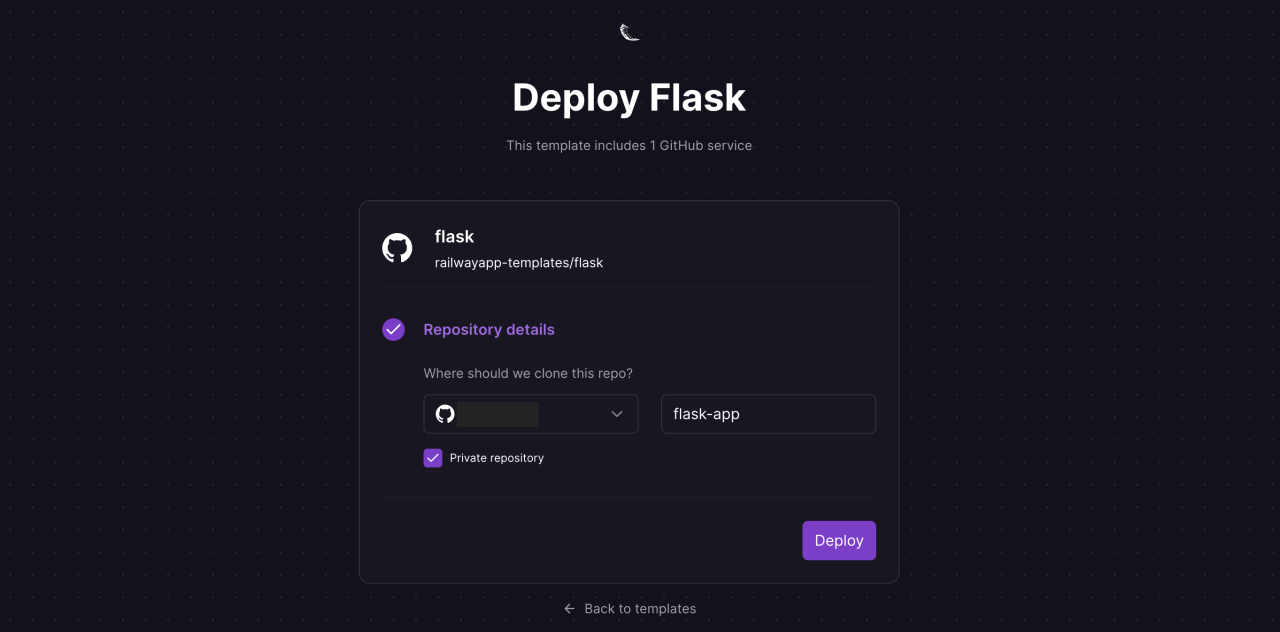
Now that the Flask application is prepared for deployment, the next crucial step is to set up the infrastructure to host it. Render offers a straightforward platform for deploying web applications, and this section will guide you through creating an account and initiating a project on Render.
Creating a Render Account
To begin deploying a Flask application, an account on Render is required. This process is designed to be user-friendly and efficient.
- Navigate to the Render website.
- Click the “Sign Up” button. This button is typically located in the top right corner of the homepage.
- Choose a signup method. Render offers several options, including signing up with GitHub, GitLab, Google, or using an email address. Select the method that best suits your preferences.
- If signing up with a social media account or Google, follow the prompts to authorize Render to access your account information. If signing up with an email address, provide the required details (email address, password) and follow the verification instructions sent to your email.
- Once the signup process is complete and your account is verified (if applicable), you will be redirected to your Render dashboard.
Creating a New Web Service on Render
After successfully creating a Render account, the next step involves creating a Web Service to host the Flask application. This involves defining the application type, connecting it to a repository, and configuring deployment settings.
- Log in to your Render dashboard.
- Click the “New” button, typically found in the top right corner of the dashboard.
- Select “Web Service” from the available options.
- On the “Create a new Web Service” page, you’ll be prompted to connect to a Git repository. Proceed to the next section to establish this connection.
Connecting the Render Project to a Git Repository
Connecting your Render project to a Git repository is a vital step for continuous deployment. This allows Render to automatically deploy updates whenever changes are pushed to the specified branch of your repository.
Render supports connecting to various Git providers, including GitHub and GitLab. The process involves granting Render access to your repository and configuring deployment settings.
- Choose your Git provider. Select either GitHub, GitLab, or the appropriate provider from the available options.
- Authorize Render to access your repository. If you’re using GitHub, you’ll be prompted to authorize Render to access your GitHub account. Follow the on-screen instructions to grant the necessary permissions. The process for GitLab is similar.
- Select the repository containing your Flask application’s code. Render will display a list of your repositories. Choose the correct one.
- Configure the deployment settings. This involves specifying the branch to deploy from (usually `main` or `master`), the environment variables (if any), and the build command. The build command will depend on your application’s requirements.
- Click “Create Web Service”. Render will then begin the deployment process. It will clone your repository, install the necessary dependencies, and start your Flask application.
Example: If you’re using `pip` to manage dependencies, the build command might be `pip install -r requirements.txt` and the start command is usually `gunicorn –timeout 120 –workers 3 wsgi:app` where wsgi is your wsgi file, and app is your flask application variable.
Configuring the Render Web Service
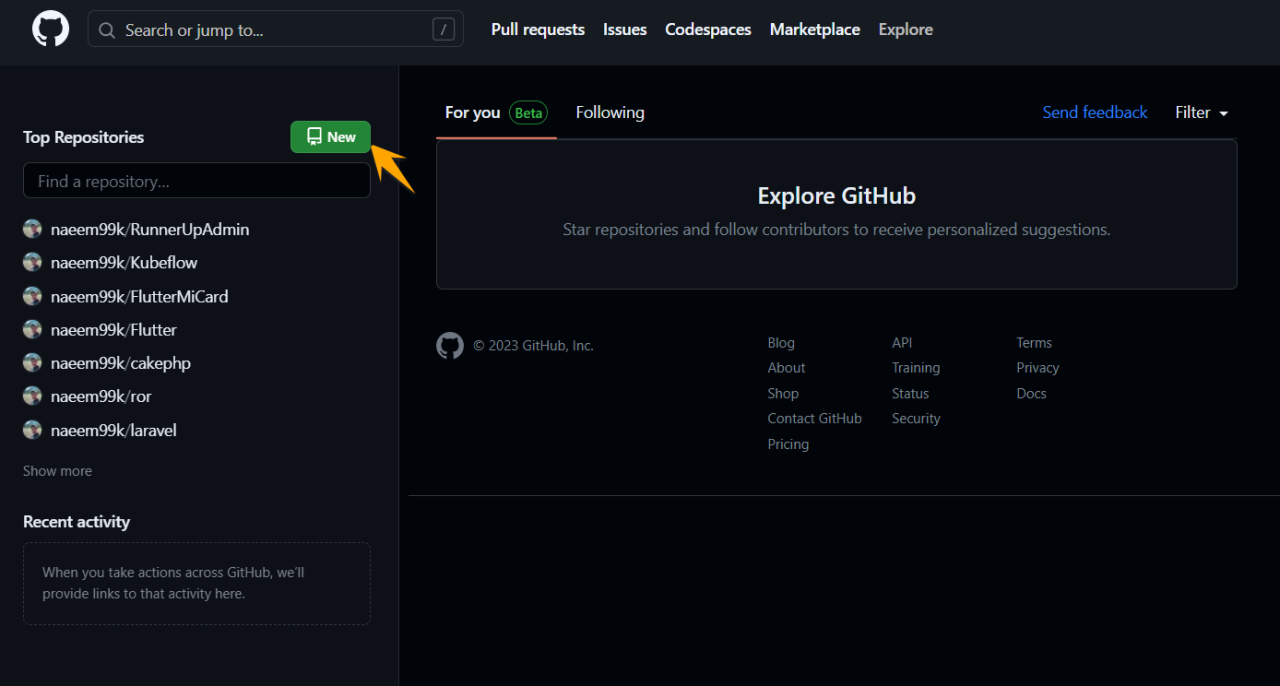
Now that the Flask application is prepared and the Render project is set up, the next step involves configuring the Render web service to deploy the application. This includes setting environment variables, specifying the build process, and defining the start command. These configurations ensure that Render can correctly build, deploy, and run the Flask application.
Setting Environment Variables
Environment variables are crucial for configuring the application’s behavior and providing sensitive information like API keys or database credentials. Render allows you to securely store and manage these variables.To set environment variables within Render:
- Navigate to the “Environment” section of your Render web service dashboard.
- Click “Add Environment Variable.”
- Provide a “Key” (the name of the variable, e.g., `FLASK_APP`, `DATABASE_URL`).
- Enter the “Value” for the variable. Ensure that sensitive information, like database passwords, is kept secret.
- Click “Save.”
For a Flask application, essential environment variables often include:
- `FLASK_APP`: Specifies the entry point of your Flask application (e.g., `app.py`).
- `FLASK_ENV`: Sets the environment (e.g., `production` or `development`). Setting this to `production` disables debugging mode for security reasons.
- Database connection strings: Variables like `DATABASE_URL` are used to connect to a database service. These are often in the format of a URL (e.g., `postgresql://user:password@host:port/database`). These credentials should be securely stored.
- Other API keys or configuration settings that your application needs.
For example, if the Flask app file is named `app.py`, and a PostgreSQL database is being used, the environment variables might look like this:
- Key: `FLASK_APP`, Value: `app.py`
- Key: `FLASK_ENV`, Value: `production`
- Key: `DATABASE_URL`, Value: `postgresql://your_user:your_password@your_host:5432/your_database`
Specifying the Build Process
The build process in Render typically involves installing the application’s dependencies. This is done by running commands that install the required packages.To specify the build process:
- In the Render dashboard, go to the “Build Command” section of your web service.
- Enter the command that will install the dependencies.
The most common build command for a Python application using `pip` and a `requirements.txt` file is:
pip install -r requirements.txt
This command tells Render to install all the packages listed in your `requirements.txt` file, which should contain a list of all the Python packages required by your Flask application. The `requirements.txt` file should be located in the root directory of your project. For example, if your application uses Flask and gunicorn, the `requirements.txt` might contain:
Flask==2.3.2
gunicorn==21.2.0
The specific versions are provided as an example and should be adjusted based on the packages used by the application.
Render executes this command during the deployment process to ensure that all necessary dependencies are available.
Defining the Start Command
The start command tells Render how to run your Flask application. This typically involves using a production-ready WSGI server like Gunicorn.To define the start command:
- In the Render dashboard, go to the “Start Command” section of your web service.
- Enter the command that will start your application.
A common start command using Gunicorn is:
gunicorn --workers 3 --timeout 180 app:app
This command does the following:
- `gunicorn`: The command to run Gunicorn.
- `–workers 3`: Specifies the number of worker processes. Three workers are used as a starting point. The optimal number of workers depends on the application’s load and the server’s resources.
- `–timeout 180`: Sets a timeout of 180 seconds (3 minutes) for each worker. This is the maximum time a worker can take to handle a request before it is killed and restarted.
- `app:app`: Specifies the application entry point. The first `app` refers to the Python file (e.g., `app.py`), and the second `app` refers to the Flask application instance within that file (e.g., `app = Flask(__name__)`).
The specific values, like the number of workers and timeout, can be adjusted based on the application’s needs and the resources available on Render. Monitoring the application’s performance after deployment can help determine the optimal configuration.
Deploying the Flask Application

Now that your Flask application is set up, configured, and ready for deployment on Render, it’s time to bring it to life on the internet. This section details the crucial steps to deploy your application, ensuring a smooth transition from local development to a live, accessible web service.
Triggering the Initial Deployment
The initial deployment process is straightforward and is initiated directly from the Render dashboard. After you’ve created and configured your web service, Render automatically detects changes in your repository and begins the deployment process.The initial deployment is triggered in a few ways:
- Automatic Deployment: Render automatically deploys your application upon detecting changes in your connected repository. This is the default behavior. Any push to the configured branch (usually `main` or `master`) will automatically trigger a new deployment.
- Manual Deployment: You can manually trigger a deployment from the Render dashboard. This is useful if you want to control when deployments happen, for example, if you want to test on a separate branch before deploying to production. You’ll find a “Deploy” button within your web service’s dashboard.
Monitoring Deployment Logs for Errors
Monitoring the deployment logs is critical for identifying and resolving any issues that may arise during the deployment process. Render provides comprehensive logs that detail each stage of the deployment, including build and start-up phases. These logs are invaluable for troubleshooting.To monitor the deployment logs:
- Access the Dashboard: Navigate to your web service’s dashboard in the Render control panel.
- View the Logs: Locate the “Logs” section. Here, you’ll find detailed logs for each deployment attempt.
- Analyze the Output: The logs will display messages indicating the progress of the deployment. Carefully review these logs for any error messages, warnings, or unexpected behavior. Error messages will typically highlight the source of the problem, often pointing to specific lines of code or configuration issues.
- Common Errors: Pay close attention to common errors such as missing dependencies (e.g., packages not listed in your `requirements.txt`), incorrect environment variables, or issues with the application’s startup script.
Deployment Stages and Statuses
The deployment process on Render goes through several distinct stages, each with its own possible statuses. Understanding these stages and their corresponding statuses is crucial for diagnosing issues and understanding the progress of your deployment.Here’s a table summarizing the deployment stages and their possible statuses:
| Stage | Description | Possible Statuses | Actions |
|---|---|---|---|
| Queued | The deployment is waiting to start. This typically occurs if there are other deployments in progress or if Render is experiencing high load. |
|
Wait for the deployment to begin. Check the Render status page for any reported incidents. |
| Build | Render is building your application. This stage involves installing dependencies, compiling code (if necessary), and preparing your application for deployment. |
|
|
| Deploy | Render is deploying the built application to its servers. This involves setting up the necessary infrastructure and making your application accessible. |
|
|
| Live | The application is running and accessible. |
|
|
Troubleshooting Common Deployment Issues
Deploying a Flask application to a platform like Render, while generally straightforward, can sometimes present challenges. Understanding and addressing common deployment issues is crucial for a smooth and successful deployment process. This section focuses on identifying and resolving frequently encountered problems.
Debugging Errors Related to Dependencies
Dependency errors are among the most frequent causes of deployment failures. These issues typically stem from incorrect versions, missing packages, or conflicts between dependencies. Effective debugging involves meticulous examination of logs and configuration files.To effectively diagnose dependency problems, consider these steps:
- Review the Build Logs: The Render build logs are your primary source of information. These logs detail the steps taken during the build process, including dependency installation. Pay close attention to any error messages, warnings, or failures related to package installation. These messages often pinpoint the exact dependency causing the issue and suggest potential solutions. For instance, a message like “Could not find a version that satisfies the requirement ‘requests==2.28.0′” indicates a problem with the `requests` package version.
- Examine the `requirements.txt` File: The `requirements.txt` file is critical for specifying the project’s dependencies. Carefully check this file for:
- Typos and Syntax Errors: Ensure that all package names and version numbers are correctly spelled and formatted.
- Incorrect Version Numbers: Specify the correct version numbers for each package. If a specific version is required, use the `==` operator. For example, `Flask==2.3.2`. If you want to allow for updates within a range, use operators like `>=` or ` <`. Using loose version constraints can lead to unexpected behavior if a new version introduces breaking changes.
- Missing Packages: Verify that all required packages are included in the file. A missing package will cause the application to fail to start.
- Local Environment Testing: Before deploying, always test your application locally with the same dependencies specified in `requirements.txt`. This helps to identify dependency-related issues early on. Use a virtual environment to isolate your project’s dependencies. For example, use `python3 -m venv .venv` to create a virtual environment, then activate it using `source .venv/bin/activate` (on Linux/macOS) or `.venv\Scripts\activate` (on Windows), and finally install the dependencies with `pip install -r requirements.txt`.
- Pinning Dependencies: Pinning dependencies to specific versions in `requirements.txt` is highly recommended. This ensures that the same versions are installed during both the build and runtime phases, preventing unexpected behavior caused by updates. For instance, `Flask==2.3.2` is preferable to `Flask>=2.3.0`.
- Using a `Procfile` (if necessary): For more complex setups or custom build processes, you might need a `Procfile`. The `Procfile` tells Render how to start your application. If dependency installation requires custom commands (e.g., installing from a private repository), you can include those in your `Procfile` before the main application startup command. For example:
web: python app.py
This line instructs Render to run `app.py` using Python.
Addressing Port Conflicts and Other Runtime Issues
Runtime issues often manifest as the application failing to start or behaving unexpectedly after deployment. These problems can be caused by port conflicts, incorrect environment variables, or other configuration errors.To address these issues effectively:
- Port Conflicts: Render assigns a port number dynamically to each web service. Your Flask application should listen on the port specified by the `PORT` environment variable. Render automatically sets this variable. Do
-not* hardcode a port number in your application code. The correct way to listen for requests is:
  import os

  from flask import Flask

  app = Flask(__name__)

  @app.route("/")

  def hello_world():

    return "
Hello, World!
"
if __name__ == '__main__':
port = int(os.environ.get('PORT', 5000))
app.run(host='0.0.0.0', port=port)
This code retrieves the port from the `PORT` environment variable and defaults to port 5000 if the variable is not set (which is unlikely on Render).
- Environment Variables: Environment variables are critical for configuring your application’s behavior. Render allows you to define environment variables in the dashboard. Use environment variables for sensitive information like API keys, database credentials, and other configuration settings. Avoid hardcoding these values directly into your application code. For example, instead of hardcoding a database connection string, store it in an environment variable and access it in your application.
- Log Analysis: Carefully examine your application’s logs. Render provides logs that contain valuable information about runtime errors, warnings, and other events. Use logging statements in your Flask application to provide more context about what’s happening. For example, add logging statements to your code to track when certain functions are called or to print the values of important variables.
- Resource Limits: Be aware of Render’s resource limits, such as memory and CPU usage. If your application exceeds these limits, it may be terminated. Monitor your application’s resource usage and optimize your code to improve performance. For example, optimize database queries or use caching to reduce resource consumption. Consider upgrading to a higher tier on Render if your application requires more resources.
- Health Checks: Implement health checks in your application. Health checks are endpoints that Render can use to determine if your application is running correctly. Render periodically checks these endpoints to ensure that your application is healthy and can handle requests. A simple health check might be a route that returns a 200 OK status code. If the health check fails, Render may restart your application.
Managing Environment Variables

Environment variables are crucial for configuring applications in a secure and flexible manner. They allow you to externalize configuration details, such as database credentials, API keys, and other sensitive information, from your codebase. This approach enhances security by preventing hardcoding of secrets directly in your source code, which could be exposed if the code is inadvertently shared or if there are security breaches.
Furthermore, environment variables facilitate easier configuration across different environments (development, staging, production) without modifying the application’s core logic.
Importance of Environment Variables for Security and Configuration
Environment variables provide a robust mechanism for managing application settings.
- Security: Storing sensitive information like API keys and database passwords in environment variables prevents their exposure in the source code. This significantly reduces the risk of unauthorized access and data breaches.
- Configuration Flexibility: Environment variables enable easy configuration of applications across various environments (development, testing, production). Different values can be assigned to the same variable depending on the environment, without altering the application’s code.
- Simplified Updates: Changing configuration settings becomes straightforward. You can modify the environment variables without redeploying the entire application, simplifying maintenance and updates.
- Code Reusability: By using environment variables, you can write more generic code that adapts to different configurations. This promotes code reusability across projects and environments.
Securely Storing and Accessing Environment Variables in Flask
Securing and accessing environment variables involves several key steps to ensure the confidentiality and integrity of sensitive data.
- Setting Environment Variables on Render: On Render, environment variables are configured within the “Environment” section of your web service settings. This allows you to define key-value pairs for variables that your Flask application can access. Render securely stores these variables, making them accessible during application runtime.
- Accessing Environment Variables in Flask: Within your Flask application, you can access environment variables using the `os.environ` module. This module provides access to all environment variables defined in the operating system or, in this case, within Render’s environment configuration.
- Example:
“`python import os from flask import Flask app = Flask(__name__) # Accessing an environment variable DATABASE_URL = os.environ.get(“DATABASE_URL”) @app.route(“/”) def index(): if DATABASE_URL: return f”Database connection string: DATABASE_URL” else: return “Database URL not configured.” if __name__ == “__main__”: app.run(debug=True) “`
In this example, the `DATABASE_URL` environment variable is accessed using `os.environ.get(“DATABASE_URL”)`. If the variable is defined, its value is used; otherwise, a default value or an error handling mechanism can be implemented.
Using Environment Variables for Database Connection Strings
Environment variables are especially useful for database connection strings. This allows you to change the database configuration without altering the application code.
- Storing the Connection String: Instead of hardcoding the database connection string in your Flask application, store it as an environment variable (e.g., `DATABASE_URL`). This variable will contain all the necessary information to connect to the database, including the database type (e.g., PostgreSQL, MySQL), hostname, port, database name, username, and password.
- Example Implementation:
“`python import os from flask import Flask from flask_sqlalchemy import SQLAlchemy app = Flask(__name__) # Retrieve the database URL from the environment variable DATABASE_URL = os.environ.get(“DATABASE_URL”) # Configure the Flask-SQLAlchemy extension app.config[“SQLALCHEMY_DATABASE_URI”] = DATABASE_URL db = SQLAlchemy(app) # Define a simple model class User(db.Model): id = db.Column(db.Integer, primary_key=True) username = db.Column(db.String(80), unique=True, nullable=False) email = db.Column(db.String(120), unique=True, nullable=False) def __repr__(self): return f”
“.join(user_list) if user_list else “No users found.” if __name__ == “__main__”: app.run(debug=True) “`
In this example, the `DATABASE_URL` environment variable is retrieved, and used to configure the `SQLALCHEMY_DATABASE_URI`. This approach enables you to deploy the application to different environments (development, production) with different database configurations simply by changing the value of the `DATABASE_URL` environment variable.
Scaling and Optimization (Briefly)
As your Flask application gains popularity, it’s crucial to consider scaling and optimization to ensure it remains performant and responsive under increased load. Scaling involves increasing the resources available to your application to handle more traffic, while optimization focuses on making your application run more efficiently with the existing resources. Both are essential for providing a good user experience as your application grows.
Scaling Strategies on Render
Render offers different scaling options to accommodate varying application needs. Choosing the right scaling strategy depends on factors like expected traffic volume, budget constraints, and the complexity of your application.Render provides the following scaling options:
- Manual Scaling: This involves manually adjusting the instance size (CPU, RAM) of your web service. It provides more control but requires you to proactively monitor your application’s performance and adjust resources accordingly. This is suitable for applications with predictable traffic patterns or those that require very specific resource configurations.
- Automatic Scaling: Render’s automatic scaling dynamically adjusts the number of instances running your application based on resource utilization. This is ideal for applications with fluctuating traffic, as it automatically scales up during peak loads and scales down during off-peak hours. This helps optimize resource usage and cost.
Optimization Strategies for Flask Applications on Render
Optimizing your Flask application can significantly improve its performance and reduce resource consumption. Several strategies can be employed to achieve this, including caching, database optimization, and code profiling.Here are some key optimization strategies:
- Caching: Implement caching mechanisms to store frequently accessed data, such as database query results or rendered web pages. This reduces the load on your database and server, leading to faster response times.
- Example: Utilize caching libraries like `Flask-Caching` to cache responses. This can be especially beneficial for static content or data that doesn’t change frequently.
- Database Optimization: Optimize database queries to ensure they are efficient and minimize the time it takes to retrieve data.
- Example: Use indexes on frequently queried columns, optimize query structure, and consider database connection pooling to reduce connection overhead. Database performance directly impacts the speed of your application.
- Code Profiling: Use profiling tools to identify performance bottlenecks in your code. This helps pinpoint areas where your application is spending the most time and allows you to focus your optimization efforts.
- Example: Use Python’s built-in `cProfile` module or external tools like `py-spy` to analyze your code’s execution and identify slow functions or sections of code.
Updating and Maintaining the Application
Maintaining a deployed Flask application on Render involves regular updates to incorporate new features, bug fixes, and security patches. This section details the process of updating the application, redeploying after code changes, and rolling back to a previous version if issues arise. Effective maintenance ensures the application remains functional, secure, and up-to-date with user needs.
Updating the Deployed Flask Application
Updating the deployed Flask application on Render is a straightforward process that involves pushing code changes to your repository and triggering a redeployment. Render automatically detects changes in your linked repository and initiates a new build and deployment.To update the application:
- Make Code Changes: Modify the Flask application’s code locally. This could include adding new features, fixing bugs, or improving the application’s performance.
- Commit Changes: Commit the changes to your Git repository (e.g., GitHub, GitLab, or Bitbucket). Ensure that all necessary files are included in the commit. Use clear and descriptive commit messages to document the changes. For example, “Added user authentication feature” or “Fixed bug in data retrieval process.”
- Push Changes: Push the committed changes to the remote repository. This action triggers Render to detect the changes. The command `git push origin main` (or your branch name) is commonly used.
- Render’s Automatic Deployment: Render automatically detects the changes in the repository and initiates a new deployment. You can monitor the deployment progress through the Render dashboard.
- Verification: Once the deployment is complete, verify the updated application by accessing it through the provided URL or custom domain. Test the new features and ensure that the bug fixes are effective.
Redeploying the Application After Code Changes
Redeploying the application is the core process of updating it with new code. The process is triggered automatically when Render detects changes in the connected repository.The steps to redeploy the application are:
- Modify Application Code: Make the necessary code changes locally.
- Test Locally: Before deploying, thoroughly test the changes locally to ensure they function as expected. This helps prevent deployment issues and ensures a smoother transition. Use tools like `pytest` for testing.
- Commit and Push Changes: Commit the changes with a descriptive message and push them to your Git repository. For instance, use the command `git commit -m “Implemented payment gateway integration”` followed by `git push origin main`.
- Render’s Automatic Deployment: Render will automatically detect the new commit and start a new deployment process. The dashboard displays the build and deployment logs, allowing you to monitor progress.
- Deployment Completion: After the deployment is complete, the new version of the application will be live. Access the application through its URL to confirm the updates.
Rolling Back to a Previous Version
Rolling back to a previous version is a critical feature for handling unexpected issues or bugs introduced in a new deployment. Render allows for easy rollback to a previously deployed version.To roll back to a previous version:
- Access the Render Dashboard: Log in to your Render account and navigate to your Flask application’s dashboard.
- Locate Deployment History: Within the dashboard, find the deployment history or deployment logs section. This section lists all previous deployments, including their status (e.g., successful, failed).
- Select a Previous Deployment: Identify the deployment you want to revert to. This should be a deployment known to be stable and functional.
- Initiate Rollback: Render usually provides an option to “Redeploy” or “Rollback” to the selected deployment. Click this option.
- Deployment Process: Render will start a new deployment using the code from the selected previous deployment.
- Verification: Once the rollback deployment is complete, verify the application by accessing it through the provided URL or custom domain to ensure the previous version is active and functioning correctly.
Best Practices for Flask Deployment on Render
Deploying a Flask application on Render requires careful consideration of several factors to ensure security, efficiency, and maintainability. Adhering to best practices helps to mitigate potential vulnerabilities, optimize performance, and simplify the deployment and management processes. This section Artikels key strategies for a successful Flask deployment on the Render platform.
Security During Deployment
Security is paramount when deploying any web application. Implementing robust security measures protects against potential threats and vulnerabilities.
- Use Environment Variables for Sensitive Data: Never hardcode sensitive information such as API keys, database credentials, or secret keys directly into your code. Instead, store these values as environment variables on Render. This approach allows you to change these values without modifying and redeploying your application code. Access these variables within your Flask application using the `os.environ.get()` method. For example:
“`python
import os
DATABASE_URL = os.environ.get(“DATABASE_URL”)
SECRET_KEY = os.environ.get(“SECRET_KEY”)
“` - Secure Your Dependencies: Regularly update your project’s dependencies to the latest versions to patch known security vulnerabilities. Use a package manager like pip to manage your dependencies and consider using a tool like `pip-tools` or `poetry` to lock down your dependencies and ensure reproducible builds. Before deploying, run a vulnerability scan on your dependencies using tools like `pip-audit` or `safety`.
- Implement HTTPS: Render automatically provides HTTPS for your web services. Ensure that your application redirects all HTTP requests to HTTPS. This encrypts the communication between the client and the server, protecting sensitive data from interception.
- Input Validation and Sanitization: Validate and sanitize all user inputs to prevent common security vulnerabilities like cross-site scripting (XSS) and SQL injection. This includes validating the data type, length, and format of the input, and sanitizing the input to remove any malicious code.
- Use a Web Application Firewall (WAF): Consider using a WAF, such as those provided by cloud providers or third-party services, to filter malicious traffic and protect your application from attacks. While Render does not directly offer a WAF, you can integrate with services that provide this functionality.
- Regularly Review and Update Security Configurations: Periodically review your security configurations and update them based on the latest security best practices. This includes reviewing access controls, security groups, and other security settings.
Handling Static Files
Properly managing static files (CSS, JavaScript, images, etc.) is crucial for application performance and user experience. Render offers several options for handling static files.
- Serve Static Files Directly from the Application: For smaller applications or during development, you can serve static files directly from your Flask application using the `static` folder. In your Flask application, configure the `static_folder` parameter when creating the Flask app instance. For example:
“`python
from flask import Flask
app = Flask(__name__, static_folder=’static’)
“`Then, place your static files (e.g., CSS, JavaScript, images) in the `static` folder.
You can access these files in your HTML templates using the `url_for()` function.
- Use a Content Delivery Network (CDN): For larger applications or applications with global users, using a CDN is highly recommended. A CDN caches your static files on servers located around the world, reducing latency and improving load times. Render integrates well with various CDN providers, such as Cloudflare or Amazon CloudFront. You would upload your static files to the CDN and then reference them in your HTML templates using the CDN’s URLs.
For example, if you use Cloudflare, you would upload your static files to Cloudflare’s storage and then use the CDN URL in your HTML templates:
“`html
“` - Optimize Static Files: Optimize your static files to reduce their size and improve loading times. This includes minifying CSS and JavaScript files, compressing images, and using appropriate image formats (e.g., WebP). You can use tools like UglifyJS for JavaScript minification, CSSNano for CSS minification, and online image optimization tools.
Key Tips for Efficient and Reliable Deployment
The following key points summarize best practices for Flask deployment on Render.
- Use Environment Variables: Store sensitive information securely.
- Regularly Update Dependencies: Keep dependencies up-to-date to address security issues.
- Implement HTTPS: Ensure secure communication.
- Optimize Static Files: Improve application performance by optimizing the delivery of static content.
- Monitor Your Application: Use logging and monitoring tools to track application performance and identify issues.
Alternative Deployment Options (Briefly)
Deploying a Flask application on Render is an excellent choice, especially for its ease of use and generous free tier. However, the landscape of web application deployment offers various alternatives, each with its own strengths and weaknesses. Understanding these options allows developers to choose the platform that best suits their project’s specific requirements, budget, and technical expertise.
Other Deployment Platforms Compared to Render
Several platforms offer deployment services for web applications, including those built with Flask. These platforms differ in terms of pricing, ease of use, features, and scalability. Choosing the right platform involves evaluating these factors in relation to your project’s needs.
Heroku: A Comparison
Heroku is a popular platform-as-a-service (PaaS) known for its ease of use and developer-friendly features. It supports a wide range of programming languages, including Python and Flask. Heroku’s “git push” deployment workflow simplifies the deployment process, making it attractive for developers who prioritize rapid iteration. However, Heroku’s pricing structure can become more expensive than Render, especially as an application’s resource needs grow.Here’s a summary of the pros and cons of deploying a Flask application on Heroku:
- Pros:
- Ease of Use: Heroku’s intuitive interface and straightforward deployment process make it easy to get started, even for beginners. The “git push heroku master” deployment is exceptionally simple.
- Developer-Friendly: Heroku provides a robust set of tools and add-ons, such as databases, caching services, and monitoring tools, simplifying the development and deployment workflow.
- Large Community and Ecosystem: A large and active community supports Heroku, offering extensive documentation, tutorials, and community support.
- Scalability: Heroku offers automatic scaling, allowing applications to handle increased traffic without manual intervention. This scaling is often managed through dynos, which are essentially containers.
- Cons:
- Cost: Heroku’s pricing can be higher than Render, especially as the application grows and requires more resources. The free tier has limitations on resource usage and may not be suitable for production applications.
- Vendor Lock-in: Deploying on Heroku can lead to vendor lock-in, as migrating to another platform may require significant changes to the application’s configuration.
- Limited Customization: Heroku provides a managed environment, which limits the level of customization compared to platforms like AWS.
- Dyno Limitations: Heroku uses dynos, which can have limitations on the amount of memory and CPU resources available. This can affect performance for resource-intensive applications.
Last Point
In conclusion, deploying a Flask application on Render for free is a straightforward process when armed with the right knowledge. This guide has walked you through every step, from initial setup to ongoing maintenance, empowering you to leverage Render’s capabilities and bring your web projects to life without breaking the bank. Embrace the simplicity and flexibility of this powerful combination and continue building and sharing your creations with the world.