Learning how to use git bash commands for daily workflow is essential for streamlining your development process and enhancing productivity. By mastering these commands, developers can efficiently manage files, navigate directories, and utilize version control seamlessly within their daily routines.
This guide provides a comprehensive overview of setting up Git Bash, navigating your workspace, managing files, executing version control operations, and automating repetitive tasks. Whether you’re a beginner or looking to refine your workflow, understanding these fundamental commands will significantly improve your development efficiency.
Introduction to Git Bash for Daily Workflow
Git Bash serves as a powerful command-line interface that seamlessly integrates Git version control with a Unix-like environment on Windows systems. Its primary purpose is to streamline the daily development tasks by providing developers with a familiar and efficient command-line experience, facilitating rapid navigation, file management, and version control operations. Leveraging Git Bash allows developers to execute complex commands efficiently, automate repetitive tasks, and maintain a consistent workflow across different projects.
Incorporating Git Bash into daily routines enhances productivity by enabling quick access to essential Git commands, simplifying branching, merging, and repository management. Its integration with Linux-style commands ensures that operations such as file manipulation, searching, and scripting are performed swiftly, reducing reliance on graphical interfaces and minimizing context switching. This tool is especially beneficial in scenarios requiring frequent updates, collaboration, and version tracking, where speed and precision are crucial for maintaining project momentum.
Role of Git Bash in Managing Version Control and Workflow Efficiency
Git Bash acts as the bridge between developers and the Git version control system, allowing for direct execution of commands that manage code repositories effectively. It simplifies the process of cloning repositories, creating branches, committing changes, and pushing updates to remote servers, all from a single terminal environment. This centralized approach minimizes errors and delays associated with graphical user interfaces.
Using Git Bash enhances line efficiency by enabling rapid command execution, scripting capabilities, and automation. Developers can write scripts to automate routine tasks such as updating branches, checking repository status, or deploying code, which significantly accelerates workflow. The command-line interface also facilitates multitasking, allowing users to run multiple commands concurrently or sequence operations without navigating through multiple windows or dialogs.
Common Scenarios Optimized by Git Bash
Git Bash is particularly advantageous in various development scenarios where speed and precision are essential. For example, during collaborative projects, developers frequently switch between branches, resolve merge conflicts, or review commit histories, tasks that are expedited through command-line operations. Additionally, Git Bash supports rapid cloning of repositories, enabling new team members to set up their local environments swiftly.
Other scenarios include continuous integration workflows, where automated scripts are executed efficiently, and troubleshooting, where logs and system statuses can be accessed quickly via terminal commands. Developers working on remote servers or deploying applications also benefit from Git Bash’s ability to run remote commands securely and efficiently, reducing the time needed for manual interventions and improving overall productivity.
Setting Up Git Bash for Daily Use
Proper setup of Git Bash is fundamental to establishing an efficient workflow for daily development activities. A well-configured environment not only accelerates command execution but also enhances productivity through customization tailored to individual preferences. This section provides step-by-step instructions for installing Git Bash across different operating systems, initial configuration tips, and best practices for customizing the environment to suit your development needs.
Whether you are working on Windows, macOS, or Linux, setting up Git Bash correctly ensures seamless integration with your development tools and a smooth command-line experience. Customizing your environment further allows you to streamline tasks, access frequently used commands quickly, and personalize your workspace for maximum efficiency.
Installing Git Bash on Different Operating Systems
Installation procedures vary slightly depending on the operating system. The following steps Artikel the process for Windows, macOS, and Linux, enabling users to prepare their environment regardless of platform.
| Step | Description | |
|---|---|---|
| 1 | Download Git Bash installer for Windows from the official website (https://git-scm.com/downloads). For macOS, download Git through the official installer or use Homebrew with the command brew install git. For Linux distributions, use the package manager, such as sudo apt-get install git for Debian/Ubuntu or sudo yum install git for CentOS/RHEL. |
|
| 2 | Run the installer and accept the default settings or customize options as needed. For Windows, ensure that the option to include Git Bash in the PATH environment variable is selected. For macOS and Linux, the package managers handle configuration during installation. | |
| 3 | Complete the installation process by following on-screen prompts. Once installed, open Git Bash from the Start menu (Windows) or the applications menu (macOS/Linux). | |
| 4 | Verify the installation by entering git --version in the terminal to confirm the installed version. |
Initial Configuration of Git Bash
After installation, configuring Git Bash ensures that your environment is tailored to your workflow. This involves setting user information, preferences, and other essential configurations.
| Step | Description | |
|---|---|---|
| 1 | Open Git Bash and configure your user name with the command: git config --global user.name "Your Name". Replace “Your Name” with your real name or preferred alias. |
|
| 2 | Set your email address associated with your Git commits: git config --global user.email "[email protected]". |
|
| 3 | Choose your preferred default text editor, such as vim, nano, or Visual Studio Code, with: git config --global core.editor "nano". |
|
| 4 | Configure the color output for better visual clarity: git config --global color.ui auto. |
|
| 5 | Optionally, set up aliases for commonly used commands to boost efficiency, for example:
|
Best Practices for Customizing the Git Bash Environment for Productivity
Enhancing the Git Bash environment through customization can significantly improve your daily workflow. These best practices involve environment variables, prompt customization, and integrating useful tools.
- Customize the Command Prompt: Modify the appearance of your prompt to display relevant information such as current directory, branch name, or status indicators. This can be achieved by editing the
PS1variable in your.bashrcor.bash_profilefile. - Configure Aliases: Create shortcuts for complex or frequently used commands to reduce keystrokes. For example,
alias gs='git status'streamlines the process of checking repository status. - Install Useful Tools: Integrate utilities like tmux for terminal multiplexing, or fzf for fuzzy finding, to enhance navigation and multitasking capabilities.
- Set Up Environment Variables: Define variables for project paths, API keys, or other frequently used values to prevent repetitive typing and minimize errors.
- Use Themes and Color Schemes: Apply themes to customize the appearance of your terminal, making it more visually comfortable and easier to read during long coding sessions.
Implementing these best practices ensures that your Git Bash environment is optimized for speed, clarity, and comfort, supporting an effective daily workflow.
Navigating Files and Directories
Efficient navigation through files and directories is fundamental to managing projects effectively in Git Bash. Understanding how to change directories, list files, and manage paths allows developers to quickly access and manipulate their working environment, streamlining the workflow and reducing time spent on manual searches.
Git Bash provides several commands that facilitate seamless navigation within the filesystem. Mastering these commands ensures a smooth and productive workflow, especially when working on multiple projects or nested directory structures. This section introduces key commands, compares their functions, and offers procedural guidance for optimal navigation.
Common Commands for Navigating Files and Directories
In Git Bash, several commands are essential for navigating through directories and managing files. Each command serves a specific purpose and, when used together, creates a flexible system for efficiently exploring the filesystem.
- cd: Changes the current directory to a specified path. It allows switching between directories, including moving up one level or to an absolute path.
- ls: Lists the contents of the current directory or a specified directory. It provides an overview of files and subdirectories, often with options for detailed views.
- pwd: Prints the current working directory. It is useful for confirming the exact location within the filesystem, especially after navigating through multiple directories.
- Managing Paths: Paths can be relative or absolute. Relative paths are based on the current directory, while absolute paths specify the full location starting from the root.
Understanding the syntax and options of these commands enables quick and precise navigation, which is crucial when managing complex project structures or working collaboratively in shared environments.
Comparison Table of Navigation Commands
| Command | Function | Usage Example | Notes |
|---|---|---|---|
| cd | Change current directory | cd folder_name |
Use cd .. to move up one level |
| ls | List files and directories | ls -l (detailed view) |
Options vary, e.g., -a shows hidden files |
| pwd | Print current working directory | pwd |
Displays absolute path of current location |
| Managing Paths | Specify locations relative to current or from root | cd ../project or cd /c/Users/Name/Projects |
Relative paths are based on current directory; absolute paths start from root |
Procedural Guide for Navigating Project Folders
Efficient navigation within project folders involves a systematic approach to locate, access, and manage files swiftly. The following procedural steps ensure a logical workflow for handling project directories in Git Bash.
- Begin by opening Git Bash and confirming your current location using the
pwdcommand. This helps avoid confusion in deep directory structures. - Use the
lscommand to list the contents of the current directory. Look for key folders or files relevant to your project. - Navigate into a specific folder by executing
cd folder_name. For nested directories, include the relative path, such ascd src/components. - To move back up one level, use
cd ... Repeat this step as needed to reach the desired parent directory. - For quick access to project root or specific directories, utilize absolute paths, e.g.,
cd /c/Users/YourName/Projects/MyProject. - After entering the target directory, verify your position with
pwdand list its contents withlsto ensure correct navigation. - Repeat these steps systematically when working across multiple directories, maintaining a clear mental or documented map of your folder structure.
Adopting this procedural approach enhances productivity, minimizes errors, and ensures a consistent method for managing complex project hierarchies within Git Bash.
Managing Files and Content
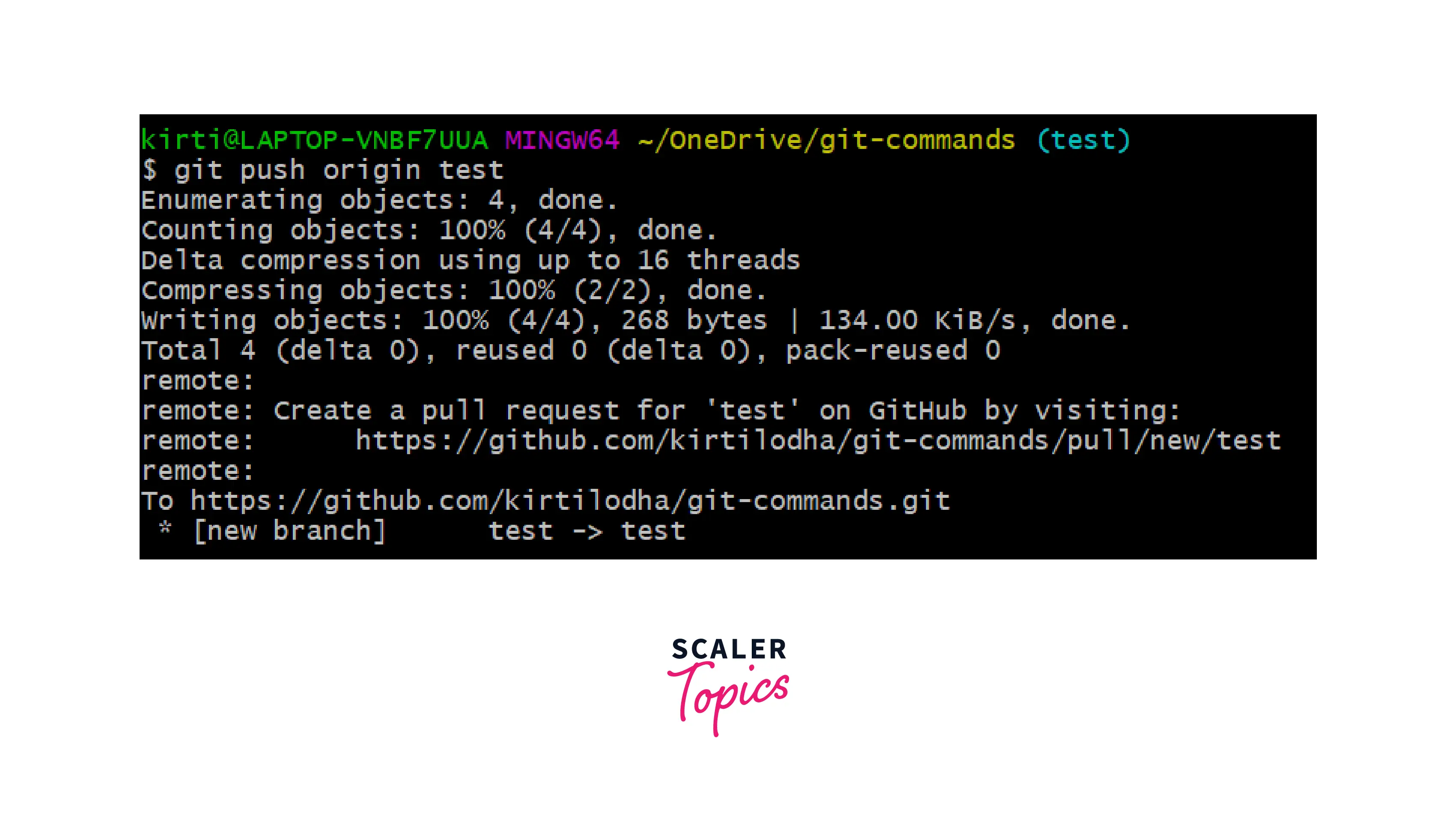
Efficient management of files and their content is fundamental to maintaining an organized workflow when using Git Bash. Mastery over creating, editing, copying, moving, and deleting files enables developers and users to handle their projects seamlessly. Additionally, viewing file contents with various commands provides insights into data without the need for external editors, streamlining the process of reviewing and verifying information directly through the terminal environment.
In this section, we will explore practical procedures for managing files and content through Git Bash commands. These skills are essential for daily operations, ensuring smooth navigation and manipulation of project files and data sets within your development environment.
Creating, Editing, Copying, Moving, and Deleting Files
Handling files efficiently involves a series of straightforward command-line operations. These commands help you prepare your workspace, update files as needed, and maintain an organized directory structure.
- Creating Files: The
touchcommand is one of the simplest ways to create a new, empty file. For example,touch filename.txtcreates a new text file named “filename.txt” in the current directory. - Editing Files: While Git Bash itself doesn’t have built-in text editors, it can invoke external editors like Vim or Nano. For instance, running
nano filename.txtopens the file in Nano, allowing you to add or modify content. Alternatively, you can use editors like Visual Studio Code or Notepad++ outside of Bash and save changes directly to the file. - Copying Files: The
cpcommand duplicates files or directories. For example,cp source.txt destination.txtcopies “source.txt” to “destination.txt.” Use-rwhen copying directories recursively, such ascp -r folder1 folder2. - Moving Files: The
mvcommand relocates files or directories. For instance,mv oldname.txt newname.txtrenames a file, whilemv file.txt /path/to/directory/moves the file to a different directory. - Deleting Files: The
rmcommand removes files. For example,rm unwantedfile.txtdeletes the specified file. To delete directories and their contents, userm -r directory_name.
Viewing File Contents
Viewing the contents of files directly within Git Bash enables users to quickly review data without opening external applications. Several commands serve this purpose, each suited for different scenarios based on the size and nature of the file.
- cat: Concatenates and displays entire file content. For example,
cat report.txtshows all contents of “report.txt” in the terminal. Suitable for small files or quick checks. - less: Provides a scrollable view of large files, allowing navigation with arrow keys. Use
less largefile.logto examine lengthy logs or documents comfortably. - head: Shows the beginning of a file, defaulting to the first 10 lines. For example,
head data.csvhelps preview initial data rows. You can specify lines with-n, such ashead -n 20 filename. - tail: Displays the end of a file, useful for monitoring recent log entries. For instance,
tail access.logshows the last 10 lines. The-foption keeps tail open, updating in real-time for ongoing logs.
Batch File Operations
Executing multiple file operations in succession enhances efficiency, especially when managing large projects or performing routine tasks. Below are some common batch commands to streamline workflows:
- Copy multiple files: Use wildcards, such as
cpto copy all text files to a specific directory.
-.txt /destination/ - Rename multiple files: Combine
mvwith loops to rename files following specific patterns. For example, in Bash scripting, you might write a loop to prepend dates to filenames. - Delete files based on pattern: Use
rmwith wildcards, likerm, to remove all backup files in a directory.
-.bak - Move files selectively: Use find combined with mv, such as
find . -name "*.temp" -exec mv /temp/ \;, to relocate temporary files.
Note: Always exercise caution when using
rm -rand commands with wildcards to avoid accidental data loss. Confirm the list of files before executing delete operations by usinglscommands with relevant patterns.
Version Control with Git Commands
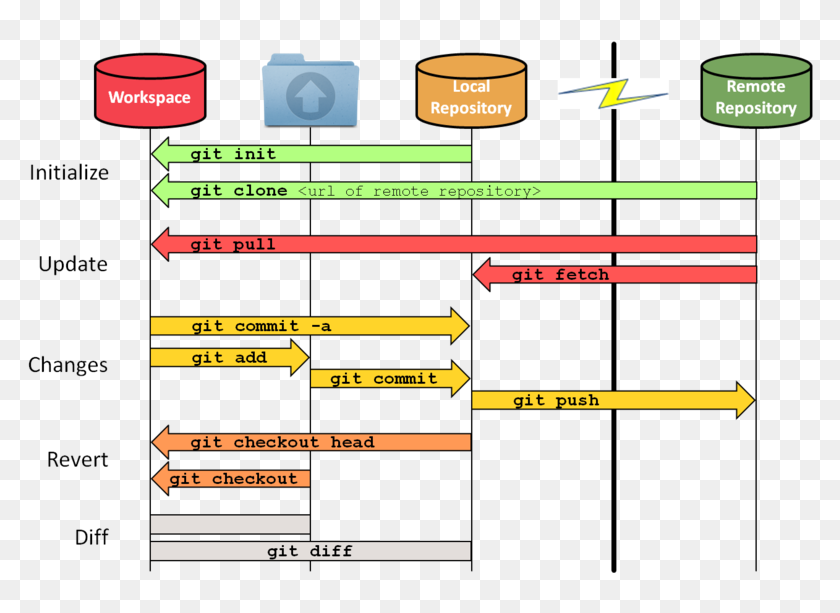
Effective version control is essential for managing changes in code during daily development activities. Git commands form the core toolkit that developers use to track, modify, and collaborate on codebases efficiently. Mastering these commands ensures a smooth workflow, reduces errors, and enhances collaboration within teams.
Understanding and utilizing common Git commands enables developers to manage their work systematically. These commands facilitate cloning repositories, staging changes, committing updates, pushing to remote repositories, pulling updates, and managing branches. Proper use of these commands helps maintain a clean and organized project history, accelerates debugging, and simplifies collaboration across distributed teams.
Common Git Commands Used in Daily Development
The following section highlights essential Git commands that are frequently employed in everyday development workflows. These commands help developers manage code versions, coordinate with team members, and ensure code integrity throughout the development process.
| Git Command | Syntax | Purpose |
|---|---|---|
| git clone | git clone <repository_url> |
Creates a local copy of a remote repository, enabling local development. |
| git add | git add <file/directory> |
Stages changes in files to prepare for a commit, marking them for inclusion. |
| git commit | git commit -m "Commit message" |
Records staged changes in the repository’s history with a descriptive message. |
| git push | git push origin <branch> |
Uploads local commits to the remote repository, updating the remote branch. |
| git pull | git pull origin <branch> |
Fetches and merges changes from the remote repository into the current branch. |
| git branch | git branch <branch_name> |
Creates a new branch for parallel development without affecting the main codebase. |
| git merge | git merge <branch_name> |
Integrates changes from a specified branch into the current branch. |
Workflows for Effective Code Staging and Committing
Implementing a disciplined workflow for staging and committing changes enhances collaboration and maintains a clear project history. The process involves periodically reviewing code modifications, organizing changes into logical units, and documenting updates through meaningful commit messages.
Developers should adopt a practice of staging only the relevant changes related to a specific feature or bug fix. This minimizes the risk of committing unintended modifications and makes it easier to review history during debugging or code audits. Regular commits with descriptive messages improve traceability and facilitate easier rollbacks if necessary.
Recommended workflow steps include:
- Check the status: Use
git statusfrequently to review uncommitted changes and track file modifications. - Stage changes: Selectively add files or parts of files using
git addto prepare for commit. - Commit with clarity: Write clear, concise messages that explain the purpose of the change, aiding future review and collaboration.
- Push regularly: Upload committed changes to the remote repository to share updates with team members and ensure synchronization.
Summary of Common Git Commands
Git Command Syntax Purpose git clone git clone <repository_url>Copy a remote repository locally for development. git add git add <file/directory>Stage changes to prepare for a commit. git commit git commit -m "Message"Record staged changes with an informative message. git push git push origin <branch>Upload local commits to the remote repository. git pull git pull origin <branch>Fetch and merge remote changes into the current branch. git branch git branch <branch_name>Create a new branch for parallel development. git merge git merge <branch_name>Integrate changes from another branch into the current one.
Automating Tasks and Workflow Optimization

Enhancing productivity within your daily development workflow often involves automating repetitive tasks, creating shortcuts for frequently used commands, and integrating Git Bash seamlessly with other tools. These strategies not only save time but also reduce the potential for errors, allowing you to focus more on critical aspects of your projects.
By leveraging scripting capabilities, custom aliases, and tool integrations, you can transform your command-line environment into a powerful hub for efficient project management and development activities. This section explores practical methods to achieve a streamlined and automated workflow within Git Bash.
Scripting Repetitive Tasks with Shell Scripts
Shell scripting allows for automating sequences of commands, minimizing manual effort, and ensuring consistency across tasks. Writing scripts in Git Bash enables you to encapsulate complex routines, such as backup procedures, deployment steps, or batch file processing, into executable files that can be run with a single command.
Shell scripts are simple text files containing a sequence of commands that the shell interprets when executed. They are especially useful for tasks that need to be performed regularly and with minimal supervision. Creating scripts involves writing the commands in a plain text editor, saving the file with a .sh extension, and granting execute permissions.
Example: A backup script might include commands to copy project files to a backup directory, compress them, and log the operation for record-keeping.
To run a shell script, ensure it has executable permissions:
chmod +x backup.shThen execute it with:
./backup.shFor complex workflows, scripts can accept parameters, incorporate conditionals, loops, and even interact with other tools or APIs, greatly expanding their utility.
Creating Aliases for Frequently Used Commands
Aliases serve as shortcuts or nicknames for longer commands, simplifying frequent operations and reducing typing effort. Setting up aliases in Git Bash allows for quick access to complex commands or sequences that are used regularly in your workflow.
Aliases are configured in the .bashrc or .bash_profile files in your home directory. Adding custom aliases involves defining a shorthand name followed by the command it represents. Once defined, these aliases are available for the current session and persist across sessions once saved.
Example: Setting an alias for quickly checking your Git status:
alias gst='git status'After adding this line to your .bashrc file, simply typing gst in Git Bash will execute git status. You can create aliases for any command, combining multiple commands with delimiters or scripting logic as needed, making your workflow more efficient.
To view all current aliases, use:
aliasAnd to remove an alias, use:
unalias alias_nameIntegrating Git Bash with Other Tools and Editors
Seamless workflow often involves connecting Git Bash with code editors, IDEs, or other development tools. Integration allows you to perform version control operations, run scripts, and manage projects without leaving your preferred environment, thus maintaining focus and reducing context switching.
Popular code editors like Visual Studio Code, Sublime Text, or Atom can be configured to invoke Git Bash as their default terminal. For example, Visual Studio Code allows you to set Git Bash as the integrated terminal through its settings, enabling you to run Git commands directly within the editor interface.
Additionally, many editors support plugins or extensions that facilitate Git operations, code formatting, or build automation. When combined with Git Bash scripting and aliases, these integrations enable a robust and coherent development environment.
Using tools such as SSH, scripting, and API integrations, Git Bash can also connect with deployment systems, continuous integration services, and containerization platforms like Docker. These integrations streamline deployment workflows, automate testing, and facilitate collaboration across teams.
Troubleshooting and Best Practices
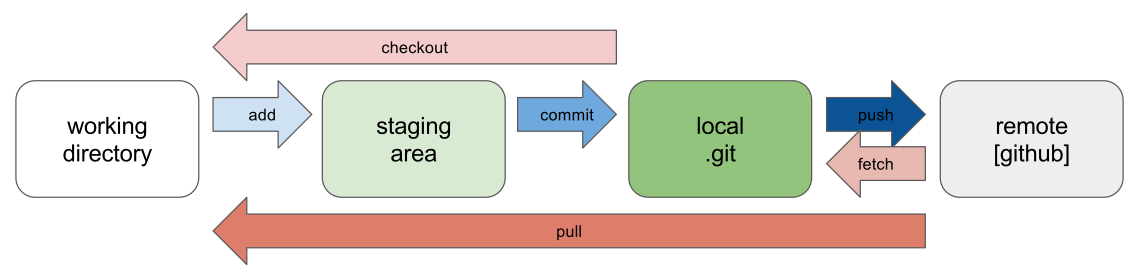
Efficient use of Git Bash requires an understanding of common issues that may arise during daily workflows and adopting best practices to maintain a smooth and productive environment. Addressing potential errors proactively and organizing your workspace effectively can significantly enhance your version control experience, reduce downtime, and ensure consistency across your projects.
This section provides guidance on identifying and resolving frequent errors encountered in Git Bash, as well as practical tips to keep your command line environment clean, organized, and efficient. Implementing these strategies will help streamline your workflow and minimize disruptions caused by technical issues or clutter.
Common Errors Encountered in Git Bash and Resolution Strategies
Understanding frequent errors allows for quick diagnosis and resolution, reducing frustration and downtime. The following list highlights typical issues and effective troubleshooting approaches:
- Permission Denied Errors: Often caused by insufficient file or directory permissions or incorrect SSH key configurations. Resolve by verifying your permissions with
ls -l, adjusting withchmod, or reconfiguring SSH keys withssh-keygenand updating your remote repository settings. - Repository Not Found or Cloning Errors: Typically due to incorrect URL syntax or access restrictions. Confirm the repository URL, ensure your SSH or HTTPS credentials are correct, and verify your access rights.
- Merge Conflicts: Occur when conflicting changes exist in the same code regions. Resolve by reviewing conflict markers in affected files, choosing the correct version, and completing the merge with
git addandgit commit. - Authentication Failures: Often due to expired credentials or misconfigured SSH keys. Re-authenticate by updating credentials in your credential manager or regenerating SSH keys.
- Broken or Outdated Git Installation: Causes command failures. Reinstall Git Bash from official sources and ensure environment variables are correctly set.
To systematically troubleshoot, follow these steps:
- Identify the error message and note the exact command causing the issue.
- Verify your network connection and repository URLs.
- Check permissions and credentials, especially when dealing with remote repositories.
- Review recent changes that might have caused conflicts or errors.
- Consult Git Bash logs or verbose output options (e.g.,
git status --verbose) for more insights. - Search official documentation or community forums if the issue persists.
Tips for Maintaining a Clean and Efficient Command Line Environment
Maintaining an organized and clutter-free Git Bash environment enhances productivity and minimizes mistakes. Consider the following practices:
- Use Aliases and Functions: Simplify repetitive commands by creating custom aliases in your
.bashrcor.bash_profile. For example, aliasgstogit statusfor quick access. - Organize Your Workspace: Keep directories tidy by regularly cleaning up unused branches and repositories. Use descriptive naming conventions for folders and branches for clarity.
- Leverage Tab Completion: Utilize tab completion for commands, file names, and branch names to reduce typing errors and speed up navigation.
- Use Clear and Consistent Commit Messages: Maintain a habit of writing meaningful commit messages that describe the purpose of changes, facilitating easier tracking and collaboration.
- Regularly Update Git and Git Bash: Keep your tools current to benefit from the latest features, security patches, and bug fixes.
- Maintain a Backup of Configuration Files: Save copies of your
.bashrc,.gitconfig, and other setup files to restore your environment quickly if needed.
Organized Troubleshooting Flowchart
Implementing a structured troubleshooting approach ensures systematic resolution of issues. Here’s a simplified flowchart expressed as bullet points:
- Step 1: Confirm the error message and note the command involved.
- Step 2: Check network connectivity to ensure remote repositories are accessible.
- Step 3: Verify credentials and permissions (SSH keys, access rights).
- Step 4: Validate repository URLs for correctness and accessibility.
- Step 5: Use verbose or debug commands (e.g.,
git fetch --verbose) for more info. - Step 6: Resolve conflicts or errors based on insights obtained.
- Step 7: Search official documentation or community forums if unresolved.
- Step 8: Apply fixes and reattempt the operation.
Consistently documenting errors and fixes can build a personalized troubleshooting knowledge base, streamlining future issue resolution.
Ultimate Conclusion
In conclusion, mastering how to use git bash commands for daily workflow empowers developers to work more efficiently and with greater confidence. By integrating these commands into your routine, you can optimize your productivity, maintain a clean environment, and streamline collaboration across projects. Consistent practice and exploration of automation tools will further elevate your workflow to new levels of effectiveness.