Learning how to code in Python for automation scripts opens up a world of efficiency and productivity across various industries. With its simplicity and powerful libraries, Python has become the go-to language for automating repetitive tasks, streamlining workflows, and enhancing system management. Whether you’re a beginner or an experienced developer, mastering automation with Python can significantly reduce manual effort and error, making your tasks more manageable and your processes more reliable.
This guide provides a structured overview of how to set up your environment, understand core scripting concepts, and implement practical automation solutions—from file management and web automation to data processing and task scheduling. By following these insights, you’ll be equipped to create effective, scalable Python scripts that automate routine operations seamlessly.
Introduction to Python for Automation Scripts
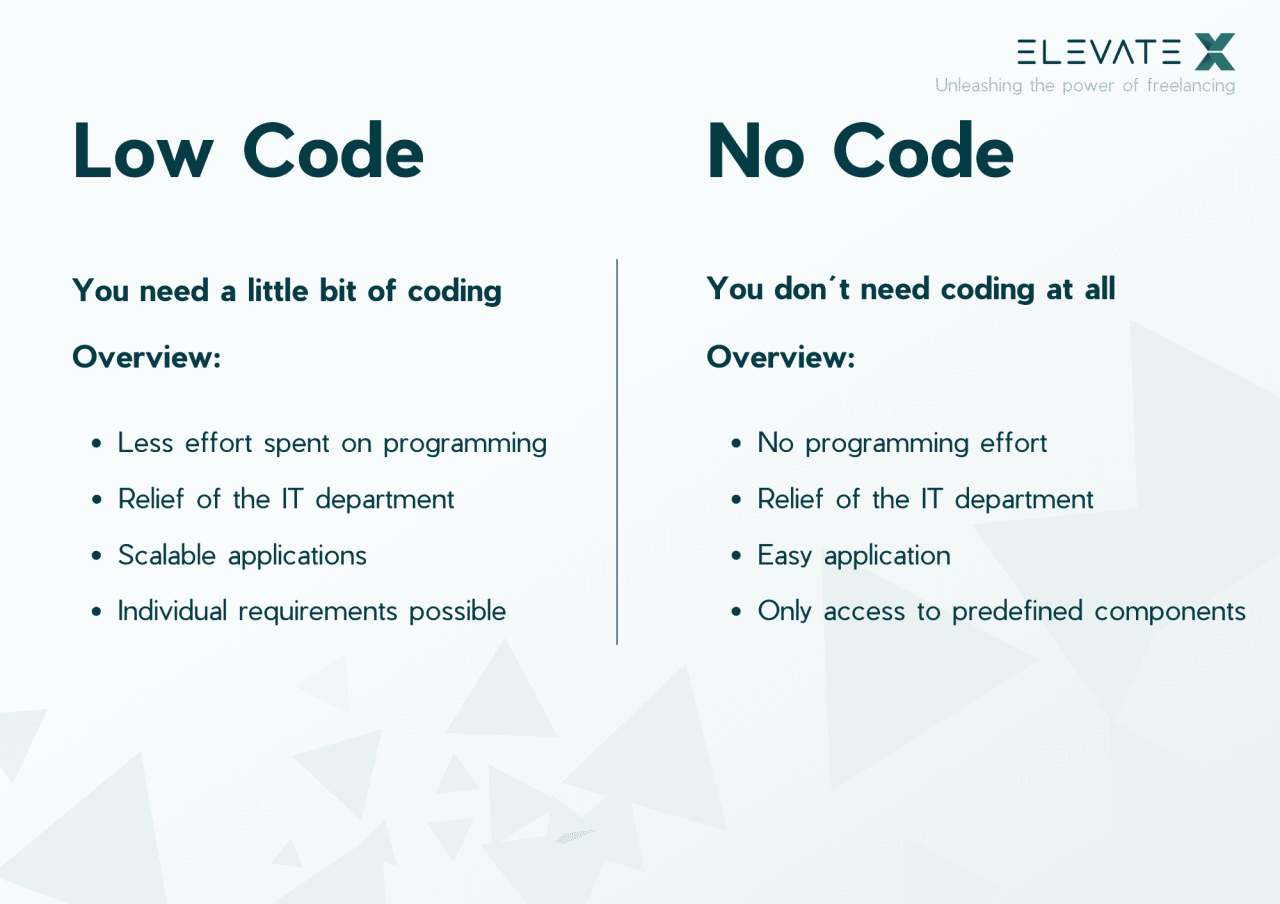
Python has emerged as a premier choice for developing automation scripts owing to its simplicity, versatility, and extensive library ecosystem. Its ability to streamline repetitive tasks across various domains has made it indispensable for professionals seeking efficient solutions. Python’s readability and concise syntax enable developers to craft automation scripts rapidly, reducing development time and minimizing errors compared to more complex languages.
Automation scripts built with Python find applications across diverse industries such as information technology, finance, healthcare, and manufacturing. Common tasks include file management, data extraction and processing, system administration, web scraping, and testing automation. These scripts enhance productivity by automating mundane activities, allowing teams to focus on more strategic initiatives. The scalability and adaptability of Python make it suitable for both small-scale tasks and complex enterprise workflows.
Prerequisites for Coding Automation Scripts in Python
Starting with Python automation scripting requires a basic understanding of programming concepts and a suitable development environment. Setting up the right tools is essential for an efficient workflow and smooth script development.
Key prerequisites include:
- Python Interpreter: Install the latest stable version of Python from the official website (python.org). Ensure that the environment variables are correctly configured to access Python from the command line.
- Code Editor or IDE: Use a friendly and feature-rich editor such as Visual Studio Code, PyCharm, or Sublime Text. These tools provide syntax highlighting, debugging, and extension support tailored for Python development.
- Package Management: Familiarize yourself with pip, Python’s package installer, to seamlessly add libraries such as requests, pandas, selenium, or pyautogui, which extend Python’s automation capabilities.
- Environment Setup: Create isolated environments using virtualenv or conda to manage dependencies and avoid conflicts between projects. This practice ensures that each automation script runs in a controlled setting with the necessary packages installed.
Additionally, understanding basic command-line operations and having a clear understanding of the automation tasks you intend to perform will streamline the scripting process. Familiarity with Python’s standard library functions related to file handling, system operations, and network requests provides a solid foundation for developing effective automation scripts.
Setting Up the Python Environment for Automation
Establishing a robust and organized Python environment is essential for developing efficient automation scripts. Proper setup ensures smooth project management, easy library integration, and seamless execution of automation tasks across different systems. This section guides you through installing Python, selecting suitable IDEs or code editors, managing libraries, and configuring environment variables and virtual environments to optimize your automation workflow.
Preparing your Python environment involves multiple steps that contribute to a streamlined development process. By systematically installing Python, choosing the right tools, organizing dependencies, and managing environment configurations, you can significantly reduce setup issues and improve the maintainability and scalability of your automation scripts.
Installing Python and Essential IDEs or Code Editors
Having the latest stable version of Python installed on your system is the foundation of any automation project. Additionally, selecting an appropriate IDE or code editor enhances coding productivity through features like syntax highlighting, debugging, and integrated terminal access.
Follow this step-by-step guide to set up your Python environment effectively:
- Download and Install Python:
- Visit the official Python website at https://www.python.org/downloads/ .
- Select the latest stable release compatible with your operating system (Windows, macOS, Linux).
- Download the installer and run it. Ensure the option Add Python to PATH is checked during installation to facilitate command-line usage.
- Verify the installation by opening a command prompt or terminal and typing
python –version
. The version number should display correctly.
- Choose and Install an IDE or Code Editor:
- PyCharm: A professional IDE with integrated tools for Python development. Download from https://www.jetbrains.com/pycharm/download/ .
- Visual Studio Code (VS Code): A lightweight, versatile editor with extensive plugin support. Download from https://code.visualstudio.com/ . Install the Python extension for enhanced capabilities.
- Sublime Text: A fast, minimalistic text editor suitable for quick scripting. Available at https://www.sublimetext.com/ .
Organizing Libraries and Managing Dependencies
Automation scripts often require external libraries to perform tasks such as file manipulation, process control, or interacting with APIs. Managing these dependencies efficiently is vital for script portability and consistency across different environments.
Python provides built-in modules like os, sys, and subprocess for core functionalities, but for more specialized automation tasks, additional libraries are necessary. Installing and managing these libraries systematically helps prevent version conflicts and simplifies updates.
| Library | Description | Installation Command |
|---|---|---|
| os | Provides a way to interact with the operating system, handling file paths, directories, and environment variables. | Pre-installed with Python |
| sys | Offers access to system-specific parameters and functions, such as command-line arguments. | Pre-installed with Python |
| subprocess | Enables spawning new processes, connecting to their input/output/error pipes, and obtaining their return codes. | Pre-installed with Python |
Automation-specific packages (e.g., pyautogui, requests) |
Facilitate GUI automation, web requests, and other specialized tasks. | Use pip to install: pip install pyautogui requests |
It is recommended to keep your project dependencies organized in a requirements.txt file. This file lists all necessary packages with specific versions, allowing easy environment recreation.
pip freeze > requirements.txt
creates a snapshot of current dependencies, while
pip install -r requirements.txt
installs all listed packages in another environment.
Configuring Environment Variables and Virtual Environments
Environment variables play a significant role in customizing the behavior of automation scripts, especially when dealing with file paths, API keys, or system-specific settings. Proper configuration ensures scripts run seamlessly across different environments and systems.
Setting environment variables can be done manually or programmatically, depending on the operating system:
- Manual Configuration:
- On Windows, access System Properties > Environment Variables to add or modify variables.
- On macOS/Linux, edit shell configuration files like
.bash_profileor.zshrcto export variables, e.g.,
export API_KEY=’your_api_key’
.
- Programmatic Configuration within Scripts:
- Use
os.environto set or get environment variables dynamically at runtime:
import os
os.environ[‘API_KEY’] = ‘your_api_key’ - Use
Virtual environments are crucial for isolating project dependencies, avoiding conflicts between different automation projects, and maintaining clean system configurations. They allow you to install specific package versions without affecting global settings.
- Create a Virtual Environment:
- Navigate to your project directory in the terminal or command prompt.
- Run
python -m venv envto create a new virtual environment namedenv.
- Activate the Virtual Environment:
- On Windows:
.\env\Scripts\activate - On macOS/Linux:
source env/bin/activate
- On Windows:
- Manage Dependencies Within Virtual Environment:
- Install required packages using
pip: - Generate a
requirements.txtto record dependencies:
pip install package_name
pip freeze > requirements.txt
- Install required packages using
Disabling the virtual environment is simply a matter of executing deactivate in the terminal. This setup promotes a clean and maintainable automation project structure, ensuring consistent behavior regardless of the underlying system.
Basic Python Syntax and Automation Concepts

Understanding the fundamental syntax of Python and its core automation concepts is essential for developing effective and efficient automation scripts. These building blocks enable programmers to write clear, concise, and reusable code that can automate repetitive and time-consuming tasks. Familiarity with Python’s syntax, along with an understanding of automation strategies, allows for the creation of scripts that streamline workflows across various domains such as data processing, system administration, and web scraping.
In this section, we explore essential Python syntax elements, compare procedural and object-oriented approaches, and discuss best practices for structuring scripts to optimize automation tasks. Mastering these concepts will empower you to write versatile scripts capable of handling complex automation workflows with clarity and scalability.
Core Python Syntax for Automation
Core Python syntax forms the foundation for developing automation scripts. These elements include control flow statements, functions, modules, and data structures, which collectively provide the tools needed to write logical, maintainable code.
- Loops: Loops enable the execution of code blocks repeatedly, which is crucial for automating tasks such as processing multiple files or performing repetitive operations. The
forloop iterates over sequences like lists or ranges, while thewhileloop continues until a specified condition is false. - Conditional Statements: Utilizing
if,elif, andelsestatements allows scripts to make decisions based on dynamic data. This is vital for implementing logic like error handling or branching workflows in automation tasks. - Functions: Functions encapsulate reusable blocks of code, promoting modularity and reducing redundancy. In automation scripting, functions can manage tasks such as data parsing, file handling, or API interactions, making scripts more organized and easier to maintain.
- Modules: Python modules are files containing Python code that can be imported into scripts. They enable the separation of code into logical components, facilitating code reuse and better organization, especially in large automation projects.
Procedural versus Object-Oriented Programming in Automation
Automation scripts can be structured using procedural or object-oriented programming (OOP) paradigms. Each approach offers distinct advantages and is suitable for different scenarios.
Procedural programming emphasizes a linear sequence of instructions, making it straightforward for simple automation tasks. It involves writing scripts as a series of procedures or functions that execute in order. This approach is easy to learn and effective for scripts that perform single, well-defined tasks such as batch renaming files or basic data extraction.
Object-oriented programming, on the other hand, organizes code into classes and objects, encapsulating data and behaviors. This approach is advantageous for complex automation projects involving multiple interconnected components, such as managing different server configurations or interacting with various APIs. OOP promotes code reuse, scalability, and easier maintenance, especially when extending functionality or integrating with large systems.
Structuring Scripts for Repetitive Tasks
Efficient script structure is critical for automating repetitive tasks, ensuring code clarity, and simplifying updates. Proper structuring involves modular design, clear naming conventions, and the use of functions and classes to encapsulate logic.
Begin by breaking down the task into smaller, manageable components that can be implemented as individual functions or modules. This modular approach allows for easy testing, debugging, and reuse. For example, separate functions for file access, data processing, and output generation streamline the process and facilitate updates without affecting unrelated parts of the script.
Implement loops judiciously to process multiple items automatically, such as iterating over files in a directory or entries in a database. Incorporate conditional statements to handle exceptions or special cases, making scripts robust against unexpected data or system states.
Using descriptive variable names and comprehensive comments enhances readability, making it easier to modify or troubleshoot scripts in the future. Adopting a consistent coding style, such as following PEP 8 guidelines, also aids maintainability and collaboration within teams.
Automating File and Directory Management
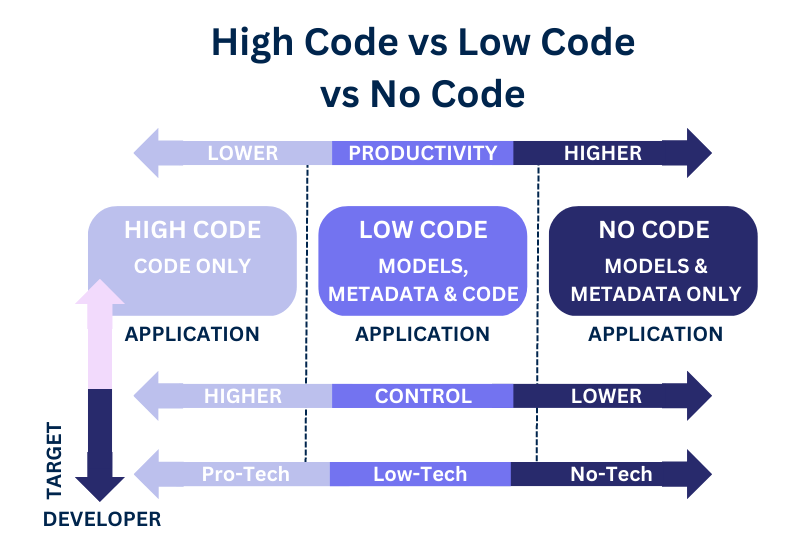
Managing files and directories efficiently is a fundamental aspect of automation scripts, enabling users to handle large volumes of data, organize storage, and streamline workflows without manual intervention. Python provides a rich set of modules that simplify these tasks, making it accessible for both beginners and experienced programmers to automate file system operations seamlessly.
In this section, we explore procedures to create, delete, and move files and directories using Python. We will also examine common file operations through a structured table and provide practical code snippets for batch renaming, organizing, and cleaning up files, empowering you to automate routine file management tasks effectively.
File and Directory Operations
Performing essential file and directory management tasks requires understanding of Python’s built-in modules such as os and shutil. These modules facilitate creation, deletion, movement, and organization of files and directories while ensuring compatibility across different operating systems.
- Creating Files and Directories: Use
open()for files andos.makedirs()for directories. - Deleting Files and Directories: Apply
os.remove()for files andshutil.rmtree()for directories. - Moving Files and Directories: Utilize
shutil.move()to relocate files or entire directories within the file system.
Common File Operations Table
Understanding standard file operations helps in planning automation workflows. The following table summarizes typical actions, their descriptions, and expected outcomes:
| Operation | Description | Expected Outcome |
|---|---|---|
| Creating a file | Using open() with ‘w’ mode | A new empty file appears at the specified path |
| Deleting a file | Using os.remove() | The specified file is removed from the filesystem |
| Creating a directory | Using os.makedirs() | A new directory is created at the target location |
| Deleting a directory | Using shutil.rmtree() | The directory and all its contents are removed |
| Moving or renaming a file | Using shutil.move() | File is relocated or renamed as specified |
| Listing directory contents | Using os.listdir() | An array of filenames and directories inside the specified folder |
Batch File Renaming and Organization
Automating the renaming and organization of files can significantly reduce manual effort, especially when handling large datasets or repetitive tasks. The following code snippets demonstrate common batch operations such as renaming files with sequential numbering, organizing files into folders based on file types, and cleaning up unnecessary files.
Example: Batch renaming files with a specific prefix and sequential numbers
import os

folder_path = 'path/to/your/files'
prefix = 'document'
for count, filename in enumerate(os.listdir(folder_path)):
    file_extension = os.path.splitext(filename)[1]
    new_name = f"prefix_count + 1file_extension"
    os.rename(os.path.join(folder_path, filename), os.path.join(folder_path, new_name))
Organizing files into subfolders based on file extensions
import os
import shutil

folder_path = 'path/to/your/files'
for filename in os.listdir(folder_path):
    extension = os.path.splitext(filename)[1].lower()
    target_folder = os.path.join(folder_path, extension.strip('.'))
    if not os.path.exists(target_folder):
        os.makedirs(target_folder)
    shutil.move(os.path.join(folder_path, filename), os.path.join(target_folder, filename))
Cleaning up files older than a certain date
import os
import time

folder_path = 'path/to/your/files'
days_threshold = 30
current_time = time.time()

for filename in os.listdir(folder_path):
    file_path = os.path.join(folder_path, filename)
    if os.path.isfile(file_path):
        file_age_days = (current_time - os.path.getmtime(file_path)) / (24
- 3600)
        if file_age_days > days_threshold:
            os.remove(file_path)
By implementing these procedures, you can automate routine file management tasks efficiently, thereby saving time, reducing errors, and maintaining organized storage systems tailored to your operational needs.
Web Automation with Python

Web automation is a powerful technique that enables the automation of repetitive tasks on websites, such as form submissions, data extraction, and interaction with dynamic web elements. Python offers robust libraries that simplify these processes, making it accessible for developers and data analysts to automate complex web workflows efficiently. Leveraging these tools can significantly save time and improve accuracy in tasks that would otherwise require manual effort.
By utilizing libraries like Selenium and Requests, Python users can simulate user interactions with web pages, automate data retrieval, and control browser behavior programmatically. These libraries are suited for different types of web automation needs, depending on whether the task involves complex browser interactions or simple HTTP requests. Understanding when and how to apply them is crucial for effective web automation scripts.
Using Libraries like Selenium and Requests for Web Automation
Both Selenium and Requests are widely used Python libraries for web automation, but they serve different purposes and fit different use cases. Selenium is designed for automating browser actions, making it ideal when interactions involve JavaScript, dynamic content, or complex UI elements. Requests, on the other hand, is focused on sending HTTP requests and handling responses, which is suitable for tasks like data scraping from static pages or APIs with minimal browser simulation.
To start automating web interactions, install the necessary libraries using pip:
pip install selenium requests
For Selenium, it is essential to have a compatible web driver installed (e.g., ChromeDriver for Google Chrome, GeckoDriver for Firefox). Once set up, you can instantiate a browser object and perform actions like navigating, clicking, filling forms, and extracting data. Requests simplifies HTTP communication by allowing you to send GET, POST, PUT, and DELETE requests, then process the server responses directly, which is ideal for data extraction tasks where rendering is unnecessary.
Automating Browser Actions and Data Extraction
Effective web automation involves simulating user actions such as navigating web pages, clicking buttons, submitting forms, and extracting relevant data. Selenium provides a comprehensive API for controlling browser behavior, which can be used to automate these interactions seamlessly.
Steps to automate common web interactions include:
- Launching the Browser: Create a browser instance with Selenium, specifying the driver.
- Navigation: Use the
get()method to open the target URL. - Locating Elements: Use methods like
find_element_by_id(),find_element_by_xpath(), orfind_element_by_css_selector()to identify web elements. - Performing Actions: Use actions such as
click(),send_keys()to simulate user interactions. - Extracting Data: Use properties like
textorget_attribute()to retrieve information from web elements. - Closing the Browser: Use
quit()to properly close the session.
For example, automating form submission involves locating form fields, inputting data, and clicking the submit button. Data extraction can be achieved by parsing the HTML content of the page and collecting specific information, such as product details, news headlines, or contact information, which can then be stored or processed further.
Comparison of Web Automation Tools
Choosing the appropriate web automation tool depends on the task complexity, content dynamics, and specific project requirements. The table below provides a comparative overview of popular tools, highlighting their main features and typical use cases:
| Tool | Description | Use Cases | Pros | Cons |
|---|---|---|---|---|
| Selenium | A browser automation framework that controls real browsers or headless browsers. | Automating complex web interactions, testing web applications, scraping dynamic content. | Supports multiple browsers, handles JavaScript, simulates real user behavior. | Requires WebDriver setup, can be slower due to full browser rendering. |
| Requests | A simple HTTP library for sending requests and handling responses. | Data scraping from static pages, API interactions, lightweight automation tasks. | Fast, easy to use, minimal setup, suitable for stateless requests. | Cannot handle JavaScript-rendered content, limited to static data retrieval. |
| Beautiful Soup | HTML and XML parser for extracting data from web pages. | Parsing and extracting data from static web pages. | Easy to use, works well with Requests for static scraping tasks. | Does not handle JavaScript or dynamic content. |
| Puppeteer (via Pyppeteer) | Headless Chrome automation library, similar to Selenium. | Testing, scraping dynamic content, controlled browser automation. | Fast, supports modern web features, easy to control headless Chrome. | Requires Node.js environment, more complex setup compared to Requests. |
Automating Data Processing and Analysis
Efficient data processing and analysis are essential components of automation workflows, enabling users to handle large datasets, perform transformations, and generate insightful reports seamlessly. Leveraging Python libraries such as pandas and openpyxl simplifies these tasks by providing powerful tools for reading, manipulating, and exporting data across various formats. Automating these processes not only saves time but also enhances accuracy and reproducibility in data-driven projects.
In this segment, we explore methods to read, write, and manipulate data files like CSV, Excel, and JSON. We delve into techniques for cleaning and transforming data to prepare it for analysis and reporting. Practical workflows illustrated through examples demonstrate how to harness pandas and openpyxl effectively for automating comprehensive data analysis pipelines.
Reading, Writing, and Manipulating Data Files
Handling data files efficiently is fundamental for automation scripts aimed at data analysis. Python offers versatile libraries such as pandas for working with CSV, Excel, and JSON formats, enabling developers to read data into DataFrames, modify datasets, and export results with minimal effort.
- Reading Data: Pandas provides functions like
read_csv(),read_excel(), andread_json()that facilitate importing data into structured DataFrames. These functions support parameters for encoding, delimiter specification, sheet selection, and more, ensuring flexibility across different data sources. - Writing Data: DataFrames can be exported using
to_csv(),to_excel(), andto_json(). These methods allow customization of output formats, including specifying sheet names, index inclusion, and file encoding, supporting seamless integration into automated workflows. - Manipulating Data: Using pandas, data can be filtered, sorted, grouped, and aggregated efficiently. Techniques like handling missing data with
dropna()orfillna(), transforming columns, and merging datasets are central to preparing data for analysis.
Data Cleaning, Transformation, and Report Generation
Data cleaning and transformation are critical steps to ensure quality and consistency before analysis. Automated scripts facilitate systematic handling of common issues such as missing values, duplicates, and inconsistent formats. These processes set the foundation for accurate insights and reliable reporting.
- Data Cleaning: Techniques include removing or imputing missing data, eliminating duplicates, and correcting data types. For example, filling missing entries with mean or median values using
fillna()enhances dataset completeness. - Data Transformation: Transformations involve creating new columns, recoding categorical variables, or normalizing data. Using pandas, functions like
apply(),map(), andastype()streamline these modifications. - Report Generation: Automated report creation involves summarizing data with descriptive statistics, exporting charts and tables, and exporting final reports in formats such as PDF or Excel. Pandas’
describe()and libraries like Matplotlib or Seaborn assist in visualizing data trends.
Sample Data Processing Workflow
Consider a scenario involving sales data stored in a CSV file, which requires cleaning, analysis, and report generation. The workflow might include:
Step Description Code Example Read CSV Data Import sales data into a DataFrame import pandas as pdsales_df = pd.read_csv('sales_data.csv', encoding='utf-8')Clean Data Remove duplicates and handle missing values sales_df.drop_duplicates(inplace=True)sales_df['Revenue'].fillna(sales_df['Revenue'].mean(), inplace=True)Transform Data Create new columns or recode categories sales_df['Profit'] = sales_df['Revenue']sales_df['Cost']
Generate Summary Compute descriptive statistics summary = sales_df.describe()Export Report Save cleaned data and summaries to Excel sales_df.to_excel('cleaned_sales.xlsx', index=False)
By automating these steps, organizations can routinely process large datasets, generate insights quickly, and prepare reports without manual intervention, thus fostering efficiency and accuracy in data analysis tasks.
Scripting System Tasks and Scheduling
Automating system tasks and managing process workflows are essential components of effective system administration and automation workflows. Leveraging Python’s capabilities allows for the creation of versatile scripts that can execute routine maintenance, monitoring, and other critical operations seamlessly. Additionally, scheduling these scripts ensures that system tasks are performed consistently and at designated times, optimizing system performance and reducing manual intervention.
This section explores how to utilize Python’s subprocess module for executing system commands and processes, as well as how to integrate task schedulers like cron on Unix-based systems and Windows Task Scheduler to automate routine tasks. Practical examples illustrate how to organize scripts for common system maintenance activities, enhancing the efficiency of system management through automation.
Managing System Processes Using the subprocess Module
The subprocess module in Python provides a powerful interface for spawning new processes, connecting to their input/output/error pipes, and obtaining their return codes. It enables automation scripts to interact directly with the operating system to perform tasks such as starting, stopping, or monitoring system processes.
Using subprocess.run() is a common approach for executing system commands. It waits for the command to complete and captures its output, which is useful for verifying successful execution or capturing logs. For more complex interactions, functions like subprocess.Popen() allow non-blocking process management, enabling scripts to handle multiple tasks simultaneously or interact with processes dynamically.
import subprocess

# Example: Restarting a service
result = subprocess.run(['systemctl', 'restart', 'nginx'], capture_output=True, text=True)
if result.returncode == 0:
    print("Nginx service restarted successfully.")
else:
    print("Failed to restart Nginx:", result.stderr)
Creating Scheduled Tasks Using Python and System Schedulers
Automating routine system tasks involves scheduling Python scripts to run at specific intervals or times. This can be achieved through system-specific schedulers such as cron on Linux/Unix systems and Windows Task Scheduler on Windows platforms. Proper setup of these schedulers ensures consistent execution of maintenance scripts, backups, or system checks without manual initiation.
On Linux, cron jobs are configured by editing the crontab file with crontab -e. A typical cron entry for running a Python script every day at 2:00 AM looks like:
0 2
-
-
- /usr/bin/python3 /path/to/your_script.py
On Windows, the Task Scheduler can be accessed through the Control Panel or PowerShell. Creating a scheduled task involves specifying the trigger (time/frequency), the action (running the Python executable with your script as an argument), and the conditions under which the task executes. Using PowerShell commands or the GUI, users can set up complex schedules tailored to operational needs.
Examples of Routine System Maintenance Scripts
Automated scripts for system maintenance typically include cleaning temporary files, updating software, backing up data, or checking disk health. Organizing these scripts with clear documentation and logging mechanisms ensures effective management and troubleshooting.
| Script Name | Description | Scheduled Frequency |
|---|---|---|
| cleanup_temp_files.py | Removes temporary files older than 7 days from specified directories to free disk space. | Daily at 3:00 AM |
| backup_home_directory.py | Creates compressed backups of user home directories and stores them in a remote server or external drive. | Weekly on Sundays at 1:00 AM |
| disk_health_check.py | Runs diagnostics on disk drives and sends alert emails if issues are detected. | Monthly on the 1st at 4:00 AM |
These scripts can be customized to fit specific system environments and operational policies, with logging and notification features integrated to alert administrators of success or failure.
Error Handling and Debugging in Automation Scripts
Effective error handling and debugging are crucial components of developing reliable and maintainable Python automation scripts. As automation workflows often interact with external systems, files, and network resources, unexpected issues can occur. Properly managing these exceptions ensures that scripts can recover gracefully or provide meaningful feedback for troubleshooting, thereby reducing downtime and improving robustness.
Implementing systematic error handling involves anticipating potential points of failure and using Python’s exception management constructs to capture and respond to errors. Complementing this, comprehensive logging and troubleshooting strategies facilitate the identification of issues, enable detailed record-keeping, and support efficient resolution of problems encountered during script execution.
Strategies for Identifying and Handling Exceptions
Handling exceptions effectively requires understanding the various types of errors that may arise and employing appropriate techniques to catch and manage them. Common strategies include the use of try-except blocks, specific exception handling, and the application of finally clauses for resource cleanup. These methods help prevent abrupt script termination and allow for controlled recovery or informative error reporting.
Python provides a hierarchy of exception classes, allowing for granular control over error management. For example, catching specific exceptions such as FileNotFoundError or TimeoutError can provide tailored responses, while a generic Exception handler ensures unforeseen errors are also managed.
try:
    # Code that may raise an exception
    result = perform_sensitive_operation()
except FileNotFoundError as e:
    # Handle missing file error
    print(f"File not found: e")
except TimeoutError as e:
    # Handle timeout error
    print(f"Operation timed out: e")
except Exception as e:
    # Handle any other unexpected errors
    print(f"An unexpected error occurred: e")
finally:
    # Cleanup actions, if necessary
    cleanup_resources()
Best Practices for Logging and Troubleshooting Automation Workflows
Implementing robust logging mechanisms is essential for tracking the execution flow, capturing error details, and facilitating troubleshooting. Logs should include informative messages about script progress, errors, and system states, aiding in diagnosing issues post-execution.
Using Python’s built-in logging module allows for configurable log levels, output formats, and destinations. This flexibility enables developers to set appropriate verbosity levels—such as DEBUG, INFO, WARNING, ERROR, or CRITICAL—based on the context or environment.
Effective logging practices involve:
- Consistently recording key events, such as start and end times, significant milestones, and error occurrences.
- Including contextual information, like variable states or system responses, to provide clarity during troubleshooting.
- Using exception tracebacks to pinpoint the origin of errors, which can be achieved with
logging.exception()method or Python’stracebackmodule.
Implementing Robust Error Handling Procedures with Code Snippets
Robust error handling procedures involve combining exception management with logging and resource management to ensure scripts can handle failures gracefully and provide actionable insights.
import logging
import traceback

# Configure logging
logging.basicConfig(filename='automation.log', level=logging.INFO,
                    format='%(asctime)s - %(levelname)s - %(message)s')

def main():
    try:
        # Example operation: reading a file
        with open('data.txt', 'r') as file:
            data = file.read()
        # Proceed with processing data
        process_data(data)
        logging.info('Data processed successfully.')
    except FileNotFoundError:
        logging.error('The data.txt file was not found.')
    except Exception:
        # Log full exception traceback for troubleshooting
        logging.exception('An unexpected error occurred during script execution.')
    finally:
        # Optional cleanup actions
        cleanup_resources()

def process_data(data):
    # Placeholder for data processing logic
    pass

def cleanup_resources():
    # Placeholder for resource cleanup code
    pass

if __name__ == '__main__':
    main()
By integrating exception handling with detailed logging and structured error responses, automation scripts become more resilient and easier to maintain. These practices contribute to smoother workflows, quicker problem resolution, and improved overall reliability of automation processes.
Packaging and Distributing Automation Scripts
Effective packaging and distribution of automation scripts are essential for ensuring their reusability, maintainability, and ease of deployment across different systems. Proper organization allows developers to manage large codebases efficiently, while user-friendly distribution methods facilitate seamless integration into various operational environments. This section explores best practices for organizing code, creating intuitive interfaces, and deploying automation scripts in a professional manner.
By implementing structured packaging techniques and deploying scripts with standardized tools, automation workflows become more scalable and adaptable. This enables organizations to maximize the value derived from their scripting investments, ensuring consistent performance and simplifying updates or modifications across diverse systems.
Organizing Scripts into Modules and Packages for Reuse
Structuring automation scripts into modules and packages enhances code reusability and maintains clarity within large projects. Python’s modular architecture promotes separation of concerns, making scripts easier to develop, test, and update.
Key guidelines include:
- Creating Modules: Break down scripts into logical units, each encapsulating related functionalities. For example, separate modules for file handling, web automation, and data processing facilitate reuse across multiple projects.
- Using Packages: Organize related modules into directories with an
__init__.pyfile, transforming them into packages. This hierarchical structure simplifies navigation and management of complex scripts. - Naming Conventions: Adopt clear, descriptive names for modules and packages to improve readability and maintainability.
- Documentation: Include inline comments and README files to clarify module purposes and usage instructions.
Leveraging Python’s import system allows easy incorporation of modules into different scripts, promoting code consistency and reducing duplication. For example, a data processing module can be imported into multiple automation scripts, ensuring standardized data handling routines.
Creating User-Friendly Command-Line Interfaces
Designing intuitive command-line interfaces (CLI) enhances user experience and broadens the accessibility of automation scripts. A well-structured CLI simplifies script execution, parameter passing, and error handling, especially for users with minimal programming background.
Guidelines for developing user-friendly CLIs include:
- Utilize Argument Parsing Libraries: Use Python’s
argparsemodule to define clear, descriptive command-line options and arguments. This module automatically generates help messages, improving usability. - Implement Input Validation: Validate user inputs to prevent runtime errors and guide users towards correct parameter usage. Providing helpful error messages enhances overall user satisfaction.
- Provide Default Values and Help Descriptions: Assign sensible defaults where applicable and include detailed descriptions for each argument to assist users in understanding script functionalities.
- Design for Flexibility: Allow optional parameters to enable customization without overwhelming the user with unnecessary options.
For example, a data processing automation script could accept parameters for input file paths, output destinations, and processing options, all clearly documented and accessible via --help.
Methods for Deploying Scripts Across Systems, Including Packaging with Setup Tools
Deploying automation scripts effectively across multiple systems ensures consistency, minimizes setup time, and facilitates updates. Packaging scripts using standardized tools simplifies distribution and installation processes.
Approaches include:
- Creating Installable Packages: Use Python’s
setuptoolsordistutilsto create distributable packages. These tools generate installable archives that can be easily deployed using pip or other package managers. - Using Virtual Environments: Encourage deployment within isolated virtual environments to manage dependencies and prevent conflicts between different projects or system configurations.
- Automating Deployment: Develop deployment scripts or utilize configuration management tools like Ansible, Chef, or Puppet to automate the installation process across multiple servers or workstations.
- Distributing via Repositories: Host packages on private or public repositories such as PyPI or internal servers, enabling users to install scripts with simple pip commands.
- Packaging Best Practices: Include comprehensive metadata, such as version numbers, dependencies, and author information, in setup files to ensure compatibility and maintainability.
For example, packaging an automation script as a Python wheel ( .whl) allows for straightforward installation across various environments, streamlining maintenance and updates. Additionally, deploying scripts via containerization tools like Docker can further simplify distribution by encapsulating all dependencies and configurations in a portable container image.
Best Practices and Ethical Considerations
Developing automation scripts in Python offers significant productivity benefits, but it also necessitates adherence to best practices and ethical standards. Maintaining high-quality, maintainable, and responsible code is essential to ensure that automation serves its intended purpose effectively without causing unintended harm or violations of privacy and security policies.
Implementing proper coding standards, comprehensive documentation, and version control enhances the reliability and scalability of automation solutions. Equally important are the ethical considerations surrounding tasks such as web scraping, system access, and data handling, which require mindful strategies to respect privacy, comply with legal regulations, and promote transparency. Additionally, maintaining and updating automation scripts over time ensures their continued effectiveness and safety in dynamic environments.
Coding Standards, Documentation, and Version Control
Adherence to established coding standards ensures that automation scripts are clean, readable, and easier to maintain. Following the PEP 8 guidelines, for example, promotes consistency in indentation, naming conventions, and code structure, which facilitates collaboration among team members and reduces bugs.
Comprehensive documentation is vital for understanding the purpose, functionality, and limitations of each script. Including clear comments, docstrings, and usage instructions helps both current and future users to effectively operate and modify automation tasks.
Version control systems like Git are indispensable for tracking changes, collaborating with teams, and managing different versions of automation scripts. Regular commits with meaningful messages, branching strategies, and code reviews ensure that updates are handled systematically, reducing the risk of introducing errors.
Ethical Considerations in Automation
Automation tasks involving web scraping and system access must be approached with respect for legal and ethical boundaries. Web scraping should comply with website terms of service, robots.txt directives, and applicable data protection laws to prevent unauthorized data collection or server overloads.
Automating system access, such as login procedures or file management, requires careful handling of credentials to avoid exposing sensitive information. Using secure storage methods, like environment variables or encrypted files, is fundamental to safeguarding data integrity and privacy.
Automation solutions should be designed to avoid causing disruptions or inadvertent damage to systems or networks. Implementing rate limiting, error handling, and user notifications contributes to responsible automation that respects the operational environment.
Maintaining and Updating Automation Scripts
Effective maintenance of automation scripts involves regular reviews to identify and fix bugs, adapt to changes in target environments, and incorporate new features. Logging and monitoring enable early detection of issues, ensuring scripts continue to function correctly over time.
Version control facilitates rollback capabilities and collaborative development, especially when multiple users are involved. Documenting updates and changes ensures transparency and helps teams understand the evolution of automation solutions.
Staying informed about the latest Python libraries, security practices, and legal regulations enhances the longevity and responsible deployment of automation scripts. Continuous learning and adherence to community best practices contribute to sustainable automation strategies.
Final Summary
Mastering how to code in Python for automation scripts empowers you to optimize workflows, reduce manual workload, and develop robust solutions tailored to your needs. As you implement these techniques, you’ll discover new opportunities to improve efficiency and maintain high standards of system management. Continuous learning and adherence to best practices will ensure your automation scripts remain effective and adaptable over time, opening the door to innovative and sustainable automation strategies.