Embark on a journey to master the art of setting up phpMyAdmin on your Ubuntu server. This guide provides a detailed roadmap, ensuring a smooth and secure installation of this essential database management tool. Whether you’re a seasoned developer or a newcomer, this comprehensive walkthrough will equip you with the knowledge and skills to efficiently manage your MySQL or MariaDB databases.
From the initial setup, including prerequisites like Apache, PHP, and MySQL, to securing your phpMyAdmin installation and troubleshooting common issues, we’ll cover every aspect. We will explore essential configurations, authentication methods, and security enhancements to help you optimize your database management experience. Get ready to unlock the full potential of phpMyAdmin!
Prerequisites for Installing phpMyAdmin
Before installing phpMyAdmin, it’s crucial to ensure your Ubuntu server meets specific requirements and has the necessary software dependencies. This preparation guarantees a smooth installation and optimal performance of the web-based database management tool. Following these prerequisites will save you time and potential headaches later on.
System Requirements
To ensure phpMyAdmin functions correctly, your server needs to meet certain hardware and software specifications. Meeting these requirements contributes to a stable and efficient environment for managing your databases.
- RAM: A minimum of 512MB of RAM is recommended for basic phpMyAdmin usage. For servers with multiple databases or high traffic, 1GB or more is advisable. For example, a server hosting a small e-commerce site with moderate database activity might comfortably run on 1GB of RAM.
- Disk Space: At least 100MB of free disk space is generally sufficient for the phpMyAdmin installation itself. However, the required disk space will increase based on the size of your databases and the amount of data they contain. Consider the total space required by your MySQL databases when evaluating disk space needs.
- Processor: A modern processor with at least a 1 GHz clock speed is generally sufficient. The performance of the processor becomes more critical with complex queries and larger databases.
Software Dependencies and Recommended Versions
phpMyAdmin relies on several software components to function. Ensuring these dependencies are installed and at the recommended versions is crucial for compatibility and security. Outdated versions can lead to vulnerabilities and performance issues.
- Web Server: Apache is the most common web server used with phpMyAdmin.
- PHP: PHP is the scripting language used by phpMyAdmin.
- MySQL/MariaDB: This is the database server that phpMyAdmin manages.
Here’s a breakdown of the recommended versions:
- Apache: Version 2.4 or later. Apache provides the web server environment that hosts phpMyAdmin.
- PHP: PHP 7.2 or later. It is recommended to use the latest stable version of PHP for security patches and performance improvements. For example, PHP 8.2 offers several performance enhancements over earlier versions.
- MySQL/MariaDB: MySQL 5.7 or later, or MariaDB 10.2 or later. Ensure the database server is compatible with the version of phpMyAdmin you intend to install.
Updating the Ubuntu Server
Before proceeding with the phpMyAdmin installation, it’s essential to update your Ubuntu server. This process ensures you have the latest security patches and software updates, minimizing potential vulnerabilities and ensuring compatibility.
Update the server by running the following commands in your terminal:
- First, update the package lists:
sudo apt update - Next, upgrade the installed packages:
sudo apt upgrade - Optionally, upgrade the system’s kernel (if available):
sudo apt dist-upgrade
After the update process is complete, reboot the server if prompted. This ensures that all updates are correctly applied.
Installing and Configuring Apache Web Server

To successfully host phpMyAdmin, a functional web server is essential. Apache, a widely used and robust open-source web server, is a popular choice for this purpose. This section details the installation, verification, and configuration of Apache on your Ubuntu server to ensure it can serve PHP files correctly, which is crucial for phpMyAdmin’s operation.
Installing Apache Web Server
Installing Apache on Ubuntu is a straightforward process using the Advanced Package Tool (apt), the default package manager. This process ensures that the necessary software and dependencies are installed and configured correctly.To install Apache:
1. Update the package list to ensure you have the latest package information
“`bash sudo apt update “`
2. Install Apache using the `apt install` command
“`bash sudo apt install apache2 “` The `apache2` package contains the Apache web server software. The `sudo` command provides the necessary administrative privileges.
3. Confirm the installation by checking the Apache version
“`bash apache2 -v “` This command will display the Apache version information, confirming a successful installation.
Verifying Apache Installation and Accessibility
After installation, verifying that Apache is running and accessible is a critical step. This confirms that the web server is operational and ready to serve web content.To verify Apache’s status:
1. Check the Apache service status using `systemctl`
“`bash sudo systemctl status apache2 “` This command displays the service’s current state, including whether it is active (running), any recent logs, and potential error messages. Verify Apache’s accessibility through a web browser. Open a web browser and navigate to your server’s IP address or domain name (e.g., `http://your_server_ip` or `http://your_domain.com`).
If Apache is running correctly, you should see the default Apache welcome page. This page confirms that Apache is serving content.
Configuring Apache to Serve PHP Files
Apache needs to be configured to handle PHP files. This involves installing the PHP interpreter and enabling the necessary Apache modules.To configure Apache for PHP: Install PHP and the necessary modules. Use `apt` to install PHP and the `libapache2-mod-php` module, which allows Apache to process PHP files. “`bash sudo apt install php libapache2-mod-php “` Restart Apache to apply the changes.
After installing the PHP module, restart Apache to ensure the changes take effect. “`bash sudo systemctl restart apache2 “` Create a test PHP file. Create a file named `info.php` in the `/var/www/html/` directory. This is the default document root for Apache. “`bash sudo nano /var/www/html/info.php “` Add the following PHP code to the file: “`php “` Save and close the file.
4. Test the PHP configuration. Open a web browser and navigate to `http
//your_server_ip/info.php`. If PHP is configured correctly, you should see the PHP information page. This page confirms that Apache is correctly processing PHP files. If you see the raw PHP code, then Apache is not configured to process PHP files. Double-check the installation of the `libapache2-mod-php` module and Apache’s configuration.
If the PHP information page does not appear, verify that the file has the correct permissions and that Apache is configured to serve PHP files. Check Apache’s error logs for any issues. The error log file is typically located at `/var/log/apache2/error.log`.
Installing PHP and Necessary Extensions
To ensure phpMyAdmin functions correctly, you must install PHP and several essential PHP extensions on your Ubuntu server. These extensions provide the necessary functionalities for phpMyAdmin to interact with the MySQL database and handle various tasks, such as character encoding and data compression. The following sections detail the installation process and the importance of specific extensions.
Installing PHP and Core Extensions
The first step involves installing PHP and its core extensions. These are the fundamental building blocks required for phpMyAdmin’s operation.To install PHP and the most common extensions, you can use the following command in your terminal:“`bashsudo apt updatesudo apt install php php-mysql php-cli php-gd php-mbstring php-xml php-zip php-curl“`This command first updates the package lists to ensure you have the latest information.
Then, it installs PHP itself (`php`), the MySQL extension (`php-mysql`), the command-line interface for PHP (`php-cli`), and several crucial extensions. The `php-gd` extension supports image manipulation, `php-mbstring` handles multi-byte string functions (essential for international character sets), `php-xml` provides XML parsing capabilities, `php-zip` enables ZIP archive handling, and `php-curl` facilitates communication with URLs.
Importance of Specific PHP Extensions
Certain PHP extensions play critical roles in phpMyAdmin’s functionality and overall performance. Understanding their functions is crucial for effective administration.Here’s a breakdown of the key PHP extensions and their significance:
- php-mbstring: This extension is vital for handling multi-byte character sets, which are used by many languages. Without it, phpMyAdmin may not correctly display or process data containing characters from languages like Chinese, Japanese, or Korean. Ensuring this extension is installed prevents data corruption and display issues.
- php-zip: The `php-zip` extension allows phpMyAdmin to handle ZIP archives. This is important for importing and exporting databases, as large databases are often compressed into ZIP files to save space and speed up transfer times. Without this extension, you will not be able to import or export databases compressed in the ZIP format.
- php-gd: This extension supports image manipulation. While not directly critical for core database functions, it is needed for features within phpMyAdmin that involve image display or processing, such as viewing BLOB data that contains images.
- php-mysql: Provides the interface for PHP to communicate with the MySQL database server. It’s essential for all database interactions, including connecting to the database, executing queries, and retrieving data.
- php-xml: Provides support for parsing XML documents, which is useful for various phpMyAdmin functions, including importing and exporting data in XML format.
- php-curl: Enables phpMyAdmin to interact with external URLs and web services. It’s utilized for features that involve fetching data from remote sources or integrating with other web applications.
Verifying PHP Version and Installed Modules
After installing PHP and its extensions, it is important to verify the installation and ensure that all the necessary modules are correctly enabled. This helps to troubleshoot any potential issues early on.To verify the PHP version and the installed modules, you can use the following command in your terminal:
php -vThis command displays the installed PHP version.
php -mThis command lists all the currently installed and enabled PHP modules.
By executing these commands, you can confirm that the PHP installation was successful and that all the required modules are present and activated, allowing phpMyAdmin to function properly.
Installing and Securing MySQL/MariaDB
To effectively manage your databases using phpMyAdmin, a robust and secure database server is essential. This section details the installation and security hardening of either MySQL or MariaDB on your Ubuntu server, along with the creation of a dedicated user for phpMyAdmin, enhancing security and operational efficiency.
Installing MySQL or MariaDB
The choice between MySQL and MariaDB often depends on personal preference and specific project requirements. MariaDB is a fork of MySQL and generally offers a drop-in replacement with enhanced features and performance. Both are readily available through Ubuntu’s package manager.To install MariaDB, execute the following commands in your terminal:
- Update the package list:
- Install MariaDB server:
- Verify the installation by checking the service status:
sudo apt update
sudo apt install mariadb-server
sudo systemctl status mariadb
If you prefer to install MySQL, the process is similar:
- Update the package list:
- Install MySQL server:
- Run the MySQL installation script:
- Verify the installation by checking the service status:
sudo apt update
sudo apt install mysql-server
sudo mysql_secure_installation
sudo systemctl status mysql
The `mysql_secure_installation` script is crucial for initial security setup, as it guides you through setting a root password and removing potentially vulnerable configurations.
Securing the MySQL/MariaDB Installation
Securing your database server is paramount to protect sensitive data. This involves setting a strong root password and removing or disabling features that could be exploited.After installing either MariaDB or MySQL, secure the installation by following these steps. The exact commands might slightly vary depending on the database system.For MariaDB:
- Secure the MariaDB installation:
- You will be prompted to set a root password. Choose a strong password.
- Remove anonymous user accounts.
- Disallow remote root login.
- Remove the test database and access to it.
- Reload privilege tables.
sudo mysql_secure_installation
For MySQL:
- Run the MySQL secure installation script:
- Set a root password when prompted.
- Remove anonymous user accounts.
- Disallow remote root login.
- Remove the test database and access to it.
- Reload privilege tables.
sudo mysql_secure_installation
By completing these steps, you significantly reduce the attack surface of your database server. A strong root password is the foundation of this security. Remember to store your root password securely.
Creating a Dedicated MySQL User for phpMyAdmin
For enhanced security, it is best practice to create a dedicated MySQL user with limited privileges specifically for phpMyAdmin. This prevents phpMyAdmin from accessing the database with the powerful root credentials, mitigating the impact of potential security breaches.To create a dedicated user, use the following steps:
- Log into the MySQL/MariaDB console as root:
- Enter your root password when prompted.
- Create a new user and grant necessary privileges:
sudo mysql -u root -p
CREATE USER ‘phpmyadmin’@’localhost’ IDENTIFIED BY ‘your_strong_password’; GRANT SELECT, INSERT, UPDATE, DELETE ON
.* TO ‘phpmyadmin’@’localhost’;
FLUSH PRIVILEGES; exit;
Replace `your_strong_password` with a strong, unique password. The `GRANT` statement allows the user to select, insert, update, and delete data in all databases. Consider restricting privileges further based on your specific needs. For example, if you only need to view data, you can restrict the user to `SELECT` privileges only. This is a crucial step for protecting your database.
Downloading and Configuring phpMyAdmin
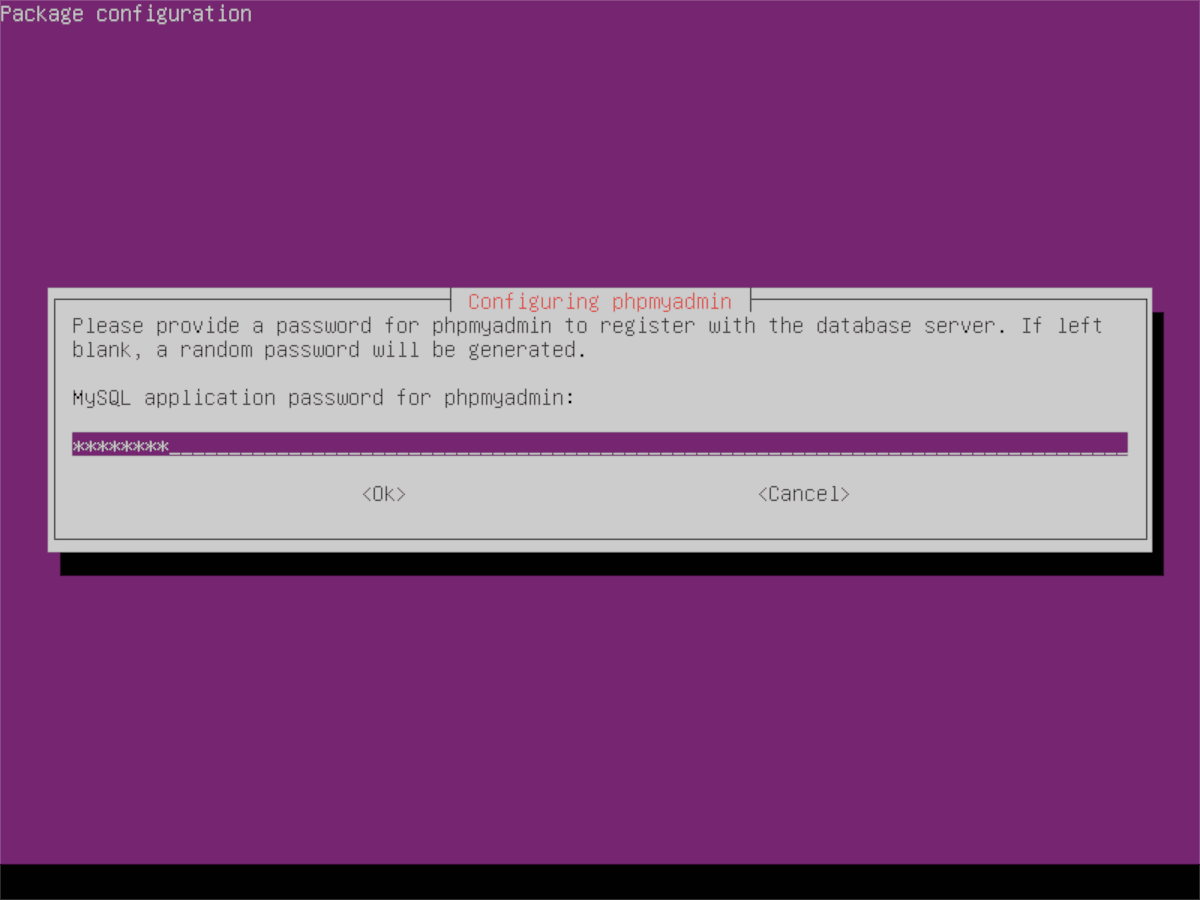
Now that the prerequisites are met, the next step involves acquiring and setting up phpMyAdmin. This process includes downloading the software, placing it in the correct directory, and configuring it to work with your MySQL/MariaDB installation.
Downloading the Latest phpMyAdmin Package
To begin, it is necessary to download the latest stable version of phpMyAdmin from the official website. This ensures you have the most recent features and security updates.To download phpMyAdmin, follow these steps:
- Visit the Official phpMyAdmin Website: Navigate to the official phpMyAdmin website (typically phpmyadmin.net). It is crucial to obtain the software from this trusted source to avoid potential security risks.
- Locate the Download Section: Find the download section on the website. This section usually provides links to the latest stable release of phpMyAdmin.
- Download the Package: Click on the download link for the latest version. The download will likely be a compressed archive file, such as a .zip or .tar.gz file. Note the download location.
Extracting the Downloaded Package
After downloading the phpMyAdmin package, the next step is to extract its contents to the appropriate web server directory. This is typically the directory where your web server serves files. For Ubuntu, this is usually `/var/www/html/`.The process of extracting the package involves these steps:
- Navigate to the Download Directory: Open a terminal or command prompt and navigate to the directory where you downloaded the phpMyAdmin package.
- Extract the Archive: Use the appropriate command to extract the archive. The command depends on the archive format:
- For .zip files: `unzip phpMyAdmin-[version]-all-languages.zip` (Replace `[version]` with the actual version number.)
- For .tar.gz files: `tar -xzf phpMyAdmin-[version]-all-languages.tar.gz` (Replace `[version]` with the actual version number.)
- Move the Extracted Folder: Move the extracted phpMyAdmin folder to your web server’s document root directory. The specific command will vary depending on the version number, but it will be something like: `sudo mv phpMyAdmin-[version]-all-languages /var/www/html/phpmyadmin` (Again, replace `[version]` with the correct version number). This command renames the directory to `phpmyadmin` for easier access.
- Change Directory Ownership (if necessary): If the web server user (usually `www-data` on Ubuntu) doesn’t have ownership of the `phpmyadmin` directory, you may need to change it: `sudo chown -R www-data:www-data /var/www/html/phpmyadmin`
Configuring phpMyAdmin
After extracting the phpMyAdmin files, configuration is necessary to ensure it connects to your MySQL/MariaDB database and functions correctly. The main configuration file is `config.inc.php`.Configuring phpMyAdmin involves these steps:
- Locate the Configuration File: The main configuration file is located in the phpMyAdmin directory. Its path is usually `/var/www/html/phpmyadmin/config.inc.php`.
- Create the Configuration File (if it doesn’t exist): If the `config.inc.php` file doesn’t exist, you will need to create it. You can often start by copying the `config.sample.inc.php` file: `cp /var/www/html/phpmyadmin/config.sample.inc.php /var/www/html/phpmyadmin/config.inc.php`
- Edit the Configuration File: Open `config.inc.php` in a text editor with root privileges (e.g., `sudo nano /var/www/html/phpmyadmin/config.inc.php`). Here are some key configurations:
- Authentication Type: Find the `$cfg[‘Servers’][$i][‘auth_type’]` setting. Common values are:
- `’config’`: Requires you to specify the username and password directly in the config file (less secure).
- `’cookie’`: Uses cookies for authentication (recommended for security).
Example (cookie authentication):
`$cfg[‘Servers’][$i][‘auth_type’] = ‘cookie’;`
- Server Hostname: Set the `$cfg[‘Servers’][$i][‘host’]` to your MySQL/MariaDB server’s hostname or IP address. Usually, this is `localhost` if the database server is on the same machine.
`$cfg[‘Servers’][$i][‘host’] = ‘localhost’;`
- Server Port (if not default): If your MySQL/MariaDB server is running on a non-default port (e.g., 3307), set `$cfg[‘Servers’][$i][‘port’]` accordingly.
`$cfg[‘Servers’][$i][‘port’] = ‘3307’;`
- User and Password (if using ‘config’ authentication): If you choose `’config’` for `auth_type`, you’ll need to specify the database username and password in the configuration. This is generally not recommended for security reasons.
`$cfg[‘Servers’][$i][‘user’] = ‘your_mysql_username’;` `$cfg[‘Servers’][$i][‘password’] = ‘your_mysql_password’;`
- Blowfish Secret (for cookie authentication): When using cookie authentication, it is important to set a secret passphrase for added security. This is used to encrypt the cookie data. Find the line with `$cfg[‘blowfish_secret’]` and set a unique, random string. This is critical for cookie-based authentication security.
`$cfg[‘blowfish_secret’] = ‘your_unique_blowfish_secret’;`
- Authentication Type: Find the `$cfg[‘Servers’][$i][‘auth_type’]` setting. Common values are:
- Save the Configuration File: Save the changes you’ve made to `config.inc.php`.
- Restart the Web Server: After making changes to the configuration file, restart your Apache web server to apply the changes: `sudo systemctl restart apache2`
Accessing phpMyAdmin through a Web Browser
Now that phpMyAdmin is installed and configured, the next step is to access it through a web browser. This allows you to manage your MySQL or MariaDB databases using a graphical user interface. This section details the URL format, potential access issues, and troubleshooting steps to ensure a successful connection.
URL Format for Accessing phpMyAdmin
After a successful installation, accessing phpMyAdmin is straightforward. The correct URL structure is crucial for a successful connection.To access phpMyAdmin, you will typically use the following URL format in your web browser:
http://your_server_ip_or_domain/phpmyadmin
Replace “your_server_ip_or_domain” with either the IP address of your Ubuntu server or the domain name associated with it. For example, if your server’s IP address is 192.168.1.100, the URL would be:
http://192.168.1.100/phpmyadmin
If you have a domain name, such as `example.com`, and have configured it to point to your server, the URL would be:
http://example.com/phpmyadmin
If you are accessing phpMyAdmin from the same server it is installed on (locally), you can use `localhost` or `127.0.0.1` instead of the IP address or domain name.
http://localhost/phpmyadmin
or
http://127.0.0.1/phpmyadmin
Ensure that your web server (Apache) is running and configured correctly to serve PHP files. Also, confirm that phpMyAdmin is correctly placed within the web server’s document root.
Common Issues Preventing phpMyAdmin Access
Several issues can prevent access to phpMyAdmin, even after successful installation. These problems often relate to network configuration, web server settings, or incorrect phpMyAdmin configuration.Here are the common issues:
- Firewall Rules: Firewalls, whether on the server itself (like UFW – Uncomplicated Firewall) or on the network, can block access to port 80 (HTTP) or port 443 (HTTPS), which are used by web servers. If these ports are blocked, you will not be able to reach phpMyAdmin.
- Incorrect Configuration in Apache: The Apache web server must be correctly configured to serve phpMyAdmin. This includes ensuring that the `phpmyadmin` directory is accessible and that the web server knows how to handle PHP files. Misconfigurations in virtual host files or `.htaccess` files can also cause problems.
- Incorrect phpMyAdmin Configuration: Errors in the phpMyAdmin configuration file (`config.inc.php`) can prevent access. This includes incorrect database server addresses, usernames, or passwords. Also, if the configuration file is not properly set up, phpMyAdmin may not be able to connect to the database server.
- PHP Issues: Problems with PHP itself, such as missing extensions or incorrect configurations, can also prevent phpMyAdmin from functioning correctly. If the necessary PHP modules are not installed or are misconfigured, phpMyAdmin may not load or may display errors.
- Permissions Problems: Incorrect file permissions can prevent the web server from accessing the phpMyAdmin files. If the web server user (usually `www-data` or `apache`) does not have the necessary permissions to read the phpMyAdmin files, access will be denied.
- SELinux or AppArmor: Security-Enhanced Linux (SELinux) or AppArmor, if enabled, can restrict access to files and network ports. These security modules might be preventing the web server from accessing phpMyAdmin files or from communicating with the database server.
Troubleshooting and Resolving Access Problems
When encountering access problems, it is important to systematically troubleshoot the issues. The following steps can help you identify and resolve the most common problems.
- Check the Web Server Status: Verify that your Apache web server is running. You can do this by using the following command in the terminal:
sudo systemctl status apache2
If the server is not running, start it with:
sudo systemctl start apache2
If it fails to start, review the error messages to diagnose the issue.
- Verify Firewall Rules: Ensure that your firewall allows traffic on ports 80 (HTTP) and 443 (HTTPS). If you are using UFW, you can check the status with:
sudo ufw status
If the ports are blocked, allow them with:
sudo ufw allow 80sudo ufw allow 443
After making changes, consider restarting Apache with `sudo systemctl restart apache2` to ensure the changes take effect.
- Check the URL: Double-check the URL you are using to access phpMyAdmin. Make sure you are using the correct IP address or domain name and that you have included `/phpmyadmin` at the end. Ensure that you are using `http` or `https` correctly.
- Examine Apache Configuration: Review your Apache configuration files to ensure that phpMyAdmin is correctly configured. This typically involves checking the `/etc/apache2/sites-available/000-default.conf` file (or the virtual host configuration file if you have one). Make sure the document root is correctly set and that PHP is enabled. If you have made any changes, restart Apache:
sudo systemctl restart apache2
- Review phpMyAdmin Configuration: Examine the `config.inc.php` file located in the phpMyAdmin directory (usually `/usr/share/phpmyadmin`). Check the database server hostname, username, and password. Ensure that these details match your MySQL/MariaDB configuration. You can also test the database connection from the command line using the `mysql` command-line client to verify that the database credentials are correct.
mysql -u your_username -p -h your_database_host
- Check PHP and Required Extensions: Verify that PHP and all necessary extensions are installed and enabled. You can do this by creating a simple PHP file (e.g., `info.php`) in your web server’s document root (usually `/var/www/html`) containing the following code:
<?phpphpinfo();?>
Access this file through your browser (e.g., `http://your_server_ip/info.php`). This will display detailed information about your PHP configuration, including the installed extensions. Make sure that the required extensions for phpMyAdmin (e.g., `php-mbstring`, `php-zip`, `php-gd`) are installed. Install any missing extensions using:
sudo apt updatesudo apt install php-mbstring php-zip php-gd … (other extensions)
Restart Apache after installing new extensions:
sudo systemctl restart apache2
- Check File Permissions: Ensure that the web server user (usually `www-data`) has the necessary permissions to access the phpMyAdmin files. You can check and modify file permissions using the `ls -l` command to view permissions and `chown` and `chmod` to modify them. For example:
sudo chown -R www-data:www-data /usr/share/phpmyadminsudo chmod -R 755 /usr/share/phpmyadmin
- Disable SELinux/AppArmor (Temporarily): If you suspect that SELinux or AppArmor is the issue, you can temporarily disable them to test if they are blocking access. However, this is not recommended for production environments. Consult the documentation for your specific security module to disable it safely.
- Check the Apache Error Logs: Examine the Apache error logs (usually located at `/var/log/apache2/error.log`) for any error messages that might indicate the cause of the problem. These logs often provide valuable clues about configuration issues or other problems.
Configuring phpMyAdmin Authentication
Now that phpMyAdmin is installed and accessible, configuring authentication is crucial for securing your database management tool. Proper authentication ensures that only authorized users can access and manage your databases. This section will explore the different authentication methods available and how to configure phpMyAdmin to use your existing MySQL user.
Authentication Methods in phpMyAdmin
phpMyAdmin offers several authentication methods to control user access. Choosing the right method depends on your security requirements and preferred user management approach.The two primary authentication methods are:
- Cookie Authentication: This is the default and most commonly used method. It stores a session cookie in the user’s browser after successful login. This cookie authenticates the user for subsequent requests until the session expires or the user logs out.
- HTTP Authentication: This method utilizes the web server’s built-in authentication mechanisms (e.g., .htaccess and .htpasswd files with Apache). The web server prompts the user for credentials, and upon successful authentication, phpMyAdmin grants access. This method is generally considered more secure than cookie authentication.
Configuring phpMyAdmin for MySQL User Authentication
To configure phpMyAdmin to use your existing MySQL user, you’ll modify the phpMyAdmin configuration file. This allows you to log in using your MySQL username and password, rather than a separate phpMyAdmin user.To achieve this, locate the `config.inc.php` file, usually in the phpMyAdmin installation directory (e.g., `/usr/share/phpmyadmin/`). Open this file in a text editor with appropriate privileges.Inside the `config.inc.php` file, find the configuration directives related to authentication.
The following is a common configuration snippet. Modify these values to use your MySQL user credentials:“`php Comparison of Authentication Methods
Choosing the appropriate authentication method is crucial for balancing security and usability. The following table compares the pros and cons of each method:
| Authentication Method | Pros | Cons | Security Considerations |
|---|---|---|---|
| Cookie Authentication |
|
|
|
| HTTP Authentication |
|
|
|
Enhancing phpMyAdmin Security
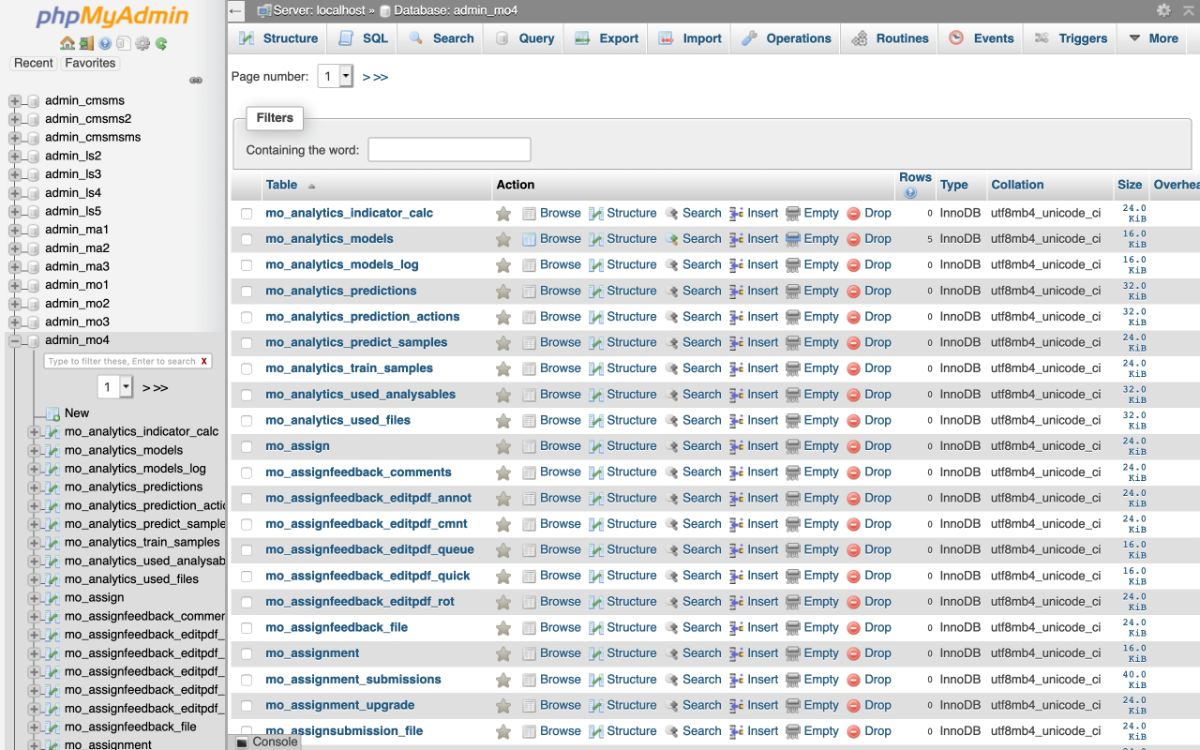
Securing phpMyAdmin is crucial to protect your database management system from unauthorized access and potential security breaches. Implementing robust security measures ensures the confidentiality, integrity, and availability of your data. This section Artikels several strategies to fortify your phpMyAdmin installation.
Changing the Default URL and Using SSL
Changing the default URL and utilizing SSL (Secure Sockets Layer) are fundamental steps in enhancing phpMyAdmin security. Modifying the default access point obscures the login page from potential attackers, while SSL encrypts the communication between the web server and the user’s browser.
- Changing the Default URL: By default, phpMyAdmin is often accessible via a standard URL, such as `http://your_server_ip/phpmyadmin`. This predictability makes it an easy target for automated attacks. To mitigate this, rename the phpMyAdmin directory. This can be done by:
- Navigating to the web server’s document root (e.g., `/var/www/html/` or `/var/www/`).
- Renaming the `phpmyadmin` directory to something less obvious, such as `pma_secure` or a random string. For example, using the `mv` command in the terminal:
sudo mv phpmyadmin pma_secure - Accessing phpMyAdmin through the new URL (e.g., `http://your_server_ip/pma_secure`).
- Using SSL: SSL encrypts the data transmitted between the client and the server, protecting sensitive information like login credentials. Implementing SSL involves:
- Obtaining an SSL certificate from a trusted Certificate Authority (CA). You can also generate a self-signed certificate for testing purposes, although it will result in browser warnings.
- Configuring your web server (e.g., Apache) to use the SSL certificate. This typically involves enabling the SSL module and configuring virtual hosts to listen on port 443 (HTTPS).
- Ensuring that all access to phpMyAdmin is redirected to HTTPS. This can be achieved by configuring your web server or by using a `.htaccess` file in the phpMyAdmin directory.
Restricting Access with .htaccess Files
.htaccess files provide a powerful mechanism for controlling access to directories on your web server. Implementing restrictions using these files adds an extra layer of security to phpMyAdmin, allowing only authorized users or IP addresses to access the application.
- Creating or Modifying the .htaccess File:
- Navigate to the phpMyAdmin directory (e.g., `/var/www/html/pma_secure`).
- Create or edit the `.htaccess` file. If the file does not exist, create it. Use a text editor, such as `nano` or `vim`, to add the necessary directives.
- Restricting Access by IP Address: To allow access only from specific IP addresses, add the following directives to the `.htaccess` file:
Order deny,allow Deny from all Allow from 192.168.1.100 Allow from 127.0.0.1 Replace `192.168.1.100` with the IP address you want to allow. The `127.0.0.1` entry allows access from the server itself.
- Implementing Password Protection: You can further restrict access by requiring a username and password before users can access phpMyAdmin.
- Create a password file using the `htpasswd` utility. If you don’t have it installed, install it with: `sudo apt install apache2-utils`.
- Run the following command, replacing `your_username` with your desired username:
sudo htpasswd -c /etc/apache2/.htpasswd your_usernameYou will be prompted to enter and confirm a password.
- Add the following directives to the `.htaccess` file:
     AuthType Basic

     AuthName "Restricted Area"

     AuthUserFile /etc/apache2/.htpasswd

     Require valid-user
This configuration will prompt users for a username and password before they can access phpMyAdmin.
Implementing Two-Factor Authentication (2FA) for phpMyAdmin
Two-factor authentication (2FA) significantly enhances the security of phpMyAdmin by requiring users to provide a second form of verification, in addition to their password, such as a code generated by an authenticator app. This makes it much harder for unauthorized users to gain access, even if they have the password.
- Choosing a 2FA Solution: Several solutions can be used to implement 2FA for phpMyAdmin. Some popular options include:
- Google Authenticator: This is a widely used authenticator app available for both Android and iOS.
- Authy: Another popular authenticator app that supports multiple devices and cloud backups.
- Duo Security: A commercial 2FA solution that provides more advanced features.
- Installing and Configuring the 2FA Module: The specific steps for installing and configuring a 2FA module vary depending on the chosen solution and the operating system. However, the general process involves:
- Installing the necessary PHP libraries: You’ll need to install PHP libraries that support the chosen 2FA method (e.g., Google Authenticator, Authy). This usually involves using `apt` or `yum` to install the appropriate packages. For example, using `apt`:
sudo apt install php-google-authenticator - Downloading the 2FA Module: Download a phpMyAdmin 2FA module from a reliable source. This might involve cloning a Git repository or downloading a package.
- Integrating the Module into phpMyAdmin:
- Place the 2FA module files in the appropriate phpMyAdmin directory.
- Configure phpMyAdmin to use the 2FA module. This usually involves modifying the phpMyAdmin configuration file (`config.inc.php`) to enable the module and configure its settings.
        $cfg['LoginCookieValidity'] = 3600; // Session time in seconds

        $cfg['TwoFactorAuth'] = [

         'type' => 'GoogleAuthenticator', // or 'Authy', 'Duo'

         'secret' => 'YOUR_SECRET_KEY', // The secret key generated during setup

         'name' => 'phpMyAdmin', // The application name

        ];
- Installing the necessary PHP libraries: You’ll need to install PHP libraries that support the chosen 2FA method (e.g., Google Authenticator, Authy). This usually involves using `apt` or `yum` to install the appropriate packages. For example, using `apt`:
- User Setup and Authentication:
- User Enrollment: Users will need to enroll in the 2FA system. This usually involves scanning a QR code with their authenticator app. The QR code contains a secret key that links their account to the 2FA module.
- Authentication Process: When users log in to phpMyAdmin, they will be prompted to enter their username, password, and a time-based one-time password (TOTP) generated by their authenticator app.
Updating phpMyAdmin
Keeping phpMyAdmin up-to-date is crucial for maintaining security and accessing the latest features and improvements. Regularly updating helps patch vulnerabilities, ensuring the integrity of your database management tool. This section Artikels the process for updating phpMyAdmin on your Ubuntu server.
Backing Up phpMyAdmin Configuration
Before updating, it is essential to back up your existing phpMyAdmin configuration. This ensures that you can restore your settings in case of any issues during the update process. The configuration files contain vital information about your setup, including authentication methods, server settings, and any customizations you’ve made.To back up your phpMyAdmin configuration, you need to copy the `config.inc.php` file.
This file contains all your specific configurations.
1. Locate the configuration file
The `config.inc.php` file is typically located in the phpMyAdmin installation directory, which is usually at `/usr/share/phpmyadmin/` or `/var/www/html/phpmyadmin/`.
2. Create a backup
Use the `cp` command to create a backup of the configuration file. For example: “`bash sudo cp /usr/share/phpmyadmin/config.inc.php /usr/share/phpmyadmin/config.inc.php.bak “` This command creates a backup file named `config.inc.php.bak` in the same directory. You can choose any descriptive name for your backup file.
3. Verify the backup
Ensure the backup file is created and contains the necessary configuration information. It is also recommended to back up the entire phpMyAdmin directory before updating. This will allow you to restore the entire installation if the update fails. You can do this using the following command: “`bash sudo cp -r /usr/share/phpmyadmin /usr/share/phpmyadmin.bak “` This command creates a backup of the entire directory and stores it as `/usr/share/phpmyadmin.bak`.
Potential Issues During the Update Process
Updating phpMyAdmin can sometimes lead to unforeseen issues. Being aware of these potential problems can help you troubleshoot effectively and minimize downtime.Here are some potential issues that may arise during the update process:* Configuration Conflicts: New versions of phpMyAdmin might introduce changes to the configuration files, potentially causing conflicts with your existing settings. This can lead to errors when accessing phpMyAdmin after the update.
Compatibility Problems
Older versions of PHP or MySQL/MariaDB may not be fully compatible with the latest version of phpMyAdmin. This can result in functionality issues or errors.
File Permissions Issues
Incorrect file permissions after the update can prevent phpMyAdmin from functioning correctly. The web server might not be able to read or write to the necessary files.
Database Connection Errors
Problems with the database server, such as incorrect credentials or an unavailable server, can prevent phpMyAdmin from connecting to your databases.
Update Failure
The update process itself might fail due to various reasons, such as network issues or incomplete downloads. This can leave phpMyAdmin in a broken state.
Customization Loss
If you have made significant customizations to the phpMyAdmin code, these changes might be overwritten during the update, leading to the loss of your modifications.
Security Vulnerabilities
While updating is meant to fix security vulnerabilities, the update process itself can sometimes introduce new vulnerabilities if not done correctly or if the update package is compromised.
Dependency Conflicts
Conflicts with other software packages on your server can arise, leading to errors during or after the update. For example, a required PHP extension might be missing or have an incompatible version.
Troubleshooting Common Issues
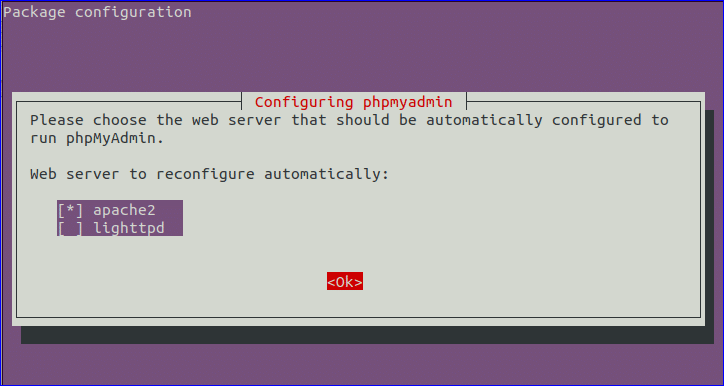
Setting up phpMyAdmin can sometimes present challenges. This section addresses common issues that users might encounter during the installation and configuration process, providing solutions to help resolve these problems and ensure a smooth experience. Understanding these troubleshooting steps will aid in diagnosing and fixing errors efficiently.
Identifying Common Error Messages
Error messages are crucial in pinpointing the root cause of issues. Knowing the meaning of common error messages is essential for effective troubleshooting.
- “The mysqli extension is missing. Please check your PHP configuration.” This error indicates that the MySQLi extension, necessary for phpMyAdmin to communicate with the MySQL/MariaDB database, is not enabled in your PHP configuration.
- “Cannot connect to the database server.” This error usually signifies a problem with the database server itself, incorrect database credentials, or network connectivity issues.
- “Forbidden You don’t have permission to access /phpmyadmin on this server.” This message points to a problem with Apache’s configuration, specifically related to access permissions for the phpMyAdmin directory.
- “Invalid username/password”. This error occurs when the credentials provided for the database user are incorrect.
- “Error: missing parameter: server”. This error message appears if the server parameter is not correctly defined in the phpMyAdmin configuration file.
Resolving Errors Related to PHP Configuration
PHP configuration errors are frequent, especially when installing phpMyAdmin on a new server. Ensuring the correct PHP extensions are installed and enabled is vital.
To address these issues, follow these steps:
- Verify PHP Installation and Version: Ensure that PHP is installed correctly and that the version meets phpMyAdmin’s requirements. The recommended PHP version should align with the phpMyAdmin version you are using.
- Install Necessary PHP Extensions: Use the command line to install the required extensions. For example, to install the `mysqli` extension, you would typically use a command such as:
sudo apt install php-mysqli
After installation, restart the Apache web server to apply the changes:
sudo systemctl restart apache2
- Check the php.ini file: The `php.ini` file contains configuration settings for PHP. Make sure that the necessary extensions are enabled. Search for the extensions like `mysqli` and ensure they are not commented out (i.e., they do not have a semicolon (`;`) at the beginning of the line).
- Review PHP Error Logs: Check the PHP error logs for detailed information about the errors. The location of the error log file depends on your PHP configuration but is often found in `/var/log/apache2/error.log` or a similar location. These logs can provide specific clues about the configuration problems.
Providing Solutions for Connection Errors with the Database Server
Database connection errors are often related to incorrect credentials, server availability, or network issues. Here’s how to address these connection errors.
- Verify Database Server Status: Confirm that the MySQL/MariaDB server is running. Use the command:
sudo systemctl status mysql
If the server is not running, start it with:
sudo systemctl start mysql
- Check Database Credentials: Double-check the username, password, and hostname in the phpMyAdmin configuration file (`config.inc.php`). Ensure that the credentials match the database user’s information.
- Firewall Configuration: Ensure that your firewall allows connections to the MySQL/MariaDB port (default: 3306). If you are using `ufw`, you can allow traffic on this port:
sudo ufw allow 3306
- Network Connectivity: Verify that the server where phpMyAdmin is installed can connect to the MySQL/MariaDB server. Check network connectivity using tools like `ping` or `telnet`.
- MySQL/MariaDB Configuration: Ensure that MySQL/MariaDB is configured to accept remote connections. This involves checking the `bind-address` setting in the MySQL/MariaDB configuration file (`my.cnf` or `my.ini`) and making sure it’s set to allow connections from your server. For example, setting `bind-address = 0.0.0.0` allows connections from any IP address. Be cautious with this setting and secure the database appropriately.
Final Thoughts
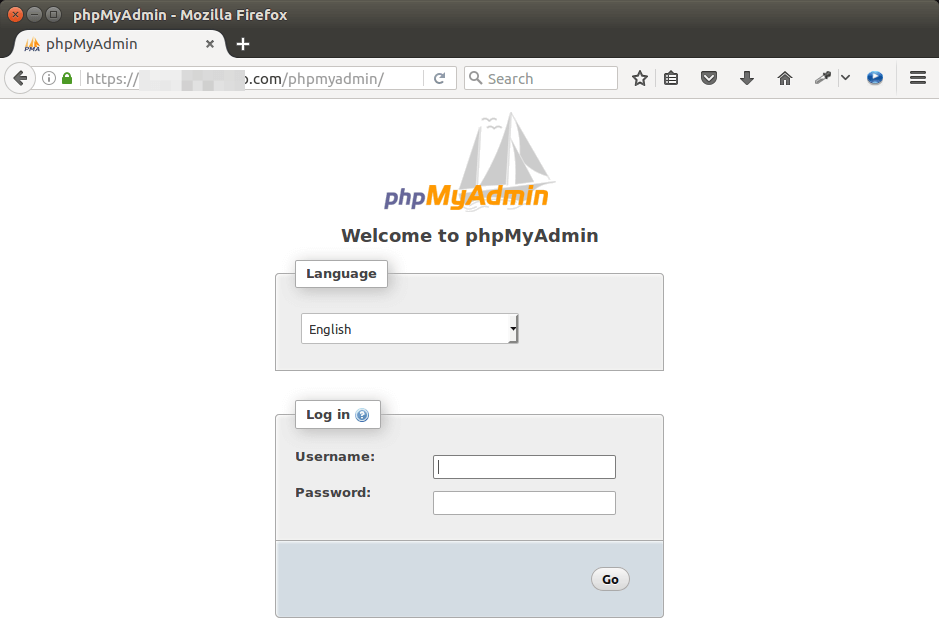
In conclusion, this comprehensive guide has provided a clear and concise approach to setting up and securing phpMyAdmin on your Ubuntu server. By following these steps, you’ve gained the tools and knowledge to efficiently manage your databases. Remember to prioritize security, keep your installation updated, and troubleshoot any issues promptly. With phpMyAdmin at your fingertips, you’re well-equipped to manage your data with confidence and ease.