Embarking on the journey of deploying your Laravel application on shared hosting can seem daunting, but with the right guidance, it becomes a manageable task. This guide, focusing on how to deploy Laravel app on shared hosting, will unravel the complexities of setting up your application, from configuring your environment to troubleshooting common issues. We’ll explore the essential steps, from preparing your application and setting up your database to configuring your web server and ensuring optimal performance.
Shared hosting, while cost-effective, presents unique challenges for Laravel deployments. We’ll navigate these challenges together, providing practical solutions and best practices to ensure a smooth and successful deployment. This guide will cover everything you need to know, whether you’re a seasoned developer or just starting with Laravel.
Introduction
Laravel is a popular, open-source PHP web application framework known for its elegant syntax and extensive features. It simplifies common web development tasks, enabling developers to build robust and maintainable applications more efficiently. Shared hosting, on the other hand, is a web hosting environment where multiple websites reside on a single server, sharing its resources.This discussion explores the core concepts of Laravel and shared hosting, outlining their characteristics and the implications of deploying a Laravel application within such an environment.
Fundamentals of Laravel
Laravel’s core purpose is to streamline the development of web applications by providing a structured framework. It follows the Model-View-Controller (MVC) architectural pattern, promoting code organization and maintainability.
- MVC Architecture: The MVC pattern separates the application into three interconnected parts: the Model (data and business logic), the View (user interface), and the Controller (handles user input and mediates between the Model and View).
- Artisan Console: Laravel includes an Artisan console, a command-line tool that facilitates common development tasks like database migrations, code generation, and cache clearing.
- Eloquent ORM: Laravel’s Eloquent Object-Relational Mapper (ORM) simplifies database interactions, allowing developers to work with database tables using PHP objects.
- Blade Templating Engine: Blade is Laravel’s built-in templating engine, providing a clean and efficient way to create dynamic web pages with features like template inheritance and control structures.
- Routing: Laravel’s routing system provides a flexible and intuitive way to define application routes, mapping URLs to specific controller actions.
- Security Features: Laravel offers built-in security features, including protection against common web vulnerabilities like cross-site scripting (XSS) and SQL injection.
Characteristics of Shared Hosting
Shared hosting is a cost-effective web hosting solution, particularly suitable for small to medium-sized websites with moderate traffic. Several websites share the same server resources, including CPU, RAM, and storage.
- Resource Sharing: Multiple websites share the server’s resources. This is the core principle of shared hosting.
- Cost-Effectiveness: Shared hosting is typically the most affordable hosting option.
- Limited Resources: Shared hosting plans come with resource limitations (CPU, RAM, storage, etc.) that can impact website performance under heavy load.
- Control Panel: Shared hosting providers typically offer a user-friendly control panel (e.g., cPanel, Plesk) to manage website files, databases, and email accounts.
- Technical Support: Shared hosting providers usually offer technical support to assist with server-related issues.
- Security Considerations: While providers implement security measures, the shared environment can potentially expose websites to security risks if one website on the server is compromised.
Advantages and Disadvantages of Shared Hosting for Laravel
Deploying a Laravel application on shared hosting presents both advantages and disadvantages. Understanding these trade-offs is crucial for making informed decisions about hosting choices.
- Advantages:
- Cost-Effectiveness: Shared hosting is the most budget-friendly option, making it accessible for small businesses and individuals.
- Ease of Setup: Many shared hosting providers offer one-click installations for popular applications, including Laravel.
- User-Friendly Control Panels: Control panels like cPanel simplify website management, making it easier to upload files, manage databases, and configure email.
- Disadvantages:
- Performance Limitations: Shared hosting environments often have resource constraints, which can impact the performance of Laravel applications, especially those with high traffic or complex functionalities.
- Limited Customization: Shared hosting providers often restrict access to server configurations, which can limit the ability to optimize the Laravel application for performance.
- Security Concerns: The shared environment can potentially expose the website to security risks if other websites on the server are compromised.
- Dependency Management Challenges: Installing and managing PHP packages and dependencies, which are essential for Laravel, can sometimes be challenging on shared hosting. Some hosts restrict SSH access or offer outdated PHP versions.
Prerequisites
Before deploying your Laravel application to shared hosting, it’s crucial to have all the necessary tools and resources in place. This section Artikels the essential prerequisites, ensuring a smooth deployment process. Having these elements ready beforehand will save time and potential headaches.
Essential Software and Tools
To successfully deploy a Laravel application, you’ll need several software components and tools. These tools facilitate the process of transferring files, managing dependencies, and configuring your application on the server.
- A Code Editor: You’ll need a code editor to modify your Laravel application’s files. Popular choices include Visual Studio Code (VS Code), Sublime Text, and PHPStorm. These editors provide features like syntax highlighting, code completion, and debugging tools.
- An FTP Client: File Transfer Protocol (FTP) clients are essential for transferring your application files from your local machine to the shared hosting server. Examples include FileZilla, Cyberduck, and WinSCP. These clients allow you to securely upload and download files.
- A Terminal/Command-Line Interface (CLI): A terminal or CLI is necessary for running commands related to Laravel and managing dependencies using Composer. You can use the built-in terminal in your code editor or a dedicated terminal application like Git Bash (on Windows) or the default terminal on macOS and Linux.
- Composer: Composer is a dependency management tool for PHP. It’s used to install and manage the libraries and packages your Laravel application relies on. You’ll need to have Composer installed on your local machine to manage your project’s dependencies.
- A Web Browser: A web browser is used to access your deployed Laravel application and test its functionality.
Laravel Project File Structure
Understanding the standard file structure of a Laravel project is fundamental for deployment. This structure dictates where your application’s code, assets, and configuration files reside. Knowing these locations is vital for uploading files to the correct directories on your shared hosting server.
Here’s a simplified overview of the key directories and files:
app/: This directory contains the core application logic, including models, controllers, and middleware.config/: This directory holds configuration files for your application, such as database settings, application environment variables, and other settings.database/: This directory contains database migrations, seeders, and factories.public/: This is the web root directory. It contains theindex.phpfile, which is the entry point for your application, as well as your application’s assets (CSS, JavaScript, images).resources/: This directory contains views (blade templates), language files, and other resources.routes/: This directory defines the routes for your application.storage/: This directory is used for storing cache files, logs, and other application data.vendor/: This directory contains all of your project’s dependencies installed by Composer. Do not upload this directory to your shared hosting server..env: This file contains your application’s environment variables, such as database credentials and API keys. Do not upload this file to your shared hosting server. Instead, create a new .env file on the server.composer.json: This file lists your project’s dependencies and is used by Composer to manage them.
Domain Name and Hosting Account Importance
A domain name and a hosting account are indispensable components for deploying a Laravel application. The domain name provides the address through which users will access your application, while the hosting account provides the server space and resources to host your application files.
- Domain Name: The domain name serves as the human-readable address (e.g., yourdomain.com) for your website or application. It’s how users will find and access your application online. Without a domain name, your application won’t be accessible through a user-friendly URL.
- Hosting Account: A hosting account provides the server space, resources (like CPU, RAM, and storage), and services (like a web server, database, and PHP) necessary to host your Laravel application. Shared hosting is a common and cost-effective option for smaller applications. You’ll upload your application files to the hosting server and configure the server to serve your application.
Minimum Server Requirements for Laravel
Before deploying your Laravel application, you need to ensure your shared hosting account meets the minimum server requirements. Meeting these requirements is essential for the application to function correctly.
- PHP Version: Laravel requires a specific PHP version. As of Laravel 10, the minimum required PHP version is 8.1. Ensure your hosting provider offers at least this version. Check your hosting control panel (like cPanel) to verify and potentially adjust your PHP version.
- Database: Laravel typically uses a database to store and manage data. MySQL is a commonly used database system, and many shared hosting providers offer it. You’ll need to create a database and a database user within your hosting account. Ensure that the hosting provider offers MySQL or a compatible database system and that you have the necessary database credentials.
- PHP Extensions: Laravel requires several PHP extensions to be enabled. These extensions provide the necessary functionality for the framework to operate correctly.
Commonly required PHP extensions include:
- PDO
- Mbstring
- OpenSSL
- Tokenizer
- XML
- Ctype
- JSON
- BCMath
- Fileinfo
You can usually enable these extensions through your hosting control panel.
Preparing Your Laravel Application
Before deploying your Laravel application, you must prepare it for a shared hosting environment. This involves configuring essential settings, installing dependencies, and optimizing the application for performance and security. Proper preparation ensures your application functions correctly and efficiently on the server.
Configuring the .env File
The `.env` file stores sensitive information like database credentials, application URLs, and API keys. Correct configuration is crucial for your application to connect to the database and function as intended.To configure your `.env` file:
- Database Credentials: Specify your database connection details. These typically include:
DB_CONNECTION: The database connection driver (e.g., mysql, pgsql, sqlite).DB_HOST: The database server hostname or IP address.DB_PORT: The database server port (e.g., 3306 for MySQL).DB_DATABASE: The name of your database.DB_USERNAME: Your database username.DB_PASSWORD: Your database password.
Example:
DB_CONNECTION=mysql DB_HOST=your_database_host DB_PORT=3306 DB_DATABASE=your_database_name DB_USERNAME=your_database_user DB_PASSWORD=your_database_password - Application Settings: Configure the application URL and other settings.
APP_NAME: Your application’s name.APP_URL: The base URL of your application (e.g., `https://yourdomain.com`).APP_ENV: The environment (e.g., production, development). Set this to `production` for your live site.APP_DEBUG: Set this to `false` in production to disable debug mode.
Example:
APP_NAME="Your Laravel App" APP_URL=https://yourdomain.com APP_ENV=production APP_DEBUG=false - Other Settings: Include any API keys or other configuration values required by your application. These depend on the specific services and packages you are using.
Generating an Application Key
The application key is a unique, randomly generated string used for encrypting data, securing sessions, and other cryptographic operations. Generating a key is a crucial security measure.
To generate an application key:
- Access your server’s terminal or SSH: Connect to your shared hosting account using SSH or a terminal provided by your hosting provider.
- Navigate to your Laravel project directory: Use the `cd` command to navigate to the root directory of your Laravel application.
- Run the key generation command: Execute the following Artisan command:
php artisan key:generateThis command generates a new key and automatically updates the `APP_KEY` value in your `.env` file.
- Verify the key: Open your `.env` file and confirm that the `APP_KEY` value has been set. The key should be a long, random string.
Installing Project Dependencies with Composer
Composer is a dependency manager for PHP that is used to install and manage the libraries and packages required by your Laravel application. Running `composer install` ensures that all the necessary dependencies are present on the server.
To install project dependencies:
- Access your server’s terminal or SSH: Connect to your shared hosting account using SSH or a terminal provided by your hosting provider.
- Navigate to your Laravel project directory: Use the `cd` command to navigate to the root directory of your Laravel application.
- Run the composer install command: Execute the following command:
composer install --no-devThe `–no-dev` flag prevents the installation of development dependencies, which are typically not needed in a production environment.
- Troubleshooting: If you encounter any errors during the installation process, carefully review the error messages. Common issues include missing PHP extensions or insufficient memory. Your hosting provider’s documentation or support can assist with resolving these issues.
Optimizing Your Laravel Application for Production
Optimizing your Laravel application improves performance and efficiency. This includes caching configurations, routes, and views.
To optimize your Laravel application:
- Cache Configuration: Cache your configuration files to reduce the overhead of loading them on each request.
php artisan config:cache - Cache Routes: Cache your routes to improve routing performance.
php artisan route:cache - Cache Views: Precompile your Blade views to reduce processing time. This is often done automatically by Laravel, but you can manually clear the view cache if needed.
php artisan view:clear - Optimize Class Loading: Optimize class loading for faster application initialization.
php artisan optimize:clear - Database Optimization: Optimize database queries and use database indexing appropriately to improve performance. Consider using a database query profiler to identify slow queries.
- Asset Optimization: Combine and minify your CSS and JavaScript files to reduce the number of HTTP requests and improve page load times. Tools like Laravel Mix or Vite can automate this process.
File Upload and Directory Structure
Deploying a Laravel application on shared hosting necessitates careful consideration of file organization and upload procedures. A well-defined structure and efficient upload methods are crucial for ensuring your application functions correctly and securely. This section Artikels a recommended directory structure and explores various file upload techniques.
Directory Structure Design
Organizing your files effectively is paramount for maintainability and security. A logical directory structure simplifies file management and minimizes potential security risks. The following structure is recommended for shared hosting environments:
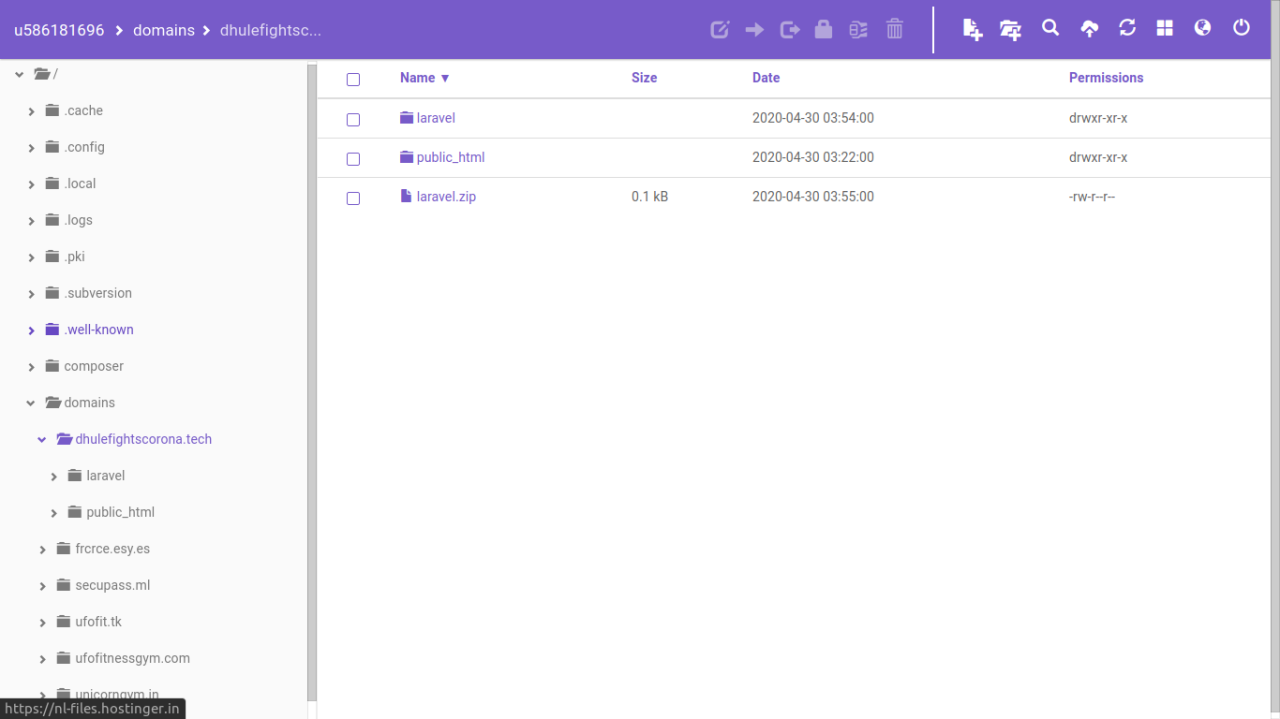
- Root Directory: This is the top-level directory where your Laravel application will reside. It’s often the directory you access via FTP or your hosting provider’s file manager.
- /public_html or Equivalent: This directory (or its equivalent, such as ‘www’ or ‘htdocs’) is the web server’s root directory, meaning it’s where the web server looks for files to serve to visitors.
- Inside the Root Directory:
- Application Files: All Laravel application files (excluding those in the ‘public’ directory) should reside in the root directory. This keeps your application’s core logic separate from the publicly accessible files.
- /public Directory Contents: The contents of your Laravel application’s ‘public’ directory (e.g., `index.php`, `css`, `js`, images, etc.) should be uploaded directly into the `public_html` directory. This is essential for making your website accessible.
- /storage Directory: Consider keeping your `/storage` directory outside of the `public_html` folder, for security reasons. However, if you need to make any files accessible, create a symbolic link.
This structure ensures that sensitive files (like configuration files, environment variables, and application code) are kept out of the web-accessible directory, enhancing security.
Uploading Laravel Project Files
Uploading your Laravel project files involves transferring them to the shared hosting server. The following steps guide you through this process using common methods.
- FTP (File Transfer Protocol): This is a standard protocol for transferring files between a client and a server. You’ll need an FTP client (e.g., FileZilla, Cyberduck) and your FTP credentials (provided by your hosting provider).
- Steps:
- Connect to your server using your FTP client and credentials.
- Navigate to your root directory.
- Upload all files and folders from your Laravel project,
-excluding* the `vendor` directory. The `vendor` directory contains project dependencies and is typically managed by Composer on the server. - File Manager (Provided by Hosting Provider): Most shared hosting providers offer a web-based file manager within their control panel (e.g., cPanel, Plesk).
- Steps:
- Log in to your hosting control panel.
- Locate the file manager.
- Navigate to your root directory.
- Upload all files and folders from your Laravel project,
-excluding* the `vendor` directory, using the file manager’s upload functionality. - Using Composer on the Server (Optional): If your hosting provider allows it, you can install Composer on the server. This allows you to manage dependencies directly on the server, potentially streamlining the deployment process. However, this is less common on shared hosting.
Remember to upload all hidden files (files starting with a dot, such as `.env` and `.htaccess`) to ensure your application functions correctly.
Uploading the ‘public’ Directory Contents
The contents of your Laravel application’s `public` directory are what the web server serves to visitors. Correctly uploading these files is critical for your website to function.
- Steps:
- Locate the `public` directory within your Laravel project.
- Access your hosting server via FTP or the file manager.
- Navigate to your `public_html` (or equivalent) directory on the server.
- Upload
-all* the contents of your local `public` directory (including `index.php`, `css`, `js`, images, and any other files) into the `public_html` directory.
-Do not* upload the `public` directory itself; upload its contents directly.
This ensures that the `index.php` file (the entry point for your Laravel application) is directly accessible via your domain.
Comparison of File Upload Methods
Different methods of uploading files have varying advantages and disadvantages. The table below compares FTP, file manager, and Composer-based deployment (if available) to help you choose the best approach for your needs.
| Method | Advantages | Disadvantages | Ease of Use |
|---|---|---|---|
| FTP |
|
|
Medium |
| File Manager |
|
|
Easy |
| Composer (Server-side) |
|
|
Advanced |
Database Setup and Configuration
Setting up and configuring your database is a crucial step in deploying your Laravel application on shared hosting. This section will guide you through creating a MySQL database, importing your database schema, and configuring your application to connect to it. Proper database configuration ensures your application can store and retrieve data effectively.
Creating a MySQL Database on Shared Hosting
To create a MySQL database, you’ll typically use your shared hosting provider’s control panel, such as cPanel or Plesk. The process generally involves the following steps:
- Access your hosting control panel: Log in to your hosting account and navigate to the control panel.
- Locate the database management section: Look for an icon or link labeled “MySQL Databases,” “Databases,” or something similar. The exact wording may vary depending on your hosting provider.
- Create a new database: Enter a name for your database. It’s a good practice to choose a name that’s relevant to your application. For example, if your application is for managing a blog, you could name the database `blog_db`.
- Create a database user: You’ll need to create a database user and assign it a strong password. This user will be used by your Laravel application to connect to the database.
- Grant privileges to the user: Grant the newly created user all privileges (SELECT, INSERT, UPDATE, DELETE, etc.) on the database you created. This ensures the user has the necessary permissions to manage the database.
- Note down the credentials: Carefully note down the database name, database username, password, and the database host (usually `localhost` for shared hosting). You’ll need these credentials later when configuring your Laravel application.
The interface will look different depending on your hosting provider, but the core steps are generally the same. Always refer to your hosting provider’s documentation for specific instructions. For instance, in cPanel, the database section typically allows you to create a database, create a user, and then add the user to the database with appropriate privileges. Plesk provides a similar user interface for database management.
Importing Your Database Schema (Migrations)
After creating your database, you need to import your database schema, typically defined by your Laravel migrations. This process creates the tables and other database objects necessary for your application to function.
There are a few methods for importing your database schema:
- Using `php artisan migrate` via SSH: This is the recommended method. You’ll need to connect to your shared hosting server via SSH. Then, navigate to your application’s root directory and run the following command:
php artisan migrate
This command executes all your pending migrations, creating or modifying the necessary database tables.
- Using phpMyAdmin: Many shared hosting providers offer phpMyAdmin, a web-based tool for managing MySQL databases. You can use phpMyAdmin to import your database schema.
- Export your migrations as SQL: Run `php artisan migrate:status` in your local development environment to verify migrations. Then, create a new database. Finally, export your migrations as SQL using `php artisan migrate:status –path=/database/migrations`.
This will generate a SQL file containing the `CREATE TABLE` statements for your database tables.
- Log in to phpMyAdmin: Access phpMyAdmin through your hosting control panel and log in using your database credentials.
- Select your database: Select the database you created earlier.
- Import the SQL file: Click the “Import” tab and browse to the SQL file you exported. Then, click “Go” to import the schema.
- Export your migrations as SQL: Run `php artisan migrate:status` in your local development environment to verify migrations. Then, create a new database. Finally, export your migrations as SQL using `php artisan migrate:status –path=/database/migrations`.
- Using a database management tool: Some shared hosting providers allow access to database management tools such as MySQL Workbench. These tools provide a graphical interface for importing SQL files.
The SSH method is usually preferred because it’s more automated and integrates seamlessly with your Laravel workflow. Using phpMyAdmin is a viable alternative if SSH access is limited.
Configuring Database Connection Details in `.env`
The `.env` file stores sensitive configuration information, including your database connection details. You need to update this file with the credentials you obtained when creating your MySQL database.
Open your `.env` file (located in the root directory of your Laravel application) and locate the following database-related settings:
DB_CONNECTION=mysql: This specifies the database connection driver (MySQL in this case).DB_HOST=localhost: This specifies the database host. For shared hosting, it’s usually `localhost`.DB_PORT=3306: This specifies the database port (the default MySQL port is 3306).DB_DATABASE=your_database_name: Replace `your_database_name` with the actual name of your database.DB_USERNAME=your_database_username: Replace `your_database_username` with your database username.DB_PASSWORD=your_database_password: Replace `your_database_password` with your database password.
After updating the `.env` file, save it. Your Laravel application will now use these credentials to connect to your database. Remember to never commit your `.env` file to your version control repository (like Git) as it contains sensitive information.
Managing Database Migrations After Deployment
After deploying your application, you may need to run migrations to update your database schema.
To manage database migrations after deployment, consider the following approaches:
- SSH Access: If your hosting provider offers SSH access, you can use the `php artisan migrate` command to run migrations. Connect to your server via SSH, navigate to your application’s root directory, and run the command.
- Deployment Scripts: Implement deployment scripts that automatically run migrations as part of the deployment process. This ensures your database schema is always up-to-date when you deploy new code. This approach is particularly beneficial when you have automated deployment pipelines.
- Database Management Tools: Utilize database management tools, such as phpMyAdmin, to execute migrations. This is a less efficient approach, but it might be the only option if SSH access is unavailable.
Remember to always back up your database before running migrations, especially in a production environment. This allows you to restore your database to a previous state if any issues arise during the migration process.
Configuring the Web Server (Apache/Nginx)
Setting up your web server correctly is crucial for your Laravel application to function properly on shared hosting. This involves configuring the server to direct incoming requests to the correct directories and handle file access permissions. The specific configuration depends on the web server software your hosting provider uses, most commonly Apache or Nginx. This section will guide you through the essential steps, primarily focusing on Apache, as it is more prevalent on shared hosting environments.
Configuring .htaccess for Apache
The `.htaccess` file, short for “hypertext access,” is a configuration file used by Apache web servers. It allows you to customize the behavior of the web server on a per-directory basis. In the context of Laravel, the `.htaccess` file is essential for redirecting all traffic to your application’s `public` directory. This is because the `public` directory is the entry point for all requests to your Laravel application.To configure the `.htaccess` file, you’ll need to create a new file named `.htaccess` in the root directory of your Laravel application (the same directory where your `artisan` file resides).The following code snippet provides the necessary directives for the `.htaccess` file:“`apache
-
<IfModule mod_rewrite.c>: This directive checks if the `mod_rewrite` module is enabled on the Apache server. This module is required for URL rewriting. If the module is not enabled, the directives within the block will be ignored. -
RewriteEngine On: This line enables the rewrite engine, which is necessary for the rules to be applied. -
RewriteRule ^(.*)$ public/$1 [L]: This is the core of the redirection.-
RewriteRule: This directive defines a rule for rewriting URLs. -
^: Matches the beginning of the URL. -
(.*): This is a regular expression that captures everything after the root directory. It matches any character (`.`) zero or more times (`*`), and the parentheses create a capturing group. -
$: Matches the end of the URL. -
public/$1: This is the target URL. It redirects all requests to the `public` directory, and the `$1` represents the content captured by the first capturing group (the part of the URL after the root directory). -
[L]: This flag indicates that this is the last rule to be processed. The server will not look for any further rules after this one.
-
After uploading the `.htaccess` file to your hosting, all requests to your domain should be directed to the `public` directory, allowing your Laravel application to handle them correctly.
Handling Permission Issues
Shared hosting environments often have strict file permission settings to ensure security and prevent one user from affecting another. Incorrect file permissions can lead to various issues, such as the web server being unable to read your files or write to specific directories.Here’s a general guide to managing file permissions on shared hosting:
- File Permissions: Files should generally have permissions set to `644` (read and write for the owner, read for group and others).
- Directory Permissions: Directories should generally have permissions set to `755` (read, write, and execute for the owner, read and execute for group and others).
-
Specific Directory Permissions: Certain directories, such as `storage` and `bootstrap/cache`, may require specific permissions.
- The `storage` directory needs to be writable by the web server. This is usually achieved by setting its permissions to `775` or `777` (read, write, and execute for the owner, group, and others). However, setting it to `777` is a security risk, so try `775` first and only resort to `777` if necessary.
- The `bootstrap/cache` directory also needs to be writable by the web server, typically with permissions `775` or `777`.
- Using an FTP Client: You can typically manage file permissions using an FTP client like FileZilla or Cyberduck. Right-click on a file or directory and select “File Permissions” or a similar option to modify the permissions.
- Using SSH (If Available): If your hosting provider offers SSH access, you can use the `chmod` command to change file permissions. For example:
-
chmod 644 filename.php: Sets the file permissions for `filename.php` to `644`. -
chmod 755 directory_name: Sets the directory permissions for `directory_name` to `755`. -
chmod -R 775 storage: Sets permissions for the `storage` directory and all its contents to `775`. The `-R` flag applies the change recursively.
-
- Identifying the Web Server User: To determine the correct user for setting permissions, you might need to identify the user that the web server is running as. You can often find this information in your hosting control panel or by contacting your hosting provider. The web server user needs to be able to read and execute files and write to the `storage` and `bootstrap/cache` directories.
Always prioritize the least permissive settings that allow your application to function correctly. For example, if `775` works, avoid using `777`. Regularly review and adjust permissions as needed to maintain the security of your application.
Configuring Virtual Hosts (If Available)
Some shared hosting providers allow you to configure virtual hosts, which enable you to host multiple websites or applications under a single IP address. If your hosting plan supports virtual hosts, you can use them to further refine your Laravel application’s configuration.Here’s how to configure a virtual host to point to your Laravel application’s `public` directory:
- Accessing the Hosting Control Panel: Log in to your hosting control panel (e.g., cPanel, Plesk, or a custom panel).
- Finding the Virtual Host Configuration: Look for a section related to “Domains,” “Virtual Hosts,” or a similar option. The exact wording and location will vary depending on your hosting provider’s control panel.
- Creating a New Virtual Host: Create a new virtual host for your domain.
- Specifying the Document Root: The “Document Root” or “Website Root” setting is the most crucial part. Set this to the `public` directory of your Laravel application. For example, if your application is in the `public_html` directory, the document root would be `/home/your_username/public_html/public`.
- Configuring Other Settings: You might be able to configure other settings such as the domain name, subdomain, and SSL certificate.
- Saving the Configuration: Save the virtual host configuration. The changes might take a few minutes to propagate.
After configuring the virtual host, your domain or subdomain should now correctly point to your Laravel application’s `public` directory. This setup eliminates the need for the `.htaccess` file in most cases, as the virtual host configuration directly tells the web server where to find the application’s entry point. However, if you still encounter issues, ensure that the `.htaccess` file is present in your application’s root directory and contains the necessary rewrite rules.
Deployment Steps and Troubleshooting
Deploying a Laravel application on shared hosting can sometimes present challenges. This section provides a detailed, step-by-step guide to help you deploy your application successfully, along with solutions to common problems and strategies for debugging and optimizing performance.
Deployment Steps
Deploying a Laravel application on shared hosting involves several key steps. Careful execution of these steps ensures a smooth and successful deployment.
- Access Your Hosting Account: Log in to your shared hosting account’s control panel (e.g., cPanel, Plesk). This is the central hub for managing your website files, databases, and other settings.
- Upload Your Application Files: Upload your Laravel application files to the `public_html` directory (or the designated web root directory) of your hosting account. You can use an FTP client (FileZilla, Cyberduck) or the file manager provided by your hosting control panel. Ensure you upload all files, including hidden files like `.env`, `.htaccess`, and those in the `storage` directory.
Note: It’s generally recommended to upload the contents of your Laravel application’s `public` directory to the `public_html` directory. This approach enhances security by preventing direct access to your application’s core files.
- Configure Your `.env` File: Upload your `.env` file. This file contains sensitive configuration details, such as database credentials, API keys, and application environment variables. You may need to edit this file to reflect the settings of your shared hosting environment.
Important: Securely store your `.env` file. Prevent unauthorized access to this file as it contains sensitive data.
- Set File Permissions: Set the correct file permissions for your application files and directories. Incorrect permissions can lead to errors. Common permission settings include:
- `storage` and `bootstrap/cache` directories: Grant write permissions to the web server user (e.g., `775` or `777`, though use `777` with caution).
- Other directories and files: Typically, `644` for files and `755` for directories.
- Configure Your Database: Create a MySQL database in your hosting control panel. Note the database name, username, and password, and update the `.env` file with these credentials.
- Run Database Migrations and Seeders: Connect to your hosting server using SSH or the terminal provided by your hosting control panel. Navigate to your application’s root directory and run the following commands:
- `php artisan migrate`: To run your database migrations.
- `php artisan db:seed`: To seed your database with initial data, if applicable.
- Configure Virtual Host (if necessary): If you’re not using the `public` directory as the web root, you may need to configure a virtual host in your hosting control panel to point to the `public` directory.
- Clear the Cache: Clear your application’s cache to ensure that the latest changes are reflected. Run the following commands in your application’s root directory:
- `php artisan config:cache`
- `php artisan route:cache`
- `php artisan view:clear`
- `php artisan cache:clear`
- Test Your Application: Access your website through your domain name to verify that your application is running correctly.
Common Errors and Solutions
Deploying a Laravel application often encounters various errors. Understanding these common errors and their solutions can significantly streamline the troubleshooting process.
- Permission Errors: These errors often occur due to incorrect file permissions.
- Problem: The web server user does not have the necessary permissions to write to the `storage` or `bootstrap/cache` directories.
- Solution: Use an FTP client or your hosting control panel’s file manager to change the permissions of the `storage` and `bootstrap/cache` directories to `775` or `777`. Remember to exercise caution with `777` and restrict its use as much as possible.
- Missing Dependencies: Your application might be missing required PHP extensions or Composer dependencies.
- Problem: Your application requires PHP extensions that are not enabled on your hosting server.
- Solution: Contact your hosting provider and request that they enable the necessary PHP extensions (e.g., `pdo_mysql`, `mbstring`, `openssl`).
- Problem: Composer dependencies are not installed or are not correctly installed.
- Solution: SSH into your server and navigate to your application’s root directory. Run `composer install` to install the dependencies. If this fails, try running `composer update`.
- Incorrect Database Credentials: Incorrect database credentials in your `.env` file will prevent your application from connecting to the database.
- Problem: The database host, name, username, or password in your `.env` file do not match the credentials provided by your hosting provider.
- Solution: Double-check your database credentials in your hosting control panel and ensure they are accurately reflected in your `.env` file.
- Incorrect Web Server Configuration: Incorrect web server configuration can lead to various issues, such as 404 errors or incorrect routing.
- Problem: The web server is not configured to point to the `public` directory (or the appropriate directory if you’ve modified your directory structure).
- Solution: Ensure your web server is correctly configured to serve files from the `public` directory. This may involve configuring a virtual host or adjusting the document root in your hosting control panel.
- Problem: The `.htaccess` file is not correctly configured.
- Solution: Ensure your `.htaccess` file is correctly configured to handle URL rewriting. The default Laravel `.htaccess` file should work in most cases. However, you may need to adjust it based on your hosting environment.
- Cache Issues: Cache issues can lead to unexpected behavior, such as outdated content or incorrect routing.
- Problem: Your application’s cache contains outdated information.
- Solution: Clear your application’s cache by running the cache-clearing commands in your application’s root directory: `php artisan cache:clear`, `php artisan config:clear`, `php artisan route:clear`, and `php artisan view:clear`.
Debugging Your Laravel Application on Shared Hosting
Debugging a Laravel application on shared hosting requires a different approach compared to a local development environment. Here’s how to effectively debug your application on shared hosting.
- Enable Debug Mode: Enable debug mode in your `.env` file by setting `APP_DEBUG=true`. This will display detailed error messages in your browser, including the error message, file name, and line number. However, remember to disable debug mode in a production environment for security reasons.
- Check Error Logs: Your hosting provider typically provides access to error logs. These logs contain valuable information about errors that occur on your website.
Error logs can be found in your hosting control panel (e.g., cPanel) or by accessing the logs directory of your website. The location depends on your hosting provider.
Review the error logs to identify the root cause of the errors.
- Use `dd()` and `dump()`: Utilize the `dd()` (dump and die) and `dump()` functions in your code to inspect the values of variables and debug your application.
Remember to remove or comment out these debugging statements before deploying to a production environment.
- Logging: Use Laravel’s built-in logging features to log information about your application’s behavior. This can help you track down issues and understand how your application is functioning.
The `Log` facade can be used to write log messages to various channels (e.g., `single`, `daily`, `slack`).
- Check Your Browser’s Developer Tools: Use your browser’s developer tools (e.g., Chrome DevTools, Firefox Developer Tools) to inspect network requests, console errors, and other relevant information. This can help you identify issues with your front-end code or API calls.
Clearing the Cache and Optimizing Performance
Clearing the cache and optimizing performance are crucial steps for ensuring your Laravel application runs efficiently on shared hosting. Regularly clearing the cache and implementing performance optimization techniques can significantly improve your application’s speed and responsiveness.
- Clear the Cache Regularly: Regularly clear your application’s cache to ensure that the latest changes are reflected. This includes:
- Configuration Cache: `php artisan config:cache`
- Route Cache: `php artisan route:cache`
- View Cache: `php artisan view:clear`
- Application Cache: `php artisan cache:clear`
- Optimize Composer Autoload: Optimize the Composer autoloader by running `composer dump-autoload –optimize`. This can improve the performance of your application by reducing the time it takes to load classes.
- Use a Caching Driver: Configure a caching driver (e.g., Redis, Memcached) to store cached data. This can significantly improve the performance of your application by reducing the load on your database.
Many shared hosting providers offer support for caching drivers. Check with your hosting provider to see if they support Redis or Memcached.
- Optimize Database Queries: Optimize your database queries to improve performance. Use indexes, avoid unnecessary joins, and use eager loading to reduce the number of database queries.
- Minify and Bundle Assets: Minify and bundle your CSS and JavaScript files to reduce the number of HTTP requests and the size of the files that need to be downloaded.
Tools like Laravel Mix can automate the process of minifying and bundling your assets.
- Use a Content Delivery Network (CDN): Use a CDN to serve your static assets (e.g., images, CSS, JavaScript) from servers located closer to your users. This can improve the loading speed of your website.
Popular CDN providers include Cloudflare, Amazon CloudFront, and MaxCDN.
Post-Deployment Tasks and Maintenance
After successfully deploying your Laravel application to shared hosting, ongoing maintenance is crucial for ensuring its smooth operation, security, and optimal performance. This involves several essential tasks that help keep your application running efficiently and address potential issues proactively.
Setting Up Cron Jobs for Scheduled Tasks
Cron jobs are essential for automating tasks within your Laravel application, such as queue processing, database backups, and sending out scheduled emails. Shared hosting environments typically provide access to cron jobs through a control panel like cPanel.To set up a cron job for queue processing, you would typically execute the `php artisan queue:work` command. This command starts a worker process that listens for jobs on the default queue.
The following steps Artikel how to set up a cron job using cPanel:
- Access the cPanel Cron Jobs Section: Log into your cPanel account and navigate to the “Cron Jobs” section. This is usually found under the “Advanced” section.
- Define the Cron Job Schedule: Specify the frequency at which you want the cron job to run. For queue processing, a common setting is every minute (*
- ). This setting ensures that the queue workers are always available to process jobs.
- Enter the Command to Run: In the “Command” field, enter the command to execute. For Laravel queue processing, this will typically be something like:
/usr/local/bin/php /path/to/your/laravel/artisan queue:work --queue=your_queue_name --timeout=60Replace `/path/to/your/laravel` with the actual path to your Laravel application’s root directory, and `your_queue_name` with the name of the queue (or omit the `–queue` parameter to process the default queue). The `–timeout=60` option sets a timeout of 60 seconds for each job. Adjust the timeout value based on the complexity of your queue jobs.
- Set the Email Address (Optional): You can specify an email address to receive notifications about the cron job’s execution. This is useful for monitoring and troubleshooting.
- Save the Cron Job: Click the “Add New Cron Job” button to save your settings.
Implementing Regular Backups
Regular backups are vital for protecting your Laravel application and data against data loss due to server failures, accidental deletions, or security breaches. Implementing a reliable backup strategy is essential for disaster recovery.There are several approaches to implementing backups on shared hosting:
- Database Backups: Regularly back up your application’s database. You can use the `mysqldump` command to create a SQL dump of your database. You can automate this process using a cron job. The following example shows how to create a cron job that backs up the database daily:
0 0/usr/local/bin/php /path/to/your/laravel/artisan db
backup
This command will run every day at midnight (00:00). You would need to create an artisan command that uses `mysqldump` to perform the backup and stores the backup file in a safe location outside of the web root.
For example, the artisan command `db:backup` could be implemented like this (conceptual example, not complete code):
“`php %s’, escapeshellarg($host), escapeshellarg($username), escapeshellarg($password), escapeshellarg($databaseName), escapeshellarg($backupFilePath) ); $process = Process::fromShellCommandline($command); $process->run(); if ($process->isSuccessful()) $this->info(“Database backup created successfully at: ” .$backupFilePath); else $this->error(“Database backup failed: ” . $process->getErrorOutput()); “`
- File Backups: Back up your application’s files, including source code, configuration files, and any uploaded assets. Use a tool like `rsync` (if available on your shared hosting) or a dedicated backup script to copy your files to a separate location. Consider backing up to a remote storage service (e.g., Amazon S3, Google Cloud Storage) for added security.
- Full Backups via cPanel: Many shared hosting providers offer cPanel backup features. You can use these tools to create full backups of your website, including files, databases, and email accounts. This is a convenient option but make sure to download the backups to your local machine regularly to have a separate copy.
- Testing Backups: Regularly test your backups to ensure they are working correctly and that you can successfully restore your application from a backup. This involves restoring a backup to a test environment and verifying that the application functions as expected.
Securing Your Laravel Application
Security is paramount for any web application. Shared hosting environments require extra attention to security due to the shared nature of the resources.
- Keep Laravel and Dependencies Updated: Regularly update your Laravel framework and all of its dependencies (packages) to the latest versions. Updates often include security patches that address known vulnerabilities. Use Composer to manage your dependencies.
- Protect Sensitive Information: Never store sensitive information like database credentials, API keys, or encryption keys directly in your code. Use environment variables (`.env` file) to store these values and access them through the `env()` helper function in your application.
- Implement Input Validation and Sanitization: Always validate and sanitize user input to prevent vulnerabilities such as cross-site scripting (XSS) and SQL injection. Laravel provides built-in validation and sanitization features that you should utilize.
- Use Prepared Statements: When interacting with your database, use prepared statements or query builders to prevent SQL injection attacks. Laravel’s Eloquent ORM and query builder automatically handle prepared statements.
- Secure Your `.env` File: Ensure your `.env` file is not accessible from the web. This file contains sensitive information, so it must be protected. Most shared hosting environments will protect the `.env` file by default, but you should verify its security by trying to access it directly through your web browser. If you can access it, you need to move it outside of your public_html directory.
- Implement HTTPS: Configure your application to use HTTPS (SSL/TLS) to encrypt all communication between the user’s browser and your server. This protects sensitive data transmitted over the network. Obtain an SSL certificate from a trusted Certificate Authority (CA) and install it on your shared hosting account. Most hosting providers offer free SSL certificates through Let’s Encrypt.
- Limit File Uploads: Restrict the types and sizes of files that users can upload to your application. Implement checks to ensure that uploaded files are safe and do not contain malicious code. Store uploaded files outside of your web root if possible.
- Use a Web Application Firewall (WAF): Consider using a WAF to protect your application from common web attacks, such as cross-site scripting (XSS), SQL injection, and denial-of-service (DoS) attacks. Some shared hosting providers offer WAF services. Cloudflare is a popular and effective option.
- Monitor for Security Threats: Implement security monitoring tools to detect and respond to potential security threats. Monitor your application logs for suspicious activity, such as failed login attempts or unusual access patterns.
Monitoring Application Logs for Errors and Performance Issues
Monitoring your application logs is essential for identifying and resolving errors, as well as for optimizing performance. Laravel provides robust logging capabilities that allow you to track various events and activities within your application.
- Configure Logging: Configure your Laravel application to log errors, warnings, and other relevant information to a file. You can configure the logging behavior in the `config/logging.php` file. Common logging channels include `stack`, which can log to multiple channels, and `daily`, which creates a new log file each day.
- Accessing Logs on Shared Hosting: Accessing log files on shared hosting can vary depending on the provider. Typically, you can access log files through the cPanel File Manager or via FTP. The log files are usually located in the `storage/logs` directory within your Laravel application’s directory.
- Analyzing Logs: Regularly analyze your log files to identify errors, warnings, and performance bottlenecks. Look for error messages, stack traces, and slow-running queries. Tools like `tail` (if available on your shared hosting) or log analysis services can help you analyze logs more efficiently.
- Implement Error Reporting: Implement error reporting mechanisms to receive notifications about critical errors in your application. You can use services like Sentry or Bugsnag to automatically capture and report errors, including detailed information about the error, the environment, and the user’s session.
- Monitor Application Performance: Use tools like New Relic or Laravel Telescope (if you can install it on shared hosting) to monitor your application’s performance, including response times, database query performance, and resource usage. These tools can help you identify performance bottlenecks and optimize your application for better performance.
Example .htaccess File Configuration (Apache)
The `.htaccess` file is a powerful configuration file for Apache web servers, allowing you to control various aspects of your website’s behavior at the directory level. When deploying a Laravel application on shared hosting, properly configuring your `.htaccess` file is crucial for URL rewriting, security, and overall application functionality. This section provides a detailed example and explanation of a typical `.htaccess` file setup for Laravel on shared hosting, along with customization options.
Understanding the .htaccess File
The `.htaccess` file, located in your Laravel application’s `public` directory, acts as a gateway for Apache to understand how to handle requests. It is essential for routing all requests to your Laravel application’s `index.php` file, which then manages the routing based on your application’s defined routes. Without a correctly configured `.htaccess` file, your application’s URLs might not function correctly, and you could encounter 404 errors.
Example .htaccess File Content
Here’s a fully functional example of a `.htaccess` file suitable for a Laravel application deployed on shared hosting. This configuration is designed to handle URL rewriting and prevent direct access to sensitive files outside the `public` directory.
<IfModule mod_rewrite.c>
         RewriteEngine On
         RewriteBase /

         RewriteCond %REQUEST_URI !^public/
         RewriteRule ^(.*)$ public/$1 [L]

         RewriteCond %REQUEST_FILENAME !-f
         RewriteCond %REQUEST_FILENAME !-d
         RewriteRule ^(.*)$ public/index.php/$1 [L]
 </IfModule>
Explanation of Each Line
The following provides an explanation of each line in the `.htaccess` file:
<IfModule mod_rewrite.c>: This directive checks if the `mod_rewrite` module is enabled on the Apache server. This module is essential for URL rewriting.RewriteEngine On: This enables the rewrite engine, which is responsible for processing the rewrite rules.RewriteBase /: This sets the base URL for the rewrite rules. In most shared hosting setups where your application is in the root directory, the base is `/`. If your application is in a subdirectory, you would need to adjust this to reflect the correct path (e.g., `/your-subdirectory/`).RewriteCond %REQUEST_URI !^public/: This is a condition that checks if the requested URI does not start with “public/”. This is crucial to prevent infinite loops and ensure that requests to files in the `public` directory are handled directly.RewriteRule ^(.*)$ public/$1 [L]: This rule redirects all requests that do not start with “public/” to the `public` directory. The `[L]` flag means this is the last rule to be processed.RewriteCond %REQUEST_FILENAME !-f: This condition checks if the requested file does not exist.RewriteCond %REQUEST_FILENAME !-d: This condition checks if the requested directory does not exist.RewriteRule ^(.*)$ public/index.php/$1 [L]: This rule redirects all requests that do not match an existing file or directory to the `public/index.php` file, which is Laravel’s entry point. This allows Laravel to handle the routing. The `[L]` flag ensures this is the last rule to be applied.
Customizing the .htaccess File
Customizing the `.htaccess` file allows for specific needs such as handling specific file types or blocking access to certain directories.
- Redirecting Specific Files or Directories: You can add rules to redirect specific files or directories. For example, to redirect all requests to a maintenance page, you could add the following rules before the Laravel rewrite rules:
RewriteCond %REQUEST_URI !/maintenance.html RewriteRule ^(.*)$ /maintenance.html [R=302,L] - Blocking Access to Sensitive Files: To prevent direct access to sensitive files, you can add rules to deny access to them. For example, to block access to `.env` files, you could add:
<Files .env> Order allow,deny Deny from all </Files> - Setting Custom Error Pages: To customize error pages, you can add error document directives. For example, to set a custom 404 error page:
ErrorDocument 404 /public/404.html
Security Considerations
Deploying a Laravel application on shared hosting introduces unique security challenges. Securing your application requires a multi-layered approach, addressing vulnerabilities from the code level to server configuration. This section Artikels crucial security measures to protect your application from common threats and maintain data integrity.
Securing the .env File
The `.env` file contains sensitive information like database credentials, API keys, and application secrets. Protecting this file is paramount.
- Location: The `.env` file should reside outside the web server’s document root. This prevents direct access via a web browser. On shared hosting, this might not always be possible, but aim to place it as high up in the directory structure as possible.
- Permissions: Restrict access to the `.env` file. Ensure the web server user does not have read access. Use the most restrictive permissions possible (e.g., `600` for the file). Contact your hosting provider for assistance if you are unsure how to change file permissions.
- Environment Variables: Avoid hardcoding sensitive information directly in your code. Use environment variables to store and access these secrets. In your application, you can access them using the `env()` helper function (e.g., `env(‘DATABASE_PASSWORD’)`).
- .htaccess Protection (Apache): If you are using Apache, you can use the `.htaccess` file (in the same directory as your `.env` file, if possible) to deny access to the `.env` file. Add the following lines:
        <Files .env>

        Require all denied

        </Files>
- Configuration: Review your application’s configuration files regularly. Ensure that sensitive information isn’t accidentally exposed in any other configuration files or within your code.
User Authentication and Authorization
Implementing robust authentication and authorization mechanisms is crucial to protect user accounts and sensitive data.
- Authentication: Use secure password hashing algorithms like Argon2 or bcrypt provided by Laravel. Laravel’s built-in authentication features offer a solid foundation.
- Password Complexity: Enforce strong password policies, requiring a minimum length, and the use of uppercase and lowercase letters, numbers, and special characters. This makes it harder for attackers to crack passwords.
- Two-Factor Authentication (2FA): Implement 2FA for enhanced security. This adds an extra layer of protection by requiring a second verification factor, such as a code from an authenticator app or SMS. Services like Google Authenticator or Authy can be integrated.
- Authorization: Use Laravel’s authorization features (policies and gates) to control user access to different parts of your application. This ensures that users only have access to the resources and functionalities they are authorized to use.
- Session Management: Secure session management is vital. Regularly regenerate session IDs and store session data securely. Consider using HTTPS to encrypt session data in transit. Laravel provides built-in mechanisms for secure session handling.
- Input Validation: Always validate and sanitize all user inputs to prevent vulnerabilities like cross-site scripting (XSS) and SQL injection. Laravel’s validation features are designed for this purpose.
- Rate Limiting: Implement rate limiting to protect against brute-force attacks and denial-of-service (DoS) attacks. Laravel provides rate limiting middleware to help manage this.
Keeping Dependencies Up-to-Date
Regularly updating dependencies is essential for patching security vulnerabilities.
- Composer Updates: Regularly run `composer update` to update all project dependencies to their latest versions. This ensures that you have the latest security patches.
- Security Advisories: Monitor security advisories for the packages you are using. Websites like Snyk or the Laravel Security Advisory Database can help you stay informed about known vulnerabilities.
- Vulnerability Scanning: Consider using tools to scan your project for known vulnerabilities in your dependencies. Snyk, Dependabot, and other vulnerability scanners can automatically identify and alert you to potential security risks.
- Laravel Version: Keep Laravel itself up-to-date. Major and minor releases often include security fixes. Check the Laravel documentation for upgrade guides.
- Regular Audits: Conduct regular security audits of your application code and dependencies. Consider engaging a security professional to perform a penetration test.
Epilogue

In conclusion, deploying a Laravel application on shared hosting is achievable with careful planning and execution. By following the steps Artikeld in this guide, from understanding the prerequisites to managing post-deployment tasks, you can successfully bring your Laravel project to life. Remember to prioritize security, maintain regular backups, and monitor your application for optimal performance. With this knowledge, you’re well-equipped to navigate the world of shared hosting and deploy your Laravel applications with confidence.