Embarking on the journey of securing your website with an SSL certificate can seem daunting, but with the right guidance, it becomes a straightforward process. This guide focuses on how to configure SSL certificates within cPanel, a widely-used website management platform. We’ll explore the vital role SSL plays in safeguarding your website and its visitors, alongside the numerous benefits it offers, including enhanced security and improved search engine rankings.
This comprehensive guide will cover everything from understanding different certificate types and generating Certificate Signing Requests (CSRs) to purchasing, installing, and configuring your SSL certificate within cPanel. We’ll also delve into essential aspects like redirecting HTTP to HTTPS, verifying your installation, troubleshooting common issues, and renewing your certificates. This structured approach ensures you’re equipped with the knowledge and skills to secure your website effectively.
Introduction to SSL Certificates in cPanel

SSL certificates are crucial for securing websites and building trust with visitors. They encrypt the connection between a user’s web browser and the website’s server, protecting sensitive information like passwords, credit card details, and personal data from interception by malicious actors. This encryption is essential for maintaining data privacy and complying with regulations like GDPR. cPanel, a popular web hosting control panel, simplifies the process of managing websites, including the installation and configuration of SSL certificates.This guide will explore the purpose of SSL certificates, their importance, and how cPanel facilitates their implementation, highlighting the benefits for both website visitors and search engine optimization.
Purpose and Importance of SSL Certificates
SSL (Secure Sockets Layer) certificates, and their successor TLS (Transport Layer Security) certificates, serve as digital credentials that authenticate a website’s identity and enable secure connections. They play a vital role in safeguarding online communications. When a website has an SSL certificate, the browser displays a padlock icon and “HTTPS” in the address bar, signaling a secure connection.
- Data Encryption: SSL certificates encrypt data transmitted between a user’s browser and the website’s server, making it unreadable to anyone intercepting the traffic. This protects sensitive information like login credentials, credit card details, and personal data.
- Website Authentication: SSL certificates verify the identity of the website, assuring users that they are communicating with the legitimate site and not an imposter. This helps build trust and prevents phishing attacks.
- Trust and Credibility: The presence of an SSL certificate signals to visitors that the website takes security seriously, which can increase user confidence and encourage them to engage with the site. This is especially important for e-commerce websites and any site that collects personal information.
- Benefits: Search engines like Google favor websites with SSL certificates, giving them a ranking boost in search results. This is because secure websites offer a better user experience.
cPanel and Website Management
cPanel is a web-based control panel that simplifies website management tasks. It provides a user-friendly interface for managing various aspects of a website, including file management, email accounts, databases, and security features like SSL certificates.
- User-Friendly Interface: cPanel offers a graphical interface that makes it easy for users to manage their websites without requiring extensive technical knowledge.
- Simplified SSL Management: cPanel streamlines the process of installing and configuring SSL certificates, making it accessible even for non-technical users. It often includes tools for generating CSRs (Certificate Signing Requests) and installing certificates.
- Integrated Tools: cPanel integrates various tools for website management, including file managers, email account setup, database management, and more, all within a single interface.
- Automation: cPanel often provides features for automating tasks such as certificate renewals and backups, saving time and effort.
Benefits of SSL Certificates for Website Visitors and Search Engine Optimization
Using SSL certificates offers several advantages for both website visitors and search engine optimization (). These benefits contribute to a more secure, trustworthy, and visible online presence.
- Enhanced Security for Visitors: SSL certificates encrypt the connection between visitors’ browsers and the website, protecting their sensitive data from interception. This provides peace of mind and encourages users to trust the website.
- Increased Trust and Credibility: The presence of a padlock icon and “HTTPS” in the address bar signals that the website is secure, building trust with visitors and increasing their confidence in the site. This is crucial for e-commerce websites and any site that handles personal information.
- Improved Rankings: Search engines like Google prioritize secure websites by giving them a ranking boost in search results. This can lead to increased organic traffic and better visibility. Google has explicitly stated that HTTPS is a ranking signal.
- Compliance with Regulations: Many regulations, such as GDPR, require websites to encrypt data transmission. Using an SSL certificate helps websites comply with these regulations and avoid potential penalties.
- Protection Against Phishing Attacks: SSL certificates help verify the identity of the website, making it more difficult for attackers to create fake websites that mimic legitimate ones. This protects visitors from phishing attacks.
Understanding Different Types of SSL Certificates
Choosing the right SSL certificate is crucial for securing your website and building trust with your visitors. Different types of certificates offer varying levels of validation and security, catering to different website needs and business requirements. Understanding these differences allows you to make an informed decision that aligns with your website’s purpose and the level of security you need to provide.
Domain Validated (DV) Certificates
Domain Validated (DV) certificates represent the most basic type of SSL certificate. They primarily verify the ownership of the domain name. The validation process is quick and straightforward, typically involving the certificate authority (CA) sending a verification email to the domain administrator or providing other automated verification methods.
Organization Validated (OV) Certificates
Organization Validated (OV) certificates offer a higher level of assurance compared to DV certificates. In addition to verifying domain ownership, the CA also validates the legal existence of the organization. This involves verifying the organization’s name, address, and other relevant details.
Extended Validation (EV) Certificates
Extended Validation (EV) certificates provide the highest level of validation and trust. The CA performs a thorough vetting process that includes verifying the organization’s legal, physical, and operational existence. EV certificates trigger the display of the organization’s name in the address bar, often in green, enhancing user trust.
Comparison of SSL Certificate Types
The table below compares the different types of SSL certificates based on validation process, features, and common use cases.
| Certificate Type | Validation Process | Key Features | Typical Use Cases |
|---|---|---|---|
| Domain Validated (DV) | Verifies domain ownership via email or automated methods. |
|
|
| Organization Validated (OV) | Verifies domain ownership and the legal existence of the organization. |
|
|
| Extended Validation (EV) | Most rigorous validation process, verifying domain ownership, legal, physical, and operational existence of the organization. |
|
|
Choosing the Right SSL Certificate
Selecting the appropriate SSL certificate depends on your website’s specific needs and your business goals. Consider the following factors:
- Website Purpose: Determine the primary function of your website. Websites that handle sensitive data, such as e-commerce platforms, require higher levels of security than simple informational websites.
- Data Sensitivity: Assess the types of data your website collects and processes. If you handle credit card information, personal identifiable information (PII), or other sensitive data, you should prioritize OV or EV certificates.
- User Trust: Recognize the importance of building user trust. EV certificates, with their visual cues like the green address bar, significantly enhance user confidence, which can lead to increased conversions and sales.
- Budget: Consider your budget. DV certificates are the most affordable, while EV certificates are generally the most expensive. OV certificates fall in between.
By carefully evaluating these factors, you can select the SSL certificate that provides the appropriate level of security and trust for your website. For example, a small blog might be perfectly secure with a DV certificate, while a large e-commerce site should invest in an EV certificate to maximize customer confidence and protect sensitive financial transactions.
Purchasing an SSL Certificate
Now that you understand the importance and different types of SSL certificates, the next step is acquiring one for your cPanel-managed website. This involves selecting a reputable provider, understanding the factors that influence your choice, and completing the purchase process. Securing an SSL certificate is crucial for establishing trust with your website visitors and protecting sensitive information transmitted through your site.
Reputable SSL Certificate Providers
Choosing a reliable SSL certificate provider is paramount to ensure the security and validity of your certificate. Several established providers offer a range of certificate options to suit different needs and budgets.
- DigiCert: A well-respected provider offering a wide range of certificates, including high-assurance options and strong customer support. They are known for their robust security and comprehensive validation processes.
- GlobalSign: Another established player providing various certificate types, including Extended Validation (EV) certificates, which offer the highest level of trust. GlobalSign is recognized for its global reach and diverse product offerings.
- Let’s Encrypt: A non-profit certificate authority that provides free SSL certificates. It’s a popular choice for basic SSL needs, offering a simple and automated issuance process. However, it’s important to note that Let’s Encrypt certificates have a shorter validity period (90 days) and require more frequent renewal.
- Sectigo (formerly Comodo): A leading provider known for its competitive pricing and a wide selection of certificate types, including wildcard certificates. Sectigo offers a good balance of affordability and security features.
- Thawte: A long-standing provider with a strong reputation, offering a range of certificates with varying levels of validation. Thawte is recognized for its international presence and trusted brand.
Factors to Consider When Choosing an SSL Certificate Provider
Selecting the right SSL certificate provider involves careful consideration of several factors to ensure you get the best fit for your specific requirements. These factors directly impact the cost, level of security, and the overall user experience.
- Price: SSL certificate prices vary significantly depending on the provider, certificate type, and validation level. Consider your budget and the features offered by each provider. Free options like Let’s Encrypt are available, while premium certificates with extended validation (EV) tend to be more expensive.
- Certificate Type: Different certificate types cater to different needs. Domain Validated (DV) certificates are the most basic, while Organization Validated (OV) and Extended Validation (EV) certificates offer higher levels of trust and validation. Consider whether you need a single-domain, multi-domain, or wildcard certificate.
- Validation Level: The validation level determines the amount of verification the certificate authority performs. DV certificates require minimal verification, while OV and EV certificates involve more extensive checks, including verifying the organization’s legal identity.
- Support: Evaluate the provider’s customer support options, including availability, response times, and channels (e.g., email, phone, chat). Good support is crucial if you encounter any issues during the certificate issuance or installation process.
- Warranty: SSL certificates often come with a warranty that provides financial protection if the certificate is improperly issued or compromised. The warranty amount varies between providers and certificate types.
- Trust Indicators: Consider the visual trust indicators provided by the certificate, such as the padlock icon in the browser’s address bar and the display of your organization’s name (for OV and EV certificates). These indicators help build trust with your website visitors.
- Renewal Process: Evaluate the ease of the certificate renewal process. Some providers offer automated renewal options, while others require manual intervention. Consider the renewal frequency and any associated costs.
Purchasing an SSL Certificate
The process of purchasing an SSL certificate typically involves the following steps, ensuring your website’s security and establishing trust with visitors.
- Choose a Provider and Certificate Type: Select a reputable SSL certificate provider and determine the type of certificate that best suits your needs (e.g., DV, OV, EV, wildcard).
- Generate a CSR (Certificate Signing Request): Within your cPanel, you’ll generate a CSR. This is a block of encoded text containing information about your domain and organization. The CSR includes your public key and is used to request the certificate from the provider. The private key, generated simultaneously, must be kept secure.
- Submit the CSR: During the purchase process on the provider’s website, you’ll be prompted to paste the CSR. The provider uses the information in the CSR to generate your SSL certificate.
- Validation: The provider will validate your domain ownership and, depending on the certificate type, your organization’s identity. This process may involve email verification, DNS records, or other methods.
- Certificate Issuance: Once the validation process is complete, the provider will issue your SSL certificate.
- Download the Certificate: You’ll download the issued certificate files from the provider’s website. These files typically include the certificate itself, an intermediate certificate (chain certificate), and sometimes the root certificate.
- Install the Certificate in cPanel: You will then install the certificate in your cPanel, associating it with your domain. This process will be detailed in the next section.
Installing an SSL Certificate in cPanel
Now that you have purchased and received your SSL certificate, the next step is to install it on your cPanel hosting account. This process involves uploading the certificate files and configuring them within cPanel to secure your website. The installation process is straightforward and, once completed, ensures that your website uses HTTPS, providing a secure connection for visitors.
Accessing the SSL/TLS Interface in cPanel
The SSL/TLS interface in cPanel is the central location for managing SSL certificates. It provides tools to install, manage, and troubleshoot SSL-related issues.To access the SSL/TLS interface:
- Log in to your cPanel account using your username and password.
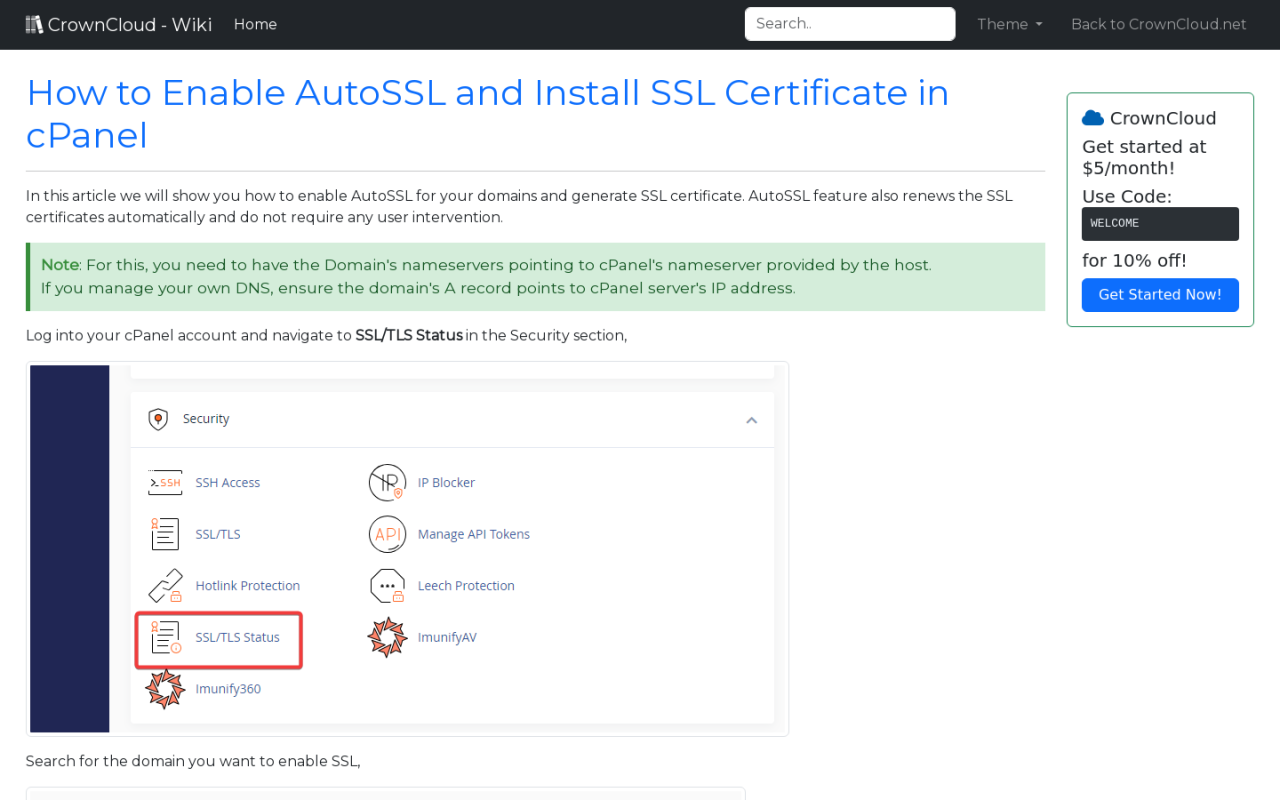
- In the cPanel dashboard, locate the “Security” section.
- Click on the “SSL/TLS” icon. This icon typically depicts a padlock or a key.
Once you click on the “SSL/TLS” icon, you will be directed to the SSL/TLS Manager. This interface offers several options, including installing new certificates, managing existing certificates, and generating certificate signing requests (CSRs).
Installing the SSL Certificate
The installation process involves several steps to upload and configure your SSL certificate. The specific steps may vary slightly depending on your cPanel version, but the general process remains consistent.Here’s a step-by-step guide to installing your SSL certificate in cPanel:
- Access the “Manage SSL Sites” section. Within the SSL/TLS Manager, click on “Manage SSL sites.” This will take you to the interface where you can install the certificate.
- Select the domain. In the “Install an SSL Certificate on a Domain” section, select the domain name for which you want to install the certificate from the dropdown menu. This menu lists all the domains and subdomains associated with your cPanel account.
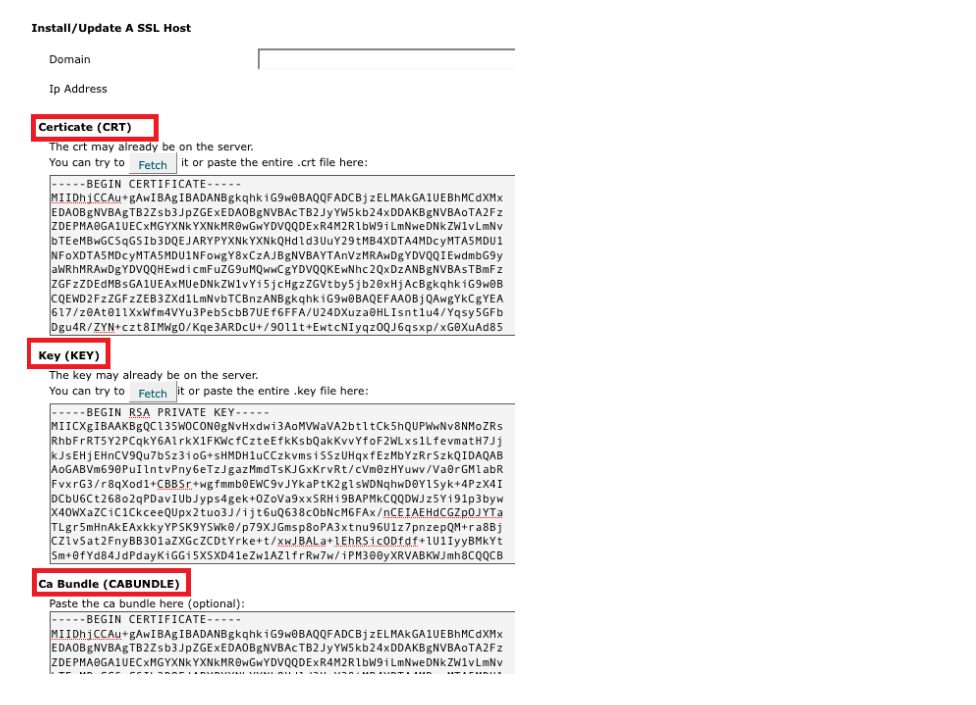
- Populate the certificate fields. You will need to populate three fields: the Certificate (CRT), the Private Key (KEY), and the Certificate Authority Bundle (CABUNDLE). These files were provided by your SSL certificate provider.
-
Certificate (CRT): Paste the contents of your certificate file (usually with a .crt or .cer extension) into this field.
This file contains the main certificate information.
- Private Key (KEY): Paste the contents of your private key file. This key was generated during the CSR creation process. It’s crucial to keep this key secure.
- Certificate Authority Bundle (CABUNDLE): Paste the contents of the CA bundle file. This file, also known as the intermediate certificate, verifies the certificate chain. The CA bundle is typically provided by your SSL certificate provider. If your provider didn’t supply a CABUNDLE, you might not need to add one.
-
Certificate (CRT): Paste the contents of your certificate file (usually with a .crt or .cer extension) into this field.
- Click “Install Certificate.” After pasting the certificate details into the respective fields, click the “Install Certificate” button. cPanel will then attempt to install the certificate.
- Verify the installation. After the installation is complete, cPanel should display a success message. To verify the installation, visit your website using HTTPS (e.g., https://yourdomain.com). Your web browser should indicate a secure connection, typically with a padlock icon in the address bar.
Configuring SSL Certificate for Different Domains
Configuring SSL certificates for multiple domains within a single cPanel account is a common requirement for hosting various websites. This process ensures secure connections for each domain, protecting sensitive data and enhancing user trust. The following sections detail the steps involved and address common scenarios.
Installing SSL Certificates for Multiple Domains
Installing SSL certificates for multiple domains on a single cPanel account allows you to secure several websites without needing separate hosting accounts. This is typically achieved using a multi-domain SSL certificate or by installing individual certificates for each domain.To install SSL certificates for multiple domains, follow these steps:
- Obtain the SSL Certificates: Purchase SSL certificates for each domain or a multi-domain certificate that covers all your domains. You will receive certificate files from the Certificate Authority (CA).
- Access cPanel: Log in to your cPanel account.
- Navigate to SSL/TLS: Find the “SSL/TLS” or “SSL/TLS Status” section, usually located under the “Security” category.
- Manage SSL Sites: Click on “Manage SSL Sites”.
- Install Certificate:
- If using a multi-domain certificate, select the primary domain from the dropdown menu and paste the certificate, private key, and CA bundle (if provided) into the respective fields.
- If using individual certificates, you’ll typically have the option to select a domain and then paste the corresponding certificate, private key, and CA bundle for each domain.
- Install Certificate: Click “Install Certificate” to save the settings.
- Verify Installation: After installation, check each domain in a web browser to confirm the SSL certificate is correctly installed and that the “https” connection is secure.
Configuring SSL for Subdomains
Configuring SSL for subdomains requires a slightly different approach compared to main domains. Subdomains often inherit the security settings of the primary domain, but specific configurations may be needed.To configure SSL for subdomains:
- Wildcard Certificates: Consider using a wildcard SSL certificate. A wildcard certificate secures the main domain and all its subdomains (e.g.,.example.com). This simplifies the management process.
- Individual Certificates: Alternatively, you can install individual SSL certificates for each subdomain.
- Access cPanel: Log in to your cPanel account.
- Navigate to SSL/TLS: Find the “SSL/TLS” or “SSL/TLS Status” section.
- Manage SSL Sites: Click on “Manage SSL Sites”.
- Install Certificate:
- For a wildcard certificate, select the main domain from the dropdown and install the wildcard certificate.
- For individual subdomain certificates, select the subdomain from the dropdown and install the corresponding certificate, private key, and CA bundle.
- Verify Installation: After installation, test each subdomain in a web browser to ensure the “https” connection is secure.
Addressing Common Issues When Configuring SSL for Multiple Domains
Several issues can arise when configuring SSL for multiple domains. Understanding and addressing these common problems is crucial for a successful implementation.Common issues include:
- Incorrect Certificate Installation: Ensure that the certificate, private key, and CA bundle are correctly pasted into the corresponding fields in cPanel.
- Certificate Mismatches: Verify that the certificate matches the domain it is installed on. Installing the wrong certificate will result in security errors.
- Mixed Content Errors: Mixed content errors occur when a webpage loads both secure (HTTPS) and insecure (HTTP) content. This can cause security warnings. To fix this, ensure all content, including images, scripts, and stylesheets, is loaded over HTTPS. This often requires updating the URLs in your website’s code. For example, change
<img src="http://example.com/image.jpg">to
<img src="https://example.com/image.jpg">.
- Certificate Not Trusted: If a certificate is not trusted, it means the browser does not recognize the Certificate Authority (CA) that issued the certificate. This can happen if the CA bundle is missing or incorrect. Always ensure the CA bundle is installed.
- Redirect Issues: After installing an SSL certificate, you need to redirect all HTTP traffic to HTTPS. This is typically done through a .htaccess file in the root directory of your website. Example code:
RewriteEngine On

RewriteCond %HTTPS off

RewriteRule ^(.*)$ https://%HTTP_HOST%REQUEST_URI [L,R=301]
This code redirects all traffic to the secure HTTPS version of your website.
- DNS Propagation: After installing an SSL certificate, it might take some time for the changes to propagate across the internet. This can cause temporary issues. Clear your browser cache and try accessing the website again after a few hours.
- Incorrect Server Configuration: Ensure your web server (Apache, Nginx, etc.) is correctly configured to use the SSL certificate. This involves proper configuration of virtual hosts.
Redirecting HTTP to HTTPS
Redirecting HTTP traffic to HTTPS is a crucial step in securing your website and ensuring a positive user experience. This process automatically forces users who access your site via the insecure HTTP protocol to be redirected to the secure HTTPS version. This not only protects sensitive information transmitted between the user’s browser and your server but also improves your website’s search engine ranking and builds trust with your visitors.
Importance of Redirecting HTTP Traffic to HTTPS
The primary reason for redirecting HTTP to HTTPS is security. Without redirection, users might inadvertently access the HTTP version of your site, leaving their data vulnerable to interception. This is especially critical for websites that handle sensitive information such as login credentials, credit card details, or personal data. Redirecting ensures that all communication is encrypted, protecting against eavesdropping and man-in-the-middle attacks.
Furthermore, search engines like Google prioritize websites that use HTTPS, as it’s a ranking signal. By redirecting HTTP to HTTPS, you signal to search engines that your site is secure, potentially improving your search engine optimization () and driving more organic traffic.
Configuring Redirects in cPanel Using the .htaccess File
The .htaccess file is a powerful configuration file used on Apache web servers, commonly found in cPanel. It allows you to customize various aspects of your website’s behavior, including redirecting HTTP traffic to HTTPS. To configure redirects, you’ll need to access the .htaccess file, which is usually located in the root directory of your website (e.g., public_html). If the file doesn’t exist, you can create one.
You can edit the .htaccess file through cPanel’s File Manager or via FTP. When modifying the .htaccess file, it’s essential to be cautious, as incorrect code can disrupt your website. It’s always a good practice to back up the file before making any changes.
Example Code Snippets for Different Redirection Scenarios
Here are some common redirection scenarios and the corresponding code snippets you can add to your .htaccess file:
-
Redirecting all HTTP traffic to HTTPS: This is the most common and recommended approach. It ensures that all users, regardless of how they initially access your site, are automatically redirected to the secure HTTPS version. This code should be placed at the beginning of your .htaccess file.
      <IfModule mod_rewrite.c>

      RewriteEngine On

      RewriteCond %HTTPS off

      RewriteRule ^(.*)$ https://%HTTP_HOST%REQUEST_URI [L,R=301]

      </IfModule>
-
Redirecting a specific domain to HTTPS: If you have multiple domains or subdomains, you might want to redirect only a specific one. This code redirects only traffic to “example.com” to its HTTPS equivalent. Replace “example.com” with your domain name.
      <IfModule mod_rewrite.c>

      RewriteEngine On

      RewriteCond %HTTP_HOST ^example\.com$ [NC]

      RewriteCond %HTTPS off

      RewriteRule ^(.*)$ https://example.com/$1 [R=301,L]

      </IfModule>
-
Redirecting a specific subdomain to HTTPS: Similar to redirecting a domain, you can redirect a specific subdomain. This example redirects traffic to “www.example.com” to its HTTPS version.
      <IfModule mod_rewrite.c>

      RewriteEngine On

      RewriteCond %HTTP_HOST ^www\.example\.com$ [NC]

      RewriteCond %HTTPS off

      RewriteRule ^(.*)$ https://www.example.com/$1 [R=301,L]

      </IfModule>
-
Redirecting a non-www to www and HTTPS: This snippet combines two redirects: forcing the “www” subdomain and then redirecting to HTTPS. This ensures consistency and security for your website.
      <IfModule mod_rewrite.c>

      RewriteEngine On

      RewriteCond %HTTP_HOST !^www\.
[NC]
RewriteRule ^(.*)$ https://www.%HTTP_HOST/$1 [R=301,L]
RewriteCond %HTTPS off
RewriteRule ^(.*)$ https://%HTTP_HOST%REQUEST_URI [L,R=301]
</IfModule>
Verifying SSL Certificate Installation
After successfully installing and configuring your SSL certificate in cPanel, it’s crucial to verify that it’s functioning correctly. This ensures that your website is secure and that visitors can trust the connection. This section provides the steps and resources needed to confirm a successful SSL certificate installation.
Checking SSL Certificate Status and Details
Verifying the SSL certificate’s status is a fundamental step. Several online tools and methods are available to quickly check the validity and details of your SSL certificate.
- Using Online SSL Checkers: Several free online tools allow you to check your SSL certificate. These tools typically analyze your website’s SSL configuration and provide detailed information. One example is SSL Labs (ssllabs.com). You can input your domain name into the SSL Labs tool, and it will perform a comprehensive test. The results will indicate the certificate’s validity, expiration date, issuer, and the overall security grade of your SSL configuration.
A high grade (A or A+) indicates a secure configuration.
- Checking in a Web Browser: Your web browser also provides information about the SSL certificate. When you visit a website with an SSL certificate, the browser displays a padlock icon in the address bar. Clicking on the padlock icon will reveal the certificate details. This includes the issuer, the validity period, and other relevant information. Different browsers might present this information slightly differently, but the core details remain consistent.
For instance, in Chrome, clicking the padlock will display “Connection is secure.” Clicking this message will reveal more information, including the certificate details.
- Using OpenSSL (Command-Line Tool): For more technical users, OpenSSL is a powerful command-line tool that can be used to inspect SSL certificates. You can use the following command to retrieve the certificate information:
openssl s_client -connect yourdomain.com:443 -showcerts
Replace “yourdomain.com” with your actual domain name. This command will output detailed information about the certificate, including its issuer, subject, and validity dates. This is particularly useful for troubleshooting and verifying the certificate configuration directly from the server.
Checklist for Successful SSL Installation and Configuration
To ensure a successful SSL installation, use the following checklist to confirm that all necessary steps have been completed and that the certificate is functioning as expected.
- Certificate Installation: Verify that the SSL certificate has been successfully installed in cPanel.
- Domain Name Verification: Confirm that the certificate is issued for the correct domain name and any subdomains you require to be secured.
- Validity Period: Check the certificate’s validity period. Ensure the certificate is not expired and has sufficient time remaining before it expires.
- HTTPS Redirection: Verify that all HTTP traffic is automatically redirected to HTTPS. This is crucial to ensure that visitors always use a secure connection. Test by entering your domain name with “http://” in the browser; it should automatically redirect to “https://”.
- Mixed Content Check: Check for mixed content errors. Mixed content occurs when a webpage served over HTTPS includes resources (images, scripts, CSS) that are loaded over HTTP. These errors can compromise security and should be resolved. Use your browser’s developer tools (usually accessible by pressing F12) to identify and fix mixed content issues.
- Browser Compatibility: Test your website on different browsers (Chrome, Firefox, Safari, Edge) and devices (desktop, mobile) to ensure that the SSL certificate is recognized and that the website loads correctly.
- SSL Labs Test: Run your domain through SSL Labs (ssllabs.com) and review the results. Aim for an A or A+ grade. Address any warnings or issues reported by the tool.
- Regular Monitoring: Implement a system for regularly monitoring your SSL certificate’s expiration date. Set up reminders to renew your certificate before it expires to avoid any interruption in service.
Troubleshooting Common SSL Certificate Issues
Installing and configuring SSL certificates in cPanel, while generally straightforward, can sometimes present challenges. Various issues can arise, preventing your website from properly securing connections. Understanding these common problems and knowing how to troubleshoot them is crucial for maintaining a secure and functional website.
Common SSL Certificate Installation and Configuration Issues
Several common issues can disrupt the proper functioning of an SSL certificate. These issues often manifest as error messages in web browsers or as unexpected behavior on the website.
- Certificate Not Trusted: This error occurs when the web browser does not recognize the Certificate Authority (CA) that issued the SSL certificate. This can happen if the CA is not trusted by the browser, the certificate is not properly installed, or an intermediate certificate is missing.
- Certificate Expired: SSL certificates have a defined lifespan. If the certificate has expired, the browser will display a warning, indicating that the connection is not secure. This issue necessitates the renewal and reinstallation of the certificate.
- Incorrect Domain Name: The SSL certificate is issued for a specific domain name. If the domain name in the certificate does not match the domain name in the browser’s address bar, a warning will be displayed. This typically happens when a certificate is installed on the wrong domain or when the certificate is not a wildcard certificate and doesn’t cover all subdomains.
- Mixed Content Errors: This issue occurs when a website attempts to load both secure (HTTPS) and insecure (HTTP) content. Browsers will often block insecure content, leading to broken images, missing scripts, and a non-secure warning.
- Certificate Chain Issues: An SSL certificate relies on a chain of trust, including the root certificate, intermediate certificates, and the end-entity certificate. Problems with the certificate chain can lead to trust errors. For example, a missing intermediate certificate can break the chain.
- Incorrect Server Configuration: Server configuration errors can prevent the SSL certificate from working correctly. This can include incorrect settings in the web server’s configuration files or issues with the server’s ability to handle HTTPS connections.
Troubleshooting SSL Certificate Errors
When encountering SSL certificate errors, a systematic approach to troubleshooting is essential. The following steps can help identify and resolve common problems.
- Check the Certificate Status: Use online SSL certificate checkers (e.g., SSL Labs) to verify the certificate’s validity, expiration date, and the integrity of the certificate chain. These tools analyze the certificate and provide detailed information about potential issues. For example, an SSL checker will clearly indicate if a certificate has expired.
- Verify the Domain Name: Ensure that the domain name in the certificate matches the domain name being accessed in the browser. Check for typos or discrepancies. A certificate for “example.com” will not secure “www.example.com” unless it’s a wildcard certificate (*.example.com) or a Subject Alternative Name (SAN) certificate that includes “www.example.com”.
- Clear Browser Cache: Sometimes, cached versions of websites can cause SSL-related issues. Clearing the browser cache can resolve these problems.
- Check the Certificate Chain: Make sure the certificate chain is complete. The certificate authority (CA) typically provides intermediate certificates. These intermediate certificates must be installed on the server alongside the primary certificate.
- Inspect the Server Configuration: Review the web server’s configuration files (e.g., Apache’s httpd.conf or Nginx’s nginx.conf) to ensure that the SSL certificate is correctly configured. Verify that the server is listening on port 443 (HTTPS).
- Review Browser Error Messages: Carefully examine the error messages displayed by the browser. These messages often provide valuable clues about the nature of the problem. For instance, a “NET::ERR_CERT_AUTHORITY_INVALID” error indicates that the browser does not trust the certificate authority that issued the certificate.
Solutions for Resolving Common SSL Certificate Problems
Resolving SSL certificate problems often involves specific actions based on the identified issue.
- For “NET::ERR_CERT_AUTHORITY_INVALID” Errors: This error often indicates that the certificate authority is not trusted by the browser. Ensure the certificate was issued by a recognized CA. If you’re using a self-signed certificate, you may need to manually trust the certificate in the browser. Another cause might be an incomplete certificate chain. Ensure all intermediate certificates are installed correctly on the server.
- For Expired Certificates: Renew the SSL certificate before it expires. Once renewed, reinstall the new certificate on the cPanel server. Most CAs will send reminders before the expiration date. Failure to renew on time can lead to downtime and lost traffic.
- For Incorrect Domain Names: Ensure the certificate is issued for the correct domain name. If you need to secure multiple subdomains, consider using a wildcard certificate (*.example.com) or a SAN certificate.
- For Mixed Content Errors: Identify and replace all HTTP URLs with HTTPS URLs in your website’s code. Use browser developer tools to identify the specific resources causing the mixed content warnings. For example, if an image is loaded via HTTP, change the image source to HTTPS.
- For Certificate Chain Issues: Ensure that all intermediate certificates provided by the CA are installed on the server, correctly configured, and linked in the server’s configuration. The order of the certificate installation is also important.
- For Server Configuration Errors: Review the web server’s configuration files and ensure the SSL certificate is correctly configured. Check the server logs for any error messages related to SSL. Verify that the server is configured to listen on port 443 for HTTPS traffic. Consult the documentation for your web server software for specific configuration instructions.
Renewing SSL Certificates in cPanel
Renewing your SSL certificate is a crucial task to maintain website security and user trust. This process ensures that your website remains encrypted, protecting sensitive information transmitted between your server and visitors’ browsers. Failure to renew your certificate can lead to security warnings in browsers, potentially driving away visitors and damaging your website’s reputation. It’s a straightforward process that typically involves generating a new Certificate Signing Request (CSR), obtaining the renewed certificate, and installing it in cPanel.
The Process of Renewing an SSL Certificate Before Expiration
Before your SSL certificate expires, you’ll need to renew it. This process generally mirrors the initial installation but with some key differences. It’s important to start the renewal process well in advance of the expiration date to avoid any disruption in service. The exact steps may vary slightly depending on your SSL certificate provider, but the general Artikel remains consistent.
Generating a New CSR for Renewal
Generating a new Certificate Signing Request (CSR) is a fundamental step in renewing your SSL certificate. This new CSR contains updated information about your domain and organization, and it’s used by the Certificate Authority (CA) to issue your renewed certificate. It’s essential to generate a new CSR even if your domain information hasn’t changed, as the previous CSR is tied to the expiring certificate.The steps for generating a new CSR in cPanel are as follows:
- Log in to your cPanel account.
- Navigate to the “SSL/TLS” section. This section can usually be found under the “Security” category.
- Click on “Generate, view, or delete SSL certificate signing requests.”
- Fill out the CSR form. This form will request information such as:
- Domain: The domain name for which you are renewing the certificate (e.g., yourdomain.com).
- Country: Your country code (e.g., US for the United States).
- State/Province: Your state or province.
- City/Locality: Your city.
- Organization: Your company or organization’s name.
- Organization Unit: Your department within the organization (optional).
- Common Name: The fully qualified domain name (FQDN) for which you are requesting the certificate (e.g., www.yourdomain.com or yourdomain.com).
- Email: Your email address.
- Key Size: Select a key size, typically 2048 bits is recommended for security.
- Click “Generate.”
- Copy the generated CSR. You will need to provide this CSR to your SSL certificate provider during the renewal process. Also, securely store the private key that is generated along with the CSR. You’ll need this private key when installing the renewed certificate.
Installing the Renewed SSL Certificate in cPanel
Once you’ve received your renewed SSL certificate from your provider, you’ll need to install it in cPanel. This process involves uploading the certificate and its associated private key. The specific steps may vary slightly depending on your cPanel version, but the core process remains consistent.Here are the steps to install your renewed SSL certificate in cPanel:
- Log in to your cPanel account.
- Navigate to the “SSL/TLS” section.
- Click on “Manage SSL sites.”
- Select the domain for which you are installing the certificate from the dropdown menu.
- In the “Certificate” field, paste the content of your renewed SSL certificate file. This file typically has a .crt extension.
- In the “Private Key” field, paste the content of the private key file that was generated when you created the CSR. This is the private key you saved earlier.
- In the “Certificate Authority Bundle (CABUNDLE)” field, paste the content of the CA bundle file (if provided by your SSL provider). The CA bundle contains intermediate certificates that help browsers trust your SSL certificate. This is often optional, but recommended.
- Click “Install Certificate.”
- Verify the installation. After installation, check that your website is accessible via HTTPS (e.g., https://yourdomain.com) and that there are no browser security warnings. You can also use online SSL checkers to verify the installation.
Outcome Summary
In conclusion, configuring an SSL certificate in cPanel is a critical step towards ensuring your website’s security and building trust with your audience. By following the steps Artikeld in this guide, you can confidently navigate the process, from generating a CSR to installing and maintaining your certificate. Remember to address potential issues and renew your certificate proactively to maintain a secure and reliable online presence.
Embracing SSL not only protects your website but also enhances its credibility and contributes to a positive user experience.