Optimizing your WordPress website’s performance is crucial for user experience and search engine rankings. One of the most effective strategies involves leveraging the power of Nginx caching. This guide delves into the intricacies of configuring Nginx to cache your WordPress site, significantly boosting its speed and efficiency.
We’ll explore various caching techniques, from browser caching to proxy caching and object caching with Redis or Memcached, providing you with the knowledge and practical steps to implement them effectively. Nginx, a high-performance web server, combined with the flexibility of WordPress, creates a powerful synergy for delivering a fast and responsive website experience.
Introduction: Understanding Nginx Caching and WordPress
Caching is crucial for optimizing website performance, especially for dynamic content-rich platforms like WordPress. Implementing caching strategies can significantly reduce server load, improve page load times, and enhance the overall user experience. This section provides a foundational understanding of Nginx caching within the context of a WordPress website.
Benefits of Nginx Caching for WordPress
Nginx caching offers several advantages that directly translate to improved WordPress site performance. These improvements are especially noticeable on sites with high traffic or complex content.
- Reduced Server Load: Caching static content, such as images, CSS, and JavaScript files, offloads requests from the WordPress server. This allows the server to handle more concurrent users without performance degradation.
- Faster Page Load Times: Cached content is served directly from Nginx, bypassing the need to process requests through PHP and the WordPress database. This results in quicker delivery of content to users. According to a study by Google, a one-second delay in mobile page load times can impact conversion rates by up to 20%.
- Improved User Experience: Faster loading times contribute to a more responsive and enjoyable user experience. Users are less likely to abandon a website that loads quickly.
- Increased Scalability: Caching helps to scale a WordPress site by reducing the resources needed to handle traffic spikes. Nginx can efficiently serve cached content, even under heavy load.
- Reduced Bandwidth Usage: By serving cached content, Nginx minimizes the amount of data transferred from the server, leading to lower bandwidth consumption and potential cost savings.
Nginx and WordPress Interaction
Nginx acts as a reverse proxy server, sitting in front of the WordPress application. It intercepts incoming requests and, based on its configuration, either serves content directly from its cache or forwards the request to the WordPress server. This architecture allows Nginx to optimize content delivery and improve performance. The interaction can be described as follows:
- Request Reception: A user’s browser sends a request to the website.
- Nginx Processing: Nginx receives the request. If the requested content is cached, Nginx serves it directly.
- WordPress Server Interaction: If the content is not cached, Nginx forwards the request to the WordPress server (e.g., Apache or another web server running PHP).
- Content Generation: The WordPress server processes the request, generates the page, and sends it back to Nginx.
- Caching (Optional): Nginx can cache the generated content based on configured rules.
- Response to User: Nginx then sends the content back to the user’s browser.
Types of Caching in this Context
Different types of caching can be implemented with Nginx to optimize WordPress performance. Each type serves a specific purpose and contributes to overall efficiency.
- Browser Caching: This involves setting headers in the HTTP response that instruct the user’s browser to cache static resources (images, CSS, JavaScript) locally. This reduces the number of requests to the server on subsequent visits. Example: The `Cache-Control` header, set in Nginx configuration, can tell the browser how long to cache a resource.
- Proxy Caching (Nginx): Nginx acts as a proxy server, caching responses from the WordPress server. This caching stores entire pages or parts of pages, serving them directly to users without involving the WordPress application. This is the primary focus of this configuration.
- Object Caching (WordPress Plugins): WordPress plugins, such as Redis or Memcached, implement object caching. They store the results of database queries, reducing the load on the database server. This caching occurs within the WordPress application itself.
Prerequisites
Before configuring Nginx caching for your WordPress site, several prerequisites must be in place to ensure a smooth and successful implementation. This section Artikels the necessary software, server configurations, and installation steps. Proper preparation is crucial for optimal performance and to avoid potential issues during the caching setup.
Required Software and Server Configuration
Before you begin, ensure your server meets the following requirements. These are fundamental for running WordPress and Nginx effectively.
- Operating System: A Linux-based operating system is recommended. Common choices include Ubuntu and Debian, due to their stability and widespread community support. The examples provided in this guide will use Ubuntu.
- Web Server: Nginx is the primary web server. It will handle incoming requests and serve cached content.
- Database: A database server such as MySQL or MariaDB is necessary for storing WordPress data.
- PHP: PHP is the scripting language that WordPress is built upon. You will need a compatible PHP version.
- WordPress: A functioning WordPress installation is essential. This includes the WordPress core files, theme, and any necessary plugins.
- Server Access: You must have SSH access to your server with root or sudo privileges to install and configure software.
Installing Nginx on a Linux Server (Ubuntu/Debian)
Installing Nginx is a straightforward process on most Linux distributions. The following steps provide a detailed guide for Ubuntu and Debian. These steps assume you have SSH access to your server.
- Update Package Lists: First, update the package lists to ensure you have the latest package information. This step refreshes the local package index.
sudo apt update - Install Nginx: Install Nginx using the `apt` package manager.
sudo apt install nginx - Firewall Configuration (if applicable): If you have a firewall enabled (e.g., UFW on Ubuntu), you’ll need to allow HTTP and HTTPS traffic. This enables external access to your website.
sudo ufw allow 'Nginx HTTP'
sudo ufw allow 'Nginx HTTPS'
sudo ufw enable - Start Nginx: Start the Nginx service after installation.
sudo systemctl start nginx - Enable Nginx (to start on boot): Enable Nginx to start automatically on server boot. This ensures the web server is always running.
sudo systemctl enable nginx
Verifying Nginx Installation and Basic Functionality
After installation, it is important to verify that Nginx is running correctly and serving content. This ensures that the web server is properly configured and accessible.
- Check Nginx Status: Use the `systemctl` command to check the status of the Nginx service. This provides information about the service’s current state.
sudo systemctl status nginxThe output should indicate that the service is active (running).
- Accessing the Default Nginx Page: Open a web browser and enter your server’s IP address or domain name. If Nginx is installed and running correctly, you should see the default Nginx welcome page. This page confirms that the web server is operational.
- Testing Basic Functionality: To test basic functionality, you can create a simple HTML file in Nginx’s default web root directory (usually `/var/www/html/`) and access it through your browser. This verifies that Nginx can serve static content.
sudo nano /var/www/html/index.htmlAdd some simple HTML content (e.g., <h1>Hello, World!</h1>) and save the file. Then, access the file in your browser (e.g., `http://your_server_ip/index.html`).
Installing and Configuring Nginx
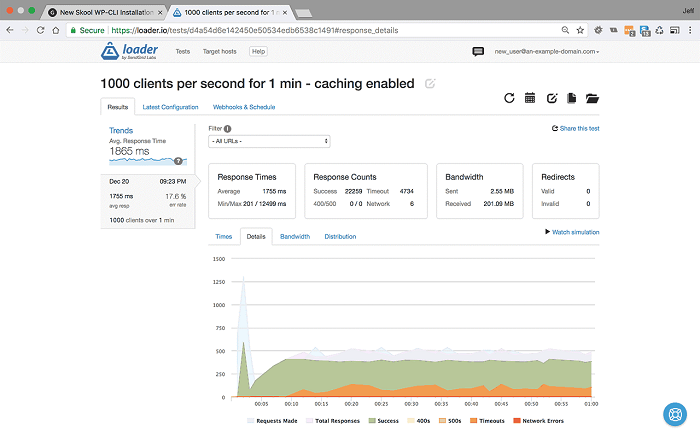
Configuring Nginx for WordPress involves several steps, beginning with the installation of Nginx itself and followed by the creation and modification of configuration files. Proper configuration is crucial for optimizing performance and enabling caching. The following sections will guide you through the process, starting with locating configuration files and creating a basic configuration for your WordPress site.
Locating Nginx Configuration Files
Understanding the location of Nginx configuration files is fundamental for managing and customizing your web server. These files control how Nginx handles incoming requests, serves content, and implements various functionalities, including caching. Knowing their location allows for direct modification to suit your specific needs.
- Main Configuration File: The primary configuration file for Nginx is usually located at `/etc/nginx/nginx.conf`. This file sets global settings, such as worker processes, user and group, and includes other configuration files.
- Sites-Available and Sites-Enabled Directories: These directories are essential for managing multiple websites or virtual hosts on a single Nginx server. The `/etc/nginx/sites-available/` directory contains configuration files for each site, while the `/etc/nginx/sites-enabled/` directory contains symbolic links to the active site configurations. When a site is enabled, a symbolic link is created from the `sites-available` file to the `sites-enabled` directory, effectively activating the site’s configuration.
- Other Configuration Files: Additional configuration files can be included within the main configuration file or within the `sites-available` directory. These may include files for specific modules, such as SSL/TLS certificates or caching settings.
Creating a New Configuration File for Your WordPress Site
To serve a WordPress site, you’ll need to create a new configuration file within the `sites-available` directory. This file will define the server block, which specifies how Nginx should handle requests for your WordPress site. This involves setting the server name, document root, and other directives necessary for serving your WordPress content.
- Create the Configuration File: Navigate to the `/etc/nginx/sites-available/` directory and create a new file for your WordPress site. You can name the file after your domain, such as `yourdomain.com`. Use a text editor, such as `nano` or `vim`, to create and edit the file.
- Populate the Configuration File: Add the necessary directives within the file to define the server block for your WordPress site. This will include the `server` block, which will contain the server name, document root, and other configurations.
- Create a Symbolic Link (Enable the Site): After creating the configuration file, create a symbolic link from the file in `sites-available` to the `sites-enabled` directory to activate the configuration. This can be done using the `ln -s` command. For example: `sudo ln -s /etc/nginx/sites-available/yourdomain.com /etc/nginx/sites-enabled/`.
- Test and Reload Nginx: After creating the symbolic link, test the configuration to ensure there are no syntax errors using the command `sudo nginx -t`. If the test is successful, reload Nginx to apply the changes using the command `sudo systemctl reload nginx`.
Designing a Basic Nginx Configuration File for WordPress (Without Caching)
A basic Nginx configuration file for serving a WordPress site, without caching enabled, is the foundation upon which more advanced configurations, including caching, are built. This configuration defines the essential settings for Nginx to correctly serve your WordPress content, handling requests, and routing them to the appropriate files.
Here is an example of a basic Nginx configuration file for a WordPress site (e.g., `/etc/nginx/sites-available/yourdomain.com`):
“`nginx server listen 80; listen [::]:80; server_name yourdomain.com www.yourdomain.com; root /var/www/yourdomain.com; index index.php index.html index.htm; location / try_files $uri $uri/ /index.php?$args; location ~ \.php$ include snippets/fastcgi-php.conf; fastcgi_pass unix:/run/php/php7.4-fpm.sock; # Adjust PHP version if necessary location ~ /\.ht deny all; “`
Explanation of the configuration directives:
- `server … `: This block defines a virtual server, or a website.
- `listen 80;` and `listen [::]:80;`: These directives specify that the server should listen for incoming HTTP traffic on port 80 (IPv4 and IPv6).
- `server_name yourdomain.com www.yourdomain.com;`: This directive specifies the domain names or server names that this server block should respond to. Replace `yourdomain.com` with your actual domain.
- `root /var/www/yourdomain.com;`: This directive specifies the document root, which is the directory where your WordPress files are located. Adjust this to your WordPress installation path.
- `index index.php index.html index.htm;`: This directive specifies the index files that Nginx should look for when a directory is requested.
- `location / … `: This block handles requests for the root directory and all subdirectories.
- `try_files $uri $uri/ /index.php?$args;`: This directive tries to serve the requested file directly, then tries the directory, and finally passes the request to `index.php` with the original arguments if neither file nor directory exists.
- `location ~ \.php$ … `: This block handles requests for PHP files.
- `include snippets/fastcgi-php.conf;`: This directive includes the configuration for FastCGI PHP processing.
- `fastcgi_pass unix:/run/php/php7.4-fpm.sock;`: This directive passes the PHP requests to the PHP-FPM (FastCGI Process Manager) socket. Ensure that the PHP version (e.g., `php7.4-fpm.sock`) matches your system’s PHP installation.
- `location ~ /\.ht deny all; `: This block denies access to `.htaccess` files, which are used by Apache. This is a security measure.
Implementing Browser Caching

Browser caching significantly enhances website performance by storing static assets on a user’s computer. This reduces the number of requests the browser needs to make to the server, resulting in faster page load times and a better user experience. Implementing browser caching is a crucial step in optimizing WordPress websites, especially those with a lot of static content like images, CSS, and JavaScript files.
Configuring Browser Caching with the `expires` Directive
The `expires` directive in Nginx is the primary mechanism for configuring browser caching. It instructs the browser on how long to cache a specific file type. The directive is placed within a `location` block or a `server` block in the Nginx configuration file (usually located at `/etc/nginx/nginx.conf` or a site-specific configuration file within the `/etc/nginx/sites-available/` directory). The `expires` directive takes two main arguments: the cache control setting and the duration.For instance, to set an expiration time of one week for images, the configuration would look like this:“`nginxlocation ~* \.(jpg|jpeg|png|gif|ico|svg|webp)$ expires 7d; add_header Cache-Control “public”;“`In this example:
- `location ~* \.(jpg|jpeg|png|gif|ico|svg|webp)$`: This line defines a location block that matches files with the specified extensions (images). The `~*` modifier ensures case-insensitive matching.
- `expires 7d;`: This sets the expiration time to 7 days (7 days). The browser will cache these image files for this duration.
- `add_header Cache-Control “public”;`: This adds a `Cache-Control` header to the response, explicitly stating that the cached content can be stored by both the browser and any intermediary caches (like a proxy server). Using `public` is generally recommended for static assets.
Example Configurations for Different File Types
Different file types benefit from different caching durations. Here are example configurations for optimizing browser caching for common WordPress assets:“`nginx# Imageslocation ~* \.(jpg|jpeg|png|gif|ico|svg|webp)$ expires 7d; add_header Cache-Control “public”;# CSS and JavaScript fileslocation ~* \.(css|js)$ expires 1y; # 1 year add_header Cache-Control “public”;# Fontslocation ~* \.(woff|woff2|ttf|otf|eot)$ expires 1y; # 1 year add_header Cache-Control “public”;# HTML files (if serving static HTML)location ~* \.html$ expires 1d; # 1 day add_header Cache-Control “public”;“`The above configurations are examples, and the specific durations can be adjusted based on your website’s update frequency.
For example, if you update your CSS or JavaScript files frequently, you might consider a shorter cache duration. It’s essential to test the configuration thoroughly to ensure that the caching behavior is as expected.
Recommended Caching Durations
The following table provides recommended caching durations for different file types. These are general guidelines, and you should adjust them based on your specific needs and update frequency.
| File Type | Recommended Duration | Cache-Control Header | Notes |
|---|---|---|---|
| Images (jpg, jpeg, png, gif, ico, svg, webp) | 1 week to 1 month | `public` | Images generally don’t change frequently. Longer durations are often suitable. |
| CSS and JavaScript files | 1 year | `public` | These files often benefit from longer caching times, especially if you use versioning (e.g., `style.css?v=1.0`). |
| Fonts (woff, woff2, ttf, otf, eot) | 1 year | `public` | Fonts rarely change. Caching them for a long duration is usually safe. |
| HTML files (if serving static HTML) | 1 day | `public` | HTML files should be cached for a shorter duration, as they often contain content that needs to be updated more frequently. |
Configuring Proxy Caching with Nginx
Proxy caching is a powerful technique to significantly improve the performance and responsiveness of your WordPress site. By caching the generated content of your website, Nginx can serve cached versions to visitors, reducing the load on your WordPress server and database. This leads to faster page load times and a better user experience, especially during periods of high traffic.
Understanding Proxy Caching and WordPress
Proxy caching involves Nginx acting as an intermediary between the client’s browser and the WordPress server. When a user requests a page, Nginx first checks its cache. If a cached version exists, Nginx serves it directly, bypassing WordPress entirely. If a cached version isn’t available, Nginx forwards the request to WordPress, receives the generated content, caches it, and then serves it to the user.
Subsequent requests for the same content are then served from the cache. This process dramatically reduces the processing load on the WordPress server, as it only needs to generate the content once for the initial request or when the cache expires. The effectiveness of proxy caching depends on how frequently the content changes and how well the cache is configured.
Implementing Proxy Caching Directives
To enable proxy caching, you’ll need to add specific directives to your Nginx configuration file, typically located at `/etc/nginx/sites-available/your_domain.com` or similar. These directives tell Nginx where to store the cached files, how long to keep them, and how to handle different types of requests.Here’s a breakdown of the essential directives:
- proxy_cache_path: This directive defines the location where the cached files will be stored on the server’s filesystem. It’s the most crucial directive for proxy caching.
- proxy_cache: This directive enables caching for a specific zone. You define a cache zone using the `proxy_cache_path` directive, and then reference that zone in the `proxy_cache` directive.
- proxy_cache_valid: This directive sets the time a cached response is considered valid for different HTTP status codes (e.g., 200, 301, 302, 404).
- proxy_cache_bypass: This directive allows you to bypass the cache for specific requests, such as those from logged-in users or those with specific query parameters.
- proxy_cache_use_stale: This directive allows Nginx to serve stale content from the cache if the origin server is unavailable or returns an error.
Here’s an example of how these directives might be implemented within a server block in your Nginx configuration:“`nginxhttp proxy_cache_path /var/cache/nginx levels=1:2 keys_zone=my_cache:10m inactive=60m max_size=10g; … server listen 80; server_name your_domain.com www.your_domain.com; …
location / proxy_pass http://your_wordpress_backend; # Replace with your WordPress backend’s address proxy_cache my_cache; proxy_cache_valid 200 301 302 60m; # Cache for 60 minutes proxy_cache_valid 404 1m; # Cache 404s for 1 minute proxy_cache_bypass $cookie_wp_wordpress_logged_in; # Bypass cache for logged-in users proxy_cache_use_stale error timeout invalid_header updating http_500 http_502 http_503 http_504; proxy_set_header X-Real-IP $remote_addr; proxy_set_header X-Forwarded-For $proxy_add_x_forwarded_for; proxy_set_header X-Forwarded-Proto $scheme; …
“`In this example, the `proxy_cache_path` directive defines the cache location, `proxy_cache` is enabled, and `proxy_cache_valid` sets the cache expiration times. The `proxy_cache_bypass` directive prevents caching for logged-in users. The example also includes headers that are typically passed to the backend server.
The proxy_cache_path Directive and Parameters
The `proxy_cache_path` directive is fundamental to setting up proxy caching in Nginx. It specifies where cached files will be stored and configures various aspects of the caching behavior. Understanding the parameters of this directive is critical for optimizing your caching strategy.The `proxy_cache_path` directive has several important parameters:
- path: This specifies the directory where the cached files will be stored. It’s crucial to ensure that this directory exists and that the Nginx user has write permissions to it. In the example above, `/var/cache/nginx` is used.
- levels: This parameter defines the directory structure for storing cached files. It’s used to distribute files across subdirectories, preventing performance issues that can arise when a single directory contains a large number of files. The `levels=1:2` setting creates a two-level directory structure, which is generally a good starting point. The first level uses one character, and the second level uses two characters.
-
keys_zone: This parameter creates a shared memory zone for storing cache keys and metadata. This zone allows Nginx to quickly determine if a request is cached without having to access the disk. The format is `name:size`, where `name` is a unique identifier for the zone and `size` is the memory allocated for the zone (e.g., `10m` for 10 megabytes).
The size of the keys zone depends on the number of cached objects and the amount of metadata associated with each object.
- inactive: This parameter specifies the time a cached item can remain unused before it’s removed from the cache. This prevents the cache from growing indefinitely and helps to manage disk space. For example, `inactive=60m` means that a cached item will be removed if it hasn’t been accessed in 60 minutes.
- max_size: This parameter sets the maximum disk space that the cache can consume. When the cache reaches this limit, Nginx will start deleting the least recently used (LRU) cached files to make space for new ones. For example, `max_size=10g` limits the cache size to 10 gigabytes.
- use_temp_path: Specifies a temporary path for storing files during cache operations. By default, the temporary path is within the same directory as the cache itself. This can be overridden to use a different location, especially if the cache is stored on a slower storage device.
The effective configuration of these parameters is crucial for the performance of your WordPress site. For instance, if you have a very active site with frequently updated content, you might consider increasing the `keys_zone` size to accommodate a larger number of cached objects and reducing the `inactive` time to ensure that the cache is refreshed more frequently. Conversely, for a less dynamic site, you can potentially increase the `inactive` time and the `max_size` to maximize cache hit rates.It is important to carefully monitor the cache hit ratio and the disk space usage to fine-tune these parameters for optimal performance.
You can monitor cache statistics using the Nginx status module or third-party monitoring tools.
WordPress Plugins for Cache Management
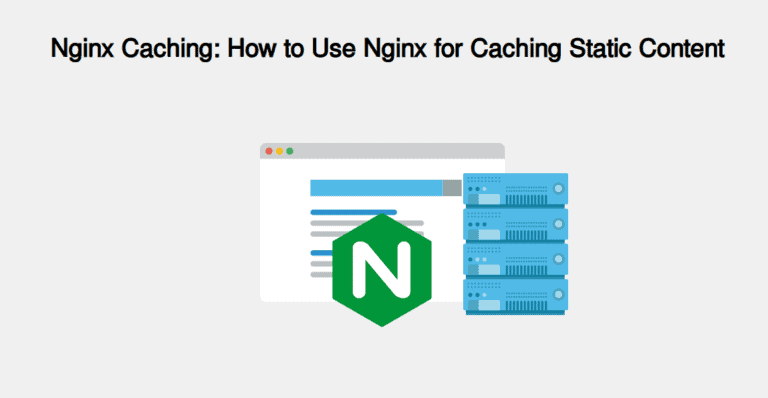
WordPress plugins play a crucial role in enhancing website performance, particularly when integrated with a robust caching system like Nginx. These plugins simplify the process of managing and optimizing various caching strategies, allowing for a more streamlined and efficient website. They often provide user-friendly interfaces for configuring caching settings, clearing caches, and monitoring performance metrics. Their integration with Nginx enables a layered approach to caching, leveraging both server-side and application-level optimizations for maximum speed and responsiveness.
Popular WordPress Cache Plugins and Their Interaction with Nginx
Several WordPress plugins are designed to work in tandem with Nginx, providing a comprehensive caching solution. These plugins offer different features and configurations, but all aim to improve website loading times and reduce server load. They typically handle the dynamic content caching while Nginx manages the static content caching, creating a synergistic effect.
- WP Super Cache: This plugin generates static HTML files from your dynamic WordPress blog. Nginx can then serve these static files directly to visitors, bypassing the need to execute PHP scripts and query the database for each request. This is particularly effective for reducing server load and improving the Time To First Byte (TTFB).
- W3 Total Cache: This plugin provides a more comprehensive caching solution, offering various caching methods, including page caching, object caching, database caching, and browser caching. It integrates with Nginx by allowing you to configure Nginx to serve cached pages and static assets. This plugin’s flexibility allows for advanced configurations, such as minifying HTML, CSS, and JavaScript files, and leveraging a Content Delivery Network (CDN).
- LiteSpeed Cache: Designed for websites using LiteSpeed web servers, this plugin also offers features that can complement Nginx caching, particularly when used with a reverse proxy setup. LiteSpeed Cache offers features like image optimization, lazy loading, and database optimization.
These plugins interact with Nginx by modifying the server’s configuration or by using specific directives to serve cached content. They typically write cache files to a designated directory that Nginx is configured to serve. For example, a plugin might generate a static HTML file for a specific page and save it to the `/wp-content/cache/` directory. Nginx’s configuration would then be set up to check this directory for a cached version of the page before passing the request to WordPress.
Configuring W3 Total Cache with Nginx
Configuring W3 Total Cache to work effectively with Nginx involves several steps, focusing on optimizing the interaction between the plugin and the web server. The configuration involves adjusting the plugin’s settings and modifying the Nginx configuration file.
Step 1: Install and Activate W3 Total Cache
Install the W3 Total Cache plugin through the WordPress admin dashboard. After installation, activate the plugin.
Step 2: Configure Page Cache Settings
In the W3 Total Cache settings, navigate to the “Page Cache” section. Select “Disk: Enhanced” or “Disk: Basic” as the page cache method. While “Disk: Enhanced” is generally recommended for its improved performance, “Disk: Basic” may be sufficient for less demanding websites. Choose the method based on your server’s capabilities and your website’s traffic volume.
Step 3: Configure Browser Cache Settings
Go to the “Browser Cache” section in the W3 Total Cache settings. Enable browser caching to leverage the visitor’s browser to store static assets, such as CSS, JavaScript, and images. This reduces the number of requests to the server and speeds up page loading times for returning visitors. Configure the cache expiry times for different file types to optimize browser caching effectively.
The default settings are often a good starting point, but you can adjust them based on your website’s update frequency.
Step 4: Configure Nginx for Page Caching
To enable Nginx to serve the cached pages, you need to modify your Nginx configuration file. This usually involves adding directives to the server block that point to the W3 Total Cache cache directory. Locate your Nginx configuration file. This file is usually located at `/etc/nginx/sites-available/` or `/etc/nginx/conf.d/`. Open the configuration file for your website.
Step 5: Add Configuration Directives to Nginx
Add the following directives inside the server block, before the location blocks for PHP files. This setup will attempt to serve a cached version of the page if it exists. The `try_files` directive attempts to locate a cached HTML file and serve it. If the file is not found, the request is passed to WordPress to generate the page. This configuration ensures that Nginx serves cached pages directly, improving performance.
    location /
      try_files $uri $uri/ /index.php?$args;


    location ~ \.php$
      try_files $uri =404;
      include snippets/fastcgi-php.conf;
      fastcgi_pass unix:/run/php/php7.4-fpm.sock; # Replace with your PHP-FPM socket
Step 6: Test the Configuration and Clear Cache
After making changes to the Nginx configuration, test the configuration for syntax errors using the command: `sudo nginx -t`. If the test is successful, reload or restart Nginx: `sudo systemctl reload nginx` or `sudo systemctl restart nginx`. Clear the cache in W3 Total Cache and on your browser to ensure that the new configuration is taking effect. Monitor your website’s performance using tools like Google PageSpeed Insights or GTmetrix to measure the impact of the caching changes.
The performance improvements should be noticeable, especially in terms of reduced server response times and faster page load speeds.
Object Caching with Redis or Memcached
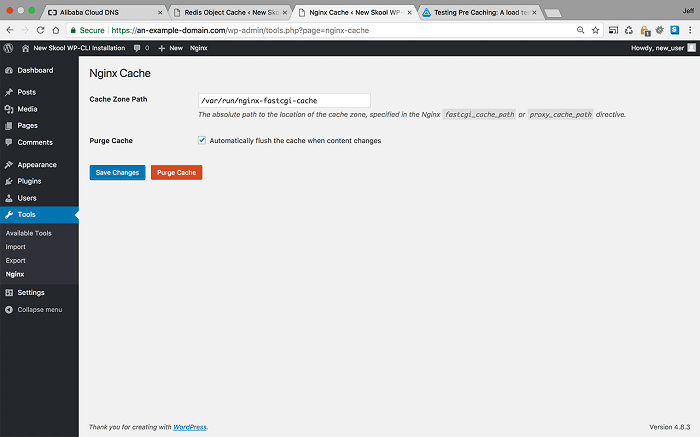
Object caching significantly enhances WordPress performance by storing frequently accessed data in a fast-access cache, thereby reducing database queries and server load. This leads to faster page load times and improved user experience. Utilizing object caching is a crucial step in optimizing a WordPress website, particularly those with high traffic or dynamic content.
Benefits of Object Caching for WordPress
Object caching provides several key advantages for WordPress websites. By storing the results of database queries and other computationally intensive operations, it minimizes the need for the server to repeatedly perform these tasks. This results in a substantial reduction in database load, which in turn, frees up server resources.
- Reduced Database Load: Object caching stores the results of database queries. When the same data is requested again, it’s retrieved from the cache instead of the database. This significantly lowers the number of queries executed against the database, improving its performance and responsiveness. For instance, a website that typically handles thousands of queries per minute can see a reduction of 70-80% in database load with effective object caching.
- Faster Page Load Times: Retrieving data from the cache is significantly faster than retrieving it from the database. This translates to faster page load times for visitors. This is particularly noticeable on pages with dynamic content, such as those displaying recent posts, comments, or user information.
- Improved Server Performance: By reducing the load on the database and server, object caching helps to free up server resources. This can improve overall server performance and allow the server to handle more traffic without experiencing performance issues. For example, a server that was previously struggling under a heavy load might handle twice the traffic after implementing object caching.
- Enhanced Scalability: Object caching allows a website to handle increased traffic and scale more efficiently. This is particularly important for websites that experience seasonal traffic spikes or are expected to grow over time. The cache acts as a buffer, absorbing a significant portion of the traffic load and preventing the server from being overwhelmed.
Installing and Configuring Redis or Memcached on Your Server
Installing and configuring Redis or Memcached involves a few steps, varying slightly depending on your server’s operating system. These caching systems require a dedicated installation and configuration before they can be integrated with WordPress. The process involves installing the caching server software, configuring it to optimize performance, and ensuring it starts automatically upon server boot.
Installing Redis (Example: Ubuntu/Debian)
The following steps Artikel the process of installing Redis on a Debian or Ubuntu-based system. These commands should be executed with root privileges.
- Update Package Lists: Before installing any new software, update the package lists to ensure you have the latest package information.
sudo apt update
- Install Redis: Use the apt package manager to install Redis.
sudo apt install redis-server
- Verify Installation: After installation, verify that Redis is running.
sudo systemctl status redis-server
This command should show that the Redis server is active and running.
- Configure Redis (Optional): The default configuration of Redis often works well. However, you may want to configure it further based on your needs. The configuration file is typically located at
/etc/redis/redis.conf. Common configurations include setting a maximum memory limit, setting up password protection, or binding to a specific IP address.
Installing Memcached (Example: Ubuntu/Debian)
The following steps Artikel the process of installing Memcached on a Debian or Ubuntu-based system. These commands should be executed with root privileges.
- Update Package Lists: Before installing any new software, update the package lists to ensure you have the latest package information.
sudo apt update
- Install Memcached: Use the apt package manager to install Memcached.
sudo apt install memcached
- Verify Installation: After installation, verify that Memcached is running.
sudo systemctl status memcached
This command should show that the Memcached server is active and running.
- Configure Memcached (Optional): The default configuration of Memcached often works well. However, you may want to configure it further based on your needs. The configuration file is typically located at
/etc/memcached.conf. Common configurations include setting a maximum memory limit, or binding to a specific IP address.
Important Note: Ensure that the firewall allows traffic to the Redis or Memcached port (typically 6379 for Redis and 11211 for Memcached). For example, on UFW (Uncomplicated Firewall): sudo ufw allow 6379 or sudo ufw allow 11211.
Integrating Redis or Memcached with Your WordPress Site Using a Plugin
Integrating Redis or Memcached with WordPress requires a plugin that acts as a bridge between WordPress and the caching system. Plugins like Redis Object Cache and Memcached Redux simplify this integration process. They provide a user-friendly interface for configuring the connection to the caching server and managing the cache settings.
Using the Redis Object Cache Plugin (Example)
- Install the Plugin: In your WordPress dashboard, navigate to Plugins > Add New. Search for “Redis Object Cache” and install the plugin by Till Krüss.
- Activate the Plugin: Activate the plugin after installation.
- Configure the Plugin: After activating the plugin, go to Settings > Redis.
- Enable the Cache: In the plugin settings, you’ll typically find a button or toggle to enable the Redis cache. Click this to start using Redis for object caching.
- Verify the Connection: The plugin will often provide a status indicator showing whether it’s connected to the Redis server. If it’s not connected, review the plugin settings to ensure the correct Redis server address and port are specified.
- Flush the Cache: Most plugins provide an option to flush or clear the cache. This can be useful when you update your website’s content and want to ensure that the changes are reflected immediately.
Using the Memcached Redux Plugin (Example)
- Install the Plugin: In your WordPress dashboard, navigate to Plugins > Add New. Search for “Memcached Redux” and install the plugin.
- Activate the Plugin: Activate the plugin after installation.
- Configure the Plugin: After activating the plugin, navigate to Settings > Memcached Redux.
- Enable the Cache: In the plugin settings, enable the Memcached cache.
- Specify Server Details: Enter the server details, such as the Memcached server address (usually localhost or 127.0.0.1) and port (default is 11211).
- Test the Connection: The plugin may have a button to test the connection to the Memcached server.
- Flush the Cache: The plugin typically includes options to clear the cache, which is useful when you update your content.
Purging the Cache
Managing the Nginx cache effectively is crucial for ensuring that users always see the most up-to-date version of your WordPress website. Purging the cache, or removing cached content, is essential when content is updated, preventing stale information from being served. This section details methods for purging the Nginx cache, configuring automatic purging, and manually clearing the cache.
Methods for Purging the Nginx Cache
There are several methods to purge the Nginx cache, each with its own advantages and use cases. Understanding these methods allows for flexible cache management.
- Deleting Cache Files Directly: This involves directly deleting the cached files from the cache directory specified in your Nginx configuration. While simple, this method requires direct access to the server’s file system and can be time-consuming, especially for large websites. It’s generally not recommended for routine cache purging due to its manual nature.
- Using the `ngx_cache_purge` Module: The `ngx_cache_purge` module provides a more elegant and efficient way to purge the cache. It allows you to purge cached content based on URL patterns or regular expressions. This module needs to be installed and configured in your Nginx configuration. It is the preferred method for targeted cache purging.
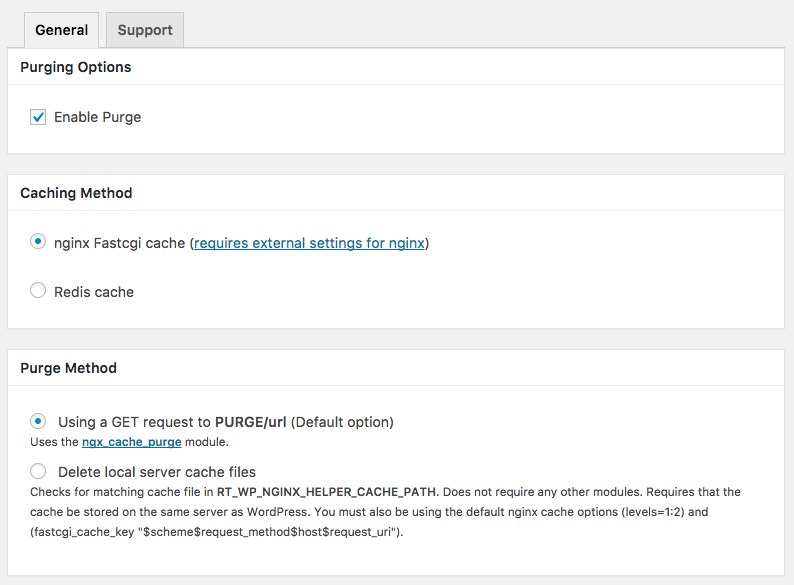
- Using WordPress Plugins: Several WordPress plugins are designed to manage and purge the Nginx cache automatically. These plugins often integrate with the `ngx_cache_purge` module or provide alternative purging mechanisms, making cache management more user-friendly. They typically offer options to purge the cache when content is updated, published, or deleted.
Configuring Automatic Cache Purging
Automatic cache purging ensures that the cache is cleared whenever content is updated, keeping your website’s information fresh. Implementing this requires careful configuration, often involving WordPress plugins and the `ngx_cache_purge` module.
The core idea involves triggering a purge request to Nginx whenever a post, page, or other content is modified within WordPress. This typically involves:
- Installing and Configuring a Cache Management Plugin: Popular plugins like WP Super Cache, W3 Total Cache, or LiteSpeed Cache (when used with the appropriate server setup) offer built-in options for purging the Nginx cache. They often utilize the `ngx_cache_purge` module or other methods.
- Configuring the Plugin to Trigger Purge Requests: Within the plugin’s settings, you’ll typically find options to trigger a purge request whenever content is updated. This might involve specifying the cache path or using a specific purge URL that the plugin sends to Nginx.
- Configuring Nginx to Handle Purge Requests: You need to configure Nginx to listen for these purge requests. This usually involves setting up a location block that allows the `ngx_cache_purge` module to handle requests sent by the WordPress plugin. This block needs to define the allowed IP addresses (usually the server’s own IP) and the cache path to be purged.
An example of a configuration snippet for Nginx, using `ngx_cache_purge` might look like this:
location ~ /purge(/.*)
    allow 127.0.0.1; # Allow only requests from the server itself
    deny all;
    proxy_cache_purge  CACHE_PATH$1$is_args$args;
In this example, the location ~ /purge(/.*) block defines the URL pattern that triggers the purge. The allow 127.0.0.1 directive restricts purge requests to the server’s local IP address. The proxy_cache_purge directive then uses the URL path to purge the corresponding cache files.
The CACHE_PATH variable should be replaced with the actual path to your cache directory.
Manually Purging the Cache from the Command Line
Manually purging the cache from the command line provides a quick and direct way to clear the cache when necessary, for instance, after making significant changes to your website’s theme or content. This often utilizes the `ngx_cache_purge` module or direct file system manipulation.
The specific commands depend on the method you are using for purging. For the `ngx_cache_purge` module, you would typically use curl or a similar command-line tool to send a purge request to Nginx. The request should target the purge URL configured in your Nginx configuration.
For instance, if you have set up a purge location at /purge/, and the cache path is /var/cache/nginx/, you might use a command like this:
curl -X PURGE http://yourdomain.com/purge/.*
Or, using the purge URL method, you would send a request to the purge URL, specifying the path to be purged:
curl -X PURGE http://yourdomain.com/purge/path/to/your/content
Alternatively, if you are directly deleting files, you would use the command line to navigate to your cache directory and remove the files. This would typically involve using commands like rm or find and rm.
rm -rf /var/cache/nginx/*
However, be extremely careful when using these commands, as deleting the wrong files can impact your website’s performance or availability. Always ensure you understand the implications before executing any command that modifies your cache directory.
Testing and Verification
After configuring Nginx caching for WordPress, it’s crucial to verify that the caching mechanisms are functioning as intended. This ensures that your website is delivering content efficiently and providing the performance benefits of caching. Several tools and methods are available to confirm the correct operation of Nginx caching.
Verifying Nginx Caching Functionality
To confirm that Nginx caching is correctly implemented, several methods can be employed. These methods provide insights into how Nginx handles requests and serves cached content.
Using Browser Developer Tools to Check Caching Headers
Browser developer tools are invaluable for inspecting HTTP headers and verifying caching behavior. These tools allow you to examine the responses your browser receives from the server, providing crucial information about caching directives. Here’s how to use them effectively:
- Open Developer Tools: Right-click on any webpage and select “Inspect” or “Inspect Element.” Alternatively, use the keyboard shortcuts: F12 (Windows/Linux) or Cmd+Option+I (macOS).
- Navigate to the Network Tab: Within the developer tools, click on the “Network” tab. This tab displays all network requests made by the browser.
- Refresh the Page: Refresh the webpage to capture network traffic.
- Inspect Request Details: Click on a specific request (e.g., the request for the main page or a specific image). This will display detailed information about that request.
- Examine Response Headers: Look at the “Headers” tab within the request details. This section displays both the request headers sent by your browser and the response headers sent by the server (Nginx in this case). Pay close attention to the caching-related headers.
- Observe Caching Behavior: Reload the page multiple times and observe the changes in the headers. If caching is working correctly, you should see headers indicating that the content is being served from the cache.
Common HTTP Headers Related to Caching
Understanding HTTP headers is key to verifying caching. The following list describes common headers related to caching and their significance:
- Cache-Control: This header is a crucial directive that specifies caching policies for the response. It can include directives like:
max-age=seconds: Specifies the maximum time (in seconds) the response can be cached.public: Indicates that the response can be cached by any cache (e.g., browser, proxy).private: Indicates that the response is intended for a single user and should not be cached by shared caches.no-cache: Indicates that the response can be cached, but must be revalidated with the origin server before use.no-store: Indicates that the response should not be cached at all.must-revalidate: Indicates that the cache must revalidate the response with the origin server after themax-agehas expired.
- Expires: This header specifies an absolute date and time after which the response is considered stale. This header is generally superseded by
Cache-Control. - ETag: This header provides a unique identifier for a specific version of a resource. The browser uses this to check if the resource has changed since the last time it was cached.
- Last-Modified: This header indicates the last time the resource was modified. The browser uses this to determine if the cached version is still valid.
- Vary: This header indicates which request headers should be considered when determining if a cached response can be used. For example,
Vary: Accept-Encodingmeans that different cached versions might exist based on the browser’s support for different content encodings (e.g., gzip). - Age: This header indicates the age of the response in seconds, relative to the time it was generated by the origin server.
- X-Cache: This is a custom header that some caching systems, including Nginx, use to indicate whether a response was served from the cache (e.g.,
X-Cache: HIT) or from the origin server (e.g.,X-Cache: MISS).
Advanced Configuration and Optimization
Optimizing Nginx caching for WordPress goes beyond the basic setup. This section delves into advanced techniques for tailoring caching behavior to specific needs, enhancing performance, and ensuring content freshness. Effective advanced configuration requires a deep understanding of the `proxy_cache_key` directive, targeted caching strategies for themes and plugins, and robust cache invalidation mechanisms.
Customizing Cache Keys with `proxy_cache_key`
The `proxy_cache_key` directive allows for granular control over how Nginx generates cache keys. By default, Nginx uses the request URI and host to create a cache key. However, for WordPress, this can be insufficient, particularly when dealing with query strings or user-specific content. Customizing the cache key ensures that different variations of a page, such as those based on query parameters or user agents, are cached separately, leading to improved cache hit ratios and overall performance.The `proxy_cache_key` directive is configured within the `http`, `server`, or `location` blocks in your Nginx configuration file.
It accepts a string that defines the key’s structure, utilizing variables to incorporate various request elements.Here’s an example illustrating how to include query parameters in the cache key:“`nginxlocation / proxy_cache_key “$scheme$request_method$host$request_uri$args”; proxy_pass http://wordpress_backend; proxy_cache my_cache;“`In this configuration:* `$scheme`: Represents the request scheme (http or https).
`$request_method`
Indicates the HTTP method (GET, POST, etc.).
`$host`
Specifies the server’s host name.
`$request_uri`
Represents the requested URI, excluding query parameters.
`$args`
Contains the query parameters.By including `$args`, pages with different query parameters will be cached separately. For example, `example.com/?page=1` and `example.com/?page=2` will be cached as distinct entries.Consider the scenario of caching content based on the user agent. This is useful for serving optimized content to different devices. The following configuration demonstrates how to incorporate the user agent into the cache key:“`nginxlocation / proxy_cache_key “$scheme$request_method$host$request_uri$args$http_user_agent”; proxy_pass http://wordpress_backend; proxy_cache my_cache;“`In this case, pages accessed by different user agents (e.g., a mobile device versus a desktop browser) will be cached independently, ensuring appropriate content delivery.For WordPress, consider adding the `Cookie` header to the cache key to handle situations where cookies affect content display (e.g., logged-in users).
However, be cautious with this approach, as it can lead to a large number of cache entries if cookies are used extensively.“`nginxlocation / proxy_cache_key “$scheme$request_method$host$request_uri$args$cookie_wordpress_logged_in”; proxy_pass http://wordpress_backend; proxy_cache my_cache;“`This approach caches content separately based on the presence and value of the `wordpress_logged_in` cookie.Using `proxy_cache_key` effectively requires careful consideration of the specific WordPress site’s needs.
Overly complex cache keys can lead to excessive cache storage, while insufficient keys may result in incorrect content delivery.
Configuring Caching for Specific WordPress Themes or Plugins
Tailoring caching strategies to specific themes or plugins can significantly improve performance. Some themes and plugins generate dynamic content that requires careful handling to avoid caching issues. This section explains how to configure caching rules to accommodate these specific needs.A common scenario involves caching static assets like CSS, JavaScript, and images. This is usually straightforward, but ensuring proper cache control headers is crucial.“`nginxlocation ~* \.(jpg|jpeg|png|gif|css|js)$ expires 30d; add_header Cache-Control “public”; proxy_pass http://wordpress_backend; proxy_cache my_cache;“`In this configuration:* `location ~* \.(jpg|jpeg|png|gif|css|js)$`: This regular expression matches requests for files with the specified extensions.
`expires 30d`
Sets the expiration time for the cache to 30 days.
`add_header Cache-Control “public”`
Specifies that the cache can be stored by both the browser and any intermediary caches.
`proxy_pass http
//wordpress_backend`: Passes the request to the WordPress backend.
`proxy_cache my_cache`
Applies the configured cache to these requests.For plugins that generate dynamic content, you may need to exclude certain URLs from caching or use more sophisticated cache control mechanisms. For instance, contact forms often require immediate updates.Here’s an example of excluding a specific URL from caching:“`nginxlocation /wp-admin/admin-ajax.php proxy_pass http://wordpress_backend; proxy_no_cache 1; proxy_cache_bypass 1;“`In this example:* `proxy_no_cache 1`: Disables caching for this specific location.
`proxy_cache_bypass 1`
Forces Nginx to bypass the cache and fetch the content directly from the origin server.Another approach involves configuring cache invalidation based on specific events, such as when a post is updated. This often requires integrating with the WordPress plugin or theme.Consider the popular plugin, “Yoast .” Yoast often updates the sitemap and metadata when content changes.
You might configure a cache purge rule to invalidate the sitemap cache when a post is updated. This usually involves using a plugin that triggers a purge request to Nginx when content changes.For themes, consider caching specific templates or parts of the theme that are relatively static. For example, the header and footer might be suitable candidates for caching, while the main content area could be updated more frequently.“`nginxlocation ~ /wp-content/themes/your-theme/header.php proxy_cache_valid 24h; proxy_pass http://wordpress_backend; proxy_cache my_cache;“`This configuration caches the `header.php` file for 24 hours.The optimal caching strategy for themes and plugins depends heavily on their functionality and the dynamic nature of the content they generate.
Designing a Configuration for Handling Cache Invalidation
Effective cache invalidation is critical for maintaining content freshness. It ensures that changes to the WordPress site are reflected promptly. This section describes different scenarios and approaches for handling cache invalidation.Several methods exist for invalidating the Nginx cache:* Purging the Cache Manually: This involves manually deleting cache files or using a command-line tool to clear the cache. This is suitable for infrequent updates or when a complete cache refresh is required.
“`bash nginx -s reload “` This command reloads the Nginx configuration, which can also clear the cache if configured. However, this is a blunt instrument.
Using WordPress Plugins
Several WordPress plugins are designed to interact with Nginx and automatically purge the cache when content is updated. These plugins typically send a `PURGE` request to Nginx. Examples include `Nginx Helper` and `WP Super Cache`.
Using the `proxy_cache_purge` Module
This module allows you to purge specific URLs based on various criteria, such as a regular expression match. This provides more fine-grained control over cache invalidation. Here’s an example of using the `proxy_cache_purge` module. First, you need to install the module if it is not already installed. Then, you can add the following configuration: “`nginx location /purge-cache allow 127.0.0.1; # Allow only localhost to purge deny all; proxy_cache_purge my_cache “$scheme$request_method$host$request_uri”; “` In this configuration:
`allow 127.0.0.1`
Restricts access to the purge endpoint to localhost. This is a security measure to prevent unauthorized cache purges.
`deny all`
Denies all other access.
`proxy_cache_purge my_cache “$scheme$request_method$host$request_uri”`
Purges the cache based on the URL and the scheme. This is a very broad purge. To use this, you would send a `PURGE` request to `/purge-cache`.* Using the FastCGI Cache Purge: If you’re using FastCGI caching with PHP-FPM, you can purge the cache from within the WordPress code using FastCGI headers. “`php “` This PHP code sends a `PURGE` request to the specified URL, which triggers the cache invalidation.
This approach offers flexibility but requires careful implementation to ensure security.* Using Webhooks and API Integration: For more complex scenarios, consider using webhooks or API integration to trigger cache invalidation. For example, when a post is published, you could use a webhook to send a request to a service that then purges the relevant cache entries in Nginx.The choice of invalidation method depends on the specific needs of the WordPress site:* For simple sites with infrequent updates, manual purging or a plugin might suffice.
- For more dynamic sites, automated purging triggered by content changes is essential.
- For large sites with complex caching requirements, a combination of methods may be necessary, including the use of the `proxy_cache_purge` module or API-driven invalidation.
Regardless of the method, it is essential to test cache invalidation thoroughly to ensure that content is updated correctly and that the caching system functions as expected. Monitor cache hit ratios and server performance to verify the effectiveness of the invalidation strategy. Consider using tools to monitor the cache size and the number of cache misses and hits. This allows you to fine-tune your invalidation strategy over time.
Troubleshooting Common Issues
Configuring Nginx caching for WordPress can sometimes present challenges. It’s crucial to be prepared to identify and resolve issues that may arise. This section will address common problems and provide solutions to ensure your caching setup functions optimally, delivering a fast and responsive website experience.
Incorrect Caching
Incorrect caching is a common issue, leading to stale content being served to users. This can happen due to misconfigurations in Nginx or conflicts with WordPress plugins.
- Verify Configuration Files: Double-check your Nginx configuration files (e.g., `nginx.conf`, site-specific configurations) for any typos or errors. Ensure the caching directives are correctly implemented, including `proxy_cache_path`, `proxy_cache_key`, and `proxy_cache_valid`.
- Check Cache Key: The `proxy_cache_key` directive is crucial. If it’s not set up correctly, the cache might not be generated or accessed properly. A common setup includes the request URI, the host, and the query string. For example:
proxy_cache_key "$scheme$host$request_uri$args"; - Plugin Conflicts: WordPress plugins designed to handle caching, such as WP Super Cache or W3 Total Cache, can sometimes conflict with Nginx caching. Disable or reconfigure these plugins to avoid overlaps.
- Browser Caching Headers: Ensure that your Nginx configuration correctly sets the appropriate caching headers (e.g., `Cache-Control`, `Expires`) to control how browsers cache content.
Slow Loading Times
Slow loading times, despite having caching enabled, can indicate underlying issues. This can be due to inefficient configurations or bottlenecks in the server setup.
- Insufficient Server Resources: Ensure your server has adequate resources (CPU, RAM, disk I/O) to handle the traffic and caching operations. Monitor server resource usage during peak times.
- Cache Hit Ratio: Monitor your cache hit ratio. A low hit ratio means that a significant portion of requests are not being served from the cache, leading to slower response times. This can be checked using tools like `ngx_cache_purge`.
- Large Cache Size: A very large cache size can sometimes slow down lookups. Consider adjusting the cache size or implementing strategies to purge less frequently accessed content.
- Database Bottlenecks: Even with caching, database queries can still be a bottleneck. Optimize your WordPress database, and consider using object caching (Redis or Memcached) to reduce database load.
Content Not Updating
Content not updating is a frustrating problem that leads to users seeing outdated information. This typically stems from aggressive caching configurations or incorrect cache purging mechanisms.
- Cache Expiration Times: Review your `proxy_cache_valid` directives. If the cache expiration times are set too long, content changes will not be reflected quickly.
- Purge Mechanisms: Implement a reliable cache purging mechanism. This could involve using plugins that automatically purge the cache when content is updated or configuring manual purge requests via tools like `ngx_cache_purge`.
- Cache Control Headers: Ensure that the WordPress application is setting the correct cache control headers. Incorrect headers can override the Nginx caching configuration.
- Browser Caching: Remember that browsers also cache content. Instruct users to clear their browser cache or use incognito mode to ensure they are seeing the latest version of your website.
Checking Nginx Error Logs
Nginx error logs are invaluable for troubleshooting caching issues. They provide detailed information about errors and warnings that can help pinpoint the root cause of problems.
To check the Nginx error logs, you can typically find them in the `/var/log/nginx/error.log` file. Use the following command to view the logs:
sudo tail -f /var/log/nginx/error.logThis command displays the last few lines of the log file and follows any new entries as they are added. Look for any errors or warnings related to caching, such as “cache_path could not open”, “proxy_cache_path could not create”, or “upstream timed out”. These error messages provide clues for debugging caching issues.
Security Considerations
Caching, while beneficial for performance, introduces security considerations that must be addressed to protect your WordPress site and its cached content. Properly configuring and securing your Nginx setup is crucial to prevent unauthorized access and potential vulnerabilities. Ignoring these aspects can expose your website to various attacks, leading to data breaches, defacement, and service disruptions.
Protecting Cached Content from Unauthorized Access
Securing cached content involves preventing unauthorized access to files stored by Nginx. This is vital to ensure sensitive information is not exposed and that the caching system functions as intended without compromising data integrity. Implementing robust access controls and following best practices is essential.
- File Permissions: Carefully manage file permissions on your server. The cached files stored by Nginx should not be accessible to the public or other unauthorized users. Ensure that the web server user (e.g., `www-data` on Debian/Ubuntu) owns the cache directory and has the necessary read and write permissions. Other users should not have read access.
- Restrict Direct Access: Prevent direct access to cached files by configuring Nginx to deny requests for files within the cache directory. This can be achieved using `location` blocks in your Nginx configuration.
- Use Secure Protocols (HTTPS): Always serve your website over HTTPS. This encrypts the communication between the user’s browser and the server, protecting sensitive data, including cookies and user credentials, from interception. The security benefits of HTTPS are significant, as it ensures data confidentiality and integrity during transmission.
- Implement Content Security Policy (CSP): Implement a Content Security Policy (CSP) to mitigate the risk of cross-site scripting (XSS) attacks. CSP allows you to specify the sources from which the browser should load resources, such as scripts, styles, and images. This helps prevent the browser from loading malicious content injected by attackers.
- Regular Security Audits: Conduct regular security audits of your Nginx configuration and WordPress installation. This includes checking for outdated software, misconfigurations, and potential vulnerabilities. Use security scanners and penetration testing tools to identify weaknesses.
Securing Your Nginx Configuration
Securing your Nginx configuration is a crucial step in protecting your WordPress site. A well-secured configuration minimizes the attack surface and prevents potential exploitation of vulnerabilities. This involves hardening the server, restricting access, and implementing various security measures.
- Keep Nginx Updated: Regularly update Nginx to the latest stable version. Updates often include security patches that address known vulnerabilities.
- Disable Server Information Disclosure: Prevent Nginx from revealing server information, such as the version number, in HTTP headers. This information can be used by attackers to identify vulnerabilities. Add the following directive to your Nginx configuration in the `http` block:
server_tokens off; - Configure Strong TLS/SSL Settings: Use strong TLS/SSL settings to encrypt traffic between the server and the client. This involves configuring secure ciphers, protocols, and key sizes. Utilize tools like the Mozilla SSL Configuration Generator to generate secure configurations. An example of a secure configuration includes:
ssl_protocols TLSv1.2 TLSv1.3;
ssl_ciphers 'ECDHE-ECDSA-AES128-GCM-SHA256:ECDHE-RSA-AES128-GCM-SHA256:ECDHE-ECDSA-AES256-GCM-SHA384:ECDHE-RSA-AES256-GCM-SHA384:ECDHE-ECDSA-CHACHA20-POLY1305:ECDHE-RSA-CHACHA20-POLY1305:DHE-RSA-AES128-GCM-SHA256:DHE-RSA-AES256-GCM-SHA384';
ssl_prefer_server_ciphers on; - Implement Rate Limiting: Implement rate limiting to protect against brute-force attacks and denial-of-service (DoS) attacks. Nginx’s `limit_req` module can be used to limit the number of requests from a single IP address within a specified time period. For example:
limit_req_zone $binary_remote_addr zone=mylimit:10m rate=1r/s;
server
location /wp-admin/
limit_req zone=mylimit burst=5 nodelay;
This configuration limits requests to the `/wp-admin/` directory to 1 request per second, with a burst of 5 requests allowed.
- Web Application Firewall (WAF): Consider using a web application firewall (WAF) to protect against common web attacks, such as SQL injection and cross-site scripting (XSS). WAFs analyze incoming traffic and block malicious requests. Several open-source and commercial WAF solutions are available.
- Regularly Monitor Logs: Regularly monitor your Nginx access and error logs for suspicious activity, such as failed login attempts, unusual traffic patterns, and error messages. Analyze the logs to identify potential security threats.
- Use a Security Plugin: Utilize a security plugin specifically designed for WordPress. These plugins can provide features such as malware scanning, brute-force protection, and firewall capabilities. Examples include Wordfence, Sucuri Security, and iThemes Security.
Outcome Summary
In conclusion, configuring Nginx caching for your WordPress site is an investment in performance and user satisfaction. By implementing the strategies Artikeld in this guide, you can dramatically reduce server load, improve page load times, and provide a seamless browsing experience. Remember to regularly test and monitor your caching setup to ensure optimal performance and make adjustments as needed. With careful configuration, your WordPress site will be faster, more efficient, and better equipped to handle traffic.