Embarking on the journey of setting up Cloudflare DNS for your custom domain can significantly enhance your website’s performance, security, and overall user experience. This guide is crafted to navigate you through the process, ensuring a seamless transition from traditional DNS providers to Cloudflare’s robust infrastructure. We’ll delve into the core functionalities, advantages, and practical steps involved in harnessing the power of Cloudflare DNS for your custom domain, empowering you with the knowledge to optimize your online presence.
From understanding the fundamental concepts of Cloudflare DNS and custom domains to configuring essential DNS records and troubleshooting common issues, this comprehensive guide will provide you with the necessary tools and insights. We’ll explore the differences between Cloudflare’s free and paid plans, guide you through domain registration, and demonstrate how to leverage Cloudflare’s features to boost your website’s speed and security.
Prepare to unlock the full potential of your website with Cloudflare DNS.
Understanding Cloudflare DNS and Custom Domains
Cloudflare DNS offers a robust and efficient way to manage your domain’s DNS records, enhancing website performance and security. This section delves into the core functionalities of Cloudflare DNS, its advantages, plan comparisons, and the benefits of utilizing custom domains. We’ll explore how businesses leverage Cloudflare for their online presence.
Core Function of Cloudflare DNS and Its Advantages
Cloudflare DNS acts as a Domain Name System (DNS) provider, translating human-readable domain names (like example.com) into the numerical IP addresses that computers use to locate websites. Cloudflare’s primary function is to accelerate website performance and enhance security.Cloudflare offers several advantages over traditional DNS providers:
- Speed and Performance: Cloudflare’s global network of servers caches DNS records, reducing latency and speeding up website loading times. This is achieved through Anycast DNS, which directs users to the nearest server, optimizing response times.
- Security: Cloudflare provides built-in security features, including DDoS protection, a Web Application Firewall (WAF), and bot management, safeguarding websites from various online threats.
- Reliability and Uptime: Cloudflare’s distributed network ensures high availability, minimizing downtime and maintaining website accessibility even during traffic spikes or server outages.
- Ease of Use: Cloudflare’s user-friendly interface simplifies DNS management, making it easy to configure and update DNS records.
Cloudflare’s Free and Paid DNS Plans Comparison
Cloudflare offers a range of DNS plans, including free and paid options, each with different features and benefits. The choice of plan depends on the specific needs and requirements of a website or business.
| Feature | Free Plan | Paid Plan |
|---|---|---|
| DNS Records | Unlimited | Unlimited |
| DNS Propagation Time | Typically fast, but can vary | Faster propagation times, often prioritized |
| Website Security (DDoS Protection, WAF) | Basic DDoS protection | Advanced DDoS protection, Customizable WAF rules |
| Content Delivery Network (CDN) | Included | Enhanced CDN with more features |
| Caching | Standard caching | Advanced caching options |
| SSL Certificates | Free SSL certificate | Advanced SSL options (e.g., custom certificate upload) |
| Customer Support | Community support | Priority support |
The free plan is suitable for small websites and personal projects, providing essential DNS management and security features. Paid plans, such as Pro, Business, and Enterprise, offer advanced features like enhanced security, faster performance, and priority support, catering to the needs of larger businesses and more complex websites.
Benefits of Using a Custom Domain with Cloudflare
Utilizing a custom domain with Cloudflare offers several advantages, primarily centered around branding and control over online presence.
- Branding: A custom domain allows businesses to establish a unique brand identity and enhance brand recognition. Using a domain like “yourcompany.com” instead of a subdomain of a free service reinforces professionalism and credibility.
- Control: Owning a custom domain gives complete control over website content, design, and online strategy.
- Benefits: Custom domains can improve search engine optimization () by providing a clear and consistent domain name, helping websites rank higher in search results.
- Email Address: Custom domains allow the creation of professional email addresses (e.g., [email protected]), enhancing brand image and communication.
Real-World Examples of Businesses Using Cloudflare DNS
Numerous businesses across various industries successfully use Cloudflare DNS for their custom domains.
- Shopify: Shopify, a leading e-commerce platform, uses Cloudflare to enhance the performance and security of its vast network of online stores. Shopify leverages Cloudflare’s CDN and security features to ensure fast and reliable access to its merchants’ websites.
- Discord: The popular communication platform Discord utilizes Cloudflare for its DNS and security infrastructure. Cloudflare helps Discord manage its massive traffic volume and protect against DDoS attacks, ensuring the platform remains available for millions of users.
- Udemy: Udemy, an online learning platform, leverages Cloudflare to improve website performance and protect against malicious traffic. Cloudflare’s CDN helps deliver course content quickly to students worldwide.
These examples demonstrate how Cloudflare DNS is a versatile solution that supports businesses of all sizes in optimizing website performance, enhancing security, and maintaining a strong online presence.
Prerequisites
Before you can harness the power of Cloudflare DNS for your custom domain, you’ll need to complete a few essential preliminary steps. These steps involve securing a domain name and setting up a Cloudflare account, which are the foundational elements for managing your domain’s DNS settings. Let’s delve into each of these prerequisites.
Domain Registration
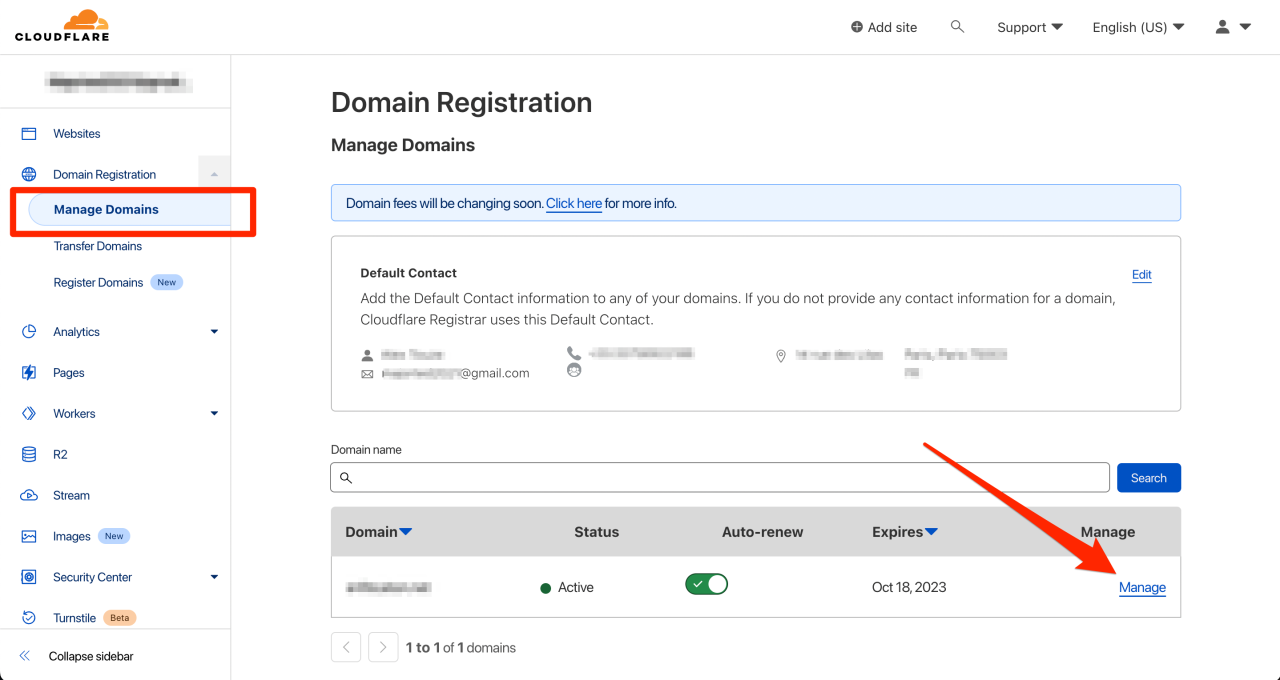
Registering a domain name is the first step in establishing your online presence. This involves choosing a unique name and selecting a domain registrar. A domain registrar is a company accredited by ICANN (Internet Corporation for Assigned Names and Numbers) to manage the registration of domain names.The process typically involves these steps:
- Choosing a Domain Registrar: Select a reputable registrar. Popular choices include GoDaddy, Namecheap, Google Domains, and others. Consider factors like pricing, ease of use, customer support, and any additional services offered.
- Searching for Availability: Use the registrar’s search tool to check if your desired domain name is available. If it’s already registered, you’ll need to choose a different name or a different top-level domain (TLD) such as .net or .org.
- Selecting Your Domain Name: Once you find an available domain name, add it to your cart. Carefully review your selection, including the TLD.
- Providing Registration Information: Provide accurate contact information, including your name, address, email, and phone number. This information is often required by ICANN and may be publicly available unless you opt for privacy protection.
- Choosing Registration Duration: Select the duration for which you want to register the domain, typically one to ten years. Longer registration periods often offer cost savings.
- Optional Services: Registrars often offer additional services such as domain privacy protection, email hosting, and website builders. Review these options carefully to determine if they meet your needs. Domain privacy protects your personal information from being displayed in the WHOIS database.
- Payment: Complete the payment process using a credit card, PayPal, or other accepted payment methods.
- Confirmation: After successful payment, you’ll receive a confirmation email. This email will contain important information about your domain registration.
For example, let’s consider registering “exampledomain.com” with GoDaddy. You would first visit GoDaddy’s website, search for “exampledomain.com,” and if available, add it to your cart. You would then provide your contact information, choose a registration period (e.g., one year), and complete the payment. GoDaddy would then send you a confirmation email, officially registering your domain.
Cloudflare Account Creation and Verification
The next crucial step is creating a Cloudflare account. This account will serve as the control panel for managing your domain’s DNS settings, including configuring DNS records, enabling security features, and optimizing website performance.Here’s how to create and verify your Cloudflare account:
- Navigate to Cloudflare’s Website: Go to the Cloudflare website (cloudflare.com).
- Sign Up: Click on the “Sign Up” button, usually located in the top right corner.
- Provide Information: Enter your email address and create a strong password.
- Submit and Verify: Click the “Create Account” button. You will receive a verification email from Cloudflare.
- Verify Your Email: Open the verification email and click the provided link to verify your email address. This confirms your ownership of the email address and activates your Cloudflare account.
Understanding the Cloudflare Dashboard
Once your Cloudflare account is created and verified, you’ll access the Cloudflare dashboard. The dashboard is the central hub for managing your domains and Cloudflare services. Familiarizing yourself with the interface is crucial for effective DNS management.Key elements of the Cloudflare dashboard include:
- Domain Overview: The main dashboard displays a list of your domains added to Cloudflare. Clicking on a domain takes you to its specific settings.
- DNS Settings: This section is where you configure your DNS records. You can add, edit, and delete records, such as A records, CNAME records, and MX records.
- SSL/TLS: Here, you can manage your SSL/TLS certificates to secure your website’s connection. You can choose between different encryption modes and enable features like Always Use HTTPS.
- Caching: This area allows you to configure caching settings to improve website performance. You can control how long content is cached and purge the cache when necessary.
- Security: Cloudflare offers various security features, including a Web Application Firewall (WAF) and protection against DDoS attacks.
- Speed: This section provides tools to optimize your website’s speed, such as image optimization and minification.
- Analytics: The analytics dashboard provides insights into your website’s traffic, security threats, and performance.
The Cloudflare dashboard is designed to be user-friendly. However, it’s beneficial to explore the various sections and familiarize yourself with the available features. For instance, you can navigate to the DNS settings for your domain and add an A record that points your domain to your web server’s IP address. The dashboard also offers helpful documentation and tutorials to guide you through the process.
Checklist for Cloudflare DNS Setup
Before you begin setting up Cloudflare DNS, ensure you have the following items ready:
- A registered domain name.
- Access to your domain registrar’s control panel.
- A verified Cloudflare account.
- Your website’s IP address (if applicable).
- Any existing DNS records you want to migrate to Cloudflare (e.g., A records, CNAME records, MX records).
- The nameservers provided by Cloudflare (you will need these to update your domain’s nameservers at your registrar).
Adding Your Website to Cloudflare
Now that you understand the basics of Cloudflare DNS and have met the prerequisites, the next step is to integrate your website with Cloudflare. This involves adding your website to the Cloudflare platform, selecting a suitable plan, changing your domain’s nameservers, and verifying the successful propagation of these changes. This process is crucial for leveraging Cloudflare’s benefits, including improved performance, security, and reliability for your website.
Adding Your Website and Initial DNS Scan
Adding your website to Cloudflare is the initial step in the process. This involves providing your domain name to Cloudflare, which then scans your existing DNS records to automatically import them.To add your website:
- Navigate to the Cloudflare website and log in to your account.
- Click on the “Add Site” button, usually located in the dashboard.
- Enter your domain name in the designated field. For example, if your website address is `www.example.com`, enter `example.com`.
- Cloudflare will prompt you to select a plan. The Free plan is a good starting point.
- Cloudflare will then scan your DNS records. This process automatically detects existing DNS records, such as A records, CNAME records, and MX records, and imports them into your Cloudflare account. This ensures that your website’s existing configuration is preserved.
- Review the imported DNS records to ensure accuracy. You can add, edit, or delete records as needed. Cloudflare will also suggest the configuration of its services, such as the orange cloud icon next to each DNS record, which indicates that the record is proxied by Cloudflare. Proxied records benefit from Cloudflare’s performance and security features.
- After reviewing and configuring your DNS records, Cloudflare will provide you with a set of nameservers that you will need to update at your domain registrar.
Selecting the Appropriate Cloudflare Plan
Cloudflare offers various plans tailored to different needs and budgets. Choosing the right plan is essential to maximizing the benefits of Cloudflare for your website.Cloudflare offers several plans, including Free, Pro, Business, and Enterprise. Each plan provides a different set of features and benefits.
- Free Plan: This plan is suitable for personal websites, blogs, and small businesses. It offers essential features such as DNS management, DDoS protection, and CDN (Content Delivery Network) caching. The Free plan is an excellent option for testing Cloudflare’s services and experiencing its basic performance improvements.
- Pro Plan: The Pro plan builds upon the Free plan by adding features such as enhanced security, optimized image delivery, and advanced caching. This plan is ideal for websites with higher traffic volumes and more complex security requirements.
- Business Plan: The Business plan offers more advanced features, including priority support, custom SSL certificates, and enhanced security rules. It’s designed for businesses that need a higher level of performance and security.
- Enterprise Plan: This is the most comprehensive plan, offering premium features such as dedicated support, advanced DDoS mitigation, and custom configurations. It’s tailored for large enterprises with demanding performance and security needs.
Consider these factors when selecting a plan:
- Website Traffic: Higher traffic volumes may require a plan with more bandwidth and caching capabilities.
- Security Needs: If your website handles sensitive data or faces frequent attacks, a plan with advanced security features is recommended.
- Budget: Each plan has a different cost structure. Evaluate your budget and choose a plan that provides the features you need within your financial constraints.
- Specific Features: Determine which features are most important for your website, such as image optimization, custom SSL certificates, or priority support.
Changing Your Nameservers at Your Domain Registrar
Once you have added your website to Cloudflare and reviewed the DNS records, you must update your domain’s nameservers at your domain registrar. This process directs all traffic for your domain through Cloudflare’s servers.To change your nameservers:
- Log in to your account at your domain registrar (e.g., GoDaddy, Namecheap, Google Domains).
- Navigate to the DNS settings or nameserver settings for your domain.
- Find the section where you can manage your nameservers. This section might be labeled “Nameservers,” “DNS Servers,” or similar.
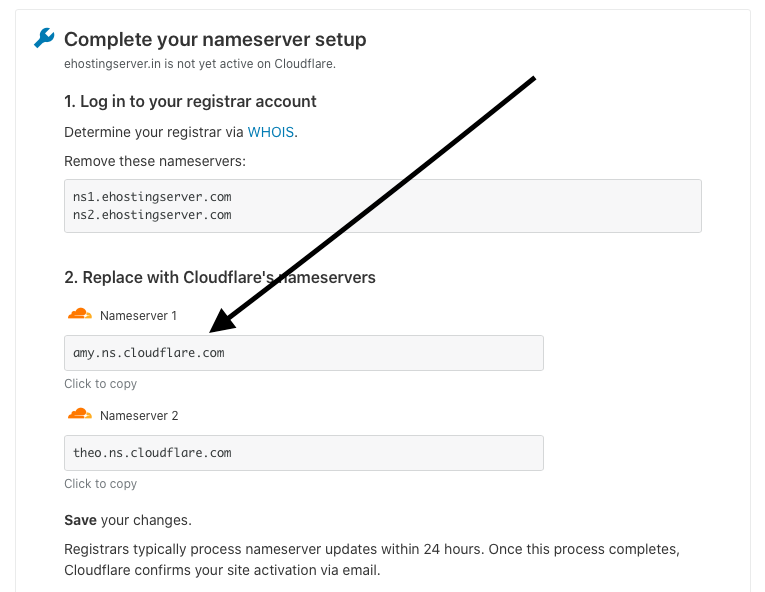
- Replace your current nameservers with the nameservers provided by Cloudflare. Cloudflare typically provides two nameservers, such as `eva.ns.cloudflare.com` and `nick.ns.cloudflare.com`.
- Save the changes. The domain registrar will then update the nameserver records.
The nameserver update process can take up to 48 hours to propagate across the internet, although it often happens much faster.
Verifying Nameserver Propagation
After changing your nameservers, it’s crucial to verify that the changes have propagated successfully. This confirms that your domain is now using Cloudflare’s DNS servers.There are several ways to verify nameserver propagation:
- Using Online Tools: Several online tools can check the nameservers for your domain. These tools query DNS servers worldwide to see which nameservers are currently authoritative for your domain. Popular tools include whatsmydns.net and dnschecker.org. Simply enter your domain name and the tool will display the nameservers it finds. If the Cloudflare nameservers are listed in the results, the propagation is complete.
- Using the `dig` Command (for Linux/macOS users): The `dig` command is a powerful command-line tool for querying DNS records. Open your terminal and type the following command, replacing `yourdomain.com` with your actual domain name:
dig yourdomain.com nsThis command will query the nameserver records for your domain. The output should display the Cloudflare nameservers.
- Checking Your Cloudflare Dashboard: Cloudflare’s dashboard often provides a visual indicator of the nameserver propagation status. You may see a message indicating that the nameservers are still propagating, or you may see a green checkmark indicating that the process is complete.
During the propagation period, you may experience intermittent issues with your website as different DNS servers update their records at different times. Once the propagation is complete, your website will start using Cloudflare’s services.
Configuring DNS Records in Cloudflare
Now that your website is added to Cloudflare and you understand the fundamentals, the next crucial step is configuring the DNS records. This process directs traffic to your website and allows you to leverage Cloudflare’s performance and security features. Properly configuring these records ensures your website functions correctly and benefits from Cloudflare’s global network.This section details how to add and configure various DNS record types within the Cloudflare dashboard.
Each record type serves a specific purpose in directing traffic and managing your domain’s online presence.
Adding DNS Records: A, CNAME, MX, and TXT
To make your website accessible, you must configure several essential DNS records within Cloudflare. These records tell the internet where to find your website and how to handle different types of requests. Cloudflare provides a user-friendly interface to manage these records.
- A Record: The A record maps a domain or subdomain to an IPv4 address. It’s the fundamental record for directing traffic to your web server.
- CNAME Record: A CNAME record creates an alias for your domain or subdomain, pointing it to another domain. This is useful for creating user-friendly subdomains or redirecting traffic.
- MX Record: MX (Mail Exchange) records specify the mail servers responsible for accepting email messages for your domain. These records are essential for email functionality.
- TXT Record: TXT records store text-based information about your domain. They are often used for verifying domain ownership and for configuring email security protocols like SPF and DKIM.
Configuring A Records
The A record is a fundamental DNS record that translates a domain name (e.g., example.com) or a subdomain (e.g., www.example.com) into an IPv4 address (e.g., 192.0.2.1). This allows web browsers to locate the server hosting your website.To add an A record in Cloudflare:
- In the Cloudflare dashboard, select your domain.
- Navigate to the “DNS” section.
- Click “Add Record.”
- Select “A” from the “Type” dropdown.
- In the “Name” field, enter the hostname. This can be “@” for your root domain (e.g., example.com) or a subdomain (e.g., www).
- In the “IPv4 address” field, enter the IP address of your web server.
- Set the “TTL” (Time To Live) value. The default is often “Auto,” but you can choose a specific time. A lower TTL value means changes propagate faster, but a higher TTL can improve performance by caching the record for longer.
- Click “Save.”
For example, if your website’s IP address is 192.0.2.1 and you want to point the root domain (example.com) to it, you would:
- Type: A
- Name: @
- IPv4 address: 192.0.2.1
- TTL: Auto
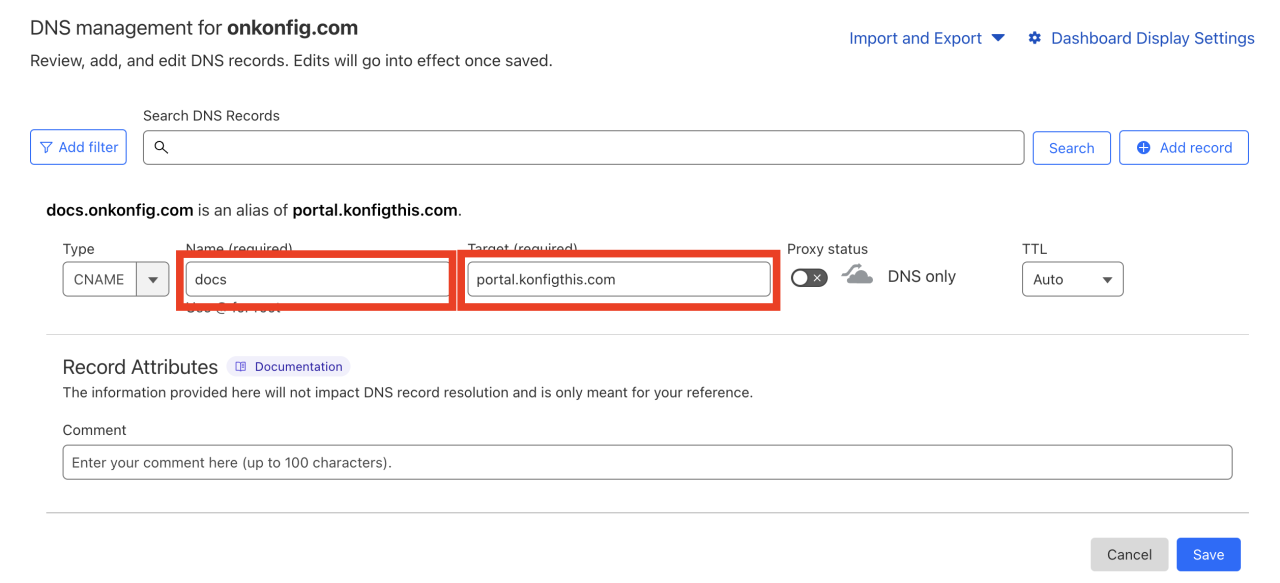
Configuring CNAME Records
CNAME records are used to create aliases. They map one domain name to another. This is useful for scenarios like:
- Pointing a subdomain to your main domain.
- Using a content delivery network (CDN).
- Creating user-friendly subdomains (e.g., blog.example.com pointing to example.com).
To add a CNAME record in Cloudflare:
- In the Cloudflare dashboard, select your domain and go to the “DNS” section.
- Click “Add Record.”
- Select “CNAME” from the “Type” dropdown.
- In the “Name” field, enter the subdomain you want to create (e.g., www, blog).
- In the “Target” field, enter the domain you want the subdomain to point to (e.g., example.com).
- Set the “TTL” value.
- Click “Save.”
For instance, to point www.example.com to example.com:
- Type: CNAME
- Name: www
- Target: example.com
- TTL: Auto
Configuring MX Records
MX (Mail Exchange) records are essential for email functionality. They specify the mail servers responsible for receiving email for your domain. Without correctly configured MX records, you won’t be able to receive emails at your domain’s email addresses.To add an MX record in Cloudflare:
- In the Cloudflare dashboard, select your domain and go to the “DNS” section.
- Click “Add Record.”
- Select “MX” from the “Type” dropdown.
- In the “Name” field, enter the hostname. This is usually your root domain (e.g., @).
- In the “Mail server” field, enter the mail server hostname provided by your email provider (e.g., mail.example.com).
- In the “Priority” field, enter the priority for the mail server. Lower numbers indicate higher priority. If you have multiple MX records, the server with the lowest priority will be tried first.
- Set the “TTL” value.
- Click “Save.”
Example configuration for a mail server:
- Type: MX
- Name: @
- Mail server: mail.example.com
- Priority: 10
- TTL: Auto
Configuring TXT Records
TXT (Text) records store text-based information about your domain. They have several uses, including:
- Verifying domain ownership with services like Google Search Console.
- Configuring email security protocols such as SPF (Sender Policy Framework) and DKIM (DomainKeys Identified Mail).
To add a TXT record in Cloudflare:
- In the Cloudflare dashboard, select your domain and go to the “DNS” section.
- Click “Add Record.”
- Select “TXT” from the “Type” dropdown.
- In the “Name” field, enter the hostname. This can be “@” for the root domain or a specific subdomain.
- In the “Content” field, enter the text string provided by the service you are using (e.g., a verification code or SPF record).
- Set the “TTL” value.
- Click “Save.”
For example, to add a TXT record for SPF:
- Type: TXT
- Name: @
- Content: v=spf1 include:spf.example.com -all
- TTL: Auto
Common DNS Records and Their Usage
Here is a table summarizing common DNS records, their typical hostnames, targets/values, and use cases:
| Record Type | Hostname | Target/Value | Use Case |
|---|---|---|---|
| A | @ | 192.0.2.1 (Your server’s IP address) | Directing the root domain (example.com) to your web server. |
| A | www | 192.0.2.1 (Your server’s IP address) | Directing the www subdomain (www.example.com) to your web server. |
| CNAME | www | example.com | Creating an alias for www.example.com, pointing it to the root domain. |
| MX | @ | mail.example.com (Your mail server hostname) | Configuring email to receive messages for your domain. |
| TXT | @ | v=spf1 include:spf.example.com -all (Example SPF record) | Configuring email security (SPF) to prevent email spoofing. |
| TXT | google._domainkey | google.com._domainkey.example.com (Example DKIM record) | Configuring email security (DKIM) to verify the sender of your email. |
| TXT | _domainverify | verification_code (Google Search Console verification) | Verifying domain ownership with Google Search Console or similar services. |
Enabling Cloudflare Features for Your Domain
Now that your custom domain is successfully added and the basic DNS records are configured, it’s time to unlock the power of Cloudflare by enabling its various features. These features are designed to enhance your website’s performance, security, and overall user experience. This section will guide you through configuring some of the most important Cloudflare features.
Enabling Cloudflare’s CDN (Content Delivery Network)
Cloudflare’s Content Delivery Network (CDN) is a globally distributed network of servers that caches your website’s content closer to your visitors. This results in faster loading times and improved website performance.To understand the benefits of a CDN, consider these points:
- Improved Website Speed: When a user requests your website, the CDN serves the content from the server closest to their location. This reduces the physical distance the data needs to travel, leading to significantly faster loading times. For example, a website hosted in the United States and accessed by a user in Australia will load much faster if the content is served from a Cloudflare server in Australia.
- Reduced Bandwidth Costs: By caching static content like images, CSS, and JavaScript files, the CDN reduces the load on your origin server. This can lead to lower bandwidth consumption and reduced hosting costs.
- Enhanced Security: Cloudflare’s CDN also acts as a shield against various threats, including DDoS attacks. It filters malicious traffic before it reaches your origin server, protecting your website from being overwhelmed.
- Increased Availability: With content cached on multiple servers, your website remains accessible even if your origin server experiences downtime. The CDN can continue to serve cached content, ensuring a consistent user experience.
Enabling the CDN is usually automatic when you add your website to Cloudflare. You can verify this by checking the “Status” column in your DNS settings. If the cloud icon is orange, it indicates that the CDN is active.
Configuring SSL/TLS Encryption Settings
SSL/TLS encryption is crucial for securing the connection between your website and your visitors’ browsers. Cloudflare offers various SSL/TLS encryption modes to protect your website’s data.Here’s how to configure your SSL/TLS settings within Cloudflare:
- Access the SSL/TLS Tab: In your Cloudflare dashboard, navigate to the “SSL/TLS” tab.
- Choose an Encryption Mode: Cloudflare offers several encryption modes, each with different security and performance trade-offs:
- Off: No SSL/TLS encryption is used. This is not recommended for security reasons.
- Flexible: Cloudflare encrypts the connection between the visitor and Cloudflare’s servers. However, the connection between Cloudflare and your origin server is not encrypted. This is the easiest to set up but provides the least security.
- Full: Cloudflare encrypts the connection between the visitor and Cloudflare’s servers and the connection between Cloudflare and your origin server. This requires you to have an SSL certificate installed on your origin server.
- Full (strict): This is the most secure option. It encrypts both connections and requires a valid SSL certificate on your origin server. It also validates the certificate’s authority.
- Select the appropriate mode: For most websites, “Full” or “Full (strict)” is recommended for the best security. If you don’t have an SSL certificate on your origin server, you can start with “Flexible” and later upgrade to a more secure option.
- Configure SSL/TLS Settings: Within the SSL/TLS tab, you can also configure other settings, such as:
- Always Use HTTPS: Redirects all HTTP requests to HTTPS, ensuring secure connections.
- TLS 1.3: Enables the latest version of TLS for faster and more secure connections.
- Minimum TLS Version: Specifies the minimum TLS version supported by your website.
Enabling Features like HTTP/3 and Brotli Compression
Cloudflare offers features like HTTP/3 and Brotli compression to further optimize website performance. These features can significantly reduce the amount of data transferred and improve loading times.
- HTTP/3: HTTP/3 is the latest version of the HTTP protocol, designed for faster and more efficient communication. It uses the QUIC protocol, which is more resilient to packet loss and provides a faster connection setup. Cloudflare automatically enables HTTP/3 for supported browsers.
- Brotli Compression: Brotli is a compression algorithm that can compress website files more efficiently than older algorithms like Gzip. This results in smaller file sizes and faster download times. Cloudflare automatically enables Brotli compression by default.
You typically don’t need to configure HTTP/3 or Brotli compression explicitly. Cloudflare handles these optimizations automatically. You can verify that Brotli compression is enabled by checking the “Content-Encoding” header in your website’s HTTP response.
Sharing Best Practices for Optimizing Website Performance Using Cloudflare Features
To maximize your website’s performance using Cloudflare, consider these best practices:
- Cache Everything: Configure Cloudflare to cache as much of your website’s content as possible. This includes static assets like images, CSS, and JavaScript files.
- Minify Resources: Enable Cloudflare’s minification feature to remove unnecessary characters from your HTML, CSS, and JavaScript files. This reduces file sizes and improves loading times.
- Optimize Images: Cloudflare offers image optimization features, such as Polish, which automatically compresses and optimizes images for faster delivery.
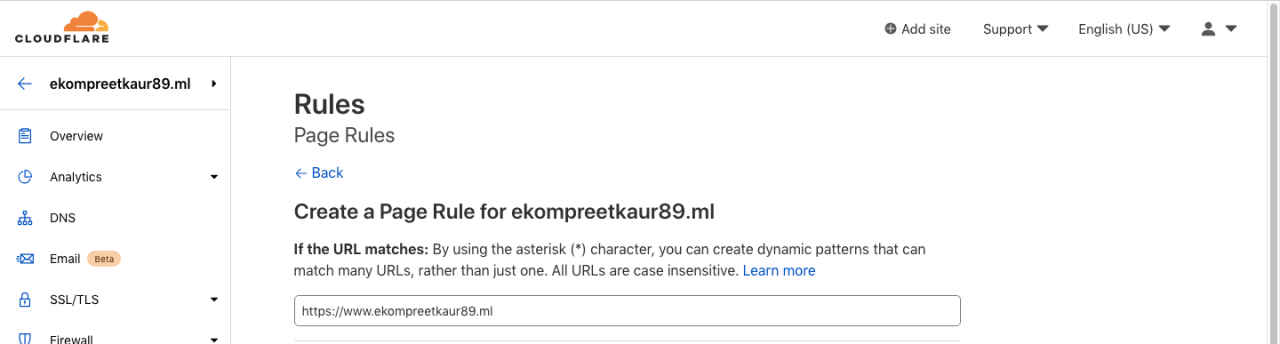
- Use Cloudflare’s Page Rules: Page Rules allow you to customize how Cloudflare handles specific URLs. You can use Page Rules to set up custom caching rules, redirect URLs, and enforce HTTPS.
- Monitor Performance: Regularly monitor your website’s performance using tools like Google PageSpeed Insights or GTmetrix. This helps you identify areas for improvement and track the impact of Cloudflare’s features.
- Purge Cache: If you make changes to your website’s content, you’ll need to purge the Cloudflare cache to ensure that visitors see the latest version.
Troubleshooting Common Issues
Setting up Cloudflare DNS for a custom domain can sometimes present challenges. This section addresses common problems encountered during the setup process, providing practical solutions to ensure your website functions correctly. We will explore issues related to nameserver propagation, SSL/TLS certificates, and website loading, equipping you with the knowledge to diagnose and resolve these issues effectively.
Nameserver Propagation Issues
Nameserver propagation is the process by which changes to your domain’s nameservers are updated across the global Domain Name System (DNS). Delays in this process can lead to website downtime or incorrect website behavior.To understand nameserver propagation issues, consider these points:
- Propagation Time: The time it takes for nameserver changes to fully propagate can vary, typically ranging from a few minutes to 48 hours. This is influenced by DNS caching and various factors across different Internet Service Providers (ISPs) and DNS servers worldwide.
- Checking Propagation: You can verify nameserver propagation using online tools like “whatsmydns.net”. These tools allow you to check the nameserver records from multiple locations globally. The tool visually represents the propagation status, indicating which DNS servers have updated records.
- Troubleshooting Steps:
- Verify Cloudflare Nameservers: Ensure your domain registrar has the correct Cloudflare nameservers configured.
- Clear DNS Cache: Clear your browser’s cache and the DNS cache on your computer to ensure you’re not viewing outdated information.
- Contact Registrar Support: If propagation is taking longer than 48 hours, contact your domain registrar’s support for assistance.
SSL/TLS Certificate Errors
SSL/TLS certificates are essential for securing your website and establishing a trusted connection with visitors. Errors related to these certificates can prevent your website from loading correctly or display security warnings.Understanding SSL/TLS certificate errors involves these considerations:
- Certificate Status: Check the SSL/TLS status within your Cloudflare dashboard. Cloudflare automatically provisions and manages SSL/TLS certificates for your domain. Ensure the status is “Active” or “Enabled”.
- Common Error Messages:
- “NET::ERR_CERT_AUTHORITY_INVALID”: Indicates a problem with the certificate’s chain of trust.
- “Your connection is not private”: Suggests the browser is not able to verify the SSL/TLS certificate.
- “Mixed Content Warning”: Occurs when a webpage is loaded over HTTPS but includes resources (images, scripts, etc.) loaded over HTTP.
- Troubleshooting Steps:
- Verify SSL/TLS Mode: In your Cloudflare dashboard, confirm the SSL/TLS encryption mode is set appropriately (e.g., “Full” or “Full (strict)”). “Full” mode encrypts the connection between the visitor and Cloudflare and between Cloudflare and your origin server. “Full (strict)” mode requires a valid SSL certificate on your origin server.
- Check Origin Server Certificate: If using “Full (strict)” mode, ensure your origin server has a valid and up-to-date SSL certificate.
- Clear Browser Cache: Clear your browser’s cache and cookies.
- Review Mixed Content: Identify and fix any mixed content issues by updating HTTP resources to HTTPS.
Website Loading Problems
Website loading problems can stem from various factors, including DNS misconfiguration, server issues, and Cloudflare settings. Diagnosing and resolving these issues is crucial for providing a positive user experience.To resolve website loading problems, consider these steps:
- Test Website Accessibility: Use online tools (e.g., “IsItDownRightNow.com”) to check if your website is accessible from different locations.
- Check Cloudflare Settings: Review your Cloudflare settings, including caching, security, and performance options.
- Bypass Cloudflare: Temporarily bypass Cloudflare to see if the issue is related to Cloudflare. You can do this by changing your DNS records back to your origin server’s IP address. If the website loads correctly without Cloudflare, the issue is likely related to your Cloudflare configuration.
- Troubleshooting Steps:
- Check DNS Records: Verify that your DNS records are correctly configured within Cloudflare, especially the “A” records pointing to your origin server’s IP address.
- Review Cloudflare Caching: Clear your Cloudflare cache or adjust caching settings to ensure the latest content is served.
- Inspect Network Traffic: Use your browser’s developer tools (Network tab) to identify slow-loading resources or errors.
- Contact Cloudflare Support: If you’ve exhausted other troubleshooting steps, contact Cloudflare support for assistance.
Common Error Messages and Possible Causes
Understanding common error messages and their potential causes can help you quickly identify and resolve issues.
- 500 Internal Server Error: Indicates a problem on the origin server. Check your server logs for details.
- 502 Bad Gateway: Cloudflare cannot connect to your origin server. This could be due to server downtime, firewall issues, or incorrect IP address.
- 503 Service Unavailable: The origin server is temporarily unavailable. Check your server’s status.
- 1000 DNS Points to Prohibited IP: Your DNS records point to an IP address that is not allowed by Cloudflare.
- 1001 DNS Resolution Error: Cloudflare cannot resolve the IP address of your origin server.
- ERR_CONNECTION_REFUSED: The server refused the connection. Ensure your origin server is running and accessible.
- ERR_CONNECTION_TIMED_OUT: The server took too long to respond. Check your server’s performance and network connectivity.
Advanced DNS Configuration and Settings
Cloudflare DNS offers a suite of advanced features that allow you to fine-tune your website’s performance, security, and management. These settings go beyond the basic DNS configuration, providing greater control over how your domain interacts with the internet. Understanding these advanced options can significantly improve your website’s efficiency and resilience.
Configuring Subdomains Using Cloudflare DNS
Subdomains are essential for organizing and structuring websites, allowing you to create distinct sections or applications under your main domain. Cloudflare DNS makes setting up subdomains straightforward.To configure a subdomain:
- Log in to your Cloudflare dashboard and select your domain.
- Navigate to the DNS settings.
- Add a new DNS record.
- Choose the record type: typically, you’ll use an ‘A’ record for an IPv4 address or a ‘CNAME’ record for a domain name.
- In the ‘Name’ field, enter the subdomain you want to create (e.g., ‘blog’ for blog.yourdomain.com or ‘www’ for www.yourdomain.com).
- In the ‘IPv4 address’ field for an ‘A’ record, enter the IP address of your server hosting the subdomain’s content. For a ‘CNAME’ record, enter the domain name to which the subdomain should point.
- If using an ‘A’ record, enable the Cloudflare proxy (orange cloud) to benefit from Cloudflare’s performance and security features. For ‘CNAME’ records, the proxying option is sometimes available, depending on the target.
- Click ‘Save’.
For example, if you want to create a subdomain called “shop” that points to the IP address 192.0.2.100, you would create an ‘A’ record with the name “shop” and the IP address 192.0.2.100. If you want “blog.yourdomain.com” to point to “anotherdomain.com,” you would create a ‘CNAME’ record with the name “blog” and the target “anotherdomain.com.”
Setting Up Wildcard DNS Records
Wildcard DNS records allow you to direct traffic to a single IP address for all subdomains that aren’t explicitly defined. This is useful for scenarios like handling multiple subdomains dynamically or creating a catch-all for potential typos in subdomain names.To set up a wildcard DNS record:
- Go to the DNS settings in your Cloudflare dashboard.
- Add a new DNS record.
- Select the record type: typically, you’ll use an ‘A’ record.
- In the ‘Name’ field, enter an asterisk (*) to represent the wildcard.
- Enter the IP address where you want all undefined subdomains to point.
- Enable the Cloudflare proxy (orange cloud).
- Click ‘Save’.
For example, if you create a wildcard record that points
-.yourdomain.com to the IP address 192.0.2.101, any subdomain (e.g., anything.yourdomain.com, anythingelse.yourdomain.com) that isn’t explicitly defined in your DNS settings will resolve to 192.0.2.101. It’s important to note that the wildcard record will not override specifically defined subdomains. If you have a ‘www’ subdomain defined, it will still point to its defined IP address, not the wildcard IP.
Using Cloudflare’s Page Rules to Customize Website Behavior
Cloudflare’s Page Rules offer a powerful way to customize how Cloudflare handles requests to your website. They allow you to define specific actions based on URL patterns, giving you granular control over caching, security, and performance settings.To utilize Cloudflare’s Page Rules:
- Navigate to the ‘Rules’ section in your Cloudflare dashboard.
- Click ‘Create Page Rule’.
- In the ‘URL pattern’ field, enter the URL pattern you want to apply the rule to. This can include wildcards (*).
- Select the desired settings. Some common options include:
- Caching Level: Determines how aggressively Cloudflare caches your content (e.g., “Cache Everything,” “Standard”).
- Browser Cache TTL: Sets the time browsers will cache your content.
- Always Use HTTPS: Redirects all HTTP requests to HTTPS.
- Security Level: Adjusts the level of security provided by Cloudflare.
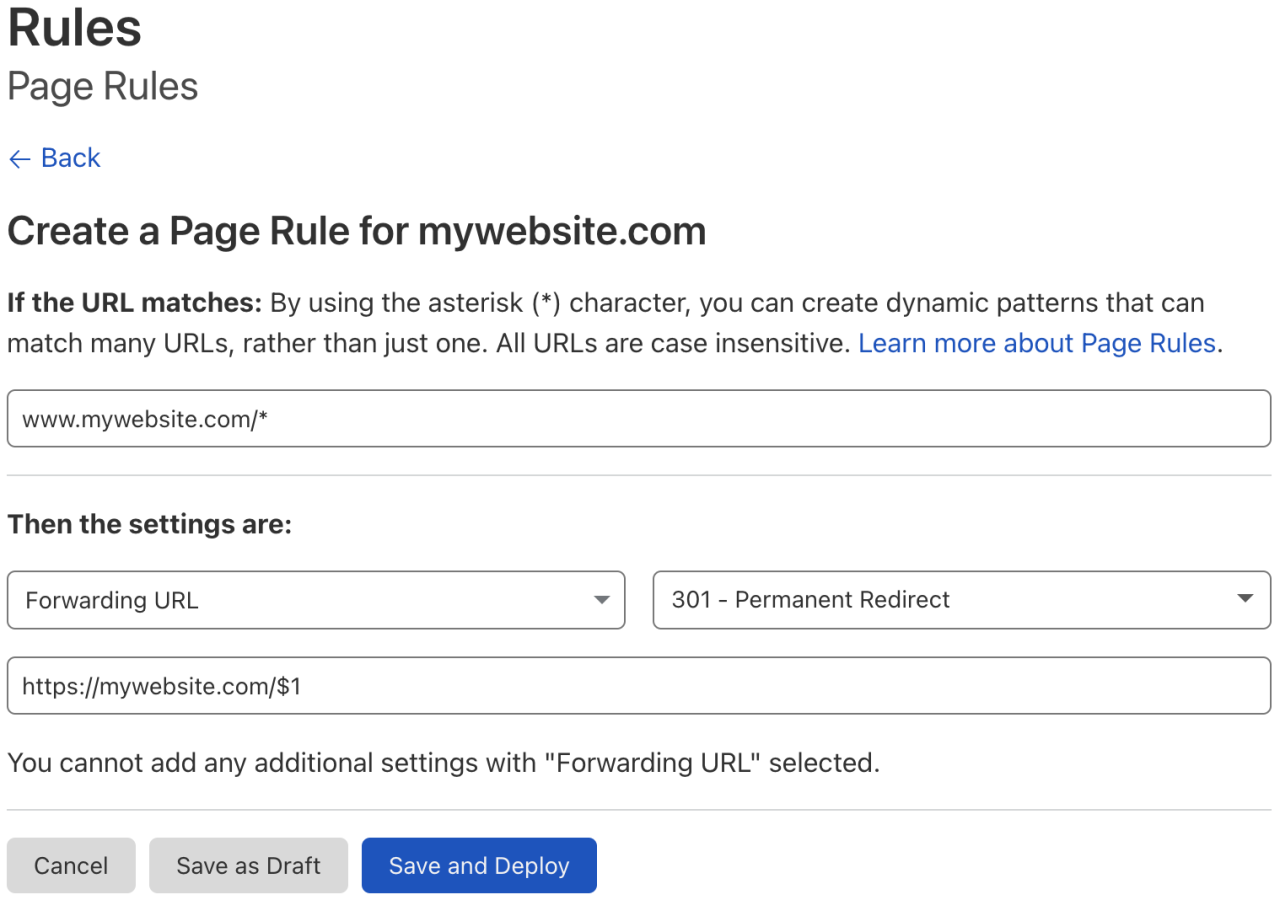
- Forwarding URL: Redirects traffic to a different URL.
- Click ‘Save and Deploy’.
For example, to cache all content on your blog subdomain, you could create a page rule with the URL pattern “blog.yourdomain.com/*” and set the “Cache Level” to “Cache Everything.” To redirect all traffic from “www.yourdomain.com” to “yourdomain.com,” you would use a forwarding URL rule.
Implementing DNSSEC for Enhanced Security
DNSSEC (Domain Name System Security Extensions) adds a layer of security to DNS by digitally signing DNS records. This ensures that the DNS records your visitors receive are authentic and haven’t been tampered with. Implementing DNSSEC significantly reduces the risk of DNS spoofing attacks.To enable DNSSEC in Cloudflare:
- Ensure your domain registrar supports DNSSEC.
- In your Cloudflare dashboard, navigate to the ‘DNS’ settings.
- If your registrar supports it, Cloudflare will automatically show a DNSSEC configuration. If not, you might need to contact your registrar.
- The DNSSEC configuration will display the DS records you need to add to your domain registrar.
- Copy the DS records provided by Cloudflare.
- Log in to your domain registrar’s control panel.
- Go to the DNS settings for your domain.
- Add the DS records provided by Cloudflare.
- Wait for the DNS propagation to complete.
Once configured, DNSSEC will help verify the authenticity of your DNS records. This prevents attackers from redirecting users to malicious websites through DNS spoofing. The process involves exchanging cryptographic keys and signatures to validate the DNS data.
Elaborating on the Use of Cloudflare’s API for DNS Management
Cloudflare’s API provides a programmatic way to manage your DNS settings, allowing for automation, integration with other systems, and bulk changes. This is particularly beneficial for developers, system administrators, and anyone managing a large number of domains or frequently changing DNS records.To use the Cloudflare API for DNS management:
- Obtain an API token. You can generate an API token with the necessary permissions in your Cloudflare dashboard.
- Familiarize yourself with the Cloudflare API documentation. This documentation details the available endpoints, request formats, and response codes.
- Use a programming language or tool (e.g., Python with the `requests` library, `curl`, or a dedicated Cloudflare API client) to send API requests.
- Authenticate your requests using your API token in the `Authorization` header.
- Construct your API requests to perform desired actions, such as:
- Listing DNS records.
- Adding new DNS records.
- Updating existing DNS records.
- Deleting DNS records.
- Parse the API responses to verify the success of your requests.
For example, using the Cloudflare API, you can write a script to automatically update your website’s IP address whenever your server’s IP changes. This is achieved by fetching the new IP address and then using the API to update the corresponding ‘A’ record in your Cloudflare DNS settings. Another common use case is automating the creation of subdomains for new projects or environments.
Designing a Diagram Illustrating the Flow of Traffic Through Cloudflare’s Network
The following describes the flow of traffic through Cloudflare’s network. The diagram illustrates how a user’s request is handled by Cloudflare and how it interacts with the origin server.
The diagram consists of the following elements and steps:
- User’s Browser: The starting point of the process. A user initiates a request by typing a website address (e.g., “www.example.com”) into their browser.
- DNS Resolution (Local DNS Server): The user’s browser queries the local DNS server configured on their computer or network to resolve the domain name (www.example.com) into an IP address. The local DNS server then queries the authoritative DNS servers.
- Cloudflare’s DNS Servers: Cloudflare’s authoritative DNS servers provide the IP address of Cloudflare’s network (anycast IP addresses) associated with the domain.
- Cloudflare’s Network (Anycast): The user’s browser now sends the request to the closest Cloudflare server in the anycast network based on the IP address.
- Cloudflare’s Caching and Security Services: Cloudflare’s server checks if the requested content is cached. If the content is cached, Cloudflare serves the cached content to the user’s browser. If the content is not cached, Cloudflare performs security checks, such as bot protection and DDoS mitigation.
- Request to Origin Server: If the content is not cached, Cloudflare forwards the request to the origin server (your web server) using the IP address configured for the domain.
- Origin Server: The origin server processes the request and generates the response (e.g., the HTML of the webpage).
- Response to Cloudflare: The origin server sends the response back to Cloudflare.
- Cloudflare Caching and Delivery: Cloudflare caches the response (if configured to do so) and delivers the content to the user’s browser. Cloudflare also applies any other configured optimizations, such as image optimization and minification.
- User’s Browser Receives Content: The user’s browser receives the content and displays the webpage.
In essence, the flow of traffic goes from the user’s browser to Cloudflare, then potentially to the origin server (your web server), and back to the user’s browser. Cloudflare acts as an intermediary, caching content, providing security, and optimizing performance.
Final Summary
In conclusion, setting up Cloudflare DNS for your custom domain is a strategic move that can revolutionize your website’s performance and security. By following the steps Artikeld in this guide, you can seamlessly integrate Cloudflare’s powerful features, from its CDN to advanced DNS configurations. Embracing Cloudflare not only enhances your website’s efficiency but also provides a foundation for future growth and innovation.
Now, you are well-equipped to take control of your domain’s DNS, ensuring a faster, more secure, and user-friendly online experience.