Embark on a journey into the world of web deployment, where we’ll unravel the process of deploying an Express.js application and harnessing the power of Nginx as a reverse proxy. This guide is designed to provide you with a comprehensive understanding, from the fundamental concepts to advanced configurations, ensuring a smooth and efficient deployment experience.
We will explore the roles of Express.js and Nginx, detailing their individual strengths and how they synergize to create a robust and scalable web application architecture. This guide will provide you with the knowledge and tools needed to confidently deploy your Express.js applications and optimize their performance.
Introduction to Express.js and Nginx
This section introduces the core technologies involved in deploying an Express.js application with an Nginx reverse proxy. Understanding the roles of Express.js and Nginx is crucial for building scalable, efficient, and secure web applications. We’ll explore the benefits of combining these technologies and the architectural advantages they provide.
Role of Express.js in Web Application Development
Express.js is a fast, unopinionated, minimalist web framework for Node.js. It provides a robust set of features for web and mobile applications, simplifying the development process and enhancing the organization of application code.Express.js’s primary functions include:
- Routing: Defining how an application responds to client requests at specific endpoints (URLs) and with specific HTTP methods. For example, you can define routes for handling GET, POST, PUT, and DELETE requests.
- Middleware: Functions that have access to the request object (req), the response object (res), and the next middleware function in the application’s request-response cycle. Middleware can perform tasks like logging, authentication, and error handling.
- Template Engines: Integrating with various template engines (like Pug, EJS, and Handlebars) to dynamically generate HTML pages. This allows for the separation of concerns, where the data is managed separately from the presentation.
- Simplified Development: Providing an easy-to-use API that streamlines the development process, allowing developers to focus on building application logic rather than dealing with low-level server configurations.
Overview of Nginx as a Reverse Proxy
Nginx (pronounced “engine-x”) is a high-performance web server that can also function as a reverse proxy, load balancer, HTTP cache, and more. As a reverse proxy, Nginx sits in front of one or more backend servers, forwarding client requests to them and returning their responses to the client.Nginx’s key functionalities as a reverse proxy include:
- Request Forwarding: Receiving client requests and forwarding them to the appropriate backend server.
- Load Balancing: Distributing client requests across multiple backend servers to improve performance and availability.
- SSL/TLS Termination: Handling SSL/TLS encryption and decryption, offloading this computationally intensive task from the backend servers.
- Caching: Caching static content to reduce the load on backend servers and improve response times.
- Security: Protecting backend servers by hiding their internal structure and providing a single point of entry for client requests.
Benefits of Using Nginx with an Express.js Application
Combining Nginx with an Express.js application offers several advantages, leading to improved performance, security, and scalability.Here are some of the key benefits:
- Performance Optimization: Nginx can cache static content (like images, CSS, and JavaScript files), significantly reducing the load on the Express.js server and improving response times.
- Load Balancing: Nginx can distribute traffic across multiple instances of the Express.js application, ensuring high availability and preventing overload on any single server. This is crucial for handling peak traffic.
- SSL/TLS Termination: Nginx can handle SSL/TLS encryption and decryption, offloading this process from the Express.js server. This improves the performance of the Express.js application and simplifies SSL/TLS configuration.
- Security Enhancement: Nginx acts as a security buffer, protecting the Express.js application from direct exposure to the internet. It can also filter malicious traffic and provide other security features.
- Simplified Deployment: Nginx simplifies the deployment process by providing a single point of entry for client requests and managing server configurations.
Architectural Advantages of this Setup
The architecture of using Nginx as a reverse proxy in front of an Express.js application offers a robust and scalable solution for web application deployment. This architecture is commonly used in production environments due to its inherent advantages.The architectural advantages include:
- Scalability: Nginx can easily scale to handle increasing traffic by adding more backend Express.js servers and configuring Nginx to distribute the load. This is especially important for applications that experience fluctuating traffic patterns.
- High Availability: With load balancing, if one Express.js server fails, Nginx can automatically redirect traffic to the remaining servers, ensuring the application remains available.
- Improved Security: Nginx provides a layer of security, protecting the Express.js application from direct exposure to the internet and offering features like request filtering and rate limiting.
- Simplified Management: Managing multiple backend servers is simplified by using Nginx as a single point of access, simplifying configuration and monitoring.
- Content Delivery Network (CDN) Integration: Nginx can be configured to work with a CDN, caching content at edge locations for faster delivery to users worldwide. This is a standard approach for high-traffic websites.
Prerequisites and Setup
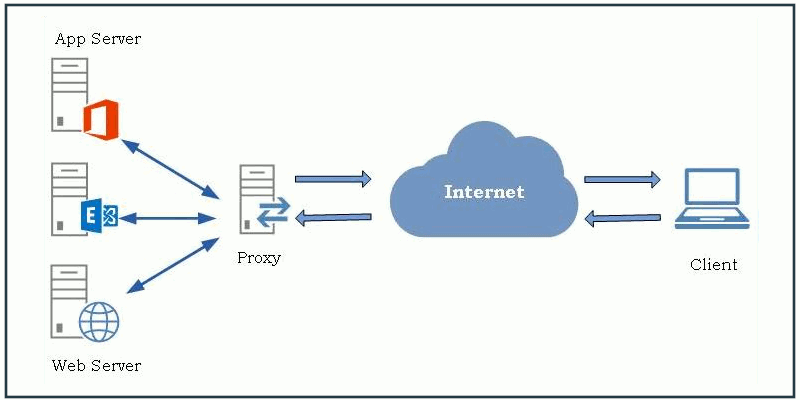
To successfully deploy an Express.js application using an Nginx reverse proxy, several prerequisites must be met, and a specific setup process followed. This section Artikels the necessary software and tools, alongside step-by-step instructions for their installation and configuration. Proper setup is crucial for a smooth deployment process and optimal application performance.
Necessary Software and Tools
Before beginning the deployment, specific software and tools must be installed and configured on the server. These components work in concert to host and manage the application.
- Node.js and npm: Node.js is the runtime environment for executing JavaScript code server-side, and npm (Node Package Manager) is used for managing project dependencies.
- Nginx: Nginx is a powerful, open-source web server that will act as a reverse proxy, handling incoming client requests and forwarding them to the Express.js application. It also provides features like load balancing, caching, and security enhancements.
- Text Editor or IDE: A text editor or Integrated Development Environment (IDE) is needed for writing and editing the application’s code. Popular choices include Visual Studio Code, Sublime Text, and Atom.
- SSH Client (optional): An SSH (Secure Shell) client is needed for remote access to the server. Tools like PuTTY (Windows) or the built-in SSH client in Linux/macOS are common.
Installing Node.js and npm
Installing Node.js automatically installs npm, simplifying the setup process. The installation method varies depending on the operating system.
- Ubuntu/Debian: The recommended method involves using the NodeSource repository, which provides up-to-date versions of Node.js.
- Add the NodeSource repository for your Node.js version. For example, to install Node.js 18:
curl -fsSL https://deb.nodesource.com/setup_18.x | sudo -E bash - - Install Node.js and npm:
sudo apt-get install -y nodejs - Verify the installation:
node -v
npm -v
- Add the NodeSource repository for your Node.js version. For example, to install Node.js 18:
- CentOS/RHEL: The installation process involves using the NodeSource repository, similar to Ubuntu/Debian.
- Install the Node.js repository:
curl -fsSL https://rpm.nodesource.com/setup_18.x | sudo bash - - Install Node.js and npm:
sudo yum install -y nodejs - Verify the installation:
node -v
npm -v
- Install the Node.js repository:
- Windows: The easiest way to install Node.js on Windows is to download the installer from the official Node.js website (nodejs.org). The installer guides the user through the installation process, automatically setting up npm. After installation, open a new command prompt or PowerShell window and verify the installation using the commands `node -v` and `npm -v`.
- macOS: Using a package manager like Homebrew is a common and straightforward way to install Node.js on macOS.
- Install Homebrew if you don’t already have it:
/bin/bash -c "$(curl -fsSL https://raw.githubusercontent.com/Homebrew/install/HEAD/install.sh)" - Install Node.js:
brew install node - Verify the installation:
node -v
npm -v
- Install Homebrew if you don’t already have it:
Installing Nginx
The installation process for Nginx varies depending on the operating system. Below are instructions for common platforms.
- Ubuntu/Debian:
- Update the package list:
sudo apt update - Install Nginx:
sudo apt install nginx - Verify the installation:
sudo nginx -v - Start Nginx:
sudo systemctl start nginx - Enable Nginx to start on boot:
sudo systemctl enable nginx
- Update the package list:
- CentOS/RHEL:
- Install the EPEL (Extra Packages for Enterprise Linux) repository, which often contains the latest Nginx packages:
sudo yum install epel-release - Install Nginx:
sudo yum install nginx - Verify the installation:
sudo nginx -v - Start Nginx:
sudo systemctl start nginx - Enable Nginx to start on boot:
sudo systemctl enable nginx
- Install the EPEL (Extra Packages for Enterprise Linux) repository, which often contains the latest Nginx packages:
- Windows: Nginx can be installed on Windows by downloading the pre-built binaries from the official Nginx website (nginx.org). Extract the downloaded archive to a desired location. To run Nginx, navigate to the extracted directory and double-click the `nginx.exe` file. By default, Nginx will serve files from the `html` directory within the extracted directory. You can access it via your web browser at `http://localhost`.
Setting Up a Basic Express.js Application
Creating a basic Express.js application involves setting up the project structure and writing the necessary code to handle requests. This example provides a simple “Hello, World!” application.
- Project Structure:
A typical project structure includes a `package.json` file for managing dependencies, an `index.js` file for the main application logic, and potentially a `routes` directory for handling different routes.
Here’s a basic example:
my-express-app/ ├── index.js ├── package.json └── .gitignore - Create a `package.json` file:
Navigate to the project directory in your terminal and initialize a new npm project:
npm init -yThis creates a basic `package.json` file with default settings.
- Install Express.js:
Install the Express.js package as a project dependency:
npm install express - Create `index.js`:
Create an `index.js` file in your project directory and add the following code:
const express = require('express'); const app = express(); const port = 3000; app.get('/', (req, res) => res.send('Hello, World!'); ); app.listen(port, () => console.log(`Server listening at http://localhost:$port`); ); - Run the Application:
In your terminal, run the application using:
node index.jsThe application will start and listen on port
3000. You can access it in your web browser by navigating to `http://localhost:3000`. This confirms the successful creation of the basic Express.js application.
Developing the Express.js Application
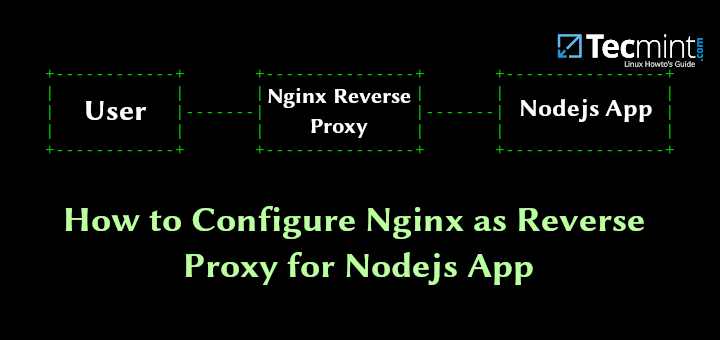
This section focuses on the core of our application: building the Express.js server that will handle incoming requests. We will create a simple “Hello, World!” application, structure its files for maintainability, and add a basic API endpoint to demonstrate functionality. We will also explore essential error-handling techniques to ensure our application is robust.
Designing a Simple Express.js Application with a Basic Route
A fundamental “Hello, World!” endpoint serves as the starting point for our Express.js application. This simple example demonstrates the basic structure and functionality of an Express.js server.Here’s how we can create a basic Express.js application with a “Hello, World!” route:“`javascriptconst express = require(‘express’);const app = express();const port = 3000;app.get(‘/’, (req, res) => res.send(‘Hello, World!’););app.listen(port, () => console.log(`Server listening at http://localhost:$port`););“`In this code:
- We import the `express` module.
- We create an Express application instance.
- We define a route using `app.get()` that responds to GET requests to the root path (`/`).
- The route handler sends the response “Hello, World!”.
- The application starts listening on port 3000.
Organizing the Application’s Files and Folders for Optimal Structure
Organizing files and folders is crucial for the long-term maintainability and scalability of your Express.js application. A well-structured project is easier to understand, debug, and extend.Consider the following directory structure as a good starting point:“`my-express-app/├── app.js // Main application file (entry point)├── routes/│ └── index.js // Route definitions├── controllers/│ └── index.js // Controller logic├── models/│ └── user.js // Data models (if applicable)├── middleware/│ └── error-handler.js // Custom middleware├── config/│ └── config.js // Configuration settings├── package.json // Project dependencies and scripts└── .env // Environment variables (e.g., port, database URL)“`
- `app.js`: This is the entry point of your application. It initializes the Express app, loads middleware, and defines routes.
- `routes/`: This directory contains files that define your routes. Each file typically exports route definitions for a specific part of your application (e.g., users, products).
- `controllers/`: This directory houses the controller logic. Controllers handle incoming requests, interact with models, and prepare data for responses. They encapsulate the business logic.
- `models/`: This directory contains data models. These models define the structure of your data and handle database interactions (if applicable).
- `middleware/`: Custom middleware can be placed here. This can include error handlers, authentication middleware, and request logging.
- `config/`: Configuration settings, such as database connection details and API keys, can be stored here.
- `.env`: This file is used to store environment variables. This is crucial for storing sensitive information (API keys, database passwords) securely.
- `package.json`: This file lists your project’s dependencies and scripts.
Creating a Sample API Endpoint for Demonstration
Creating a sample API endpoint helps demonstrate how to handle requests and responses within your Express.js application. This example will showcase a simple GET endpoint that returns a JSON response.Let’s create a sample API endpoint to retrieve user data. We’ll simulate this data for demonstration purposes.“`javascript// app.js (or a dedicated route file, e.g., routes/users.js)const express = require(‘express’);const router = express.Router();// Sample user data (in a real application, this would come from a database)const users = [ id: 1, name: ‘John Doe’ , id: 2, name: ‘Jane Smith’ ];router.get(‘/users’, (req, res) => res.json(users););module.exports = router;// In app.js, include this routeconst usersRoutes = require(‘./routes/users’);app.use(‘/api’, usersRoutes); // Mount the router at /api“`In this example:
- We define a route `/api/users` using `router.get()`.
- The route handler returns the `users` array as a JSON response using `res.json()`.
- The router is then mounted in the main `app.js` file at the `/api` path.
Sharing Best Practices for Error Handling within the Express.js Application
Robust error handling is critical for a production-ready Express.js application. Effective error handling prevents unexpected crashes, provides informative error messages, and improves the overall user experience.Here’s a breakdown of best practices for error handling:
- Use try-catch blocks: Wrap potentially error-prone code (e.g., database queries, file operations) in `try-catch` blocks to catch exceptions.
- Implement a global error handler: Define a middleware function to catch and handle errors that occur during the request-response cycle. This is typically the last middleware in your application.
- Use appropriate HTTP status codes: Return the correct HTTP status codes (e.g., 400 for bad request, 404 for not found, 500 for internal server error) to indicate the nature of the error to the client.
- Log errors: Log errors to a file or a logging service (e.g., Winston, Morgan) to help with debugging and monitoring. Include relevant information like timestamps, request details, and error messages.
- Handle asynchronous errors: When working with asynchronous operations (e.g., promises), make sure to handle errors properly using `.catch()` blocks or `async/await` with `try-catch`.
- Create custom error classes: Define custom error classes to provide more specific and informative error messages.
Example of a global error handler:“`javascript// In middleware/error-handler.jsmodule.exports = (err, req, res, next) => console.error(err.stack); // Log the error stack trace const statusCode = err.statusCode || 500; // Use a custom status code if available, otherwise 500 const message = err.message || ‘Internal Server Error’; res.status(statusCode).json( error: message: message, statusCode: statusCode, , );;// In app.jsconst errorHandler = require(‘./middleware/error-handler’);// …
other middleware …app.use(errorHandler); // Use the error handler as the last middleware“`This example demonstrates a basic error handler that logs the error stack and returns a JSON response with the error message and status code. The `err.stack` provides detailed information about where the error originated in the code. The use of a custom status code provides more precise feedback to the client.
Configuring Nginx as a Reverse Proxy
Configuring Nginx as a reverse proxy is a crucial step in deploying an Express.js application. This setup enhances security, improves performance, and simplifies application management. It acts as an intermediary, handling client requests and forwarding them to the backend application. This section delves into the intricacies of configuring Nginx to act as a reverse proxy for your Express.js application.Understanding and implementing a reverse proxy is fundamental for a production-ready deployment.
It allows for a more robust and scalable architecture, providing benefits that are essential for handling real-world traffic and ensuring a positive user experience.
The Concept of a Reverse Proxy in Detail
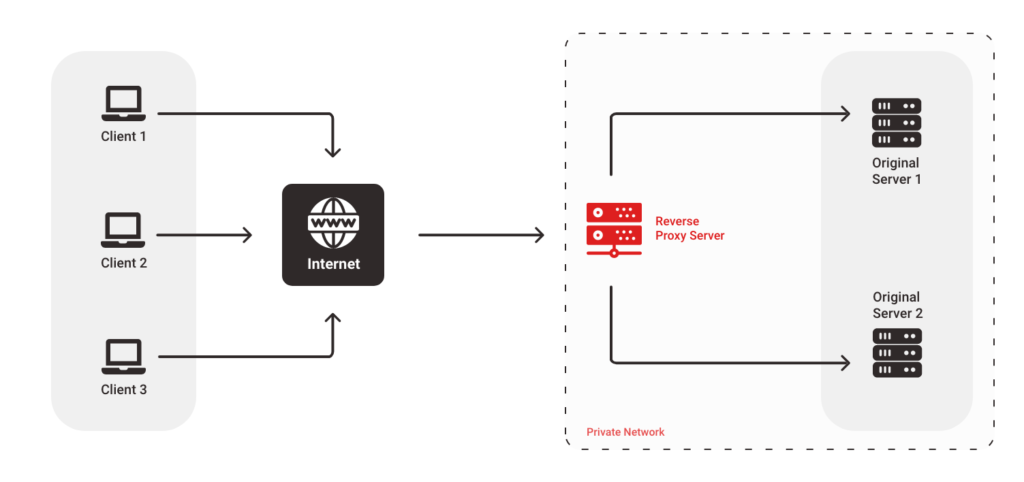
A reverse proxy sits in front of one or more backend servers, in this case, your Express.js application. Instead of clients connecting directly to your application, they connect to the reverse proxy. The reverse proxy then forwards the client’s requests to the appropriate backend server and returns the responses to the client.This architecture offers several advantages:
- Security: Hides the internal structure of your application servers from the public internet.
- Load Balancing: Distributes traffic across multiple backend servers, improving performance and availability.
- Caching: Caches static content to reduce the load on backend servers and improve response times.
- SSL Termination: Handles SSL/TLS encryption and decryption, offloading this process from the backend servers.
- Simplified Configuration: Allows for centralized management of traffic routing and other configurations.
The reverse proxy acts as a single point of entry for all client requests, simplifying the network architecture and making it easier to manage and scale the application.
Providing the Configuration File Structure for Nginx
Nginx’s configuration is primarily defined in a text file, typically located at `/etc/nginx/nginx.conf` or within the `/etc/nginx/conf.d/` directory. The main configuration file, `nginx.conf`, often includes other configuration files, such as those for virtual hosts.The basic structure of an Nginx configuration file includes the following key sections:
- `http` Block: This block contains global HTTP settings, such as caching, logging, and SSL configuration. It encapsulates the configuration for all virtual servers.
- `server` Block: This block defines a virtual server, which is essentially a website or application. It specifies how Nginx should handle requests for a particular domain or IP address. You can have multiple `server` blocks within the `http` block.
- `location` Block: This block defines how Nginx should handle requests for specific URLs or paths within a `server` block. It’s used to route traffic to different backend servers, serve static content, or perform other actions based on the requested URL.
- `upstream` Block: This block defines a group of backend servers, often used for load balancing. It allows you to specify multiple servers and configure how traffic should be distributed among them.
A typical configuration file might look like this:“`nginxhttp upstream my_app server 127.0.0.1:3000; # Your Express.js application server listen 80; server_name yourdomain.com www.yourdomain.com; location / proxy_pass http://my_app; proxy_set_header Host $host; proxy_set_header X-Real-IP $remote_addr; proxy_set_header X-Forwarded-For $proxy_add_x_forwarded_for; proxy_set_header X-Forwarded-Proto $scheme; “`This example shows a basic configuration that listens on port 80, handles requests for `yourdomain.com`, and forwards all requests to your Express.js application running on port 3000.
Demonstrating How to Configure Nginx to Forward Traffic to the Express.js Application
To configure Nginx to forward traffic to your Express.js application, you’ll primarily use the `proxy_pass` directive within a `location` block inside a `server` block. This tells Nginx where to send the requests.Here’s a step-by-step guide:
- Create a `server` Block: Within the `http` block in your Nginx configuration file, create a `server` block. This block will define the virtual server for your application.
- Specify `listen` and `server_name`: Inside the `server` block, use the `listen` directive to specify the port Nginx should listen on (usually 80 for HTTP or 443 for HTTPS). Use the `server_name` directive to specify the domain name or IP address for your application.
- Create a `location` Block: Inside the `server` block, create a `location` block. This block will define how Nginx should handle requests for specific URLs. The most common is the root (`/`) location, which handles all requests to your domain.
- Use `proxy_pass`: Inside the `location` block, use the `proxy_pass` directive to specify the address of your Express.js application. This should include the protocol (usually `http`) and the port your application is listening on (e.g., `http://localhost:3000`). If you’re using an `upstream` block, you can use the upstream’s name here.
- Set Proxy Headers (Optional, but Recommended): It’s good practice to set proxy headers to pass information about the original client request to your Express.js application. Common headers include:
- `Host`: The original host header from the client.
- `X-Real-IP`: The client’s IP address.
- `X-Forwarded-For`: The client’s IP address, and any previous proxies.
- `X-Forwarded-Proto`: The protocol used by the client (HTTP or HTTPS).
These headers help your application understand the client’s request and correctly generate URLs and other information.
- Example Configuration: A complete example might look like this: “`nginx server listen 80; server_name yourdomain.com www.yourdomain.com; location / proxy_pass http://localhost:3000; proxy_set_header Host $host; proxy_set_header X-Real-IP $remote_addr; proxy_set_header X-Forwarded-For $proxy_add_x_forwarded_for; proxy_set_header X-Forwarded-Proto $scheme; “`
After making these changes, save the configuration file and test it using `sudo nginx -t`. If the test is successful, reload Nginx using `sudo nginx -s reload` to apply the changes. Now, when a client accesses your domain, Nginx will forward the request to your Express.js application.
Detailing the Configuration of Upstream Servers
Upstream servers are groups of backend servers defined within an `upstream` block in the Nginx configuration. They’re primarily used for load balancing and failover, allowing you to distribute traffic across multiple instances of your Express.js application.Here’s how to configure upstream servers:
- Define an `upstream` Block: Inside the `http` block, create an `upstream` block. Give it a name that you’ll use later in your `proxy_pass` directive.
- Specify Server Addresses: Inside the `upstream` block, list the IP addresses and ports of your backend servers using the `server` directive.
- Configure Load Balancing (Optional): Nginx supports several load balancing methods, including:
- Round Robin (Default): Distributes requests in a rotating fashion.
- Least Connections: Directs requests to the server with the fewest active connections.
- IP Hash: Directs requests from the same IP address to the same server.
You can specify the load balancing method using directives within the `upstream` block.
- Configure Health Checks (Optional): You can configure health checks to automatically remove unhealthy servers from the load balancing pool.
- Example Configuration: “`nginx upstream my_app server 192.168.1.10:3000; server 192.168.1.11:3000; server 192.168.1.12:3000; server listen 80; server_name yourdomain.com; location / proxy_pass http://my_app; proxy_set_header Host $host; proxy_set_header X-Real-IP $remote_addr; proxy_set_header X-Forwarded-For $proxy_add_x_forwarded_for; proxy_set_header X-Forwarded-Proto $scheme; “`
In this example, Nginx will load balance requests across three backend servers. If one server fails, Nginx will automatically redirect traffic to the remaining healthy servers. This improves the reliability and scalability of your application. For instance, if one of the servers (e.g., 192.168.1.11:3000) goes down, Nginx will automatically route traffic to the other two servers, ensuring continued service availability.
Creating a Table with HTML tags 4 responsive columns illustrating different Nginx configuration directives (e.g., `listen`, `server_name`, `proxy_pass`, `location`)
The following table summarizes key Nginx configuration directives used when setting up a reverse proxy for an Express.js application. Each directive is explained, including its purpose and common usage.“`html
| Directive | Description | Example | Usage |
|---|---|---|---|
listen |
Specifies the port and optionally the IP address that the server listens on. | listen 80;listen 443 ssl; |
Defines the port that Nginx will listen on for incoming client requests. Port 80 is for HTTP, and 443 is for HTTPS. |
server_name |
Defines the domain names or IP addresses that the server responds to. | server_name yourdomain.com www.yourdomain.com;server_name _; |
Specifies the domain names or IP addresses for which this server block is valid. The underscore `_` is a wildcard, matching all server names. |
location |
Defines how Nginx handles requests for specific URLs or paths. | location / ... location /api/ ... |
Matches a specific URL or path. The `/` matches all requests. `/api/` matches all requests starting with `/api/`. |
proxy_pass |
Passes the client’s request to a proxied server. | proxy_pass http://localhost:3000;proxy_pass http://my_app; |
Specifies the address of the backend server (your Express.js application). It can be a direct IP address and port, or the name of an upstream block. |
proxy_set_header |
Sets custom headers to be passed to the proxied server. | proxy_set_header Host $host;proxy_set_header X-Real-IP $remote_addr; |
Allows you to set headers in the request sent to the backend server. Useful for passing information about the original request, such as the client’s IP address or the original host. |
upstream |
Defines a group of backend servers for load balancing and failover. | upstream my_app server 192.168.1.10:3000; server 192.168.1.11:3000; |
Defines a pool of servers to which requests can be proxied. Allows for load balancing and failover. |
“`
Deploying the Application
Deploying your Express.js application involves transferring your code to a server and ensuring it runs correctly. This section guides you through the deployment process, covering file uploads, process management, and environment variable configuration, all crucial steps for a successful deployment.
Uploading the Application Files
Uploading your application files to the server is the first step in deployment. This process typically involves transferring your code, including the server-side JavaScript files, any static assets (HTML, CSS, JavaScript), and the `package.json` file, to the server. Several methods exist for this, each with its advantages.
- Using SFTP/SCP: Secure File Transfer Protocol (SFTP) and Secure Copy (SCP) are secure methods for transferring files. They use SSH to encrypt the data transfer, making them suitable for transferring sensitive information. You’ll need an SFTP client (like FileZilla, Cyberduck, or the built-in `sftp` command in Linux/macOS) or the `scp` command-line tool.
To use SFTP, you typically provide the server’s address, your username, and your password or SSH key.
The client then allows you to navigate your local file system and the server’s file system, enabling you to drag and drop files or use commands to upload them.
For example, using `scp` in your terminal:
scp -r /path/to/your/app username@your_server_ip:/path/to/destinationThis command recursively copies the contents of `/path/to/your/app` to the `/path/to/destination` directory on the server. Replace `username`, `your_server_ip`, and the paths with your actual values.
- Using Git: If your application uses Git for version control, you can clone your repository directly on the server. This simplifies the deployment process, especially for frequent updates. You would need to have Git installed on the server.
First, SSH into your server and navigate to the desired deployment directory. Then, clone your repository:
git clone your_repository_urlAfter cloning, you can pull the latest changes from your repository using `git pull` whenever you update your code. Remember to install dependencies using `npm install` or `yarn install` after cloning or pulling.
- Using a Deployment Tool (e.g., Capistrano, DeployHQ): Dedicated deployment tools automate the deployment process, including file transfers, dependency installation, and server restarts. These tools often provide features like rollback capabilities and zero-downtime deployments. They typically involve configuring the tool with your server details, repository URL, and deployment instructions.
Running the Express.js Application with a Process Manager
Running your Express.js application directly with `node server.js` is not ideal for production environments. A process manager ensures your application stays running, automatically restarts it if it crashes, and provides valuable monitoring and logging capabilities. Popular process managers include PM2 and systemd.
- PM2: PM2 is a widely used process manager for Node.js applications. It’s easy to set up and offers features like automatic restarts, load balancing, and monitoring.
To install PM2 globally:
npm install -g pm2To start your application using PM2, navigate to your application’s directory on the server and run:
pm2 start server.js --name "your-app-name"Replace `server.js` with the entry point of your application and `”your-app-name”` with a descriptive name for your application. PM2 will automatically start your application and keep it running. You can view the status of your application with `pm2 status`. You can also use `pm2 logs your-app-name` to view the application logs.
To ensure PM2 starts your application automatically after a server reboot, run:
pm2 startupThis command generates a startup script and guides you on how to configure it.
- systemd: systemd is a system and service manager commonly found on Linux distributions. It can be used to manage Node.js applications, offering a robust and integrated approach to process management.
To use systemd, you need to create a service file. This file defines how systemd should manage your application. Create a file named `your-app-name.service` (e.g., `/etc/systemd/system/my-express-app.service`) with the following content, adjusting the paths and details to match your application:
  [Unit]

  Description=My Express.js Application

  After=network.target
[Service]
User=your_user
WorkingDirectory=/path/to/your/app
ExecStart=/usr/bin/node server.js
Restart=on-failure
RestartSec=10
Environment=NODE_ENV=production[Install]
WantedBy=multi-user.target
Replace `your_user`, `/path/to/your/app`, `server.js`, and `production` with your actual values. The `User` directive specifies the user that the application will run as. `WorkingDirectory` is the directory where your application resides. `ExecStart` is the command to start your application. `Restart=on-failure` ensures the application restarts if it crashes.
`RestartSec` defines the time to wait before restarting. `Environment` sets environment variables.
After creating the service file, reload the systemd daemon:
sudo systemctl daemon-reloadThen, start and enable the service:
sudo systemctl start your-app-name.servicesudo systemctl enable your-app-name.serviceYou can check the status of your application with `sudo systemctl status your-app-name.service` and view the logs with `journalctl -u your-app-name.service`.
Setting Up Environment Variables for the Application
Environment variables are crucial for configuring your application without modifying the code directly. They allow you to store sensitive information (API keys, database credentials), specify the application’s environment (development, production), and customize the application’s behavior.
- Using `.env` files (with caution): The `.env` file approach is convenient for development but should be handled carefully in production environments. The `.env` file contains key-value pairs, such as `PORT=3000` or `DATABASE_URL=your_database_url`.
Install the `dotenv` package:
npm install dotenvIn your `server.js` (or your main application file), require and configure `dotenv`:
require('dotenv').config()
Place the `.env` file in your application’s root directory. Access environment variables using `process.env.VARIABLE_NAME`. Important: Do not commit your `.env` file to your version control repository (e.g., Git). Add `.env` to your `.gitignore` file.
For Production: While `.env` files can be used in production, it’s generally recommended to use a more secure method, such as the server’s environment variables or a secrets management system.
- Using the Server’s Environment Variables: Most servers allow you to set environment variables directly.
For PM2: You can set environment variables in the PM2 configuration. For example, to set the `PORT` and `NODE_ENV` variables, modify your `pm2 start` command:
pm2 start server.js --name "your-app-name" --env production --env PORT=80Or, you can create a JSON file (e.g., `ecosystem.config.js`) to configure your application:
  module.exports =

    apps : [

      name: 'your-app-name',

      script: 'server.js',

      env:

        NODE_ENV: 'development',

        PORT: 3000

      ,

      env_production :

        NODE_ENV: 'production',

        PORT: 80
]
;
Then, run `pm2 start ecosystem.config.js`.
For systemd: Set environment variables in your service file using the `Environment` directive. See the systemd example in the previous section.
- Using Secrets Management Systems: For highly sensitive information, consider using a secrets management system (e.g., HashiCorp Vault, AWS Secrets Manager, Azure Key Vault). These systems provide a secure way to store, manage, and access secrets. They often provide APIs or libraries that allow your application to retrieve secrets at runtime. This is the most secure approach for production environments.
Testing and Verification
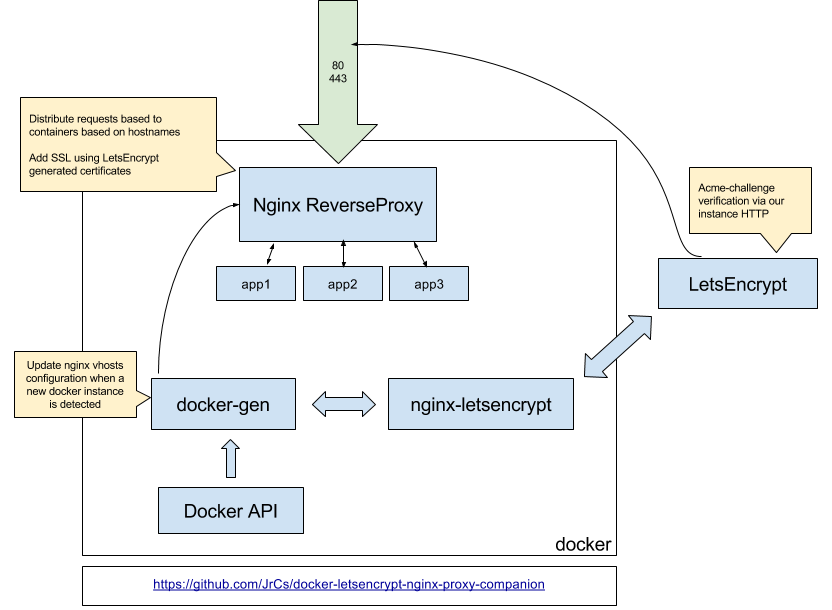
After deploying your Express.js application and configuring Nginx as a reverse proxy, thorough testing and verification are crucial to ensure everything is working correctly. This involves confirming that the application is accessible, Nginx is correctly forwarding requests, and that any potential errors are identified and addressed promptly. Proper testing minimizes downtime and provides a reliable user experience.
Methods for Testing the Deployed Application
Testing the deployed application involves various approaches to confirm its functionality and accessibility. These methods help to ensure that the application is serving content as expected and that the reverse proxy is correctly routing traffic.
- Basic HTTP Requests: Utilize tools like `curl` or a web browser to send HTTP requests (GET, POST, PUT, DELETE) to the application’s endpoints. Verify that the expected responses (status codes, content) are received. For instance, a GET request to the application’s root path (e.g., `/`) should return the expected HTML or JSON response.
- Web Browser Testing: Open the application’s URL in a web browser. This is a quick way to check the application’s basic functionality, including rendering of the user interface and any client-side interactions. Check for any console errors in the browser’s developer tools (e.g., network requests, JavaScript errors).
- Automated Testing: Implement automated tests using tools like Jest, Mocha, or Supertest (for Node.js) to test the application’s endpoints and functionalities. These tests can be run repeatedly to ensure that the application continues to function as expected after each deployment or code change.
- Load Testing: Conduct load tests using tools like ApacheBench, JMeter, or Loader.io to assess the application’s performance under heavy traffic. This helps to identify potential bottlenecks and ensure the application can handle the expected load. Monitor resource usage (CPU, memory) during the tests.
- Monitoring Tools: Set up monitoring tools like Prometheus with Grafana or Datadog to track the application’s performance metrics (response times, error rates, request counts) and resource utilization. These tools provide real-time insights into the application’s health and performance.
Verifying Nginx Proxying Requests to Express.js
Confirming that Nginx is correctly proxying requests to the Express.js application is essential for a successful deployment. This involves verifying that Nginx is forwarding traffic to the correct port and that the application is receiving and processing the requests as intended.
- Check Nginx Configuration: Review the Nginx configuration file (e.g., `/etc/nginx/sites-available/default`) to ensure the `proxy_pass` directive is correctly configured to forward requests to the Express.js application’s port (e.g., `http://localhost:3000`).
- Use `curl` to Test Specific Endpoints: Use `curl` to send requests directly to the Nginx server (e.g., `curl http://yourdomain.com/api/data`). Verify that the response matches the expected response from the Express.js application.
- Inspect HTTP Headers: Use `curl` with the `-v` option (verbose) or a web browser’s developer tools to inspect the HTTP headers. Verify that the `X-Forwarded-For` and `X-Real-IP` headers are correctly set by Nginx, indicating that the original client IP address is being passed to the Express.js application.
- Test Different Routes and Methods: Test various routes and HTTP methods (GET, POST, PUT, DELETE) to ensure that Nginx is correctly forwarding all types of requests to the Express.js application.
- Monitor Application Logs: Examine the Express.js application’s logs to confirm that it’s receiving requests from Nginx. Log messages should include the client’s IP address and the requested URL.
Checking Server Logs for Errors
Examining server logs is a critical part of troubleshooting and maintaining a deployed application. Logs provide valuable insights into the application’s behavior, including any errors or unexpected events.
- Nginx Access Logs: Review the Nginx access logs (e.g., `/var/log/nginx/access.log`) to identify any failed requests or unusual traffic patterns. These logs record information about each request, including the client’s IP address, the requested URL, the HTTP status code, and the response size.
- Nginx Error Logs: Check the Nginx error logs (e.g., `/var/log/nginx/error.log`) for any errors or warnings related to Nginx’s configuration or operation. These logs can provide clues about issues such as incorrect proxy settings, permission problems, or syntax errors in the configuration files.
- Express.js Application Logs: Examine the Express.js application’s logs (e.g., the console output or logs written to a file). These logs should contain information about application errors, warnings, and debugging messages. Implement proper logging within the application to capture relevant events.
- System Logs: Check the system logs (e.g., `/var/log/syslog` or `/var/log/messages`) for any system-level errors or warnings that might be related to the application or its dependencies.
- Log Rotation: Configure log rotation to prevent log files from growing too large and consuming excessive disk space. Use tools like `logrotate` to automatically rotate and compress log files.
Using `curl` or a Web Browser’s Developer Tools for Testing
Tools like `curl` and a web browser’s developer tools are invaluable for testing and debugging deployed applications. They allow you to inspect HTTP requests and responses, identify errors, and verify that the application is functioning correctly.
- Using `curl`:
- Send GET requests: `curl http://yourdomain.com/api/data`
- Send POST requests with data: `curl -X POST -d ‘”key”: “value”‘ http://yourdomain.com/api/data`
- View headers: `curl -I http://yourdomain.com/api/data`
- Verbose output: `curl -v http://yourdomain.com/api/data` (shows request and response headers)
- Using Web Browser Developer Tools:
- Network Tab: Inspect HTTP requests and responses, including headers, status codes, and response bodies. Identify any failed requests or slow response times.
- Console Tab: View JavaScript errors, warnings, and debugging messages.
- Elements Tab: Inspect the HTML structure and CSS styles of the rendered page.
- Sources Tab: Debug JavaScript code by setting breakpoints and stepping through the code execution.
- Comparing `curl` and Browser Results: Use `curl` to mimic the requests that the browser is sending. This helps isolate issues, such as incorrect headers or unexpected data. If `curl` returns a different result than the browser, investigate the differences in the requests or the server’s behavior based on the request.
Advanced Nginx Configuration
Now that you have successfully deployed your Express.js application with Nginx as a reverse proxy, it’s time to delve into more advanced configurations to enhance security, performance, and overall efficiency. This section will cover essential topics such as securing your application with SSL/TLS, enabling HTTP/2, and implementing caching strategies.
Configuring SSL/TLS Certificates with Nginx for Secure Connections
Securing your web application with SSL/TLS certificates is crucial for encrypting the communication between your users’ browsers and your server. This protects sensitive data, such as login credentials and personal information, from being intercepted. Nginx provides robust support for SSL/TLS configuration.To configure SSL/TLS, you’ll need an SSL/TLS certificate. You can obtain one from a Certificate Authority (CA) like Let’s Encrypt (a free and automated CA), or purchase one from a commercial provider.
Once you have the certificate and its associated private key, you can configure Nginx.Here’s a basic configuration example:“`nginxserver listen 443 ssl; server_name yourdomain.com; ssl_certificate /path/to/your/certificate.pem; ssl_certificate_key /path/to/your/private_key.pem; # Other configurations (e.g., location blocks) location / proxy_pass http://localhost:3000; # Assuming your Express.js app runs on port 3000 proxy_set_header Host $host; proxy_set_header X-Real-IP $remote_addr; proxy_set_header X-Forwarded-For $proxy_add_x_forwarded_for; proxy_set_header X-Forwarded-Proto $scheme; server listen 80; server_name yourdomain.com; return 301 https://$host$request_uri; # Redirect HTTP to HTTPS“`In this configuration:* `listen 443 ssl;` tells Nginx to listen for secure connections on port 443 (the standard HTTPS port).
- `ssl_certificate` and `ssl_certificate_key` specify the paths to your certificate and private key files.
- The second `server` block redirects all HTTP traffic (port 80) to HTTPS (port 443), ensuring all connections are secure.
Remember to replace `yourdomain.com` with your actual domain name and the paths to your certificate and key files. After making these changes, test your Nginx configuration with `sudo nginx -t` and reload Nginx with `sudo nginx -s reload`. Your application should now be accessible securely via HTTPS.
Setting up HTTP/2 Support
HTTP/2 is a newer version of the HTTP protocol that offers significant performance improvements over HTTP/1.1. It achieves this through features like multiplexing (allowing multiple requests to be sent over a single connection), header compression, and server push. Enabling HTTP/2 can lead to faster page load times, especially for complex web applications.To enable HTTP/2 in Nginx, you need to ensure that your Nginx version is up-to-date (at least version 1.9.5) and that you have configured SSL/TLS.
HTTP/2 requires a secure connection (HTTPS).Here’s how to configure HTTP/2:Modify your SSL/TLS `server` block in your Nginx configuration to include the `http2` directive:“`nginxserver listen 443 ssl http2; server_name yourdomain.com; ssl_certificate /path/to/your/certificate.pem; ssl_certificate_key /path/to/your/private_key.pem; # Other configurations location / proxy_pass http://localhost:3000; proxy_set_header Host $host; proxy_set_header X-Real-IP $remote_addr; proxy_set_header X-Forwarded-For $proxy_add_x_forwarded_for; proxy_set_header X-Forwarded-Proto $scheme; “`The `http2` directive, added to the `listen` directive, enables HTTP/2 support.
After making this change, test your configuration and reload Nginx. Users accessing your site over HTTPS will now benefit from HTTP/2’s performance improvements.
Implementing Caching with Nginx to Improve Performance
Caching is a crucial technique for improving website performance. By storing frequently accessed content (static assets, dynamic content, etc.) closer to the user, you reduce the load on your server and decrease the time it takes for a page to load. Nginx offers several caching mechanisms.Here are some of the key caching strategies:* Static Content Caching: This involves caching static files like images, CSS, and JavaScript files.
This is the most straightforward form of caching and yields significant performance gains. “`nginx location ~ \.(jpg|jpeg|png|gif|css|js)$ expires 30d; # Cache for 30 days add_header Cache-Control “public”; “` In this example, the `expires` directive sets a time limit for the cache, and `add_header Cache-Control “public”` specifies that the content can be cached by any cache (e.g., browser, CDN).
Browser Caching
Leverage the browser’s built-in caching capabilities by setting appropriate `Cache-Control` headers. “`nginx location ~* \.(jpg|jpeg|png|gif|ico|css|js)$ expires 30d; add_header Cache-Control “public”; “` This instructs the browser to cache these files for 30 days.
This reduces the number of requests the server has to handle.
Proxy Caching
Nginx can cache responses from your application server (e.g., your Express.js app). This is particularly useful for caching dynamic content. “`nginx proxy_cache_path /var/cache/nginx levels=1:2 keys_zone=my_cache:10m inactive=60m max_size=10g; server # … other configurations location / proxy_cache my_cache; proxy_pass http://localhost:3000; proxy_cache_valid 200 30m; # Cache successful responses for 30 minutes proxy_cache_use_stale error timeout invalid_header updating http_500 http_502 http_503 http_504; proxy_cache_revalidate on; “` In this example:
`proxy_cache_path` defines the cache directory, levels, keys zone (for memory usage), inactive time, and maximum size.
`proxy_cache my_cache` enables caching for the specified location.
`proxy_cache_valid` sets the cache duration for successful responses.
`proxy_cache_use_stale` enables serving stale content during errors or timeouts.
`proxy_cache_revalidate` revalidates cached content in the background.
Content Delivery Network (CDN) Integration
Using a CDN is an excellent way to cache content geographically closer to your users. Nginx can be configured to work with CDNs. You’d typically configure your CDN to serve your static assets, and your Nginx configuration would direct requests for those assets to the CDN. This distributes the load across multiple servers, improving response times and availability.By implementing these caching strategies, you can significantly improve the performance and responsiveness of your Express.js application, resulting in a better user experience and reduced server load.
Remember to test your caching configurations thoroughly to ensure they are working as expected.
Troubleshooting Common Issues
Deploying an Express.js application behind an Nginx reverse proxy, while generally straightforward, can present various challenges. This section focuses on identifying common deployment and configuration problems, providing solutions, and offering troubleshooting techniques to ensure a smooth and successful deployment. Understanding these issues and their resolutions is crucial for maintaining application stability and performance.
Common Deployment Problems
Several issues can arise during the deployment process. Identifying these problems early is key to preventing downtime and ensuring a positive user experience.
- Incorrect Nginx Configuration: This is a frequent source of errors. The configuration file (usually located at `/etc/nginx/sites-available/default` or a similar path) might contain syntax errors, incorrect proxy settings, or missing directives.
- Firewall Restrictions: Firewall rules on the server could be blocking traffic to the Nginx server or the Express.js application port.
- Application Not Listening: The Express.js application might not be running or might not be listening on the correct port specified in the Nginx configuration.
- Incorrect File Permissions: The user running the Express.js application may not have the necessary permissions to access files and directories, leading to errors during startup or operation.
- Dependencies Not Installed: Missing or incompatible Node.js packages (dependencies) can prevent the application from starting or functioning correctly.
- Environment Variable Issues: Incorrectly set or missing environment variables can affect application behavior, especially if the application relies on them for configuration.
Solutions for Resolving Deployment Issues
Resolving deployment problems often involves a systematic approach, checking configurations, and verifying the server environment.
- Verify Nginx Configuration: Use the command `sudo nginx -t` to test the Nginx configuration for syntax errors. Review the error messages carefully. Ensure the proxy_pass directive points to the correct address and port of your Express.js application (e.g., `http://localhost:3000`).
- Check Firewall Rules: Use commands like `sudo ufw status` (for Ubuntu) or `sudo firewall-cmd –list-all` (for CentOS/RHEL) to verify that the firewall allows traffic on ports 80 (for HTTP) and 443 (for HTTPS) for Nginx, and the port your Express.js app is listening on (usually 3000 or similar). Open necessary ports using the appropriate firewall commands. For example, on Ubuntu, you might use `sudo ufw allow 80` and `sudo ufw allow 3000`.
- Ensure Application is Running: Verify that your Express.js application is running. Use a process manager like `pm2` or `systemd` to start and manage the application. Check the logs for any startup errors. Use `pm2 logs` or `journalctl -u your-app-name.service` (if using systemd) to view logs.
- Check File Permissions: Ensure that the user running the Express.js application (e.g., the user configured in your process manager) has the necessary read and execute permissions on the application files and directories. You can use `chown` and `chmod` commands to adjust permissions. For example, `sudo chown -R node:node /path/to/your/app` and `sudo chmod -R 755 /path/to/your/app`.
- Install Dependencies: Navigate to the application directory and run `npm install` or `yarn install` to install all required dependencies. Verify that there are no errors during the installation process.
- Environment Variables: Ensure all necessary environment variables are correctly set. You can set them in your process manager configuration file (e.g., in a `pm2` ecosystem file) or in the system environment. For example, in a `pm2` ecosystem file:
    "name": "my-express-app",
    "script": "app.js",
    "env":
      "NODE_ENV": "production",
      "PORT": 3000,
      "DATABASE_URL": "your_database_url"
Troubleshooting Tips for Debugging Nginx and Express.js
Effective troubleshooting involves a combination of log analysis, configuration verification, and methodical testing.
- Enable Nginx Error Logging: Configure Nginx to log errors. This is usually enabled by default, but ensure the `error_log` directive is set in your Nginx configuration file. The default location is often `/var/log/nginx/error.log`.
- Check Express.js Application Logs: Implement robust logging in your Express.js application. Use a logging library like `winston` or `morgan` to log information, warnings, and errors. Log to a file (e.g., `/var/log/your-app/app.log`) for easier analysis.
- Use `curl` or `wget` to Test Endpoints: Use command-line tools like `curl` or `wget` to send requests to your application’s endpoints and examine the responses. This helps to isolate whether the issue is with Nginx or the application itself. For example, `curl -v http://yourdomain.com/api/data` will show the full request and response headers, including any errors.
- Inspect Browser Developer Tools: Use the browser’s developer tools (Network tab) to inspect network requests and responses. This can help identify HTTP status codes, errors, and performance bottlenecks.
- Reduce Complexity: Simplify your configuration and application code during troubleshooting. Temporarily remove unnecessary features or configurations to isolate the root cause of the problem.
Analyzing Error Logs for Identifying Problems
Analyzing error logs is a critical skill for diagnosing deployment issues.
- Nginx Error Logs: The Nginx error log (`/var/log/nginx/error.log`) provides valuable information about issues with Nginx configuration, proxying, and connection errors. Look for error messages like “connect() failed (111: Connection refused)” (indicating the application is not running or not accessible), “upstream timed out” (indicating the application is taking too long to respond), or syntax errors related to configuration files.
- Express.js Application Logs: The application logs (e.g., `/var/log/your-app/app.log`) provide detailed information about the application’s behavior. Examine the logs for error messages, stack traces, and warnings. Pay attention to the timestamps to correlate errors with specific events or requests.
- Log Level: Adjust the log level in both Nginx and your Express.js application to increase the verbosity of the logs when needed. This can provide more detailed information for troubleshooting. Nginx typically uses levels like `error`, `warn`, `info`, and `debug`. Your application logging library (e.g., `winston`) allows you to set the logging level for different environments.
- Log Rotation: Implement log rotation to prevent log files from growing excessively. Nginx and most logging libraries support log rotation. This involves creating new log files periodically and archiving old ones, which helps manage disk space and makes it easier to analyze logs.
Monitoring and Maintenance
Maintaining a production Express.js application with an Nginx reverse proxy is a continuous process. Effective monitoring and maintenance are crucial for ensuring application stability, performance, and security. Regularly reviewing logs, monitoring resource usage, and applying updates are vital for a healthy and reliable deployment. This section Artikels the key aspects of monitoring and maintaining your application.
Importance of Application Performance Monitoring
Monitoring your application’s performance provides valuable insights into its behavior and health. This allows for proactive identification and resolution of issues before they impact users. It helps to optimize resource utilization, identify bottlenecks, and ensure a smooth user experience.
- Identifying Performance Bottlenecks: Monitoring tools can pinpoint areas where the application is slow, such as slow database queries, inefficient code, or resource constraints. For example, if the application’s response time consistently increases during peak hours, it might indicate a need to optimize database queries or scale server resources.
- Detecting Errors and Failures: Monitoring systems can detect errors, exceptions, and service failures. This allows for rapid response and prevents these issues from affecting the user experience. For instance, if an API endpoint consistently returns 500 Internal Server Errors, monitoring alerts can trigger an investigation and immediate action.
- Tracking Resource Usage: Monitoring resource usage, such as CPU, memory, and disk I/O, is essential. This helps in understanding resource consumption patterns and identifying potential resource exhaustion issues. For example, if the server’s CPU usage consistently exceeds 80%, it might indicate a need for scaling or code optimization.
- Improving User Experience: By monitoring application performance, you can ensure a smooth and responsive user experience. This includes optimizing response times, minimizing latency, and ensuring the application is available when users need it.
- Capacity Planning: Monitoring helps in predicting future resource needs. Analyzing trends in resource usage and traffic patterns enables proactive capacity planning, ensuring that the application can handle increasing loads without performance degradation.
Setting Up Basic Monitoring Tools
Setting up monitoring tools is crucial for gaining visibility into your application’s performance. Several options are available, ranging from built-in Nginx metrics to third-party services.
- Nginx’s Built-in Metrics: Nginx provides built-in metrics that can be used for basic monitoring. These metrics can be accessed through the stub_status module. This module provides information about active connections, requests per second, and other performance indicators.
To enable stub_status, add the following configuration to your Nginx configuration file (e.g., `/etc/nginx/nginx.conf`) within the `http` block:
        http
          server
            listen 80;
            server_name example.com;
            location /nginx_status
              stub_status on;
              access_log off;
              allow 127.0.0.1;  # Restrict access to localhost
              deny all;
After reloading Nginx, you can access the metrics by visiting `http://your_server_ip/nginx_status`. The output will display various metrics.
- Third-Party Monitoring Services: Several third-party services offer more advanced monitoring capabilities, including real-time dashboards, alerting, and historical data analysis.
- Prometheus and Grafana: Prometheus is a popular open-source monitoring system, and Grafana is a visualization tool. Prometheus collects metrics from various sources, and Grafana allows you to create dashboards to visualize these metrics. Nginx can be configured to expose metrics in a format that Prometheus can understand.
This involves using the Nginx Prometheus exporter.
- Datadog: Datadog is a comprehensive monitoring and analytics platform. It offers a wide range of features, including server monitoring, application performance monitoring (APM), and log management. It provides detailed insights into your application’s performance and helps identify issues.
- New Relic: New Relic is another popular APM platform. It provides real-time application performance monitoring, infrastructure monitoring, and error tracking. New Relic can automatically detect and monitor various aspects of your Express.js application.
- Prometheus and Grafana: Prometheus is a popular open-source monitoring system, and Grafana is a visualization tool. Prometheus collects metrics from various sources, and Grafana allows you to create dashboards to visualize these metrics. Nginx can be configured to expose metrics in a format that Prometheus can understand.
- Log Analysis: Analyzing logs is crucial for understanding application behavior and troubleshooting issues. Nginx and your Express.js application generate logs that provide valuable insights.
- Nginx Access Logs: Nginx access logs record all requests made to your server. They contain information such as the client IP address, request method, URL, response status code, and response time.
- Nginx Error Logs: Nginx error logs record errors and warnings generated by Nginx. They can help diagnose configuration issues and other problems.
- Express.js Application Logs: Your Express.js application should also generate logs. Use a logging library like Winston or Morgan to log application events, errors, and debug information.
- Log Management Tools: Tools like the ELK stack (Elasticsearch, Logstash, and Kibana) or Splunk can be used to collect, analyze, and visualize logs. These tools allow you to search and filter logs, create dashboards, and set up alerts.
Steps for Updating Application and Nginx Configurations
Regularly updating your application and Nginx configurations is crucial for maintaining security, performance, and stability. The following steps Artikel the process for updating these components.
- Application Updates:
- Backup: Before updating your application, create a backup of your current deployment. This allows you to revert to a previous state if something goes wrong.
- Testing: Test the updates in a staging environment before deploying them to production. This helps identify and fix any issues before they impact users.
- Deployment: Use a deployment strategy such as blue/green deployments or rolling deployments to minimize downtime.
- Blue/Green Deployment: This involves running two identical environments (blue and green). The current version runs on one (e.g., blue), and the new version is deployed to the other (green). Once testing is complete, traffic is switched to the green environment.
- Rolling Deployment: This involves updating the application on a subset of servers at a time, gradually rolling out the update across the entire infrastructure.
- Monitoring: After deploying the updates, monitor the application’s performance and logs to ensure everything is working as expected.
- Nginx Configuration Updates:
- Backup: Back up your current Nginx configuration files before making any changes.
- Testing: Test the updated configuration in a staging environment before applying it to production. Use `nginx -t` to check for syntax errors.
- Reload/Restart: Reload or restart Nginx to apply the changes. Use `nginx -s reload` to reload the configuration without downtime or `sudo systemctl restart nginx` to restart.
- Monitoring: Monitor Nginx’s performance and logs after applying the updates to ensure everything is working correctly.
Best Practices for Maintaining a Production Environment
Maintaining a production environment requires adherence to best practices to ensure stability, security, and performance.
- Automated Deployments: Automate the deployment process using tools like CI/CD pipelines. This reduces the risk of manual errors and speeds up the deployment process.
- Regular Backups: Regularly back up your application code, data, and configuration files. This allows you to recover from data loss or system failures.
- Security Hardening: Implement security best practices to protect your application from vulnerabilities. This includes:
- Keeping your software up-to-date.
- Using HTTPS to encrypt traffic.
- Implementing a Web Application Firewall (WAF).
- Protecting against common attacks like SQL injection and cross-site scripting (XSS).
- Resource Management: Monitor and manage your server resources (CPU, memory, disk I/O) to prevent performance issues. Scale your infrastructure as needed to handle increased traffic.
- Performance Optimization: Continuously optimize your application’s performance. This includes:
- Optimizing code.
- Caching frequently accessed data.
- Using a Content Delivery Network (CDN) to serve static assets.
- Incident Response Plan: Have an incident response plan in place to handle outages and security incidents. This plan should Artikel the steps to take in the event of an issue, including communication protocols and escalation procedures.
- Documentation: Maintain comprehensive documentation for your application, infrastructure, and deployment process. This makes it easier to troubleshoot issues and onboard new team members.
Security Considerations
Securing your Express.js application and the Nginx reverse proxy is paramount for protecting your users’ data and maintaining the integrity of your application. Implementing robust security measures is not just a best practice; it’s a necessity in today’s threat landscape. This section will explore key security considerations, covering best practices for both Express.js and Nginx, and providing guidance on mitigating common web vulnerabilities.
Security Best Practices for Express.js
Developing secure Express.js applications involves a multi-layered approach, encompassing code-level practices, dependency management, and configuration. Prioritizing these areas significantly reduces your application’s attack surface.
- Input Validation and Sanitization: Always validate and sanitize all user inputs to prevent attacks such as Cross-Site Scripting (XSS) and SQL injection. Use libraries like `express-validator` or similar to define and enforce input schemas. For example, if your application accepts user input for a username, you might validate that the input is a string, is within a certain length, and doesn’t contain any potentially malicious characters.
- Output Encoding: Properly encode all output data, especially when displaying user-provided content. This is crucial for preventing XSS attacks. Use templating engines that automatically handle output encoding or use dedicated libraries for encoding. For instance, if displaying a user’s comment, make sure to encode any HTML entities within the comment to prevent the browser from interpreting them as active HTML tags.
- Use of HTTPS: Enforce HTTPS to encrypt all communication between the client and the server. This protects sensitive data like passwords and session cookies from being intercepted. Obtain an SSL/TLS certificate from a trusted Certificate Authority (CA) and configure your Express.js application to redirect all HTTP requests to HTTPS.
- Authentication and Authorization: Implement robust authentication and authorization mechanisms to control access to your application’s resources. Use established libraries like `passport.js` for authentication and carefully design your authorization rules to prevent unauthorized access. Consider using multi-factor authentication (MFA) for added security.
- Session Management: Securely manage user sessions by using secure cookies (e.g., `httpOnly` and `secure` flags). Regularly rotate session identifiers and implement appropriate session timeouts to minimize the impact of session hijacking.
- Dependency Management: Regularly update your application’s dependencies to patch known vulnerabilities. Use a package manager like npm or yarn to manage dependencies and run security audits regularly using tools like `npm audit` or `yarn audit`. This helps identify and address any vulnerabilities in your dependencies.
- Error Handling: Implement proper error handling to prevent sensitive information from being leaked to the user. Avoid displaying detailed stack traces or internal server information in error messages. Instead, log errors internally and display generic error messages to the user.
- Rate Limiting: Implement rate limiting to prevent brute-force attacks and denial-of-service (DoS) attacks. Use middleware like `express-rate-limit` to limit the number of requests from a single IP address within a specific time window. This helps to protect your server from being overwhelmed by malicious traffic.
- Cross-Origin Resource Sharing (CORS): Configure CORS properly to control which origins can access your application’s resources. Use the `cors` middleware and explicitly define the allowed origins, methods, and headers. Avoid using wildcards (`*`) in production environments, as they can expose your application to security risks.
Security Best Practices for Nginx
Nginx, as a reverse proxy, plays a critical role in securing your application. By configuring Nginx correctly, you can mitigate various security threats and enhance the overall security posture of your deployment.
- Keep Nginx Up-to-Date: Regularly update Nginx to the latest version to benefit from security patches and performance improvements. Follow the official Nginx documentation and security advisories for updates.
- Disable Unnecessary Modules: Disable any Nginx modules that are not required for your application’s functionality. This reduces the attack surface by minimizing the number of potential vulnerabilities. Review your Nginx configuration and remove any unused modules.
- Configure Strong Cipher Suites: Configure Nginx to use strong, modern cipher suites for SSL/TLS encryption. Disable outdated and weak cipher suites to protect against known vulnerabilities. Use tools like `ssllabs.com` to test your SSL/TLS configuration and identify potential weaknesses.
- Use a Web Application Firewall (WAF): Implement a WAF to protect against common web attacks such as SQL injection, XSS, and CSRF. Tools like ModSecurity (with the OWASP Core Rule Set) can be integrated with Nginx to provide advanced security features.
- Rate Limiting and Connection Limiting: Implement rate limiting and connection limiting to protect against DoS and brute-force attacks. Configure Nginx to limit the number of requests from a single IP address and the number of concurrent connections.
- Protect Against HTTP Flood Attacks: HTTP flood attacks involve overwhelming a server with a large number of HTTP requests. Configure Nginx to mitigate these attacks by using features such as request rate limiting and connection limiting. Consider using a WAF with specific rules to detect and block flood attacks.
- Implement Proper Access Control: Restrict access to your application’s resources by configuring access control rules in Nginx. Use the `allow` and `deny` directives to restrict access based on IP address or network.
- Regular Security Audits: Conduct regular security audits of your Nginx configuration to identify and address potential vulnerabilities. Use security scanning tools to assess your configuration and identify any weaknesses.
- Secure Configuration Files: Protect your Nginx configuration files by restricting access to them. Store your configuration files in a secure location and limit access to authorized users only.
Protecting Against Common Web Vulnerabilities
Mitigating common web vulnerabilities requires a proactive approach, involving both code-level practices in your Express.js application and configuration within Nginx. By combining these strategies, you can create a more secure and resilient deployment.
- XSS (Cross-Site Scripting):
- In Express.js: Always sanitize and encode user-provided data before displaying it in the browser. Use templating engines that automatically handle output encoding, or utilize libraries specifically designed for encoding. Implement a Content Security Policy (CSP) to restrict the sources from which the browser can load resources, mitigating the impact of XSS attacks.
- In Nginx: Configure the `Content-Security-Policy` HTTP header to define a CSP. This header tells the browser which sources it is allowed to load resources from, effectively mitigating XSS attacks by preventing the execution of malicious scripts.
- CSRF (Cross-Site Request Forgery):
- In Express.js: Implement CSRF protection using middleware like `csurf`. Generate a unique token for each user session and include it in all state-changing requests (e.g., POST, PUT, DELETE). Validate the token on the server-side to ensure that the request originated from the legitimate user.
- In Nginx: While Nginx cannot directly prevent CSRF attacks, you can use it to improve security by configuring the `Referrer-Policy` HTTP header. This header controls the information sent in the `Referer` header of requests, which can help to prevent CSRF attacks by preventing the browser from sending the referrer information.
- SQL Injection:
- In Express.js: Use parameterized queries or prepared statements to prevent SQL injection vulnerabilities. These techniques ensure that user input is treated as data and not as executable code. Avoid directly concatenating user input into SQL queries.
- In Nginx: Implement a WAF (e.g., ModSecurity with the OWASP Core Rule Set) to detect and block SQL injection attempts. The WAF can inspect incoming requests for malicious patterns and block them before they reach your application.
- Clickjacking:
- In Express.js: Implement the `X-Frame-Options` HTTP header to prevent your application from being embedded in an iframe on other websites. This header can be set to `DENY`, `SAMEORIGIN`, or `ALLOW-FROM`.
- In Nginx: Configure the `X-Frame-Options` HTTP header in your Nginx configuration to prevent clickjacking attacks. For example, you can set the header to `X-Frame-Options: SAMEORIGIN` to allow your application to be displayed in an iframe only if the origin of the iframe is the same as the origin of your application.
Configuring Nginx to Enhance Security
Nginx offers several configuration options that can significantly enhance the security of your deployment. These configurations help to mitigate various threats and improve the overall security posture.
- Using a Web Application Firewall (WAF): Integrate a WAF like ModSecurity with Nginx to provide advanced security features. The WAF can inspect incoming requests for malicious patterns and block them before they reach your application. Configure the WAF with a rule set, such as the OWASP Core Rule Set, to protect against common web attacks.
- Rate Limiting: Implement rate limiting to protect against DoS and brute-force attacks. Use the `limit_req_zone` and `limit_req` directives to limit the number of requests from a single IP address. This prevents attackers from overwhelming your server with requests.
- Connection Limiting: Limit the number of concurrent connections to your server to prevent resource exhaustion. Use the `limit_conn_zone` and `limit_conn` directives to control the number of connections from a single IP address or a group of IP addresses.
- SSL/TLS Configuration: Configure Nginx to use strong cipher suites and enforce HTTPS. Use a valid SSL/TLS certificate from a trusted Certificate Authority (CA). Regularly test your SSL/TLS configuration using tools like `ssllabs.com` to identify and address potential weaknesses.
- HTTP Security Headers: Configure HTTP security headers to enhance the security of your application. These headers provide additional protection against various attacks. Examples include `X-Frame-Options`, `X-Content-Type-Options`, `Strict-Transport-Security`, and `Content-Security-Policy`.
Example Security Headers in Nginx Configuration:
  server
   listen 443 ssl;
   server_name example.com;
   ...
   add_header X-Frame-Options "SAMEORIGIN";
   add_header X-Content-Type-Options "nosniff";
   add_header Strict-Transport-Security "max-age=31536000; includeSubDomains";
   add_header Content-Security-Policy "default-src 'self'; script-src 'self' https://example.com; style-src 'self' https://fonts.googleapis.com; font-src https://fonts.gstatic.com";
   ...
This example demonstrates how to add essential security headers to your Nginx configuration, providing protection against common web vulnerabilities. The `X-Frame-Options` header prevents clickjacking, `X-Content-Type-Options` prevents MIME-sniffing attacks, `Strict-Transport-Security` enforces HTTPS, and `Content-Security-Policy` helps to mitigate XSS attacks.
Wrap-Up
In conclusion, mastering the deployment of an Express.js application with Nginx as a reverse proxy is a valuable skill for any web developer. By following the steps and insights provided in this guide, you’ll be well-equipped to deploy your applications efficiently, securely, and with optimal performance. Embrace the power of this setup, and unlock the full potential of your web projects.