Deploying a React website to a DigitalOcean droplet opens the door to hosting powerful, scalable applications with ease. Whether you’re a developer seeking a straightforward setup or aiming for a robust production environment, understanding this process can significantly enhance your deployment strategy. From server configuration to securing your site with SSL, this guide provides a comprehensive overview to help you navigate the journey smoothly.
By following systematic steps—from creating and configuring your droplet to deploying your React build and setting up a secure web server—you can ensure a seamless deployment experience. This approach not only streamlines your workflow but also equips you with essential skills for managing web applications in a cloud environment.
Introduction to deploying React websites on DigitalOcean Droplets
Deploying a React application onto a cloud server enables developers to deliver scalable, reliable, and accessible web experiences to users worldwide. Cloud hosting simplifies the process of managing infrastructure, allowing focus on application development rather than hardware concerns. DigitalOcean, known for its simplicity and cost-effectiveness, offers a robust environment for deploying React websites via its Droplet service.
DigitalOcean’s Droplet hosting environment provides virtual private servers (VPS) that can be tailored to meet specific project needs. With straightforward deployment processes, extensive documentation, and a user-friendly control panel, DigitalOcean makes it accessible for both beginners and experienced developers to launch web applications efficiently. The platform also supports various configurations, including one-click apps, custom Linux distributions, and scalable resources, making it suitable for projects of all sizes.
Prerequisites for deploying a React site on DigitalOcean
Prior to deployment, certain essential prerequisites should be in place to ensure a smooth process. These include having an optimized React application ready for deployment and a DigitalOcean account with sufficient privileges to create and manage Droplets. Additionally, familiarity with basic command-line operations, SSH access, and server configuration practices will facilitate a more seamless deployment experience.
It is recommended to ensure that the React application is built for production using commands like
npm run build
or
yarn build
. This step generates static files optimized for deployment. A DigitalOcean account should be verified, and billing information configured to enable Droplet creation. Moreover, possessing an SSH key pair enhances security when connecting to the server, and having a domain name configured can simplify access management post-deployment.
Setting up a DigitalOcean Droplet for React deployment
Deploying a React application on a reliable cloud platform like DigitalOcean requires proper setup of a droplet that serves as the hosting environment. This process involves selecting appropriate configurations, securing access, and preparing the server for efficient deployment. Proper initial setup ensures smooth operation, scalability, and security of your React website.
In this section, we will detail the steps necessary to create and configure a DigitalOcean droplet optimized for hosting React applications, focusing on choosing the right operating system and size, establishing initial server access, and implementing essential security measures.
Creating and Configuring a DigitalOcean Droplet
The first step involves selecting the most suitable droplet configuration to match your application’s requirements. DigitalOcean offers a variety of options, from basic plans for small projects to more powerful droplets for high-traffic websites. The choice of OS and size directly impacts performance, scalability, and cost. Proper configuration during creation simplifies deployment and enhances security.
| Step | Description | s |
|---|---|---|
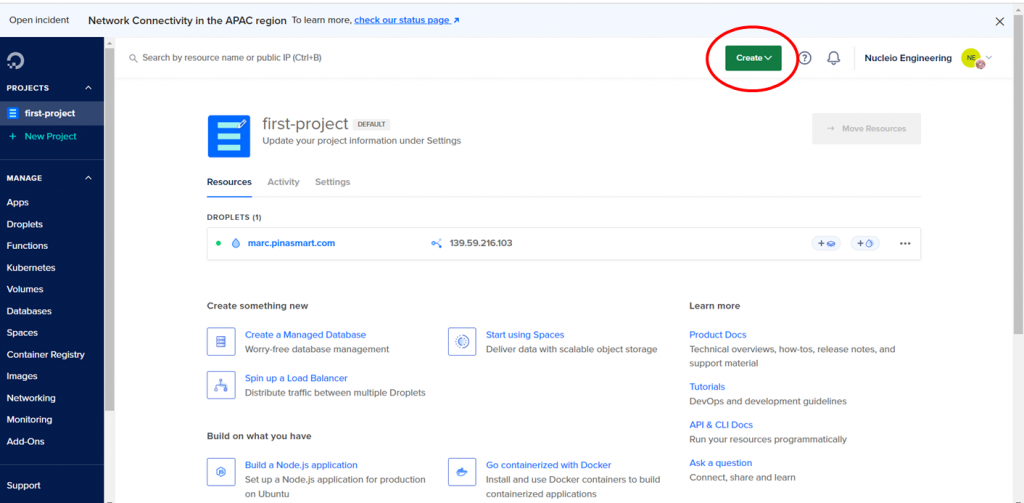
| 1. Log into DigitalOcean Dashboard | Access your account at https://cloud.digitalocean.com and navigate to the control panel to begin creating a new droplet. | Navigate to the “Create” button and select “Droplets”. |
| 2. Choose an Operating System | Select an OS that is compatible with your deployment tools. Ubuntu LTS versions (such as 20.04 or 22.04) are highly recommended for stability and community support. | Use the OS selection menu to pick Ubuntu 22.04 LTS. |
| 3. Select a Droplet Size | Assess your application’s expected traffic and resource needs. For small to medium React apps, a Standard Droplet with 2GB RAM and 1 vCPU often suffices. For larger applications, consider more RAM and vCPUs. | Choose a plan like the “Basic” with 2GB RAM, 1 vCPU, and 50GB SSD storage. |
| 4. Configure Authentication | Opt for SSH keys for secure access. Upload your public key or generate a new one if necessary to facilitate passwordless login and enhance security. | Add your SSH public key during setup or generate one via your local machine using ssh-keygen. |
| 5. Finalize and Create | Assign a hostname and additional options if needed. Review the configuration, then click “Create Droplet” to launch the server. | Provide a recognizable hostname, such as “react-prod-server”. |
| 6. Initial Server Access and Security | Once the droplet is active, access it via SSH using the provided IP address and your SSH key. Implement security best practices such as disabling root login, setting up a firewall, and updating packages to secure the server environment. | Use terminal commands like “ssh root@ |
By carefully selecting the right OS and droplet size, and establishing secure access methods, you lay a solid foundation for deploying and managing your React application efficiently on DigitalOcean.
Installing Necessary Server Components

Proper installation of essential server components is a crucial step in deploying a React website on a DigitalOcean droplet. These components ensure that the environment is capable of serving, building, and managing the React application efficiently. This section guides you through the process of installing Node.js, npm, and other dependencies necessary for hosting React applications effectively on your server.
Ensuring that all dependencies are correctly installed and configured helps prevent issues during deployment and operation. It also facilitates smooth updates and troubleshooting, enabling your React site to run reliably in a production environment.
Installing Node.js, npm, and Dependencies
Node.js is the runtime environment that allows you to run JavaScript code outside of the browser, and npm (Node Package Manager) is essential for managing project dependencies and scripts. Installing these tools forms the foundation for building, developing, and deploying React applications on your server.
In most Linux distributions used on DigitalOcean droplets, such as Ubuntu, the installation involves adding the NodeSource repository to ensure access to the latest stable versions. Once added, you use package managers like apt to install Node.js and npm. Additionally, other dependencies such as build tools may be necessary depending on your React application’s requirements.
After installation, verifying that Node.js and npm are correctly installed is essential. You can do this by checking their versions, which should display the latest installed versions, confirming successful setup. Troubleshooting common issues, such as missing commands or version mismatches, typically involves rechecking the installation steps and ensuring the environment’s PATH variables are correctly configured.
Package Installation and Software Updates
Keeping your server components updated ensures security, compatibility, and access to the latest features. This involves updating existing packages and installing new software as required for hosting and managing React applications.
It is recommended to regularly update your server’s package list and upgrade installed packages to maintain system integrity and security.
Below is a table summarizing common commands used to update packages and install necessary software:
| Action | Command | Description |
|---|---|---|
| Update package list | sudo apt update |
Refreshes the local package index with the latest available versions from repositories. |
| Upgrade all packages | sudo apt upgrade -y |
Upgrades all installed packages to their latest versions, ensuring system consistency. |
| Install Node.js | curl -fsSL https://deb.nodesource.com/setup_18.x | sudo -E bash - |
Adds the NodeSource repository for Node.js v18.x to your system. |
| Install Node.js and npm | sudo apt install -y nodejs |
Installs Node.js runtime and npm package manager. |
| Verify Node.js installation | node -v |
Displays the installed Node.js version, confirming proper installation. |
| Verify npm installation | npm -v |
Displays the npm version, ensuring it is correctly installed. |
| Install additional dependencies | sudo apt install -y build-essential |
Installs essential build tools needed for compiling native modules or dependencies. |
To troubleshoot common issues:
- If
nodeornpmcommands are not recognized, verify PATH variables or re-install Node.js. - If installation hangs or fails, check network connectivity or try updating package lists again.
- Ensure you are using the latest version of the package manager and repositories for compatibility.
Building the React Application for Production
Preparing a React application for deployment involves creating an optimized build that ensures fast load times, efficient resource usage, and a seamless user experience. By generating a production-ready version of your React app, you can confidently deploy it on your DigitalOcean droplet, knowing it has been optimized for performance and reliability.
The process primarily relies on the built-in scripts provided by Create React App, notably the npm run build command. This command compiles all your source code into static files, minifies scripts, and prepares the app for deployment, significantly improving load times and overall performance.
Generating an Optimized Production Build
To generate an optimized production build of your React application, execute the following command within your project directory:
npm run build
This command performs several crucial steps:
- Compiles JSX and modern JavaScript syntax into browser-compatible JavaScript using Babel.
- Bundles all modules and dependencies into optimized files.
- Minifies JavaScript and CSS files to reduce file size, leading to faster loading times.
- Generates source maps (if configured) for debugging purposes, though these are often omitted in production for security and performance.
After executing npm run build, a new folder named build will appear within your project directory. This folder contains all the static assets required for deployment, including:
| File/Folder | Description |
|---|---|
index.html |
The main HTML file that loads your React app. |
static/css |
Contains minified CSS files with styles for your application. |
static/js |
Includes minified JavaScript files, including bundled React scripts and dependencies. |
static/media |
Houses media assets such as images, fonts, and other static resources. |
Importance of Minification and Cache Busting
Minification and cache busting are essential techniques to optimize web applications for production deployment. They contribute to faster load times, better caching strategies, and an improved user experience.
Minification involves removing unnecessary characters such as whitespace, comments, and line breaks from JavaScript and CSS files. This process significantly reduces file sizes, enabling browsers to download assets more rapidly, which is crucial for users with slower internet connections.
Cache busting ensures that browsers recognize updates to static assets by changing filenames or appending version identifiers. This prevents browsers from serving outdated cached files, which could lead to inconsistencies or display issues after updates.
During the build process, tools like Create React App automatically apply minification techniques. Additionally, filenames for static assets include content hashes (e.g., main.8f9c2.js), which function as cache busters. When the content changes, the filename hash updates, prompting browsers to fetch the latest version.
Implementing effective cache busting strategies, such as incorporating hashes into filenames or setting appropriate cache headers on your server, ensures that users always receive the most recent version of your application without sacrificing caching benefits.
Deploying React build to the droplet
Once the React application has been built for production, the next crucial step is transferring the generated static files to the DigitalOcean droplet and configuring the server to host these files efficiently. This process involves securely copying the build directory to the server and setting up a static server to serve the application to users reliably and swiftly.Deploying the React build to the droplet ensures that your application is accessible online.
It also involves choosing the appropriate transfer method and setting up a web server capable of handling static files, such as Nginx or the serve package, for optimal performance and scalability.
Transferring Build Files to the Server
Efficient and secure transfer of build files from your local environment to the server is essential for a smooth deployment process. Common methods include using Secure Copy Protocol (SCP) or rsync, both of which enable transferring files over SSH with options for synchronization and bandwidth management.Using SCP provides a straightforward way to copy files directly, while rsync offers more flexibility, especially for incremental updates, making it ideal for continuous deployment workflows.
- SCP Example: Copy the entire build directory to the server’s /var/www/react-app folder. Replace USERNAME, SERVER_IP, and PATH as appropriate.
- rsync Example: Synchronize local build directory with the server, ensuring only changed files are transferred, which is efficient for updates.
- Ensure that the target directory on the server has the appropriate permissions to serve static content.
scp -r ./build USERNAME@SERVER_IP:/var/www/react-app
rsync -avz ./build/ USERNAME@SERVER_IP:/var/www/react-app
Setting Up a Static Server Using Nginx or Serve Package
Hosting the React application’s static files requires a lightweight and reliable server. Nginx is a popular choice due to its robustness, configurability, and high performance, especially under high traffic conditions. Alternatively, the serve package can be used for quick setups and is suitable for simple or development environments.For production deployment, configuring Nginx involves creating a server block that points to the directory containing the React build files.
Nginx will handle serving the files, managing caching policies, and enabling HTTPS for secure connections.
Example Nginx server block:
server
    listen 80;
    server_name yourdomain.com;
    root /var/www/react-app;

    index index.html index.htm;

    location /
        try_files $uri /index.html;
Alternatively, using the serve package simplifies hosting by running a command that serves static files directly.
It can be installed globally via npm:
npm install -g serve
To serve the build directory, execute:
serve -s /var/www/react-app -l 80
This method is quick and effective for small-scale deployments or testing, but for production environments, Nginx is recommended for its advanced features.
Configuring web server (Nginx) for React app hosting
After successfully deploying the React application’s production build to your DigitalOcean droplet, the next critical step is configuring a reliable web server to serve the application efficiently and securely. Nginx is a high-performance, lightweight web server often used for hosting static websites and single-page applications like React. Proper configuration of Nginx ensures smooth routing, optimal performance, and secure access to your React app.
In this section, we will detail the steps to install Nginx on your droplet, provide example configuration snippets tailored for React applications, and guide you through enabling and testing the server setup to ensure your React app is accessible over the web.
Installing Nginx on the DigitalOcean Droplet
Installing Nginx on your Linux-based droplet, such as Ubuntu, is straightforward using the system’s package manager. Ensuring your server is up to date before installation helps prevent compatibility issues and guarantees you get the latest stable version of Nginx.
- Update package lists to ensure the latest versions are available:
- Install Nginx using apt:
- Verify the Nginx installation by checking its status:
sudo apt update
sudo apt install nginx
systemctl status nginx
If Nginx is active and running, it is ready for configuration. You can also enable it to start on system boot:
sudo systemctl enable nginx
Example Nginx Configuration for React Application
Proper configuration of the Nginx server block (also known as a virtual host) is vital for serving your React application’s static files and handling client-side routing. Below is a detailed table with example server block configurations for different scenarios, such as serving static files directly or proxying to a backend server.
| Server Block | Root Directory / Proxy Settings | Rewrite Rules / Redirects | Description |
|---|---|---|---|
| React App Serving | /var/www/my-react-app/build | N/A | Serving static files generated by React’s build process, ensuring client-side routing functions correctly with fallback to index.html. |
| Proxy to API | /var/www/my-react-app/build | proxy_pass http://localhost:5000; | Proxy API requests to a backend server running locally, useful in cases where React app communicates with server-side APIs. |
| Redirecting HTTP to HTTPS | n/a | return 301 https://$host$request_uri; | Enforces secure connections by redirecting all HTTP requests to HTTPS. |
| Handling React Router | /var/www/my-react-app/build | try_files $uri /index.html; | Ensures React’s client-side routing works seamlessly by redirecting all requests to index.html, except for existing static files. |
Below are example server block snippets implementing these configurations:
# Serve React static files with fallback for client-side routing
server
    listen 80;
    server_name your_domain.com www.your_domain.com;

    root /var/www/my-react-app/build;
    index index.html;

    location /
        try_files $uri /index.html;


    # Optional: Redirect HTTP to HTTPS
    # Uncomment the following block if SSL is configured
    # listen 443 ssl;
    # ssl_certificate /path/to/cert.pem;
    # ssl_certificate_key /path/to/key.pem;
Enabling and Testing Nginx Configuration
Once the configuration file is prepared, it must be enabled and tested to ensure correctness before applying the changes.
- Save your configuration file in the Nginx sites-available directory, typically at
/etc/nginx/sites-available/your_site. - Create a symbolic link in the sites-enabled directory to activate the configuration:
- Test the Nginx configuration for syntax errors:
- If the test passes without errors, reload Nginx to apply the changes:
sudo ln -s /etc/nginx/sites-available/your_site /etc/nginx/sites-enabled/
sudo nginx -t
sudo systemctl reload nginx
To verify the setup, access your domain or server IP address via a web browser. You should see your React application’s homepage load correctly, and client-side routing should work seamlessly. If issues arise, review the Nginx error logs located at /var/log/nginx/error.log for troubleshooting.
Securing the deployment with SSL
Ensuring data encryption and secure communication for your React website hosted on a DigitalOcean droplet is vital to protect user information and maintain trust. Implementing SSL certificates not only encrypts data in transit but also boosts your site’s credibility and search engine ranking. This section provides a comprehensive guide to obtaining SSL certificates via Let’s Encrypt, configuring them with Nginx, and enforcing secure connections through HTTP to HTTPS redirection and testing procedures.Securing your website involves obtaining a valid SSL certificate, configuring your web server to utilize it, and ensuring that all traffic is securely encrypted.
Automating certificate renewal processes is equally important to prevent expiry-related issues and maintain continuous security.
Obtaining SSL Certificates via Let’s Encrypt
Let’s Encrypt is a widely trusted Certificate Authority (CA) that offers free SSL/TLS certificates, making it an excellent choice for deploying secure websites. The process involves installing Certbot, a tool designed to automate the certificate issuance and renewal process.The steps include:
- Installing Certbot and its Nginx plugin on your server. This can be done using your server’s package manager, such as apt:
- Obtaining the SSL certificate for your domain by executing Certbot with the Nginx plugin. Replace ‘yourdomain.com’ with your actual domain name:
- Following the prompts to agree to the terms of service and setting up automatic renewal options.
sudo apt update && sudo apt install certbot python3-certbot-nginx
sudo certbot –nginx -d yourdomain.com -d www.yourdomain.com
This process will automatically configure your Nginx server blocks to use the new certificates.
Configuring SSL in Nginx
Proper configuration of SSL in Nginx is critical to ensure secure and efficient operation. Below is a detailed overview presented in a table format to guide the setup, renewal, and security best practices.
| Aspect | Details |
|---|---|
| Certificate Paths |
For the full certificate chain.
For the private key. These paths are specified automatically during Certbot setup. |
| Renewal Schedule | Certbot creates cron jobs or systemd timers to automatically attempt renewal twice daily. It checks certificate expiration and renews if within 30 days of expiry. You can verify renewal status with:
|
| Security Best Practices |
|
Redirecting HTTP to HTTPS and Testing SSL Deployment
To ensure all traffic is encrypted, redirecting HTTP requests to HTTPS is essential. This improves security and user confidence.The typical method involves editing your Nginx server block configuration. Add the following server block to redirect all HTTP traffic:
server listen 80; server_name yourdomain.com www.yourdomain.com; return 301 https://$host$request_uri;
This configuration performs a permanent redirect (301) from HTTP to HTTPS, ensuring search engines update accordingly.After setting up SSL and redirect rules, testing the deployment is crucial to identify potential issues. Utilize browser-based tools or command-line utilities:Use a browser to visit your site with HTTP and verify it automatically redirects to HTTPS.
Run SSL test tools like Qualys SSL Labs’ SSL Server Test (https
//www.ssllabs.com/ssltest/) to analyze your SSL certificate and configuration for vulnerabilities and compliance.
Employ command-line tools such as cURL to verify SSL status
curl -I https://yourdomain.com
Look for a response status of 200 OK and ensure the SSL handshake completes without errors. Proper testing ensures your deployment is both secure and reliable, providing users with peace of mind when visiting your React website.
Managing Domain Names and DNS Settings

Assigning a custom domain name to your React website hosted on a DigitalOcean droplet enhances its professionalism and accessibility. Proper configuration of DNS settings ensures that visitors can reach your site using your chosen domain name rather than relying solely on the droplet’s IP address. This process involves linking your domain to the server and verifying that the setup propagates correctly across the internet.
Effectively managing DNS records is essential for ensuring your website remains accessible, secure, and properly integrated with other services such as email or CDN providers. Understanding the key steps involved in linking your domain to the droplet’s IP address is crucial for a seamless deployment experience.
Linking a Custom Domain to the Droplet’s IP Address
Connecting a custom domain to your DigitalOcean droplet involves updating DNS records at your domain registrar. This process allows users to access your website via your domain name, such as www.example.com, instead of the droplet’s IP address. Proper linkage also facilitates SSL certificate issuance and enhances the site’s credibility.
- Obtain your droplet’s public IP address from the DigitalOcean control panel. This IP will serve as the destination for DNS records.
- Access your domain registrar’s control panel; popular providers include GoDaddy, Namecheap, Google Domains, and others.
- Navigate to the DNS management or DNS settings section. This area allows modification of DNS records such as A, CNAME, and others.
- Create an A record for your domain:
- Name/Host: Enter ‘@’ to represent the root domain or specify a subdomain like ‘www’.
- Type: Select ‘A’ record.
- Value/Address: Enter the droplet’s IP address.
- TTL: Use default or set an appropriate TTL value (e.g., 3600 seconds).
- If you want
www.example.comto redirect toexample.com, add a CNAME record: - Name/Host: ‘www’
- Type: ‘CNAME’
- Value: ‘example.com’
Repeat these steps for additional subdomains or records as needed. Save all changes to apply the DNS modifications.
Configuring DNS Records in Domain Registrar Panels
Proper configuration of DNS records is essential to ensure your domain points correctly to your DigitalOcean droplet and functions as intended. DNS record configuration varies slightly by registrar, but the core principles remain consistent.
Most registrar panels offer a user-friendly interface for managing DNS settings. The key records to configure are:
- A Record: Points your domain or subdomain to the droplet’s IP address, enabling direct access.
- CNAME Record: Creates aliases for your domain, such as ‘www’ pointing to the root domain, improving flexibility.
- TXT Records: Used for domain verification, SSL validation, or email configuration, adding an extra layer of security and functionality.
In the DNS management interface, locate the section for adding or editing records. Enter the required information carefully, and ensure no conflicting records exist that might override the correct configuration. It is advisable to double-check the entries before saving, as incorrect DNS settings can lead to website inaccessibility.
Verifying DNS Propagation and Domain Setup
After configuring DNS records, verifying proper propagation is important to ensure your domain correctly points to your droplet. DNS propagation can take anywhere from a few minutes up to 48 hours, depending on TTL settings and registrar policies.
Several methods can be used to verify DNS setup:
- Using Command-Line Tools: Run commands like
nslookupordigto query your domain’s DNS records. - Online DNS Lookup Tools: Websites like DNSChecker.org or MXToolbox offer real-time DNS propagation checks across multiple locations worldwide.
- Browser Access: After propagation, navigate to your domain URL in a browser to verify if it loads your React site correctly. Clear browser cache or use incognito mode to avoid cached redirects.
Example: dig example.com A
This command returns the current A record forexample.com, allowing you to confirm it points to your droplet’s IP.
If DNS changes are not reflected after 48 hours, double-check your DNS records for errors, ensure no conflicting entries exist, and verify your registrar’s DNS servers are correctly configured. Confirm your droplet’s firewall and web server settings are correctly serving your React application for the domain in question.
Automating deployment and updates
Implementing automation in deploying and maintaining React applications on DigitalOcean Droplets significantly enhances development efficiency, reduces manual errors, and ensures consistent application updates. By establishing reliable CI/CD pipelines and utilizing scripting tools, developers can streamline the deployment process, allowing for rapid, automated updates that keep the application current and secure.Automation strategies focus on integrating version control systems with deployment workflows, enabling seamless updates whenever code is pushed or merged.
This approach minimizes downtime and ensures that the latest code is consistently reflected on the production server, providing a robust framework for ongoing maintenance.
Strategies for implementing CI/CD pipelines for React deployments
Continuous Integration and Continuous Deployment (CI/CD) pipelines automate the process of testing, building, and deploying React applications to DigitalOcean Droplets. Setting up these pipelines involves configuring tools that monitor version control repositories, execute build scripts, and deploy updates with minimal manual intervention.By adopting CI/CD, teams can achieve rapid feedback loops, catch bugs early through automated testing, and deploy updates reliably.
This process enhances collaboration, maintains code quality, and ensures that deployments are consistent across environments.
Tools and scripts for streamlining updates
Various tools facilitate the automation of React app deployment, with popular choices including GitHub Actions, Jenkins, GitLab CI, and CircleCI. These tools can be configured to trigger deployment workflows whenever changes are made to the repository, automating tasks such as installing dependencies, building the production bundle, transferring files to the droplet, and restarting server processes.For example, a GitHub Actions workflow can be designed to run on each push to the main branch, executing steps to build the React app, securely copy the build artifacts to the server via SSH, and restart the web server to serve the latest version.
Such scripts often utilize SSH keys for authentication, ensuring secure and automated access.
“Automating deployment processes reduces manual overhead, minimizes errors, and accelerates release cycles, fostering more efficient development workflows.”
Best practices for maintaining and updating React applications on the droplet
Maintaining a React application deployed on a DigitalOcean Droplet involves systematic updates, security patches, and performance monitoring. Employing automation best practices ensures that updates are safely deployed with minimal downtime.Regularly updating dependencies and React versions through automated scripts helps prevent security vulnerabilities. Using environment variables and configuration management allows for flexible updates without altering core code. Additionally, automated backups of server configurations and application data safeguard against potential data loss during updates.Implementing monitoring tools like Grafana or New Relic can provide real-time insights into application performance and server health, facilitating proactive maintenance.
Establishing a rollback mechanism within the CI/CD pipeline enables quick reversion to previous stable versions if issues arise during deployment.
Troubleshooting Common Deployment Issues
Deploying a React application to a DigitalOcean droplet can sometimes present challenges that hinder smooth deployment or operation. Recognizing and addressing these issues efficiently ensures minimal downtime and a seamless user experience. This section covers common errors encountered during deployment, methods to monitor server health, and practical tips to resolve typical problems related to builds, server configurations, and SSL security.
Common Errors Encountered During Deployment and Their Solutions
Deployment processes may be interrupted by various errors, each requiring specific troubleshooting strategies. Understanding these errors enables quicker resolution and smoother deployment cycles.
- Build Failures: Errors during the React build process often stem from missing dependencies, version mismatches, or syntax errors in code.
- Solution: Ensure all dependencies are correctly installed by running
npm install, and verify that the build command (npm run build) completes without errors locally before deploying. - Check for syntax errors or deprecated code that may cause build failures, especially after updates to React or related libraries.
- Solution: Ensure all dependencies are correctly installed by running
- Server Misconfigurations: Improper Nginx or firewall settings can prevent access to the React application or cause server errors.
- Solution: Review Nginx configuration files for correct proxy settings and root directory paths. Use
sudo nginx -tto test configurations, and reload Nginx withsudo systemctl reload nginxafter changes. - Confirm firewall rules permit HTTP and HTTPS traffic using
ufw statusor equivalent tools.
- Solution: Review Nginx configuration files for correct proxy settings and root directory paths. Use
- SSL Certificate Problems: SSL errors such as insecure connection warnings or failed certificate validation can occur due to misconfiguration or expired certificates.
- Solution: Ensure SSL certificates are valid, correctly installed, and configured in your web server. Use tools like Certbot to manage and renew certificates automatically.
- Check certificate chain files and private keys for correctness and permissions.
Monitoring Server Logs and Application Health
Proactive monitoring is vital to identify issues early and maintain optimal application performance. Regularly reviewing server logs and application metrics provides insights into errors, traffic patterns, and resource utilization.
Server logs, including Nginx access and error logs, reveal information about request statuses, failures, and potential security threats. Application logs from React or backend services highlight build errors, runtime exceptions, and performance bottlenecks.
Utilize tools such as Journalctl for system logs, and configure logging within your application to capture essential metrics and errors.
- Accessing Server Logs: Use commands like
sudo tail -f /var/log/nginx/error.logor/var/log/nginx/access.logto monitor real-time activity. - Monitoring Application Health: Implement monitoring solutions such as Prometheus or Grafana to visualize server load, response times, and error rates.
- Using Application Error Tracking: Integrate error tracking services like Sentry or LogRocket for React applications to capture runtime exceptions and user interaction issues.
Tips for Resolving Build, Server, and SSL Issues
Effective troubleshooting often involves systematic checks and best practices to resolve common deployment problems efficiently.
- Resolving Build Errors: Examine the build logs carefully for missing modules or compilation warnings. Running
npm audit fixcan resolve dependency vulnerabilities that may cause build failures. Ensure environment variables and build scripts are correctly configured. - Correcting Server Misconfigurations: Confirm the server’s configuration files point to the correct build directory, and proxy settings route requests properly to the React app. Restart the server after any configuration changes.
- Fixing SSL Problems: Renew expired certificates promptly. Verify the certificate chain and private key permissions. Use automated renewal tools like Certbot to manage certificate validity seamlessly.
- Additional Best Practices: Regularly update server software, dependencies, and certificates. Keep backups of configuration files before making changes, and document any modifications for future reference.
Closure
In summary, deploying a React website to a DigitalOcean droplet involves careful planning, proper server setup, and security considerations. With the right tools and knowledge, you can turn your development project into a live, secure, and reliable web application accessible worldwide. Embracing these practices paves the way for ongoing updates and scalable growth of your online presence.