Understanding how to debug JavaScript errors in Chrome DevTools is essential for efficient web development and troubleshooting. This powerful tool offers a comprehensive suite of features designed to identify, analyze, and resolve errors swiftly, ensuring smoother user experiences and more reliable code. Mastering these debugging techniques can significantly reduce development time and improve code quality.
This guide explores how to effectively utilize Chrome DevTools to pinpoint JavaScript issues, from interpreting error messages in the Console to setting breakpoints and examining variable states. Whether handling synchronous or asynchronous errors, the strategies presented here aim to empower developers with practical skills for seamless debugging and enhanced productivity.
Overview of Debugging JavaScript Errors in Chrome DevTools
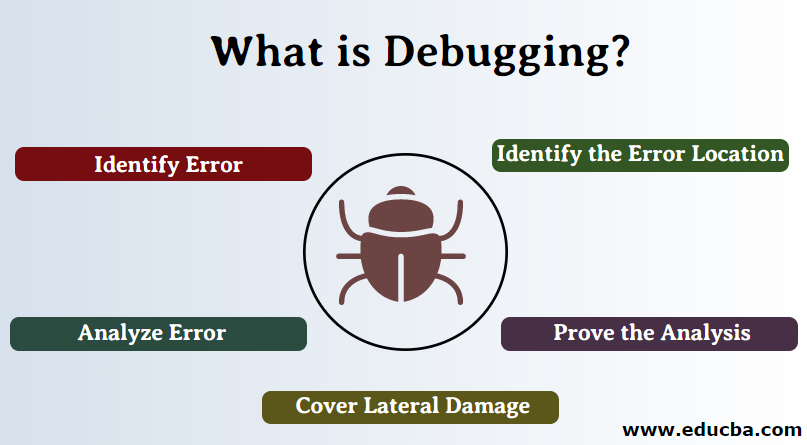
Chrome DevTools is an essential suite of web development tools integrated directly into the Google Chrome browser. It provides developers with powerful features for inspecting, debugging, and optimizing web applications, with JavaScript debugging being a core component. When encountering issues in JavaScript code, leveraging DevTools significantly streamlines the troubleshooting process, enabling developers to identify and resolve errors efficiently.
During development and testing phases, JavaScript errors are common and can manifest in various forms, such as syntax errors, runtime exceptions, or logical bugs. These errors can hinder webpage functionality, cause unexpected behaviors, or break user experience. Recognizing the typical error types helps developers quickly pinpoint issues and understand their origins.
Accessing the Console and Sources Panels in Chrome DevTools
To effectively debug JavaScript errors, it is crucial to familiarize oneself with the primary panels—namely, the Console and Sources. These panels serve as the main interface for error detection, inspection, and debugging scripts. The Console panel displays error messages, warnings, and logs generated by the JavaScript code, providing immediate insights into issues that arise during code execution.
Accessing the Console panel is straightforward: open Chrome DevTools by pressing F12 or right-clicking on a webpage and selecting “Inspect,” then navigate to the “Console” tab. Here, error messages are highlighted in red, often accompanied by a stack trace and additional context, which helps identify the source of the problem.
The Sources panel offers a more in-depth debugging environment. It allows developers to view all loaded JavaScript files, set breakpoints, step through code line-by-line, and inspect variable states at various execution points. To open the Sources panel, click on the “Sources” tab within DevTools. From there, developers can locate specific scripts, add breakpoints by clicking on line numbers, and utilize debugging tools such as watch expressions, call stacks, and scope variables to analyze how the code executes and diagnose errors effectively.
Navigating the Console for Error Identification
Effectively debugging JavaScript errors begins with proficient navigation and interpretation of the Console tab within Chrome DevTools. This tool serves as the primary interface for viewing runtime errors, warnings, and logs generated by your web page. Understanding how to locate, filter, and analyze these messages can significantly streamline the troubleshooting process and help identify the root causes of issues quickly.
The Console not only displays error messages but also provides contextual information such as stack traces, source references, and execution details. Mastering its features enables developers to efficiently sift through extensive logs, pinpoint specific errors, and gather valuable insights for fixing bugs. The following sections guide you through the key steps involved in error identification via the Console tab.
Locating and Interpreting Error Messages in the Console Tab
When a JavaScript error occurs, Chrome DevTools automatically logs an error message in the Console tab, often highlighted in red to denote severity. To locate errors, open DevTools (usually by pressing F12 or right-clicking on the page and selecting ‘Inspect’) and navigate to the Console panel. Errors appear sequentially and include critical information such as the message type, description, and the source location.
Key steps to interpret error messages include:
- Identify the error message text, which often states the nature of the problem, such as “Uncaught TypeError” or “ReferenceError.”
- Examine the source URL and line number, typically displayed as a clickable link. Clicking this link opens the corresponding source code in the Sources panel.
- Review the stack trace, which shows the sequence of function calls leading to the error. This helps determine the specific code segment responsible.
- Check for accompanying warnings or informational logs that may provide additional context or clues about the error’s origin.
Understanding these components allows you to quickly identify the type and cause of errors, facilitating targeted troubleshooting.
Error Types, Meanings, and Typical Causes
Errors in the Console can vary significantly, each indicating different issues within the JavaScript code. Recognizing common error types and their implications aids in faster diagnosis.
| Error Type | Meaning | Typical Causes |
|---|---|---|
| Uncaught TypeError | The code attempts to perform an operation on a value of an incompatible type, or a variable is not a function or object. | Calling a non-function, accessing properties of undefined, or incorrect data type assumptions. |
| ReferenceError | A variable or function is referenced before it has been declared or is out of scope. | Typographical errors, missing script imports, or scope issues. |
| SyntaxError | The code violates JavaScript syntax rules, preventing parsing. | Missing brackets, parentheses, or misspelled s. |
| RangeError | A numeric value is outside the permissible range, often in loops or array operations. | Invalid array length, exceeding maximum call stack size, or improper numeric calculations. |
| NetworkError or Failed to load resource | Failed to fetch an external resource like a script, image, or API endpoint. | Incorrect URLs, server issues, CORS restrictions, or network connectivity problems. |
Understanding these error types helps prioritize issues and apply suitable corrective measures more efficiently.
Filtering and Searching Console Logs for Specific Error Patterns
As web applications grow in complexity, the Console can become cluttered with informational logs, warnings, and multiple error messages. Efficient filtering and searching capabilities enable developers to isolate relevant errors quickly, saving valuable debugging time.
Console filtering can be achieved through the built-in filter toolbar and search box, which support various criteria:
- Using the filter input box, you can display only logs matching specific s or error types. For example, typing “TypeError” filters out all other messages, highlighting relevant issues.
- Filter by log level (Errors, Warnings, Info, Logs) to focus on critical messages.
- Use the search feature (Ctrl+F or Command+F) within the Console to locate specific text or patterns within all logs. This is especially useful when error messages include unique identifiers or specific source references.
- Employ regular expressions in search to match complex patterns, such as certain variable names or error codes.
Regular expression example: /TypeError:.*fetch/ can help locate all errors related to failed fetch operations.
By applying these filtering techniques, developers can swiftly narrow down to the errors that matter most, facilitating quicker diagnosis and resolution of issues.
Using Breakpoints and Debugging Tools Effectively
Mastering the use of breakpoints and debugging tools within Chrome DevTools significantly enhances the ability to diagnose and resolve JavaScript errors efficiently. These tools allow developers to pause code execution at critical moments, inspect variable states, and understand the flow of execution, leading to more precise identification of issues. Proper utilization of these features transforms debugging from a tedious task into a systematic process, ensuring cleaner code and more reliable applications.
Effective debugging involves strategically setting breakpoints, leveraging conditional triggers, and systematically stepping through code to observe behaviors and inspect the current state of variables. Understanding the various types of breakpoints and their specific use cases empowers developers to isolate problems rapidly, especially in complex codebases or asynchronous operations. This section provides detailed guidance on how to utilize these tools to streamline the debugging workflow and improve problem-solving efficiency.
Setting Line-of-Code Breakpoints within the Sources Panel
Breakpoints are fundamental for halting code execution at specific lines, allowing for real-time inspection of application state. To set a line-of-code breakpoint:
- Open the Chrome DevTools and navigate to the Sources panel.
- Locate the JavaScript file that contains the code you want to debug in the file navigator sidebar.
- Click on the desired line number within the source code to set a breakpoint. A blue marker appears, indicating an active breakpoint.
- Refresh the webpage or trigger the relevant event that executes the code containing the breakpoint. Execution will pause at this point, allowing for inspection.
When the code execution pauses, the DevTools UI highlights the current line, enabling examination of local variables, scope, and call stack. This precise control aids in pinpointing issues within complex functions or logic flows.
Using Conditional Breakpoints to Isolate Issues
Conditional breakpoints extend the debugging capability by allowing code to pause only when specific conditions are met. This is particularly useful when dealing with loops or event handlers that execute multiple times, but issues only manifest under certain circumstances.
- Right-click on an existing breakpoint or click on the line number where you want to add a breakpoint.
- Select “Add conditional breakpoint” from the context menu.
- Enter a JavaScript expression that evaluates to true or false. For example,
user.id === 42orvalue > 100. - Press Enter to activate the conditional breakpoint. The code will now only pause when the condition is true.
This feature allows developers to focus on specific scenarios, reducing the noise from irrelevant executions and accelerating the identification of bugs that occur under particular data states or user actions.
Stepping Through Code, Inspecting Variables, and Pausing Execution
Once breakpoints are set, debugging involves carefully stepping through code to observe the execution flow and inspect data at each step. Chrome DevTools offers several controls:
- Resume script execution (F8): Continues running until the next breakpoint.
- Step over (F10): Executes the next line of code, skipping over function calls.
- Step into (F11): Enters into functions called on the current line, allowing detailed inspection inside functions.
- Step out: Completes execution of the current function and returns to the caller context.
- Pause: Temporarily halts execution at the current point for examination.
During stepping, the Variables pane displays current values of scope variables, while the Call Stack shows the chain of function calls leading to the current execution point. Developers can also add watch expressions or evaluate JavaScript directly in the Console to test hypotheses or examine complex data structures.
Breakpoints Types and Their Use Cases
Different breakpoint types serve specific debugging purposes, helping isolate different kinds of issues efficiently. The table below summarizes key types:
| Breakpoint Type | Description | Common Use Cases |
|---|---|---|
| Line-of-Code Breakpoints | Pauses execution at a specific line in the source code. | Tracing specific function calls, verifying code reaches certain points, or inspecting state at particular steps. |
| Conditional Breakpoints | Pauses execution when a specified condition evaluates to true. | Targeting bugs that occur only with certain data or under specific conditions, such as loop iterations or user input states. |
| XHR/fetch Breakpoints | Pauses when an XMLHttpRequest or fetch API call is made or completed. | Debugging network requests, especially to verify request parameters and responses. |
| Event Listener Breakpoints | Pauses when specified events are fired, such as clicks or key presses. | Investigating event-driven bugs or verifying event propagation and handling. |
| Function Breakpoints | Pauses whenever a specific function is invoked. | Monitoring calls to critical functions, especially in large codebases or third-party libraries. |
Analyzing Call Stacks and Variable States
Understanding how to analyze call stacks and variable states during a debugging session enhances the efficiency of identifying and resolving JavaScript errors. This process provides insight into the execution flow and the current state of data within the application, enabling developers to pinpoint issues more accurately and swiftly.Interpreting call stacks allows developers to trace the sequence of function calls that led to an error or breakpoint.
Examining variable states helps determine the values held by local and global variables at specific moments during code execution, offering clues about unexpected behaviors or incorrect data. Together, these tools form a comprehensive picture of the application’s runtime environment.
Accessing and Interpreting Call Stacks
Call stacks are a fundamental feature within Chrome DevTools that display the active sequence of function calls at any point during debugging. Accessing the call stack is straightforward when a breakpoint is hit or an exception occurs. The “Call Stack” panel appears in the Sources tab, typically on the right side of the DevTools interface.To interpret a call stack, observe the list of function calls from the most recent to the earliest, usually ordered from top to bottom.
The topmost function indicates where the debugger is paused. Each entry provides the function name, the script file, and the line number, guiding developers to the exact code location. By clicking on individual entries, developers can navigate directly to the corresponding source code for deeper inspection.This hierarchical view reveals the flow of execution, helping to identify the sequence that may have led to an error.
For instance, if a function unexpectedly received invalid parameters, tracing backwards through the call stack can uncover where these parameters originated or where a logic flaw occurred.
Inspecting Local and Global Variables
During debugging, inspecting variables provides insights into the data that influences code behavior at specific points. Chrome DevTools offers real-time viewing of local variables within the scope of the current function, as well as global variables accessible throughout the application.Local variables are visible in the “Scope” pane when paused at a breakpoint or exception. Variables are listed with their names and current values, which update dynamically as you step through code.
Global variables can be examined in the “Console” panel or the “Scope” section if they are part of the window object or other global objects.To inspect variables effectively, developers can hover over variable names directly in the source code or click on the variable in the Scope pane to see its current value. For more complex data structures, expanding objects reveals nested properties, arrays, and their contents.Creating example scenarios, suppose a function processes user input data.
When paused at a breakpoint inside this function, inspecting the variable holding user data might reveal unexpected null values or incorrect formats. Visualizing the variable as a hierarchical table aids in understanding the data structure at a glance.In Chrome DevTools, variable data can be organized into clear, tabular formats by viewing object properties and array elements in expandable trees. For enhanced clarity, developers can copy variable data into external tools or use formatted console logs to present data in tabular form, making complex information easier to analyze.This approach streamlines debugging by providing a structured view of variable states, facilitating quicker identification of inconsistencies or erroneous data that may cause runtime errors or unexpected outcomes.
Handling Asynchronous JavaScript Errors
Asynchronous JavaScript operations, including promises and async/await syntax, are integral to modern web development. However, debugging errors arising from asynchronous code can be challenging due to their delayed execution and complex call stacks. Effectively identifying and resolving these errors is crucial to maintaining robust and responsive applications. This section provides strategies and procedures to troubleshoot asynchronous errors efficiently, enhancing your debugging proficiency in Chrome DevTools.
Understanding the origins of asynchronous errors requires a systematic approach, especially since they might not surface immediately during code execution. Monitoring network activity, event listeners, and the flow of promise resolutions can reveal the root causes of failures. Organizing and presenting asynchronous error information in structured formats such as HTML tables or logs can significantly streamline troubleshooting, making complex issues easier to analyze and resolve.
Strategies for Debugging Promises and Async/Await Errors
Debugging asynchronous code demands specialized techniques to track the flow of execution and capture errors effectively. The following strategies are essential for pinpointing issues in promises and async/await workflows:
- Utilize Chrome DevTools Console with Promise Rejection Tracking: Enable the setting “Pause on exceptions” or “Pause on Promise rejection” to automatically halt execution when an unhandled promise rejection occurs. This allows for immediate inspection of the call stack and variable states at the point of failure.
- Add Explicit Error Handling: Implement
.catch()blocks for promises and try-catch statements around async functions to capture errors explicitly. Logging these errors with contextual information can clarify their origin. - Use Debugger Statements Inside Async Functions: Insert
debugger;statements within async functions to pause execution at specific points, enabling step-by-step inspection of asynchronous flows.
Procedures to Identify the Source of Asynchronous Errors
Tracing the origin of asynchronous errors requires a methodical approach to follow the sequence of promise resolutions and event triggers. The following procedures aid in isolating the root cause:
- Observe the Error Message and Call Stack: Review the error message in the Chrome DevTools Console, paying attention to the call stack trace. Although asynchronous functions may obscure direct call relationships, the trace can reveal the chain of promises and event handlers involved.
- Examine Promise States: Use the Console to inspect Promise objects by typing their references or by using Promise debugging tools in Chrome DevTools. Identifying whether a promise is pending, fulfilled, or rejected helps locate the point of failure.
- Check Network and Event Listeners: Use the Network tab to monitor AJAX requests or fetch calls related to the asynchronous operation. Event listeners attached to DOM elements can also trigger async functions, so inspect them via the Elements panel with the Event Listeners view.
- Leverage Breakpoints in Asynchronous Code: Set breakpoints directly within async functions or promise chains to observe data flow and error propagation step-by-step, even if the code executes asynchronously.
Monitoring Network Activity and Event Listeners
As asynchronous errors often relate to external data fetching or event handling, monitoring network requests and event listeners provides critical insights:
- Network Tab: Filter for failed requests or responses with error statuses. Inspect response payloads, headers, and request parameters to determine if incorrect data or server issues contribute to errors.
- Event Listeners: Use Chrome DevTools to identify event handlers attached to DOM elements. Unhandled or improperly managed event listeners can lead to unexpected asynchronous errors, especially when they involve network calls or complex state changes.
- Simulate Network Conditions: Use the network throttling features to test how asynchronous operations behave under different conditions, revealing timing-related errors or unhandled promise rejections caused by delays or timeouts.
Organizing Asynchronous Error Information
Presenting asynchronous error data in structured formats facilitates easier analysis and communication among development teams. Techniques include:
| Component | Error Description | Origin Point | Related Network Requests | Status |
|---|---|---|---|---|
| Fetch Data Module | Promise rejection due to network timeout | fetch() call in data service | GET /api/data – timeout | Unresolved |
| Button Click Handler | Async function throwing error | click event on Submit button | N/A | Resolved |
Using such structured representations helps track the flow of asynchronous operations, identify failure points, and prioritize fixes effectively. Incorporating detailed logs and error reports organized in HTML tables or JSON formats can further enhance debugging workflows, especially in complex applications with multiple asynchronous components.
Utilizing Additional Debugging Features
Beyond the fundamental tools, Chrome DevTools offers advanced features that enable developers to gain deeper insights into JavaScript execution and networking activities. Harnessing these capabilities can significantly improve the efficiency of debugging complex errors and understanding application behavior more comprehensively.
These features include the use of ‘Watch’ expressions and ‘Scope’ variables panels, analyzing network requests related to JavaScript errors, and employing console functions such as console.trace(). Mastery of these tools allows for a more precise identification of issues and streamlines the debugging process.
Using ‘Watch’ Expressions and ‘Scope’ Variables Panels
The ‘Watch’ and ‘Scope’ panels in Chrome DevTools are essential for monitoring variable values and expressions during debugging sessions. They provide real-time insights into data states and help trace the origin of errors more effectively.
To utilize these features effectively:
- Adding Watch Expressions: In the ‘Sources’ panel, locate the ‘Watch’ section. Click the ‘+’ icon to add a new expression. You can input specific variable names or expressions, such as
userData.emailorcalculateSum(a, b). This allows you to observe how these values change as you step through the code. - Monitoring Scope Variables: When paused at a breakpoint, the ‘Scope’ panel displays local, closure, and global variables in the current execution context. Expand these sections to examine variable states and identify unexpected or undefined values that may cause errors.
- Leveraging the Panels: Use the ‘Watch’ panel to track custom expressions across different pause points. The ‘Scope’ panel provides immediate context about variables accessible at each execution stage, facilitating quick diagnosis of issues related to variable states.
Analyzing Network Requests Related to JavaScript Errors
Errors in JavaScript often originate from or are affected by network interactions. Analyzing network requests helps identify failed or delayed requests, incorrect responses, or resource loading issues that might contribute to script errors.
Key steps to analyze network requests include:
- Opening the Network Panel: Navigate to the ‘Network’ tab in Chrome DevTools. Ensure the recording is active by checking the red recording button.
- Filtering Relevant Requests: Use filters such as ‘XHR’ to focus on asynchronous requests related to API calls or data fetching, which are common sources of errors.
- Inspecting Request Details: Click on specific network entries to examine headers, response payloads, status codes, and timing information. Look for 404, 500, or other error statuses that coincide with JavaScript errors.
- Correlating with Console Errors: Cross-reference network failures with console error messages to determine if failed requests are causing or exacerbating script errors.
Using Console Functions like console.trace()
console.trace() is a powerful function that provides a stack trace at the point where it is invoked, displaying the sequence of function calls that led to that point. This is especially useful for tracking execution flow during complex error scenarios.
To leverage console.trace() effectively:
- Inserting
console.trace()Calls: Insert the function into suspect areas of your code where the error occurs or where you need to understand the call sequence. For example: - Interpreting the Output: When the code executes, the console displays a detailed call stack, illustrating each function invocation leading to the trace point. Analyzing this stack helps identify unintended or unexpected call sequences that may cause errors.
- Combining with Breakpoints: Use breakpoints to pause execution before calling
console.trace(). This combination allows for dynamic analysis of the call stack at critical points in your application flow.
function processData()
    // Some processing logic
    console.trace('Trace at processData');
    // Further code
Clearing Common JavaScript Error Scenarios
Encountering JavaScript errors during development is a frequent challenge that can impact the functionality and user experience of your web applications. Addressing these errors efficiently requires understanding their typical causes and applying targeted solutions. This section provides practical procedures for fixing common error types such as syntax errors, reference errors, and type errors, along with illustrative code snippets and a comprehensive troubleshooting guide.
By mastering these troubleshooting steps and recognizing typical error patterns, developers can streamline debugging processes, reduce downtime, and write more robust code. The following organized procedures serve as a quick reference to resolve frequent JavaScript issues effectively.
Fixing Syntax Errors
Syntax errors occur when the JavaScript engine encounters code that violates the language’s grammatical rules. These errors typically prevent script execution and are easy to identify in Chrome DevTools, where error messages highlight the exact location of the mistake.
- Check the error message in the Console to identify the line number and nature of the syntax mistake.
- Ensure that brackets, parentheses, and curly braces are properly opened and closed.
- Verify that string literals are correctly enclosed within quotes.
- Remove any stray or missing semicolons if they are causing parsing issues, especially in strict mode.
- Use a code editor with syntax highlighting and linting features to preemptively catch syntax mistakes.
Example of a syntax error:
function greet()
  console.log("Hello, world!"  // Missing closing parenthesis and semicolon
Corrected version:
function greet()
  console.log("Hello, world!");
Resolving Reference Errors
Reference errors arise when the code attempts to access variables or functions that are not defined or are out of scope. They are common during initial development phases or due to typos.
- Review the Console error message to determine which variable or function is missing or undefined.
- Ensure that variables or functions are declared before usage, respecting scope boundaries.
- Check for typos in variable or function names, especially in case-sensitive contexts.
- Make sure that scripts are correctly loaded and executed in the intended order if dependencies exist.
- Use Chrome DevTools’ Sources panel to verify the presence of the definition in loaded scripts.
Example of a reference error:
console.log(userName); // 'userName' is not defined
Corrected version:
let userName = "Alice";
console.log(userName);
Addressing Type Errors
Type errors occur when operations are performed on incompatible data types, such as invoking a method on an undefined variable or assigning a value of an incorrect type. These errors can cause functions to behave unexpectedly or crash the script.
- Use the Console to identify the specific operation causing the type mismatch.
- Check if variables are properly initialized before use.
- Ensure that functions are called on objects of the correct type.
- Utilize typeof and instanceof operators to verify data types during runtime.
- Implement type checks or input validation to prevent invalid operations.
Example of a type error:
let count = 10;
count.toUpperCase(); // 'number' does not have method 'toUpperCase'
Corrected version:
let count = "10";
console.log(count.toUpperCase());
Summary of Error Types, Causes, and Resolution Methods
| Error Type | Common Causes | Resolution Methods |
|---|---|---|
| Syntax Error | Incorrect syntax, missing brackets, unclosed strings, missing semicolons | Validate syntax with linting tools, review error message, correct syntax mistakes |
| Reference Error | Use of undeclared variables, typos, incorrect script load order | Declare variables properly, verify spelling, check script tags and load sequence |
| Type Error | Invalid operations on incompatible data types, accessing properties of undefined/null | Type checking with typeof/instanceof, initialize variables, validate inputs |
Best Practices for Debugging JavaScript in Chrome DevTools
Effective debugging is essential for maintaining high-quality JavaScript code, especially in complex projects where errors can be elusive and multifaceted. Implementing systematic approaches and organizing your debugging workspace can significantly reduce resolution times and improve code stability. Furthermore, documenting debugging sessions and structuring troubleshooting workflows into clear, step-by-step procedures can foster better team collaboration and knowledge retention.
In this guide, we explore best practices that empower developers to troubleshoot JavaScript errors efficiently and systematically using Chrome DevTools. These strategies not only enhance debugging effectiveness but also promote organized, reproducible workflows that are crucial for managing large-scale projects.
Systematic Approaches to Identify and Resolve Errors Efficiently
Adopting a methodical approach to debugging ensures thorough error analysis and minimizes overlooked issues. Begin with a clear reproduction of the error, ideally in a controlled environment. Use the Console to review error messages carefully, noting the specific line numbers and error types. Leverage breakpoints to pause execution at critical points, enabling inspection of variable states and call stacks.
Break down complex problems into smaller, isolated test cases to pinpoint the root cause effectively. Utilize Chrome DevTools features such as conditional breakpoints for specific scenarios, and step through code execution line-by-line to observe behavioral changes. Document findings during each debugging phase to facilitate future reference and pattern recognition.
Tips for Organizing the Debugger Workspace for Complex Projects
Managing debugging sessions for large projects requires a well-organized workspace to prevent chaos and streamline troubleshooting. Use multiple panels strategically: keep the Sources panel open for breakpoints and code navigation, the Console for quick error referencing, and the Network tab for API-related issues.
Leverage workspace mapping features to connect local files with remote sources, ensuring seamless code editing and debugging. Create custom workspace folders to categorize related scripts, styles, and assets. Enable grouping and filtering options within DevTools to focus on relevant scripts or modules, especially when dealing with extensive codebases.
Employ snippets to save repetitive debugging routines, such as common error checks or logging procedures. Regularly update and organize your bookmarks for quick access to frequently used DevTools features or specific code locations.
Methods for Documenting Debugging Sessions with Notes and Annotations
Thorough documentation is vital for tracking error evolution, sharing insights with team members, and establishing troubleshooting best practices. Utilize Chrome DevTools’ built-in features to add annotations directly within the code or console. The “Workspaces” feature allows you to annotate specific files with comments or notes that persist across sessions.
Maintain a structured log of encountered errors, including detailed descriptions, steps to reproduce, solutions applied, and outcomes. Consider integrating external documentation tools such as Markdown files or issue trackers to centralize debugging notes. Incorporate screenshots and code snippets within your records to enhance clarity and facilitate knowledge sharing.
Organizing Troubleshooting Workflows into Step-by-Step Procedures
Structured workflows promote consistency and efficiency in debugging processes, particularly within teams managing complex applications. Develop standardized checklists that include initial error identification, environment setup, stepwise code inspection, and verification of fixes. Define clear entry and exit criteria for each debugging stage to ensure comprehensive resolution.
Adopt visual flowcharts or flow diagrams to map out troubleshooting procedures, which can help identify logical gaps or repetitive bottlenecks. Assign specific responsibilities or roles for each step, such as error reproduction, code inspection, or testing, to streamline collaborative efforts. Regular review and refinement of these workflows can lead to improved debugging routines and faster problem resolution over time.
Last Point
By applying the techniques covered in this guide, developers can navigate JavaScript errors with confidence and precision. Employing systematic approaches and leveraging Chrome DevTools’ full capabilities leads to quicker resolution of issues and more robust code. Continuous practice and exploration of these tools will foster greater efficiency and expertise in debugging complex web applications.