How To Learn Javascript By Creating Simple Games

Embarking on the journey to learn JavaScript through creating simple games offers an engaging and practical approach to mastering fundamental programming concepts. This method transforms abstract theories into tangible projects, fostering both motivation and deeper understanding. By building games like Pong or mazes, learners can grasp core JavaScript principles in a fun and interactive way, making the learning process both effective and enjoyable.

This guide provides a comprehensive pathway from setting up the development environment to designing, coding, testing, and sharing your own JavaScript games. Whether you’re a beginner or looking to reinforce your skills, this approach emphasizes hands-on experience, problem-solving, and creativity, ensuring a solid foundation in both JavaScript and game development.

Introduction to Learning JavaScript Through Simple Games

Engaging in game development offers an interactive and motivating pathway to mastering JavaScript fundamentals. Developing simple games not only enhances coding skills but also fosters problem-solving, creativity, and logical thinking. By transforming abstract programming concepts into tangible projects, learners can see immediate results, making the learning process both enjoyable and effective.

This approach combines theoretical understanding with practical application, allowing beginners to grasp core JavaScript principles through hands-on experience. Building games provides clear objectives and immediate feedback, which accelerates comprehension and retention of fundamental programming concepts.

Benefits of Creating Games for Learning JavaScript

Designing and coding simple games presents numerous educational advantages, making it a popular choice among aspiring developers. This method promotes active learning, where learners apply concepts in real-time, reinforcing their understanding more effectively than passive study methods.

Key benefits include:

  • Enhanced Engagement: Interactive projects maintain motivation and interest, especially for learners who enjoy visual and playful elements.
  • Practical Skill Development: Game development involves core programming tasks such as logic implementation, event handling, and state management, which are essential for broader JavaScript applications.
  • Immediate Feedback: Learners can see the effects of their code instantly, facilitating quick learning and debugging skills.
  • Creativity and Problem Solving: Customizing game features encourages innovative thinking and strategic problem solving.

Step-by-Step Approach to Integrating Game Development into Learning

Structuring the learning process around creating simple games ensures systematic skill acquisition. The following phased approach helps learners gradually develop competencies:

  1. Foundation Building: Start with understanding basic HTML and CSS for structuring and styling the game interface, setting the visual foundation for interactive elements.
  2. Core JavaScript Concepts: Focus on essential programming concepts such as variables, functions, conditionals, loops, and event handling, as these form the backbone of game logic.
  3. Implementing Game Logic: Develop simple game mechanics like movement, collision detection, scoring, and game states, applying the learned JavaScript fundamentals.
  4. Enhancing User Experience: Integrate animations, sounds, and responsive design to make the game more engaging and user-friendly.
  5. Iterative Testing and Refinement: Continuously test the game, identify issues, and refine code to improve gameplay and performance.

Key JavaScript Concepts Essential for Game Creation

Mastering certain JavaScript fundamentals is crucial for developing functional and engaging games. These key concepts serve as the building blocks for implementing game features:

Concept Description
Variables and Data Types Store game data such as scores, player positions, and game states. Understanding primitive types (numbers, strings, booleans) and complex types (arrays, objects) is essential.
Functions Encapsulate reusable code segments for actions like moving characters, updating scores, or handling user input.
Event Handling Respond to user interactions such as keyboard presses or mouse clicks, allowing dynamic game control.
Control Structures Implement game logic flow using conditionals, loops, and switch statements to manage game states and behaviors.
Objects and Arrays Represent complex entities like players, enemies, or game items, enabling organized and scalable code.
DOM Manipulation Interact with HTML elements to display game visuals, update scores, or show game over screens.
Timers and Animation Use functions like setInterval or requestAnimationFrame to create smooth animations and timed events within the game.

“Understanding how these core concepts interconnect is vital for creating interactive and responsive games that provide an engaging user experience.”

Setting Up the Development Environment
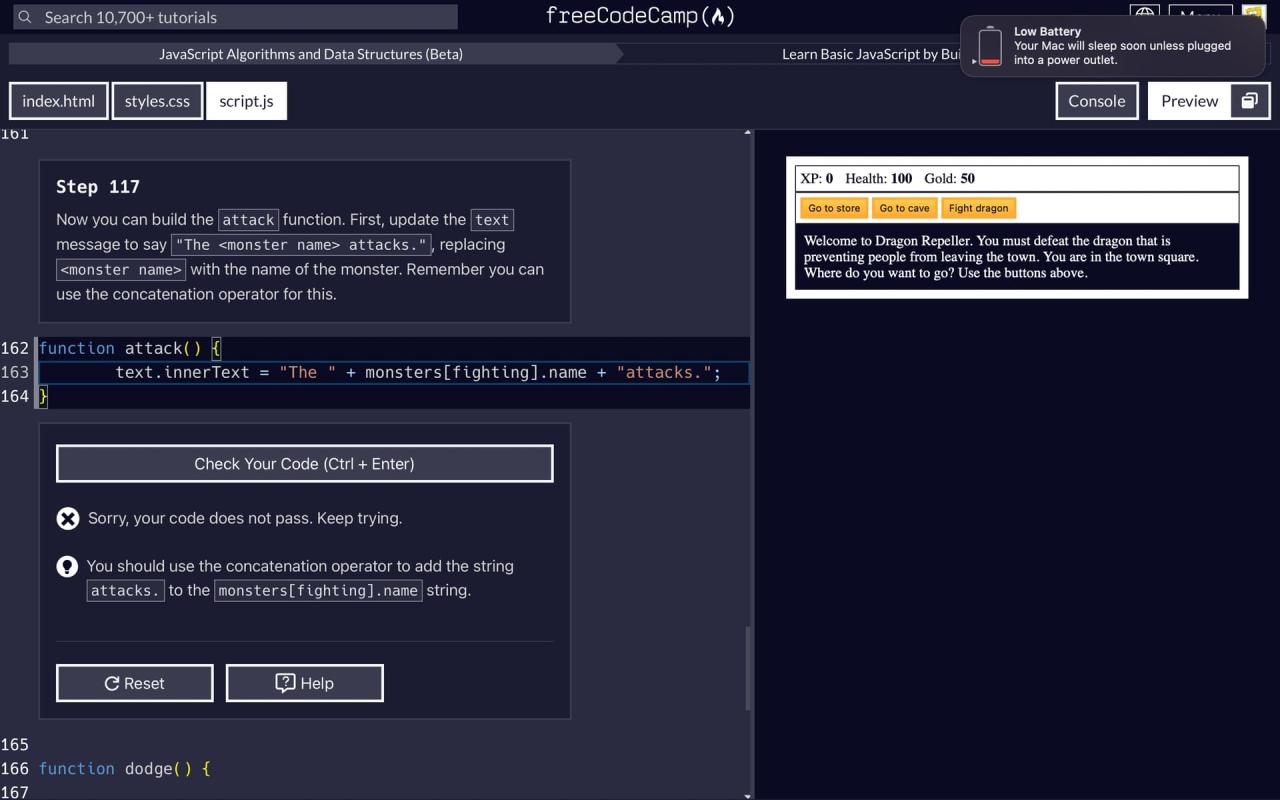
Learn Basic JavaScript by Building a Role Playing Game - Step 117 ...

Establishing a proper development environment is a crucial step in learning JavaScript through game creation. A well-configured setup facilitates efficient coding, debugging, and testing processes, making the journey smoother and more enjoyable. This section guides you through the essential tools and procedures necessary to create a seamless workflow for developing simple JavaScript games.

By preparing your environment correctly, you can focus on honing your coding skills and understanding core concepts without technical hindrances. Whether you are a beginner or transitioning from other programming languages, a structured setup ensures clarity and productivity throughout your game development endeavors.

Necessary Tools and Software for JavaScript Game Development

Choosing the right tools is fundamental to streamline your development process. The primary components include a reliable code editor, a web browser, and optional auxiliary tools for version control and project management.

  • Code Editor: A versatile code editor simplifies writing and managing JavaScript code. Popular choices include Visual Studio Code, Sublime Text, and Atom. These editors offer syntax highlighting, auto-completion, extensions, and debugging support tailored for JavaScript development.
  • Web Browser: Modern browsers such as Google Chrome, Mozilla Firefox, or Microsoft Edge are essential for testing and debugging your games. Their built-in developer tools enable inspection of HTML, CSS, and JavaScript, providing real-time debugging capabilities.
  • Version Control System: Tools like Git help track changes, collaborate with others, and manage different versions of your project efficiently. Platforms like GitHub or GitLab facilitate remote repository management and collaboration.
  • Additional Tools: Optional but useful tools include package managers such as npm, which assist in managing libraries and dependencies, and build tools like Webpack for larger projects.
See also  How To Create Dark Mode Toggle In React

Creating a Basic HTML File with Embedded JavaScript

Integrating JavaScript into an HTML file is fundamental for game development, providing the structure and behavior of your game within a web environment. The process involves creating a simple webpage that includes a script section or links an external JavaScript file.

  1. Open your preferred code editor and create a new file named index.html.
  2. Start with the basic HTML boilerplate structure, which includes the <!DOCTYPE html>, <html>, <head>, and <body> tags.
  3. Within the <head> section, include metadata and optionally link external CSS files for styling.
  4. In the <body> section, add elements such as a <canvas> for game rendering or buttons for user interaction.
  5. Embed JavaScript directly within the HTML using the <script></script> tags or link an external script file via the src attribute.

For example, embedding JavaScript directly:

<script> alert('Welcome to your first JavaScript game!'); </script>

Or, linking an external JavaScript file:

<script src="game.js"></script>

Ensure your JavaScript code is properly placed to execute at the correct time, typically before the closing </body> tag to ensure the DOM elements are loaded.

Organizing Code Editors and Browser Debugging Tools

Efficient management of your tools enhances the development experience and accelerates troubleshooting. Familiarity with your code editor's features and browser debugging tools allows you to identify and fix issues swiftly.

  • Using Code Editors: Customize themes and keybindings for comfort, utilize extensions that support JavaScript syntax checking, and adopt version control integrations. Features like code linting help detect errors early, while snippets can accelerate coding repetitive structures.
  • Browser Debugging Tools: Modern browsers provide comprehensive developer consoles. Use the Elements panel to inspect and modify HTML elements, the Console for logging and executing JavaScript commands, and the Sources panel to set breakpoints and step through code line-by-line. These tools are invaluable for understanding how your code interacts with the webpage and for troubleshooting issues related to rendering or logic errors.

  • Workflow Tips: Regularly test your game in different browsers to ensure compatibility, utilize source maps when working with transpiled code, and keep your development environment organized with clear file structures and version control practices.

Basic JavaScript Concepts for Game Development

Building simple games with JavaScript requires a solid understanding of fundamental programming concepts. These core ideas serve as the foundation upon which game logic and interactions are constructed, enabling developers to create dynamic and engaging experiences. By mastering variables, data types, operators, functions, event handling, control structures, arrays, and objects, aspiring game developers can efficiently manage game states, respond to user inputs, and organize complex data structures essential for game functionality.

In this section, we will explore each of these concepts in detail, providing clear explanations along with relevant code snippets. This knowledge will empower you to write more effective and maintainable JavaScript code tailored specifically for simple game development.

Variables, Data Types, and Operators

Variables act as containers for storing data that can change during the execution of a game. Understanding data types and operators helps in performing calculations, comparisons, and logical decisions that drive game mechanics.

JavaScript supports several data types, including numbers, strings, booleans, null, undefined, arrays, and objects. The choice of data type influences how the data can be manipulated and used within game logic.

Example of declaring variables and using operators:

  // Declare variables for player position and score
  let playerX = 50; // number representing horizontal position
  let playerY = 100; // vertical position
  let score = 0; // initial score
  
  // Using operators to update score
  score = score + 10; // adds 10 points to current score
  // Alternatively, using shorthand
  score += 10; 
  
  // Comparing positions
  if (playerX > 0 && playerY  < 200) 
      // Player is within bounds
  

Operators such as arithmetic (+, -,
-, /), comparison (==, !=, >, <), and logical (&&, ||, !) are extensively utilized to control game flow and player interactions. Proper understanding of these operators ensures accurate calculations, decision-making, and condition evaluations within your game scripts.

Functions, Event Handling, and Control Structures

Functions encapsulate blocks of code that perform specific tasks, promoting reusability and clarity in game development. Event handling enables the game to respond to user inputs or other triggers, such as key presses or mouse clicks. Control structures like if statements, loops, and switch cases manage the flow of game logic, allowing for dynamic and interactive gameplay experiences.

Using functions to handle repetitive tasks, such as updating positions or checking collisions, simplifies code management. Event listeners detect user actions and invoke corresponding functions to update game states. Control structures execute different code paths based on game conditions, such as winning or losing scenarios.

Example incorporating functions, event handling, and control structures:

  // Function to move the player
  function movePlayer(direction) 
      if (direction === 'left') 
          playerX -= 10;
       else if (direction === 'right') 
          playerX += 10;


  // Event listener for key presses
  document.addEventListener('keydown', function(event) 
      if (event.key === 'ArrowLeft') 
          movePlayer('left');
       else if (event.key === 'ArrowRight') 
          movePlayer('right');
      
  );
  
  // Using control structure to check game over condition
  if (playerX > 300) 
      alert('Game Over! You reached the boundary.');


Control structures facilitate decision-making and repetitive actions, essential features for managing game states, player movements, enemy behaviors, and other interactive elements.

Arrays and Objects for Managing Game Data

Arrays and objects form the core data structures for organizing multiple game elements efficiently. Arrays are ideal for storing collections of similar items, such as enemy positions or inventory items. Objects are suitable for grouping related properties and methods, like player attributes or game settings.

Proper utilization of these structures allows for scalable and maintainable code, especially as the complexity of your game increases. For example, managing multiple enemies or game levels becomes straightforward with arrays, while objects help in encapsulating attributes and behaviors of game entities.

Example of using arrays and objects:

  // Array to hold multiple enemy positions
  const enemies = [
       x: 100, y: 50, speed: 2 ,
       x: 200, y: 80, speed: 3 ,
       x: 300, y: 60, speed: 2.5 
  ];
  
  // Loop to update enemy positions
  for (let i = 0; i  < enemies.length; i++) 
      enemies[i].x += enemies[i].speed;
      if (enemies[i].x > 500) 
          enemies[i].x = 0; // Reset position if off-screen


  // Player object with properties and methods
  const player = 
      name: 'Hero',
      health: 100,
      position:  x: 50, y: 50 ,
      move: function(dx, dy) 
          this.position.x += dx;
          this.position.y += dy;
      
  ;
  
  // Moving the player
  player.move(10, 0);

By leveraging arrays and objects, you can organize complex game data, facilitate interactions among multiple game elements, and ensure your code remains manageable as your project expands.

Designing Simple Game Mechanics

Creating engaging and functional game mechanics is a fundamental aspect of developing simple games with JavaScript. It involves establishing the core operational principles that govern game behavior, including game loops, user interactions, collision detection, and managing game states. Mastering these elements allows developers to craft smooth, interactive, and responsive gaming experiences suitable for beginners and seasoned programmers alike. This section explores practical methods to implement these mechanics effectively, laying the groundwork for more complex game development.

Implementing robust game mechanics requires understanding how to create continuous game updates, handle user inputs accurately, detect interactions between game objects, and track progress through game states. These components are essential for ensuring that games are not only functional but also enjoyable and intuitive. The following subsections provide detailed insights into these topics, reinforced by examples and best practices to facilitate learning and application.

Creating Game Loops with setInterval and requestAnimationFrame

At the heart of any interactive game is a game loop, which repeatedly updates game states and renders visuals to create a seamless gameplay experience. JavaScript offers two primary methods for implementing game loops: setInterval and requestAnimationFrame. Each approach has its advantages, with requestAnimationFrame being preferred for animation due to its efficiency and synchronization with the browser's refresh rate.

Using setInterval involves defining a fixed time interval at which the game state updates, such as every 16 milliseconds for approximately 60 frames per second. However, it can lead to performance issues if the interval is not optimally managed. Conversely, requestAnimationFrame provides a more performant and power-efficient loop by invoking the callback function before the next repaint, adapting to varying display refresh rates seamlessly.

Example of a game loop using requestAnimationFrame:

function gameLoop() 
    updateGame(); // Update game state
    renderGame(); // Draw the current state
    requestAnimationFrame(gameLoop); // Continue the loop

requestAnimationFrame(gameLoop);

This implementation ensures smooth animations and better synchronization with the browser's rendering cycle, making it ideal for real-time game updates.

Handling User Input via Keyboard and Mouse Events

Responsive user input handling is crucial for interactive gameplay. JavaScript provides event listeners that detect keyboard and mouse actions, enabling players to control game characters or interact with game elements seamlessly. Proper handling involves listening for specific events like keydown, keyup, and mouse events such as click or mousemove.

For keyboard inputs, tracking key states (pressed or released) allows for smooth movement control. For example, setting boolean flags when arrow keys are pressed and released ensures continuous movement as long as the key remains held down. Mouse events can be used for aiming, selecting options, or interacting with objects within the game canvas.

Example of handling arrow key presses to move an object:

const keys = ;
window.addEventListener('keydown', (e) => 
    keys[e.key] = true;
);
window.addEventListener('keyup', (e) => 
    keys[e.key] = false;
);
// Within the game loop:
if (keys['ArrowUp']) 
    player.y -= player.speed;

if (keys['ArrowDown']) 
    player.y += player.speed;

// Similarly for ArrowLeft and ArrowRight

This approach ensures real-time responsiveness and fluid control, essential for engaging gameplay experiences.

Collision Detection and Game State Management

Collision detection determines interactions between game objects, such as a character colliding with obstacles or collecting items. Efficient collision detection enhances gameplay realism and challenge. Common methods include bounding box checks, which involve comparing the positions and dimensions of objects for overlaps, and more complex pixel-perfect detection when necessary.

Game state management involves tracking different phases of the game—playing, paused, game over—and updating the game logic accordingly. Proper state management ensures that game events trigger appropriate responses, and the game flow remains consistent. This often involves creating a central game state object or variable that updates based on user actions and game events, influencing rendering and logic execution.

Example of simple bounding box collision detection:

function isColliding(objA, objB) 
    return (
        objA.x < objB.x + objB.width &&
        objA.x + objA.width > objB.x &&
        objA.y < objB.y + objB.height &&
        objA.y + objA.height > objB.y
    );

// Usage within game loop:
if (isColliding(player, enemy)) 
    handleCollision();

Effective collision detection coupled with robust game state management creates a dynamic and cohesive gaming experience, allowing for clear responses to player actions and in-game events.

Common Game Mechanics and Their JavaScript Implementations

Game Mechanic JavaScript Implementation
Game Loop

Using requestAnimationFrame:

function loop() 
    update();
    draw();
    requestAnimationFrame(loop);

requestAnimationFrame(loop);
User Input Handling

Keyboard event listeners:

window.addEventListener('keydown', (e) => 
    // handle key press
);
window.addEventListener('keyup', (e) => 
    // handle key release
);
Collision Detection

Bounding box overlap check:

function isColliding(objA, objB) 
    return (
        objA.x < objB.x + objB.width &&
        objA.x + objA.width > objB.x &&
        objA.y < objB.y + objB.height &&
        objA.y + objA.height > objB.y
    );
Game State Management

Example of game state object:

const gameState = 
    score: 0,
    isGameOver: false,
    currentLevel: 1,
    // Additional states
;

Building a Basic Game: Step-by-Step Guide

Creating a simple game, such as Pong or a maze, provides an excellent practical foundation for learning JavaScript. By breaking down the development process into manageable steps, beginners can grasp essential programming concepts while enjoying the satisfaction of constructing a functional game. This section offers a detailed guide to help you build your first basic game, emphasizing the setup, rendering, game logic, and scoring mechanisms.

Through this structured approach, you'll learn how to organize your code effectively, manipulate game objects, and implement user interactions. The goal is to make the process accessible and engaging, enabling you to progressively enhance your skills and develop more complex games in the future.

Setting Up the Game Canvas and Rendering Graphics

Establishing a game canvas is fundamental for visualizing game elements and interactions. Using HTML5 Canvas, you can draw and animate game components dynamically. Proper setup ensures smooth rendering and responsiveness across different devices and browsers.

html table

Component Description
<canvas id="gameCanvas"> Defines the drawing surface where all game graphics are rendered. Set width and height attributes to determine game area size.
JavaScript Initialization Uses JavaScript to access the canvas element via document.getElementById, then retrieves the rendering context (2D) to draw shapes, images, and text.
Rendering Loop Implements a recurring function, often using requestAnimationFrame, to continuously update and draw game objects, creating smooth animations.

"requestAnimationFrame provides an efficient way to animate by synchronizing updates with the browser's refresh rate."

Updating Game Objects and Managing Score

Dynamic updates of game objects are crucial for creating interactive gameplay. This involves changing object positions, detecting collisions, and updating scores in real time. Efficiently organizing these updates ensures fluid gameplay and accurate scoring.

html table

Key Variables Description
playerPaddle, AI/Paddle Represent the vertical positions of the player and opponent paddles in Pong or maze elements in maze games.
ball Tracks the position and velocity of the ball in Pong, or the player's location in maze games.
score Maintains the current score, increasing when certain conditions are met, such as the ball passing a paddle.

Game logic involves updating object positions based on velocities and user input, checking for collisions or boundary conditions, and updating the score accordingly.

"Consistent updating and collision detection are core to ensuring gameplay feels fair and responsive."

Procedures for Creating a Simple Game

Implementing the game involves combining rendering, object updates, and user controls into a cohesive loop. Below is an Artikel of the essential steps:

  1. Initialize game variables: Set initial positions, velocities, scores, and game states.
  2. Draw game elements: Use the Canvas API to render paddles, ball, maze walls, or other game objects.
  3. Handle user input: Detect key presses or mouse movements to control game objects such as paddles or the player character.
  4. Update object positions: Calculate new positions based on velocities and input, ensuring they stay within game bounds.
  5. Detect collisions and scoring: Check for overlaps or boundary breaches to update game states and scores.
  6. Repeat the process: Use requestAnimationFrame to loop through the above steps, creating real-time gameplay.

This structured process enables the creation of a functional, interactive game that provides immediate feedback and engaging gameplay.

Adding Interactivity and Animations

How to make games with JavaScript? Complete Guide 2022

Creating engaging games requires more than static visuals; adding interactivity and animations significantly enhances the user experience. Well-designed animations can make game elements feel more lively and responsive, drawing players deeper into the gameplay. Incorporating sound effects and visual feedback further immerses players, making interactions feel rewarding and intuitive. Mastering these techniques allows developers to craft dynamic and captivating game environments using JavaScript.Animations in game development serve to animate sprites, indicate state changes, and provide visual cues that guide player actions.

By leveraging JavaScript's capabilities, developers can create smooth, synchronized animations that respond to user inputs or game events, elevating the overall gameplay quality. Combining these animated elements with sound effects and visual feedback creates a cohesive and engaging user interface that keeps players motivated and entertained.

Techniques for Enhancing User Experience with Animations

Animations can be implemented in various ways to improve game interactivity. Key techniques include:

  • Using CSS transitions and keyframes for simple animations like smooth movement or fading effects.
  • Employing JavaScript's requestAnimationFrame method to create high-performance animations that synchronize with the browser's refresh rate.
  • Manipulating DOM elements or canvas drawings to animate sprites and game objects dynamically.
  • Implementing sprite sheets and frame-by-frame animation for complex character movements or effects.

These techniques enable developers to craft animations that are both visually appealing and performant, ensuring that animations do not hinder gameplay responsiveness.

Animating Sprites and Game Elements with JavaScript

Animating sprites involves changing their position, size, or appearance over time to simulate movement or effects. For example, to animate a sprite moving across the screen:

  1. Load the sprite image or sprite sheet and draw it onto an HTML5 canvas element.
  2. Update the sprite's position in each frame based on velocity or user input.
  3. Use requestAnimationFrame to create a loop that redraws the sprite at its new position, ensuring smooth motion.

Here is a conceptual example: Suppose a sprite moves from left to right. You would initialize its starting position, then repeatedly update its x-coordinate within the animation loop, redrawing the sprite each time. This approach results in a fluid movement that responds in real time to game logic or player input.

Adding Sound Effects and Visual Feedback

Sound effects and visual cues significantly enhance the sense of interactivity in a game. Incorporating audio involves loading sound files and playing them at appropriate moments, such as on collisions or achievements. Visual feedback includes changing colors, flashing effects, or displaying animations when events happen, providing immediate confirmation to players.To implement sound effects, developers can utilize HTML5 Audio objects or Web Audio API, triggering sounds in response to game events.

For visual feedback, CSS classes or canvas drawing techniques can be used to momentarily highlight interactive elements or display effects like explosions, sparks, or flickering lights.

"Synchronization is key when integrating animations with game events. Use timestamps and event listeners to ensure that animations start and end precisely when the game state changes, creating a seamless experience."
-Game Development Best Practices

Achieving fluid and coordinated animations and effects requires careful timing and synchronization. Whether animating a sprite to match a specific action or playing a sound effect exactly when a player scores, precise timing enhances immersion and makes gameplay more polished and professional.

Finalizing and Sharing Your Game

Learn JavaScript while Playing Games — Gamify Your Learning

Creating a simple game is a significant milestone, but the process of finalizing and sharing your project ensures it reaches your intended audience effectively. This phase involves optimizing your game's performance, selecting suitable deployment platforms, and exploring ways to enhance your game with additional features or levels. Properly finalizing your game guarantees a smooth user experience and broadens its accessibility and appeal.Optimizing game performance is crucial to provide players with a seamless experience, especially on a variety of devices and browsers.

This involves minimizing resource consumption, such as reducing unnecessary computations, optimizing image assets, and ensuring that animations and scripts run efficiently. Techniques like debouncing input events, leveraging CSS animations where possible instead of JavaScript, and compressing assets can significantly improve load times and responsiveness. Conducting performance testing across different devices helps identify bottlenecks and refine the game's performance further.Deployment options for simple JavaScript games are diverse, ranging from hosting on personal websites to sharing on popular gaming platforms.

Hosting your game on a personal or professional website involves uploading your files to a web server and ensuring that all assets are correctly linked. Platforms like Itch.io, GitHub Pages, and Kongregate offer user-friendly interfaces and community exposure. These platforms often provide tools for easy uploading, version control, and analytics, making game deployment accessible even for beginners.Extending your game with additional features or levels enhances replay value and user engagement.

Ideas include adding new difficulty settings, introducing power-ups or collectible items, creating multiple levels with distinct challenges, and integrating leaderboards or social sharing options. Incorporating these elements involves modular coding practices, which facilitate easy updates and scalability. Consider gathering feedback from players to identify features that could enrich the gaming experience further.Below is a sample html table outlining deployment steps and resources to assist in bringing your game to a broader audience:

Step Description Resources
Prepare Game Files Ensure all game assets, scripts, and HTML files are organized and optimized for web deployment. Text editor (VS Code, Sublime Text), image compressors, minification tools
Select Hosting Platform Choose a platform suitable for your needs, considering ease of use and audience reach. GitHub Pages, Itch.io, Netlify, Firebase Hosting
Upload Files Transfer your game files to the chosen platform, ensuring correct directory structure and links. FTP clients, platform upload interfaces, Git
Test Deployment Verify that the game loads correctly across different browsers and devices, and fix any issues. Browser developer tools, cross-browser testing tools like BrowserStack
Share the Game Distribute your game's URL through social media, forums, or embedded on your website for wider reach. Social media platforms, developer communities, personal website

By following these steps and utilizing available resources, you will effectively prepare your game for public access, maximize its performance, and explore possibilities for future enhancements. Sharing your game not only demonstrates your skills but also encourages community feedback, fostering growth and learning in game development.

Wrap-Up

All You Like | Making Games With JavaScript

In conclusion, learning JavaScript through creating simple games is an excellent strategy to build practical skills and confidence. As you progress from basic setups to deploying fully functional games, you'll not only acquire technical knowledge but also develop a creative mindset essential for future programming pursuits. Keep experimenting, refining, and sharing your projects to continue growing as a developer.

Leave a Reply

Your email address will not be published. Required fields are marked *