Learning how to debug Java code in Eclipse IDE is an essential skill for developers aiming to improve their code quality and streamline troubleshooting. Debugging within Eclipse offers powerful tools and features that can significantly ease the process of identifying and resolving issues in your programs. By mastering these capabilities, programmers can save time and enhance their debugging efficiency, leading to more robust and reliable applications.
Overview of debugging in Eclipse IDE

Debugging is an essential phase in software development that allows developers to identify, analyze, and resolve issues within their code. Within the Eclipse Integrated Development Environment (IDE), debugging Java applications becomes an organized and efficient process, providing powerful tools to examine program behavior in real-time. This capability significantly enhances productivity by reducing the time spent on troubleshooting and increasing code reliability.
In Eclipse, debugging is not just about stopping code execution at breakpoints; it encompasses a comprehensive set of features designed to monitor variable states, evaluate expressions, and control program flow. These tools enable developers to pinpoint the root causes of errors with precision, ensuring that Java applications perform as intended across diverse scenarios.
Key features of Eclipse debugging tools and interfaces
Understanding the core features of Eclipse’s debugging interface is vital for effective troubleshooting. The debugging tools are integrated into a user-friendly interface that simplifies complex debugging tasks, supporting seamless navigation through code execution.
- Breakpoints: Enable pausing program execution at specific lines or under certain conditions, allowing targeted inspection of code segments.
- Stepping controls: Include step over, step into, step return, and resume commands, facilitating detailed examination of program flow at micro levels.
- Variable inspection: Displays current values of variables during execution, accessible via the Variables view, helping identify incorrect data states.
- Expressions and Watch points: Allow evaluation of specific expressions and monitoring of particular variables or object fields dynamically during runtime.
- Call Stack view: Shows the sequence of method calls leading to the current execution point, aiding in understanding the execution context.
- Debug perspective: An optimized workspace that consolidates all debugging tools, views, and controls for a streamlined debugging experience.
Step-by-step guide to start debugging a Java application in Eclipse
Initiating debugging in Eclipse involves several straightforward steps that enable developers to set up their debugging session efficiently. Proper configuration ensures that debugging insights are accurate and actionable.
- Open your Java project: Ensure that the project containing the code to debug is loaded and open in Eclipse.
- Set breakpoints: Click on the left margin adjacent to the line numbers in the source code where execution should pause. Breakpoints can also be set via the context menu or by pressing F9.
- Start debugging: Right-click on the Java class with the main method or the relevant execution point, then select Debug As > Java Application. Alternatively, click the bug icon (Debug button) on the toolbar.
- Monitor the Debug perspective: Eclipse switches to the Debug perspective automatically, displaying views such as Variables, Call Stack, and Breakpoints. This environment provides all necessary tools for real-time analysis.
- Control execution: Use stepping controls (F5 for step into, F6 for step over, F7 for step return) to navigate through your code, observing variable changes and flow control.
- Analyze and resolve: Investigate variable values, watch expressions, and the call stack to diagnose issues. Make necessary code adjustments and restart debugging sessions as needed.
Setting up breakpoints effectively
Breakpoints are an essential feature in the debugging process, allowing developers to pause program execution at specific points to examine the state of the application. Properly configuring breakpoints in Eclipse IDE enhances debugging efficiency by enabling targeted investigation of code behavior, especially in complex systems or large codebases.
Understanding the different types of breakpoints and their appropriate application ensures precise control over the debugging session. This section explores various breakpoint options available in Eclipse, illustrating how to add, modify, and remove them to suit diverse debugging scenarios.
Types of breakpoints and their use cases
Effective debugging requires selecting suitable breakpoint types based on the debugging goals. Eclipse provides several breakpoint options, each suited for specific situations:
- Line Breakpoints: The most common type, paused when execution reaches a specific line in the code. Ideal for monitoring particular code sections or methods.
- Conditional Breakpoints: Triggered only when specified conditions are true, such as a variable reaching a certain value. Useful for isolating issues that occur under specific circumstances without stopping at every iteration.
- Exception Breakpoints: Pauses execution when particular exceptions are thrown, allowing developers to catch unexpected errors or handle specific exception scenarios effectively.
Choosing the right breakpoint type is crucial for efficient debugging. For instance, conditional breakpoints prevent unnecessary pauses, saving time when dealing with loops or frequently called methods. Exception breakpoints help identify root causes of errors by stopping execution precisely when exceptions occur.
Adding, modifying, and removing breakpoints in Eclipse
Managing breakpoints in Eclipse involves several straightforward actions that enhance debugging flexibility:
- Adding Breakpoints: To set a breakpoint, navigate to the desired line in the editor, then right-click on the left margin (vertical ruler) and select Toggle Breakpoint. The breakpoint appears as a blue dot, indicating an active breakpoint.
- Modifying Breakpoints: Right-click an existing breakpoint and choose Breakpoint Properties. Here, developers can set conditions, enable or disable the breakpoint, or specify hit counts. For example, adding a condition like
i == 10
ensures the breakpoint triggers only when the variable ‘i’ equals 10.
- Removing Breakpoints: To remove a breakpoint, right-click on the breakpoint marker and select Remove Breakpoint. Alternatively, toggle it off by clicking on the blue dot again, which disables it without deleting.
These actions allow for dynamic control over the debugging process, helping developers focus on problematic code sections and adjust their debugging strategies in real-time.
Breakpoint configurations and behaviors
The following table illustrates various breakpoint configurations in Eclipse and their expected behaviors, providing a quick reference for selecting the appropriate breakpoint type for different debugging needs:
| Breakpoint Type | Configuration/Settings | Behavior | Use Cases |
|---|---|---|---|
| Line Breakpoint | Set on specific code line | Pauses execution when the program reaches this line | Monitoring execution flow, verifying code reachability |
| Conditional Breakpoint | Set with a condition expression (e.g., variable == value) | Pauses only if the condition evaluates to true during execution | Isolating issues occurring under specific variable states or loop iterations |
| Exception Breakpoint | Set on specific exceptions (e.g., NullPointerException) | Stops execution when the exception is thrown | Detecting and handling errors or unexpected exceptions |
| Hit Count Breakpoint | Configured to trigger after a specified number of hits | Pauses execution after the breakpoint is hit a certain number of times | Debugging loops or repeated method calls, avoiding stop at every iteration |
Using Eclipse debugging views and panels
During a debugging session in Eclipse IDE, several views and panels work together to provide real-time insights into your application’s execution. Mastering these views enhances your ability to identify, analyze, and resolve issues efficiently. Each view offers specific functionalities that, when combined, create a comprehensive debugging environment tailored to complex Java applications.
Understanding how to navigate and customize these views is crucial for an effective debugging workflow. This section explores the primary debugging panels available in Eclipse, their functions, and strategies for organizing them to suit your debugging needs.
Debug, Variables, Expressions, and Breakpoints Views
The core views within Eclipse’s debugger interface include Debug, Variables, Expressions, and Breakpoints. Each plays a vital role in monitoring and controlling the debugging process, providing developers with detailed information about the current state of the application, variable values, custom expressions, and breakpoint management.
Effectively utilizing these views involves understanding their specific functions, how they interact, and how to organize them for streamlined debugging sessions. Below is a detailed overview of each view’s purpose and practical tips for using them during your debugging workflow.
Debug View
The Debug view displays the call stack, active threads, and current execution point during a debugging session. It allows you to control execution flow, such as pausing, resuming, stepping into methods, or stepping over lines of code. This view serves as the central hub for managing the ongoing debugging process.
Tip: Use the Debug view to switch between different threads to analyze concurrent processes or multi-threaded applications effectively.
Variables View
The Variables view shows the current values of variables in scope at the paused execution point. It automatically updates as you step through code, providing real-time data that helps identify incorrect or unexpected values.
Tip: Customize the display by enabling or disabling specific variable groups and choosing to show or hide primitive, object, or static variables for better clarity.
Expressions View
The Expressions view allows you to evaluate custom expressions and track their values dynamically during debugging. This is particularly useful for monitoring complex expressions, method calls, or properties that are not readily visible in the Variables view.
Tip: Add recurring expressions to this view for quick access, enabling continuous monitoring without re-evaluating manually.
Breakpoints View
The Breakpoints view offers a centralized panel to manage all breakpoints set throughout your project. It provides options to enable, disable, remove, or modify breakpoints, and organize them based on conditions or hit counts.
Tip: Use conditional breakpoints for targeted debugging and manage hit counts to pause execution after specific iterations, reducing unnecessary pauses during large loops.
Organizing and Navigating Between Views During Debugging
Effective debugging often involves switching between multiple views seamlessly. Eclipse offers several features to facilitate smooth navigation and view management, ensuring you can focus on problem areas without distraction.
To organize your workspace efficiently, consider docking frequently used views together and resizing them to maximize screen space. Use the ‘Perspective’ feature to save customized layouts tailored to specific debugging scenarios, such as multi-threaded debugging or analyzing memory issues.
Switching between views is straightforward through the Debug perspective or via the Window menu, where you can open, close, or reset views as needed. Keyboard shortcuts allow quick access to essential panels, significantly reducing context switching time during intense debugging sessions.
Customizing Views for an Optimal Debugging Workflow
Customization enhances your debugging efficiency by tailoring views to your specific workflow. Eclipse allows you to modify which columns are displayed in the Variables view, change font sizes for readability, or filter the displayed variables based on data types or naming conventions.
Organizing views into groups or tabbing them within the same panel helps maintain a clutter-free workspace. For example, positioning the Variables and Expressions views side by side enables quick evaluation of expressions based on current variable states.
Additionally, using filters and conditional formatting can highlight critical data points, such as null references or high-value variables, allowing you to prioritize issues faster during a debugging session.
Stepping through code during debug sessions
In Java debugging within the Eclipse IDE, stepping through code is an essential technique that allows developers to execute programs incrementally. This process provides a granular view of the program’s behavior, enabling the identification of logical errors, unexpected behaviors, or incorrect variable states. Mastering the stepping commands enhances debugging efficiency and deepens understanding of code execution flow.
During a debug session, Eclipse offers several stepping controls that facilitate controlled navigation through code. These commands help developers observe how each line affects program state, call stacks, and variable values. Proper utilization of these stepping functions is crucial for thorough and precise debugging.
Step into, step over, step return, resume, and suspend
Each of these commands plays a specific role in controlling the execution flow during a debugging session. Understanding their differences and appropriate usage scenarios enables effective debugging strategies.
- Step Into: This command allows you to enter into the details of method calls. When execution reaches a method call, “Step Into” dives inside the method, enabling line-by-line examination of its internal logic. It’s particularly useful when you want to understand the behavior within a specific method.
- Step Over: This command executes the current line and moves to the next line in the same method, without entering into any called methods. It is ideal when you trust the implementation of called methods and want to proceed quickly through code segments that are well-understood.
- Step Return: This command resumes execution until the current method returns control to its caller. It is useful when you have finished examining a method and wish to exit it swiftly, observing the return value or the point of return.
- Resume (F8): Resumes normal execution until the next breakpoint or the end of the program. It is used when you have completed detailed step-by-step inspection and wish to continue running the program without interruption.
- Suspend (Pause): Temporarily halts program execution at the current point. This is particularly helpful if the program is running beyond the scope of immediate interest and you wish to analyze the current state before proceeding.
Using these commands strategically allows you to navigate through complex codebases efficiently, focusing on areas of interest and avoiding unnecessary steps. For example, you might use “Step Into” to investigate a suspicious method, then “Step Return” to quickly exit once you’ve gathered enough information.
Practical example demonstrating step-by-step execution
Consider a Java program that calculates the factorial of a number recursively. During debugging, you set a breakpoint at the start of the recursive function. As execution begins, you start with “Step Into” to observe how each recursive call is made and how the values are propagated back through the call stack.
Initially, the program hits the breakpoint at the factorial method. Using “Step Into”, the debugger enters the method, and you observe the input parameter. Continuing with “Step Over” executes the current line, moving to the base case check. When the base case is encountered, “Step Into” enters the return statement, and you can see the value being returned back up the recursive chain.
At each step, you can observe variable states such as the current number, intermediate factorial values, and the call stack depth. When the recursive process completes, the debugger automatically resumes normal execution, displaying the final result.
Observing variable states and call stacks during stepping
Throughout the stepping process, Eclipse’s debugging views provide real-time insights into the program’s internal state. The Variables view displays current variable values, updating dynamically as you proceed through each line. This allows you to monitor how variables evolve, identify unexpected changes, and verify logic correctness.
The Call Stack view illustrates the sequence of method calls leading to the current execution point. As you “Step Into” into nested calls, this view expands to show each method in the call hierarchy, providing context for where you are in the execution flow. Conversely, “Step Return” reduces the call stack depth by returning to the caller method, giving you a clear picture of the program’s progression.
Combining these observations with careful step commands enables a comprehensive understanding of program behavior, facilitating efficient bug resolution and code comprehension during debugging sessions.
Managing Variables and Expressions
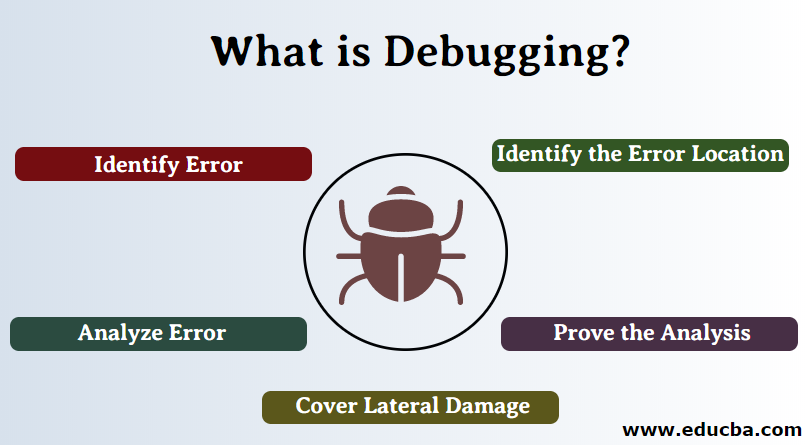
Efficient debugging in Eclipse IDE involves not only setting breakpoints and stepping through code but also inspecting and manipulating variables and expressions during a debugging session. This capability allows developers to understand the current state of their application, identify anomalies, and test solutions dynamically without restarting the program.
By effectively managing variables and expressions, developers can gain real-time insights into how data flows through their code, monitor the values of critical variables, and evaluate complex expressions to determine logic correctness. Additionally, the ability to modify variable contents on the fly enables testing different scenarios instantly, saving valuable development time and enhancing debugging accuracy.
Inspecting Variable Values During Debugging
During a debugging session, Eclipse provides multiple mechanisms to examine current variable values, which are essential for understanding program behavior at specific execution points. These methods include hovering over variables, viewing variables in dedicated panels, and expanding variable hierarchies to explore nested data structures.
Hovering over a variable in the editor displays its current value in a tooltip, providing quick insights without disrupting the debugging flow.
The Variables view panel lists all accessible variables within the current scope, allowing developers to see their current states at a glance.
Expanding complex variables such as objects or collections reveals their internal fields and elements, helping pinpoint issues within data structures.
Evaluating and Modifying Expressions On the Fly
Beyond passive inspection, Eclipse enables active evaluation of expressions and dynamic modification of variable values during debugging. This feature is instrumental in testing how changes impact program execution without restarting or recompiling the code.
To evaluate an expression, developers can use the ‘Display’ view or the ‘Evaluate’ dialog, where they can input expressions involving variables, methods, or static fields. The evaluated result helps verify logic or test alternative outcomes.
Modifying variable contents is straightforward: select the variable in the Variables view, right-click, and choose ‘Change Value.’ Enter the new value, and Eclipse updates the variable instantly. This process allows testing different scenarios and verifying fixes efficiently.
Common Variable Inspection Techniques and Scenarios
| Technique | Method | Ideal Scenario | Additional Notes |
|---|---|---|---|
| Hover Tooltip | Hover over a variable in the editor during a paused debug session | Quickly viewing the value of a single variable without opening panels | Most effective for simple variable inspection during step-through debugging |
| Variables View Panel | Open the Variables view from the Debug perspective to see all scope variables | Monitoring multiple variables simultaneously across current call stack frames | Allows expansion of objects and collections to explore nested data |
| Expression Evaluation | Use the ‘Evaluate Expression’ dialog (Alt+F8) or ‘Display’ view | Testing specific expressions or functions without altering code | Supports complex expressions, method calls, and static fields |
| Change Variable Value | Right-click a variable in Variables view and select ‘Change Value’ | Simulating different data scenarios or fixing bugs by modifying data at runtime | Reflects immediately in the debug session, enabling instant testing |
Handling Exceptions and Errors
Effectively managing exceptions and errors during debugging is essential for diagnosing issues that cause unexpected behavior or application crashes. By strategically catching and analyzing exceptions, developers gain insights into the root causes of problems, enabling more precise fixes and improved software robustness.
Within Eclipse IDE, the debugging tools offer dedicated methods for intercepting exceptions as they occur, providing a clear window into the state of the application at the moment an error arises. Leveraging exception breakpoints not only halts execution at critical error points but also allows for systematic examination of exception details, aiding in comprehensive debugging and documentation for future reference.
Identifying and Analyzing Exceptions during Debugging Sessions
During debugging, it is crucial to identify when exceptions occur and gather detailed information about them. Eclipse facilitates this process by allowing developers to view exception types, messages, and stack traces, which are vital for understanding the context in which an error arose.
- When an exception is thrown, Eclipse’s debugger highlights the exact line where the error occurred, providing immediate visual feedback.
- The Debug perspective displays the exception details in the “Variables” and “Expressions” views, including the exception message and local variables at the time of the error.
- Analyzing the call stack trace reveals the sequence of method calls leading to the exception, helping to pinpoint the origin and propagation path of the error.
Developers can also pause execution at specific exception points to scrutinize variable states and program flow at the moment of failure, greatly enhancing troubleshooting efficiency.
Using Exception Breakpoints to Halt Execution at Error Points
Exception breakpoints are a powerful feature in Eclipse that automatically pause program execution whenever a specified exception is thrown, regardless of whether it is caught or uncaught. This capability enables developers to examine the state of the application precisely at the moment an error occurs, even if the exception is handled later in the code.
- To set an exception breakpoint, navigate to the Breakpoints view, click on “Add Java Exception Breakpoint,” and select the exception type of interest, such as
NullPointerExceptionorIOException. - Options are available to configure whether the debugger should suspend on caught exceptions, uncaught exceptions, or both, providing flexibility based on debugging needs.
- Once enabled, Eclipse will automatically halt execution at the point where the exception is thrown, allowing for immediate inspection of variables and call stack.
Utilizing exception breakpoints ensures that errors are not missed during debugging and provides direct access to the precise location and context of exceptions.
Documenting Exception Details for Further Analysis
Proper documentation of exception details during debugging sessions facilitates tracking recurring issues, sharing findings with team members, and maintaining a knowledge base for troubleshooting similar problems in the future. Eclipse simplifies this process by providing straightforward methods to capture and record exception information.
- Copy the exception message and stack trace directly from the Debug view or console output, then save it into a log file or issue tracking system.
- Use the “Variables” view to examine local and global variables at the time of the exception, helping to contextualize the error.
- Employ the “Expressions” view to evaluate specific expressions or conditions relevant to the exception, aiding in reproducing and fixing the issue.
For comprehensive documentation, consider creating bug reports that include the exception message, stack trace, variable states, and any relevant code snippets. This structured approach supports efficient troubleshooting and enhances the overall quality of the debugging process.
Advanced debugging techniques
Mastering advanced debugging techniques in Eclipse IDE empowers developers to diagnose complex issues more efficiently, especially in scenarios involving intricate application logic, multi-threaded environments, or remote systems. These techniques extend beyond fundamental debugging, offering granular control and enhanced visibility into the application’s runtime behavior, which is essential for resolving elusive bugs and optimizing performance.
Implementing these advanced strategies can significantly improve debugging productivity. They include leveraging conditional breakpoints and hit count criteria to focus on specific code execution paths, debugging multi-threaded Java applications to understand concurrency issues, and configuring remote debugging sessions to diagnose issues in running processes across different environments.
Conditional breakpoints and hit count criteria
Conditional breakpoints and hit count criteria are powerful features within Eclipse that allow developers to refine their debugging process by controlling when breakpoints get triggered. These tools are particularly useful when debugging loops, event-driven code, or areas where a breakpoint would otherwise trigger excessively, leading to inefficient debugging sessions.
Conditional breakpoints activate only when specified conditions evaluate to true, enabling targeted debugging based on variable states, method parameters, or custom expressions. Hit count criteria specify that a breakpoint should pause execution only after it has been hit a set number of times, which is beneficial in scenarios where an issue occurs after multiple iterations or repetitive events.
“Using conditional breakpoints reduces unnecessary pauses, making debugging more efficient and focused on relevant execution paths.”
- Creating conditional breakpoints: Right-click on a breakpoint marker, select “Breakpoint Properties,” and enter the desired condition using Java expressions. For example, set a condition like
counter > 100to pause only after a variable exceeds a threshold. - Configuring hit count criteria: In the breakpoint properties, specify the number of hits before pausing. This is useful for skipping initial iterations and focusing on specific occurrences.
Debugging multi-threaded Java applications
Debugging multi-threaded applications requires understanding thread interactions, synchronization issues, and potential deadlocks. Eclipse provides specialized views and tools to monitor and control individual threads during a debugging session, facilitating a comprehensive examination of concurrent operations.
When debugging multi-threaded code, setting thread-specific breakpoints and suspending all threads at once help identify timing-related issues. The Debug view in Eclipse shows active threads with their call stacks, allowing the developer to switch focus between threads, inspect shared variables, and analyze thread states. Breakpoints can be configured to suspend only specific threads, minimizing disruption and providing a targeted approach.
“Effective multi-thread debugging involves observing thread interactions and carefully analyzing synchronization points to pinpoint race conditions or deadlocks.”
- Monitoring thread states: Use the Debug view to see which threads are active, waiting, or blocked. This insight helps diagnose concurrency issues.
- Suspending and resuming threads: Right-click on individual threads in the Debug view to suspend or resume them independently, enabling focused inspection of specific execution paths.
- Analyzing thread call stacks: Examine the call stacks of multiple threads to understand their execution flow and identify where conflicts or deadlocks might occur.
Remote debugging and attaching to running processes
Remote debugging allows developers to connect Eclipse IDE to a Java process running on a different machine or environment, facilitating the diagnosis of production issues or testing in controlled environments. Attaching to existing processes is essential when the application is already executing, and debugging needs to commence without restarting.
To enable remote debugging, the target JVM must be started with specific options that open debug ports and allow connections. Once configured, Eclipse can attach to the remote JVM via these ports, providing full debugging capabilities, including setting breakpoints, inspecting variables, and stepping through code as if the process were local.
“Proper setup of remote debugging involves configuring JVM options, network security considerations, and ensuring that the Eclipse client can securely connect to the remote debug port.”
- Setting up JVM for remote debugging: Start the Java application with JVM arguments such as
-agentlib:jdwp=transport=dt_socket,server=y,suspend=n,address=5005. This opens a socket listening on port 5005 for Eclipse to connect. - Attaching to a running process in Eclipse: Use the “Debug Configurations” menu, select “Remote Java Application,” specify the hostname and port, and initiate the connection.
- Best practices for remote debugging: Ensure network security by restricting access, use SSH tunnels if necessary, and verify that the remote application is configured for debugging before attaching.
Using Logging and Console Output Alongside Debugging
Effective debugging in Eclipse IDE is greatly enhanced by integrating logging statements and console outputs with traditional breakpoint-based techniques. While breakpoints allow developers to pause execution at critical points and examine the internal state, supplementing this with strategic logs and console messages provides continuous insight into program flow and variable states. This combined approach facilitates a more comprehensive understanding of complex issues, especially in scenarios where reproducing bugs is challenging or intermittent.In practice, leveraging both debugging tools and logging statements ensures that crucial information is captured throughout the application’s runtime.
This methodology allows developers to identify patterns, trace execution paths, and quickly narrow down the root causes of bugs with greater efficiency.
Integrating Console Outputs and Logging Statements
To optimize the debugging process, integrating console outputs and logging statements involves inserting informative messages at key points within the code. These messages can detail variable values, method entries/exits, or specific events, providing a real-time trace of the application’s behavior. Best practices for effective integration include:
- Utilize logging frameworks such as Log4j, SLF4J, or java.util.logging to categorize logs by severity (INFO, DEBUG, ERROR). This categorization helps filter relevant information quickly.
- Place logging statements strategically around complex logic, data manipulations, or external service calls to monitor their execution and outcomes.
- Combine logs with breakpoints by setting breakpoints at critical sections and observing logs to understand the sequence of events leading up to a bug.
- Avoid excessive logging, which can clutter output and obscure critical information. Focus on meaningful, context-rich messages.
Console output, using standard System.out.println statements, remains valuable during initial debugging or for quick checks. However, for production-level debugging, adopting a structured logging framework ensures better control and organization over output.
Example Workflows Incorporating Both Techniques
Implementing an effective debugging workflow that combines breakpoints, console output, and logging can be organized as follows:
- Identify the suspected code segment where the issue might be occurring.
- Set breakpoints at key points before, during, and after this segment to pause execution and examine local variables and program state.
- Insert logging statements before and after these breakpoints to record variable values, method entry/exit, and decision-making points.
- Run the application and trigger the bug or behavior of interest.
- Observe console outputs and logs in tandem with paused states at breakpoints. This combined view helps in correlating real-time runtime data with specific execution points.
- Adjust logging levels or add additional log statements based on insights gained, then re-run the debug session for more detailed information.
- Use logs to identify patterns or intermittent issues that may not be easily captured through breakpoints alone, especially in asynchronous or multi-threaded scenarios.
By systematically applying this integrated approach, developers can reduce debugging time, improve accuracy in problem diagnosis, and enhance overall code reliability.
Troubleshooting Common Debugging Issues
While debugging in Eclipse IDE offers powerful tools for identifying and resolving issues within Java applications, users may encounter common problems that hinder the debugging process. Recognizing these issues early and understanding effective solutions ensures a smoother debugging experience and reduces frustration.
Addressing frequent debugging problems involves understanding their root causes and implementing practical workarounds. This section discusses typical issues such as breakpoints not being hit, debugger attachment failures, and maintaining an optimal debugging environment to enhance productivity and accuracy during troubleshooting sessions.
Breakpoints Not Hitting
One of the most common problems faced during debugging sessions is breakpoints not being triggered as expected. This issue can stem from various sources, such as incorrect breakpoint placement, code optimization, or configuration errors.
- Verify Breakpoint Placement: Ensure breakpoints are set on executable lines of code. Breakpoints placed on comments, blank lines, or non-executable statements will not trigger.
- Check Debug Configuration: Confirm that the project is running in debug mode, not run mode. Using the wrong launch configuration can prevent breakpoints from being recognized.
- Ensure Code is Up-to-Date: Rebuild the project to make sure the latest code version is being debugged, especially after recent changes.
- Disable Compiler Optimizations: Compiler optimizations may inline or omit certain code, making breakpoints ineffective. Adjust compiler settings to disable optimizations during debugging.
- Confirm Source Code Matches Executed Code: Mismatched source files or outdated class files can cause breakpoints not to hit. Clean and rebuild the project to synchronize source and class files.
Debugger Not Attaching or Connecting
Difficulty attaching the debugger to the running JVM or connecting to remote processes can disrupt the debugging workflow. These issues often relate to configuration errors or JVM settings.
- Check Debugger Configuration: Ensure the correct debug configuration is selected, especially when debugging remote applications. Verify the host, port, and transport settings.
- Verify JVM Debug Arguments: For remote debugging, confirm that the JVM is started with proper debugging options, such as:
-agentlib:jdwp=transport=dt_socket,server=y,suspend=n,address=5005
- Firewall and Network Settings: Network restrictions or firewalls may block debugging ports. Open necessary ports and configure network settings accordingly.
- Use Correct Eclipse Debug Perspective: Switch to the Debug perspective in Eclipse to access relevant views and panels for attaching or disconnecting debugger sessions.
- Restart Debugging Sessions: Sometimes, terminating existing debug sessions and restarting Eclipse can resolve attachment issues caused by lingering processes or conflicts.
Maintaining an Effective Debugging Environment
An optimal debugging environment within Eclipse enhances efficiency and reduces common pitfalls. Proper setup and maintenance practices help prevent issues and facilitate smoother troubleshooting.
- Regularly Clean and Rebuild Projects: Frequent clean builds prevent class file mismatches and ensure that the latest code is being tested.
- Configure Workspace Properly: Optimize workspace settings such as memory allocation for Eclipse to avoid sluggishness or crashes during intensive debugging sessions.
- Use Consistent Source Control: Keep source code synchronized with version control systems to prevent discrepancies between the source files and runtime code.
- Set Up Debugging Perspectives: Customize and utilize the Eclipse Debug perspective, including views like Variables, Breakpoints, and Debug Shell, for efficient troubleshooting.
- Monitor and Manage Breakpoints: Regularly review and disable unnecessary breakpoints to reduce clutter and improve debugging clarity.
- Maintain Clear Logging and Console Output: Use logging strategically alongside debugging to gain additional insights without overwhelming the debugger view.
Closing Summary
In summary, understanding how to debug Java code in Eclipse IDE empowers developers to approach problem-solving with confidence and precision. Leveraging breakpoints, debugging views, and advanced techniques ensures a comprehensive approach to troubleshooting, ultimately resulting in cleaner, more efficient code. Mastery of these debugging strategies is invaluable for any Java developer committed to excellence.