Understanding how to use git rebase and merge correctly is essential for managing collaborative development projects efficiently. These Git operations enable developers to maintain a clean and coherent project history while integrating changes from multiple branches. Mastering their proper application ensures smoother workflows, minimizes conflicts, and enhances clarity in version control practices.
This guide provides a comprehensive overview of both techniques, illustrating when and how to use git rebase and merge effectively. It covers fundamental workflows, conflict resolution strategies, and best practices to help you optimize your development process and maintain an organized project history.
Introduction to Git rebase and merge

Git rebase and merge are essential commands that facilitate collaboration and version control within Git repositories. Both are used to integrate changes from one branch into another but do so through different workflows and with distinct implications for the project’s history. Understanding their purposes, differences, and suitable scenarios helps developers maintain a clean, understandable, and conflict-minimized codebase.
While git merge creates a new commit that combines the histories of the branches, git rebase rewrites the commit history by applying commits from one branch onto another, resulting in a linear progression. Choosing between rebase and merge depends on project conventions, team preferences, and specific workflow requirements. Proper application of these commands enhances collaboration efficiency, minimizes conflicts, and maintains a clear project history.
Differences between Git rebase and Git merge
Understanding the fundamental differences between rebase and merge is crucial for effective version control management. Both commands serve to integrate changes from one branch into another but follow different workflows that impact the commit history and conflict resolution process.
Git merge combines the histories of two branches by creating a new merge commit. This preserves the chronological order of commits and reflects the true history of parallel development efforts, making it easier to track when features or fixes were integrated. However, merge commits can sometimes clutter the project history, especially with frequent merges.
Git rebase, on the other hand, rewrites commit history by transferring commits from one branch onto another as if they were made sequentially. This results in a cleaner, linear history, which can be easier to read and understand. Rebase is particularly useful for maintaining a tidy commit history before merging feature branches into main branches, especially in collaborative workflows where a linear history is preferred.
Scenario suitability for rebase and merge
Choosing the appropriate strategy depends on the specific development context. Rebase is often preferred in scenarios where a clean, linear history is desired, such as during feature development or when preparing changes for integration into a main branch. It allows developers to incorporate upstream changes seamlessly and resolve conflicts proactively, leading to a more straightforward review process.
Conversely, merge is advantageous in workflows where preserving the complete history of feature development is important. It is suitable for integrating long-lived branches or when working within a team that prefers a non-linear, branch-based history, which can depict the actual parallel efforts and merges accurately.
Comparison table: Rebase vs. Merge
| Operation | Workflow | Use Cases | Potential Conflicts |
|---|---|---|---|
| Git merge | Creates a new merge commit to combine histories of branches, preserving chronological order. | Integrating feature branches into main, maintaining parallel development history, collaborative workflows requiring detailed history. | Conflicts are resolved at merge time; merge commits may introduce complexity in history if used excessively. |
| Git rebase | Reapplies commits from one branch onto another, rewriting history to create a linear sequence. | Maintaining a clean project history, updating feature branches with upstream changes, preparing for pull requests. | Conflicts may occur during rebase; rewriting history can cause issues if branches are shared publicly. |
Note: When rebasing shared branches, it is critical to communicate clearly with team members, as rebasing rewrites history and may complicate collaboration.
Basic workflow of git rebase
Understanding the fundamental workflow of git rebase is essential for maintaining a clean and linear project history. Unlike merging, which creates a new commit to combine branch histories, rebase rewrites the commit history by applying changes from one branch onto another. This technique helps in creating a more straightforward commit sequence, making it easier to review and understand the evolution of the codebase.
Executing a rebase involves a series of well-defined steps that can be performed interactively for greater control. Mastering this process allows developers to efficiently incorporate updates, resolve conflicts, and maintain a cohesive project history, especially when working collaboratively on feature branches.
Step-by-step process to perform an interactive rebase
Interactive rebase enables developers to edit, squash, reorder, or omit commits during the rebase process. This level of control is particularly useful for cleaning up commit history before merging into the main branch.
- Start an interactive rebase: Begin by specifying the base commit or branch from which to rebase. For example, to rebase the last 5 commits, run
git rebase -i HEAD~5. - Choose commits to edit, squash, or reorder: In the editor that opens, each commit is listed with commands like
pick. Modify these commands to squash commits (squash), reorder lines, or omit commits (drop). - Save and close the editor: After adjustments, save the file to proceed with the rebase. Git will then apply each commit sequentially according to your instructions.
- Resolve conflicts if they occur: When conflicts arise, Git will pause the rebase and prompt you to resolve them. After fixing conflicts, stage the changes with
git addand continue withgit rebase --continue. - Complete the rebase: Once all commits are applied and conflicts resolved, the rebase process concludes successfully.
Rebasing a feature branch onto the main branch
This sequence ensures that a feature branch incorporates the latest updates from the main branch, maintaining an up-to-date and linear project history. It is a common workflow in collaborative development environments.
git checkout feature-branch
git fetch origin
git rebase origin/main
This process involves switching to the feature branch, fetching the latest changes from the remote repository, and rebasing onto the updated main branch. If conflicts appear during rebase, they should be resolved manually, staged, and then continued.
Resolving conflicts during rebase with examples
Conflicts are a natural part of rebasing when changes in the feature branch overlap with updates in the main branch. Proper resolution ensures a smooth integration process.
Consider a scenario where both branches modify the same line in a file:
Conflict example in
app.py:
<<<<<<< HEAD
print("Hello from main branch")
=======
print("Hello from feature branch")
>>>>>>> feature-branch
To resolve this, manually edit the conflicting section to reflect the desired content, such as:
print("Hello from main branch and feature branch")
After editing, stage the resolved file:
git add app.py
git rebase --continue
If multiple conflicts occur, repeat the process for each until the rebase completes successfully. It is vital to thoroughly test the code after conflict resolution to ensure functionality remains intact.
Organized rebase procedures for clarity
- Identify the branch to rebase and the target branch (e.g., main or develop).
- Fetch the latest updates from the remote repository to ensure current data.
- Initiate the rebase with
git rebase -ifor interactive editing orgit rebasefor a standard rebase. - Rearrange, squash, or edit commits as needed in the interactive editor.
- Resolve any conflicts that arise by editing conflicting files, staging changes, and continuing the rebase.
- Verify the integrity of the rebased branch by testing the code.
- Push the rebased branch to the remote repository, often with force if necessary, using
git push --force.
Correct Usage of Git Merge
Effective use of git merge is essential for integrating changes from different branches seamlessly, maintaining a clear project history, and avoiding common pitfalls such as unnecessary conflicts or overwritten commits. Understanding when and how to perform merges, including options like fast-forward and non-fast-forward merges, ensures a smooth collaboration process across development teams.
Properly merging branches involves not only combining code but also managing potential conflicts and creating meaningful commit history, especially in complex workflows. Mastering these aspects enhances project stability and clarity, facilitating easier debugging, review, and future integrations.
Fast-Forward and Non-Fast-Forward Merges
In git, merges can be performed in two primary ways: fast-forward and non-fast-forward (recursive). The choice between these options affects how the commit history appears and how the integration process proceeds.
Fast-forward merges occur when the branch being merged is directly ahead of the current branch, meaning there are no divergent commits. In such cases, git simply moves the current branch pointer forward to the target branch, resulting in a linear history. This method is straightforward and preserves a clean chronological record but can obscure the actual merging point.
git merge –ff-only
This command enforces a fast-forward merge only, preventing creation of a merge commit if the history isn’t linear. If a fast-forward isn’t possible, the merge will be aborted, prompting the user to resolve the divergence manually.
Non-fast-forward merges are used when branches have diverged, requiring a new merge commit that ties together the histories of both branches. This method explicitly records the merge event, providing a clearer picture of parallel development efforts and integrations, which is especially useful in collaborative workflows.
git merge –no-ff
By using the --no-ff option, git creates a merge commit even if a fast-forward merge is possible. This preserves the context of feature branches and makes the project’s history more descriptive.
Creating Merge Commits and Resolving Merge Conflicts
Merge commits serve as markers indicating the point where two branches have been combined, providing valuable context in the project’s history. Properly creating and managing merge commits involves understanding conflict resolution and maintaining a clean commit log.
When merging, conflicts arise if the same lines of code are modified differently in the branches being merged. Resolving these conflicts requires careful review and editing of affected files, often involving choosing between conflicting changes or integrating both where appropriate.
- Perform the merge command, such as
git merge feature-branch. - If conflicts occur, git will pause and mark conflicted files, which need to be manually edited.
- Open each conflicted file, identify conflict markers (
<<<<<<<,=======,>>>>>>>), and resolve the differences. - After resolving conflicts, stage the changes with
git add. - Complete the merge with
git commit, if not automatically created.
This process ensures the project maintains integrity and that conflicts are explicitly addressed, contributing to a more understandable history and fewer bugs introduced by unnoticed conflicts.
Sample Sequences for Merging Branches
Understanding practical merge sequences helps in applying best practices during workflow execution. Below are common scenarios involving merging from main into feature branches and vice versa.
Merging main into a feature branch
 git checkout feature-branch
git fetch origin
git merge origin/main
This sequence updates your feature branch with the latest changes from the main branch, reducing potential conflicts when eventually merging back into main.
Merging a feature branch into main
 git checkout main
git fetch origin
git merge feature-branch
Here, the feature branch is integrated into main, typically after testing or review, producing a merge commit that signifies the feature's completion.
Merge Strategy Comparison Table
| Strategy | Description | Effect on History | Use Case |
|---|---|---|---|
| Fast-Forward | Moves the branch pointer forward to the target commit, linear history. | Single, straight line; no merge commit. | When branch hasn't diverged; simplifies history. |
| --no-ff | Creates a merge commit regardless of linearity, preserving branch context. | Includes a merge commit, showing branch integration point. | Feature development where history clarity is essential. |
| Recursive (default) | Performs a three-way merge, resolving conflicts when branches have diverged. | Merge commit with conflict resolution details if needed. | Handling complex branches with conflicting changes. |
Combining Rebase and Merge in Workflows
In collaborative development environments, effectively integrating rebase and merge strategies enhances code quality, maintains a clean project history, and minimizes conflicts. Combining these tools allows teams to streamline their workflows, ensuring that feature development and main branch updates occur seamlessly. Properly orchestrated use of rebase and merge can significantly improve collaboration efficiency and code stability.
Employing both rebase and merge in a cohesive manner requires understanding their individual strengths and appropriate contexts. Rebase is typically used to keep feature branches up-to-date with the main branch, creating a linear history. Merge, on the other hand, consolidates changes from different branches while preserving their context, which is vital for understanding the evolution of features and bug fixes.
Combining these methods thoughtfully ensures that the project history remains comprehensible and conflicts are minimized during integration.
Best Practices for Integrating Rebase and Merge in Collaborative Environments
- Communicate workflow conventions clearly among team members to ensure consistency in how rebase and merge are applied.
- Use rebase to update feature branches with the latest main branch changes before opening a pull request or merging into main. This results in a cleaner, linear history and reduces merge conflicts.
- Perform rebasing locally on feature branches to incorporate upstream changes, then run tests to verify stability before merging.
- Opt for a no-fast-forward (no-ff) merge when preserving the historical context of feature branches is important for future review and debugging.
- Utilize fast-forward merges when the feature branch is directly ahead of main, ensuring a straightforward, linear history without unnecessary merge commits.
- Leverage pull request workflows to review rebased feature branches before merging, ensuring code quality and consistency.
Procedures for Rebasing Feature Branches Before Merging into Main
Rebasing feature branches onto the latest main branch ensures that the branch incorporates the most recent updates, reducing integration conflicts and streamlining the merge process. This practice also maintains a clear and linear history, which simplifies project tracking and rollback if necessary.
- Fetch the latest changes from the remote repository:
git fetch origin
- Switch to the feature branch:
git checkout feature-branch
- Rebase onto the latest main branch:
git rebase origin/main
- Resolve any conflicts that occur during the rebase process, following prompts and editing conflicting files as needed.
- Continue rebase after resolving conflicts:
git rebase --continue
- Test the feature branch thoroughly to ensure stability after rebasing.
- Push the rebased branch to the remote repository, using force if necessary:
git push --force-with-lease
- Create a pull request or initiate merge into main, depending on project workflows.
Fast-Forward versus No-Fast-Forward Merges
Understanding when and how to perform fast-forward or no-fast-forward merges is crucial for maintaining an optimal project history. Fast-forward merges are simple and linear, moving the branch pointer directly forward, which is ideal when integrating feature branches that are directly ahead of main with no additional commits in the main branch since the feature branch diverged. No-fast-forward merges create a merge commit, preserving the history of feature development and making it easier to visualize when features were integrated.
| Scenario | Merge Type | Best Practice |
|---|---|---|
| Feature branch is directly ahead of main with no additional commits in main | Fast-forward | Use for a clean, linear history when no other changes have been made to main. |
| Feature branch has diverged or multiple features are being integrated | No-fast-forward (merge commit) | Use to preserve the context of feature development and facilitate easier debugging. |
"Choosing between fast-forward and no-ff merges depends on the need to maintain a clear history versus a simple linear progression."
Step-by-Step Combined Workflow
Implementing a workflow that combines rebasing and merging optimally balances a clean project history with collaboration flexibility. Below are key steps to follow in such workflows:
- Update your local main branch with the latest changes:
git fetch origin
- Switch to your feature branch:
git checkout feature-branch
- Rebase your feature branch onto the updated main branch:
git rebase origin/main
- Resolve any conflicts that arise during rebase, then continue:
git rebase --continue
- Test your feature branch after rebasing to ensure stability.
- Push your rebased branch to the remote repository, using force if necessary:
git push --force-with-lease
- Merge the feature branch into main:
- If a linear history is preferred, perform a fast-forward merge:
git checkout main
followed by
git merge --ff-only feature-branch
- If preserving branch history is important, perform a no-ff merge:
git checkout main
followed by
git merge --no-ff feature-branch
- Push the updated main branch to the remote repository:
git push origin main
Handling conflicts during rebase and merge
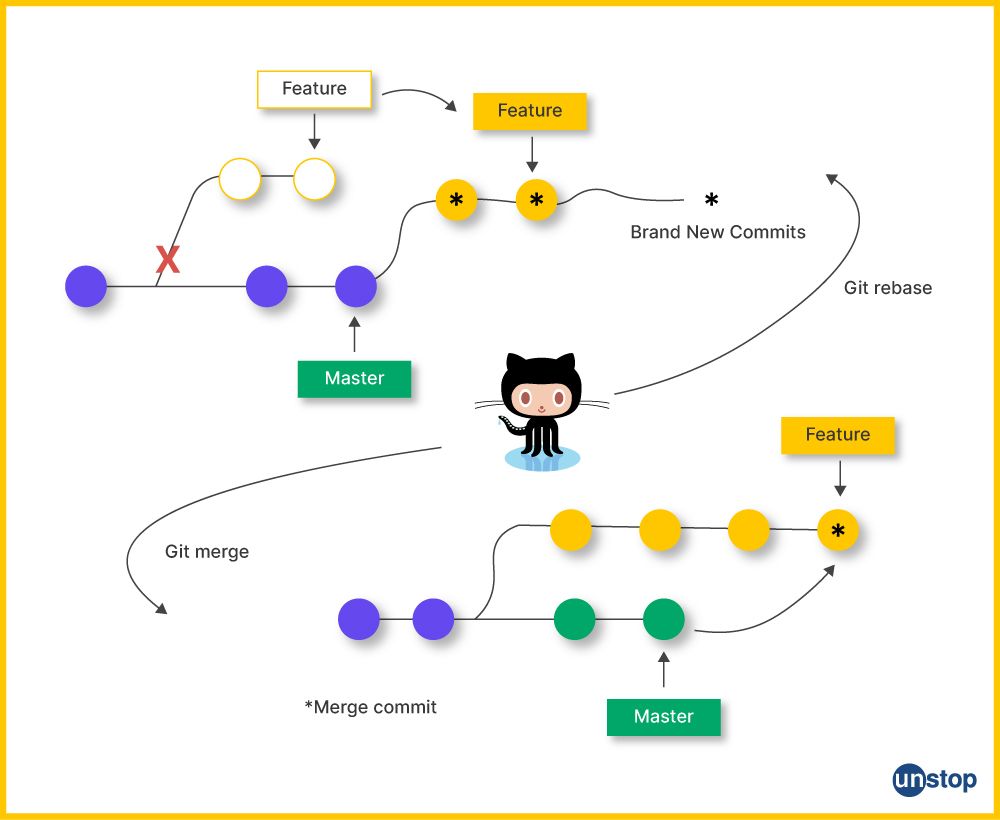
Conflicts are an inevitable part of collaborative development workflows involving git rebase and merge operations. Recognizing and resolving conflicts efficiently ensures a smooth integration process and maintains code integrity. Proper management of conflicts not only accelerates development but also minimizes the risk of introducing bugs or losing important changes.
Understanding how conflicts are detected and the most effective strategies to resolve them can significantly improve your version control practices. This section provides detailed insights into conflict detection during rebase and merge, methods for resolving conflicts effectively, tips for avoiding common pitfalls, and a comparative overview of conflict resolution approaches.
Conflict detection during rebase and merge operations
Git automatically detects conflicts when changes in different branches cannot be reconciled automatically. During rebase or merge, git compares the common ancestors of the branches involved and identifies conflicting files and code segments. Conflicts are flagged when git encounters incompatible changes to the same lines of code or overlapping modifications in the same file.
In a rebase operation, conflicts typically arise when the commits being replayed modify code that has also been altered in the target branch since the branch point. Similarly, during merge, conflicts occur when two branches have diverged with conflicting changes that cannot be merged automatically.
Git indicates conflicts with special markers within affected files, showing the conflicting sections between <<<<<<< and >>>>>>> . These markers help developers pinpoint the exact location and nature of the conflicts for manual resolution.
Methods to resolve conflicts effectively using strategies
Resolving conflicts requires a systematic approach to ensure code correctness and maintain project consistency. Several strategies can be employed to resolve conflicts effectively:
- Manual resolution: Carefully review the conflict markers in the affected files, understand the intent of each change, and decide which version to keep, or integrate both changes logically.
- Using visual diff tools: Leverage graphical diff and merge tools such as GitKraken, Sourcetree, or built-in IDE tools to visualize differences and resolve conflicts more intuitively.
- Applying the 'ours' and 'theirs' strategies: During rebase or merge, you can choose to favor your branch's changes ('ours') or the incoming branch's changes ('theirs') by using specific git options or commands.
- Testing after resolution: After resolving conflicts, compile and test the code thoroughly to confirm that the resolution maintains functionality and stability.
It is crucial to communicate with team members when resolving conflicts that impact shared code areas, ensuring that everyone’s changes are considered and preserved appropriately.
Tips for avoiding common pitfalls during conflict resolution
Conflict resolution can be complex, and missteps may lead to broken features or lost work. The following tips help mitigate common issues:
- Always backup your work before resolving conflicts: Creating a temporary branch or stashing changes prevents data loss if conflicts are mishandled.
- Understand the context of changes: Review commit history and related documentation to understand why particular modifications were made, aiding more accurate resolution.
- Use conflict-resolution tools: Rely on visual merge tools for complex conflicts, which reduce manual errors and improve clarity during resolution.
- Test thoroughly after conflict resolution: Run tests, compile code, and perform manual checks to ensure that the conflict resolution did not introduce bugs.
- Communicate with team members: Clarify how conflicts have been resolved, especially when multiple developers work on overlapping code sections.
- Update local branches regularly: Frequent rebasing or merging from the main branch minimizes large, complex conflicts by keeping branches synchronized.
Comparison table of conflict resolution approaches for rebase and merge
| Aspect | Rebase Conflict Resolution | Merge Conflict Resolution |
|---|---|---|
| Conflict Detection | Identifies conflicts during the replay of commits, with conflicts flagged at each commit step. | Identifies conflicts at the point of merge, during the combination of branch histories. |
| Conflict Markers | Appears within individual commits being rebased, with conflict markers in affected files. | Appears in the merge commit, with conflict markers in affected files. |
| Resolution Approach | Resolve conflicts commit-by-commit during rebase, often requiring multiple manual interventions. | Resolve all conflicts at once during merge, which may involve resolving conflicts across multiple files collectively. |
| Strategy Options | Use strategies like --ours, --theirs, or manual editing for each conflict. |
Use options like --ours, --theirs, or manual resolution; also possible to abort or defer conflict resolution. |
| Complexity | Potentially more complex if multiple commits have conflicts; requires resolving conflicts sequentially. | Typically simpler for resolving all conflicts at once but may affect multiple files and features. |
| Impact on Commit History | Rebase rewrites history, so conflicts are resolved in the context of individual commits, resulting in linear history. | Merge preserves branch history, with conflicts resolved at the merge commit level, preserving branch divergence. |
Best practices for maintaining project history
Maintaining a clear and comprehensible project history is essential for effective collaboration, debugging, and future reference. A well-structured commit history allows team members to understand the evolution of the project, identify the origins of bugs, and track feature developments efficiently. Implementing best practices ensures that the version control log remains a valuable asset rather than a chaotic record of unorganized changes.A disciplined approach to managing your commit history minimizes confusion, promotes easier code reviews, and enhances overall project health.
This involves strategic use of git operations, thoughtful commit messages, and clear documentation of significant changes. When combined with proper workflow practices, these strategies enable teams to sustain a clean, meaningful, and accessible project history that benefits all contributors.
Strategies for keeping a clean and understandable commit history
A clean commit history simplifies project review and enhances collaboration. To achieve this, developers should adopt specific strategies that promote clarity and consistency in their commits. These include:
- Writing concise, descriptive commit messages that clearly summarize the purpose of each change, enabling quick understanding without needing to review the entire code diff.
- Breaking down large, multifaceted changes into smaller, logically grouped commits that focus on a single purpose or feature, which makes reverting or isolating specific changes easier.
- Using feature branches for development, thus isolating new features or fixes from the main branch until they are thoroughly reviewed and ready to merge.
- Squashing multiple related commits into a single, meaningful commit before merging into the main branch, reducing noise and making history more straightforward.
- Consistently following a branching model such as Git Flow or GitHub Flow to organize development efforts systematically.
Implications of rebasing published branches
Rebasing a branch rewrites its history by applying commits onto a new base, resulting in a linear and clean project history. However, rebasing published branches — branches that others have already based work upon or pulled — can lead to significant difficulties. When a branch that has been shared publicly is rebased, it invalidates the existing commit history, causing conflicts and confusion for collaborators who have already synchronized their local copies.Rebasing published branches can complicate collaboration because it forces team members to perform manual conflict resolution and potentially reapply their work on top of the rewritten history.
This can increase the risk of errors and reduce productivity, especially in large teams or projects with frequent updates. Therefore, it is advisable to avoid rebasing branches after they are shared unless all contributors are aware of the changes and coordinated accordingly.
Recommendations for documenting rebase and merge activities within commits
Documenting rebase and merge activities within commit messages is crucial for maintaining transparency and traceability in the project history. Clear documentation helps team members understand the context of changes, especially when history has been rewritten or complex merges have occurred. Best practices include:
- Including detailed notes about the purpose of a rebase or merge within the commit message, such as referencing related issue numbers or explaining the rationale behind rewriting history.
- Utilizing commit message templates that prompt developers to specify whether a commit involved rebasing or merging, along with relevant details.
- Adding explicit comments or tags within commits that indicate significant history rewriting activities, making it easier to identify when and why such actions took place during audits or reviews.
- Maintaining a changelog or an internal documentation file that records major rebases, merges, or history rewrites, providing an overview beyond individual commit messages.
Do’s and Don’ts of rewriting history
Rewriting history can be a powerful tool to keep the project tidy, but it must be used judiciously. Here are essential do’s and don’ts to follow:
Do’s:
- Rebase or squash commits before merging feature branches into the main branch, ensuring a clean history.
- Coordinate with team members before rewriting shared history to prevent conflicts and data loss.
- Use descriptive commit messages that clearly explain the purpose of each change, especially after history rewriting.
- Maintain backups or tags of the original state before performing destructive operations like rebase or history rewrite.
Don’ts:
- Rebase or rewrite history on branches that are actively shared or used by others without proper coordination.
- Delete or alter commits that contain critical information without documenting the reasons for such actions.
- Ignore conflicts during rebasing; always resolve conflicts carefully and verify the integrity of the history afterward.
- Overuse history rewriting as a general practice; reserve it for cleaning up local commits or preparing for final merges, not for daily development workflows.
Visualizing Rebase and Merge Processes
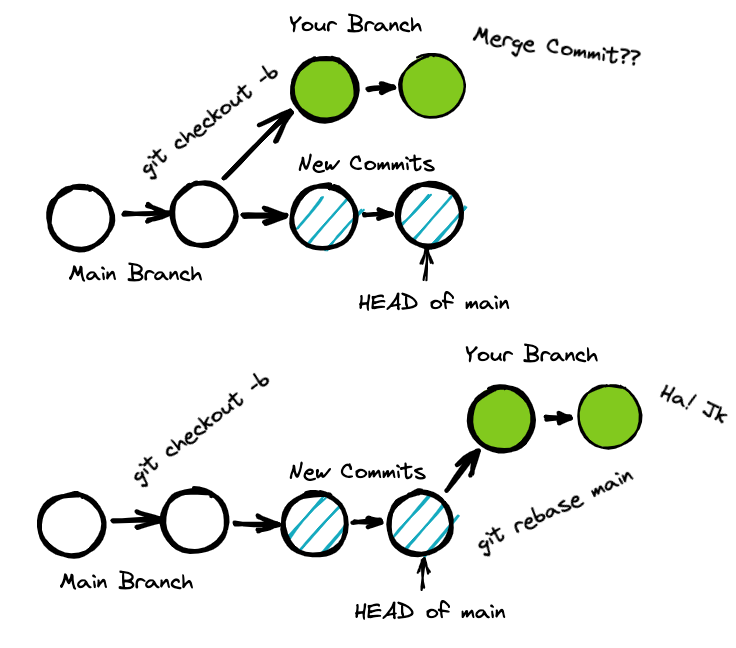
Understanding the intricacies of rebase and merge workflows is greatly enhanced through visual representations of branch history. Visualizing these processes allows developers to grasp how commits are integrated, how history evolves, and how conflicts are resolved. This insight is crucial for maintaining a clear and understandable project timeline, especially in collaborative environments where multiple contributors are involved.Effective visualization tools help in interpreting complex branch structures and tracking changes over time.
By examining commit graphs and diagrams, developers can identify the flow of changes, distinguish between linear and non-linear histories, and better plan their integration strategies. Visual aids also facilitate the communication of workflows during code reviews or team discussions, ensuring everyone shares a common understanding of the project's evolution.
Techniques for Visualizing Branch History with Line Tools
Line tools such as `git log` with specific options are instrumental in creating clear and informative visualizations of branch histories directly from the terminal. These tools help in representing commit relationships and are especially useful when graphical interfaces are unavailable.To effectively visualize branch history, use the following command:
git log --graph --oneline --decorate --all
This command displays a commit graph with a simplified, one-line representation of each commit, along with branch and tag decorations, across all branches. The use of `--graph` produces an ASCII art structure that illustrates the branching and merging points, making it easier to comprehend the flow of changes.Additional options such as `--color` enhance readability by color-coding different branches and commit types.
Customizing the output with formats like `--pretty=format:"%h %s [%an]"` allows tailoring the display to specific informational needs, such as author or commit message.
Creating Diagrams Illustrating Rebase and Merge Workflows
Diagrams serve as powerful visual tools to depict how rebase and merge operations alter branch history. They illustrate the chronological sequence of commits, branching points, and merge or rebase actions, providing a clear overview of the workflow.When creating such diagrams, start by plotting the initial branch structure, showing commits as nodes along a timeline. For merges, depict the merging branch as joining the mainline with a connecting node that indicates the merge commit.
For rebases, illustrate the linearization of commits where the feature branch commits are replayed on top of the target branch.Using diagramming software like draw.io, Lucidchart, or even simple pen-and-paper sketches can help in visualizing these workflows. Highlight the differences between a merge commit—where two histories combine—and a rebase, where commits are reordered to create a straight line. Annotate each step to clarify the operation and its impact on the history structure.
Tips for Interpreting Commit Graphs during Rebase and Merge
Accurate interpretation of commit graphs is essential for understanding the history and evolution of a project. When analyzing graphs, focus on these key aspects:
Branch structure
Identify diverging lines representing feature branches or parallel developments.
Merge points
Look for nodes with multiple parent commits indicating a merge operation; these often create non-linear histories.
Rebase effects
Observe linear sequences of commits that have been replayed, often indicated by a straight line with fewer merge nodes.
Commit relationships
Trace parent-child relationships to understand how changes propagate through the history.Recognizing these elements helps in diagnosing issues, understanding the context of changes, and planning future integrations effectively. For example, a commit graph with many merge commits may indicate a complex history that could benefit from rebasing to simplify.
Generating Detailed Textual Explanations of Branch History
Textual descriptions of branch history complement visualizations by providing detailed context about the sequence and significance of commits. They are particularly useful for documentation or when sharing insights with team members who prefer textual formats.A detailed explanation should include:
- The starting point of the branch and its base commit.
- Key commits introduced during the development process, specifying their messages and authors.
- Major branch points, including where feature branches diverged.
- The operations performed, such as merges or rebases, and their impact on history.
- The current state of the branch, highlighting the most recent commits.
For example:"The feature branch was created from the main branch at commit abc
123. It contains three commits
implementing new login functionality, fixing bugs, and updating documentation. On March 15, a merge was performed to incorporate changes from the develop branch, resulting in a merge commit that combines the histories. Later, a rebase was applied to linearize the feature branch before submitting a pull request, replaying the commits on top of the latest main branch tip. The final history shows a clean linear sequence of all feature commits, facilitating easier review and future integrations."This detailed narrative provides clarity and context, allowing stakeholders to understand the evolution of the project with confidence.
Final Conclusion
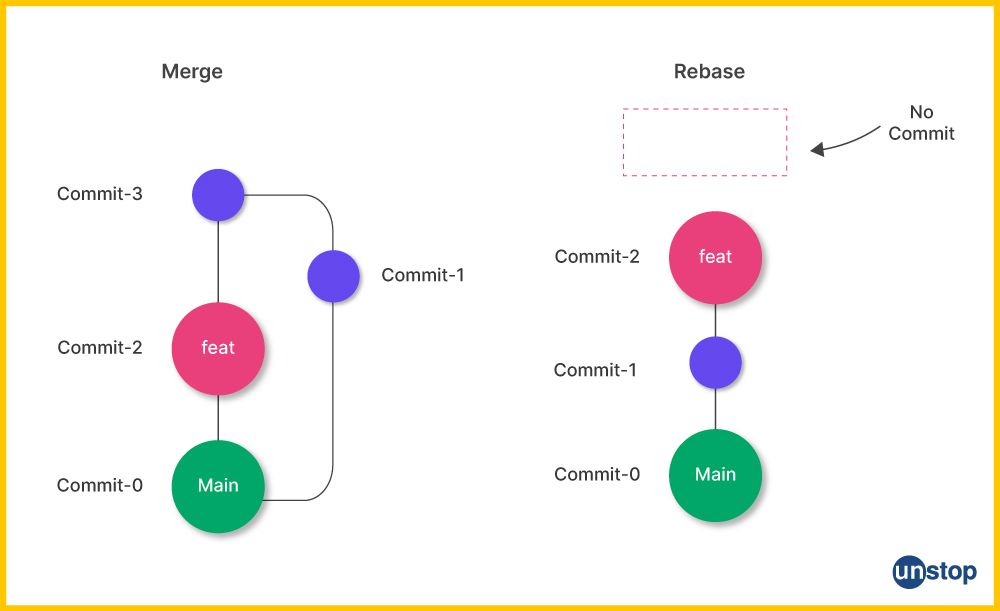
By mastering the correct usage of git rebase and merge, you can significantly improve your collaboration and version control management. Incorporating these techniques thoughtfully ensures a cleaner project history, reduces conflicts, and streamlines your development workflow. Applying best practices and understanding their differences will empower you to handle complex scenarios with confidence and precision.