Deploying a React application to Firebase Hosting offers a streamlined and efficient way to launch your project on the web with reliable performance and scalable infrastructure. This process combines the power of React’s dynamic frontend capabilities with Firebase’s user-friendly hosting platform, making it an ideal choice for developers seeking a straightforward deployment solution.
In this guide, we will walk you through each step—from preparing your React app for production, setting up a Firebase account, configuring the necessary tools, to deploying and managing your application effectively. Additionally, we will explore Firebase’s advanced features to optimize your deployment and ensure your app remains secure and up-to-date.
Overview of deploying React applications to Firebase Hosting
Deploying React applications to Firebase Hosting offers developers a streamlined and efficient way to serve their web apps with minimal configuration. Firebase Hosting provides a fast, secure, and scalable platform that simplifies the process of publishing React projects to the web, making it an attractive choice for both small projects and enterprise-level applications.
Understanding the significance of deploying React apps on Firebase Hosting involves recognizing how it enhances deployment workflows, improves user experience through rapid content delivery, and integrates seamlessly with other Firebase services such as authentication, database, and cloud functions. This integration allows developers to build comprehensive, full-stack applications with ease while maintaining the flexibility to scale applications as user demand grows.
Benefits of Firebase Hosting for React Projects
Firebase Hosting offers numerous advantages that make it a popular choice for deploying React applications:
- Speed and Performance: Firebase uses a global Content Delivery Network (CDN) that ensures fast load times regardless of the user’s geographic location.
- Ease of Deployment: With simple CLI commands, developers can deploy updates swiftly, reducing development cycles and enabling continuous deployment practices.
- Secure Hosting: Firebase provides free SSL certificates for custom domains, ensuring data security and user trust.
- Integration Capabilities: Seamless integration with Firebase Authentication, Firestore, Realtime Database, and Cloud Functions facilitates building complex applications without managing separate hosting solutions.
- Free Tier and Scalability: Firebase Hosting offers a generous free tier suitable for small to medium projects, with the ability to scale seamlessly as traffic increases.
Limitations of Firebase Hosting for React Projects
While Firebase Hosting presents many benefits, it also has limitations that developers need to consider:
- Cost at Scale: Although the free tier is adequate for initial development and small projects, high traffic or large data transfers can incur significant costs.
- Limited Server-Side Processing: Firebase Hosting primarily serves static content. For server-side rendering or complex backend processing, additional Firebase services or alternative hosting solutions are necessary.
- Custom Backend Constraints: Integrating custom backend environments may require additional setup, such as deploying Cloud Functions or external servers.
- Configuration Complexity for Advanced Needs: Complex routing, rewrites, and redirects may necessitate detailed configuration and understanding of Firebase’s hosting rules.
Comparison of Firebase Hosting with Other Hosting Options
Choosing the right hosting platform depends on project requirements, budget, and technical preferences. The following table provides a comparison of Firebase Hosting with other common hosting services.
| Feature / Platform | Firebase Hosting | Netlify | Vercel | Traditional Web Hosting (e.g., shared hosting) |
|---|---|---|---|---|
| Ease of Use | High; CLI and integrations streamline deployment | High; intuitive UI and CLI support | High; developer-friendly workflows | Variable; depends on provider and configuration |
| Performance | Global CDN ensures fast content delivery | Global CDN with edge nodes | Global CDN with edge network | Depends on hosting provider and server location |
| Pricing | Free tier available; pay-as-you-go for scale | Free tier with generous limits; paid plans for scaling | Free tier; paid plans for enterprise features | Typically shared hosting plans; limited free options |
| Backend Support | Static content with integrations; serverless via Cloud Functions | Serverless functions, API integrations | Serverless functions, API support | Requires separate backend hosting or server setup |
| Custom Domain & SSL | Yes, free SSL with custom domains | Yes, free SSL with custom domains | Yes, free SSL and custom domains | Varies; often paid options |
| Limitations | Primarily static; backend logic via Cloud Functions needed | Less suitable for very large or complex apps | Primarily static or serverless; backend complexity may increase | Limited scalability; manual management required |
Preparing a React App for Deployment
Before deploying a React application to Firebase Hosting, it is essential to prepare the project to ensure optimal performance, proper organization, and a smooth deployment process. This preparation involves building a production-ready version of the app and implementing performance enhancements to deliver a fast and reliable user experience.
Properly preparing a React app minimizes potential issues during deployment and enhances the overall efficiency of the hosting environment. It also ensures that the application is optimized for various devices and network conditions, providing users with a seamless interface.
Building a Production-Ready React Application
Creating a production build of a React app involves transforming the development environment into an optimized, minified, and ready-to-deploy version. This process leverages built-in commands provided by package managers such as npm or yarn to generate static files that are suitable for hosting.
- Use the build command specific to your package manager:
- For npm:
npm run build
- For yarn:
yarn build
- For npm:
- The build process generates a
builddirectory containing static assets, including HTML, CSS, JavaScript, and media files, all optimized for performance. - This directory should be used as the deployment source for Firebase Hosting, ensuring that the application loads quickly and efficiently.
Optimizing React Application Performance
Enhancing the performance of a React application prior to deployment involves several strategies to reduce load times, improve responsiveness, and minimize resource consumption. These optimizations contribute to a better user experience and can positively impact search engine rankings.
- Minimize bundle size by enabling code splitting and lazy loading of components to load only the necessary parts of the application initially.
- Use production mode builds, which automatically enable React’s production optimizations, such as skipping development warnings and extra checks.
- Compress static assets using tools like Gzip or Brotli to reduce file sizes during transfer over the network.
- Implement caching strategies by setting appropriate HTTP headers, allowing browsers to cache static assets effectively and reducing subsequent load times.
- Optimize images by compressing them without significant quality loss, using formats like WebP when appropriate.
- Remove unused dependencies and code to streamline the final bundle size and improve loading speed.
Organizing Project Files for Deployment
An organized project structure facilitates easier deployment, maintenance, and scalability of your React application. Proper organization ensures that the static files are correctly prepared for hosting on Firebase and that the deployment process is efficient.
| Step | Description | Source | Notes |
|---|---|---|---|
| 1. Run build command | Generate an optimized production build by executing npm run build or yarn build. |
Project root directory | Ensures static assets are prepared for deployment |
| 2. Locate build directory | Identify the build folder created after the build process, containing all static files. |
Project root directory | This folder will be used as the source for Firebase Hosting |
| 3. Verify static assets | Check the contents of the build directory for correctness and completeness, including HTML, CSS, JS, and media files. |
build | Ensure all necessary files are present and optimized |
| 4. Configure Firebase project | Initialize Firebase in your project by running firebase init and selecting hosting options. |
Project directory | Specify the build folder as the public directory during setup |
| 5. Deploy static files | Use firebase deploy to upload the static files to Firebase Hosting. |
Project directory with Firebase configured | Verify the deployment through Firebase Console or hosting URL |
Setting up Firebase account and project

Establishing a Firebase account and creating a dedicated project is a fundamental step in deploying a React application to Firebase Hosting. This process ensures that your app is linked to a secure, manageable environment within the Firebase platform, enabling seamless deployment and efficient management of your hosting resources. Proper configuration at this stage lays the groundwork for smooth integration with Firebase services and simplifies future updates or scaling efforts.
In this section, we will explore the steps involved in creating a Firebase account, initializing a new project, and configuring essential project settings to optimize your React app deployment. Additionally, we will Artikel the prerequisites and initial setup procedures for the Firebase CLI to streamline your workflow and ensure a successful setup process.
Creating a Firebase account and initializing a new project
To begin, you need to establish a Firebase account by signing into the Google account you wish to associate with Firebase services. Once logged in, navigate to the Firebase Console where you can create a new project. This project acts as the container for your app’s hosting, database, authentication, and other Firebase services.
Follow these steps for a smooth setup:
- Access the Firebase Console and sign in with your Google account.
- Click on the “Add project” button to start creating a new project.
- Provide a descriptive project name that reflects your React app’s purpose, such as “MyReactApp.”
- Configure or select the associated Google Analytics account as needed, then click “Create.”
- Once the project is initialized, you will be directed to the project dashboard, where you can access hosting and other Firebase services.
Configuring Firebase project settings for hosting
After creating your Firebase project, configuring its settings for hosting is crucial to ensure optimal deployment and security. The primary configuration involves setting up the hosting parameters and enabling features such as custom domains, SSL certificates, and rewrite rules to manage your React app’s routing effectively.
Key configuration steps include:
- Navigate to the Firebase Console and select your project.
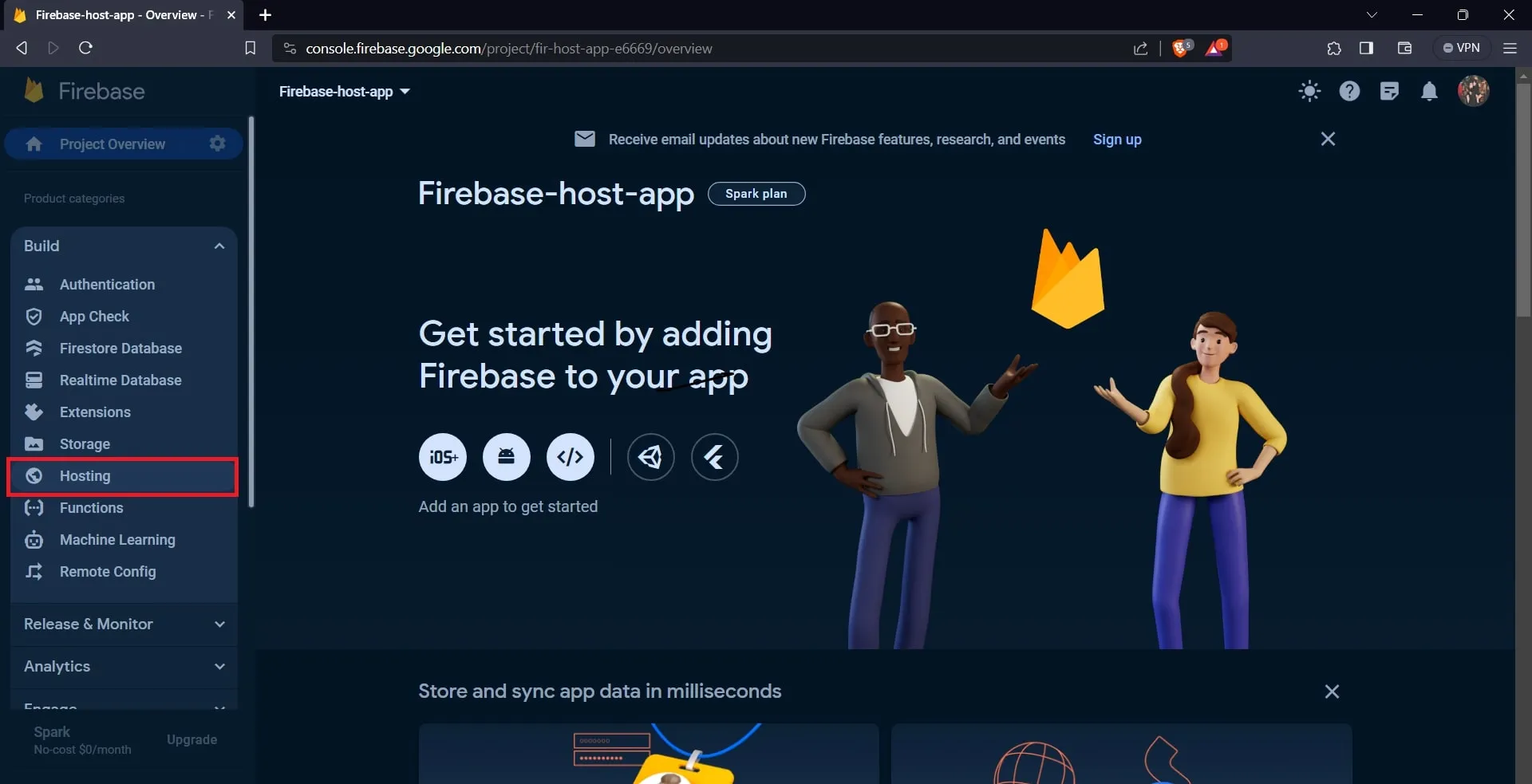
- Click on the “Hosting” tab in the left sidebar to access hosting settings.
- Click “Get Started” if you haven’t set up hosting before, and follow the prompts to initialize hosting in your project.
- Configure the public directory, typically as “build” for React apps, which contains the production-ready files after building.
- Enable “Single Page Application” routing by setting “rewrite all URLs to /index.html” to support client-side routing.
- Set up custom domains if you plan to use a custom URL, following the prompts for domain verification and SSL certificate provisioning.
“Proper configuration of Firebase hosting settings ensures your React application is served efficiently, securely, and with optimal routing capabilities.”
Prerequisites and initial setup for Firebase CLI
Before deploying your React app, the Firebase CLI must be installed and configured correctly. The CLI facilitates project initialization, deployment, and management, providing a streamlined command-line interface. Ensuring the prerequisites are met minimizes setup errors and accelerates your deployment process.
Prerequisites include:
- An active Google account linked to your Firebase project.
- Node.js and npm installed on your development machine. It is recommended to use the latest LTS version for compatibility.
- The Firebase CLI installed globally via npm:
npm install -g firebase-tools“Initializing Firebase in your project directory is achieved by running
firebase loginto authenticate andfirebase initto set up hosting and other services.”
During initialization, select “Hosting” from the setup options, link your Firebase project, and specify the public directory (commonly “build” for React apps). After setup, you are ready to deploy your React application seamlessly to Firebase Hosting.
Installing Firebase CLI and Configuring Deployment
Setting up the Firebase CLI is a crucial step in deploying your React application to Firebase Hosting. The CLI provides a suite of commands that streamline the deployment process, automate configuration tasks, and facilitate managing your Firebase projects effectively. Proper installation and configuration ensure a smooth transition from development to deployment, reducing errors and improving workflow efficiency.
In this section, we will explore the step-by-step process to install the Firebase CLI globally on your system, initialize Firebase within your React project, and customize the hosting settings through the firebase.json configuration file. Following these guidelines will prepare your environment for seamless deployment of your React app to Firebase Hosting.
Installing Firebase CLI Globally
Installing the Firebase CLI globally enables you to access it from any directory within your system, simplifying management and deployment workflows. The process varies slightly depending on your operating system, but the core commands remain consistent across platforms. Using npm (Node Package Manager) is the recommended approach, as Firebase CLI is distributed via npm.
To install Firebase CLI globally, ensure that Node.js and npm are already installed on your machine. If not, download and install Node.js from the official website, which includes npm. Once set up, follow these steps:
- Open your terminal or command prompt.
- Run the following command to install Firebase CLI globally:
- After installation completes, verify the installation by checking the version:
npm install -g firebase-tools
firebase –version
If the version number appears without errors, the Firebase CLI is successfully installed and ready for use.
Initializing Firebase within the React Project Directory
Initialization links your React project with your Firebase project, setting up necessary configuration files and preparing your project for deployment. Proper initialization is vital to ensure that your hosting settings, functions, and other Firebase features are correctly configured and integrated.
Navigate to your React project directory in the terminal, then execute the Firebase initialization command with specific flags to streamline the process:
- Change directory to your React project folder:
- Run the initialization command with the –project flag to specify your Firebase project ID and the –hosting flag to set up hosting features:
- Select “Hosting” by pressing spacebar, then Enter to confirm.
- Choose the public directory; for React projects, typically this is “build” after running the build command.
- Opt to configure as a single-page app, which involves rewriting all URLs to index.html, essential for React routing.
- Decide whether to overwrite existing firebase.json file or preserve current settings.
- public: Specifies the directory containing the build files, typically “build” for React apps.
- ignore: Lists files and folders to exclude from hosting deployment.
- rewrites: Routes all requests to index.html, supporting React Router and SPA behavior.
- headers: Sets HTTP headers, such as cache control for static assets to improve load times and reduce server requests.
- Navigate to your project directory where your React app is located.
- Ensure your Firebase project is correctly configured and linked by running:
- Confirm that your firebase.json configuration file points to the correct build directory:
- Run the deployment command:
- Maintain a clean working directory, removing unused dependencies and ensuring that the build process completes without errors.
- Use environment variables to manage sensitive data and configuration settings, especially if deploying to different environments.
- Test your production build locally using a simple server such as
serve -s buildto catch potential issues before deployment. - Configure your firebase.json file accurately, especially for single-page applications, by setting up correct rewrites to handle client-side routing.
- Deploy frequently during development phases to catch issues early, and consider setting up continuous deployment pipelines for larger projects.
- Monitor your app using Firebase Analytics and Performance Monitoring to identify bottlenecks and improve load times.
- Secure your hosting content with HTTPS, and configure custom domains with SSL certificates as needed.
- Backup your configuration files and maintain version control to facilitate rollback if necessary.
- Run
npm run buildto generate an optimized production build of the React application. This ensures all recent code changes are included and that the app is ready for deployment. - Use the Firebase CLI command
firebase deployto upload the new build to Firebase Hosting. This process replaces the previous version with the updated files seamlessly. - Verify the deployment by accessing the live URL, checking that all updates are reflected correctly, and that the application functions as expected.
- Branching: Create dedicated branches (e.g.,
feature/update-feature) for developing new features or fixing bugs. This approach isolates changes and prevents disrupting the main production branch. - Commit Regularly: Commit meaningful changes with descriptive messages. This practice simplifies tracking, debugging, and rollback if necessary.
- Pull Requests and Code Reviews: Use pull requests to review and approve changes before merging into the main branch, ensuring code quality and consistency.
- Tagging Releases: Tag specific commits as release versions (e.g.,
v1.2.0) to facilitate rollbacks and version tracking. - Automated Deployment Pipelines: Integrate CI/CD tools that automatically test and deploy code upon merging to main branches, reducing manual errors and accelerating updates.
cd path/to/your/react-project
firebase init –project your-firebase-project-id –hosting
This command launches an interactive setup wizard, guiding you through choosing Firebase features. When prompted:
Once completed, the CLI creates or updates configuration files such as firebase.json, .firebaserc, and others necessary for deployment.
Editing firebase.json for Hosting Settings
The firebase.json file contains configuration directives that govern how Firebase Hosting serves your application. Modifying this file allows you to customize behaviors such as URL rewrites, error handling, and cache settings, which are vital for optimizing your React app’s performance and functionality.
After initialization, review the firebase.json file to ensure it aligns with your deployment needs. A typical firebase.json for a React app might look like this:
“hosting”: “public”: “build”, “ignore”: [ “firebase.json”, “/.*”, “/node_modules/” ], “rewrites”: [ “source”: “”, “destination”: “/index.html” ], “cleanUrls”: true, “trailingSlash”: false, “headers”: [ “source”: “/static/”, “headers”: [ “key”: “Cache-Control”, “value”: “public,max-age=31536000,immutable” ] ]
In this configuration:
Adjust these settings based on your app’s specific requirements, ensuring optimal performance and correct routing behavior upon deployment.
Deploying React app to Firebase Hosting
Deploying a React application to Firebase Hosting involves a series of well-defined steps that ensure your app is optimized, correctly configured, and accessible to users worldwide. This process not only streamlines the deployment but also leverages Firebase’s reliable hosting infrastructure to deliver your React app efficiently and securely.
In this section, we will explore the essential procedures for building your React app, deploying it to Firebase, common issues encountered during deployment, and effective troubleshooting strategies. Following an organized deployment process guarantees that your application remains resilient, performs well, and provides a seamless user experience.
Building the React App for Deployment
Before deploying, it is crucial to build a production-ready version of your React application. The build process optimizes your code by minifying JavaScript, compressing assets, and generating static files suitable for hosting. This ensures faster load times and improved performance for end-users.
To build your React app, run the following command in your project directory:
npm run build
This command creates a build folder containing static assets such as HTML, CSS, JavaScript, and media files. These files are ready for deployment to Firebase Hosting and are optimized for performance and caching.
Deploying the React App to Firebase Hosting
With the build output prepared, deploying to Firebase is straightforward. The deployment process involves uploading the static files to Firebase’s global CDN, making your app accessible via a custom domain or Firebase-provided URL.
Here are the typical steps involved in deployment:
firebase use –add
“hosting”: “public”: “build”, “ignore”: [“firebase.json”, “/.*”, “/node_modules/”], “rewrites”: [“source”: “”, “destination”: “/index.html”]
firebase deploy
This command uploads your static files and updates your hosting URL with the latest version of your React app.
Common Deployment Errors and Troubleshooting
Deploying React applications to Firebase Hosting can sometimes present issues. Recognizing and resolving common errors ensures a smooth deployment experience. Below are frequent problems and their solutions:
| Error | Possible Cause | Resolution |
|---|---|---|
| Build folder not found or empty | Build process was not run or failed | Run npm run build and verify the build directory exists with static files |
| 404 errors or app not loading | Incorrect firebase.json configuration, especially the “rewrites” rules | Ensure the “rewrites” rule directs all routes to index.html and that the “public” folder matches your build folder |
| Deployment fails with permission errors | Insufficient Firebase project permissions | Verify your Firebase account permissions, or re-authenticate using firebase login |
| Changes not reflecting after deployment | Browser caching or CDN issues | Clear cache or add cache-busting strategies such as version query parameters |
In troubleshooting, always verify your build output, review your firebase.json configuration, and ensure your Firebase CLI is up to date. Running firebase --version helps confirm the CLI version, and updating can be done via npm.
Best Practices for Deployment
Adhering to best practices maximizes the stability, performance, and security of your deployed React app. Below is an ordered list emphasizing recommended steps and considerations:
Following these practices ensures a reliable deployment process, minimizes errors, and enhances your React application’s overall quality in the production environment.
Managing and Updating the Deployed React App
After successfully deploying a React application to Firebase Hosting, ongoing management and updates are essential to keep the app current and functional. This process involves making changes to the source code, testing those changes locally, and then deploying the updated version to Firebase. Proper management ensures that users always access the latest features and fixes, maintaining a seamless experience.
Effective update strategies leverage version control systems and streamlined deployment workflows. These practices help prevent errors, enable quick rollbacks if necessary, and facilitate collaborative development. Understanding how to efficiently manage updates enables developers to maintain high-quality applications with minimal downtime or disruption to end-users.
Updating the React App with New Changes and Redeploying
To update the React app after initial deployment, developers typically start by implementing the desired changes within their local development environment. Once satisfied with the modifications, the following steps are usually taken:
This straightforward process allows developers to keep their deployed applications current with minimal effort and downtime.
Version Control Strategies for Smooth Updates
Implementing effective version control strategies is critical in managing updates efficiently. The most common approach involves using a distributed version control system like Git, which provides multiple benefits:
Adopting these strategies ensures that updates are reliable, traceable, and easily manageable, supporting continuous development and deployment cycles.
Sample Workflow Diagram
Below is a simplified representation of a typical update workflow, which helps illustrate the steps involved from initial change to deployment:
| Step | Action | |
|---|---|---|
| 1 | Develop new feature or fix bug in local branch | |
| 2 | Test changes locally to ensure stability | |
| 3 | Commit changes with descriptive message | |
| 4 | Push branch to remote repository | |
| 5 | Create a pull request for review and approval | |
| 6 | Merge approved changes into main branch | |
| 7 | Run build command (npm run build) |
|
| 8 | Deploy updates to Firebase using firebase deploy |
|
| 9 | Verify updates on live site |
This workflow ensures a structured and efficient process for managing updates, minimizing errors, and maintaining application stability during the deployment lifecycle.
Additional Firebase Hosting Features for React Apps

Firebase Hosting offers a suite of advanced features that enhance the deployment, security, and flexibility of React applications. Utilizing these features can significantly improve user experience, streamline redirects, and provide custom branding through domains and SSL certificates. Implementing these options allows developers to tailor their hosting environment to meet specific project requirements, ensuring both performance and security.
In this section, we explore setting up custom domains with SSL certificates, configuring redirects, rewrites, and headers, and provide practical code examples to illustrate these configurations for React applications hosted on Firebase.
Setting Up Custom Domains and SSL Certificates
Custom domains allow React applications to be accessed through user-friendly and branded URLs, such as www.example.com, instead of the default firebaseapp.com address. Firebase simplifies this process by enabling domain verification and automatic SSL certificate provisioning, ensuring secure HTTPS connections without additional configuration. Proper setup of custom domains with SSL certificates guarantees data encryption, builds user trust, and adheres to best practices for modern web applications.
To configure a custom domain, developers need to verify domain ownership through Firebase Console, update DNS records with their domain registrar, and Firebase will handle SSL certificate issuance and renewal automatically. This seamless process leverages Let’s Encrypt certificates, providing security at no extra cost.
Configuring Redirects, Rewrites, and Headers
Redirects, rewrites, and headers are essential for managing how requests are handled within a React app hosted on Firebase. These configurations are especially important for Single Page Applications (SPAs) to ensure smooth navigation and optimization. Firebase’s hosting configuration file, firebase.json, allows developers to define rules for URL rewriting, custom redirects, and headers to control cache policies, security headers, and more.
Properly configured redirects and rewrites can direct all requests to the React application’s entry point ( index.html), enabling React Router to handle client-side routing effectively. Headers can be set to enhance security, such as enabling Content Security Policy (CSP), setting cache control, or restricting access to resources.
Example Configurations
  "hosting":
    "public": "build",
    "ignore": ["firebase.json", "/.*", "/node_modules/"],
    "rewrites": [

        "source": "",
        "destination": "/index.html"

    ],
    "redirects": [

        "source": "/old-page",
        "destination": "/new-page",
        "type": 301

    ],
    "headers": [

        "source": "/",
        "headers": [

            "key": "Content-Security-Policy",
            "value": "default-src 'self'; script-src 'self' 'unsafe-inline'; object-src 'none';"
          ,

            "key": "Strict-Transport-Security",
            "value": "max-age=31536000; includeSubDomains"
          ,

            "key": "Cache-Control",
            "value": "public, max-age=86400"

        ]

    ]
This configuration ensures all requests are routed to React’s index.html for client-side routing, redirects specific URLs, and applies security headers to protect the application and optimize performance.
Best practices and security considerations
Ensuring the security of your React application hosted on Firebase is essential to protect user data, maintain integrity, and prevent malicious attacks. Implementing robust security practices not only safeguards your app but also enhances user trust and compliance with data protection standards. This section explores effective strategies for securing Firebase hosting and your React app, managing sensitive environment variables, and provides a comprehensive security checklist to guide best practices.
Adopting these security measures involves a combination of configuration settings, code management, and adherence to industry standards. Properly securing your deployment environment reduces vulnerabilities, minimizes potential attack vectors, and ensures that your application remains reliable and trustworthy for users.
Strategies for securing Firebase hosting and React applications
Securing Firebase hosting and React apps requires a multi-layered approach. Begin by configuring Firebase security rules to control access to your data and hosting content. Use Authentication and Authorization mechanisms provided by Firebase to restrict access based on user roles or identity, preventing unauthorized usage. Implement HTTPS exclusively to encrypt data in transit, safeguarding it from interception or tampering.
Regularly update dependencies and libraries within your React app to patch known vulnerabilities. Enable Firebase’s built-in security features such as Firebase App Check to verify traffic authenticity and prevent abuse. Consider deploying Web Application Firewalls (WAFs) or CDN services that offer DDoS protection and bot mitigation.
Monitoring logs and setting up alerts for abnormal activities can help detect security breaches early. Integrate Firebase Security Rules with your backend logic to enforce data validation and access control dynamically. Employ Content Security Policy (CSP) headers to prevent cross-site scripting (XSS) attacks, and disable directory listing on your hosting config to avoid exposing sensitive directories.
Managing environment variables and secrets
Environment variables are crucial for storing sensitive information such as API keys, database credentials, and secret tokens used in your React application. Proper management of these variables ensures that sensitive data is not exposed in your codebase or client-side code. Utilize environment-specific files, such as .env.local for local development and environment variables managed through Firebase CLI or CI/CD pipelines for production deployments.
Never hard-code secrets directly into your source code or commit them to version control systems like Git. Use Firebase’s environment configuration commands to securely set and retrieve environment variables, ensuring they are injected during build or deployment processes. Additionally, restrict access to environment configuration to authorized personnel, and regularly rotate secrets to minimize risk in case of exposure.
Implement server-side functions where possible to handle sensitive operations, thereby keeping secrets away from client-side code. When deploying React apps, ensure that only non-sensitive configuration is embedded into the build, and keep secrets on secure servers or services designed for secret management.
Security checklist for Firebase hosting and React apps
Use the following security checklist to systematically verify that all critical security aspects are addressed in your deployment:
| Item | Description | Implementation |
|---|---|---|
| HTTPS Enforcement | Ensure all traffic is encrypted using HTTPS to prevent data interception and man-in-the-middle attacks. | Configure Firebase Hosting to redirect all HTTP traffic to HTTPS and use SSL certificates. |
| Security Rules Configuration | Define precise Firebase Security Rules to control access to data based on user authentication and roles. | Use Firebase Console or CLI to set rules that restrict read/write access appropriately. |
| Authentication & Authorization | Implement Firebase Authentication to verify user identities and set access control policies. | Enable sign-in methods such as email/password, OAuth providers, and enforce role-based permissions. |
| Environment Variable Management | Store secrets securely outside of client-side code, avoiding exposure in version control. | Use Firebase environment configuration commands and CI/CD pipelines for secret management. |
| Content Security Policy (CSP) | Prevent cross-site scripting (XSS) and data injection attacks by restricting resource sources. | Configure CSP headers in your hosting configuration to whitelist trusted domains and scripts. |
| Regular Dependency Updates | Keep libraries and dependencies up to date to patch known vulnerabilities. | Use tools like npm audit and dependabot to monitor and update dependencies regularly. |
| Monitoring & Logging | Detect and respond to suspicious activities by monitoring logs and setting alerts. | Enable Firebase Analytics, Crashlytics, and review hosting logs regularly for anomalies. |
| Backup & Recovery | Maintain regular backups of critical data and hosting configurations to facilitate recovery. | Use Firebase’s backup features or external solutions to store backups securely. |
| Disable Directory Listing | Prevent exposure of directory structures that could aid malicious actors. | Configure hosting.json to disable directory browsing. |
| Implement Rate Limiting | Prevent abuse and brute-force attacks by limiting request rates. | Use Firebase Hosting with Cloudflare or similar services to enforce rate limits. |
Final Thoughts

Successfully deploying your React app to Firebase Hosting not only simplifies the deployment process but also provides a solid foundation for future updates and scalability. By following these structured steps and best practices, you can ensure a smooth deployment experience that enhances your application’s performance and security, empowering you to focus on developing great features.